Electron 快速入门 2:常用配置项
项目名称和应用图标更换
在 Electron 项目中更换项目名称 和应用图标,需分「基础配置(开发环境生效)」和「打包配置(生产环境生效)」两步操作,且需适配 Windows/macOS/Linux 不同平台的图标格式要求。以下是详细流程:
一、更换项目名称(应用名称)
项目名称会影响「窗口标题」「应用安装目录名」「任务栏/ dock 显示名」,需修改 3 处核心配置:
1. 1 修改 package.json 核心字段
打开项目根目录的 package.json,调整以下字段(优先级:productName > name,打包工具优先读取 productName):
json
{
  "name": "old-app-name",       // 旧名称(可保留,仅作为 npm 包名)
  "productName": "NewAppName",  // 新应用名称(打包后显示的名称,必填)
  "description": "新应用的描述", // 可选:同步更新描述
  "version": "1.0.0"
}
1.2 修改窗口标题(开发环境实时生效)
方式 1:通过 BrowserWindow 配置(主进程 main.js)
创建窗口时设置 title 字段,直接控制窗口标题栏显示:
javascript
const { BrowserWindow } = require('electron');
let win = new BrowserWindow({
  width: 800,
  height: 600,
  title: "NewAppName" // 新窗口标题(与 productName 保持一致)
});
方式 2:修改 HTML 页面标题(兜底)
在加载的 index.html 中同步更新 <title> 标签,避免窗口标题加载延迟:
html
<!DOCTYPE html>
<html>
<head>
  <meta charset="UTF-8">
  <title>NewAppName</title> <!-- 与主进程配置一致 -->
</head>
<body>
  <!-- 页面内容 -->
</body>
</html>
1.3 打包配置同步(生产环境生效)
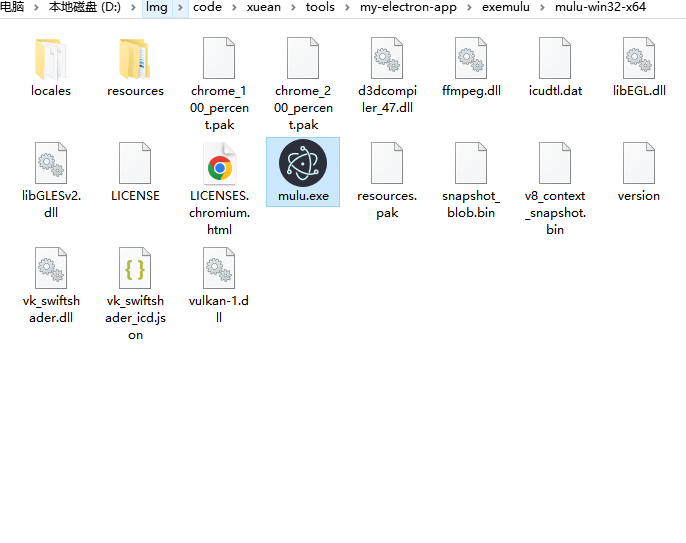
示例
exemulu 是指会创新一个新的文件夹 叫 exemulu
. mulu 是打包这个exe的名字和 目录名字
bash
$ electron-packager . mulu --win --out exemulu --arch=x64 --electron-version 34.0.0 --overwrite --ignore=node_modules如图
二、更换应用图标(适配多平台)
不同平台对图标格式和尺寸要求不同,需提前准备对应格式的图标文件,建议放在项目根目录的 icons 文件夹中(自行创建)。
2.1 准备多平台图标文件
| 平台 | 图标格式 | 推荐尺寸(含多个尺寸,避免模糊) | 说明 |
|---|---|---|---|
| Windows | .ico |
16x16、32x32、64x64、128x128、256x256 | 需包含多尺寸,否则高分辨率屏幕会模糊 |
| macOS | .icns |
16x16、32x32、64x64、128x128、256x256、512x512、1024x1024 | 可通过 PNG 批量转换生成,需包含 Retina 尺寸 |
| Linux | .png |
16x16、32x32、48x48、64x64、128x128、256x256 | 不同桌面环境(GNOME/KDE)通用 PNG 格式 |
图标制作工具推荐:
- 在线转换:Convertio(PNG 转 ICO/ICNS)、ICNS Maker(专门生成 macOS ICNS);
- 本地工具:Photoshop(手动导出多尺寸)、IconWorkshop(专业图标制作)。
图标文件目录结构示例:
your-electron-app/
├─ icons/
│  ├─ win-icon.ico       # Windows 图标
│  ├─ mac-icon.icns      # macOS 图标
│  └─ linux-icon/        # Linux 图标(按尺寸分文件夹)
│     ├─ 16x16.png
│     ├─ 32x32.png
│     └─ ...
├─ main.js
└─ package.json
2.2 配置开发环境图标(窗口图标)
在主进程 main.js 中,通过 icon 字段设置窗口图标(开发环境启动后即可看到效果):
javascript
const { BrowserWindow } = require('electron');
const path = require('path');

let win = new BrowserWindow({
  width: 800,
  height: 600,
  title: "NewAppName",
  // 配置窗口图标(根据系统自动适配,或手动判断)
  icon: path.join(__dirname, 'icons', process.platform === 'win32' ? 'win-icon.ico' : 'mac-icon.icns')
});- 说明:
process.platform会自动识别系统(win32=Windows,darwin=macOS,linux=Linux),确保加载对应格式的图标。
2.3 配置打包环境图标(生产环境生效)
需在打包工具中指定图标路径,确保生成的安装包/绿色版应用显示新图标。以下分两种主流工具说明:
方式 1:使用 electron-builder(推荐,配置集中)
在 package.json 中添加 build 字段,统一配置多平台图标:
json
{
  "build": {
    "appId": "com.yourcompany.newappname", // 应用唯一标识(自定义)
    "productName": "NewAppName",           // 与上文一致
    "icon": {
      "win": "icons/win-icon.ico",         // Windows 图标路径
      "mac": "icons/mac-icon.icns",        // macOS 图标路径
      "linux": "icons/linux-icon/64x64.png"// Linux 图标路径(选一个主流尺寸)
    },
    // 其他打包配置(如平台、架构)
    "win": {
      "target": "nsis" // Windows 安装包格式(nsis=安装程序,portable=绿色版)
    },
    "mac": {
      "target": "dmg"  // macOS 安装包格式
    },
    "linux": {
      "target": "deb"  // Linux 安装包格式(deb/rpm)
    }
  }
}
配置完成后,执行打包命令即可:
bash
npm run dist # 前提是 scripts 中配置了 "dist": "electron-builder"方式 2:使用 electron-packager(命令行参数)
在打包命令中通过 --icon 选项指定图标路径(需按平台区分):
bash
# Windows 打包(指定 ico 图标)
electron-packager . NewAppName --win --arch=x64 --icon=icons/win-icon.ico --overwrite

# macOS 打包(指定 icns 图标)
electron-packager . NewAppName --mac --arch=x64 --icon=icons/mac-icon.icns --overwrite

# Linux 打包(指定 png 图标)
electron-packager . NewAppName --linux --arch=x64 --icon=icons/linux-icon/64x64.png --overwrite
三、验证效果
- 开发环境验证 :执行
npm run start,查看窗口标题和任务栏/ dock 图标是否更新; - 生产环境验证:执行打包命令生成安装包,安装后检查「应用名称」「桌面图标」「窗口图标」是否一致。
四、常见问题排查
-
图标不生效?
- 检查路径:确保
icon配置的路径是相对项目根目录的正确路径(可使用path.join(__dirname, 'icons/xxx')绝对路径避免错误); - 格式问题:Windows 必须用
.ico,macOS 必须用.icns,格式错误会导致图标空白; - 缓存问题:打包前删除旧的打包目录(如
dist/out),避免缓存干扰。
- 检查路径:确保
-
图标模糊?
- 尺寸不全:确保图标包含多尺寸(如 Windows ico 至少包含 32x32、64x64、128x128);
- 分辨率适配:macOS 需包含 512x512、1024x1024 尺寸,适配 Retina 屏幕。
-
应用名称不一致?
- 同步检查
package.json的productName、main.js的title、HTML 的<title>三个地方是否统一。
- 同步检查
通过以上步骤,即可完成 Electron 项目的名称和图标更换,且确保在开发和生产环境、不同平台下都能正常显示。
打包执行可能会碰到 超时跟换镜像源
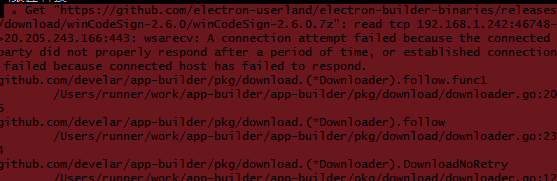
bash
set ELECTRON_BUILDER_BINARIES_MIRROR=https://npmmirror.com/mirrors/electron-builder-binaries/完整示例
bash
# 打包命令
npm run dist
# 测试启动
npm run start
完整main.js 代码
js
const { app, BrowserWindow } = require("electron");
const path = require("path");
const url = require("url");

// Keep a global reference of the window object, if you don't, the window will
// be closed automatically when the JavaScript object is garbage collected.
let win;

function createWindow() {

// const primaryDisplay = screen.getPrimaryDisplay();
//   const { width: screenWidth, height: screenHeight } = primaryDisplay.workAreaSize;

//   // 2. 定义窗口占屏幕的比例(可根据需求调整)
//   const widthRatio = 0.7; // 窗口宽度 = 屏幕宽度 * 70%
//   const heightRatio = 0.6; // 窗口高度 = 屏幕高度 * 60%

//   // 3. 按比例计算窗口宽高(取整数)
//   const windowWidth = Math.floor(screenWidth * widthRatio);
//   const windowHeight = Math.floor(screenHeight * heightRatio);

  // Create the browser window.
  win = new BrowserWindow({
        // width: windowWidth,
        // height: windowHeight,
        width: 700,
        height: 700,
        minWidth: 600,
        minHeight: 400,
        title: "ceshi",
        icon: path.join(__dirname, 'icons', process.platform === 'win32' ? 'win-icon.ico' : 'mac-icon.icns')
    });

  // and load the index.html of the app.
  win.loadURL(
    url.format({
      pathname: path.join(__dirname, "index.html"),
      protocol: "file:",
      slashes: true,
    })
  );

  // Open the DevTools.
  // win.webContents.openDevTools()

  // Emitted when the window is closed.
  win.on("closed", () => {
    // Dereference the window object, usually you would store windows
    // in an array if your app supports multi windows, this is the time
    // when you should delete the corresponding element.
    win = null;
  });
}

// This method will be called when Electron has finished
// initialization and is ready to create browser windows.
// Some APIs can only be used after this event occurs.
app.on("ready", createWindow);

// Quit when all windows are closed.
app.on("window-all-closed", () => {
  // On macOS it is common for applications and their menu bar
  // to stay active until the user quits explicitly with Cmd + Q
  if (process.platform !== "darwin") {
    app.quit();
  }
});

app.on("activate", () => {
  // On macOS it's common to re-create a window in the app when the
  // dock icon is clicked and there are no other windows open.
  if (win === null) {
    createWindow();
  }
});

// In this file you can include the rest of your app's specific main process
// code. You can also put them in separate files and require them here.
完整package.json代码
json
{
  "name": "shu",
  "version": "1.0.0",
  "main": "main.js",
  "scripts": {
    "start": "electron .",
    "dist": "electron-builder",
    "test": "echo \"Error: no test specified\" && exit 1"
  },
  "author": "",
  "license": "ISC",
  "description": " Electron 桌面应用",
  "devDependencies": {
    "electron": "^38.2.0",
    "electron-builder": "^26.0.12"
  },
  "build": {
    "asar": true,
    "appId": "com.shujiang.app",
    "productName": "shu",
    "nsis": {
      "allowToChangeInstallationDirectory": true,
      "createDesktopShortcut": "always",
      "shortcutName": "shu",
      "oneClick": false
    },
    "win": {
      "target": "nsis",
      "icon": "icons/win-icon.ico"
    },
    "mac": {
      "target": "dmg",
      "icon": "icons/mac-icon.icns"
    },
    "linux": {
      "target": "deb",
      "icon": "icons/linux-icon/64x64.png"
    }
  }
}