📘 SwiftUI 基础(第四篇)
【求打赏】
🎨 颜色与形状:Color、RoundedRectangle、Circle、LinearGradient 渐变背景
在前面几篇里,我们已经能排版出漂亮的界面。
但如果没有配色和形状修饰,画面会显得单调。
这一篇让你掌握 SwiftUI 的视觉基础:颜色 + 圆角 + 渐变背景 + 形状叠加。
一、Color ------ 背景与主题色
🎯 1️⃣ 系统内置颜色
SwiftUI 自带了很多系统色,支持亮暗模式自动适配:
swift
Color.blue
Color.red
Color.green
Color.orange
Color.gray
Color.primary    // 主要文本色(会随系统模式变)
Color.secondary  // 次要文本色
🎯 2️⃣ 自定义颜色
swift
Color(red: 0.3, green: 0.6, blue: 0.9)   // RGB 范围:0~1
Color(.systemPink)                        // UIKit 系统色也能用
🎯 3️⃣ 设置为背景
swift
Text("带背景色的文字")
    .padding()
    .background(Color.yellow)
💡 如果你想让颜色铺满整个屏幕,可以用:
swift
Color.blue
    .ignoresSafeArea()
二、RoundedRectangle ------ 圆角矩形
这是 SwiftUI 中最常用的形状之一。
swift
RoundedRectangle(cornerRadius: 20)
    .fill(Color.purple)
    .frame(width: 200, height: 100)
.fill()设置填充色
.stroke()设置边框线条
例如:
swift
RoundedRectangle(cornerRadius: 20)
    .stroke(Color.blue, lineWidth: 4)
    .frame(width: 200, height: 100)
三、Circle ------ 圆形与头像容器
圆形可以用于头像、按钮或徽章。
swift
Circle()
    .fill(Color.orange)
    .frame(width: 100, height: 100)
如果想用图片裁剪成圆形头像:
swift
Image("swift-logo")
    .resizable()
    .scaledToFit()
    .frame(width: 120, height: 120)
    .clipShape(Circle())
    .overlay(Circle().stroke(Color.white, lineWidth: 4))
四、LinearGradient ------ 线性渐变
渐变能让界面更现代、更有层次感。
🎨 基本用法:
swift
LinearGradient(
    colors: [.blue, .purple],
    startPoint: .topLeading,
    endPoint: .bottomTrailing
)
.frame(width: 200, height: 100)
.cornerRadius(12)
你可以用
.top、.bottom、.leading、.trailing、.center等控制方向。
🎨 应用于背景:
swift
Text("渐变背景按钮")
    .padding()
    .frame(width: 220)
    .background(
        LinearGradient(colors: [.orange, .pink], startPoint: .leading, endPoint: .trailing)
    )
    .foregroundColor(.white)
    .cornerRadius(12)
五、组合示例 🌈
🎯 目标:制作一张「SwiftUI 学习卡片」
swift
import SwiftUI

struct ContentView: View {
    var body: some View {
        ZStack {
            // 背景渐变
            LinearGradient(
                colors: [.blue, .purple],
                startPoint: .topLeading,
                endPoint: .bottomTrailing
            )
            .ignoresSafeArea()

            VStack(spacing: 24) {

                // 头像
                Image("swift-logo")
                    .resizable()
                    .scaledToFit()
                    .frame(width: 120, height: 120)
                    .clipShape(Circle())
                    .overlay(Circle().stroke(Color.white, lineWidth: 4))
                    .shadow(radius: 10)

                // 标题
                Text("SwiftUI 学习卡片")
                    .font(.title)
                    .fontWeight(.bold)
                    .foregroundColor(.white)

                // 内容区域
                RoundedRectangle(cornerRadius: 20)
                    .fill(Color.white.opacity(0.2))
                    .frame(width: 300, height: 120)
                    .overlay(
                        VStack(spacing: 8) {
                            Text("掌握修饰符、布局、颜色与形状")
                                .foregroundColor(.white)
                            Text("打造你第一个 iOS 应用界面 🚀")
                                .foregroundColor(.white.opacity(0.8))
                                .font(.footnote)
                        }
                    )

                // 渐变按钮
                Button(action: {}) {
                    Text("立即开始学习")
                        .fontWeight(.semibold)
                        .padding()
                        .frame(width: 220)
                        .background(
                            LinearGradient(colors: [.pink, .orange], startPoint: .leading, endPoint: .trailing)
                        )
                        .foregroundColor(.white)
                        .cornerRadius(12)
                        .shadow(radius: 5)
                }
            }
        }
    }
}

#Preview {
    ContentView()
}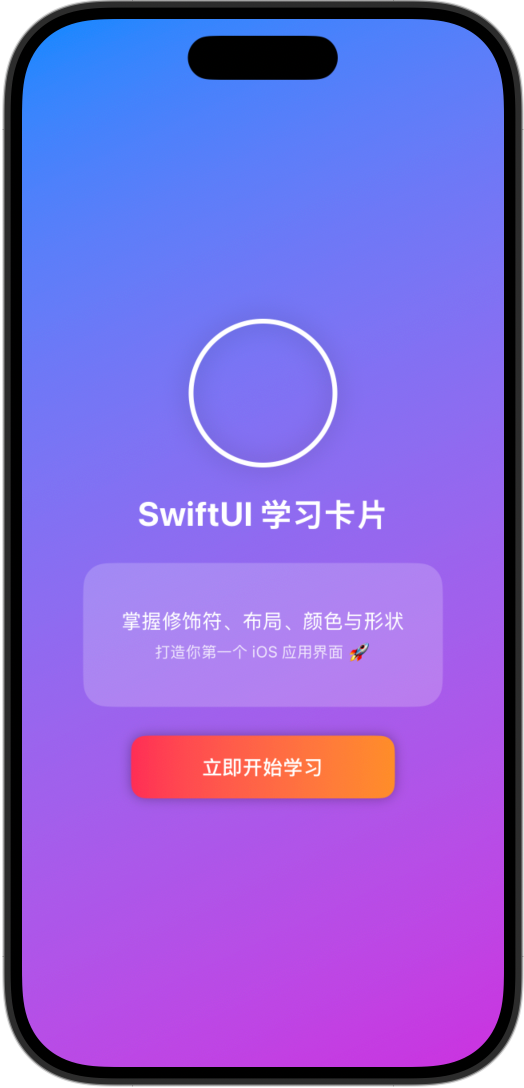
✅ 效果说明:
- 背景是蓝紫渐变
- 中间有圆形头像 + 半透明信息卡
- 底部是橙粉渐变按钮
六、小结 📚
| 功能 | 控件/修饰符 | 示例 |
|---|---|---|
| 背景颜色 | Color |
.background(Color.blue) |
| 圆角矩形 | RoundedRectangle |
.fill(Color.red).cornerRadius(20) |
| 圆形头像 | Circle() + .clipShape() |
.clipShape(Circle()) |
| 渐变背景 | LinearGradient |
.background(LinearGradient(colors: [...])) |
| 铺满屏幕 | .ignoresSafeArea() |
让背景色全屏覆盖 |
✏️ 课后挑战
- 修改渐变颜色方向;
- 把圆角矩形换成
Capsule()(药丸形); - 给按钮增加阴影;
- 用不同透明度
.opacity()设计出层次感。