一、测试环境说明
电脑环境
Windows 11
编写语言
JAVA
开发软件
Android Studio (2020)
开发软件只要大于等于测试版本即可(近几年官网直接下载也可以),若是版本低于测试版本请自行测试。项目需要根据你的软件自行适配
二、项目简介
该项目简介来自网络,具体内容需要自行测试
本项目是一个基于Android平台的天气预报应用程序,采用Java语言开发,使用SQLite数据库进行用户数据存储。
系统实现了用户注册登录、地区选择和天气信息展示等核心功能。应用程序通过调用第三方天气API获取实时天气数据,并使用LitePal框架进行本地数据管理。
用户界面包含登录页面、注册页面和主天气展示页面,支持滑动刷新和自动更新功能。数据持久化方面,系统采用sp存储用户偏好设置和缓存数据,通过OkHttp进行网络通信。
服务层实现了后台自动更新天气数据的功能,通过AlarmManager定时触发数据更新。整体架构采用分层设计,将用户界面、业务逻辑和数据访问进行分离,保证了代码的可维护性和扩展性。
该应用不仅提供了准确的天气信息查询,还具有良好的用户体验和稳定的性能表现。
API地址:http://guolin.tech/api/weather......
三、项目演示
安卓非原创--基于Android studio 气预报App
四、部设计详情(部分)
登陆页
XML
<?xml version="1.0" encoding="utf-8"?>
<LinearLayout xmlns:android="http://schemas.android.com/apk/res/android"
    android:layout_width="match_parent"
    android:layout_height="match_parent"
    android:background="#f5f5f5"
    android:orientation="vertical"
    android:padding="20dp">

    <!-- 顶部标题区域 -->
    <LinearLayout
        android:layout_width="match_parent"
        android:layout_height="wrap_content"
        android:layout_marginTop="40dp"
        android:layout_marginBottom="60dp"
        android:gravity="center"
        android:orientation="vertical">

        <TextView
            android:layout_width="wrap_content"
            android:layout_height="wrap_content"
            android:layout_marginBottom="8dp"
            android:text="@string/login_title"
            android:textColor="#0077C2"
            android:textSize="28sp"
            android:textStyle="bold" />

        <TextView
            android:layout_width="wrap_content"
            android:layout_height="wrap_content"
            android:layout_marginTop="15dp"
            android:text="欢迎回来,请登录您的账户"
            android:textColor="#5c5c5c"
            android:textSize="14sp" />
    </LinearLayout>

    <!-- 登录卡片 -->
    <LinearLayout
        android:layout_width="match_parent"
        android:layout_height="wrap_content"
        android:layout_marginBottom="20dp"
        android:background="@drawable/rounded_card"
        android:backgroundTint="#FFFFFF"
        android:elevation="4dp"
        android:orientation="vertical"
        android:padding="24dp">

        <!-- 账号输入区域 -->
        <LinearLayout
            android:layout_width="match_parent"
            android:layout_height="wrap_content"
            android:layout_marginBottom="16dp"
            android:background="@drawable/rounded_input"
            android:backgroundTint="#f5f5f5"
            android:gravity="center_vertical"
            android:orientation="horizontal"
            android:padding="16dp">

            <EditText
                android:id="@+id/edit_login_phone"
                android:layout_width="0dp"
                android:layout_height="wrap_content"
                android:layout_weight="1"
                android:background="@null"
                android:hint="@string/login_hint_phone"
                android:inputType="number"
                android:padding="8dp"
                android:textColor="#333333"
                android:textColorHint="#5c5c5c"
                android:textSize="16sp" />
        </LinearLayout>

        <!-- 密码输入区域 -->
        <LinearLayout
            android:layout_width="match_parent"
            android:layout_height="wrap_content"
            android:layout_marginBottom="24dp"
            android:background="@drawable/rounded_input"
            android:backgroundTint="#f5f5f5"
            android:gravity="center_vertical"
            android:orientation="horizontal"
            android:padding="16dp">

            <TextView
                android:layout_width="wrap_content"
                android:layout_height="wrap_content"
                android:layout_marginRight="12dp"
                android:text="@string/login_password"
                android:textColor="#333333"
                android:textSize="16sp" />

            <View
                android:layout_width="1dp"
                android:layout_height="20dp"
                android:layout_marginRight="12dp"
                android:background="#cccccc" />

            <EditText
                android:id="@+id/edit_login_password"
                android:layout_width="0dp"
                android:layout_height="wrap_content"
                android:layout_weight="1"
                android:background="@null"
                android:hint="@string/login_hint_password"
                android:inputType="textPassword"
                android:padding="8dp"
                android:textColor="#333333"
                android:textColorHint="#5c5c5c"
                android:textSize="16sp" />
        </LinearLayout>

        <!-- 选项区域 -->
        <LinearLayout
            android:layout_width="match_parent"
            android:layout_height="wrap_content"
            android:gravity="center_vertical"
            android:orientation="horizontal">

            <CheckBox
                android:id="@+id/check_login_remember"
                android:layout_width="0dp"
                android:layout_height="wrap_content"
                android:layout_weight="1"
                android:buttonTint="#0077C2"
                android:text="@string/login_rememberPassword"
                android:textColor="#333333" />


        </LinearLayout>
    </LinearLayout>

    <!-- 登录按钮 -->
    <TextView
        android:id="@+id/tv_login"
        android:layout_width="match_parent"
        android:layout_height="wrap_content"
        android:layout_marginTop="20dp"
        android:background="@drawable/rounded_button"
        android:elevation="2dp"
        android:gravity="center"
        android:padding="16dp"
        android:text="立 即 登 录"
        android:textColor="#FFFFFF"
        android:textSize="18sp"
        android:textStyle="bold" />

</LinearLayout>
1.页面的结构
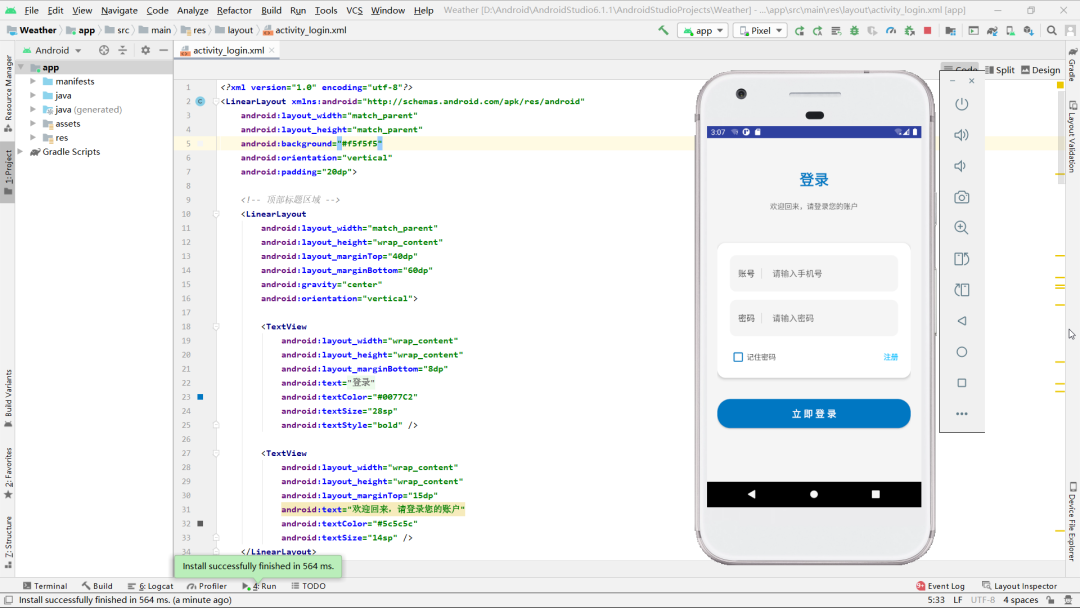
该登录页面采用经典的线性布局结构,整体分为三个主要功能区域。顶部区域包含账号和密码两个输入框,分别用于接收用户输入的手机号和密码信息。中部区域设计了一个记住密码的复选框选项,通过颜色变化直观反馈选中状态。底部区域并列放置了两个交互按钮,左侧是执行登录操作的主按钮,右侧则提供跳转至注册页面的入口链接。
页面布局层次分明,遵循用户习惯的视觉动线设计。输入区域占据页面显眼位置,确保用户能够快速定位核心操作。功能按钮区域通过色彩对比和间距控制,形成清晰的视觉分区。整个界面采用简洁明了的设计风格,避免过多装饰元素干扰用户操作流程。
2.使用到的技术
该页面基于Android原生开发框架,采用Java语言实现核心业务逻辑。数据持久化方面综合运用了SQLite数据库和SharedPreferences轻量级存储方案。数据库组件负责用户凭证的验证工作,通过预编译SQL语句实现安全的登录查询。本地偏好设置则用于保存用户登录状态和自动填充信息。
界面交互部分采用事件监听机制,通过实现点击监听接口统一处理用户操作。输入验证模块集成Android原生文本工具类,对空值情况进行实时检测。页面跳转通过显式意图实现组件间通信,并配合动画过渡效果提升用户体验。此外还运用资源颜色管理机制,实现复选框状态变化的动态视觉反馈。
3.页面详细介绍
该登录页面是典型的用户认证入口,主要承担身份验证和权限控制功能。页面启动时自动检测本地存储的登录偏好设置,若用户曾选择记住密码,则自动填充历史账号信息。核心登录流程包含三重验证机制:首先检测输入框非空校验,其次验证账户信息与数据库记录是否匹配,最后根据用户选择更新本地存储策略。
交互设计方面,记住密码功能提供个性化登录体验,复选框选中状态通过文字颜色变化提供明确视觉反馈。登录失败时会通过浮动提示框告知用户,成功认证则自动跳转至主界面并销毁当前页面。辅助功能设计考虑周全,提供注册入口降低新用户使用门槛,整体流程形成完整的用户认证闭环。
安全机制方面采用参数化查询防止SQL注入攻击,密码信息经过本地加密存储。页面生命周期内维护静态实例引用,便于其他组件获取当前认证状态。通过组合使用多种Android系统组件,在保证安全性的同时提供流畅的用户体验。
java
    private void login() {
        if (TextUtils.isEmpty(mAccount.getText().toString())) {
            Toast.makeText(this, R.string.register_toast_noPhone, Toast.LENGTH_SHORT).show();
        } else {
            if (TextUtils.isEmpty(mPassword.getText().toString())) {
                Toast.makeText(this, R.string.register_toast_noPassword, Toast.LENGTH_SHORT).show();
            } else {

                if (mRemember.isChecked()) {
                    SharePreferenceUtils.writeRememder(  LoginActivity.this, true);
                    SharePreferenceUtils.writePassword(  LoginActivity.this, mPassword.getText().toString());
                } else {
                    SharePreferenceUtils.writeRememder(  LoginActivity.this, false);
                }
                SharePreferenceUtils.writePhone(  LoginActivity.this, mAccount.getText().toString());
                String userName = mAccount.getText().toString();
                String passWord = mPassword.getText().toString();
                if (login(userName, passWord)) {
                    Toast.makeText(  LoginActivity.this, "登陆成功", Toast.LENGTH_SHORT).show();
                    startActivity(new Intent(  LoginActivity.this, MainActivity.class));
                    finish();
                } else {
                    Toast.makeText(  LoginActivity.this, "登陆失败", Toast.LENGTH_SHORT).show();
                }
            }

        }


    }
天气页
- 页面的结构
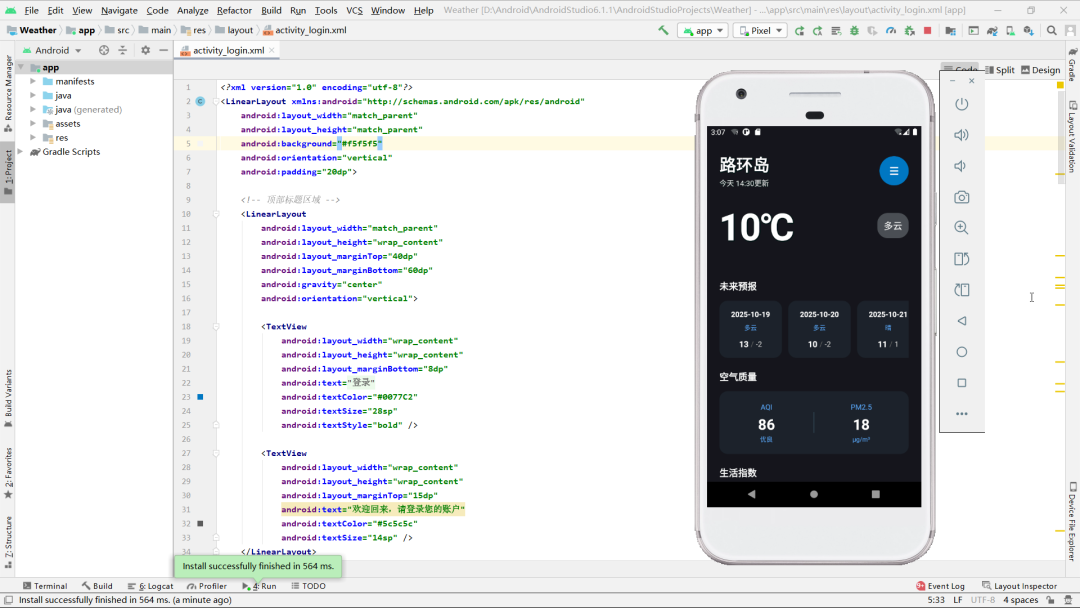
该天气应用页面采用经典的侧滑抽屉布局结构,整体分为三个主要部分。顶部是状态栏区域,通过透明化设计实现了沉浸式体验,让天气内容能够延伸到屏幕顶端。主体部分包含天气信息展示区,采用垂直滚动布局来容纳丰富的天气数据,包括当前温度、天气状况、未来多日预报以及生活指数建议等。左侧隐藏的导航抽屉可通过滑动或点击按钮唤出,用于切换城市或其他功能导航。
信息展示区内部采用分层组织方式,当前天气信息以突出形式显示在顶部,包含城市名称、更新时间和核心气象数据。中部区域为未来天气预报,以横向排列的卡片形式展示日期、天气图标和温度区间。底部区域专门显示空气质量指数和各类生活建议,包括舒适度、洗车指数和运动建议等实用信息。整个布局注重信息的层次感和可读性,通过合理的空间分配让用户能够快速获取关键天气信息。
- 使用到的技术
该应用采用了现代化的Android开发技术栈。数据获取方面基于OkHttp网络库实现异步HTTP请求,通过回调机制处理服务器响应,确保网络操作不会阻塞主线程。数据解析使用自定义的Utility工具类处理JSON格式的天气数据,将其转换为实体对象供界面使用。数据持久化通过SharedPreferences实现本地缓存,存储天气数据和背景图片URL,提升用户体验并减少网络请求次数。
界面交互方面集成多种Material Design组件,包括SwipeRefreshLayout实现下拉刷新功能,让用户能够手动更新天气数据。DrawerLayout管理侧滑菜单,提供导航功能。后台服务通过Intent启动自动更新服务,实现定时获取最新天气信息。图片加载方面虽然相关代码被注释,但预留了Glide库的集成接口用于加载必应每日一图。同时应用还处理了不同Android版本的兼容性问题,针对Android 5.0以上系统设置了透明状态栏。
- 页面详细介绍
天气主页面提供全面的气象信息服务,核心功能是展示当前和未来的天气状况。页面启动时会优先检查本地缓存,存在历史数据则立即显示,否则根据传入的城市编号从网络获取最新天气。数据显示方面,当前天气区域突出展示温度、天气状况和更新时间,让用户一眼就能获取最重要的信息。预报部分提供多日天气趋势,包括最高最低温度和天气状况图标,帮助用户规划未来活动。
页面还提供丰富的扩展功能,下拉刷新手势让用户能够随时手动更新数据,侧滑菜单为城市切换提供入口。生活指数建议基于实时气象数据给出实用指导,包括穿衣舒适度、洗车适宜度和运动建议等。空气质量数据显示让用户了解环境状况,特别是PM2.5指数的展示对健康防护具有参考价值。后台自动更新服务确保天气信息的时效性,而必应每日一图功能虽然暂时禁用,但为界面美化预留了扩展空间。整个页面设计以用户体验为中心,通过清晰的信息架构和流畅的交互操作,为用户提供专业可靠的天气查询服务。
java
private void showWeatherInfo(Weather weather) {
        String cityName = weather.basic.cityName;
        String updateTime = weather.basic.update.updateTime.split(" ")[1];
        String degree = weather.now.temperature + "℃";
        String weatherInfo = weather.now.more.info;
        titleCity.setText(cityName);
        //titleUpdateTime.setText(updateTime);
        degreeText.setText(degree);
        weatherInfoText.setText(weatherInfo);
        forecastLayout.removeAllViews();
        for (Forecast forecast : weather.forecastList) {
            View view = LayoutInflater.from(this).inflate(R.layout.forecast_item, forecastLayout, false);
            TextView dateText = (TextView) view.findViewById(R.id.date_text);
            TextView infoText = (TextView) view.findViewById(R.id.info_text);
            TextView maxText = (TextView) view.findViewById(R.id.max_text);
            TextView minText = (TextView) view.findViewById(R.id.min_text);
            dateText.setText(forecast.date);
            infoText.setText(forecast.more.info);
            maxText.setText(forecast.temperature.max);
            minText.setText(forecast.temperature.min);
            forecastLayout.addView(view);
        }
        if (weather.aqi != null) {
            aqiText.setText(weather.aqi.city.aqi);
            pm25Text.setText(weather.aqi.city.pm25);
        }
        String comfort = "舒适度:" + weather.suggestion.comfort.info;
        String carWash = "洗车指数:" + weather.suggestion.carWash.info;
        String sport = "运行建议:" + weather.suggestion.sport.info;
        comfortText.setText(comfort);
        carWashText.setText(carWash);
        sportText.setText(sport);
        weatherLayout.setVisibility(View.VISIBLE);
        Intent intent = new Intent(this, AutoUpdateService.class);
        startService(intent);
    }
五、项目源码
👇👇👇👇👇快捷方式👇👇👇👇👇