项目介绍
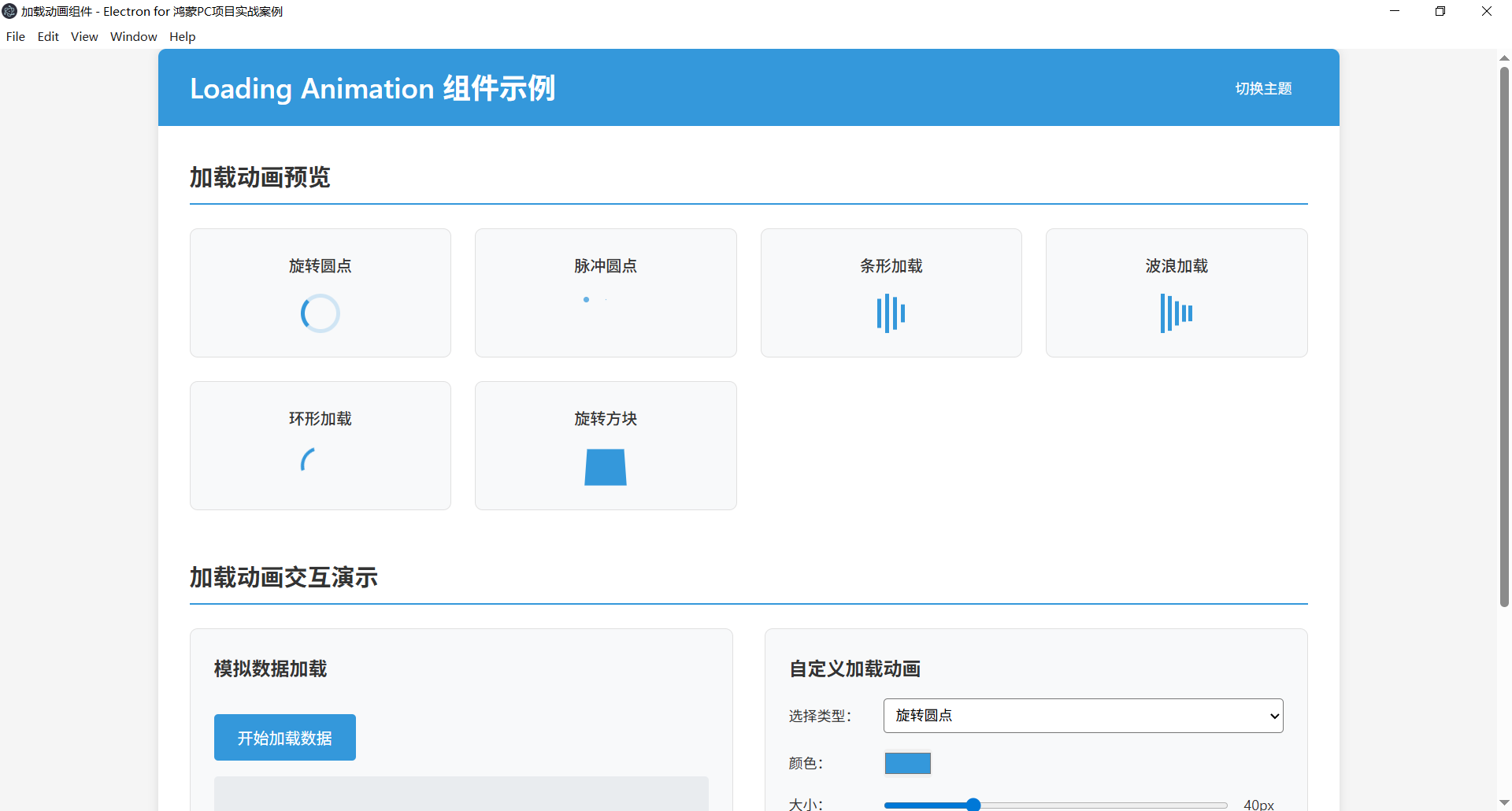
这是一个基于Electron开发的加载动画组件示例项目,展示了多种精美的加载动画效果及其在桌面应用中的应用场景。该项目提供了丰富的动画样式选择,并支持自定义配置,为桌面应用提供了灵活且易用的加载状态解决方案。
功能特点
- 多种动画类型:提供6种不同风格的加载动画效果
- 自定义配置:支持自定义颜色、大小、动画持续时间等参数
- 全屏加载遮罩:可用于应用启动或数据加载时的全屏覆盖
- 主题切换:支持浅色和深色两种主题
- 响应式设计:适配不同屏幕尺寸的设备
- 交互演示:包含模拟数据加载和自定义动画的交互演示
- 键盘快捷键:支持ESC键快速关闭加载状态
- 用户偏好保存:记住用户的主题选择
- 错误处理:提供加载失败时的友好提示
技术实现
主进程(main.js)
主进程负责创建和管理Electron应用窗口,设置基本的窗口配置和安全策略:
javascript
// 创建浏览器窗口
mainWindow = new BrowserWindow({
  width: 800,
  height: 600,
  frame: true,
  resizable: true,
  webPreferences: {
    preload: path.join(__dirname, 'preload.js'),
    contextIsolation: true,
    enableRemoteModule: false,
    nodeIntegration: false
  }
});

// 加载应用的index.html
mainWindow.loadFile('index.html');
预加载脚本(preload.js)
使用contextBridge安全地暴露API到渲染进程,实现加载相关的核心功能:
javascript
contextBridge.exposeInMainWorld('electronAPI', {
  // 提供用于显示加载动画的API
  showLoading: () => {
    ipcRenderer.send('show-loading');
  },

  // 提供用于隐藏加载动画的API
  hideLoading: () => {
    ipcRenderer.send('hide-loading');
  },

  // 提供获取系统信息的API,用于模拟长时间加载过程
  getSystemInfo: async () => {
    return new Promise((resolve) => {
      // 模拟长时间操作
      setTimeout(() => {
        resolve({
          platform: process.platform,
          arch: process.arch,
          electronVersion: process.versions.electron
        });
      }, 2000);
    });
  }
});
渲染进程(renderer.js)
渲染进程实现了加载动画的创建、显示和自定义配置等核心逻辑:
javascript
// 显示自定义配置的全屏加载动画
function showCustomizedFullscreenLoading(type, color, size, duration) {
  const fullscreenLoading = document.getElementById('fullscreen-loading');
  const loadingContent = fullscreenLoading.querySelector('.loading-content');

  // 移除现有的加载元素
  const existingLoadingElement = loadingContent.querySelector('.loading-spinner, .loading-pulse, .loading-bars, .loading-wave, .loading-ring, .loading-cube');
  if (existingLoadingElement) {
    loadingContent.removeChild(existingLoadingElement);
  }

  // 创建新的加载元素
  let loadingElement;

  switch (type) {
    case 'spinner':
      loadingElement = createSpinnerLoading(color, size, duration);
      break;
    case 'pulse':
      loadingElement = createPulseLoading(color, size, duration);
      break;
    // 其他类型...
  }

  // 插入加载元素到内容容器
  loadingContent.insertBefore(loadingElement, document.getElementById('loading-text'));

  // 显示加载动画
  fullscreenLoading.classList.add('active');
}
代码结构
87-loading-animation/
├── main.js            # Electron主进程文件
├── preload.js         # 预加载脚本,处理进程间通信
├── index.html         # 应用主界面HTML
├── style.css          # 样式文件,包含加载动画的CSS动画
├── renderer.js        # 渲染进程JavaScript,实现加载动画的交互逻辑
├── package.json       # 项目配置和依赖
└── README.md          # 项目说明文档
核心代码示例
1. 旋转圆点加载动画
javascript
// 创建旋转圆点加载动画
function createSpinnerLoading(color, size, duration) {
  const spinner = document.createElement('div');
  spinner.className = 'loading-spinner large custom-loading';

  // 设置样式
  spinner.style.width = `${size}px`;
  spinner.style.height = `${size}px`;
  spinner.style.borderTopColor = color;
  spinner.style.borderColor = `${color}20`; // 20是透明度(12.5%)
  spinner.style.animationDuration = `${duration}s`;

  return spinner;
}
2. CSS动画实现
css
/* 旋转圆点加载动画 */
.loading-spinner {
  width: 40px;
  height: 40px;
  border: 4px solid rgba(52, 152, 219, 0.2);
  border-top: 4px solid #3498db;
  border-radius: 50%;
  animation: spin 1s linear infinite;
}

@keyframes spin {
  0% { transform: rotate(0deg); }
  100% { transform: rotate(360deg); }
}

/* 脉冲圆点加载动画 */
.pulse-dot {
  width: 12px;
  height: 12px;
  background-color: #3498db;
  border-radius: 50%;
  animation: pulse 1.4s ease-in-out infinite both;
}

.pulse-dot:nth-child(1) { animation-delay: -0.32s; }
.pulse-dot:nth-child(2) { animation-delay: -0.16s; }

@keyframes pulse {
  0%, 80%, 100% {
    transform: scale(0);
    opacity: 0.5;
  }
  40% {
    transform: scale(1);
    opacity: 1;
  }
}
3. 模拟数据加载
javascript
// 初始化数据加载演示
function initDataLoading() {
  const simulateLoadBtn = document.getElementById('simulate-load');
  const dataResult = document.getElementById('data-result');

  simulateLoadBtn.addEventListener('click', async () => {
    // 显示全屏加载动画
    showFullscreenLoading();

    try {
      // 调用预加载脚本中的API
      const systemInfo = await window.electronAPI.getSystemInfo();

      // 隐藏加载动画
      hideFullscreenLoading();

      // 显示结果
      displayResult(systemInfo);
    } catch (error) {
      // 发生错误时也隐藏加载动画
      hideFullscreenLoading();
      displayError(error);
    }
  });
}
4. 主题切换功能
javascript
// 初始化主题切换
function initThemeToggle() {
  const themeToggle = document.getElementById('theme-toggle');

  themeToggle.addEventListener('click', () => {
    document.body.classList.toggle('light-theme');
    document.body.classList.toggle('dark-theme');

    // 保存主题偏好
    const isDarkTheme = document.body.classList.contains('dark-theme');
    localStorage.setItem('theme', isDarkTheme ? 'dark' : 'light');
  });
}

// 加载用户偏好设置
function loadUserPreferences() {
  const savedTheme = localStorage.getItem('theme');
  if (savedTheme === 'dark') {
    document.body.classList.remove('light-theme');
    document.body.classList.add('dark-theme');
  } else {
    document.body.classList.remove('dark-theme');
    document.body.classList.add('light-theme');
  }
}
加载动画类型
- 旋转圆点 (spinner) - 经典的旋转圆环加载动画
- 脉冲圆点 (pulse) - 三个圆点依次放大缩小的动画效果
- 条形加载 (bars) - 多个条形交替上下浮动的效果
- 波浪加载 (wave) - 波浪状起伏的动态效果
- 环形加载 (ring) - 带有变化粗细的环形动画
- 旋转方块 (cube) - 3D旋转的方块动画效果
如何运行
-
确保已安装Node.js环境
-
在项目根目录执行以下命令:
bash# 安装依赖 npm install # 启动应用 npm start
扩展建议
- 添加更多动画效果:实现更多类型的加载动画
- 加载进度条:添加带进度指示的加载动画
- 加载文字自定义:允许自定义加载提示文字
- 加载位置控制:支持指定加载动画显示的位置
- 加载超时处理:添加加载超时自动取消的功能
- 动画组合:支持多种动画效果的组合显示
- 性能优化:确保在低性能设备上也能流畅运行
- 多语言支持:添加多语言的加载提示文字
注意事项
- 加载动画的尺寸和颜色应与应用整体风格保持一致
- 对于长时间的加载操作,应考虑添加取消按钮
- 过多的动画效果可能会影响应用性能,特别是在低配置设备上
- 加载动画的持续时间应合理设置,过长会让用户感到等待时间漫长
- 在实现自定义加载动画时,注意使用CSS变量便于主题切换
- 对于不同类型的加载操作,应使用适合的加载动画样式
- 在显示加载状态的同时,应提供清晰的加载目的提示(如:"正在加载数据...")
鸿蒙PC适配改造指南
1. 环境准备
-
系统要求:Windows 10/11、8GB RAM以上、20GB可用空间
-
工具安装 :
DevEco Studio 5.0+(安装鸿蒙SDK API 20+)
-
Node.js 18.x+
2. 获取Electron鸿蒙编译产物
-
下载Electron 34+版本的Release包(.zip格式)
-
解压到项目目录,确认
electron/libs/arm64-v8a/下包含核心.so库
3. 部署应用代码
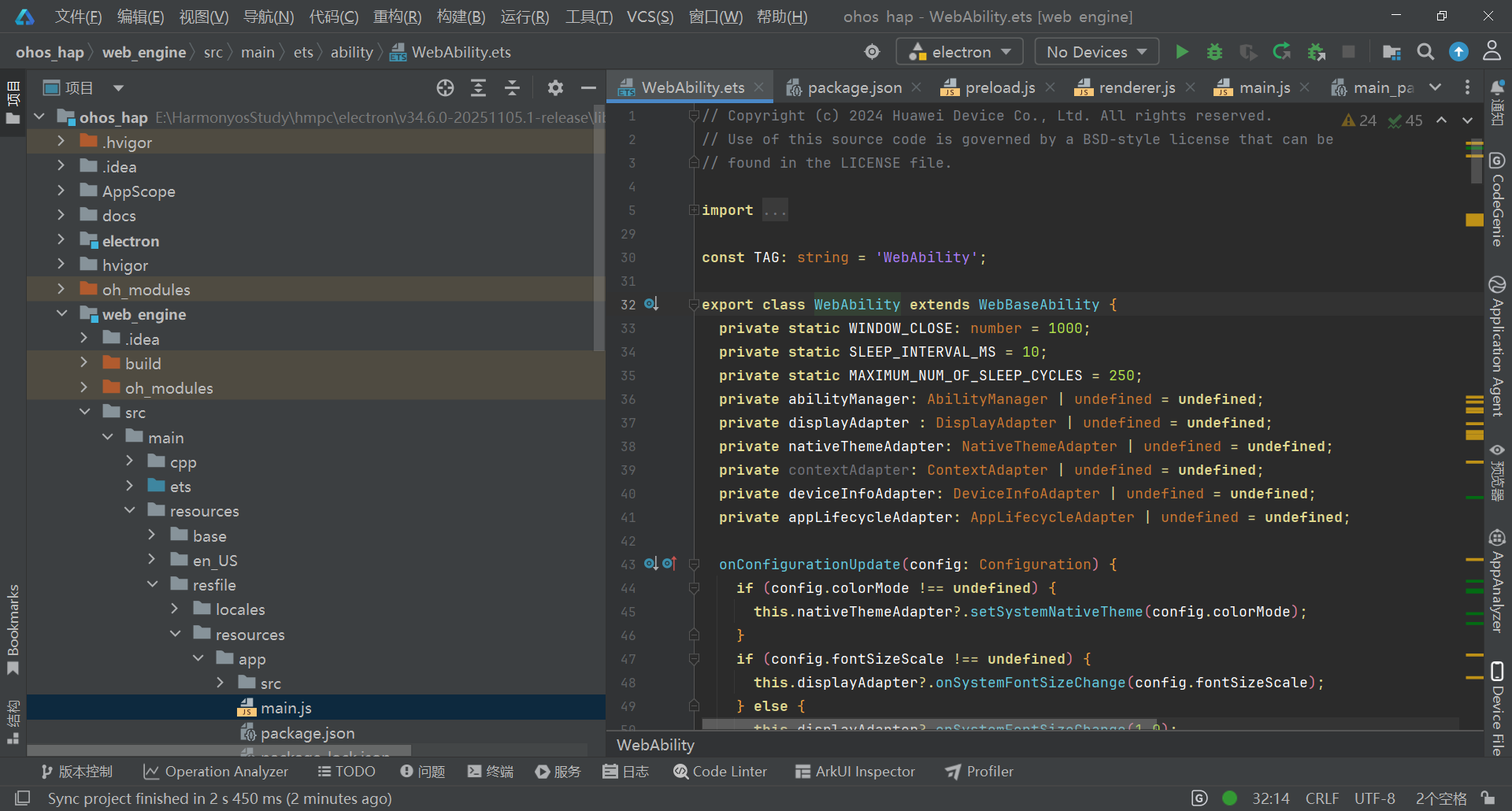
将Electron应用代码按以下目录结构放置:
plaintext
web_engine/src/main/resources/resfile/resources/app/
├── main.js
├── package.json
└── src/
    ├── index.html
    ├── preload.js
    ├── renderer.js
    └── style.css
4. 配置与运行
-
打开项目:在DevEco Studio中打开ohos_hap目录
-
配置签名 :
进入File → Project Structure → Signing Configs
-
自动生成调试签名或导入已有签名
-
连接设备 :
启用鸿蒙设备开发者模式和USB调试
-
通过USB Type-C连接电脑
-
编译运行:点击Run按钮或按Shift+F10
5. 验证检查项
-
✅ 应用窗口正常显示
-
✅ 窗口大小可调整,响应式布局生效
-
✅ 控制台无"SysCap不匹配"或"找不到.so文件"错误
-
✅ 动画效果正常播放
跨平台兼容性
| 平台 | 适配策略 | 特殊处理 |
|---|---|---|
| Windows | 标准Electron运行 | 无特殊配置 |
| macOS | 标准Electron运行 | 保留dock图标激活逻辑 |
| Linux | 标准Electron运行 | 确保系统依赖库完整 |
| 鸿蒙PC | 通过Electron鸿蒙适配层 | 禁用硬件加速,使用特定目录结构 |
鸿蒙开发调试技巧
1. 日志查看
在DevEco Studio的Log面板中过滤"Electron"关键词,查看应用运行日志和错误信息。
2. 常见问题解决
-
"SysCap不匹配"错误:检查module.json5中的reqSysCapabilities,只保留必要系统能力
-
"找不到.so文件"错误:确认arm64-v8a目录下四个核心库文件完整
-
窗口不显示:在main.js中添加app.disableHardwareAcceleration()
-
动画卡顿:简化CSS动画效果,减少重绘频率