一、环境准备
PS:远程主机是ssh server,VSCode是ssh client
(一) 远程主机安装配置
shell
sudo apt install openssh-server(二) 本地主机配置
shell
sudo apt install curl wget(三) vscode 插件
这里只需要按照 Remote - SSH 和 Remote - SSH: Editing Configuration Files插件
二、测试SSH 通路
(一) 自动登录的方式
首先要保证本机可以和远程机器进行SSH通信。
可以使用如下的脚步自动连接
shell
#!/bin/bash
# 用法: ./auto_ssh.sh 192.168.1.100

# 用户名和密码
USER="xxxx"
PASS="xxx"

# 传入的 IP 参数
#IP="$1"
IP="192.168.1.100"

if [ -z "$IP" ]; then
    echo "用法: $0 <IP地址>"
    exit 1
fi

# 执行 SSH 登录
sshpass -p "$PASS" ssh -o StrictHostKeyChecking=no "$USER@$IP"
首先保证该测试可以通过。
(二) 使用 SSH key 的方式
1. 本地生成 ssh key
shell
ssh-keygen -t rsa -b 4096 -f .ssh/remote_pc_rsa


Generating public/private rsa key pair.
Enter passphrase (empty for no passphrase):
Enter same passphrase again:
Your identification has been saved in .ssh/remote_pc_rsa
Your public key has been saved in .ssh/remote_pc_rsa.pub
The key fingerprint is:
SHA256:ipuzUpP8diZfJhpUZKU1mAjSV6gBXpu4b29BoCcLZ9Y leo@leo
The key's randomart image is:
+---[RSA 4096]----+
|  ooo. ++++      |
| . ++o+ooo .     |
|  ooo=  o        |
|. *.E ..         |
| =.= o. S        |
|  ..=o..         |
|   .+oo.. o      |
|  ...+=oo+       |
|   .+=o=.        |
+----[SHA256]-----+
提示输入passphase,直接回车就行,最后会生成key文件,即remote_pc_rsa.pub
2. 将key.pub 拷贝到 远程主机
生成OK后,使用scp命令把 remote_pc_rsa.pub 传到远程访问的主机中
shell
scp /home/leo/.ssh/remote_pc_rsa.pub binxincao@x.x.x.x:~/3. 登录远程主机,授权该key
登录到远程电脑上, 用下面的命令, 写入到授权文件里并修改权限,
shell
 cat ./remote_pc_rsa.pub >> ~/.ssh/authorized_keys
 chmod 600 ~/.ssh/authorized_keys
 rm remote_pc_rsa.pub
4. 本地使用key 远程ssh
在本地尝试使用该 key ssh 登录
shell
$ ssh -i .ssh/remote_pc_rsa binxincao@x.x.x.x
Welcome to Ubuntu 22.04.4 LTS (GNU/Linux 6.8.0-57-generic x86_64)
 * Documentation:  https://help.ubuntu.com
 * Management:     https://landscape.canonical.com
 * Support:        https://ubuntu.com/pro

扩展安全维护(ESM)Applications 未启用。

224 更新可以立即应用。
这些更新中有 217 个是标准安全更新。
要查看这些附加更新,请运行:apt list --upgradable

19 个额外的安全更新可以通过 ESM Apps 来获取安装。
可通过以下途径了解如何启用 ESM Apps:at https://ubuntu.com/esm


The list of available updates is more than a week old.
To check for new updates run: sudo apt update
Last login: Fri Dec  5 11:02:31 2025 from 10.25.8.28

# 登录成功
台 - binxincao@leo ~
$
三、配置VSCode 并远程连接
点击VSCode左下角那个绿色图标,

在VSCode弹出的界面中,选择Open SSH Configuration File...
Shift + Ctrl + P
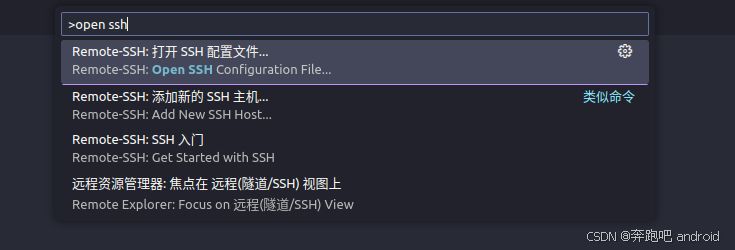
接着就是填入对应的信息,读者需要根据自己的情况进行输入,例如HostName,User等,Host可以随意定义
c
Host 远程台式机
  HostName x.x.x.x
  User binxincao
  IdentityFile ~/.ssh/remote_pc_rsa
输入完毕后保存,再次点击左下角绿色图标,弹出界面里选择Connect to Host...
四、阅读源码
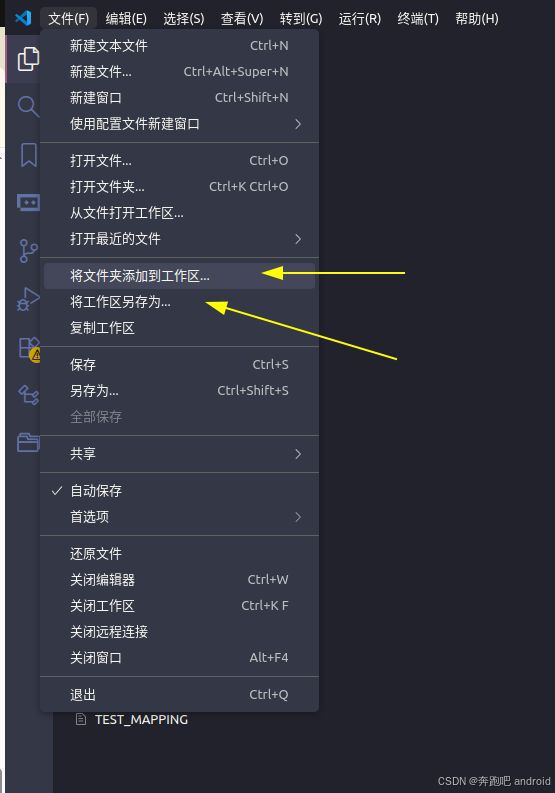
此时就可以将远端的代码路径添加到工作区里面了。