引言:分布式数据管理 ------ 全场景协同的 "数据中枢"
当用户在手机上添加的日程自动同步至平板,在智慧屏上收藏的视频在车机上无缝续播,在手表上记录的运动数据实时汇总至健康 APP------ 开源鸿蒙(OpenHarmony)的全场景体验,核心依赖于分布式数据管理技术打破设备间的 "数据孤岛"。而 Flutter 作为跨端开发框架,其与分布式数据管理能力的深度融合,直接决定了全场景应用的数据流转效率与一致性体验。
分布式数据管理并非简单的 "多设备数据同步",而是基于开源鸿蒙分布式技术底座,实现 "数据统一存储、跨端实时流转、多端一致性保障、按需按需加载" 的全生命周期管理。本文以 "场景化数据协同" 为核心,跳出传统 "客户端 - 服务器" 的数据同步逻辑,聚焦 "分布式软总线 + 数据账本 + 冲突解决" 的创新架构,通过 "跨设备协同日程管理、全场景媒体收藏同步、分布式健康数据汇总" 三大实战场景,用 "原理 + 架构设计 + 核心代码" 的方式,带你掌握开源鸿蒙 Flutter 分布式数据管理的进阶开发方案,让应用数据在多设备间实现 "实时流转、一致可信、高效利用"。
一、分布式数据管理核心原理与技术架构
1.1 核心定义与核心价值
分布式数据管理是开源鸿蒙针对全场景分布式协同设计的数据全生命周期管理体系,通过 "分布式数据存储、跨端数据同步、一致性算法、权限控制" 等技术,实现多设备间数据的统一管理与高效流转,核心价值:
- 数据统一:多设备共用一份 "全局数据视图",避免数据冗余与不一致;
- 实时流转:数据在设备间实时同步,支持跨端无缝接续操作(如续播、续编);
- 一致可信:通过分布式一致性算法,保障多设备并发操作时的数据完整性;
- 按需加载:设备仅加载当前场景所需数据,平衡存储占用与访问效率;
- 离线可用:支持离线操作本地数据,联网后自动同步至其他设备,保障使用连续性。
1.2 分布式数据管理与传统数据同步的核心差异
| 特性 | 分布式数据管理(开源鸿蒙 + Flutter) | 传统数据同步(客户端 - 服务器) |
|---|---|---|
| 数据存储形态 | 分布式存储(多设备共享数据账本,本地缓存核心数据) | 中心化存储(服务器存储全量数据,客户端缓存副本) |
| 同步方式 | 点对点实时同步(设备间直接同步,无需服务器中转) | 客户端 - 服务器单向同步(客户端请求同步,服务器响应) |
| 一致性保障 | 分布式一致性算法(如 Raft、Paxos),支持并发操作合并 | 基于版本号的简单冲突覆盖(如 "最后修改获胜") |
| 网络依赖 | 支持局域网 / 蓝牙直连同步,弱网 / 离线可用 | 强依赖互联网,弱网 / 离线同步易失败 |
| 设备角色 | 平等节点(任一设备可读写数据,同步至其他节点) | 客户端从属服务器(仅客户端请求,服务器主导数据管理) |
1.3 核心技术架构:"数据存储层 + 同步引擎层 + Flutter 应用层"
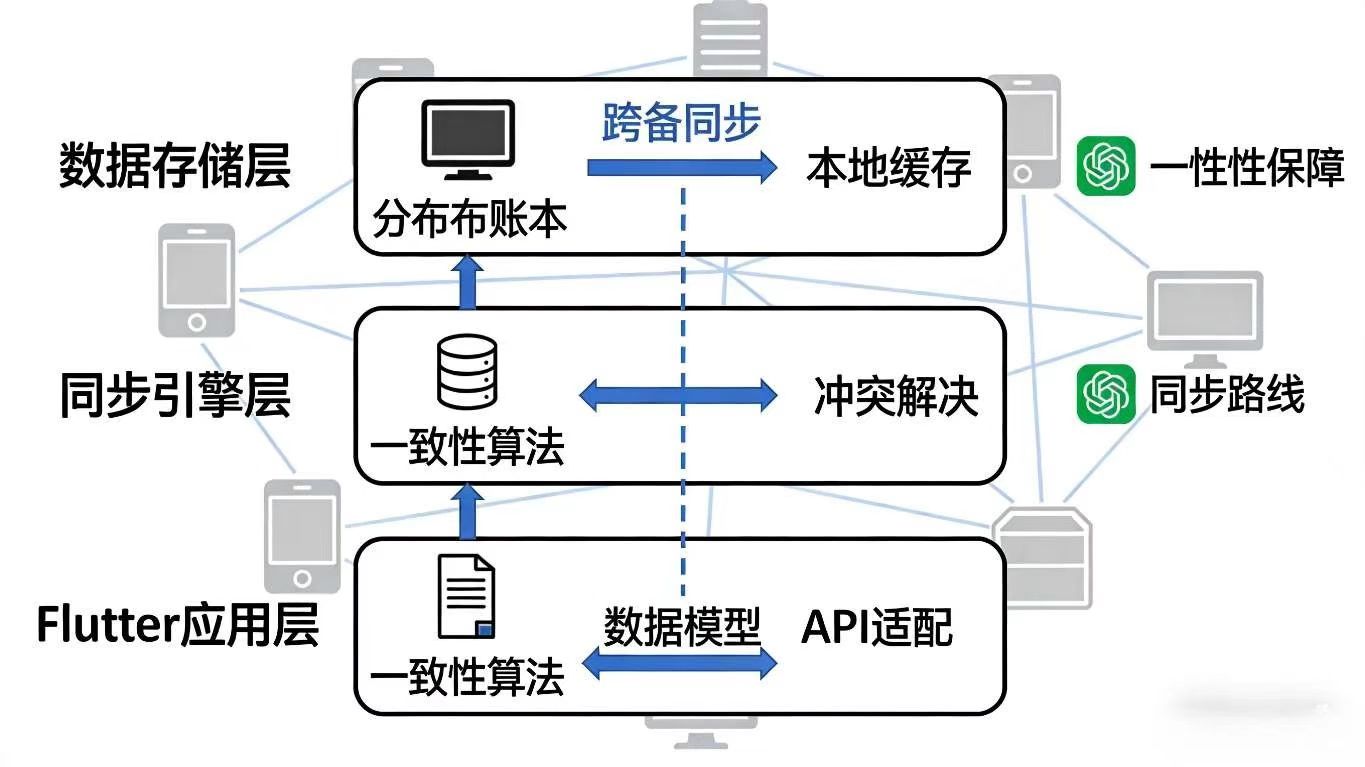
- Flutter 应用层:负责数据操作相关 UI 呈现、业务数据模型定义,通过统一 API 访问分布式数据,屏蔽底层存储与同步细节;
- 同步引擎层:分布式数据管理的 "核心引擎",负责数据同步协议封装、一致性算法实现、冲突解决、离线操作缓存与联网同步;
- 数据存储层:提供分布式数据存储能力,包括全局数据账本(记录全量数据变更)、本地缓存(优化端侧访问速度)、数据权限控制(保障数据安全)。
二、实战 1:跨设备协同日程管理 ------ 多端实时一致性同步
2.1 核心场景:家庭共享日程协同
家庭成员在各自设备(手机、平板)上添加家庭日程(如聚餐、旅行计划),添加后实时同步至所有关联设备;支持多人同时编辑同一日程(如修改时间、添加参与者),系统自动合并编辑内容,避免冲突;离线时添加的日程,联网后自动同步至其他设备,确保所有成员看到的日程信息一致。
2.2 核心实现步骤
步骤 1:分布式数据模型定义(Flutter)
dart
// models/schedule_model.dart(日程数据模型)
import 'package:json_annotation/json_annotation.dart';
import 'package:uuid/uuid.dart';

part 'schedule_model.g.dart';

@JsonSerializable()
class Schedule {
  // 日程唯一ID(UUID)
  final String scheduleId;
  // 标题
  String title;
  // 开始时间(时间戳)
  int startTime;
  // 结束时间(时间戳)
  int endTime;
  // 参与者(分布式用户ID列表)
  List<String> participants;
  // 备注
  String remark;
  // 最后修改时间(时间戳)
  int lastModifiedTime;
  // 最后修改设备ID
  String lastModifiedDeviceId;
  // 版本号(用于一致性校验)
  int version;

  Schedule({
    required this.title,
    required this.startTime,
    required this.endTime,
    required this.participants,
    this.remark = "",
    String? scheduleId,
    int? lastModifiedTime,
    String? lastModifiedDeviceId,
    int? version,
  })  : scheduleId = scheduleId ?? const Uuid().v4(),
        lastModifiedTime = lastModifiedTime ?? DateTime.now().millisecondsSinceEpoch,
        lastModifiedDeviceId = lastModifiedDeviceId ?? "",
        version = version ?? 1;

  // 转换为JSON
  Map<String, dynamic> toJson() => _$ScheduleToJson(this);

  // 从JSON构建对象
  factory Schedule.fromJson(Map<String, dynamic> json) => _$ScheduleFromJson(json);

  // 复制对象(用于编辑)
  Schedule copyWith({
    String? title,
    int? startTime,
    int? endTime,
    List<String>? participants,
    String? remark,
    int? lastModifiedTime,
    String? lastModifiedDeviceId,
    int? version,
  }) {
    return Schedule(
      scheduleId: scheduleId,
      title: title ?? this.title,
      startTime: startTime ?? this.startTime,
      endTime: endTime ?? this.endTime,
      participants: participants ?? this.participants,
      remark: remark ?? this.remark,
      lastModifiedTime: lastModifiedTime ?? DateTime.now().millisecondsSinceEpoch,
      lastModifiedDeviceId: lastModifiedDeviceId ?? this.lastModifiedDeviceId,
      version: version ?? this.version + 1, // 编辑后版本号自增
    );
  }
}
步骤 2:分布式数据访问 API 封装(Flutter + 原生)
dart
// utils/distributed_data_manager.dart(分布式数据管理工具类)
import 'package:flutter/services.dart';
import 'package:ohos_distributed_data/ohos_distributed_data.dart';
import 'models/schedule_model.dart';

class DistributedDataManager {
  static const MethodChannel _dataChannel = MethodChannel("com.example.distributed/data_manager");
  static const String _scheduleDataGroup = "family_schedule_group"; // 数据分组(用于权限隔离)
  static final DistributedDataStore _dataStore = DistributedDataStore.getInstance();

  // 初始化分布式数据存储
  static Future<void> init() async {
    await _dataStore.init(_scheduleDataGroup);
    // 监听数据变更(其他设备同步数据时触发)
    _dataStore.addDataChangeListener((String key, dynamic value) {
      if (key.startsWith("schedule_")) {
        // 解析数据并通知UI更新
        final schedule = Schedule.fromJson(Map<String, dynamic>.from(value));
        _onScheduleChanged?.call(schedule);
      }
    });
  }

  // 数据变更回调
  static Function(Schedule)? _onScheduleChanged;
  static void setScheduleChangeListener(Function(Schedule) listener) {
    _onScheduleChanged = listener;
  }

  // 添加日程
  static Future<bool> addSchedule(Schedule schedule) async {
    try {
      // 获取当前设备ID
      final deviceId = await _getCurrentDeviceId();
      final newSchedule = schedule.copyWith(
        lastModifiedDeviceId: deviceId,
        lastModifiedTime: DateTime.now().millisecondsSinceEpoch,
      );
      // 存储至分布式数据账本
      await _dataStore.put(
        "schedule_${newSchedule.scheduleId}",
        newSchedule.toJson(),
        syncToAllDevices: true, // 同步至所有关联设备
      );
      return true;
    } catch (e) {
      print("添加日程失败:$e");
      return false;
    }
  }

  // 更新日程(支持并发编辑合并)
  static Future<bool> updateSchedule(Schedule schedule) async {
    try {
      // 1. 获取云端最新版本
      final latestJson = await _dataStore.get("schedule_${schedule.scheduleId}");
      if (latestJson == null) return false;
      final latestSchedule = Schedule.fromJson(Map<String, dynamic>.from(latestJson));

      // 2. 版本校验(避免覆盖最新修改)
      if (schedule.version < latestSchedule.version) {
        // 本地版本落后,合并最新修改
        final mergedSchedule = _mergeSchedule(schedule, latestSchedule);
        return await _saveMergedSchedule(mergedSchedule);
      }

      // 3. 版本一致,直接更新
      final deviceId = await _getCurrentDeviceId();
      final updatedSchedule = schedule.copyWith(
        lastModifiedDeviceId: deviceId,
        lastModifiedTime: DateTime.now().millisecondsSinceEpoch,
      );
      await _dataStore.put(
        "schedule_${updatedSchedule.scheduleId}",
        updatedSchedule.toJson(),
        syncToAllDevices: true,
      );
      return true;
    } catch (e) {
      print("更新日程失败:$e");
      return false;
    }
  }

  // 合并并发编辑的日程(冲突解决核心逻辑)
  static Schedule _mergeSchedule(Schedule local, Schedule remote) {
    // 合并规则:
    // 1. 基本信息(标题、时间)取较晚修改的
    // 2. 参与者合并(去重)
    // 3. 备注合并(拼接)
    final isRemoteNewer = remote.lastModifiedTime > local.lastModifiedTime;
    return Schedule(
      scheduleId: local.scheduleId,
      title: isRemoteNewer ? remote.title : local.title,
      startTime: isRemoteNewer ? remote.startTime : local.startTime,
      endTime: isRemoteNewer ? remote.endTime : local.endTime,
      participants: [...local.participants, ...remote.participants].toSet().toList(),
      remark: "${local.remark}\n${remote.remark}".trim(),
      lastModifiedTime: DateTime.now().millisecondsSinceEpoch,
      lastModifiedDeviceId: await _getCurrentDeviceId(),
      version: remote.version + 1,
    );
  }

  // 保存合并后的日程
  static Future<bool> _saveMergedSchedule(Schedule schedule) async {
    await _dataStore.put(
      "schedule_${schedule.scheduleId}",
      schedule.toJson(),
      syncToAllDevices: true,
    );
    return true;
  }

  // 获取所有日程
  static Future<List<Schedule>> getAllSchedules() async {
    try {
      final allData = await _dataStore.getAll(prefix: "schedule_");
      return allData.values.map((json) => Schedule.fromJson(Map<String, dynamic>.from(json))).toList();
    } catch (e) {
      print("获取日程失败:$e");
      return [];
    }
  }

  // 删除日程
  static Future<bool> deleteSchedule(String scheduleId) async {
    try {
      await _dataStore.delete(
        "schedule_$scheduleId",
        syncToAllDevices: true,
      );
      return true;
    } catch (e) {
      print("删除日程失败:$e");
      return false;
    }
  }

  // 获取当前设备ID
  static Future<String> _getCurrentDeviceId() async {
    return await _dataChannel.invokeMethod<String>("getCurrentDeviceId") ?? "unknown_device";
  }
}

// 原生分布式数据存储封装(Java)
// DistributedDataStore.java
public class DistributedDataStore {
    private static final String TAG = "DistributedDataStore";
    private final IDistributedDataManager dataManager;
    private String dataGroup;
    private DataChangeListener dataChangeListener;

    private static DistributedDataStore instance;
    public static DistributedDataStore getInstance() {
        if (instance == null) {
            instance = new DistributedDataStore();
        }
        return instance;
    }

    private DistributedDataStore() {
        dataManager = IDistributedDataManager.getDistributedDataManager();
    }

    // 初始化数据分组
    public void init(String dataGroup) {
        this.dataGroup = dataGroup;
        // 注册数据变更监听
        dataManager.registerDataChangeListener(dataGroup, (key, value) -> {
            if (dataChangeListener != null) {
                dataChangeListener.onDataChanged(key, value);
            }
        });
    }

    // 存储数据
    public boolean put(String key, Object value, boolean syncToAllDevices) {
        try {
            String jsonValue = new Gson().toJson(value);
            // 存储至本地缓存与分布式账本
            dataManager.put(dataGroup, key, jsonValue);
            if (syncToAllDevices) {
                // 同步至所有关联设备
                dataManager.sync(dataGroup, key);
            }
            return true;
        } catch (Exception e) {
            e.printStackTrace();
            return false;
        }
    }

    // 获取数据
    public Object get(String key) {
        try {
            String jsonValue = dataManager.get(dataGroup, key);
            return jsonValue != null ? new Gson().fromJson(jsonValue, Object.class) : null;
        } catch (Exception e) {
            e.printStackTrace();
            return null;
        }
    }

    // 获取指定前缀的所有数据
    public Map<String, Object> getAll(String prefix) {
        try {
            Map<String, String> allData = dataManager.getAll(dataGroup);
            Map<String, Object> result = new HashMap<>();
            for (Map.Entry<String, String> entry : allData.entrySet()) {
                if (entry.getKey().startsWith(prefix)) {
                    result.put(entry.getKey(), new Gson().fromJson(entry.getValue(), Object.class));
                }
            }
            return result;
        } catch (Exception e) {
            e.printStackTrace();
            return new HashMap<>();
        }
    }

    // 删除数据
    public boolean delete(String key, boolean syncToAllDevices) {
        try {
            dataManager.delete(dataGroup, key);
            if (syncToAllDevices) {
                dataManager.sync(dataGroup, key);
            }
            return true;
        } catch (Exception e) {
            e.printStackTrace();
            return false;
        }
    }

    // 设置数据变更监听器
    public void addDataChangeListener(DataChangeListener listener) {
        this.dataChangeListener = listener;
    }

    // 数据变更监听接口
    public interface DataChangeListener {
        void onDataChanged(String key, Object value);
    }
}
步骤 3:Flutter 日程管理 UI 实现
dart
// pages/schedule_management_page.dart(日程管理页面)
class ScheduleManagementPage extends StatefulWidget {
  const ScheduleManagementPage({super.key});

  @override
  State<ScheduleManagementPage> createState() => _ScheduleManagementPageState();
}

class _ScheduleManagementPageState extends State<ScheduleManagementPage> {
  List<Schedule> _schedules = [];
  bool _isLoading = true;

  @override
  void initState() {
    super.initState();
    // 初始化分布式数据存储
    _initDistributedData();
    // 设置数据变更监听
    DistributedDataManager.setScheduleChangeListener((schedule) {
      _updateScheduleList();
    });
  }

  // 初始化分布式数据
  Future<void> _initDistributedData() async {
    await DistributedDataManager.init();
    await _updateScheduleList();
    setState(() => _isLoading = false);
  }

  // 更新日程列表
  Future<void> _updateScheduleList() async {
    final schedules = await DistributedDataManager.getAllSchedules();
    // 按开始时间排序
    schedules.sort((a, b) => a.startTime.compareTo(b.startTime));
    setState(() => _schedules = schedules);
  }

  // 跳转添加/编辑日程页面
  void _gotoEditSchedule({Schedule? schedule}) {
    Navigator.push(
      context,
      MaterialPageRoute(
        builder: (context) => ScheduleEditPage(schedule: schedule),
      ),
    ).then((value) {
      if (value == true) {
        _updateScheduleList();
      }
    });
  }

  // 删除日程
  Future<void> _deleteSchedule(String scheduleId) async {
    final confirm = await showDialog<bool>(
      context: context,
      builder: (context) => AlertDialog(
        title: const Text("确认删除"),
        content: const Text("是否删除该日程?删除后所有设备将同步删除。"),
        actions: [
          TextButton(onPressed: () => Navigator.pop(context, false), child: const Text("取消")),
          TextButton(onPressed: () => Navigator.pop(context, true), child: const Text("删除")),
        ],
      ),
    );
    if (confirm == true) {
      final success = await DistributedDataManager.deleteSchedule(scheduleId);
      if (success) {
        ScaffoldMessenger.of(context).showSnackBar(
          const SnackBar(content: Text("日程删除成功")),
        );
        _updateScheduleList();
      } else {
        ScaffoldMessenger.of(context).showSnackBar(
          const SnackBar(content: Text("日程删除失败")),
        );
      }
    }
  }

  @override
  Widget build(BuildContext context) {
    return Scaffold(
      appBar: AppBar(title: const Text("家庭共享日程")),
      floatingActionButton: FloatingActionButton(
        onPressed: () => _gotoEditSchedule(),
        child: const Icon(Icons.add),
      ),
      body: _isLoading
          ? const Center(child: CircularProgressIndicator())
          : _schedules.isEmpty
              ? const Center(child: Text("暂无共享日程,点击右下角添加")),
              : ListView.builder(
                  itemCount: _schedules.length,
                  itemBuilder: (context, index) {
                    final schedule = _schedules[index];
                    return ListTile(
                      title: Text(schedule.title),
                      subtitle: Column(
                        crossAxisAlignment: CrossAxisAlignment.start,
                        children: [
                          Text("时间:${DateFormat('yyyy-MM-dd HH:mm').format(DateTime.fromMillisecondsSinceEpoch(schedule.startTime))} - ${DateFormat('HH:mm').format(DateTime.fromMillisecondsSinceEpoch(schedule.endTime))}"),
                          Text("参与者:${schedule.participants.join('、')}"),
                          if (schedule.remark.isNotEmpty) Text("备注:${schedule.remark}"),
                        ],
                      ),
                      trailing: Row(
                        mainAxisSize: MainAxisSize.min,
                        children: [
                          IconButton(
                            onPressed: () => _gotoEditSchedule(schedule: schedule),
                            icon: const Icon(Icons.edit, color: Colors.blue),
                          ),
                          IconButton(
                            onPressed: () => _deleteSchedule(schedule.scheduleId),
                            icon: const Icon(Icons.delete, color: Colors.red),
                          ),
                        ],
                      ),
                    );
                  },
                ),
    );
  }
}

// pages/schedule_edit_page.dart(日程编辑页面)
class ScheduleEditPage extends StatefulWidget {
  final Schedule? schedule;
  const ScheduleEditPage({super.key, this.schedule});

  @override
  State<ScheduleEditPage> createState() => _ScheduleEditPageState();
}

class _ScheduleEditPageState extends State<ScheduleEditPage> {
  final _formKey = GlobalKey<FormState>();
  final TextEditingController _titleController = TextEditingController();
  final TextEditingController _remarkController = TextEditingController();
  DateTime _startTime = DateTime.now();
  DateTime _endTime = DateTime.now().add(const Duration(hours: 1));
  List<String> _participants = [];

  @override
  void initState() {
    super.initState();
    // 编辑模式:初始化表单数据
    if (widget.schedule != null) {
      _titleController.text = widget.schedule!.title;
      _remarkController.text = widget.schedule!.remark;
      _startTime = DateTime.fromMillisecondsSinceEpoch(widget.schedule!.startTime);
      _endTime = DateTime.fromMillisecondsSinceEpoch(widget.schedule!.endTime);
      _participants = widget.schedule!.participants;
    }
  }

  // 选择开始时间
  Future<void> _selectStartTime() async {
    final picked = await showDatePicker(
      context: context,
      initialDate: _startTime,
      firstDate: DateTime.now(),
      lastDate: DateTime.now().add(const Duration(days: 365)),
    );
    if (picked != null) {
      final timePicked = await showTimePicker(
        context: context,
        initialTime: TimeOfDay.fromDateTime(_startTime),
      );
      if (timePicked != null) {
        setState(() {
          _startTime = DateTime(
            picked.year,
            picked.month,
            picked.day,
            timePicked.hour,
            timePicked.minute,
          );
        });
      }
    }
  }

  // 选择结束时间
  Future<void> _selectEndTime() async {
    final picked = await showDatePicker(
      context: context,
      initialDate: _endTime,
      firstDate: _startTime,
      lastDate: DateTime.now().add(const Duration(days: 365)),
    );
    if (picked != null) {
      final timePicked = await showTimePicker(
        context: context,
        initialTime: TimeOfDay.fromDateTime(_endTime),
      );
      if (timePicked != null) {
        setState(() {
          _endTime = DateTime(
            picked.year,
            picked.month,
            picked.day,
            timePicked.hour,
            timePicked.minute,
          );
        });
      }
    }
  }

  // 添加参与者
  void _addParticipant() {
    showDialog(
      context: context,
      builder: (context) => AlertDialog(
        title: const Text("添加参与者"),
        content: TextField(
          decoration: const InputDecoration(hintText: "输入参与者名称"),
          onSubmitted: (value) {
            if (value.isNotEmpty && !_participants.contains(value)) {
              setState(() => _participants.add(value));
            }
            Navigator.pop(context);
          },
        ),
      ),
    );
  }

  // 提交日程
  Future<void> _submitSchedule() async {
    if (_formKey.currentState!.validate()) {
      final schedule = widget.schedule?.copyWith(
        title: _titleController.text,
        startTime: _startTime.millisecondsSinceEpoch,
        endTime: _endTime.millisecondsSinceEpoch,
        participants: _participants,
        remark: _remarkController.text,
      ) ?? Schedule(
        title: _titleController.text,
        startTime: _startTime.millisecondsSinceEpoch,
        endTime: _endTime.millisecondsSinceEpoch,
        participants: _participants,
        remark: _remarkController.text,
      );

      bool success;
      if (widget.schedule == null) {
        success = await DistributedDataManager.addSchedule(schedule);
      } else {
        success = await DistributedDataManager.updateSchedule(schedule);
      }

      if (success) {
        ScaffoldMessenger.of(context).showSnackBar(
          SnackBar(content: Text(widget.schedule == null ? "日程添加成功" : "日程更新成功")),
        );
        Navigator.pop(context, true);
      } else {
        ScaffoldMessenger.of(context).showSnackBar(
          SnackBar(content: Text(widget.schedule == null ? "日程添加失败" : "日程更新失败")),
        );
      }
    }
  }

  @override
  Widget build(BuildContext context) {
    return Scaffold(
      appBar: AppBar(title: Text(widget.schedule == null ? "添加共享日程" : "编辑共享日程")),
      body: Padding(
        padding: const EdgeInsets.all(16.0),
        child: Form(
          key: _formKey,
          child: ListView(
            children: [
              TextFormField(
                controller: _titleController,
                decoration: const InputDecoration(labelText: "日程标题", required: true),
                validator: (value) => value?.isEmpty ?? true ? "请输入标题" : null,
              ),
              const SizedBox(height: 20),
              InkWell(
                onTap: _selectStartTime,
                child: InputDecorator(
                  decoration: const InputDecoration(labelText: "开始时间", required: true),
                  child: Text(DateFormat('yyyy-MM-dd HH:mm').format(_startTime)),
                ),
              ),
              const SizedBox(height: 20),
              InkWell(
                onTap: _selectEndTime,
                child: InputDecorator(
                  decoration: const InputDecoration(labelText: "结束时间", required: true),
                  child: Text(DateFormat('yyyy-MM-dd HH:mm').format(_endTime)),
                ),
              ),
              const SizedBox(height: 20),
              Column(
                crossAxisAlignment: CrossAxisAlignment.start,
                children: [
                  const Text("参与者"),
                  const SizedBox(height: 10),
                  Wrap(
                    spacing: 8,
                    runSpacing: 8,
                    children: [
                      ..._participants.map((p) => Chip(label: Text(p))),
                      ElevatedButton(
                        onPressed: _addParticipant,
                        child: const Icon(Icons.add),
                      ),
                    ],
                  ),
                ],
              ),
              const SizedBox(height: 20),
              TextFormField(
                controller: _remarkController,
                decoration: const InputDecoration(labelText: "备注"),
                maxLines: 3,
              ),
              const SizedBox(height: 30),
              ElevatedButton(
                onPressed: _submitSchedule,
                child: const Text("提交"),
              ),
            ],
          ),
        ),
      ),
    );
  }
}
三、实战 2:全场景媒体收藏同步 ------ 跨设备无缝接续体验
3.1 核心场景:跨设备媒体收藏与续播
用户在手机上收藏的短视频、在平板上标记的 "想看" 电影、在智慧屏上未看完的剧集,所有收藏与观看进度实时同步至所有设备;用户在车机上可直接查看全量收藏列表,选择未看完的剧集无缝续播,无需重新搜索或定位进度,实现 "一次收藏、全场景可用,一次观看、多端接续"。
3.2 核心实现步骤
步骤 1:媒体数据模型与分布式存储封装
dart
// models/media_model.dart(媒体数据模型)
import 'package:json_annotation/json_annotation.dart';

part 'media_model.g.dart';

@JsonSerializable()
class MediaItem {
  // 媒体唯一ID
  final String mediaId;
  // 媒体类型:video/short_video/movie
  final String mediaType;
  // 标题
  final String title;
  // 封面图片URL
  final String coverUrl;
  // 播放地址
  final String playUrl;
  // 是否收藏
  bool isCollected;
  // 观看进度(秒)
  int playProgress;
  // 最后播放时间(时间戳)
  int lastPlayTime;
  // 版本号
  int version;

  MediaItem({
    required this.mediaId,
    required this.mediaType,
    required this.title,
    required this.coverUrl,
    required this.playUrl,
    this.isCollected = false,
    this.playProgress = 0,
    this.lastPlayTime = 0,
    this.version = 1,
  });

  Map<String, dynamic> toJson() => _$MediaItemToJson(this);
  factory MediaItem.fromJson(Map<String, dynamic> json) => _$MediaItemFromJson(json);

  // 复制对象(更新进度/收藏状态)
  MediaItem copyWith({
    bool? isCollected,
    int? playProgress,
    int? lastPlayTime,
    int? version,
  }) {
    return MediaItem(
      mediaId: mediaId,
      mediaType: mediaType,
      title: title,
      coverUrl: coverUrl,
      playUrl: playUrl,
      isCollected: isCollected ?? this.isCollected,
      playProgress: playProgress ?? this.playProgress,
      lastPlayTime: lastPlayTime ?? DateTime.now().millisecondsSinceEpoch,
      version: version ?? this.version + 1,
    );
  }
}

// utils/media_data_manager.dart(媒体数据管理工具类)
import 'package:ohos_distributed_data/ohos_distributed_data.dart';
import 'models/media_model.dart';

class MediaDataManager {
  static const String _mediaDataGroup = "media_collection_group";
  static final DistributedDataStore _dataStore = DistributedDataStore.getInstance();
  static Function(MediaItem)? _onMediaUpdated;

  // 初始化
  static Future<void> init() async {
    await _dataStore.init(_mediaDataGroup);
    // 监听媒体数据变更
    _dataStore.addDataChangeListener((String key, dynamic value) {
      if (key.startsWith("media_")) {
        final mediaItem = MediaItem.fromJson(Map<String, dynamic>.from(value));
        _onMediaUpdated?.call(mediaItem);
      }
    });
  }

  // 设置数据更新监听
  static void setMediaUpdateListener(Function(MediaItem) listener) {
    _onMediaUpdated = listener;
  }

  // 保存媒体信息(首次添加/更新状态)
  static Future<bool> saveMediaItem(MediaItem mediaItem) async {
    try {
      // 检查是否已存在
      final existingJson = await _dataStore.get("media_${mediaItem.mediaId}");
      if (existingJson != null) {
        final existingItem = MediaItem.fromJson(Map<String, dynamic>.from(existingJson));
        // 版本校验,避免覆盖最新更新
        if (mediaItem.version < existingItem.version) {
          return false;
        }
      }

      // 保存并同步
      await _dataStore.put(
        "media_${mediaItem.mediaId}",
        mediaItem.copyWith(
          lastPlayTime: DateTime.now().millisecondsSinceEpoch,
        ).toJson(),
        syncToAllDevices: true,
      );
      return true;
    } catch (e) {
      print("保存媒体失败:$e");
      return false;
    }
  }

  // 切换收藏状态
  static Future<bool> toggleCollection(String mediaId, bool isCollected) async {
    try {
      final json = await _dataStore.get("media_$mediaId");
      if (json == null) return false;
      final mediaItem = MediaItem.fromJson(Map<String, dynamic>.from(json));
      final updatedItem = mediaItem.copyWith(
        isCollected: isCollected,
        version: mediaItem.version + 1,
      );
      return await saveMediaItem(updatedItem);
    } catch (e) {
      print("切换收藏失败:$e");
      return false;
    }
  }

  // 更新播放进度
  static Future<bool> updatePlayProgress(String mediaId, int progress) async {
    try {
      final json = await _dataStore.get("media_$mediaId");
      MediaItem mediaItem;
      if (json == null) {
        // 首次播放,创建媒体记录(实际场景中应从媒体库获取完整信息)
        mediaItem = MediaItem(
          mediaId: mediaId,
          mediaType: "video",
          title: "未知媒体",
          coverUrl: "",
          playUrl: "",
          playProgress: progress,
        );
      } else {
        mediaItem = MediaItem.fromJson(Map<String, dynamic>.from(json));
        mediaItem = mediaItem.copyWith(
          playProgress: progress,
          version: mediaItem.version + 1,
        );
      }
      return await saveMediaItem(mediaItem);
    } catch (e) {
      print("更新进度失败:$e");
      return false;
    }
  }

  // 获取所有收藏的媒体
  static Future<List<MediaItem>> getCollectedMedia() async {
    try {
      final allData = await _dataStore.getAll(prefix: "media_");
      final mediaList = allData.values
          .map((json) => MediaItem.fromJson(Map<String, dynamic>.from(json)))
          .where((item) => item.isCollected)
          .toList();
      // 按最后播放时间排序
      mediaList.sort((a, b) => b.lastPlayTime.compareTo(a.lastPlayTime));
      return mediaList;
    } catch (e) {
      print("获取收藏媒体失败:$e");
      return [];
    }
  }

  // 获取最近播放的媒体(含未看完的)
  static Future<List<MediaItem>> getRecentPlayedMedia() async {
    try {
      final allData = await _dataStore.getAll(prefix: "media_");
      final mediaList = allData.values
          .map((json) => MediaItem.fromJson(Map<String, dynamic>.from(json)))
          .where((item) => item.playProgress > 0)
          .toList();
      // 按最后播放时间排序
      mediaList.sort((a, b) => b.lastPlayTime.compareTo(a.lastPlayTime));
      return mediaList;
    } catch (e) {
      print("获取最近播放失败:$e");
      return [];
    }
  }

  // 获取媒体详情
  static Future<MediaItem?> getMediaById(String mediaId) async {
    try {
      final json = await _dataStore.get("media_$mediaId");
      return json != null ? MediaItem.fromJson(Map<String, dynamic>.from(json)) : null;
    } catch (e) {
      print("获取媒体详情失败:$e");
      return null;
    }
  }
}
步骤 2:Flutter 媒体播放与收藏页面实现
dart
// pages/media_player_page.dart(媒体播放页面)
class MediaPlayerPage extends StatefulWidget {
  final String mediaId;
  final String playUrl;
  final String title;
  const MediaPlayerPage({
    super.key,
    required this.mediaId,
    required this.playUrl,
    required this.title,
  });

  @override
  State<MediaPlayerPage> createState() => _MediaPlayerPageState();
}

class _MediaPlayerPageState extends State<MediaPlayerPage> {
  late VideoPlayerController _controller;
  bool _isCollected = false;
  int _currentProgress = 0;
  bool _isLoading = true;

  @override
  void initState() {
    super.initState();
    // 初始化播放器
    _initPlayer();
    // 获取媒体信息(收藏状态、播放进度)
    _loadMediaInfo();
    // 监听媒体数据更新
    MediaDataManager.setMediaUpdateListener((mediaItem) {
      if (mediaItem.mediaId == widget.mediaId) {
        setState(() => _isCollected = mediaItem.isCollected);
      }
    });
  }

  // 初始化播放器
  Future<void> _initPlayer() async {
    _controller = VideoPlayerController.network(widget.playUrl);
    await _controller.initialize();
    // 监听播放进度(每1秒更新一次)
    _controller.addListener(() {
      final progress = _controller.position?.inSeconds ?? 0;
      if (progress % 1 == 0 && progress != _currentProgress) {
        _currentProgress = progress;
        // 后台更新进度(避免频繁同步)
        if (progress % 3 == 0) {
          MediaDataManager.updatePlayProgress(widget.mediaId, progress);
        }
      }
    });
    setState(() => _isLoading = false);
  }

  // 加载媒体信息
  Future<void> _loadMediaInfo() async {
    final mediaItem = await MediaDataManager.getMediaById(widget.mediaId);
    if (mediaItem != null) {
      setState(() {
        _isCollected = mediaItem.isCollected;
        _currentProgress = mediaItem.playProgress;
      });
      // 跳转到上次播放进度
      if (mediaItem.playProgress > 0) {
        _controller.seekTo(Duration(seconds: mediaItem.playProgress));
      }
      // 保存媒体完整信息(首次播放时)
      await MediaDataManager.saveMediaItem(MediaItem(
        mediaId: widget.mediaId,
        mediaType: "video",
        title: widget.title,
        coverUrl: "", // 实际场景中传入真实封面URL
        playUrl: widget.playUrl,
        isCollected: mediaItem.isCollected,
        playProgress: mediaItem.playProgress,
        lastPlayTime: mediaItem.lastPlayTime,
        version: mediaItem.version,
      ));
    }
  }

  // 切换收藏状态
  Future<void> _toggleCollection() async {
    final success = await MediaDataManager.toggleCollection(widget.mediaId, !_isCollected);
    if (success) {
      setState(() => _isCollected = !_isCollected);
      ScaffoldMessenger.of(context).showSnackBar(
        SnackBar(content: Text(_isCollected ? "收藏成功" : "取消收藏")),
      );
    }
  }

  @override
  void dispose() {
    // 保存最终播放进度
    MediaDataManager.updatePlayProgress(widget.mediaId, _currentProgress);
    _controller.dispose();
    super.dispose();
  }

  @override
  Widget build(BuildContext context) {
    return Scaffold(
      appBar: AppBar(
        title: Text(widget.title),
        actions: [
          IconButton(
            onPressed: _toggleCollection,
            icon: Icon(
              _isCollected ? Icons.favorite : Icons.favorite_border,
              color: _isCollected ? Colors.red : null,
            ),
          ),
        ],
      ),
      body: _isLoading
          ? const Center(child: CircularProgressIndicator())
          : AspectRatio(
              aspectRatio: _controller.value.aspectRatio,
              child: VideoPlayer(_controller),
            ),
      floatingActionButton: FloatingActionButton(
        onPressed: () {
          setState(() {
            _controller.value.isPlaying ? _controller.pause() : _controller.play();
          });
        },
        child: Icon(
          _controller.value.isPlaying ? Icons.pause : Icons.play_arrow,
        ),
      ),
    );
  }
}

// pages/media_collection_page.dart(媒体收藏页面)
class MediaCollectionPage extends StatefulWidget {
  const MediaCollectionPage({super.key});

  @override
  State<MediaCollectionPage> createState() => _MediaCollectionPageState();
}

class _MediaCollectionPageState extends State<MediaCollectionPage> with SingleTickerProviderStateMixin {
  late TabController _tabController;
  List<MediaItem> _collectedMedia = [];
  List<MediaItem> _recentMedia = [];
  bool _isLoading = true;

  @override
  void initState() {
    super.initState();
    _tabController = TabController(length: 2, vsync: this);
    // 初始化媒体数据管理
    _initMediaData();
    // 监听数据更新
    MediaDataManager.setMediaUpdateListener((_) => _refreshData());
  }

  // 初始化媒体数据
  Future<void> _initMediaData() async {
    await MediaDataManager.init();
    await _refreshData();
    setState(() => _isLoading = false);
  }

  // 刷新数据
  Future<void> _refreshData() async {
    final collected = await MediaDataManager.getCollectedMedia();
    final recent = await MediaDataManager.getRecentPlayedMedia();
    setState(() {
      _collectedMedia = collected;
      _recentMedia = recent;
    });
  }

  // 跳转播放页面
  void _gotoPlay(MediaItem mediaItem) {
    Navigator.push(
      context,
      MaterialPageRoute(
        builder: (context) => MediaPlayerPage(
          mediaId: mediaItem.mediaId,
          playUrl: mediaItem.playUrl,
          title: mediaItem.title,
        ),
      ),
    );
  }

  @override
  Widget build(BuildContext context) {
    return Scaffold(
      appBar: AppBar(
        title: const Text("媒体收藏与续播"),
        bottom: TabBar(
          controller: _tabController,
          tabs: const [
            Tab(text: "我的收藏"),
            Tab(text: "最近播放"),
          ],
        ),
      ),
      body: _isLoading
          ? const Center(child: CircularProgressIndicator())
          : TabBarView(
              controller: _tabController,
              children: [
                // 收藏列表
                _collectedMedia.isEmpty
                    ? const Center(child: Text("暂无收藏内容"))
                    : ListView.builder(
                        itemCount: _collectedMedia.length,
                        itemBuilder: (context, index) {
                          final media = _collectedMedia[index];
                          return ListTile(
                            leading: Image.network(media.coverUrl, width: 80, height: 80, fit: BoxFit.cover),
                            title: Text(media.title),
                            subtitle: media.playProgress > 0
                                ? Text("未看完:${Duration(seconds: media.playProgress).inMinutes}分${Duration(seconds: media.playProgress).inSeconds % 60}秒")
                                : Text(media.mediaType == "short_video" ? "短视频" : "长视频"),
                            onTap: () => _gotoPlay(media),
                          );
                        },
                      ),
                // 最近播放列表
                _recentMedia.isEmpty
                    ? const Center(child: Text("暂无播放记录"))
                    : ListView.builder(
                        itemCount: _recentMedia.length,
                        itemBuilder: (context, index) {
                          final media = _recentMedia[index];
                          return ListTile(
                            leading: Image.network(media.coverUrl, width: 80, height: 80, fit: BoxFit.cover),
                            title: Text(media.title),
                            subtitle: Text("上次看到:${Duration(seconds: media.playProgress).inMinutes}分${Duration(seconds: media.playProgress).inSeconds % 60}秒"),
                            onTap: () => _gotoPlay(media),
                          );
                        },
                      ),
              ],
            ),
    );
  }
}
四、实战 3:分布式健康数据汇总 ------ 多设备数据融合分析
4.1 核心场景:多设备健康数据统一管理
用户佩戴的智能手表记录心率、步数、睡眠数据,手机健康 APP 记录饮食、运动计划,平板上输入的体检报告数据,所有健康数据实时同步至分布式数据账本;系统自动融合多设备数据,生成健康周报(如步数趋势、睡眠质量分析),并在所有设备上同步展示,支持用户在任意设备查看完整健康数据与分析报告。
4.2 核心实现步骤
步骤 1:健康数据模型与分布式存储封装
dart
// models/health_data_model.dart(健康数据模型)
import 'package:json_annotation/json_annotation.dart';

part 'health_data_model.g.dart';

// 健康数据类型枚举
enum HealthDataType {
  stepCount, // 步数
  heartRate, // 心率
  sleepDuration, // 睡眠时长(分钟)
  dietCalorie, // 饮食热量(千卡)
  exerciseDuration, // 运动时长(分钟)
}

@JsonSerializable()
class HealthData {
  // 数据ID
  final String dataId;
  // 数据类型
  final HealthDataType dataType;
  // 数据值
  final double value;
  // 记录时间(时间戳,精确到天)
  final int recordDate;
  // 来源设备ID
  final String sourceDeviceId;
  // 版本号
  final int version;

  HealthData({
    required this.dataType,
    required this.value,
    required this.recordDate,
    required this.sourceDeviceId,
    String? dataId,
    int? version,
  })  : dataId = dataId ?? "${dataType}_${recordDate}_${sourceDeviceId}",
        version = version ?? 1;

  Map<String, dynamic> toJson() => _$HealthDataToJson(this);
  factory HealthData.fromJson(Map<String, dynamic> json) => _$HealthDataFromJson(json);

  // 按日期和类型分组的key
  String get groupKey => "${dataType}_$recordDate";
}

// utils/health_data_manager.dart(健康数据管理工具类)
import 'package:ohos_distributed_data/ohos_distributed_data.dart';
import 'models/health_data_model.dart';

class HealthDataManager {
  static const String _healthDataGroup = "health_data_group";
  static final DistributedDataStore _dataStore = DistributedDataStore.getInstance();
  static Function(HealthData)? _onHealthDataAdded;

  // 初始化
  static Future<void> init() async {
    await _dataStore.init(_healthDataGroup);
    // 监听健康数据添加
    _dataStore.addDataChangeListener((String key, dynamic value) {
      if (key.startsWith("health_")) {
        final healthData = HealthData.fromJson(Map<String, dynamic>.from(value));
        _onHealthDataAdded?.call(healthData);
      }
    });
  }

  // 设置数据添加监听
  static void setHealthDataListener(Function(HealthData) listener) {
    _onHealthDataAdded = listener;
  }

  // 添加健康数据
  static Future<bool> addHealthData(HealthData data) async {
    try {
      // 检查是否已存在相同数据(同一设备、同一日期、同一类型)
      final existingJson = await _dataStore.get("health_${data.dataId}");
      if (existingJson != null) {
        final existingData = HealthData.fromJson(Map<String, dynamic>.from(existingJson));
        // 已存在则覆盖(同一设备同一日期同一类型数据唯一)
        if (existingData.version >= data.version) {
          return false;
        }
      }

      // 保存并同步
      await _dataStore.put(
        "health_${data.dataId}",
        data.toJson(),
        syncToAllDevices: true,
      );
      return true;
    } catch (e) {
      print("添加健康数据失败:$e");
      return false;
    }
  }

  // 获取指定日期范围的健康数据
  static Future<List<HealthData>> getHealthDataByDateRange({
    required HealthDataType dataType,
    required int startDate, // 开始日期(时间戳,精确到天)
    required int endDate, // 结束日期(时间戳,精确到天)
  }) async {
    try {
      final allData = await _dataStore.getAll(prefix: "health_${dataType}_");
      final result = allData.values
          .map((json) => HealthData.fromJson(Map<String, dynamic>.from(json)))
          .where((data) => data.recordDate >= startDate && data.recordDate <= endDate)
          .toList();
      // 按日期排序
      result.sort((a, b) => a.recordDate.compareTo(b.recordDate));
      return result;
    } catch (e) {
      print("获取健康数据失败:$e");
      return [];
    }
  }

  // 汇总指定日期的健康数据(多设备数据求和/平均)
  static Future<double> aggregateHealthDataByDate({
    required HealthDataType dataType,
    required int recordDate,
    bool isSum = true, // true=求和(如步数、热量),false=平均(如心率)
  }) async {
    try {
      final allData = await _dataStore.getAll(prefix: "health_${dataType}_$recordDate");
      final dataList = allData.values
          .map((json) => HealthData.fromJson(Map<String, dynamic>.from(json)))
          .toList();
      if (dataList.isEmpty) return 0;
      // 求和或平均
      final total = dataList.fold(0.0, (sum, data) => sum + data.value);
      return isSum ? total : total / dataList.length;
    } catch (e) {
      print("汇总健康数据失败:$e");
      return 0;
    }
  }

  // 生成健康周报(最近7天数据)
  static Future<Map<HealthDataType, List<Map<String, dynamic>>>> generateHealthWeeklyReport() async {
    final now = DateTime.now();
    final endDate = DateTime(now.year, now.month, now.day).millisecondsSinceEpoch;
    final startDate = DateTime(now.year, now.month, now.day - 6).millisecondsSinceEpoch;

    final report = <HealthDataType, List<Map<String, dynamic>>>{};
    for (final type in HealthDataType.values) {
      final dataList = await getHealthDataByDateRange(
        dataType: type,
        startDate: startDate,
        endDate: endDate,
      );
      // 按日期分组汇总
      final dailyData = <Map<String, dynamic>>{};
      for (final data in dataList) {
        final dateStr = DateFormat('MM-dd').format(DateTime.fromMillisecondsSinceEpoch(data.recordDate));
        if (!dailyData.containsKey(dateStr)) {
          dailyData[dateStr] = {
            "date": dateStr,
            "value": 0.0,
          };
        }
        dailyData[dateStr]["value"] = type == HealthDataType.heartRate
            ? (dailyData[dateStr]["value"] + data.value) / 2 // 心率取平均
            : dailyData[dateStr]["value"] + data.value; // 其他数据求和
      }
      report[type] = dailyData.values.toList()..sort((a, b) => a["date"].compareTo(b["date"]));
    }
    return report;
  }
}
步骤 2:Flutter 健康数据展示与报告页面实现(续)
dart
// 图表颜色映射
Color _getChartColor(HealthDataType type) {
  switch (type) {
    case HealthDataType.stepCount:
      return Colors.blue;
    case HealthDataType.heartRate:
      return Colors.red;
    case HealthDataType.sleepDuration:
      return Colors.purple;
    case HealthDataType.dietCalorie:
      return Colors.orange;
    case HealthDataType.exerciseDuration:
      return Colors.green;
  }
}

@override
Widget build(BuildContext context) {
  return Scaffold(
    appBar: AppBar(title: const Text("分布式健康数据汇总")),
    body: _isLoading
        ? const Center(child: CircularProgressIndicator())
        : SingleChildScrollView(
            padding: const EdgeInsets.all(16.0),
            child: Column(
              children: [
                // 健康周报标题
                const Text(
                  "健康周报(最近7天)",
                  style: TextStyle(fontSize: 20, fontWeight: FontWeight.bold),
                ),
                const SizedBox(height: 20),
                // 步数卡片
                _buildHealthDataCard(
                  HealthDataType.stepCount,
                  "每日步数",
                  "步",
                ),
                const SizedBox(height: 16),
                // 心率卡片
                _buildHealthDataCard(
                  HealthDataType.heartRate,
                  "平均心率",
                  "次/分",
                ),
                const SizedBox(height: 16),
                // 睡眠时长卡片
                _buildHealthDataCard(
                  HealthDataType.sleepDuration,
                  "每日睡眠时长",
                  "分钟",
                ),
                const SizedBox(height: 16),
                // 饮食热量卡片
                _buildHealthDataCard(
                  HealthDataType.dietCalorie,
                  "每日饮食热量",
                  "千卡",
                ),
                const SizedBox(height: 16),
                // 运动时长卡片
                _buildHealthDataCard(
                  HealthDataType.exerciseDuration,
                  "每日运动时长",
                  "分钟",
                ),
              ],
            ),
          ),
    floatingActionButton: FloatingActionButton(
      onPressed: () => _gotoAddHealthData(),
      child: const Icon(Icons.add),
    ),
  );
}

// 跳转添加健康数据页面
void _gotoAddHealthData() {
  Navigator.push(
    context,
    MaterialPageRoute(builder: (context) => const AddHealthDataPage()),
  );
}
}

// pages/add_health_data_page.dart(添加健康数据页面)
class AddHealthDataPage extends StatefulWidget {
  const AddHealthDataPage({super.key});

  @override
  State<AddHealthDataPage> createState() => _AddHealthDataPageState();
}

class _AddHealthDataPageState extends State<AddHealthDataPage> {
  final _formKey = GlobalKey<FormState>();
  HealthDataType? _selectedType;
  final TextEditingController _valueController = TextEditingController();
  DateTime _selectedDate = DateTime.now();

  @override
  Widget build(BuildContext context) {
    return Scaffold(
      appBar: AppBar(title: const Text("添加健康数据")),
      body: Padding(
        padding: const EdgeInsets.all(16.0),
        child: Form(
          key: _formKey,
          child: ListView(
            children: [
              // 选择数据类型
              DropdownButtonFormField<HealthDataType>(
                decoration: const InputDecoration(labelText: "数据类型", required: true),
                value: _selectedType,
                items: HealthDataType.values
                    .map((type) => DropdownMenuItem(
                          value: type,
                          child: Text(_getDataTypeName(type)),
                        ))
                    .toList(),
                onChanged: (value) => setState(() => _selectedType = value),
                validator: (value) => value == null ? "请选择数据类型" : null,
              ),
              const SizedBox(height: 20),
              // 选择日期
              InkWell(
                onTap: _selectDate,
                child: InputDecorator(
                  decoration: const InputDecoration(labelText: "记录日期", required: true),
                  child: Text(DateFormat('yyyy-MM-dd').format(_selectedDate)),
                ),
              ),
              const SizedBox(height: 20),
              // 输入数据值
              TextFormField(
                controller: _valueController,
                decoration: InputDecoration(
                  labelText: "数据值",
                  required: true,
                  suffixText: _selectedType != null ? _getDataTypeUnit(_selectedType!) : "",
                ),
                keyboardType: TextInputType.number,
                validator: (value) =>
                    value?.isEmpty ?? true ? "请输入数据值" : null,
              ),
              const SizedBox(height: 30),
              // 提交按钮
              ElevatedButton(
                onPressed: _submitHealthData,
                child: const Text("提交数据"),
              ),
            ],
          ),
        ),
      ),
    );
  }

  // 数据类型名称映射
  String _getDataTypeName(HealthDataType type) {
    switch (type) {
      case HealthDataType.stepCount:
        return "步数";
      case HealthDataType.heartRate:
        return "心率";
      case HealthDataType.sleepDuration:
        return "睡眠时长";
      case HealthDataType.dietCalorie:
        return "饮食热量";
      case HealthDataType.exerciseDuration:
        return "运动时长";
    }
  }

  // 数据类型单位映射
  String _getDataTypeUnit(HealthDataType type) {
    switch (type) {
      case HealthDataType.stepCount:
        return "步";
      case HealthDataType.heartRate:
        return "次/分";
      case HealthDataType.sleepDuration:
        return "分钟";
      case HealthDataType.dietCalorie:
        return "千卡";
      case HealthDataType.exerciseDuration:
        return "分钟";
    }
  }

  // 选择日期
  Future<void> _selectDate() async {
    final picked = await showDatePicker(
      context: context,
      initialDate: _selectedDate,
      firstDate: DateTime.now().subtract(const Duration(days: 30)),
      lastDate: DateTime.now(),
    );
    if (picked != null) {
      setState(() => _selectedDate = picked);
    }
  }

  // 提交健康数据
  Future<void> _submitHealthData() async {
    if (_formKey.currentState!.validate() && _selectedType != null) {
      // 获取当前设备ID
      final deviceId = await DistributedDataManager._getCurrentDeviceId();
      // 构建健康数据对象
      final healthData = HealthData(
        dataType: _selectedType!,
        value: double.parse(_valueController.text),
        recordDate: DateTime(
          _selectedDate.year,
          _selectedDate.month,
          _selectedDate.day,
        ).millisecondsSinceEpoch,
        sourceDeviceId: deviceId,
      );
      // 提交至分布式存储
      final success = await HealthDataManager.addHealthData(healthData);
      if (success) {
        ScaffoldMessenger.of(context).showSnackBar(
          const SnackBar(content: Text("数据添加成功,已同步至所有设备")),
        );
        Navigator.pop(context);
      } else {
        ScaffoldMessenger.of(context).showSnackBar(
          const SnackBar(content: Text("数据添加失败,请重试")),
        );
      }
    }
  }
}
五、分布式数据管理性能优化与最佳实践
5.1 性能优化核心技巧
- 数据分片存储:按数据类型、时间范围分片存储(如健康数据按日期分片),减少单 Key 数据量,提升查询效率;
- 增量同步策略:仅同步数据变更部分(如仅传输修改的字段而非全量数据),降低网络带宽占用;
- 本地缓存优先:高频访问数据缓存至本地 SQLite/SharedPreferences,减少分布式存储查询次数,提升响应速度;
- 冲突解决轻量化:根据数据类型选择合适的冲突策略(如日程备注 "拼接合并"、健康数据 "求和 / 平均"、媒体进度 "取最新"),避免复杂计算;
- 同步时机优化:非紧急数据(如健康数据)采用 "定时批量同步",紧急数据(如日程修改)采用 "实时同步",平衡实时性与性能。
5.2 最佳实践
- 数据分级管理:核心数据(如日程、播放进度)采用 "分布式存储 + 本地缓存",非核心数据(如媒体封面)仅本地缓存,按需从网络加载;
- 权限精细控制:按数据分组设置访问权限(如家庭日程仅家庭成员设备可访问),通过分布式安全能力保障数据隐私;
- 离线操作兼容:本地维护离线操作日志,联网后自动重试同步,确保离线场景下的数据完整性;
- 数据生命周期管理:设置数据过期策略(如超过 3 个月的健康数据自动归档),定期清理冗余数据,减少存储占用;
- 错误重试机制:同步失败时采用 "指数退避重试"(如 1s、3s、5s 后重试),避免频繁重试导致的性能损耗。
六、常见问题(FAQ)
Q1:多设备并发编辑同一数据时,如何避免数据丢失?
A1:核心采用 "版本号 + 冲突合并策略":1. 每个数据对象维护版本号,编辑后自动递增;2. 更新前校验本地版本与分布式账本版本,若本地版本落后则触发合并;3. 按数据类型设计合并规则(如文本拼接、数值求和、列表去重),而非简单覆盖,确保多设备编辑内容不丢失。
Q2:离线状态下添加的数据,联网后如何确保同步成功?
A2:1. 本地维护 "离线操作日志",记录离线期间的添加 / 修改 / 删除操作;2. 联网后自动触发日志回放,按操作时间顺序同步至分布式账本;3. 同步时校验版本号,若存在冲突则按预设策略合并;4. 同步失败的操作会加入重试队列,采用指数退避策略重试,确保最终同步成功。
Q3:分布式数据存储支持多大数据量?如何优化大数据(如视频文件)的同步?
A3:分布式数据存储更适合结构化小数据(如日程、健康数据、配置信息),建议单条数据不超过 100KB;大数据(如视频、大文件)优化方案:1. 采用 "文件分片 + 分布式传输",将大文件分割为 1MB 以下分片;2. 仅同步文件元数据(如路径、大小、校验和)至分布式账本,文件本体通过分布式软总线点对点传输;3. 支持断点续传,避免网络中断导致重复传输。
Q4:如何防止分布式数据被未授权设备访问?
A4:1. 数据按 "分组" 隔离,每个分组对应一个可信设备集合,仅同组设备可访问;2. 结合分布式安全能力,设备加入分组需通过身份认证(如分布式统一身份认证);3. 数据传输采用端到端加密(如 AES-256),存储时加密敏感字段;4. 支持数据访问审计,记录所有设备的访问行为,便于追溯未授权访问。
结语:分布式数据管理 ------ 全场景协同的 "数据中枢"
开源鸿蒙的分布式数据管理技术,彻底打破了传统设备间的 "数据孤岛",通过 "分布式存储 + 实时同步 + 一致性保障" 的创新架构,让数据成为全场景体验的 "流动纽带"。而 Flutter 与分布式数据管理的深度融合,既发挥了 Flutter 跨端开发的高效优势,又借助鸿蒙底层能力实现了数据的无缝流转,为全场景应用开发提供了 "一次开发、多端协同、数据一致" 的最优解。
通过本文的三大实战场景,你已掌握分布式数据模型设计、数据访问 API 封装、冲突解决、离线同步等核心技能,能够构建支持跨设备协同的结构化数据管理体系。未来,随着开源鸿蒙生态的持续演进,分布式数据管理将与 AI、边缘计算深度融合 ------AI 将用于智能数据合并、异常数据分析,边缘计算将实现数据就近处理与低延迟同步,进一步提升全场景数据协同的智能化水平。