Unity背包系统 - JSON读取完整实现
一、Excel转JSON方法
1.1 Excel表格格式示例
创建Items.xlsx,结构如下:
| ItemName | ItemImageName | ItemCount | ItemNumber | ItemType |
|---|---|---|---|---|
| 生命药水 | HealthPotion | 5 | 1001 | 1 |
| 魔力药水 | ManaPotion | 3 | 1002 | 1 |
| 长剑 | Sword | 1 | 2001 | 2 |
1.2 将Excel转为JSON的方法
方法一:使用在线转换工具
-
将Excel另存为CSV格式
-
保存为
Items.json,放到Unity的Resources文件夹中
方法二:使用C#脚本转换
创建ExcelToJsonConverter.cs:
cs
using UnityEngine;
using System.IO;
#if UNITY_EDITOR
using Excel = Microsoft.Office.Interop.Excel;
#endif

public class ExcelToJsonConverter : MonoBehaviour
{
#if UNITY_EDITOR
    [ContextMenu("Convert Excel to JSON")]
    public void ConvertExcelToJson()
    {
        string excelPath = Application.dataPath + "/Items.xlsx";
        string jsonPath = Application.dataPath + "/Resources/Items.json";

        Excel.Application excelApp = new Excel.Application();
        Excel.Workbook workbook = excelApp.Workbooks.Open(excelPath);
        Excel.Worksheet worksheet = workbook.Sheets[1];

        // 读取数据转换为JSON
        // ... 转换代码 ...

        workbook.Close();
        excelApp.Quit();
    }
#endif
}
二、完整的JSON读取实现
2.1 JSON数据结构类
cs
// ItemData.cs - JSON数据类
using System;
using System.Collections.Generic;

[Serializable]
public class ItemList
{
    public List<ItemJsonData> items;
}

[Serializable]
public class ItemJsonData
{
    public string itemName;
    public string imageName;  // 图片文件名
    public int itemCount;
    public int itemNumber;
    public int itemType;
}
2.2 道具信息类(优化版)
cs
// itemonfro.cs - 道具信息类
using UnityEngine;

[System.Serializable]
public class itemonfro
{
    public string Itemname;
    public Sprite ItemImage;
    public int ItemCount;
    public int ItemNumBu;
    public int ItemType;

    // 空构造函数供JSON解析使用
    public itemonfro() { }

    // 构造函数
    public itemonfro(string name, Sprite image, int count = 1, int id = 0, int type = 0)
    {
        Itemname = name;
        ItemImage = image;
        ItemCount = count;
        ItemNumBu = id;
        ItemType = type;
    }
}
2.3 完整的ItemClone类
cs
using System.Collections;
using System.Collections.Generic;
using TMPro;
using UnityEngine;
using UnityEngine.UI;

public class ItemClone : MonoBehaviour
{
    [Header("UI组件")]
    public GameObject ItemGridPre;          // 道具格子预制体
    public RectTransform ItemGridParent;    // Content父物体

    [Header("资源管理")]
    public List<Sprite> ItemImageInfro;     // 所有道具图片列表
    public string jsonFilePath = "Items";   // JSON文件路径(不带后缀)

    [Header("道具数据")]
    public itemonfro[] ItemAllInfo;         // 道具信息数组

    // 图片名称映射字典
    private Dictionary<string, Sprite> spriteDictionary = new Dictionary<string, Sprite>();

    private void Awake()
    {
        // 1. 初始化图片字典
        InitializeSpriteDictionary();

        // 2. 从JSON加载数据
        LoadDataFromJSON();

        // 3. 克隆道具格子
        CloneItem();
    }

    // 初始化图片字典
    void InitializeSpriteDictionary()
    {
        spriteDictionary.Clear();
        foreach (Sprite sprite in ItemImageInfro)
        {
            if (sprite != null && !spriteDictionary.ContainsKey(sprite.name))
            {
                spriteDictionary.Add(sprite.name, sprite);
            }
        }
    }

    // 从JSON文件加载数据
    void LoadDataFromJSON()
    {
        // 1. 加载JSON文件
        TextAsset jsonFile = Resources.Load<TextAsset>(jsonFilePath);

        if (jsonFile == null)
        {
            Debug.LogError($"找不到JSON文件: {jsonFilePath}");
            CreateDefaultItems();
            return;
        }

        try
        {
            // 2. 解析JSON数据
            ItemList itemList = JsonUtility.FromJson<ItemList>(jsonFile.text);

            if (itemList == null || itemList.items == null)
            {
                Debug.LogError("JSON解析失败,使用默认数据");
                CreateDefaultItems();
                return;
            }

            // 3. 创建itemonfro数组
            ItemAllInfo = new itemonfro[itemList.items.Count];

            for (int i = 0; i < itemList.items.Count; i++)
            {
                ItemJsonData jsonData = itemList.items[i];

                // 创建新的itemonfro对象
                ItemAllInfo[i] = new itemonfro();

                // 赋值数据
                ItemAllInfo[i].Itemname = jsonData.itemName;
                ItemAllInfo[i].ItemCount = jsonData.itemCount;
                ItemAllInfo[i].ItemNumBu = jsonData.itemNumber;
                ItemAllInfo[i].ItemType = jsonData.itemType;

                // 通过图片名称查找Sprite
                if (!string.IsNullOrEmpty(jsonData.imageName))
                {
                    if (spriteDictionary.ContainsKey(jsonData.imageName))
                    {
                        ItemAllInfo[i].ItemImage = spriteDictionary[jsonData.imageName];
                    }
                    else
                    {
                        Debug.LogWarning($"找不到图片: {jsonData.imageName},使用默认图片");
                        ItemAllInfo[i].ItemImage = GetDefaultSprite();
                    }
                }
                else
                {
                    ItemAllInfo[i].ItemImage = GetDefaultSprite();
                }
            }

            Debug.Log($"成功加载 {ItemAllInfo.Length} 个道具");
        }
        catch (System.Exception e)
        {
            Debug.LogError($"JSON解析错误: {e.Message}");
            CreateDefaultItems();
        }
    }

    // 获取默认Sprite
    Sprite GetDefaultSprite()
    {
        if (ItemImageInfro != null && ItemImageInfro.Count > 0)
            return ItemImageInfro[0];
        return null;
    }

    // 创建默认道具数据(JSON加载失败时使用)
    void CreateDefaultItems()
    {
        ItemAllInfo = new itemonfro[5];

        ItemAllInfo[0] = new itemonfro("生命药水", GetDefaultSprite(), 5, 1001, 1);
        ItemAllInfo[1] = new itemonfro("魔力药水", GetDefaultSprite(), 3, 1002, 1);
        ItemAllInfo[2] = new itemonfro("长剑", GetDefaultSprite(), 1, 2001, 2);
        ItemAllInfo[3] = new itemonfro("盾牌", GetDefaultSprite(), 1, 2002, 2);
        ItemAllInfo[4] = new itemonfro("金币", GetDefaultSprite(), 999, 3001, 3);
    }

    // 克隆道具到UI
    void CloneItem()
    {
        if (ItemAllInfo == null || ItemAllInfo.Length == 0)
        {
            Debug.LogError("没有道具数据可显示");
            return;
        }

        // 清空现有道具格子
        foreach (Transform child in ItemGridParent)
        {
            Destroy(child.gameObject);
        }

        // 克隆新道具格子
        for (int i = 0; i < ItemAllInfo.Length && i < 100; i++) // 限制最多100个
        {
            // 实例化预制体
            GameObject TempItemGrid = Instantiate(ItemGridPre, ItemGridParent);
            TempItemGrid.name = $"Item_{ItemAllInfo[i].Itemname}_{i}";

            try
            {
                // 获取UI组件并赋值
                TextMeshProUGUI nameText = TempItemGrid.transform
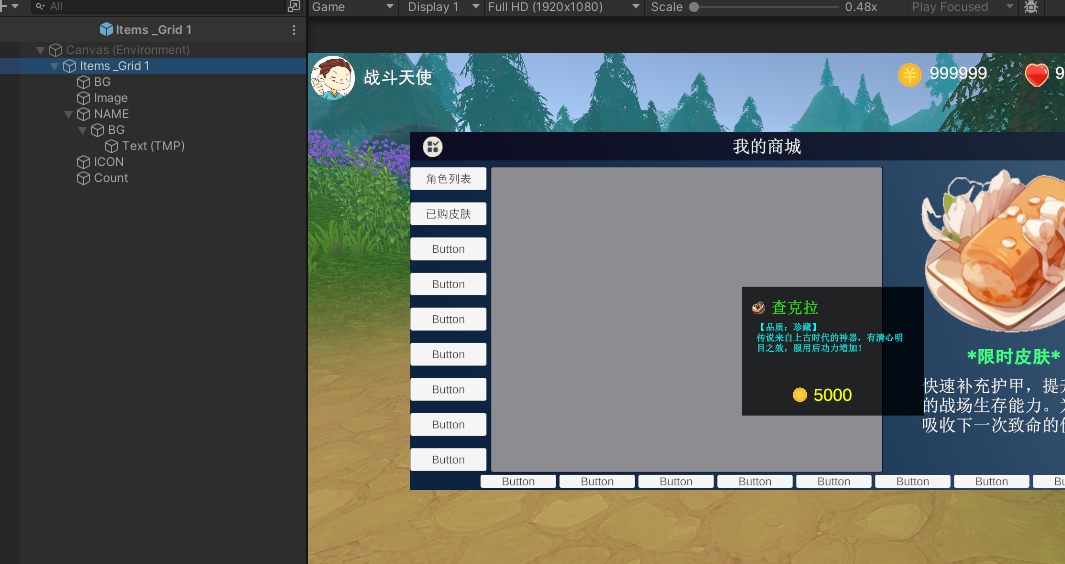
                    .GetChild(2)  // 假设第3个子物体是名称容器
                    .GetChild(0)
                    .GetChild(0)
                    .GetComponent<TextMeshProUGUI>();

                Image itemImage = TempItemGrid.transform
                    .GetChild(3)  // 假设第4个子物体是图片
                    .GetComponent<Image>();

                // 赋值数据
                if (nameText != null)
                    nameText.text = ItemAllInfo[i].Itemname;

                if (itemImage != null && ItemAllInfo[i].ItemImage != null)
                    itemImage.sprite = ItemAllInfo[i].ItemImage;

                // 设置计数显示(可选)
                Transform countTransform = TempItemGrid.transform.Find("ItemCount");
                if (countTransform != null)
                {
                    TextMeshProUGUI countText = countTransform.GetComponent<TextMeshProUGUI>();
                    if (countText != null)
                    {
                        countText.text = ItemAllInfo[i].ItemCount > 1 ?
                            ItemAllInfo[i].ItemCount.ToString() : "";
                    }
                }
            }
            catch (System.Exception e)
            {
                Debug.LogError($"设置道具 {i} 时出错: {e.Message}");
            }
        }
    }

    // 重新加载数据(可在编辑器测试用)
    [ContextMenu("重新加载JSON数据")]
    void ReloadData()
    {
        LoadDataFromJSON();
        CloneItem();
    }
}
三、JSON文件示例
cs
{
    "items": [
        {
            "itemName": "生命药水",
            "imageName": "HealthPotion",
            "itemCount": 5,
            "itemNumber": 1001,
            "itemType": 1
        },
        {
            "itemName": "魔力药水",
            "imageName": "ManaPotion",
            "itemCount": 3,
            "itemNumber": 1002,
            "itemType": 1
        },
        {
            "itemName": "长剑",
            "imageName": "Sword",
            "itemCount": 1,
            "itemNumber": 2001,
            "itemType": 2
        },
        {
            "itemName": "盾牌",
            "imageName": "Shield",
            "itemCount": 1,
            "itemNumber": 2002,
            "itemType": 2
        },
        {
            "itemName": "钥匙",
            "imageName": "Key",
            "itemCount": 3,
            "itemNumber": 3001,
            "itemType": 3
        }
    ]
}
、使用步骤
-
准备图片资源
-
将道具图片导入Unity
-
图片命名与JSON中的
imageName一致 -
将所有图片拖到
ItemImageInfro列表中
-
-
创建JSON文件
-
在
Assets/Resources文件夹中创建Items.json -
按格式编写道具数据
-
-
设置UI组件
-
将预制体和Content拖到对应位置
-
确保预制体结构与代码中的GetChild索引匹配
-
-
运行测试
-
运行游戏即可看到从JSON加载的道具
-
修改JSON文件后,可在编辑器中使用"重新加载JSON数据"菜单更新
-
五、注意事项
-
图片查找 :确保JSON中的
imageName与导入的Sprite名称完全一致 -
JSON格式 :必须严格按照JSON格式,可使用JSON验证工具
-
路径问题 :JSON文件必须放在
Resources文件夹内 -
预制体结构 :确保预制体结构与代码中的
GetChild索引匹配
这样就完成了从Excel到JSON再到Unity背包的完整流程!