在物联网开发场景中,MQTT 协议凭借轻量、低功耗的特性成为设备通信的首选。本文基于.NET MAUI 框架,开发一款可在安卓平台运行的 MQTT 客户端,实现与 MQTT 服务器的连接、消息发布 / 订阅,并通过指令远程控制 LED 设备。相比传统安卓原生开发,MAUI 仅需一套代码即可适配安卓 /iOS 等平台,大幅降低开发成本。
一、开发环境准备
1. 基础环境
- 开发工具:Visual Studio 2022(需安装 ".NET MAUI" 工作负载)
- 运行框架:.NET 7/8(推荐.NET 8,兼容性更好)
- 依赖库:MQTTnet(NuGet 安装,版本≥4.0.0)
- 测试环境:安卓模拟器(API 33+)或安卓真机(Android 8.0+)
2. NuGet 包安装
在项目中安装 MQTTnet 核心包:
cs
Install-Package MQTTnet -Version 4.3.7.789二、核心功能设计
本次实现的安卓 MQTT 客户端包含以下核心功能:
- 基于 Grid 布局的简洁 UI(连接按钮、开灯 / 关灯按钮、日志显示区);
- MQTT 服务器 TLS 加密连接(适配 EMQ X 公共服务器);
- 订阅 / 发布 MQTT 主题,实现 LED 控制指令传输;
- 带时间戳的日志系统(限制日志条数、自动滚动到底部);
- 页面生命周期管理(退出时自动断开 MQTT 连接)。
三、完整代码实现
1. XAML 布局(MainPage.xaml)
采用 Grid 嵌套布局适配安卓屏幕,解决 MAUI 布局兼容性问题,按钮状态默认禁用(连接后启用):
cs
<?xml version="1.0" encoding="utf-8"?>
<ContentPage xmlns="http://schemas.microsoft.com/dotnet/2021/maui"
             xmlns:x="http://schemas.microsoft.com/winfx/2009/xaml"
             x:Class="MauiMqttClient.MainPage"
             Title="MQTT LED控制">

    <!-- 外层Grid:分两行(按钮区+日志区) -->
    <Grid Padding="20"
          RowDefinitions="Auto, *"
          RowSpacing="15">

        <!-- 第一行:功能按钮区(三列均分) -->
        <Grid Grid.Row="0"
              ColumnDefinitions="*,*,*"
              ColumnSpacing="10"
              HorizontalOptions="Fill">

            <Button x:Name="btnConnect"
                    Text="连接服务器"
                    Clicked="BtnConnect_Clicked"
                    BackgroundColor="#2196F3"
                    TextColor="White"
                    Grid.Column="0"/>

            <Button x:Name="btnLedOn"
                    Text="开灯"
                    Clicked="BtnLedOn_Clicked"
                    BackgroundColor="#4CAF50"
                    TextColor="White"
                    Grid.Column="1"
                    IsEnabled="False"/>

            <Button x:Name="btnLedOff"
                    Text="关灯"
                    Clicked="BtnLedOff_Clicked"
                    BackgroundColor="#F44336"
                    TextColor="White"
                    Grid.Column="2"
                    IsEnabled="False"/>

        </Grid>

        <!-- 第二行:日志显示区(只读Editor) -->
        <Editor x:Name="editorLog"
                Grid.Row="1"
                IsReadOnly="True"
                BackgroundColor="White"
                TextColor="Black"
                FontSize="18"
                AutoSize="Disabled"/>

    </Grid>
</ContentPage>
2. 后台逻辑代码(MainPage.xaml.cs)
核心包含 MQTT 客户端初始化、事件绑定、消息收发、日志优化等,重点适配安卓端 TLS 连接和 UI 线程限制:
cs
using System;
using System.Text;
using System.Net;
using System.Threading;
using System.Threading.Tasks;
using System.Collections.Generic;
using System.Linq;
using System.Security.Authentication;
using Microsoft.Maui.Controls;
using MQTTnet;
using MQTTnet.Client;
using MQTTnet.Protocol;
using MQTTnet.Packets;

namespace MauiMqttClient
{
    public partial class MainPage : ContentPage
    {
        private IMqttClient? _mqttClient;
        private bool _isConnected = false;
        private readonly string _clientId = Guid.NewGuid().ToString();

        // MQTT服务器配置(EMQ X公共TLS服务器)
        private const string Broker = "p6121ba8.ala.cn-hangzhou.emqxsl.cn";
        private const int Port = 8883;
        private const string Username = ""; // 无则留空
        private const string Password = ""; // 无则留空
        private const string PublishTopic = "/pctostm32/test"; // 发布指令主题
        private const string SubscribeTopic = "/stm32topc/test"; // 订阅设备反馈主题

        // 日志缓存(限制最大条数,避免安卓内存溢出)
        private readonly List<string> _logEntries = new List<string>();
        private const int MaxLogLines = 1000;

        public MainPage()
        {
            InitializeComponent();

            // 安卓端TLS连接关键配置:忽略证书验证+指定TLS12
            ServicePointManager.ServerCertificateValidationCallback = (sender, cert, chain, errors) => true;
            ServicePointManager.SecurityProtocol = SecurityProtocolType.Tls12;

            InitMqttClient();
            AddLog("初始化完成,点击「连接服务器」开始操作");
        }

        #region MQTT客户端初始化与事件绑定
        /// <summary>
        /// 初始化MQTT客户端实例
        /// </summary>
        private void InitMqttClient()
        {
            try
            {
                var factory = new MqttFactory();
                _mqttClient = factory.CreateMqttClient();
                BindMqttEvents(); // 绑定MQTT核心事件
            }
            catch (Exception ex)
            {
                AddLog($"⚠️ 客户端初始化失败:{ex.Message}");
                _mqttClient = null;
            }
        }

        /// <summary>
        /// 绑定MQTT连接/断开/消息接收事件(避免重复绑定)
        /// </summary>
        private void BindMqttEvents()
        {
            if (_mqttClient == null) return;

            // 先解绑再绑定,防止重复订阅事件
            _mqttClient.ConnectedAsync -= OnMqttConnected;
            _mqttClient.ConnectedAsync += OnMqttConnected;

            _mqttClient.DisconnectedAsync -= OnMqttDisconnected;
            _mqttClient.DisconnectedAsync += OnMqttDisconnected;

            _mqttClient.ApplicationMessageReceivedAsync -= OnMqttMessageReceived;
            _mqttClient.ApplicationMessageReceivedAsync += OnMqttMessageReceived;
        }
        #endregion

        #region MQTT事件处理(需切换到安卓UI线程)
        /// <summary>
        /// MQTT连接成功事件
        /// </summary>
        private async Task OnMqttConnected(MqttClientConnectedEventArgs e)
        {
            _isConnected = true;
            // 安卓UI操作必须在MainThread执行
            await MainThread.InvokeOnMainThreadAsync(() =>
            {
                btnConnect.Text = "断开服务器";
                btnLedOn.IsEnabled = true;
                btnLedOff.IsEnabled = true;
                AddLog("✅ 连接服务器成功");
            });
            await SubscribeTopicAsync(); // 连接成功后订阅主题
        }

        /// <summary>
        /// MQTT断开连接事件
        /// </summary>
        private async Task OnMqttDisconnected(MqttClientDisconnectedEventArgs e)
        {
            _isConnected = false;
            await MainThread.InvokeOnMainThreadAsync(() =>
            {
                btnConnect.Text = "连接服务器";
                btnLedOn.IsEnabled = false;
                btnLedOff.IsEnabled = false;
                var reason = e.Reason + (e.Exception != null ? $" | 异常:{e.Exception.Message}" : "");
                AddLog($"❌ 断开连接:{reason}");
            });
        }

        /// <summary>
        /// 接收MQTT消息事件
        /// </summary>
        private async Task OnMqttMessageReceived(MqttApplicationMessageReceivedEventArgs e)
        {
            string topic = e.ApplicationMessage.Topic;
            byte[] payloadBytes = e.ApplicationMessage.PayloadSegment.ToArray();
            string payload = Encoding.UTF8.GetString(payloadBytes);

            await MainThread.InvokeOnMainThreadAsync(() =>
            {
                AddLog($"📩 收到消息:{topic} → {payload}");
            });
        }
        #endregion

        #region 按钮点击事件
        /// <summary>
        /// 连接/断开服务器按钮
        /// </summary>
        private async void BtnConnect_Clicked(object sender, EventArgs e)
        {
            if (_mqttClient == null)
            {
                AddLog("❌ MQTT客户端未初始化");
                return;
            }

            if (!_isConnected)
            {
                // 构建MQTT连接选项(适配TLS加密)
                var mqttOptions = new MqttClientOptionsBuilder()
                    .WithTcpServer(Broker, Port)
                    .WithClientId(_clientId)
                    .WithCredentials(Username, Password)
                    .WithTls(options =>
                    {
                        options.UseTls = true;
                        options.SslProtocol = SslProtocols.Tls12;
                        options.AllowUntrustedCertificates = true;
                        options.IgnoreCertificateChainErrors = true;
                        options.IgnoreCertificateRevocationErrors = true;
                        options.CertificateValidationHandler = (context) => true;
                    })
                    .WithCleanSession()
                    .WithKeepAlivePeriod(TimeSpan.FromSeconds(30))
                    .WithoutThrowOnNonSuccessfulConnectResponse()
                    .Build();

                try
                {
                    await _mqttClient.ConnectAsync(mqttOptions, CancellationToken.None);
                }
                catch (Exception ex)
                {
                    var errorMsg = ex.ToString() + (ex.InnerException != null ? $"\n内部异常:{ex.InnerException.Message}" : "");
                    AddLog($"❌ 连接失败:{errorMsg}");
                    _isConnected = false;
                }
            }
            else
            {
                // 断开连接并重置客户端
                if (_mqttClient.IsConnected)
                {
                    await UnsubscribeTopicAsync();
                    await _mqttClient.DisconnectAsync();
                }

                _mqttClient = null;
                _isConnected = false;
                btnConnect.Text = "连接服务器";
                btnLedOn.IsEnabled = false;
                btnLedOff.IsEnabled = false;
                AddLog("已主动断开与服务器的连接");
                InitMqttClient(); // 重新初始化客户端
            }
        }

        /// <summary>
        /// 开灯按钮:发布led on指令
        /// </summary>
        private async void BtnLedOn_Clicked(object sender, EventArgs e)
        {
            await PublishMessageAsync("led on");
        }

        /// <summary>
        /// 关灯按钮:发布led off指令
        /// </summary>
        private async void BtnLedOff_Clicked(object sender, EventArgs e)
        {
            await PublishMessageAsync("led off");
        }
        #endregion

        #region MQTT订阅/发布核心方法
        /// <summary>
        /// 订阅指定MQTT主题
        /// </summary>
        private async Task SubscribeTopicAsync()
        {
            if (_mqttClient == null || !_mqttClient.IsConnected) return;

            try
            {
                var topicFilter = new MqttTopicFilter
                {
                    Topic = SubscribeTopic,
                    QualityOfServiceLevel = MqttQualityOfServiceLevel.AtMostOnce
                };

                var subscribeOptions = new MqttClientSubscribeOptions
                {
                    TopicFilters = new List<MqttTopicFilter> { topicFilter }
                };

                var subscribeResult = await _mqttClient.SubscribeAsync(subscribeOptions, CancellationToken.None);

                bool isSuccess = subscribeResult.Items.Any() && (int)subscribeResult.Items.First().ResultCode == 0;
                AddLog(isSuccess ? $"✅ 订阅主题成功:{SubscribeTopic}" : $"❌ 订阅失败:{subscribeResult.Items.First().ResultCode}");
            }
            catch (Exception ex)
            {
                AddLog($"❌ 订阅异常:{ex.Message}");
            }
        }

        /// <summary>
        /// 取消订阅指定MQTT主题
        /// </summary>
        private async Task UnsubscribeTopicAsync()
        {
            if (_mqttClient == null || !_mqttClient.IsConnected) return;

            try
            {
                var unsubscribeOptions = new MqttClientUnsubscribeOptions
                {
                    TopicFilters = new List<string> { SubscribeTopic }
                };

                await _mqttClient.UnsubscribeAsync(unsubscribeOptions, CancellationToken.None);
                AddLog($"已取消订阅主题:{SubscribeTopic}");
            }
            catch (Exception ex)
            {
                AddLog($"❌ 取消订阅异常:{ex.Message}");
            }
        }

        /// <summary>
        /// 发布MQTT消息到指定主题
        /// </summary>
        private async Task PublishMessageAsync(string message)
        {
            if (_mqttClient == null || !_mqttClient.IsConnected)
            {
                AddLog("❌ 未连接服务器,无法发布消息");
                return;
            }

            try
            {
                var mqttMessage = new MqttApplicationMessageBuilder()
                    .WithTopic(PublishTopic)
                    .WithPayload(Encoding.UTF8.GetBytes(message))
                    .WithQualityOfServiceLevel(MqttQualityOfServiceLevel.AtMostOnce)
                    .WithRetainFlag(false)
                    .Build();

                await _mqttClient.PublishAsync(mqttMessage, CancellationToken.None);
                AddLog($"📤 发布消息:{PublishTopic} → {message}");
            }
            catch (Exception ex)
            {
                AddLog($"❌ 发布失败:{ex.Message}");
            }
        }
        #endregion

        #region 日志辅助方法(适配安卓UI滚动)
        /// <summary>
        /// 添加日志并自动滚动到底部(安卓端关键优化)
        /// </summary>
        private void AddLog(string content)
        {
            _ = MainThread.InvokeOnMainThreadAsync(() =>
            {
                // 1. 生成带毫秒级时间戳的日志
                string timeStamp = DateTime.Now.ToString("HH:mm:ss:fff");
                string logEntry = $"[{timeStamp}] {content}";

                // 2. 限制日志条数,防止安卓内存溢出
                _logEntries.Add(logEntry);
                if (_logEntries.Count > MaxLogLines)
                {
                    _logEntries.RemoveAt(0); // 移除最旧日志
                }

                // 3. 拼接日志并赋值
                editorLog.Text = string.Join(Environment.NewLine, _logEntries);

                // 4. 强制滚动到日志末尾(安卓端Editor滚动失效修复)
                editorLog.CursorPosition = editorLog.Text.Length;
            });
        }
        #endregion

        #region 页面生命周期管理
        /// <summary>
        /// 页面消失时断开MQTT连接,释放资源(安卓端防止内存泄漏)
        /// </summary>
        protected override void OnDisappearing()
        {
            base.OnDisappearing();
            if (_mqttClient != null && _mqttClient.IsConnected)
            {
                _ = _mqttClient.DisconnectAsync();
            }
            _mqttClient = null;
        }
        #endregion
    }
}
四、安卓端测试与运行
1. 调试配置
- 打开 VS2022,将项目调试目标切换为安卓模拟器(如 Pixel 5 - API 33)或已开启 "开发者模式 + USB 调试" 的安卓真机;
- 确认 MQTT 服务器地址(
Broker)和端口(Port)正确,若使用私有 MQTT 服务器,需替换为对应地址。
2. 运行效果
- 启动应用后,日志区显示 "初始化完成";
- 点击「连接服务器」,成功后按钮变为 "断开服务器",开灯 / 关灯按钮启用;
- 点击「开灯」/「关灯」,日志区显示发布的指令;
- 若设备端(如 STM32)向
/stm32topc/test主题发送反馈消息,应用会实时接收并显示。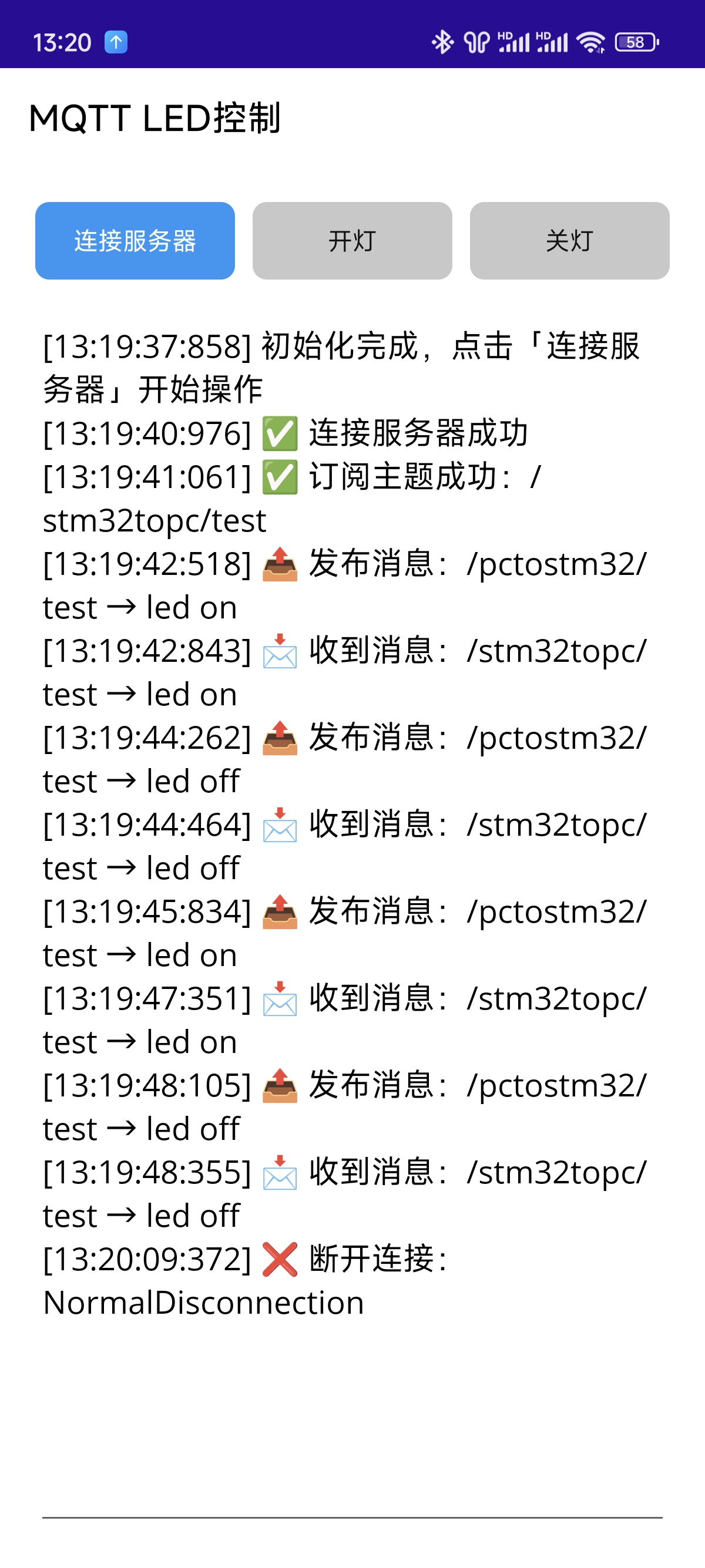
五、安卓端常见问题与避坑指南
1. TLS 连接失败
- 问题:安卓端连接 TLS 加密的 MQTT 服务器时提示 "证书验证失败";
- 解决:必须设置
ServicePointManager忽略证书验证,并指定SslProtocols.Tls12(安卓默认不兼容高版本 TLS)。
2. Editor 日志滚动失效
- 问题:日志增多后,Editor 无法自动滚动到底部;
- 解决:通过
MainThread切换到 UI 线程,设置CursorPosition = editorLog.Text.Length(MAUI 安卓端ScrollToEnd方法偶发失效)。
3. MQTT 事件不触发
- 问题:连接成功后收不到消息或不触发 Connected 事件;
- 解决:事件绑定前先解绑(
-=)再绑定(+=),避免重复订阅导致事件失效。
4. 内存泄漏
- 问题:多次进入 / 退出页面后,安卓端内存占用过高;
- 解决:在
OnDisappearing方法中断开 MQTT 连接并释放_mqttClient实例,同时限制日志最大条数。
六、扩展方向
- 断线重连:添加 MQTT 自动重连逻辑,适配安卓网络切换场景;
- 多设备控制:扩展主题配置,支持同时控制多个 LED 设备;
- UI 美化:添加状态图标、主题切换,适配安卓深色模式;
- 权限适配:若使用非标准端口,添加安卓网络权限配置。
总结
本文基于.NET MAUI 实现了安卓平台的 MQTT LED 控制客户端,核心解决了安卓端 TLS 连接、UI 线程切换、日志滚动等关键问题。相比安卓原生开发,MAUI 实现了 "一套代码多端运行",大幅提升开发效率。代码已适配安卓 8.0 + 版本,可直接移植到实际物联网项目中,仅需替换 MQTT 服务器配置即可快速上线。
服务器端可参考我之前的文章基于 RT-Thread Studio 实战:ESP8266+MQTT-CSDN博客
仓库地址:csl/MauiMqttClient