文章目录
-
- [1. 安装依赖和下载nginx](#1. 安装依赖和下载nginx)
- [2. 编译安装nginx](#2. 编译安装nginx)
- [3. 创建简单的nginx配置文件](#3. 创建简单的nginx配置文件)
- [4. 创建必要的目录和文件](#4. 创建必要的目录和文件)
- [5. 启动脚本](#5. 启动脚本)
- [6. 启动nginx服务](#6. 启动nginx服务)
- [7. 测试文件服务](#7. 测试文件服务)
- [8. 系统优化脚本](#8. 系统优化脚本)
- [9. 常见问题解决](#9. 常见问题解决)
准备一台 redhat8/CentOS7的系统部署一个简单的nginx文件服务器。请按照以下步骤操作:
1. 安装依赖和下载nginx
bash
# 安装编译依赖
yum install -y gcc gcc-c++ make pcre pcre-devel zlib zlib-devel openssl openssl-devel

# 创建nginx用户
useradd -s /sbin/nologin nginx

# 下载nginx 1.16.1
cd  /usr/local/src
wget http://nginx.org/download/nginx-1.16.1.tar.gz
tar -zxvf nginx-1.16.1.tar.gz
cd nginx-1.16.1
2. 编译安装nginx
bash
# 配置编译参数
./configure --prefix=/usr/local/nginx \
            --with-http_ssl_module \
            --with-http_stub_status_module \
            --with-http_gzip_static_module \
            --with-http_dav_module

# 编译并安装
make && make install
这些模块作用
| 模块 | 生产环境必要性 | 用途 |
|---|---|---|
http_ssl_module |
⚠️ 必须 | HTTPS 安全通信 |
http_stub_status_module |
✅ 强烈推荐 | 监控 Nginx 性能 |
http_gzip_static_module |
✅ 推荐 | 优化静态资源加载 |
http_dav_module |
⚠️ 按需 | 文件管理/WebDAV 集成 |
3. 创建简单的nginx配置文件
编辑 /usr/local/nginx/conf/nginx.conf:
nginx
user  nginx;
worker_processes  1;

# 添加这一行,指定打开文件数量限制
worker_rlimit_nofile 65535;  # 这个值应该等于或大于worker_connections

events {
    worker_connections  1024;
}

http {
    include       mime.types;
    default_type  application/octet-stream;
    sendfile        on;

    # 增加超时时间,大文件上传需要更长时间
    keepalive_timeout  300;
    client_body_timeout 300;
    client_header_timeout 300;
    send_timeout 300;

    # 设置client_max_body_size为2G,支持大文件上传
    client_max_body_size 2g;

    # 临时文件目录,确保nginx有权限写入
    client_body_temp_path /tmp/nginx_temp;

    # 增加缓冲区大小
    client_body_buffer_size 128k;
    client_header_buffer_size 32k;
    large_client_header_buffers 4 32k;

    server {
        listen       80;
        server_name  localhost;

        # 统一的文件存储目录,同时支持上传(PUT)和下载(GET)
        location /files {
            alias   /data/files/;

            # 允许目录浏览
            autoindex on;
            autoindex_exact_size off;
            autoindex_localtime on;
            charset utf-8;

            # 允许PUT方法上传
            dav_methods PUT;
            create_full_put_path on;

            # 允许的HTTP方法
            limit_except GET PUT OPTIONS {
                deny all;
            }

            # 处理OPTIONS预检请求
            if ($request_method = 'OPTIONS') {
                add_header 'Access-Control-Allow-Origin' '*';
                add_header 'Access-Control-Allow-Methods' 'GET, PUT, OPTIONS';
                add_header 'Access-Control-Allow-Headers' 'Content-Type';
                return 204;
            }

            # 添加CORS头
            if ($request_method = PUT) {
                add_header 'Access-Control-Allow-Origin' '*';
                add_header 'Access-Control-Allow-Methods' 'GET, PUT, OPTIONS';
                add_header 'Access-Control-Allow-Headers' 'Content-Type';
            }

            # 上传文件大小限制(覆盖全局设置)
            client_max_body_size 2g;
        }

        # 根目录,提供简单的上传页面
        location / {
            root   /usr/local/nginx/html;
            index  upload.html;
        }
    }
}
4. 创建必要的目录和文件
bash
# 创建存储目录
mkdir -p /data/files
mkdir -p /usr/local/nginx/html

# 设置权限
chmod -R 755 /data
chown -R nginx:nginx /data
bash
# 创建简单的上传页面
cat > /usr/local/nginx/html/upload.html << 'EOF'
<!DOCTYPE html>
<html>
<head>
    <title>简单文件上传下载</title>
    <meta charset="utf-8">
    <style>
        * { margin: 0; padding: 0; box-sizing: border-box; }
        body { font-family: Arial, sans-serif; background: #f5f5f5; padding: 20px; }
        .container { max-width: 800px; margin: 0 auto; background: white; padding: 30px; border-radius: 8px; box-shadow: 0 2px 10px rgba(0,0,0,0.1); }
        h1 { color: #333; margin-bottom: 20px; text-align: center; }
        h2 { color: #666; margin: 20px 0 10px; }
        .upload-area { border: 2px dashed #ccc; border-radius: 5px; padding: 40px; text-align: center; margin: 20px 0; transition: border-color 0.3s; }
        .upload-area.dragover { border-color: #4CAF50; background: #f9fff9; }
        .file-input-container { margin: 20px 0; }
        .upload-btn, .browse-btn {
            background: #4CAF50; color: white; border: none; padding: 12px 24px;
            border-radius: 4px; cursor: pointer; font-size: 16px; margin: 5px;
        }
        .browse-btn { background: #2196F3; }
        .cancel-btn { background: #f44336; }
        .upload-btn:hover { background: #45a049; }
        .browse-btn:hover { background: #0b7dda; }
        .cancel-btn:hover { background: #d32f2f; }
        .upload-btn:disabled { background: #ccc; cursor: not-allowed; }
        #fileInput { display: none; }
        .file-info {
            margin: 15px 0; padding: 15px; background: #f9f9f9;
            border-radius: 4px; border-left: 4px solid #4CAF50;
        }
        .file-name { font-weight: bold; color: #333; }
        .file-size { color: #666; margin-left: 10px; }
        .file-remove { color: #f44336; cursor: pointer; margin-left: 15px; }
        .file-remove:hover { text-decoration: underline; }
        .file-list { margin-top: 20px; }
        .file-item { padding: 10px; border-bottom: 1px solid #eee; display: flex; justify-content: space-between; align-items: center; }
        .file-item-name { flex-grow: 1; }
        .file-item-size { color: #666; margin: 0 15px; }
        .file-actions a { color: #4CAF50; text-decoration: none; margin-left: 10px; }
        .file-actions a:hover { text-decoration: underline; }
        .status { margin-top: 15px; padding: 10px; border-radius: 4px; display: none; }
        .success { background: #dff0d8; color: #3c763d; display: block; }
        .error { background: #f2dede; color: #a94442; display: block; }
        .info { background: #d9edf7; color: #31708f; display: block; }
        .progress { width: 100%; height: 20px; background: #f0f0f0; border-radius: 10px; margin: 10px 0; overflow: hidden; }
        .progress-bar { height: 100%; background: #4CAF50; width: 0%; transition: width 0.3s; }
        .selected-file { display: flex; align-items: center; justify-content: space-between; padding: 10px; background: #e8f5e8; border-radius: 4px; margin: 10px 0; }
    </style>
</head>
<body>
    <div class="container">
        <h1>简单文件上传下载服务</h1>

        <div class="upload-area" id="dropArea">
            <p>拖放文件到此处,或</p>
            <div class="file-input-container">
                <input type="file" id="fileInput">
                <button class="browse-btn" onclick="document.getElementById('fileInput').click()">选择文件</button>
            </div>
            <p>支持大文件上传,最大2G</p>
        </div>

        <!-- 选择的文件信息区域 -->
        <div id="selectedFileInfo" style="display: none;">
            <div class="selected-file">
                <div>
                    <strong>已选择文件:</strong>
                    <span id="selectedFileName"></span>
                    <span id="selectedFileSize" class="file-size"></span>
                </div>
                <button class="cancel-btn" onclick="clearSelectedFile()">取消选择</button>
            </div>
        </div>

        <button class="upload-btn" id="uploadBtn" onclick="uploadFile()" disabled>上传文件</button>

        <div class="progress" id="progressContainer" style="display: none;">
            <div class="progress-bar" id="progressBar"></div>
        </div>

        <div id="status"></div>

        <h2>文件列表 (<a href="/files" target="_blank">浏览目录</a>)</h2>
        <div class="file-list" id="fileList">
            <p id="loadingMsg">正在加载文件列表...</p>
        </div>
    </div>

    <script>
    // 页面加载完成后获取文件列表
    window.onload = function() {
        loadFileList();

        // 拖放功能
        var dropArea = document.getElementById('dropArea');
        var fileInput = document.getElementById('fileInput');

        dropArea.addEventListener('dragover', function(e) {
            e.preventDefault();
            dropArea.classList.add('dragover');
        });

        dropArea.addEventListener('dragleave', function() {
            dropArea.classList.remove('dragover');
        });

        dropArea.addEventListener('drop', function(e) {
            e.preventDefault();
            dropArea.classList.remove('dragover');
            fileInput.files = e.dataTransfer.files;
            handleFileSelect();
        });

        fileInput.addEventListener('change', handleFileSelect);
    };

    function handleFileSelect() {
        var fileInput = document.getElementById('fileInput');
        var uploadBtn = document.getElementById('uploadBtn');
        var selectedFileInfo = document.getElementById('selectedFileInfo');

        if (fileInput.files.length > 0) {
            var file = fileInput.files[0];

            // 显示选择的文件信息
            document.getElementById('selectedFileName').textContent = file.name;
            document.getElementById('selectedFileSize').textContent = '(' + formatFileSize(file.size) + ')';
            selectedFileInfo.style.display = 'block';

            // 启用上传按钮
            uploadBtn.disabled = false;
        } else {
            // 隐藏文件信息
            selectedFileInfo.style.display = 'none';
            uploadBtn.disabled = true;
        }
    }

    function clearSelectedFile() {
        var fileInput = document.getElementById('fileInput');
        var uploadBtn = document.getElementById('uploadBtn');
        var selectedFileInfo = document.getElementById('selectedFileInfo');

        // 清空文件选择
        fileInput.value = '';

        // 隐藏文件信息
        selectedFileInfo.style.display = 'none';

        // 禁用上传按钮
        uploadBtn.disabled = true;

        // 清空状态信息
        document.getElementById('status').innerHTML = '';
        document.getElementById('status').className = 'status';
    }

    function uploadFile() {
        var fileInput = document.getElementById('fileInput');
        var file = fileInput.files[0];

        if (!file) {
            showStatus('请先选择文件', 'error');
            return;
        }

        // 禁用上传按钮,防止重复点击
        var uploadBtn = document.getElementById('uploadBtn');
        uploadBtn.disabled = true;
        uploadBtn.textContent = '上传中...';

        // 显示进度条
        document.getElementById('progressContainer').style.display = 'block';
        document.getElementById('progressBar').style.width = '0%';

        var xhr = new XMLHttpRequest();

        // 使用PUT方法上传到/files目录
        xhr.open('PUT', '/files/' + encodeURIComponent(file.name), true);

        xhr.onload = function() {
            document.getElementById('progressContainer').style.display = 'none';

            if (xhr.status === 201 || xhr.status === 200 || xhr.status === 204) {
                showStatus('上传成功!文件:' + file.name + ' (' + formatFileSize(file.size) + ')', 'success');

                // 清空文件选择
                fileInput.value = '';

                // 清空选择的文件信息
                document.getElementById('selectedFileInfo').style.display = 'none';

                // 恢复上传按钮
                uploadBtn.textContent = '上传文件';

                loadFileList(); // 刷新文件列表
            } else {
                showStatus('上传失败:' + xhr.status + ' ' + xhr.statusText, 'error');
                uploadBtn.disabled = false;
                uploadBtn.textContent = '上传文件';
            }
        };

        xhr.onerror = function() {
            document.getElementById('progressContainer').style.display = 'none';
            showStatus('上传出错,请检查网络连接', 'error');
            uploadBtn.disabled = false;
            uploadBtn.textContent = '上传文件';
        };

        xhr.upload.onprogress = function(e) {
            if (e.lengthComputable) {
                var percent = Math.round((e.loaded / e.total) * 100);
                document.getElementById('progressBar').style.width = percent + '%';
                uploadBtn.textContent = '上传中 ' + percent + '%';
            }
        };

        xhr.send(file);
    }

    function loadFileList() {
        fetch('/files/')
            .then(response => response.text())
            .then(html => {
                // 解析HTML获取文件列表
                var parser = new DOMParser();
                var doc = parser.parseFromString(html, 'text/html');
                var links = doc.querySelectorAll('a');
                var files = [];

                links.forEach(link => {
                    var href = link.getAttribute('href');
                    var text = link.textContent;
                    // 跳过父目录链接和无效链接
                    if (href !== '../' && !href.startsWith('?') && text && !text.includes('Parent Directory')) {
                        files.push({
                            name: decodeURIComponent(text),
                            url: '/files/' + encodeURIComponent(text),
                            size: link.nextSibling ? link.nextSibling.textContent.trim() : ''
                        });
                    }
                });

                displayFileList(files);
            })
            .catch(error => {
                document.getElementById('loadingMsg').textContent = '加载文件列表失败';
                console.error('加载文件列表失败:', error);
            });
    }

    function displayFileList(files) {
        var fileList = document.getElementById('fileList');

        if (files.length === 0) {
            fileList.innerHTML = '<p>暂无文件</p>';
            return;
        }

        var html = '';
        files.forEach(file => {
            html += `
                <div class="file-item">
                    <span class="file-item-name">${file.name}</span>
                    <span class="file-item-size">${file.size}</span>
                    <div class="file-actions">
                        <a href="${file.url}" download>下载</a>
                        <a href="${file.url}" target="_blank">查看</a>
                    </div>
                </div>
            `;
        });

        fileList.innerHTML = html;
    }

    function showStatus(message, type) {
        var statusDiv = document.getElementById('status');
        statusDiv.innerHTML = message;
        statusDiv.className = 'status ' + type;
    }

    function formatFileSize(bytes) {
        if (bytes === 0) return '0 Bytes';
        var k = 1024;
        var sizes = ['Bytes', 'KB', 'MB', 'GB'];
        var i = Math.floor(Math.log(bytes) / Math.log(k));
        return parseFloat((bytes / Math.pow(k, i)).toFixed(2)) + ' ' + sizes[i];
    }

    // 每30秒刷新一次文件列表
    setInterval(loadFileList, 30000);
    </script>
</body>
</html>
EOF
5. 启动脚本
bash
# 创建systemd服务文件
cat > /etc/systemd/system/nginx.service << 'EOF'
[Unit]
Description=The NGINX HTTP and reverse proxy server
After=network.target

[Service]
Type=forking
PIDFile=/usr/local/nginx/logs/nginx.pid
ExecStartPre=/usr/local/nginx/sbin/nginx -t
ExecStart=/usr/local/nginx/sbin/nginx
ExecReload=/usr/local/nginx/sbin/nginx -s reload
ExecStop=/usr/local/nginx/sbin/nginx -s stop

[Install]
WantedBy=multi-user.target
EOF
6. 启动nginx服务
bash
# 重新加载systemd
systemctl daemon-reload

# 启动nginx
systemctl start nginx

# 设置开机启动
systemctl enable nginx

# 检查状态
systemctl status nginx
7. 测试文件服务
上传文件(使用curl):
bash
# 启动nginx
/usr/local/nginx/sbin/nginx

# 测试配置文件
/usr/local/nginx/sbin/nginx -t

# 查看nginx进程
ps aux | grep nginx

# 测试curl上传
echo "测试文件内容" > test-upload.txt
curl -X PUT -T test-upload.txt http://localhost/files/test-upload.txt

# 测试curl下载
curl http://localhost/files/test-upload.txt

# 测试目录浏览
curl http://localhost/files/

# 查看文件是否在正确位置
ls -la /data/files/
使用web页面上传:
访问 http://192.168.100.140 或者 http://192.168.100.140/upload.html
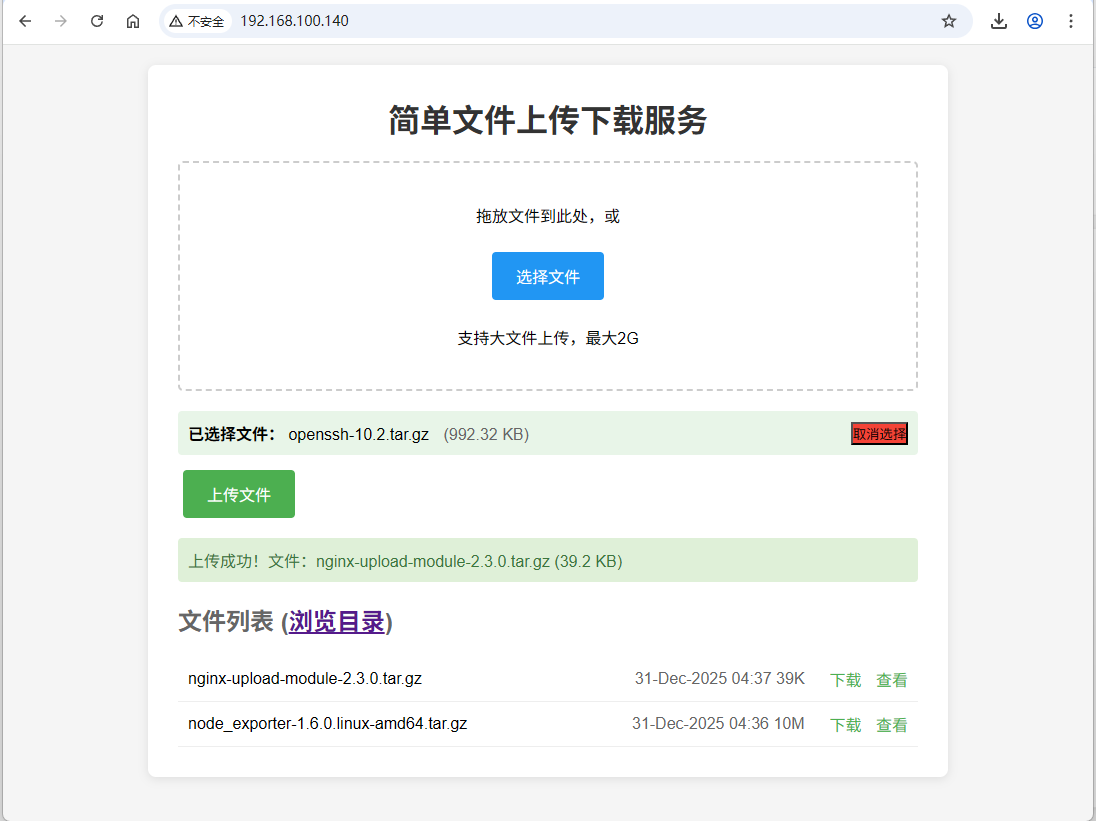
- 后续找个时间优化下,使用账号及密码登录,才能上传及下载文件。
8. 系统优化脚本
- 可选
bash
#!/bin/bash

# nginx优化配置脚本

echo "优化nginx配置..."

# 调整系统参数
cat >> /etc/sysctl.conf << EOF
# nginx优化参数
net.core.somaxconn = 65535
net.core.netdev_max_backlog = 65535
net.ipv4.tcp_max_syn_backlog = 65535
net.ipv4.tcp_fin_timeout = 30
net.ipv4.tcp_tw_reuse = 1
net.ipv4.tcp_tw_recycle = 1
net.ipv4.tcp_keepalive_time = 1200
net.ipv4.tcp_max_tw_buckets = 5000
EOF

# 应用系统参数
sysctl -p

# 调整文件描述符限制
cat >> /etc/security/limits.conf << EOF
* soft nofile 65535
* hard nofile 65535
nginx soft nofile 65535
nginx hard nofile 65535
EOF

echo "优化完成,请重新登录使文件描述符限制生效"
9. 常见问题解决
如果遇到权限问题:
bash
# 修改nginx运行用户
chown -R nginx:nginx /usr/local/nginx

# 重新加载配置
/usr/local/nginx/sbin/nginx -s reload
如果无法上传大文件:
bash
# 编辑nginx.conf,调整client_max_body_size
vim /usr/local/nginx/conf/nginx.conf

# 编辑upload.html, 修改WEB 页面显示 <p>支持大文件上传,最大2G</p>
vim  /usr/local/nginx/html/upload.html

# 修改后重启nginx
systemctl restart nginx