本文整理了使用 lycium 进行交叉编译(以 OpenSSL 为例)的完整流程,适用于 Linux 或 Windows 的 WSL(Ubuntu)。示例路径使用 /mnt/f,对应 Windows 的 F: 盘。
1. 准备环境
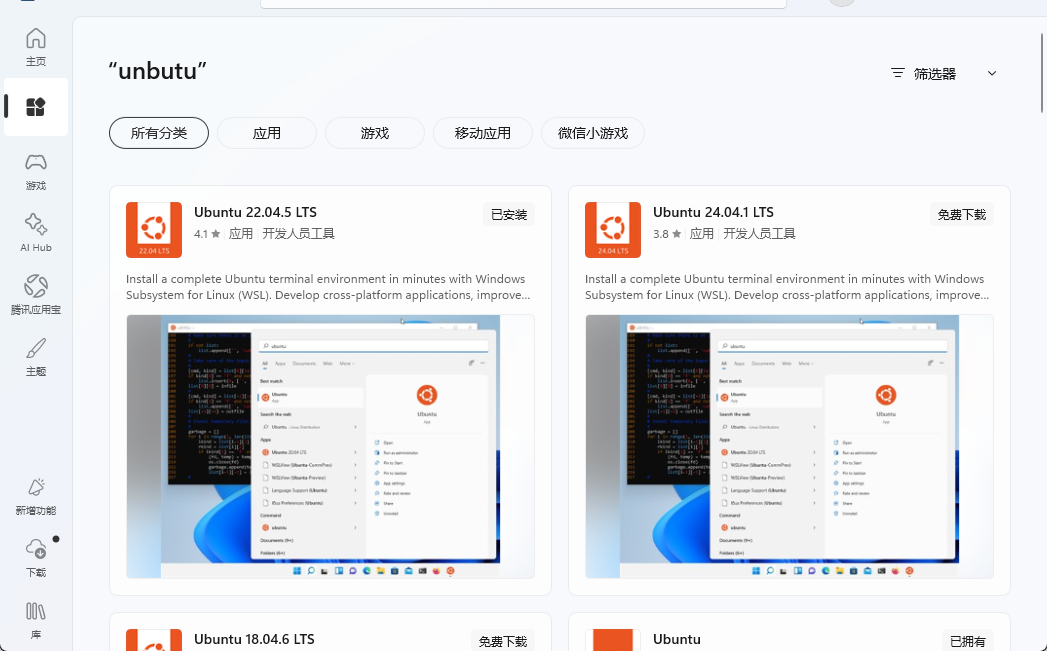
- 在 Windows 上推荐使用 WSL(Ubuntu),确保
F:盘已挂载到/mnt/f - 需要具备 Git 与基础构建工具的网络环境
- 目标:基于 OpenHarmony SDK 交叉编译 OpenSSL 3.6(arm64-v8a 等)
2. 下载与安装 OpenHarmony SDK
- 下载(示例 Daily 版本,按需替换为你使用的版本)
https://cidownload.openharmony.cn/version/Daily_Version/OpenHarmony_6.1.0.25/20251230_020433/version-Daily_Version-OpenHarmony_6.1.0.25-20251230_020433-ohos-sdk-public.tar.gz - 解压并重命名为
ohos_sdk(在 WSL 路径中操作)
bash
cd /mnt/f
tar -zxvf version-Daily_Version-OpenHarmony_6.1.0.25-20251230_020433-ohos-sdk-public.tar.gz
mv ohos-sdk-public ohos_sdk
3. 配置环境变量
将 SDK 的 toolchains、cmake、llvm 等加入 PATH:
bash
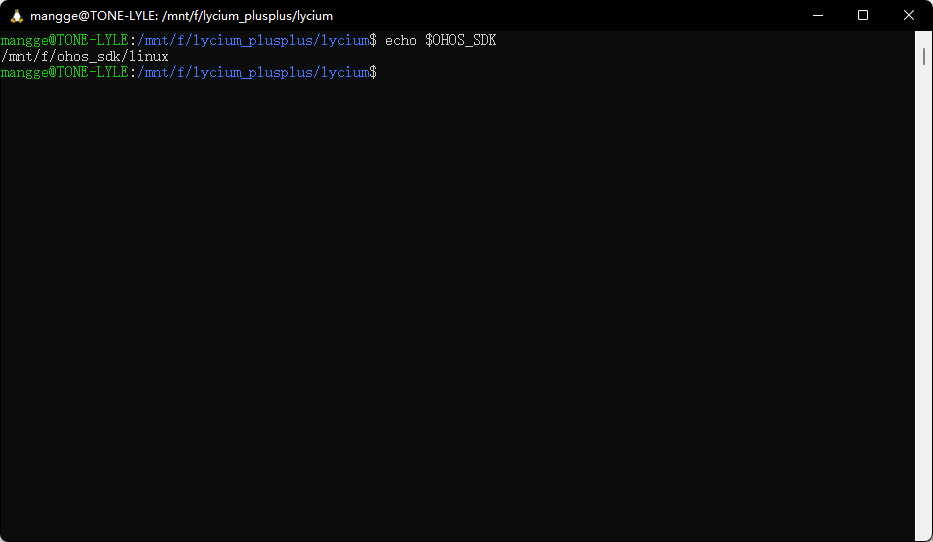
export OHOS_SDK=/mnt/f/ohos_sdk/linux
export PATH="$OHOS_SDK/toolchains:$PATH"
export PATH="$OHOS_SDK/native/build-tools/cmake/bin:$PATH"
export PATH="$OHOS_SDK/native/llvm/bin:$PATH"
如需持久化,可将以上内容写入 ~/.bashrc 或 ~/.zshrc。
4. 安装构建依赖
bash
sudo apt update
sudo apt install gcc g++ make autoconf automake libtool unzip -y
sudo apt install pkg-config
5. 获取 lycium_plusplus 工具
bash
cd /mnt/f
git clone https://gitcode.com/OpenHarmonyPCDeveloper/lycium_plusplus.git
6. 构建 OpenSSL(示例)
进入 lycium 目录并执行:
bash
cd /mnt/f/lycium_plusplus/lycium
chmod +x build.sh
./build.sh openssl
构建过程会打印出环境与工具链信息(示例):
- Build OS linux
- OHOS_SDK=/mnt/f/ohos_sdk/linux
- CLANG_VERSION=15.0.4
- toolchain/arm-linux-ohos-clang、aarch64-linux-ohos-clang、x86_64-linux-ohos-clang 等
- 拉取依赖:
ohos_openssl.git分支ohos_3.6 - OpenSSL 成功配置并生成 Makefile,随后进行编译与安装
输出示例
text
Build OS linux
OHOS_SDK=/mnt/f/ohos_sdk/linux
CLANG_VERSION=15.0.4
toolchain/
toolchain/arm-linux-ohos-clang++
toolchain/aarch64-linux-ohos-clang++
toolchain/x86_64-linux-ohos-clang
toolchain/aarch64-linux-ohos-clang
toolchain/x86_64-linux-ohos-clang++
toolchain/arm-linux-ohos-clang
modulename: openssl, outerpath: /mnt/f/lycium_plusplus/lycium/../external_deps, manifestfile: /mnt/f/lycium_plusplus/lycium/../external_deps/module.json
clone ...
['git', 'clone', '-b', 'ohos_3.6', 'https://gitcode.com/OpenHarmonyPCDeveloper/ohos_openssl.git', 'openssl']

Clean!
Start building openssl 3.6!
Compileing OpenHarmony arm64-v8a openssl 3.6 libs...
Cloning into 'openssl-3.6'...
...
Configuring OpenSSL version 3.6.1-dev for target linux-aarch64
Created Makefile
Created include/openssl/configuration.h

OpenSSL has been successfully configured

...
bin/openssl
lib/libcrypto.so.3
lib/libssl.so.3
lib/pkgconfig/openssl.pc

[INFO][HNP][hnpcli_main.c:84]native manager process start.
[INFO][HNP][hnp_pack.c:75]PackHnp start. srcPath=/mnt/f/lycium_plusplus/lycium/usr/openssl/arm64-v8a, hnpName=openssl, hnpVer=3.6, hnpDstPath=/mnt/f/lycium_plusplus/lycium/output/arm64-v8a
[INFO][HNP][hnp_pack.c:84]HnpZip dir=/mnt/f/lycium_plusplus/lycium/usr/openssl/arm64-v8a, output=/mnt/f/lycium_plusplus/lycium/output/arm64-v8a/openssl.hnp
[INFO][HNP][hnp_pack.c:116]PackHnp end ... ret=0
[INFO][HNP][hnpcli_main.c:99]native manager process exit. ret=0 The test must be on an OpenHarmony device!
Build openssl 3.6 end!
ALL JOBS DONE!!!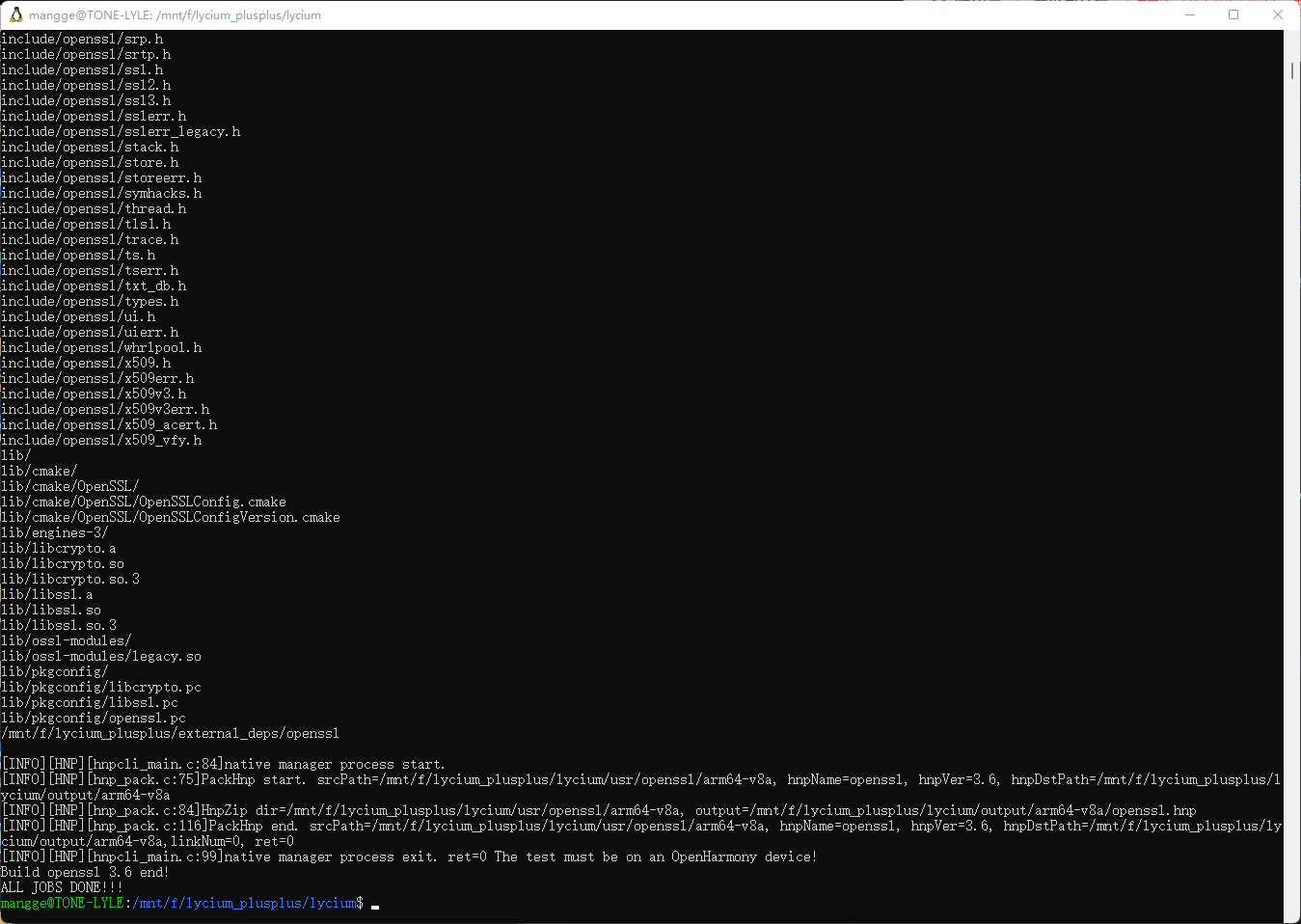
当看到ALL JOBS DONE!!!时代表构建完成
7. 产物位置
- 头文件与库(以 arm64-v8a 为例):
- 路径:
/mnt/f/lycium_plusplus/lycium/usr/openssl/arm64-v8a - 头文件:
include/openssl/*.h - 动态库:
lib/libcrypto.so.3、lib/libssl.so.3(同时包含.so与.a) - pkgconfig:
lib/pkgconfig/{libcrypto.pc, libssl.pc, openssl.pc}
- 路径:
- 打包产物:
- 路径:
/mnt/f/lycium_plusplus/lycium/output/arm64-v8a/openssl.hnp - 打包日志中可见
PackHnp end ... ret=0表示生成成功
- 路径:
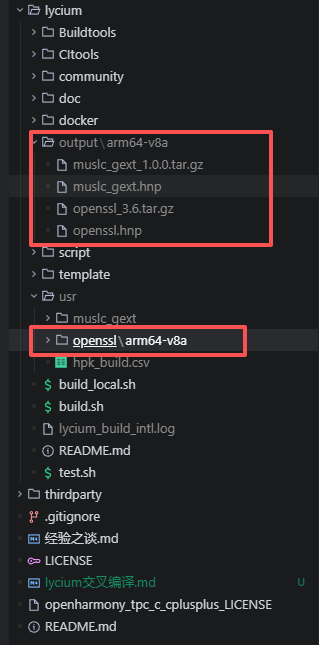
目录说明(external_deps / usr / output)
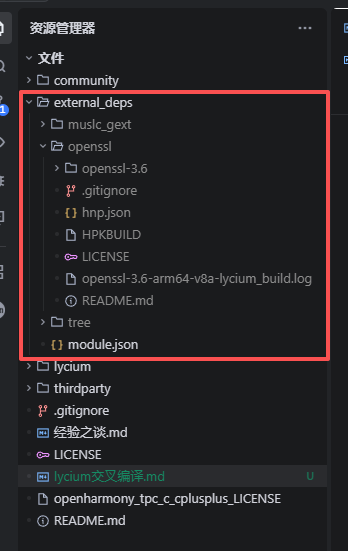
- external_deps:第三方模块的源码与中间构建目录,示例:
/mnt/f/lycium_plusplus/external_deps/openssl/openssl-3.6。用于拉取仓库、配置与编译,不是最终安装位置,空间不足时可以清理后重新生成。 - usr:模块的"安装根"目录,类似
/usr/local。按模块与架构划分,示例:/mnt/f/lycium_plusplus/lycium/usr/openssl/arm64-v8a,包含bin/、include/、lib/、pkgconfig/等,后续其他模块链接时从此处引用头文件与库。 - output:发布物目录,存放打包生成的交付件(如
.hnp),按架构分类,示例:/mnt/f/lycium_plusplus/lycium/output/arm64-v8a/openssl.hnp,用于拷贝到设备或上游集成。 - 关系:external_deps 拉源码并编译 → 安装到 usr → 从 usr 内容打包成 output。
8. 设备验证
- 部分日志会提示:
The test must be on an OpenHarmony device! - 将打包的
openssl.hnp部署到 OpenHarmony 设备上进行实际运行测试
9. 常见问题与提示
- 命令未找到或版本不匹配:确认 PATH 中包含 SDK 的
toolchains、cmake、llvm - 权限问题:为脚本加执行权限
chmod +x build.sh - 包管理器拼写:使用
sudo apt install ...(避免sdo) - 网络下载缓慢:OpenSSL 仓库体积较大,建议稳定网络或预先拉取
10. 快速命令总览
bash
# 1) 准备 SDK
cd /mnt/f
tar -zxvf <ohos-sdk-public.tar.gz>
mv ohos-sdk-public ohos_sdk

# 2) 环境变量
export OHOS_SDK=/mnt/f/ohos_sdk/linux
export PATH="$OHOS_SDK/toolchains:$PATH"
export PATH="$OHOS_SDK/native/build-tools/cmake/bin:$PATH"
export PATH="$OHOS_SDK/native/llvm/bin:$PATH"

# 3) 依赖
sudo apt update
sudo apt install gcc g++ make autoconf automake libtool unzip -y
sudo apt install pkg-config

# 4) 获取工具并构建
git clone https://gitcode.com/OpenHarmonyPCDeveloper/lycium_plusplus.git
cd /mnt/f/lycium_plusplus/lycium
chmod +x build.sh
./build.sh openssl