文章目录
- 效果展示
- 配置完整内容
- 使用指南
-
- [🚀 启动特性](#🚀 启动特性)
-
- [自定义 Banner](#自定义 Banner)
- 智能提示符
- [⌨️ 快捷键配置](#⌨️ 快捷键配置)
- [📁 文件浏览命令](#📁 文件浏览命令)
-
- [基础命令(eza 增强)](#基础命令(eza 增强))
- 高级命令
- [🧭 目录导航](#🧭 目录导航)
- [⚙️ 配置文件管理](#⚙️ 配置文件管理)
- [📄 文件操作](#📄 文件操作)
- [🐍 Python 包管理](#🐍 Python 包管理)
-
- [uv pip 快捷安装](#uv pip 快捷安装)
- [🔧 Git 快捷命令](#🔧 Git 快捷命令)
- [💻 进程与系统](#💻 进程与系统)
- [🛠️ 环境说明](#🛠️ 环境说明)
- [💡 使用技巧](#💡 使用技巧)
-
- [1. **组合命令**](#1. 组合命令)
- [2. **快速定位**](#2. 快速定位)
- [3. **历史命令技巧**](#3. 历史命令技巧)
- [4. **环境切换**](#4. 环境切换)
- [🎨 自定义提示](#🎨 自定义提示)
- [📝 注意事项](#📝 注意事项)
- [🔄 更新配置](#🔄 更新配置)
效果展示
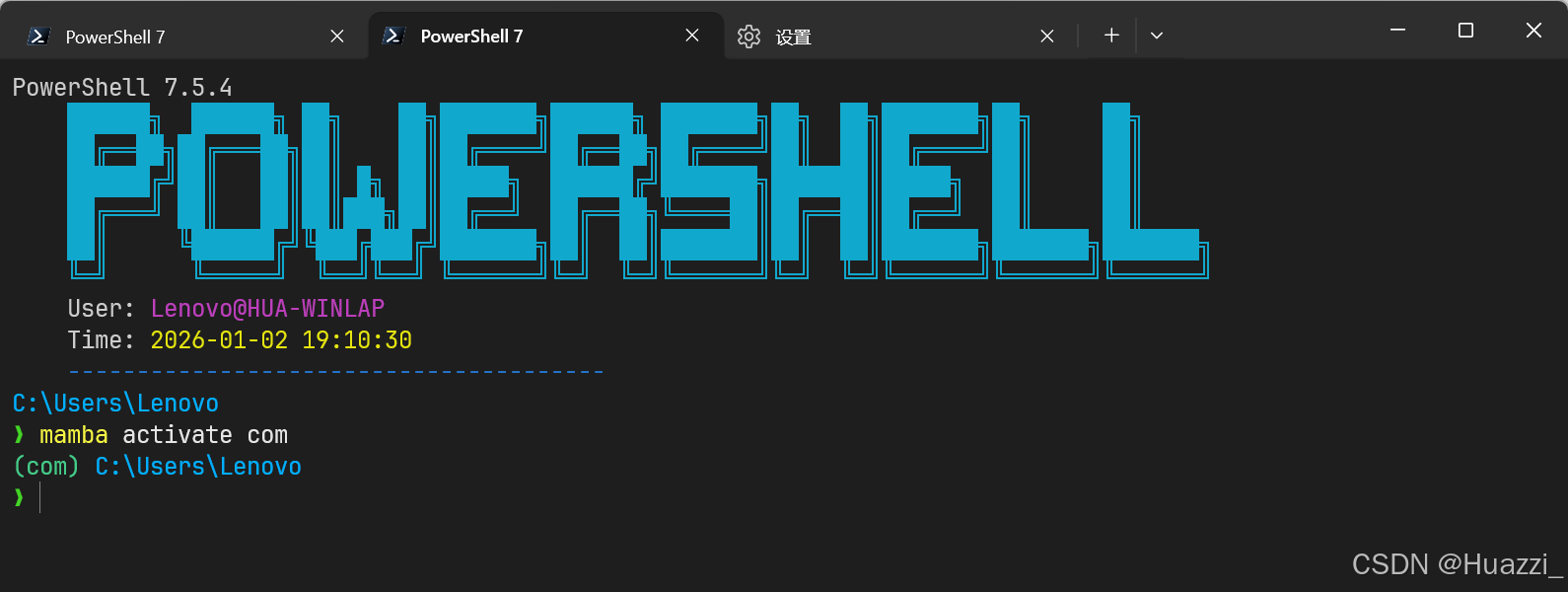
配置完整内容
psl
# ------------------------------- 1. 配置默认编码 -------------------------------
[System.Console]::OutputEncoding = [System.Text.Encoding]::GetEncoding(65001)

# ------------------------------- 2. 只有在交互式界面才加载 UI 相关配置 -------------------------------
if ($Host.Name -eq 'ConsoleHost' -or $Host.Name -eq 'Windows Terminal') {

    #------------------------------- Import Modules -------------------------------
    # 仅保留核心的补全插件,移除 posh-git 和 oh-my-posh
    Import-Module PSReadLine

	# --- 自定义 Banner 函数 ---
    function Show-CustomBanner {
        $logo = @"
    ██████╗  ██████╗ ██╗    ██╗███████╗██████╗ ███████╗██╗  ██╗███████╗██╗     ██╗
    ██╔══██╗██╔═══██╗██║    ██║██╔════╝██╔══██╗██╔════╝██║  ██║██╔════╝██║     ██║
    ██████╔╝██║   ██║██║ █╗ ██║█████╗  ██████╔╝███████╗███████║█████╗  ██║     ██║
    ██╔═══╝ ██║   ██║██║███╗██║██╔══╝  ██╔══██╗╚════██║██╔══██║██╔══╝  ██║     ██║
    ██║     ╚██████╔╝╚███╔███╔╝███████╗██║  ██║███████║██║  ██║███████╗███████╗███████╗
    ╚═╝      ╚═════╝  ╚══╝╚══╝ ╚══════╝╚═╝  ╚═╝╚══════╝╚═╝  ╚═╝╚══════╝╚══════╝╚══════╝
"@
        $time = Get-Date -Format "yyyy-MM-dd HH:mm:ss"
        $cyan="`e[36m"; $gray="`e[90m"; $purple="`e[35m"; $yellow="`e[33m"; $blue="`e[34m"; $reset="`e[0m"

        Write-Host "$cyan$logo$reset"
        Write-Host "    User: $purple$env:USERNAME@$env:COMPUTERNAME$reset"
        Write-Host "    Time: $yellow$time$reset"
        Write-Host "    $blue---------------------------------------$reset"
    }

    # 执行 Banner
    Show-CustomBanner

    #------------------------------- Set Hot-keys -------------------------------
    Set-PSReadLineOption -PredictionSource History
    Set-PSReadLineOption -HistorySearchCursorMovesToEnd
    Set-PSReadLineOption -Colors @{ InlinePrediction = '#808080'} # 预测文本颜色

    Set-PSReadLineKeyHandler -Key "Tab" -Function MenuComplete
    Set-PSReadLineKeyHandler -Key "Ctrl+d" -Function ViExit
    Set-PSReadLineKeyHandler -Key "Ctrl+z" -Function Undo
    Set-PSReadLineKeyHandler -Key UpArrow -Function HistorySearchBackward
    Set-PSReadLineKeyHandler -Key DownArrow -Function HistorySearchForward

    #------------------------------- Native Prompt (支持 Mamba/Conda) -------------------------------
    function prompt {
		# 颜色定义
		$pathCol   = "`e[38;2;0;175;255m"  # #00AFFF
		$gitCol    = "`e[38;2;255;231;0m"  # #FFE700
		$symbolCol = "`e[38;2;67;212;38m"  # #43D426
		$condaCol  = "`e[38;2;68;204;136m" # #44CC88 (conda 环境颜色)
		$reset     = "`e[0m"

		# 检测 conda/mamba 环境
		$condaEnv = ""
		if ($env:CONDA_DEFAULT_ENV) {
			$condaEnv = "($env:CONDA_DEFAULT_ENV) "
		}

		# 原生获取 Git 分支名
		$gitBranch = ""
		if (Get-Command git -ErrorAction SilentlyContinue) {
			$gitBranch = git branch --show-current 2>$null
		}

		# 第一行:[conda环境] 路径 [Git分支]
		$currentPath = $ExecutionContext.SessionState.Path.CurrentLocation

		# 组合输出
		$line1 = ""
		if ($condaEnv) {
			$line1 += "$condaCol$condaEnv$reset"
		}
		$line1 += "$pathCol$currentPath$reset"
		if ($gitBranch) {
			$line1 += " $gitCol$gitBranch$reset"
		}

		Write-Host $line1

		# 第二行:提示符符号
		Write-Host "$symbolCol❯$reset" -NoNewline

		return " "
	}
}

# ------------------------------- 3. 环境变量 -------------------------------
$env:SCOOP = 'D:\Applications\ScoopApps'

# npm 全局可执行文件路径
$npmGlobalPath = "D:\DevFile\nodejs\npm_global"
if ($env:PATH -notlike "*$npmGlobalPath*") {
    $env:PATH = "$npmGlobalPath;" + $env:PATH
}

# Node.js 模块查找路径
$env:NODE_PATH = "D:\DevFile\nodejs\npm_global\node_modules"

# ------------------------------- 4. Alias & Custom Functions -------------------------------
Set-Alias -Name vi -Value vim
Set-Alias -Name find -Value where.exe
Set-Alias -Name grep -Value Select-String
Set-Alias -Name np+ -Value D:\Applications\Notepad++\notepad++.exe

# 目录导航
function .. { Set-Location .. }
function ... { Set-Location ..\.. }
function .... { Set-Location ..\..\.. }
function home { Set-Location ~ }
function docs { Set-Location ~\Documents }
function dl { Set-Location ~\Downloads }

# 配置文件管理
function edit-profile { D:\Applications\Notepad++\notepad++.exe $PROFILE }
function reload-profile { & $PROFILE }
function test-profile {
    $errors = $null
    $null = [System.Management.Automation.PSParser]::Tokenize((Get-Content $PROFILE -Raw), [ref]$errors)
    if ($errors.Count -eq 0) {
        Write-Host "✅ 配置文件语法正确" -ForegroundColor Green
    } else {
        Write-Host "❌ 配置文件语法错误:" -ForegroundColor Red
        $errors | ForEach-Object { Write-Host "  $_" -ForegroundColor Yellow }
    }
}

# 文件列表
# 保留原生 ls
#function ll { Get-ChildItem -Path . -Force | Format-Table -AutoSize }
#function la { Get-ChildItem -Path . -Force -Attributes Hidden,ReadOnly,System }
#function ls { Get-ChildItem @args }
# eza 替换
# ===== eza 配置 =====
if (Get-Command eza -ErrorAction SilentlyContinue) {
    # 创建基础 eza 命令生成器
    function Get-EzaCommand {
        param(
            [string[]]$ExtraArgs = @(),
            [switch]$Long,
            [switch]$All,
            [switch]$Icons,
            [switch]$Tree,
            [int]$TreeLevel = 2
        )

        # 基础参数
        $baseArgs = @(
            "--color=always",
            "--group-directories-first",
            "--time-style=long-iso"
        )

        # 添加 Git 状态(如果当前目录是 Git 仓库)
        try {
            $isGitRepo = (git rev-parse --is-inside-work-tree 2>$null) -eq "true"
            if ($isGitRepo) {
                $baseArgs += "--git"
            }
        } catch {}

        # 添加额外参数
        if ($Long) { $baseArgs += "-l", "-h" }
        if ($All) { $baseArgs += "-a" }
        if ($Icons) { $baseArgs += "--icons" }
        if ($Tree) { $baseArgs += "--tree", "--level=$TreeLevel" }

        # 返回参数数组
        return ($baseArgs + $ExtraArgs)
    }

    # 重新定义主要命令
    function ls {
        param([Parameter(ValueFromRemainingArguments)]$ExtraArgs)
        eza @(Get-EzaCommand) @ExtraArgs
    }

    function ll {
        param([Parameter(ValueFromRemainingArguments)]$ExtraArgs)
        eza @(Get-EzaCommand -Long) @ExtraArgs
    }

    function la {
        param([Parameter(ValueFromRemainingArguments)]$ExtraArgs)
        eza @(Get-EzaCommand -Long -All) @ExtraArgs
    }

    function lli {
        param([Parameter(ValueFromRemainingArguments)]$ExtraArgs)
        eza @(Get-EzaCommand -Long -Icons) @ExtraArgs
    }

    function tree {
        param(
            [int]$Level = 2,
            [Parameter(ValueFromRemainingArguments)]$ExtraArgs
        )
        eza @(Get-EzaCommand -Tree -TreeLevel $Level) @ExtraArgs
    }

    # 按文件大小排序(大文件在前)
    function largest {
        param([Parameter(ValueFromRemainingArguments)]$ExtraArgs)
        eza @(Get-EzaCommand -Long -ExtraArgs @("--sort=size", "--reverse")) @ExtraArgs
    }

    # 最新修改的文件
    function latest {
        param([Parameter(ValueFromRemainingArguments)]$ExtraArgs)
        eza @(Get-EzaCommand -Long -ExtraArgs @("--sort=modified", "--reverse")) @ExtraArgs
    }

    # 只显示目录
    function dirs {
        param([Parameter(ValueFromRemainingArguments)]$ExtraArgs)
        eza @(Get-EzaCommand -ExtraArgs @("--only-dirs")) @ExtraArgs
    }
}


# 文件操作
function cat { Get-Content @args }
function tail { Get-Content @args -Tail 20 }

# uv pip 快捷命令
function up {
    param([Parameter(ValueFromRemainingArguments)][string[]]$Packages)
    if (-not $Packages) {
        Write-Host "Usage: up <package-name>" -ForegroundColor Yellow
        Write-Host "Example: up requests numpy pandas" -ForegroundColor Cyan
        return
    }
    uv pip install @Packages
}

# 历史命令
function gh { Get-History | Select-String $args }

# 进程管理
function pskill { Get-Process @args -ErrorAction SilentlyContinue | Stop-Process -Force }

# 系统信息
function sysinfo {
    Get-ComputerInfo | Select-Object WindowsProductName, WindowsVersion, OSArchitecture, CsTotalPhysicalMemory
}
function psver {
    $PSVersionTable.PSVersion
    Write-Host "PowerShell 配置加载完成!" -ForegroundColor Green
}

# Git
if (Get-Command git -ErrorAction SilentlyContinue) {
    function gs { git status }
    function ga { git add . }
    function gc { git commit -m $args }
    function gp { git push }
    function gl { git log --oneline -10 }
}
使用指南
🚀 启动特性
自定义 Banner
每次启动 PowerShell 时会显示:
- ASCII 艺术 Logo(POWERSHELL)
- 当前用户和计算机名
- 当前时间
- 分隔线
智能提示符
(conda环境名) 当前路径 Git分支
❯
显示元素:
- 青绿色 - Conda/Mamba 环境名(激活时显示)
- 蓝色 - 当前目录路径
- 黄色 - Git 分支名(在 Git 仓库中显示)
- 绿色 - 命令提示符
❯
⌨️ 快捷键配置
| 快捷键 | 功能 | 说明 |
|---|---|---|
Tab |
菜单补全 | 显示所有可能的补全选项 |
Ctrl+D |
退出 | 快速退出 PowerShell |
Ctrl+Z |
撤销 | 撤销当前行的编辑 |
↑ |
向上搜索 | 根据当前输入搜索历史命令 |
↓ |
向下搜索 | 向下浏览历史命令 |
智能历史补全:
- 输入命令开头后按
↑/↓会只显示匹配的历史命令 - 灰色预测文本会根据历史自动显示
📁 文件浏览命令
基础命令(eza 增强)
| 命令 | 功能 | 示例 |
|---|---|---|
ls |
列出文件 | ls |
ll |
详细列表(带大小、权限) | ll |
la |
显示所有文件(含隐藏) | la |
lli |
详细列表 + 图标 | lli |
高级命令
| 命令 | 功能 | 示例 |
|---|---|---|
tree |
树形显示目录 | tree、tree n(n为level数) |
largest |
按大小排序(大→小) | largest |
latest |
按修改时间排序(新→旧) | latest |
dirs |
只显示目录 | dirs |
特性说明:
- 自动显示 Git 状态(在 Git 仓库中)
- 目录优先显示
- 彩色输出
- ISO 格式时间
使用示例:
powershell
# 查看最近修改的文件
latest

# 查看占用空间最大的文件
largest

# 显示 3 层深度的目录树
tree 3

# 只查看当前目录下的文件夹
dirs
🧭 目录导航
| 命令 | 目标位置 | 等效命令 |
|---|---|---|
.. |
上级目录 | cd .. |
... |
上上级目录 | cd ..\.. |
.... |
上上上级目录 | cd ..\..\.. |
home |
用户主目录 | cd ~ |
docs |
文档文件夹 | cd ~\Documents |
dl |
下载文件夹 | cd ~\Downloads |
快速跳转示例:
powershell
# 从深层目录快速返回
D:\Projects\Web\Frontend\src\components> ...
D:\Projects\Web\Frontend>

# 快速进入常用目录
> docs        # 跳转到文档
> dl          # 跳转到下载
> home        # 回到主目录
⚙️ 配置文件管理
| 命令 | 功能 | 说明 |
|---|---|---|
edit-profile |
编辑配置 | 用 Notepad++ 打开 $PROFILE |
reload-profile |
重载配置 | 应用最新的配置更改 |
test-profile |
测试配置 | 检查配置文件语法错误 |
工作流程:
powershell
# 1. 编辑配置
edit-profile

# 2. 测试语法(保存后)
test-profile

# 3. 重新加载(无误后)
reload-profile
📄 文件操作
| 命令 | 功能 | 示例 |
|---|---|---|
cat <文件> |
查看文件内容 | cat README.md |
tail <文件> |
查看文件末尾 20 行 | tail log.txt |
grep <模式> |
搜索文本 | `cat log.txt |
find <程序> |
查找可执行文件 | find python |
实用组合:
powershell
# 查看日志中的错误
cat app.log | grep "ERROR"

# 查看最新的日志条目
tail server.log

# 查找 Python 安装位置
find python
🐍 Python 包管理
uv pip 快捷安装
powershell
# 单个包
up numpy

# 多个包
up requests pandas matplotlib

# 等效于
uv pip install numpy
uv pip install requests pandas matplotlib
说明:
up命令是uv pip install的快捷方式- 支持一次安装多个包
- 自动使用 uv 的快速安装
🔧 Git 快捷命令
| 命令 | 完整命令 | 说明 |
|---|---|---|
gs |
git status |
查看状态 |
ga |
git add . |
添加所有更改 |
gc "消息" |
git commit -m "消息" |
提交更改 |
gp |
git push |
推送到远程 |
gl |
git log --oneline -10 |
查看最近 10 条提交 |
典型工作流:
powershell
# 1. 查看状态
gs

# 2. 添加文件
ga

# 3. 提交
gc "feat: 添加新功能"

# 4. 推送
gp

# 5. 查看提交历史
gl
💻 进程与系统
| 命令 | 功能 | 示例 |
|---|---|---|
pskill <进程名> |
强制结束进程 | pskill chrome |
sysinfo |
显示系统信息 | sysinfo |
psver |
PowerShell 版本 | psver |
gh <关键词> |
搜索历史命令 | gh git |
使用示例:
powershell
# 结束卡死的程序
pskill notepad

# 查看系统信息
sysinfo

# 搜索之前用过的 git 命令
gh git
🛠️ 环境说明
预配置路径
powershell
# Scoop 安装路径
$env:SCOOP = 'D:\Applications\ScoopApps'

# npm 全局包路径
D:\DevFile\nodejs\npm_global

# Node.js 模块路径
$env:NODE_PATH = "D:\DevFile\nodejs\npm_global\node_modules"
命令别名
| 别名 | 实际命令 |
|---|---|
vi |
vim |
find |
where.exe |
grep |
Select-String |
np+ |
Notepad++ |
💡 使用技巧
1. 组合命令
powershell
# 查看大文件并过滤
largest | grep ".mp4"

# 查看最新修改的 Python 文件
latest | grep ".py"

# 搜索所有 Git 仓库
dirs | grep ".git"
2. 快速定位
powershell
# 返回上级并列出文件
..; ll

# 快速切换和查看
docs; tree 2
3. 历史命令技巧
powershell
# 搜索之前的 pip 安装命令
gh "up"

# 查找所有 git 操作
gh "git"
4. 环境切换
powershell
# 激活 Conda 环境
mamba activate com

# 提示符会显示:
# (com) D:\Projects main
# ❯
🎨 自定义提示
如果你想修改提示符颜色,编辑 prompt 函数中的颜色值:
powershell
$pathCol   = "`e[38;2;0;175;255m"    # 路径颜色
$gitCol    = "`e[38;2;255;231;0m"    # Git 分支颜色
$symbolCol = "`e[38;2;67;212;38m"    # 提示符颜色
$condaCol  = "`e[38;2;68;204;136m"   # Conda 环境颜色
RGB 格式:\e[38;2;R;G;Bm`
📝 注意事项
- eza 命令 :需要先安装
eza,否则ls/ll/la等命令会回退到原生命令 - Git 命令 :需要安装 Git 才能使用
gs/ga/gc/gp/gl快捷命令 - Conda/Mamba:环境名显示需要正确配置 Conda/Mamba
- 路径配置:部分路径(如 Scoop、npm)是固定配置,使用前请确认或修改
🔄 更新配置
修改配置后的标准流程:
powershell
# 1. 编辑
edit-profile

# 2. 保存后测试
test-profile

# 3. 如果显示 ✅,重新加载
reload-profile

# 4. 如果显示 ❌,检查错误信息并重新编辑
配置版本 :2025-01-02
适用环境:Windows PowerShell 5.1+ / PowerShell 7+