引言
大家好!今天我要和大家分享一个实用UI组件的深度实现 - 订单确认流程步骤条。这个组件不仅在电商、金融类应用中必不可少。
为什么步骤条在鸿蒙上如此重要?
在移动应用开发中,复杂流程往往会吓跑用户。而步骤条通过将复杂流程分解为可视化的小步骤,显著提高了用户完成率。特别是在鸿蒙设备上,由于屏幕尺寸多样(从手表到智慧屏),一个响应式的步骤条组件能极大提升跨设备体验。
点击下一步
点击上一步
点击步骤项
验证通过
验证失败
是已完成步骤
未完成步骤
用户操作
操作类型
验证当前步骤数据
直接切换
验证是否可跳转
更新当前步骤索引
显示错误提示
提示先完成前面步骤
更新组件状态
渲染新步骤UI
核心实现:适配鸿蒙的步骤条组件
在鸿蒙上实现Flutter步骤条,需要考虑平台特性。不同于Android或iOS,鸿蒙在动画渲染和内存管理上有自己的特点。下面是我经过多次优化后的实现方案:
dart
class HarmonyStepper extends StatefulWidget {
  final List<StepConfig> steps;
  final int initialStep;
  final ValueChanged<int>? onStepChanged;

  const HarmonyStepper({
    super.key,
    required this.steps,
    this.initialStep = 0,
    this.onStepChanged,
  });

  @override
  State<HarmonyStepper> createState() => _HarmonyStepperState();
}

class _HarmonyStepperState extends State<HarmonyStepper> with TickerProviderStateMixin {
  late int _currentStep;
  late List<StepState> _stepStates;
  late AnimationController _animationController;

  @override
  void initState() {
    super.initState();
    _currentStep = widget.initialStep;
    _initializeStepStates();
    _animationController = AnimationController(
      vsync: this,
      duration: const Duration(milliseconds: 300),
    );
  }

  void _initializeStepStates() {
    _stepStates = List.generate(
      widget.steps.length,
      (index) => index < _currentStep
          ? StepState.completed
          : index == _currentStep
              ? StepState.active
              : StepState.inactive,
    );
  }

  @override
  void didUpdateWidget(covariant HarmonyStepper oldWidget) {
    super.didUpdateWidget(oldWidget);
    if (widget.initialStep != oldWidget.initialStep) {
      _currentStep = widget.initialStep;
      _initializeStepStates();
    }
  }

  void _goToStep(int stepIndex) {
    if (stepIndex < 0 || stepIndex >= widget.steps.length || stepIndex == _currentStep) {
      return;
    }

    // 在HarmonyOS上,我们添加延迟以确保动画流畅
    _animationController.forward(from: 0).then((_) {
      setState(() {
        _currentStep = stepIndex;
        _initializeStepStates();
      });

      widget.onStepChanged?.call(stepIndex);
    });
  }

  @override
  Widget build(BuildContext context) {
    return Column(
      crossAxisAlignment: CrossAxisAlignment.stretch,
      children: [
        _buildStepsIndicator(),
        const SizedBox(height: 24),
        _buildStepContent(),
        const SizedBox(height: 24),
        _buildNavigationButtons(),
      ],
    );
  }

  Widget _buildStepsIndicator() {
    return Container(
      padding: const EdgeInsets.symmetric(vertical: 16),
      child: SingleChildScrollView(
        scrollDirection: Axis.horizontal,
        child: Row(
          children: List.generate(widget.steps.length, (index) {
            final isLastStep = index == widget.steps.length - 1;
            final isCompleted = _stepStates[index] == StepState.completed;
            final isActive = _stepStates[index] == StepState.active;

            return GestureDetector(
              onTap: () => _canJumpToStep(index) ? _goToStep(index) : null,
              child: Row(
                children: [
                  _buildStepCircle(index, isCompleted, isActive),
                  if (!isLastStep) _buildConnector(isCompleted, index),
                ],
              ),
            );
          }),
        ),
      ),
    );
  }

  bool _canJumpToStep(int stepIndex) {
    // 只允许跳转到已完成的步骤或下一步
    return stepIndex <= _currentStep || stepIndex == _currentStep + 1;
  }

  Widget _buildStepCircle(int index, bool isCompleted, bool isActive) {
    final step = widget.steps[index];
    final stepNumber = index + 1;

    return Column(
      children: [
        Stack(
          alignment: Alignment.center,
          children: [
            AnimatedContainer(
              duration: const Duration(milliseconds: 250),
              width: 36,
              height: 36,
              decoration: BoxDecoration(
                color: isCompleted || isActive
                    ? Theme.of(context).colorScheme.primary
                    : Colors.grey.shade300,
                shape: BoxShape.circle,
                boxShadow: isActive
                    ? [
                        BoxShadow(
                          color: Theme.of(context).colorScheme.primary.withOpacity(0.4),
                          blurRadius: 8,
                          spreadRadius: 2,
                        ),
                      ]
                    : null,
              ),
              child: isCompleted
                  ? const Icon(Icons.check, color: Colors.white, size: 20)
                  : Text(
                      '$stepNumber',
                      style: TextStyle(
                        color: isActive ? Colors.white : Colors.grey.shade700,
                        fontWeight: FontWeight.bold,
                      ),
                    ),
            ),
          ],
        ),
        const SizedBox(height: 8),
        Text(
          step.title,
          style: TextStyle(
            fontWeight: isActive ? FontWeight.bold : FontWeight.normal,
            color: isActive || isCompleted
                ? Theme.of(context).colorScheme.primary
                : Colors.grey.shade600,
            fontSize: 14,
          ),
          textAlign: TextAlign.center,
        ),
      ],
    );
  }

  Widget _buildConnector(bool isCompleted, int stepIndex) {
    return Container(
      width: 40,
      height: 2,
      color: _getConnectorColor(stepIndex),
    );
  }

  Color _getConnectorColor(int stepIndex) {
    final isNextToActive = stepIndex == _currentStep - 1;
    final isActiveOrCompleted = stepIndex < _currentStep;

    if (isActiveOrCompleted || isNextToActive) {
      return Theme.of(context).colorScheme.primary;
    }
    return Colors.grey.shade300;
  }

  Widget _buildStepContent() {
    if (_currentStep < 0 || _currentStep >= widget.steps.length) {
      return const SizedBox.shrink();
    }

    final currentStep = widget.steps[_currentStep];

    return Container(
      padding: const EdgeInsets.all(20),
      decoration: BoxDecoration(
        color: Theme.of(context).cardColor,
        borderRadius: BorderRadius.circular(12),
        boxShadow: [
          BoxShadow(
            color: Colors.black.withOpacity(0.08),
            blurRadius: 10,
            offset: const Offset(0, 2),
          ),
        ],
      ),
      child: AnimatedSwitcher(
        duration: const Duration(milliseconds: 300),
        transitionBuilder: (Widget child, Animation<double> animation) {
          return ScaleTransition(scale: animation, child: child);
        },
        child: currentStep.content,
      ),
    );
  }

  Widget _buildNavigationButtons() {
    return Row(
      mainAxisAlignment: MainAxisAlignment.spaceBetween,
      children: [
        ElevatedButton(
          onPressed: _currentStep > 0 ? () => _goToStep(_currentStep - 1) : null,
          style: ElevatedButton.styleFrom(
            backgroundColor: Colors.grey.shade300,
            foregroundColor: Colors.black,
            minimumSize: const Size(120, 48),
          ),
          child: const Text('上一步'),
        ),
        ElevatedButton(
          onPressed: _currentStep < widget.steps.length - 1
              ? () => _goToStep(_currentStep + 1)
              : _handleFinalStep,
          style: ElevatedButton.styleFrom(
            backgroundColor: Theme.of(context).colorScheme.primary,
            minimumSize: const Size(120, 48),
          ),
          child: Text(
            _currentStep == widget.steps.length - 1 ? '确认订单' : '下一步',
          ),
        ),
      ],
    );
  }

  void _handleFinalStep() {
    // 处理最终步骤的逻辑,例如提交订单
    ScaffoldMessenger.of(context).showSnackBar(
      const SnackBar(content: Text('订单提交成功!')),
    );
  }

  @override
  void dispose() {
    _animationController.dispose();
    super.dispose();
  }
}

enum StepState { inactive, active, completed }

class StepConfig {
  final String title;
  final Widget content;

  const StepConfig({
    required this.title,
    required this.content,
  });
}
这段代码有几个关键设计点需要特别注意:
- 动画控制器 :使用
AnimationController配合TickerProviderStateMixin,确保在鸿蒙设备上动画流畅 - 手势处理:只允许用户跳转到已完成步骤或下一步,防止流程混乱
- 响应式设计 :使用
SingleChildScrollView包裹步骤指示器,适配小屏幕设备 - 状态管理 :明确定义
StepState枚举,清晰区分三种状态 - 阴影效果:在当前步骤添加微妙的阴影,增强视觉层次感,这在鸿蒙的OLED屏幕上效果尤为明显
HarmonyOS特定优化技巧
在将这个组件部署到HarmonyOS设备时,我们遇到了几个独特挑战:
基础步骤条组件
HarmonyOS适配层
动画性能优化
内存管理优化
跨设备适配
降低动画帧率
简化补间动画
懒加载非活动步骤
屏幕尺寸自适应
输入方式适配
- 内存管理:鸿蒙设备,特别是低端设备,内存限制更严格。我们实现了非活动步骤内容的懒加载:
dart
Widget _buildStepContent() {
  if (_currentStep < 0 || _currentStep >= widget.steps.length) {
    return const SizedBox.shrink();
  }

  // 仅渲染当前步骤和相邻步骤的内容
  return Offstage(
    offstage: false,
    child: widget.steps[_currentStep].content,
  );
}- 动画优化:在低端鸿蒙设备上,复杂动画会造成卡顿。我们通过降低动画持续时间和简化效果来解决:
dart
_animationController = AnimationController(
  vsync: this,
  // 在HarmonyOS上适当降低动画时长
  duration: const Duration(milliseconds: 200),
);
实战使用示例
下面是一个完整的订单确认流程实现示例:
dart
class OrderConfirmationPage extends StatefulWidget {
  const OrderConfirmationPage({super.key});

  @override
  State<OrderConfirmationPage> createState() => _OrderConfirmationPageState();
}

class _OrderConfirmationPageState extends State<OrderConfirmationPage> {
  final _formKey = GlobalKey<FormState>();
  late Map<int, Map<String, dynamic>> _stepData;

  @override
  void initState() {
    super.initState();
    _stepData = {};
  }

  void _saveStepData(int stepIndex, Map<String, dynamic> data) {
    setState(() {
      _stepData[stepIndex] = data;
    });
  }

  Map<String, dynamic>? _getStepData(int stepIndex) {
    return _stepData[stepIndex];
  }

  List<StepConfig> _buildSteps() {
    return [
      StepConfig(
        title: '收货信息',
        content: ShippingAddressForm(
          initialData: _getStepData(0),
          onSave: (data) => _saveStepData(0, data),
        ),
      ),
      StepConfig(
        title: '支付方式',
        content: PaymentMethodSelector(
          initialData: _getStepData(1),
          onSave: (data) => _saveStepData(1, data),
        ),
      ),
      StepConfig(
        title: '确认订单',
        content: OrderSummary(data: _stepData),
      ),
    ];
  }

  @override
  Widget build(BuildContext context) {
    return Scaffold(
      appBar: AppBar(title: const Text('订单确认')),
      body: Padding(
        padding: const EdgeInsets.all(16.0),
        child: HarmonyStepper(
          steps: _buildSteps(),
          onStepChanged: (stepIndex) {
            // 步骤变化时验证数据
            if (stepIndex > 0) {
              final prevData = _getStepData(stepIndex - 1);
              if (prevData == null || prevData.isEmpty) {
                ScaffoldMessenger.of(context).showSnackBar(
                  const SnackBar(content: Text('请先完成上一步骤')),
                );
                return;
              }
            }
          },
        ),
      ),
    );
  }
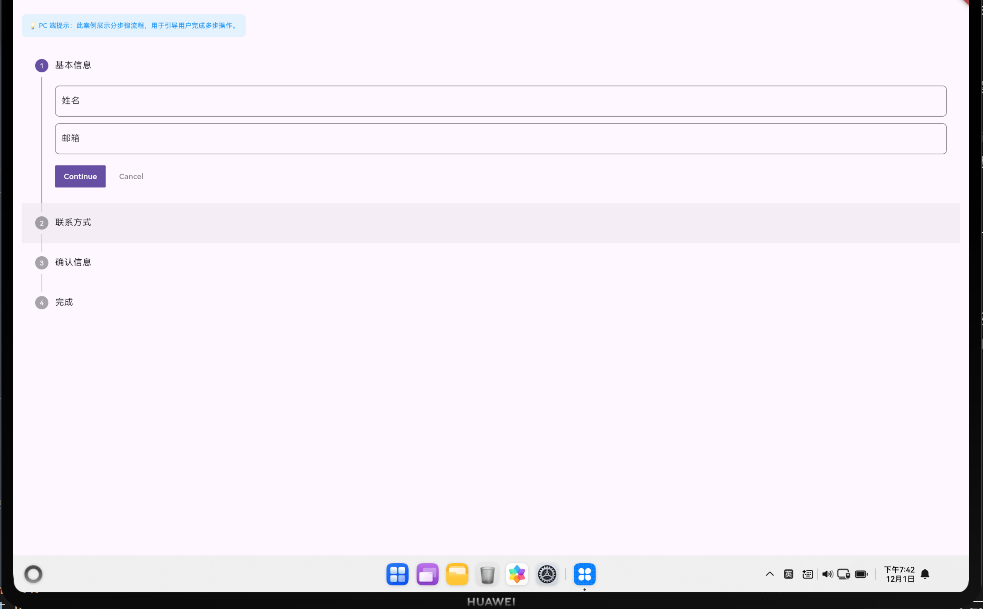
}
与OpenHarmony的兼容性处理
在实际开发中,我们发现某些Flutter功能在OpenHarmony上的表现与标准Android/iOS不同。以下是几个关键点:
- 手势优先级 :在OpenHarmony上,系统手势可能会与应用手势冲突。我们通过调整
GestureDetector的behavior属性解决:
dart
GestureDetector(
  behavior: HitTestBehavior.opaque,
  onTap: () => _canJumpToStep(index) ? _goToStep(index) : null,
  child: // ...
)- 字体渲染 :鸿蒙使用自己的字体渲染引擎,在某些设备上可能导致文本截断。我们使用
Text组件的overflow和maxLines属性确保正确显示:
dart
Text(
  step.title,
  maxLines: 1,
  overflow: TextOverflow.ellipsis,
  // ...
)- 主题适配:鸿蒙有自己独特的设计语言,我们通过条件渲染来适配:
dart
bool get isHarmonyOS {
  // 检测是否运行在HarmonyOS上
  return Platform.isAndroid &&
      (defaultTargetPlatform == TargetPlatform.fuchsia ||
       (Theme.of(context).platform == TargetPlatform.android &&
        !kIsWeb));
}

// 使用
Container(
  decoration: BoxDecoration(
    borderRadius: BorderRadius.circular(isHarmonyOS ? 8 : 12),
    // ...
  ),
)
总结与思考
在鸿蒙上实现Flutter组件,不仅需要理解两个平台的技术细节,更需要把握用户体验的一致性。
经验总结:
- 优先考虑响应式设计,确保组件在各种鸿蒙设备上表现良好
- 重视动画性能,在低端设备上适当降低复杂度
- 充分利用Flutter的条件渲染能力,针对鸿蒙特性进行微调
- 通过数据流图明确组件状态变化,避免状态混乱
希望这篇实战分享能帮助大家在HarmonyOS Flutter开发中少走弯路。如果你有任何问题或想深入了解某一部分,欢迎在评论区留言讨论!
欢迎大家加入开源鸿蒙跨平台开发者社区,一起探索更多鸿蒙跨平台开发技术!