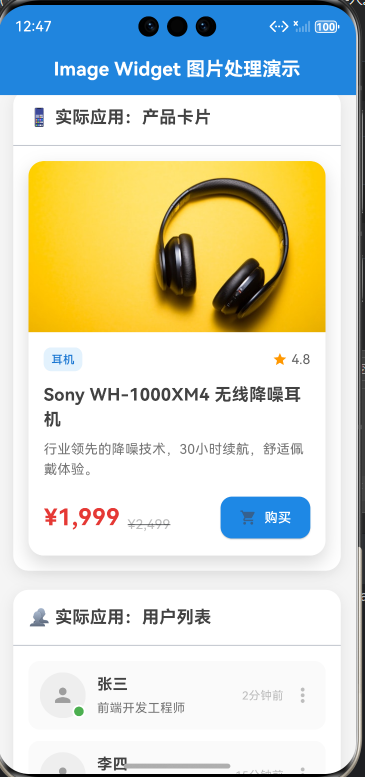
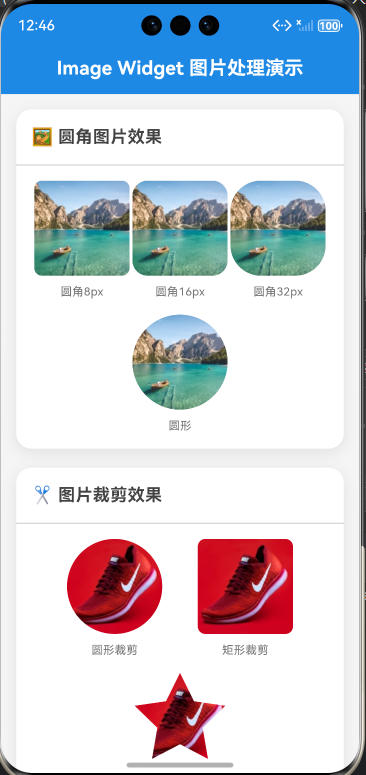
🚀 示例应用+效果图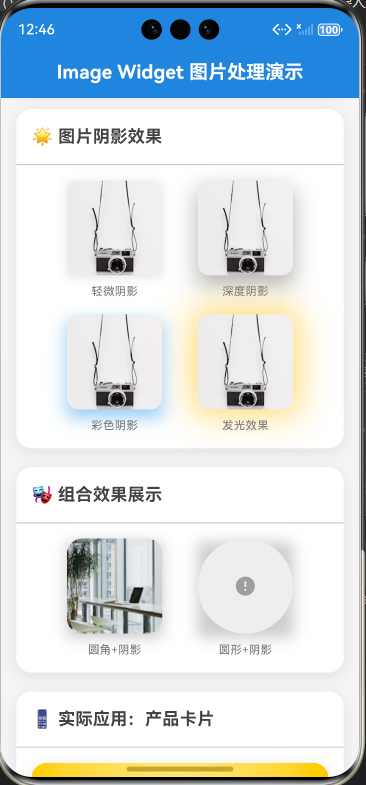

import 'dart:math';
import 'package:flutter/material.dart';
void main() => runApp(const ImageRadiusDemoApp());
/// Image Widget 图片处理演示应用
class ImageRadiusDemoApp extends StatelessWidget {
const ImageRadiusDemoApp({Key? key}) : super(key: key);
@override
Widget build(BuildContext context) {
return MaterialApp(
debugShowCheckedModeBanner: false,
title: 'Image Widget 图片处理演示',
theme: ThemeData(
primarySwatch: Colors.blue,
useMaterial3: true,
colorScheme: ColorScheme.fromSeed(
seedColor: Colors.blue,
brightness: Brightness.light,
),
),
home: const HomePage(),
);
}
}
/// 主页面
class HomePage extends StatelessWidget {
const HomePage({Key? key}) : super(key: key);
@override
Widget build(BuildContext context) {
return Scaffold(
backgroundColor: Colors.grey[100],
appBar: AppBar(
title: const Text(
'Image Widget 图片处理演示',
style: TextStyle(
fontSize: 20,
fontWeight: FontWeight.bold,
color: Colors.white,
),
),
centerTitle: true,
elevation: 0,
backgroundColor: Colors.blue[600],
),
body: const SingleChildScrollView(
padding: EdgeInsets.all(16),
child: Column(
crossAxisAlignment: CrossAxisAlignment.start,
children: [
RoundedImageCard(),
SizedBox(height: 20),
ImageClipCard(),
SizedBox(height: 20),
ShadowEffectCard(),
SizedBox(height: 20),
CombinedEffectCard(),
SizedBox(height: 20),
ProductCard(),
SizedBox(height: 20),
UserListCard(),
SizedBox(height: 20),
RealEstateCard(),
],
),
),
);
}
}
/// 圆角图片卡片
class RoundedImageCard extends StatelessWidget {
const RoundedImageCard({Key? key}) : super(key: key);
@override
Widget build(BuildContext context) {
return Container(
decoration: BoxDecoration(
color: Colors.white,
borderRadius: BorderRadius.circular(16),
boxShadow: [
BoxShadow(
color: Colors.black.withOpacity(0.08),
blurRadius: 12,
offset: const Offset(0, 4),
),
],
),
child: Column(
crossAxisAlignment: CrossAxisAlignment.start,
children: [
Padding(
padding: const EdgeInsets.all(16),
child: Text(
'🖼️ 圆角图片效果',
style: TextStyle(
fontSize: 18,
fontWeight: FontWeight.bold,
color: Colors.grey[800],
),
),
),
const Divider(height: 1),
Padding(
padding: const EdgeInsets.all(16),
child: Column(
children: [
Row(
mainAxisAlignment: MainAxisAlignment.spaceEvenly,
children: [
_buildRoundedImage(8, '圆角8px'),
_buildRoundedImage(16, '圆角16px'),
_buildRoundedImage(32, '圆角32px'),
],
),
const SizedBox(height: 16),
Row(
mainAxisAlignment: MainAxisAlignment.spaceEvenly,
children: [
_buildRoundedImage(100, '圆形'),
],
),
],
),
),
],
),
);
}
Widget _buildRoundedImage(double radius, String label) {
return Column(
children: [
ClipRRect(
borderRadius: BorderRadius.circular(radius),
child: Image.network(
'https://images.unsplash.com/photo-1501785888041-af3ef285b470?w=200',
width: 100,
height: 100,
fit: BoxFit.cover,
errorBuilder: (context, error, stackTrace) {
return Container(
width: 100,
height: 100,
color: Colors.grey[200],
child: const Icon(Icons.error, color: Colors.grey),
);
},
),
),
const SizedBox(height: 8),
Text(
label,
style: TextStyle(
fontSize: 12,
color: Colors.grey[600],
),
),
],
);
}
}
/// 图片裁剪展示
class ImageClipCard extends StatelessWidget {
const ImageClipCard({Key? key}) : super(key: key);
@override
Widget build(BuildContext context) {
return Container(
decoration: BoxDecoration(
color: Colors.white,
borderRadius: BorderRadius.circular(16),
boxShadow: [
BoxShadow(
color: Colors.black.withOpacity(0.08),
blurRadius: 12,
offset: const Offset(0, 4),
),
],
),
child: Column(
crossAxisAlignment: CrossAxisAlignment.start,
children: [
Padding(
padding: const EdgeInsets.all(16),
child: Text(
'✂️ 图片裁剪效果',
style: TextStyle(
fontSize: 18,
fontWeight: FontWeight.bold,
color: Colors.grey[800],
),
),
),
const Divider(height: 1),
Padding(
padding: const EdgeInsets.all(16),
child: Column(
children: [
Row(
mainAxisAlignment: MainAxisAlignment.spaceEvenly,
children: [
_buildClipImage('circle', '圆形裁剪'),
_buildClipImage('rect', '矩形裁剪'),
],
),
const SizedBox(height: 16),
_buildClipImage('custom', '自定义裁剪'),
],
),
),
],
),
);
}
Widget _buildClipImage(String type, String label) {
Widget image = Image.network(
'https://images.unsplash.com/photo-1542291026-7eec264c27ff?w=200',
width: 100,
height: 100,
fit: BoxFit.cover,
errorBuilder: (context, error, stackTrace) {
return Container(
width: 100,
height: 100,
color: Colors.grey[200],
child: const Icon(Icons.error, color: Colors.grey),
);
},
);
switch (type) {
case 'circle':
image = ClipOval(child: image);
break;
case 'rect':
image = ClipRRect(
borderRadius: BorderRadius.circular(8),
child: image,
);
break;
case 'custom':
image = ClipPath(
clipper: StarClipper(),
child: image,
);
break;
}
return Column(
children: [
image,
const SizedBox(height: 8),
Text(
label,
style: TextStyle(
fontSize: 12,
color: Colors.grey[600],
),
),
],
);
}
}
/// 星形裁剪路径
class StarClipper extends CustomClipper<Path> {
@override
Path getClip(Size size) {
final path = Path();
final center = Offset(size.width / 2, size.height / 2);
final radius = size.width / 2;
final points = 5;
final innerRadius = radius * 0.5;
for (int i = 0; i < points * 2; i++) {
final angle = (i * 3.1415926) / points - 3.1415926 / 2;
final r = i % 2 == 0 ? radius : innerRadius;
final x = center.dx + r * cos(angle);
final y = center.dy + r * sin(angle);
if (i == 0) {
path.moveTo(x, y);
} else {
path.lineTo(x, y);
}
}
path.close();
return path;
}
@override
bool shouldReclip(CustomClipper<Path> oldClipper) => false;
}
/// 图片阴影效果
class ShadowEffectCard extends StatelessWidget {
const ShadowEffectCard({Key? key}) : super(key: key);
@override
Widget build(BuildContext context) {
return Container(
decoration: BoxDecoration(
color: Colors.white,
borderRadius: BorderRadius.circular(16),
boxShadow: [
BoxShadow(
color: Colors.black.withOpacity(0.08),
blurRadius: 12,
offset: const Offset(0, 4),
),
],
),
child: Column(
crossAxisAlignment: CrossAxisAlignment.start,
children: [
Padding(
padding: const EdgeInsets.all(16),
child: Text(
'🌟 图片阴影效果',
style: TextStyle(
fontSize: 18,
fontWeight: FontWeight.bold,
color: Colors.grey[800],
),
),
),
const Divider(height: 1),
Padding(
padding: const EdgeInsets.all(16),
child: Column(
children: [
Row(
mainAxisAlignment: MainAxisAlignment.spaceEvenly,
children: [
_buildShadowImage('soft', '轻微阴影'),
_buildShadowImage('deep', '深度阴影'),
],
),
const SizedBox(height: 16),
Row(
mainAxisAlignment: MainAxisAlignment.spaceEvenly,
children: [
_buildShadowImage('color', '彩色阴影'),
_buildShadowImage('glow', '发光效果'),
],
),
],
),
),
],
),
);
}
Widget _buildShadowImage(String type, String label) {
BoxShadow shadow;
switch (type) {
case 'soft':
shadow = BoxShadow(
color: Colors.black.withOpacity(0.1),
blurRadius: 8,
offset: const Offset(0, 2),
);
break;
case 'deep':
shadow = BoxShadow(
color: Colors.black.withOpacity(0.3),
blurRadius: 20,
offset: const Offset(0, 10),
);
break;
case 'color':
shadow = BoxShadow(
color: Colors.blue.withOpacity(0.5),
blurRadius: 15,
offset: const Offset(0, 8),
);
break;
case 'glow':
shadow = BoxShadow(
color: Colors.amber.withOpacity(0.6),
blurRadius: 30,
offset: const Offset(0, 0),
spreadRadius: 5,
);
break;
default:
shadow = BoxShadow(
color: Colors.black.withOpacity(0.1),
blurRadius: 8,
offset: const Offset(0, 2),
);
}
return Column(
children: [
Container(
decoration: BoxDecoration(
boxShadow: [shadow],
),
child: ClipRRect(
borderRadius: BorderRadius.circular(12),
child: Image.network(
'https://images.unsplash.com/photo-1516961642265-531546e84af2?w=200',
width: 100,
height: 100,
fit: BoxFit.cover,
errorBuilder: (context, error, stackTrace) {
return Container(
width: 100,
height: 100,
color: Colors.grey[200],
child: const Icon(Icons.error, color: Colors.grey),
);
},
),
),
),
const SizedBox(height: 8),
Text(
label,
style: TextStyle(
fontSize: 12,
color: Colors.grey[600],
),
),
],
);
}
}
/// 组合效果展示
class CombinedEffectCard extends StatelessWidget {
const CombinedEffectCard({Key? key}) : super(key: key);
@override
Widget build(BuildContext context) {
return Container(
decoration: BoxDecoration(
color: Colors.white,
borderRadius: BorderRadius.circular(16),
boxShadow: [
BoxShadow(
color: Colors.black.withOpacity(0.08),
blurRadius: 12,
offset: const Offset(0, 4),
),
],
),
child: Column(
crossAxisAlignment: CrossAxisAlignment.start,
children: [
Padding(
padding: const EdgeInsets.all(16),
child: Text(
'🎭 组合效果展示',
style: TextStyle(
fontSize: 18,
fontWeight: FontWeight.bold,
color: Colors.grey[800],
),
),
),
const Divider(height: 1),
Padding(
padding: const EdgeInsets.all(16),
child: Row(
mainAxisAlignment: MainAxisAlignment.spaceEvenly,
children: [
_buildCombinedCard('rounded', '圆角+阴影'),
_buildCombinedCard('circle', '圆形+阴影'),
],
),
),
],
),
);
}
Widget _buildCombinedCard(String type, String label) {
Widget image = Image.network(
type == 'rounded'
? 'https://images.unsplash.com/photo-1497215728101-856f4ea42174?w=200'
: 'https://api.dicebear.com/7.x/avataaars/svg?seed=John',
width: 100,
height: 100,
fit: BoxFit.cover,
errorBuilder: (context, error, stackTrace) {
return Container(
width: 100,
height: 100,
color: Colors.grey[200],
child: const Icon(Icons.error, color: Colors.grey),
);
},
);
if (type == 'rounded') {
image = ClipRRect(
borderRadius: BorderRadius.circular(16),
child: image,
);
} else {
image = ClipOval(child: image);
}
return Column(
children: [
Container(
decoration: BoxDecoration(
boxShadow: [
BoxShadow(
color: Colors.black.withOpacity(0.2),
blurRadius: 12,
offset: const Offset(0, 4),
),
],
),
child: image,
),
const SizedBox(height: 8),
Text(
label,
style: TextStyle(
fontSize: 12,
color: Colors.grey[600],
),
),
],
);
}
}
/// 产品卡片
class ProductCard extends StatelessWidget {
const ProductCard({Key? key}) : super(key: key);
@override
Widget build(BuildContext context) {
return Container(
decoration: BoxDecoration(
color: Colors.white,
borderRadius: BorderRadius.circular(16),
boxShadow: [
BoxShadow(
color: Colors.black.withOpacity(0.08),
blurRadius: 12,
offset: const Offset(0, 4),
),
],
),
child: Column(
crossAxisAlignment: CrossAxisAlignment.start,
children: [
Padding(
padding: const EdgeInsets.all(16),
child: Text(
'📱 实际应用:产品卡片',
style: TextStyle(
fontSize: 18,
fontWeight: FontWeight.bold,
color: Colors.grey[800],
),
),
),
const Divider(height: 1),
Padding(
padding: const EdgeInsets.all(16),
child: Container(
decoration: BoxDecoration(
color: Colors.white,
borderRadius: BorderRadius.circular(16),
boxShadow: [
BoxShadow(
color: Colors.black.withOpacity(0.15),
blurRadius: 16,
offset: const Offset(0, 8),
),
],
),
child: Column(
crossAxisAlignment: CrossAxisAlignment.start,
children: [
// 产品图片
ClipRRect(
borderRadius: const BorderRadius.vertical(
top: Radius.circular(16),
),
child: Image.network(
'https://images.unsplash.com/photo-1505740420928-5e560c06d30e?w=600',
width: double.infinity,
height: 180,
fit: BoxFit.cover,
errorBuilder: (context, error, stackTrace) {
return Container(
width: double.infinity,
height: 180,
color: Colors.grey[200],
child: const Icon(Icons.error, color: Colors.grey),
);
},
),
),
// 产品信息
Padding(
padding: const EdgeInsets.all(16),
child: Column(
crossAxisAlignment: CrossAxisAlignment.start,
children: [
Row(
mainAxisAlignment: MainAxisAlignment.spaceBetween,
children: [
Container(
padding: const EdgeInsets.symmetric(
horizontal: 8,
vertical: 4,
),
decoration: BoxDecoration(
color: Colors.blue[50],
borderRadius: BorderRadius.circular(8),
),
child: Text(
'耳机',
style: TextStyle(
fontSize: 12,
color: Colors.blue[700],
fontWeight: FontWeight.w500,
),
),
),
Row(
children: [
const Icon(
Icons.star,
size: 16,
color: Colors.orange,
),
const SizedBox(width: 4),
Text(
'4.8',
style: TextStyle(
fontSize: 14,
color: Colors.grey[700],
),
),
],
),
],
),
const SizedBox(height: 12),
Text(
'Sony WH-1000XM4 无线降噪耳机',
style: TextStyle(
fontSize: 18,
fontWeight: FontWeight.bold,
color: Colors.grey[800],
),
),
const SizedBox(height: 8),
Text(
'行业领先的降噪技术,30小时续航,舒适佩戴体验。',
style: TextStyle(
fontSize: 14,
color: Colors.grey[600],
height: 1.5,
),
maxLines: 2,
overflow: TextOverflow.ellipsis,
),
const SizedBox(height: 16),
Row(
mainAxisAlignment: MainAxisAlignment.spaceBetween,
children: [
Column(
crossAxisAlignment: CrossAxisAlignment.start,
children: [
Row(
crossAxisAlignment: CrossAxisAlignment.end,
children: [
Text(
'¥1,999',
style: TextStyle(
fontSize: 24,
fontWeight: FontWeight.bold,
color: Colors.red[600],
),
),
const SizedBox(width: 8),
Text(
'¥2,499',
style: TextStyle(
fontSize: 14,
color: Colors.grey[400],
decoration: TextDecoration.lineThrough,
),
),
],
),
],
),
ElevatedButton.icon(
onPressed: () {},
icon: const Icon(Icons.shopping_cart, size: 18),
label: const Text('购买'),
style: ElevatedButton.styleFrom(
backgroundColor: Colors.blue[600],
foregroundColor: Colors.white,
padding: const EdgeInsets.symmetric(
horizontal: 20,
vertical: 12,
),
shape: RoundedRectangleBorder(
borderRadius: BorderRadius.circular(12),
),
),
),
],
),
],
),
),
],
),
),
),
],
),
);
}
}
/// 用户列表卡片
class UserListCard extends StatelessWidget {
const UserListCard({Key? key}) : super(key: key);
@override
Widget build(BuildContext context) {
return Container(
decoration: BoxDecoration(
color: Colors.white,
borderRadius: BorderRadius.circular(16),
boxShadow: [
BoxShadow(
color: Colors.black.withOpacity(0.08),
blurRadius: 12,
offset: const Offset(0, 4),
),
],
),
child: Column(
crossAxisAlignment: CrossAxisAlignment.start,
children: [
Padding(
padding: const EdgeInsets.all(16),
child: Text(
'👥 实际应用:用户列表',
style: TextStyle(
fontSize: 18,
fontWeight: FontWeight.bold,
color: Colors.grey[800],
),
),
),
const Divider(height: 1),
Padding(
padding: const EdgeInsets.all(16),
child: Column(
children: [
_buildUserItem(
'https://api.dicebear.com/7.x/avataaars/svg?seed=Alice',
'张三',
'前端开发工程师',
true,
'2分钟前',
),
const SizedBox(height: 12),
_buildUserItem(
'https://api.dicebear.com/7.x/avataaars/svg?seed=Bob',
'李四',
'UI设计师',
false,
'15分钟前',
),
const SizedBox(height: 12),
_buildUserItem(
'https://api.dicebear.com/7.x/avataaars/svg?seed=Carol',
'王五',
'产品经理',
true,
'1小时前',
),
],
),
),
],
),
);
}
Widget _buildUserItem(
String avatarUrl,
String name,
String role,
bool isOnline,
String time,
) {
return Container(
padding: const EdgeInsets.all(12),
decoration: BoxDecoration(
color: Colors.grey[50],
borderRadius: BorderRadius.circular(12),
),
child: Row(
children: [
// 头像
Stack(
children: [
ClipOval(
child: Image.network(
avatarUrl,
width: 48,
height: 48,
fit: BoxFit.cover,
errorBuilder: (context, error, stackTrace) {
return Container(
width: 48,
height: 48,
color: Colors.grey[200],
child: const Icon(Icons.person, color: Colors.grey),
);
},
),
),
// 在线状态指示器
Positioned(
right: 0,
bottom: 0,
child: Container(
width: 14,
height: 14,
decoration: BoxDecoration(
color: isOnline ? Colors.green : Colors.grey,
border: Border.all(color: Colors.white, width: 2),
shape: BoxShape.circle,
),
),
),
],
),
const SizedBox(width: 12),
// 用户信息
Expanded(
child: Column(
crossAxisAlignment: CrossAxisAlignment.start,
children: [
Text(
name,
style: TextStyle(
fontSize: 16,
fontWeight: FontWeight.bold,
color: Colors.grey[800],
),
),
const SizedBox(height: 4),
Text(
role,
style: TextStyle(
fontSize: 13,
color: Colors.grey[600],
),
),
],
),
),
// 时间
Text(
time,
style: TextStyle(
fontSize: 12,
color: Colors.grey[400],
),
),
const SizedBox(width: 8),
// 操作按钮
Icon(Icons.more_vert, color: Colors.grey[400]),
],
),
);
}
}
/// 房产展示卡片
class RealEstateCard extends StatelessWidget {
const RealEstateCard({Key? key}) : super(key: key);
@override
Widget build(BuildContext context) {
return Container(
decoration: BoxDecoration(
color: Colors.white,
borderRadius: BorderRadius.circular(16),
boxShadow: [
BoxShadow(
color: Colors.black.withOpacity(0.08),
blurRadius: 12,
offset: const Offset(0, 4),
),
],
),
child: Column(
crossAxisAlignment: CrossAxisAlignment.start,
children: [
Padding(
padding: const EdgeInsets.all(16),
child: Text(
'🏠 实际应用:房产展示',
style: TextStyle(
fontSize: 18,
fontWeight: FontWeight.bold,
color: Colors.grey[800],
),
),
),
const Divider(height: 1),
Padding(
padding: const EdgeInsets.all(16),
child: Container(
decoration: BoxDecoration(
color: Colors.white,
borderRadius: BorderRadius.circular(16),
boxShadow: [
BoxShadow(
color: Colors.black.withOpacity(0.15),
blurRadius: 16,
offset: const Offset(0, 8),
),
],
),
child: Column(
crossAxisAlignment: CrossAxisAlignment.start,
children: [
// 房产图片
Stack(
children: [
ClipRRect(
borderRadius: const BorderRadius.vertical(
top: Radius.circular(16),
),
child: Image.network(
'https://images.unsplash.com/photo-1512917774080-9991f1c4c750?w=800',
width: double.infinity,
height: 200,
fit: BoxFit.cover,
errorBuilder: (context, error, stackTrace) {
return Container(
width: double.infinity,
height: 200,
color: Colors.grey[200],
child: const Icon(Icons.error, color: Colors.grey),
);
},
),
),
// 价格标签
Positioned(
top: 16,
left: 16,
child: Container(
padding: const EdgeInsets.symmetric(
horizontal: 12,
vertical: 6,
),
decoration: BoxDecoration(
color: Colors.red[600],
borderRadius: BorderRadius.circular(20),
boxShadow: [
BoxShadow(
color: Colors.red.withOpacity(0.3),
blurRadius: 8,
offset: const Offset(0, 4),
),
],
),
child: Text(
'¥580万',
style: const TextStyle(
fontSize: 18,
fontWeight: FontWeight.bold,
color: Colors.white,
),
),
),
),
// 收藏按钮
Positioned(
top: 16,
right: 16,
child: Container(
decoration: BoxDecoration(
color: Colors.white.withOpacity(0.9),
shape: BoxShape.circle,
boxShadow: [
BoxShadow(
color: Colors.black.withOpacity(0.1),
blurRadius: 8,
offset: const Offset(0, 2),
),
],
),
child: const Padding(
padding: EdgeInsets.all(8),
child: Icon(
Icons.favorite_border,
color: Colors.grey,
size: 20,
),
),
),
),
],
),
// 房产信息
Padding(
padding: const EdgeInsets.all(16),
child: Column(
crossAxisAlignment: CrossAxisAlignment.start,
children: [
// 标题
Text(
'阳光花园 3室2厅 南北通透',
style: TextStyle(
fontSize: 18,
fontWeight: FontWeight.bold,
color: Colors.grey[800],
),
),
const SizedBox(height: 8),
// 地址
Row(
children: [
Icon(Icons.location_on,
size: 16, color: Colors.grey[400]),
const SizedBox(width: 4),
Text(
'北京市朝阳区建国路88号',
style: TextStyle(
fontSize: 14,
color: Colors.grey[600],
),
),
],
),
const SizedBox(height: 12),
// 标签
Wrap(
spacing: 8,
runSpacing: 8,
children: [
_buildTag('3室2厅', Colors.blue),
_buildTag('138㎡', Colors.green),
_buildTag('南北通透', Colors.orange),
_buildTag('精装修', Colors.purple),
],
),
const SizedBox(height: 16),
// 详细信息
Row(
mainAxisAlignment: MainAxisAlignment.spaceBetween,
children: [
_buildInfo('面积', '138㎡'),
_buildInfo('楼层', '12/26'),
_buildInfo('朝向', '南北'),
_buildInfo('年代', '2018年'),
],
),
const SizedBox(height: 16),
// 操作按钮
Row(
children: [
Expanded(
child: OutlinedButton.icon(
onPressed: () {},
icon: const Icon(Icons.phone, size: 18),
label: const Text('联系经纪人'),
style: OutlinedButton.styleFrom(
foregroundColor: Colors.blue[600],
side: BorderSide(color: Colors.blue[600]!),
padding: const EdgeInsets.symmetric(
vertical: 12,
),
shape: RoundedRectangleBorder(
borderRadius: BorderRadius.circular(12),
),
),
),
),
const SizedBox(width: 12),
Expanded(
child: ElevatedButton.icon(
onPressed: () {},
icon: const Icon(Icons.visibility, size: 18),
label: const Text('预约看房'),
style: ElevatedButton.styleFrom(
backgroundColor: Colors.blue[600],
foregroundColor: Colors.white,
padding: const EdgeInsets.symmetric(
vertical: 12,
),
shape: RoundedRectangleBorder(
borderRadius: BorderRadius.circular(12),
),
),
),
),
],
),
],
),
),
],
),
),
),
],
),
);
}
Widget _buildTag(String text, Color color) {
return Container(
padding: const EdgeInsets.symmetric(horizontal: 10, vertical: 4),
decoration: BoxDecoration(
color: color.withOpacity(0.1),
borderRadius: BorderRadius.circular(12),
),
child: Text(
text,
style: TextStyle(
fontSize: 12,
color: color,
fontWeight: FontWeight.w500,
),
),
);
}
Widget _buildInfo(String label, String value) {
return Column(
children: [
Text(
value,
style: TextStyle(
fontSize: 14,
fontWeight: FontWeight.bold,
color: Colors.grey[800],
),
),
const SizedBox(height: 4),
Text(
label,
style: TextStyle(
fontSize: 12,
color: Colors.grey[500],
),
),
],
);
}
}运行步骤
bash
# 进入示例项目目录
cd flutter_examples/image_radius_demo

# 运行应用(鸿蒙虚拟机)
flutter run -d 127.0.0.1:5555

# 或运行应用(其他设备)
flutter run
演示内容
运行应用后,您将看到以下7个演示组件:
- 🖼️ 圆角图片效果 - 展示不同圆角大小的图片
- ✂️ 图片裁剪效果 - 展示圆形、矩形、自定义裁剪
- 🌟 图片阴影效果 - 展示轻微、深度、彩色、发光阴影
- 🎭 组合效果展示 - 展示圆角+阴影、圆形+阴影组合
- 📱 实际应用:产品卡片 - 电商产品展示
- 👥 实际应用:用户列表 - 社交用户列表
- 🏠 实际应用:房产展示 - 房产信息卡片
每个组件都包含完整的代码实现,可以直接查看和学习。
一、 前言
在上一篇《Image Widget 基础:图片加载方式》中,我们学习了如何加载不同来源的图片。然而,在实际应用中,仅仅显示图片是远远不够的。现代 UI 设计要求图片具有各种视觉效果:圆角、阴影、裁剪等。
本篇文章将深入探讨 Flutter 中 Image Widget 的高级图片处理技术,包括:
- 使用 ClipRRect 实现圆角效果
- 使用 ClipOval、ClipPath 实现各种裁剪效果
- 使用 BoxShadow 添加阴影效果
- 组合多种效果创建精美的 UI 组件
这些技术不仅适用于图片,也适用于其他 Widget,是 Flutter UI 开发中的重要技能。
二、 图片处理技术架构
2.1 图片处理技术体系
Image Widget
Clip系列组件
Container装饰
组合效果
ClipRRect 圆角
ClipOval 圆形
ClipRect 矩形
ClipPath 自定义
BoxShadow 阴影
BorderRadius 圆角
Border 边框
圆角+阴影
圆形+阴影
自定义组合
2.2 核心组件对比
| 组件 | 主要用途 | 优势 | 适用场景 |
|---|---|---|---|
ClipRRect |
圆角裁剪 | 灵活控制圆角 | 卡片、按钮图片 |
ClipOval |
圆形裁剪 | 简单直接 | 头像、圆形图标 |
ClipRect |
矩形裁剪 | 性能最优 | 简单裁剪场景 |
ClipPath |
自定义裁剪 | 无限可能 | 特殊形状、创意设计 |
BoxShadow |
阴影效果 | 逼真立体 | 卡片、悬浮按钮 |
三、 圆角图片处理
3.1 ClipRRect 原理
ClipRRect(Clipped Rounded Rectangle)是 Flutter 中实现圆角效果的核心组件。它通过裁剪子组件的矩形区域,使其四个角呈现圆弧状。
原始矩形
ClipRRect
圆角矩形
3.2 基础用法
dart
ClipRRect(
  borderRadius: BorderRadius.circular(16),  // 圆角半径
  child: Image.asset('assets/image.jpg'),
)
3.3.1 不同圆角效果对比
| 方法 | 效果 | 代码示例 |
|---|---|---|
circular(16) |
四角相同圆角 | BorderRadius.circular(16) |
only(topLeft: 16) |
仅左上角圆角 | BorderRadius.only(topLeft: Radius.circular(16)) |
vertical(top: 16) |
上下圆角 | BorderRadius.vertical(top: Radius.circular(16)) |
horizontal(left: 16) |
左右圆角 | BorderRadius.horizontal(left: Radius.circular(16)) |
3.3.2 实际代码示例
dart
// 四角相同圆角
ClipRRect(
  borderRadius: BorderRadius.circular(16),
  child: Image.asset('assets/image.jpg'),
)

// 仅顶部圆角
ClipRRect(
  borderRadius: const BorderRadius.vertical(
    top: Radius.circular(16),
  ),
  child: Image.asset('assets/image.jpg'),
)

// 自定义每个角的圆角
ClipRRect(
  borderRadius: BorderRadius.only(
    topLeft: Radius.circular(20),
    topRight: Radius.circular(10),
    bottomLeft: Radius.circular(10),
    bottomRight: Radius.circular(20),
  ),
  child: Image.asset('assets/image.jpg'),
)
四、 图片裁剪技术
4.1 ClipOval 圆形裁剪
ClipOval 将子组件裁剪为椭圆形或圆形(当宽高相等时)。
dart
// 圆形裁剪(头像)
ClipOval(
  child: Image.network(
    'https://api.dicebear.com/7.x/avataaars/svg?seed=John',
    width: 100,
    height: 100,
    fit: BoxFit.cover,
  ),
)

// 椭圆形裁剪
ClipOval(
  child: Image.network(
    'https://example.com/image.jpg',
    width: 200,
    height: 100,
    fit: BoxFit.cover,
  ),
)
4.2 ClipRect 矩形裁剪
ClipRect 将子组件裁剪为矩形,通常用于裁剪溢出内容。
dart
ClipRect(
  child: Align(
    alignment: Alignment.center,
    heightFactor: 0.5,  // 只显示上半部分
    child: Image.asset('assets/image.jpg'),
  ),
)
4.3 ClipPath 自定义裁剪
ClipPath 允许使用自定义路径进行裁剪,实现任意形状。
4.3.1 自定义 Clipper
dart
class StarClipper extends CustomClipper<Path> {
  @override
  Path getClip(Size size) {
    final path = Path();
    final center = Offset(size.width / 2, size.height / 2);
    final radius = size.width / 2;
    final points = 5;
    final innerRadius = radius * 0.5;

    for (int i = 0; i < points * 2; i++) {
      final angle = (i * 3.1415926) / points - 3.1415926 / 2;
      final r = i % 2 == 0 ? radius : innerRadius;
      final x = center.dx + r * cos(angle);
      final y = center.dy + r * sin(angle);

      if (i == 0) {
        path.moveTo(x, y);
      } else {
        path.lineTo(x, y);
      }
    }

    path.close();
    return path;
  }

  @override
  bool shouldReclip(CustomClipper<Path> oldClipper) => false;
}
4.3.2 使用自定义 Clipper
dart
ClipPath(
  clipper: StarClipper(),
  child: Image.asset('assets/image.jpg'),
)
4.4 裁剪效果对比
原始图片
ClipRRect
ClipOval
ClipRect
ClipPath
圆角矩形
圆形/椭圆
矩形裁剪
自定义形状
五、 图片阴影效果
5.1 BoxShadow 核心属性
BoxShadow
+Color color
+double blurRadius
+Offset offset
+double spreadRadius
+BlurStyle blurStyle
Offset
+double dx
+double dy
5.2 BoxShadow 属性详解
| 属性 | 类型 | 作用 | 常用值 |
|---|---|---|---|
color |
Color | 阴影颜色 | Colors.black.withOpacity(0.2) |
blurRadius |
double | 模糊半径 | 8, 16, 24 |
offset |
Offset | 阴影偏移 | Offset(0, 4) |
spreadRadius |
double | 扩散半径 | 0, 2, 4 |
blurStyle |
BlurStyle | 模糊样式 | BlurStyle.normal |
5.3 不同阴影效果
5.3.1 轻微阴影
dart
BoxShadow(
  color: Colors.black.withOpacity(0.1),
  blurRadius: 8,
  offset: const Offset(0, 2),
)
5.3.2 深度阴影
dart
BoxShadow(
  color: Colors.black.withOpacity(0.3),
  blurRadius: 20,
  offset: const Offset(0, 10),
)
5.3.3 彩色阴影
dart
BoxShadow(
  color: Colors.blue.withOpacity(0.5),
  blurRadius: 15,
  offset: const Offset(0, 8),
)
5.3.4 发光效果
dart
BoxShadow(
  color: Colors.amber.withOpacity(0.6),
  blurRadius: 30,
  offset: const Offset(0, 0),
  spreadRadius: 5,
)
5.4 多层阴影叠加
dart
Container(
  decoration: BoxDecoration(
    boxShadow: [
      // 第一层:轻微阴影
      BoxShadow(
        color: Colors.black.withOpacity(0.1),
        blurRadius: 8,
        offset: const Offset(0, 2),
      ),
      // 第二层:彩色阴影
      BoxShadow(
        color: Colors.blue.withOpacity(0.3),
        blurRadius: 16,
        offset: const Offset(0, 8),
      ),
    ],
  ),
  child: Image.asset('assets/image.jpg'),
)
六、 组合效果实战
6.1 圆角 + 阴影
dart
Container(
  decoration: BoxDecoration(
    borderRadius: BorderRadius.circular(16),
    boxShadow: [
      BoxShadow(
        color: Colors.black.withOpacity(0.2),
        blurRadius: 12,
        offset: const Offset(0, 4),
      ),
    ],
  ),
  child: ClipRRect(
    borderRadius: BorderRadius.circular(16),
    child: Image.asset('assets/image.jpg'),
  ),
)
6.2 圆形 + 阴影(头像)
dart
Container(
  decoration: BoxDecoration(
    shape: BoxShape.circle,
    boxShadow: [
      BoxShadow(
        color: Colors.black.withOpacity(0.2),
        blurRadius: 8,
        offset: const Offset(0, 4),
      ),
    ],
  ),
  child: ClipOval(
    child: Image.asset('assets/avatar.jpg'),
  ),
)
6.3 实际应用:产品卡片
dart
Container(
  decoration: BoxDecoration(
    color: Colors.white,
    borderRadius: BorderRadius.circular(16),
    boxShadow: [
      BoxShadow(
        color: Colors.black.withOpacity(0.15),
        blurRadius: 16,
        offset: const Offset(0, 8),
      ),
    ],
  ),
  child: Column(
    crossAxisAlignment: CrossAxisAlignment.start,
    children: [
      ClipRRect(
        borderRadius: const BorderRadius.vertical(
          top: Radius.circular(16),
        ),
        child: Image.network(
          product.imageUrl,
          width: double.infinity,
          height: 200,
          fit: BoxFit.cover,
        ),
      ),
      Padding(
        padding: const EdgeInsets.all(16),
        child: Column(
          crossAxisAlignment: CrossAxisAlignment.start,
          children: [
            Text(
              product.name,
              style: const TextStyle(
                fontSize: 18,
                fontWeight: FontWeight.bold,
              ),
            ),
            const SizedBox(height: 8),
            Text(
              product.description,
              style: TextStyle(
                fontSize: 14,
                color: Colors.grey[600],
              ),
            ),
            const SizedBox(height: 16),
            Text(
              '¥${product.price}',
              style: TextStyle(
                fontSize: 24,
                fontWeight: FontWeight.bold,
                color: Colors.red[600],
              ),
            ),
          ],
        ),
      ),
    ],
  ),
)
七、 最佳实践
7.1 性能优化
| 优化点 | 说明 | 实现 |
|---|---|---|
| 避免过度裁剪 | 裁剪操作消耗性能 | 合理选择裁剪方式 |
| 使用 RepaintBoundary | 隔离重绘区域 | 在复杂组件外包裹 |
| 缓存图片 | 减少重复加载 | 使用 cacheWidth 和 cacheHeight |
| 减少阴影层数 | 多层阴影影响性能 | 控制在2-3层以内 |
dart
// 使用 RepaintBoundary 优化
RepaintBoundary(
  child: Container(
    decoration: BoxDecoration(
      borderRadius: BorderRadius.circular(16),
      boxShadow: [
        BoxShadow(
          color: Colors.black.withOpacity(0.2),
          blurRadius: 12,
          offset: const Offset(0, 4),
        ),
      ],
    ),
    child: ClipRRect(
      borderRadius: BorderRadius.circular(16),
      child: Image.asset('assets/image.jpg'),
    ),
  ),
)
7.2 鸿蒙平台适配
dart
// 鸿蒙平台特殊处理
import 'dart:io';

Widget build(BuildContext context) {
  final isHarmonyOS = Platform.isAndroid;

  return Container(
    decoration: BoxDecoration(
      borderRadius: BorderRadius.circular(16),
      // 鸿蒙平台可能需要调整阴影
      boxShadow: isHarmonyOS
          ? [
              BoxShadow(
                color: Colors.black.withOpacity(0.15),
                blurRadius: 10,
                offset: const Offset(0, 3),
              ),
            ]
          : [
              BoxShadow(
                color: Colors.black.withOpacity(0.2),
                blurRadius: 12,
                offset: const Offset(0, 4),
              ),
            ],
    ),
    child: ClipRRect(
      borderRadius: BorderRadius.circular(16),
      child: Image.asset('assets/image.jpg'),
    ),
  );
}
7.3 常见问题解决
| 问题 | 原因 | 解决方案 |
|---|---|---|
| 阴影显示不完整 | 裁剪范围不足 | 增加容器 padding |
| 圆角有锯齿 | 抗锯齿不足 | 增加图片分辨率 |
| 性能下降 | 过多阴影和裁剪 | 使用 RepaintBoundary |
| 阴影颜色不对 | 透明度设置错误 | 调整 color.withOpacity() |
八、 总结
Image Widget 的图片处理技术是 Flutter UI 开发中的重要技能。掌握这些技术,你将能够:
- 圆角效果:使用 ClipRRect 灵活控制圆角
- 裁剪技术:使用 ClipOval、ClipPath 实现各种形状
- 阴影效果:使用 BoxShadow 创建立体感
- 组合效果:将多种技术组合使用,创建精美 UI
- 性能优化:合理使用 RepaintBoundary 等技术
记住,好的 UI 设计不仅仅是显示图片,而是通过适当的视觉效果提升用户体验。当你能够熟练运用这些图片处理技术时,你就已经掌握了 Flutter UI 开发的重要一环。