一、EventChannel概述
EventChannel用于从原生平台向Flutter发送连续的事件流,适合传感器、定位等实时数据。
持续事件
Stream
更新
HarmonyOS
EventChannel
Flutter监听
UI展示
|| 特性 | 说明 |
|------|------|
| 单向流 | 只支持原生向Flutter发送 |
| 持续数据 | 适合实时数据流 |
| 订阅模式 | 支持订阅和取消 |
| 事件驱动 | 数据到达自动推送 |
二、事件流机制
Flutter UI Stream EventChannel 原生平台 Flutter UI Stream EventChannel 原生平台 产生事件 转发事件 onData回调 setState更新 产生新事件 转发事件 onData回调
dart
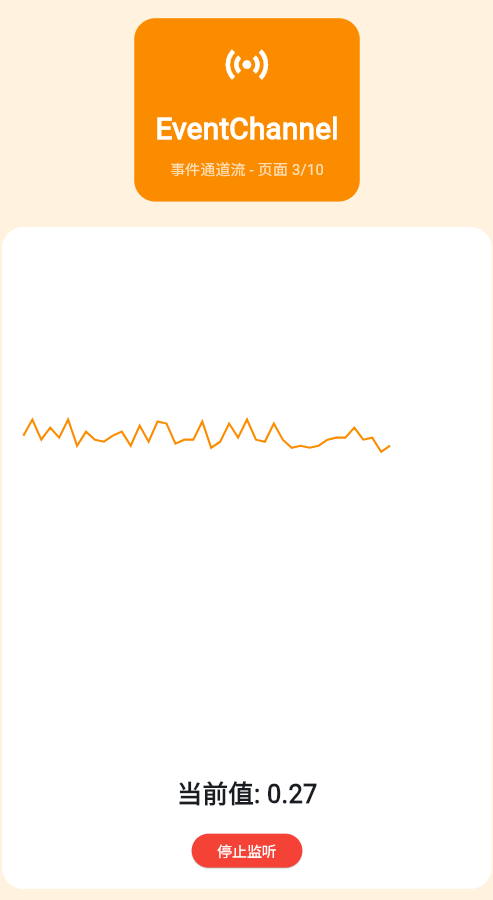
class _Page03EventChannel extends StatefulWidget {
  const _Page03EventChannel();

  @override
  State<_Page03EventChannel> createState() => _Page03EventChannelState();
}

class _Page03EventChannelState extends State<_Page03EventChannel> {
  static const eventChannel = EventChannel('com.example.demo/sensor');
  late StreamSubscription _subscription;
  List<double> _sensorData = [];
  bool _isListening = false;

  @override
  void initState() {
    super.initState();
  }

  void _startListening() {
    setState(() {
      _isListening = true;
      _sensorData = [];
    });

    // 模拟传感器数据流
    _subscription = Stream.periodic(const Duration(milliseconds: 200), (count) {
      return (DateTime.now().millisecond % 100) / 100.0;
    }).listen(
      (data) {
        setState(() {
          _sensorData.add(data);
          if (_sensorData.length > 50) {
            _sensorData.removeAt(0);
          }
        });
      },
      onError: (error) {
        ScaffoldMessenger.of(context).showSnackBar(
          SnackBar(content: Text('传感器错误: $error')),
        );
      },
    );
  }

  void _stopListening() {
    _subscription.cancel();
    setState(() {
      _isListening = false;
    });
  }

  @override
  void dispose() {
    _subscription.cancel();
    super.dispose();
  }

  @override
  Widget build(BuildContext context) {
    return Container(
      color: Colors.orange.shade50,
      padding: const EdgeInsets.all(20),
      child: Column(
        children: [
          Container(
            padding: const EdgeInsets.all(20),
            decoration: BoxDecoration(
              color: Colors.orange.shade600,
              borderRadius: BorderRadius.circular(20),
            ),
            child: const Column(
              children: [
                Icon(Icons.sensors, size: 48, color: Colors.white),
                SizedBox(height: 16),
                Text(
                  'EventChannel',
                  style: TextStyle(fontSize: 28, fontWeight: FontWeight.bold, color: Colors.white),
                ),
                SizedBox(height: 8),
                Text('事件通道流 - 页面 3/10', style: TextStyle(color: Colors.white70)),
              ],
            ),
          ),
          const SizedBox(height: 24),
          Expanded(
            child: Container(
              padding: const EdgeInsets.all(20),
              decoration: BoxDecoration(color: Colors.white, borderRadius: BorderRadius.circular(20)),
              child: Column(
                children: [
                  // 模拟传感器波形
                  Expanded(
                    child: CustomPaint(
                      painter: _WavePainter(_sensorData),
                      child: Container(),
                    ),
                  ),
                  const SizedBox(height: 20),
                  Text(
                    '当前值: ${_sensorData.isNotEmpty ? _sensorData.last.toStringAsFixed(2) : '--'}',
                    style: const TextStyle(fontSize: 24, fontWeight: FontWeight.bold),
                  ),
                  const SizedBox(height: 20),
                  ElevatedButton(
                    onPressed: _isListening ? _stopListening : _startListening,
                    style: ElevatedButton.styleFrom(
                      backgroundColor: _isListening ? Colors.red : Colors.orange.shade600,
                    ),
                    child: Text(
                      _isListening ? '停止监听' : '开始监听',
                      style: const TextStyle(color: Colors.white),
                    ),
                  ),
                ],
              ),
            ),
          ),
        ],
      ),
    );
  }
}

class _WavePainter extends CustomPainter {
  final List<double> data;

  _WavePainter(this.data);

  @override
  void paint(Canvas canvas, Size size) {
    if (data.isEmpty) return;

    final paint = Paint()
      ..color = Colors.orange.shade600
      ..strokeWidth = 2
      ..style = PaintingStyle.stroke;

    final path = Path();
    final stepX = size.width / 50;
    final centerY = size.height / 2;

    for (int i = 0; i < data.length; i++) {
      final x = i * stepX;
      final y = centerY - (data[i] * centerY * 0.8);
      if (i == 0) {
        path.moveTo(x, y);
      } else {
        path.lineTo(x, y);
      }
    }

    canvas.drawPath(path, paint);
  }

  @override
  bool shouldRepaint(_WavePainter oldDelegate) {
    return data != oldDelegate.data;
  }
}
三、监听管理
| 操作 | 方法 | 说明 |
|---|---|---|
| 订阅 | listen() |
开始监听事件 |
| 取消 | cancel() |
停止监听 |
| 错误处理 | onError |
处理异常 |
| 完成 | onDone |
流结束回调 |
四、应用场景
30% 25% 20% 15% 10% 典型应用场景 传感器数据 位置定位 网络状态 蓝牙连接 其他
五、最佳实践
- ✅ 及时取消订阅
- ✅ 限制数据更新频率
- ✅ 处理错误和完成事件
- ❌ 避免内存泄漏
欢迎加入开源鸿蒙跨平台社区:https://openharmonycrossplatform.csdn.net