一. 引言
弹窗是在实际开发中最常见的需求了,无论什么类型的APP,几乎都避免不了使用弹窗,比如提示用户更新,提醒用户新条款,通知用户重要消息等等,在毕竟复杂的社交APP中弹窗的数量甚至可以达到几百个。
本文就以一个下载进度弹窗为例,完整讲一讲:
- 如何实现一个自定义 Dialog
- Dialog 的宽高、Context、生命周期等关键点
- 自定义 Dialog 中最容易踩的坑
二. 需求介绍
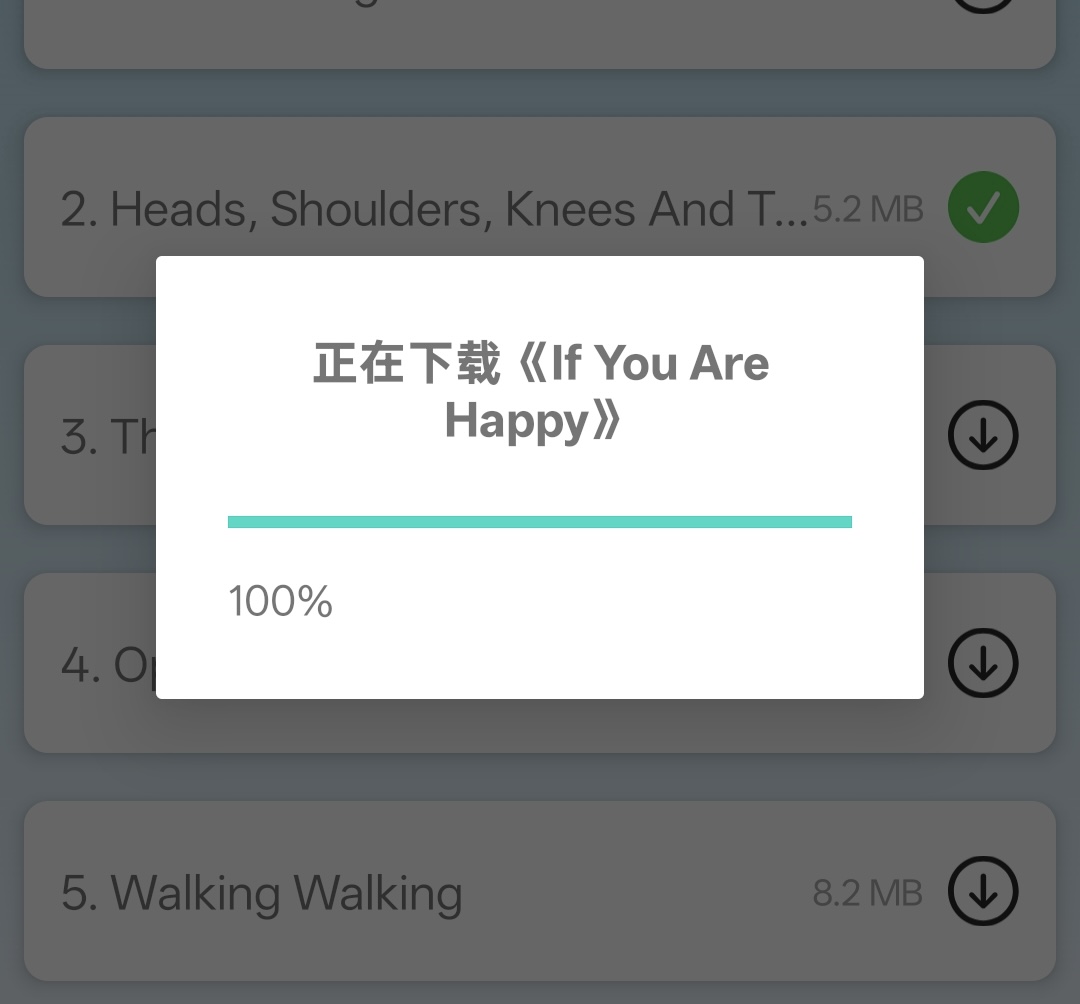
需求场景很简单,就是当前我要从服务器现在一分zip资源包,在下载过程中需要禁止用户操作,并向用户展示下载信息,包括当前下载的内容以及下载的进度信息。那么总结来说:
- 下载弹窗需要显示标题。
- 需要动态展示下载进度。
- 不能手动隐藏弹窗。
- 下载完成之后自动消失。
三. 下载进度 Dialog 的布局设计
先来看一下这个 Dialog 的布局文件,非常简单,但已经足够实用:
XML
<?xml version="1.0" encoding="utf-8"?>
<LinearLayout xmlns:android="http://schemas.android.com/apk/res/android"
    android:orientation="vertical"
    android:padding="24dp"
    android:layout_width="match_parent"
    android:layout_height="wrap_content">

    <TextView
        android:id="@+id/tvTitle"
        android:text="正在下载..."
        android:textSize="16sp"
        android:textStyle="bold"
        android:textAlignment="center"
        android:layout_width="wrap_content"
        android:layout_height="wrap_content"/>

    <ProgressBar
        android:id="@+id/progressBar"
        style="?android:attr/progressBarStyleHorizontal"
        android:layout_marginTop="16dp"
        android:max="100"
        android:progress="0"
        android:layout_width="match_parent"
        android:layout_height="wrap_content"/>

    <TextView
        android:id="@+id/tvProgress"
        android:layout_marginTop="8dp"
        android:text="0%"
        android:textAlignment="center"
        android:layout_width="wrap_content"
        android:layout_height="wrap_content"/>

</LinearLayout>
这个布局包含三部分:
- 标题:展示当前下载内容
- ProgressBar:显示下载进度
- 百分比文本:增强反馈的明确性
这里有一个小细节:
layout_width="match_parent" 并不意味着 Dialog 会占满屏幕Dialog 的最终宽度由 Window 决定,而不是 XML 这个点后面会重点讲。
四. 自定义 Dialog 的核心实现思路
接下来我们来看看这个弹窗的具体实现。
4.1 Dialog 的 context
这是一个重点,因为Dialog 本质上是一个 Window**,**而 Window 的宿主只能是 Activity。
所以我们在设计 Dialog 时,直接限制它只接受 Activity:
Kotlin
class DownloadProgressDialog(
    private val activity: Activity
)
这样做的好处是:
- 从设计层面杜绝传入 Application Context
- 避免 WindowLeaked、BadTokenException
- Fragment 使用时也更安全
4.2 Dialog 的创建与初始化
我们将弹窗设计为不可取消,使用完全自定义的布局。
Kotlin
/// 下载进度
class DownloadProgressDialog(
    private val activity: Activity
) {

    /// dialog
    private val dialog: Dialog = Dialog(activity)

    /// 标题
    private var titleText: TextView
    /// 进度条
    private var progressBar: ProgressBar
    /// 输入框
    private var progressText: TextView

    init {
        dialog.setContentView(R.layout.progress_dailog)
        dialog.setCancelable(false)
        // 标题
        titleText = dialog.findViewById<TextView>(R.id.tvTitle)
        // 进度条
        progressBar = dialog.findViewById<ProgressBar>(R.id.progressBar)
        progressBar.max = 100
        // 进度
        progressText = dialog.findViewById<TextView>(R.id.tvProgress)
    }
...
}
这里的设计是:
- 不可取消:下载中途不允许用户误操作关闭
- 完全使用自定义布局,样式可控
4.3 关于自定义Dialog尺寸的设置
这是自定义 Dialog 中非常关键的一点。Dialog 的尺寸需要在 show() 里设置。
Kotlin
fun show() {
    if (activity.isFinishing || activity.isDestroyed) return

    if (!dialog.isShowing) {
        dialog.show()
        val window = dialog.window ?: return
        val params = window.attributes

        val displayMetrics = activity.resources.displayMetrics
        params.width = (displayMetrics.widthPixels * 0.8f).toInt()
        params.height = WindowManager.LayoutParams.WRAP_CONTENT
        window.attributes = params
    }
}
为什么不能在构造函数里设置宽高?
- dialog.window 只有在 show() 之后才真正可用
- XML 只决定 内容大小
- Dialog 的"外框尺寸"由 Window 决定
所以一个非常重要的结论是:XML 决定内容,Window 决定 Dialog 的最终尺寸。
4.4 线程安全:下载回调一定不在主线程
下载进度几乎一定来自 IO 线程或回调线程。
因此,Dialog 的所有对外方法,都要保证 可以在任意线程调用:
Kotlin
if (Looper.myLooper() != Looper.getMainLooper()) {
    Handler(Looper.getMainLooper()).post { show() }
    return
}
这样做的好处是:
- 调用方不需要关心线程
- Dialog 内部对 UI 操作负责
4.5 更新方法
在更新方法中添加了一个防御性判断,更新进度。
Kotlin
    /// 更新进度
    @SuppressLint("SetTextI18n")
    fun updateProgress(title: String, progress: Int) {
        if (!dialog.isShowing) return
        // 标题
        titleText.setText("正在下载《${title}》")
        // 进度
        progressBar.setProgress(progress,true)
        // 进度
        progressText.setText("${progress}%")
    }
五. 如何安全使用Dialog
使用起来非常简单,但要注意在首次展示时,需要先创建,还要避免重复创建。
5.1 在Activity中使用
Kotlin
    /// 下载进度弹窗
    private var downloadDialog: DownloadProgressDialog? = null


   // 更新下载进度
    private fun updateProgress(progress:Int) {
        // 1️⃣ Activity 不可用时,直接 return(非常关键)
        if (isFinishing || isDestroyed) return

        if (downloadDialog == null) {
            downloadDialog = DownloadProgressDialog(this)
        }

        downloadDialog?.show()
        downloadDialog?.updateProgress(downloadEpisode?.title.orEmpty(), progress)
    }
下载完成,直接隐藏。
Kotlin
        // 解压完成
        viewModel.finished.observe (this){
            downloadDialog?.dismiss()
            downloadDialog = null
            downloadEpisode = null
            Toast.makeText(this,"${episode.title}解压完成,请前往书架查看吧", Toast.LENGTH_LONG).show()
        }
5.2 在Fragment中使用
在Fragment中其实也是一样的,只是在初始化时略有不同,我们需要首先获取到Activity。
Kotlin
progressDialog = DownloadProgressDialog(requireActivity())六. 结语
自定义 Dialog 本身并不复杂,真正容易踩坑的地方在于:
- Context 用错
- 生命周期没兜住
- 线程问题被忽略
一旦把这些点想清楚,自定义 Dialog 就会变成一个非常稳定、非常好用的工具组件。