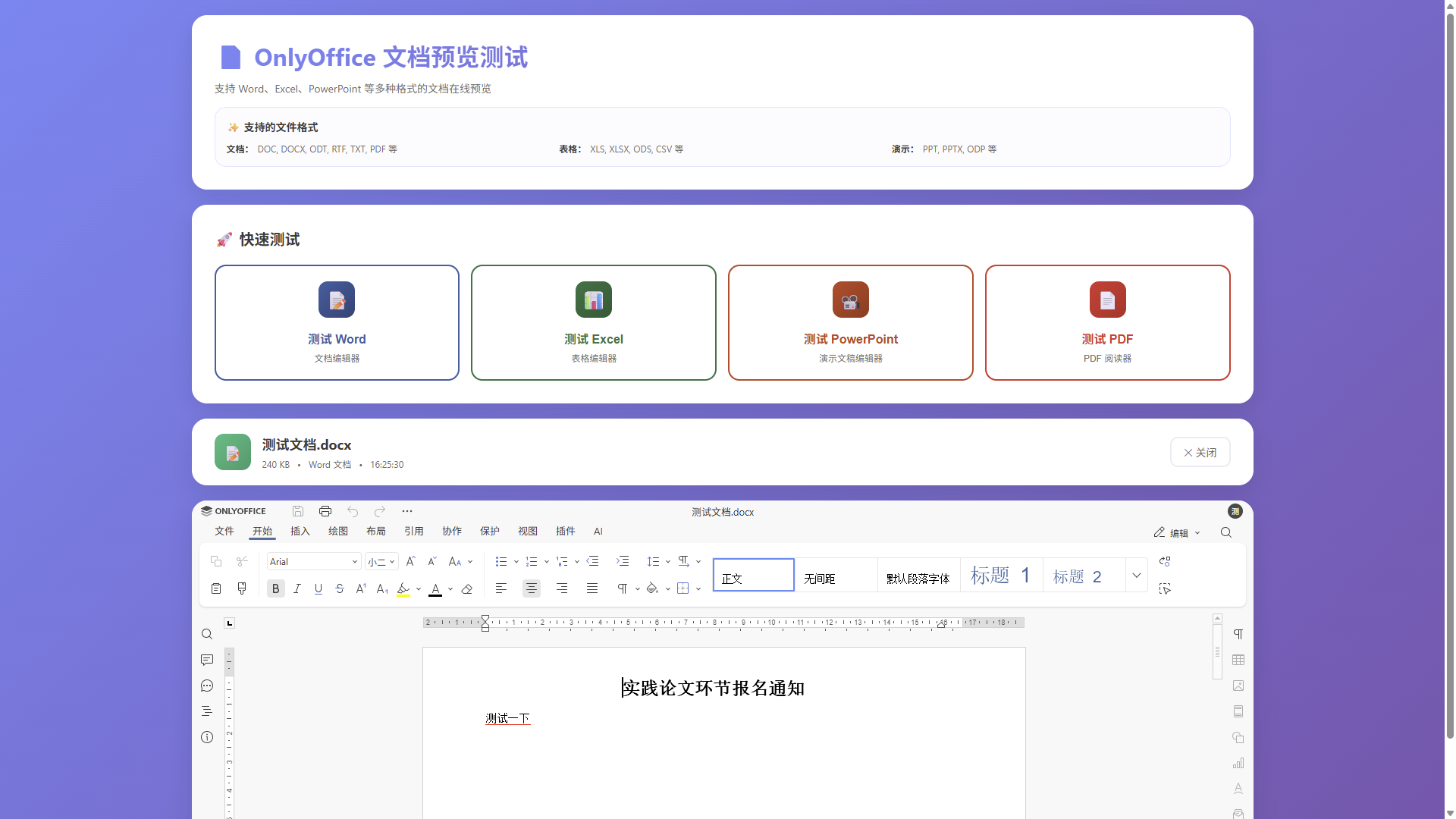
index.html
html
<!DOCTYPE html>
<html lang="zh-CN">
<head>
  <meta charset="UTF-8">
  <meta name="viewport" content="width=device-width, initial-scale=1.0">
  <title>OnlyOffice 文档预览测试</title>
  <script src="https://chat.xutongbao.top/onlyoffice/web-apps/apps/api/documents/api.js"></script>
  <style>
    * {
      margin: 0;
      padding: 0;
      box-sizing: border-box;
    }

    body {
      font-family: -apple-system, BlinkMacSystemFont, 'Segoe UI', Roboto, 'Helvetica Neue', Arial, sans-serif;
      background: linear-gradient(135deg, #667eea 0%, #764ba2 100%);
      min-height: 100vh;
      padding: 20px;
    }

    .container {
      max-width: 1400px;
      margin: 0 auto;
    }

    .header {
      background: white;
      border-radius: 20px;
      padding: 30px;
      margin-bottom: 20px;
      box-shadow: 0 10px 30px rgba(0, 0, 0, 0.1);
    }

    .header h1 {
      font-size: 32px;
      color: #333;
      margin-bottom: 10px;
      background: linear-gradient(135deg, #667eea 0%, #764ba2 100%);
      -webkit-background-clip: text;
      -webkit-text-fill-color: transparent;
      background-clip: text;
    }

    .header p {
      color: #666;
      font-size: 14px;
    }

    .test-buttons {
      background: white;
      border-radius: 20px;
      padding: 30px;
      margin-bottom: 20px;
      box-shadow: 0 10px 30px rgba(0, 0, 0, 0.1);
    }

    .test-buttons h2 {
      font-size: 20px;
      color: #333;
      margin-bottom: 20px;
      display: flex;
      align-items: center;
      gap: 10px;
    }

    .buttons-grid {
      display: grid;
      grid-template-columns: repeat(auto-fit, minmax(200px, 1fr));
      gap: 15px;
    }

    .test-btn {
      border: 2px solid transparent;
      border-radius: 15px;
      padding: 20px;
      cursor: pointer;
      transition: all 0.3s ease;
      text-align: center;
      background: linear-gradient(white, white) padding-box,
                  linear-gradient(135deg, currentColor, currentColor) border-box;
      position: relative;
      overflow: hidden;
    }

    .test-btn:hover {
      transform: translateY(-5px);
      box-shadow: 0 15px 40px rgba(0, 0, 0, 0.15);
    }

    .test-btn.word {
      color: #2b579a;
      border-color: rgba(43, 87, 154, 0.3);
    }

    .test-btn.word:hover {
      background: linear-gradient(135deg, rgba(43, 87, 154, 0.1), rgba(43, 87, 154, 0.05));
    }

    .test-btn.excel {
      color: #1d6f42;
      border-color: rgba(29, 111, 66, 0.3);
    }

    .test-btn.excel:hover {
      background: linear-gradient(135deg, rgba(29, 111, 66, 0.1), rgba(29, 111, 66, 0.05));
    }

    .test-btn.powerpoint {
      color: #c43e1c;
      border-color: rgba(196, 62, 28, 0.3);
    }

    .test-btn.powerpoint:hover {
      background: linear-gradient(135deg, rgba(196, 62, 28, 0.1), rgba(196, 62, 28, 0.05));
    }

    .test-btn.pdf {
      color: #dc2626;
      border-color: rgba(220, 38, 38, 0.3);
    }

    .test-btn.pdf:hover {
      background: linear-gradient(135deg, rgba(220, 38, 38, 0.1), rgba(220, 38, 38, 0.05));
    }

    .icon {
      width: 48px;
      height: 48px;
      margin: 0 auto 15px;
      border-radius: 12px;
      display: flex;
      align-items: center;
      justify-content: center;
      font-size: 24px;
      color: white;
      transition: transform 0.3s ease;
    }

    .test-btn:hover .icon {
      transform: scale(1.1);
    }

    .test-btn.word .icon {
      background: linear-gradient(135deg, #2b579a, #1e3c6e);
    }

    .test-btn.excel .icon {
      background: linear-gradient(135deg, #1d6f42, #15562f);
    }

    .test-btn.powerpoint .icon {
      background: linear-gradient(135deg, #c43e1c, #9a2f14);
    }

    .test-btn.pdf .icon {
      background: linear-gradient(135deg, #dc2626, #b91c1c);
    }

    .btn-title {
      font-size: 16px;
      font-weight: 600;
      margin-bottom: 5px;
    }

    .btn-desc {
      font-size: 12px;
      color: #666;
    }

    .preview-area {
      background: white;
      border-radius: 20px;
      overflow: hidden;
      box-shadow: 0 10px 30px rgba(0, 0, 0, 0.1);
      display: none;
    }

    .preview-area.active {
      display: block;
    }

    .file-info {
      background: white;
      border-radius: 20px;
      padding: 20px 30px;
      margin-bottom: 20px;
      box-shadow: 0 10px 30px rgba(0, 0, 0, 0.1);
      display: none;
      align-items: center;
      justify-content: space-between;
    }

    .file-info.active {
      display: flex;
    }

    .file-info-left {
      display: flex;
      align-items: center;
      gap: 15px;
      flex: 1;
    }

    .file-icon {
      width: 48px;
      height: 48px;
      border-radius: 12px;
      display: flex;
      align-items: center;
      justify-content: center;
      font-size: 20px;
      color: white;
      background: linear-gradient(135deg, #10b981, #059669);
    }

    .file-details h3 {
      font-size: 18px;
      color: #333;
      margin-bottom: 5px;
    }

    .file-meta {
      font-size: 12px;
      color: #666;
      display: flex;
      align-items: center;
      gap: 10px;
    }

    .close-btn {
      padding: 8px 16px;
      border: 2px solid #e5e7eb;
      border-radius: 10px;
      background: white;
      color: #666;
      cursor: pointer;
      font-size: 14px;
      transition: all 0.3s ease;
    }

    .close-btn:hover {
      border-color: #dc2626;
      background: rgba(220, 38, 38, 0.05);
      color: #dc2626;
    }

    #onlyoffice-editor {
      width: 100%;
      height: calc(100vh - 300px);
      min-height: 700px;
    }

    .loading {
      display: flex;
      flex-direction: column;
      align-items: center;
      justify-content: center;
      height: calc(100vh - 300px);
      min-height: 700px;
      background: #f9fafb;
    }

    .spinner {
      width: 50px;
      height: 50px;
      border: 4px solid #e5e7eb;
      border-top-color: #667eea;
      border-radius: 50%;
      animation: spin 1s linear infinite;
    }

    @keyframes spin {
      to { transform: rotate(360deg); }
    }

    .loading-text {
      margin-top: 20px;
      font-size: 18px;
      color: #333;
      font-weight: 600;
    }

    .error-message {
      background: #fee2e2;
      border: 2px solid #fca5a5;
      border-radius: 15px;
      padding: 20px;
      margin-top: 20px;
      color: #dc2626;
      display: none;
    }

    .error-message.active {
      display: block;
    }

    .supported-formats {
      background: rgba(102, 126, 234, 0.05);
      border: 1px solid rgba(102, 126, 234, 0.2);
      border-radius: 15px;
      padding: 15px;
      margin-top: 15px;
    }

    .format-title {
      font-size: 14px;
      font-weight: 600;
      color: #333;
      margin-bottom: 10px;
      display: flex;
      align-items: center;
      gap: 8px;
    }

    .formats-grid {
      display: grid;
      grid-template-columns: repeat(auto-fit, minmax(200px, 1fr));
      gap: 8px;
      font-size: 12px;
      color: #666;
    }

    .format-item {
      display: flex;
      align-items: center;
      gap: 5px;
    }

    .format-label {
      font-weight: 600;
      color: #333;
    }

    iframe {
      height: 500px;
    }
  </style>
</head>
<body>
  <div class="container">
    <!-- 标题区域 -->
    <div class="header">
      <h1>📄 OnlyOffice 文档预览测试</h1>
      <p>支持 Word、Excel、PowerPoint 等多种格式的文档在线预览</p>

      <!-- 支持格式说明 -->
      <div class="supported-formats">
        <div class="format-title">
          ✨ 支持的文件格式
        </div>
        <div class="formats-grid">
          <div class="format-item">
            <span class="format-label">文档:</span>
            <span>DOC, DOCX, ODT, RTF, TXT, PDF 等</span>
          </div>
          <div class="format-item">
            <span class="format-label">表格:</span>
            <span>XLS, XLSX, ODS, CSV 等</span>
          </div>
          <div class="format-item">
            <span class="format-label">演示:</span>
            <span>PPT, PPTX, ODP 等</span>
          </div>
        </div>
      </div>
    </div>

    <!-- 测试按钮区域 -->
    <div class="test-buttons">
      <h2>🚀 快速测试</h2>
      <div class="buttons-grid">
        <button class="test-btn word" onclick="loadDocument('word')">
          <div class="icon">📝</div>
          <div class="btn-title">测试 Word</div>
          <div class="btn-desc">文档编辑器</div>
        </button>

        <button class="test-btn excel" onclick="loadDocument('excel')">
          <div class="icon">📊</div>
          <div class="btn-title">测试 Excel</div>
          <div class="btn-desc">表格编辑器</div>
        </button>

        <button class="test-btn powerpoint" onclick="loadDocument('powerpoint')">
          <div class="icon">📽️</div>
          <div class="btn-title">测试 PowerPoint</div>
          <div class="btn-desc">演示文稿编辑器</div>
        </button>

        <button class="test-btn pdf" onclick="loadDocument('pdf')">
          <div class="icon">📄</div>
          <div class="btn-title">测试 PDF</div>
          <div class="btn-desc">PDF 阅读器</div>
        </button>
      </div>
    </div>

    <!-- 错误提示 -->
    <div class="error-message" id="errorMessage"></div>

    <!-- 文件信息 -->
    <div class="file-info" id="fileInfo">
      <div class="file-info-left">
        <div class="file-icon">📄</div>
        <div class="file-details">
          <h3 id="fileName">文档名称</h3>
          <div class="file-meta">
            <span id="fileSize">大小</span>
            <span>•</span>
            <span id="fileType">类型</span>
            <span>•</span>
            <span id="fileTime">时间</span>
          </div>
        </div>
      </div>
      <button class="close-btn" onclick="closePreview()">✕ 关闭</button>
    </div>

    <!-- 预览区域 -->
    <div class="preview-area" id="previewArea">
      <div id="onlyoffice-editor"></div>
    </div>
  </div>

  <script>
    let docEditor = null;

    // 文档配置
    const documents = {
      word: {
        url: 'https://static.xutongbao.top/ai/onlyoffice/1769051991957_%E6%B5%8B%E8%AF%95%E4%B8%80%E4%B8%8B.docx',
        documentType: 'word',
        fileName: '测试文档.docx',
        fileType: 'docx',
        size: '240 KB',
        icon: '📝'
      },
      excel: {
        url: 'https://static.xutongbao.top/ai/onlyoffice/1769053651678_1.xlsx',
        documentType: 'cell',
        fileName: '测试表格.xlsx',
        fileType: 'xlsx',
        size: '100 KB',
        icon: '📊'
      },
      powerpoint: {
        url: 'https://static.xutongbao.top/ai/onlyoffice/1769053694718_1.pptx',
        documentType: 'slide',
        fileName: '测试演示文稿.pptx',
        fileType: 'pptx',
        size: '500 KB',
        icon: '📽️'
      },
      pdf: {
        url: 'https://static.xutongbao.top/ai/onlyoffice/1769054138134_%E6%B5%8B%E8%AF%95%E4%B8%80%E4%B8%8B.pdf',
        documentType: 'word',
        fileName: '测试文档.pdf',
        fileType: 'pdf',
        size: '1 MB',
        icon: '📄'
      }
    };

    // 加载文档
    function loadDocument(type) {
      const doc = documents[type];
      if (!doc) {
        showError('未找到对应的文档配置');
        return;
      }

      // 隐藏错误提示
      hideError();

      // 销毁旧的编辑器
      if (docEditor) {
        try {
          docEditor.destroyEditor();
          docEditor = null;
        } catch (error) {
          console.warn('销毁旧编辑器失败:', error);
        }
      }

      // 清空容器
      const container = document.getElementById('onlyoffice-editor');
      container.innerHTML = '<div class="loading"><div class="spinner"></div><div class="loading-text">正在加载预览...</div></div>';

      // 显示文件信息
      document.getElementById('fileName').textContent = doc.fileName;
      document.getElementById('fileSize').textContent = doc.size;
      document.getElementById('fileType').textContent = doc.documentType === 'word' ? 'Word 文档' :
                                                        doc.documentType === 'cell' ? 'Excel 表格' :
                                                        doc.documentType === 'slide' ? 'PowerPoint 演示' : 'PDF 文档';
      document.getElementById('fileTime').textContent = new Date().toLocaleTimeString();
      document.querySelector('.file-icon').textContent = doc.icon;
      document.getElementById('fileInfo').classList.add('active');

      // 显示预览区域
      document.getElementById('previewArea').classList.add('active');

      // 延迟初始化编辑器
      setTimeout(() => {
        initOnlyOfficeEditor(doc);
      }, 100);
    }

    // 初始化 OnlyOffice 编辑器
    function initOnlyOfficeEditor(doc) {
      if (!window.DocsAPI) {
        showError('OnlyOffice API 未加载,请检查网络连接');
        return;
      }

      const container = document.getElementById('onlyoffice-editor');
      container.innerHTML = '';

      const config = {
        documentType: doc.documentType,
        document: {
          fileType: doc.fileType,
          key: `${Date.now()}-${Math.random().toString(36).substring(7)}`,
          title: doc.fileName,
          url: doc.url,
        },
        editorConfig: {
          mode: 'edit',
          lang: 'zh-CN',
          user: {
            id: 'test-user',
            name: '测试用户',
          },
        },
        width: '100%',
        height: '100%',
        events: {
          onDocumentReady: () => {
            console.log('OnlyOffice 文档加载完成');
          },
          onAppReady: () => {
            console.log('OnlyOffice 应用已准备就绪');
          },
          onError: (event) => {
            console.error('OnlyOffice 错误:', event);
            showError('文档加载失败,请重试');
          }
        },
      };

      try {
        docEditor = new window.DocsAPI.DocEditor('onlyoffice-editor', config);
        console.log('OnlyOffice 编辑器初始化成功');
      } catch (error) {
        console.error('初始化编辑器失败:', error);
        showError('编辑器初始化失败: ' + error.message);
      }
    }

    // 关闭预览
    function closePreview() {
      if (docEditor) {
        try {
          docEditor.destroyEditor();
          docEditor = null;
        } catch (error) {
          console.warn('销毁编辑器失败:', error);
        }
      }

      document.getElementById('fileInfo').classList.remove('active');
      document.getElementById('previewArea').classList.remove('active');
      document.getElementById('onlyoffice-editor').innerHTML = '';
    }

    // 显示错误
    function showError(message) {
      const errorEl = document.getElementById('errorMessage');
      errorEl.textContent = '❌ ' + message;
      errorEl.classList.add('active');
    }

    // 隐藏错误
    function hideError() {
      const errorEl = document.getElementById('errorMessage');
      errorEl.classList.remove('active');
    }

    // 检查 API 是否加载
    window.addEventListener('load', () => {
      if (!window.DocsAPI) {
        console.warn('OnlyOffice API 未加载');
      } else {
        console.log('OnlyOffice API 已加载');
      }
    });
  </script>
</body>
</html>