Flutter全国博物馆查询:探索中华文明宝库
项目简介
全国博物馆查询是一款专为文化爱好者打造的Flutter应用,提供全国范围内博物馆信息查询、地域分布统计和详细信息展示功能。通过智能搜索和多维度筛选,让用户轻松找到心仪的博物馆,规划文化之旅。
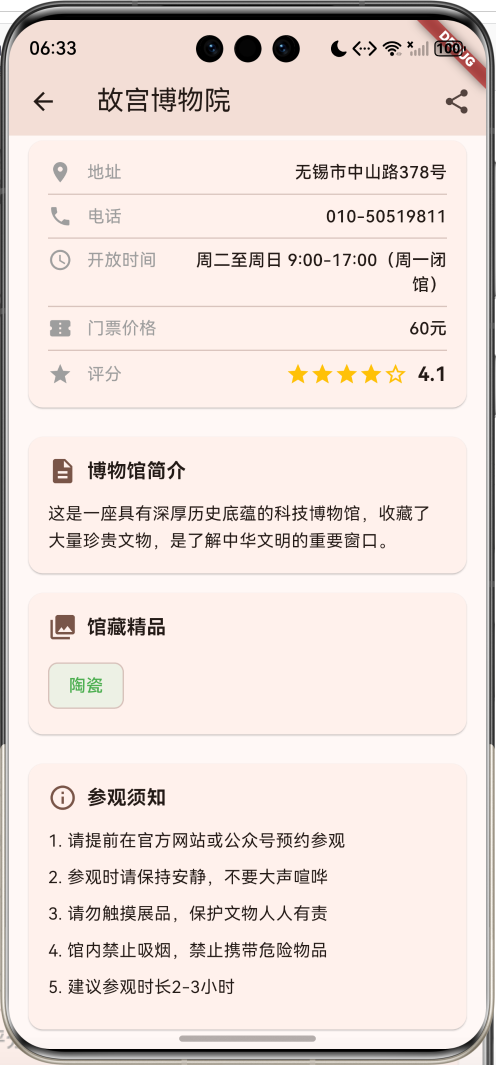
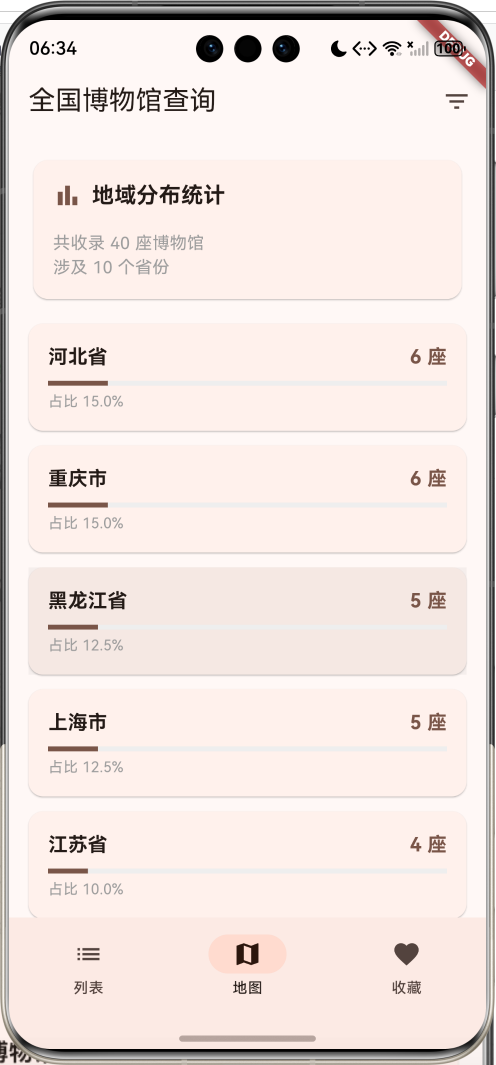
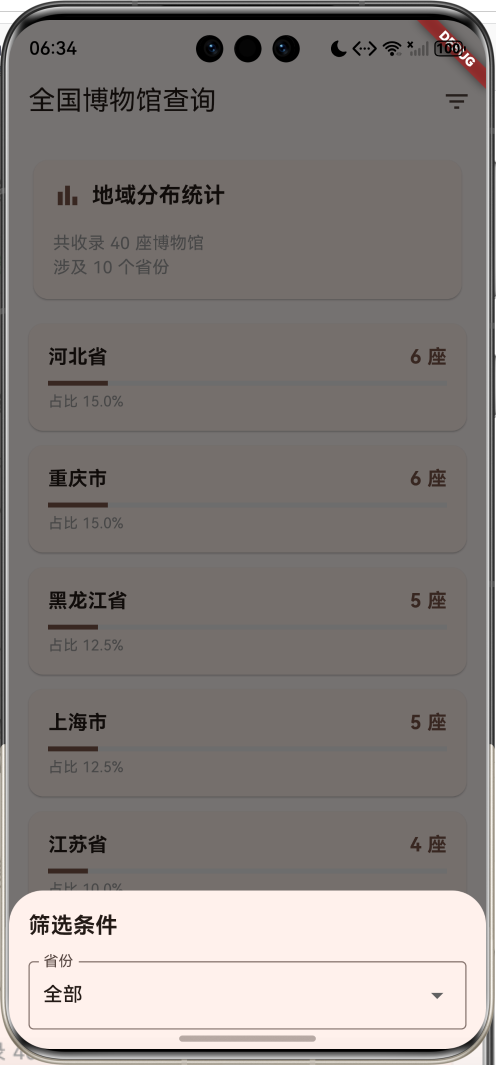
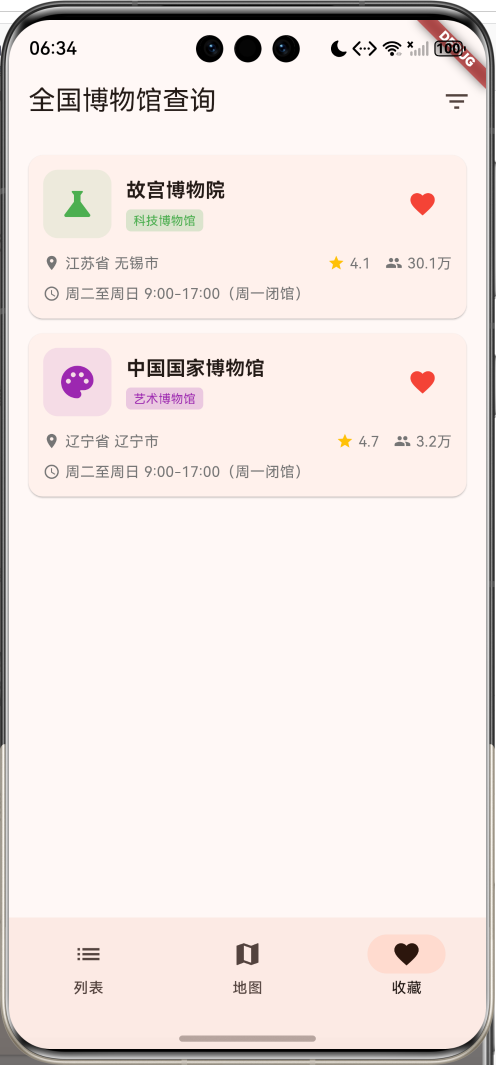
运行效果图
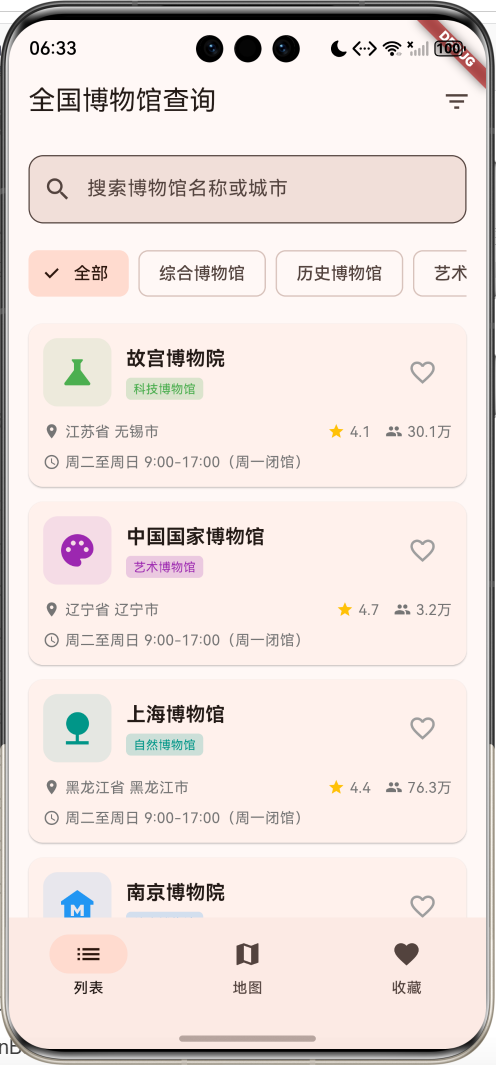

核心功能
- 博物馆数据库:收录40座知名博物馆
- 6大类型:综合、历史、艺术、科技、自然、专题博物馆
- 33个省份:覆盖全国各省市自治区
- 智能搜索:支持名称和城市快速搜索
- 类型筛选:按博物馆类型分类浏览
- 省份筛选:按地域查询博物馆
- 收藏功能:收藏喜欢的博物馆
- 地图统计:可视化展示地域分布
- 详情页面:完整的博物馆信息展示
- 星级评分:用户评分和参观人数
- 馆藏展示:精品文物标签展示
- 参观须知:详细的参观指南
技术特点
- Material Design 3设计风格
- NavigationBar底部导航
- 三页面架构(列表、地图、收藏)
- ChoiceChip类型筛选
- DropdownButtonFormField省份选择
- LinearProgressIndicator统计可视化
- 渐变色背景设计
- 响应式卡片布局
- 模拟数据生成
- 无需额外依赖包
核心代码实现
1. 博物馆数据模型
dart
class Museum {
  final String id;              // 博物馆ID
  final String name;            // 博物馆名称
  final String type;            // 类型
  final String province;        // 省份
  final String city;            // 城市
  final String address;         // 地址
  final String description;     // 简介
  final String openTime;        // 开放时间
  final String ticketPrice;     // 门票价格
  final String phone;           // 联系电话
  final double rating;          // 评分
  final int visitCount;         // 参观人数
  final List<String> collections;  // 馆藏精品
  final List<String> tags;      // 标签
  bool isFavorite;              // 是否收藏

  Museum({
    required this.id,
    required this.name,
    required this.type,
    required this.province,
    required this.city,
    required this.address,
    required this.description,
    required this.openTime,
    required this.ticketPrice,
    required this.phone,
    required this.rating,
    required this.visitCount,
    required this.collections,
    required this.tags,
    this.isFavorite = false,
  });

  // 计算属性:完整地址
  String get location => '$province $city';

  // 计算属性:类型对应颜色
  Color get typeColor {
    switch (type) {
      case '综合博物馆': return Colors.blue;
      case '历史博物馆': return Colors.brown;
      case '艺术博物馆': return Colors.purple;
      case '科技博物馆': return Colors.green;
      case '自然博物馆': return Colors.teal;
      case '专题博物馆': return Colors.orange;
      default: return Colors.grey;
    }
  }

  // 计算属性:类型对应图标
  IconData get typeIcon {
    switch (type) {
      case '综合博物馆': return Icons.museum;
      case '历史博物馆': return Icons.history_edu;
      case '艺术博物馆': return Icons.palette;
      case '科技博物馆': return Icons.science;
      case '自然博物馆': return Icons.nature;
      case '专题博物馆': return Icons.category;
      default: return Icons.museum;
    }
  }
}模型字段说明:
| 字段 | 类型 | 说明 |
|---|---|---|
| id | String | 唯一标识符 |
| name | String | 博物馆名称 |
| type | String | 博物馆类型 |
| province | String | 所在省份 |
| city | String | 所在城市 |
| address | String | 详细地址 |
| description | String | 博物馆简介 |
| openTime | String | 开放时间 |
| ticketPrice | String | 门票价格 |
| phone | String | 联系电话 |
| rating | double | 用户评分(1-5) |
| visitCount | int | 参观人数 |
| collections | List | 馆藏精品列表 |
| tags | List | 标签列表 |
| isFavorite | bool | 是否收藏 |
计算属性:
location:组合省份和城市,返回完整地址typeColor:根据博物馆类型返回对应的主题颜色typeIcon:根据博物馆类型返回对应的图标
博物馆类型与颜色映射:
| 类型 | 颜色 | 图标 | 说明 |
|---|---|---|---|
| 综合博物馆 | 蓝色 | museum | 综合性展览 |
| 历史博物馆 | 棕色 | history_edu | 历史文物 |
| 艺术博物馆 | 紫色 | palette | 艺术作品 |
| 科技博物馆 | 绿色 | science | 科技展品 |
| 自然博物馆 | 青色 | nature | 自然标本 |
| 专题博物馆 | 橙色 | category | 专题展览 |
2. 博物馆数据生成
dart
void _generateMuseums() {
  final random = Random();

  // 40座知名博物馆名称
  final museumNames = [
    '故宫博物院', '中国国家博物馆', '上海博物馆', '南京博物院',
    '陕西历史博物馆', '湖南省博物馆', '浙江省博物馆', '河南博物院',
    '湖北省博物馆', '四川博物院', '中国科学技术馆', '中国美术馆',
    '中国地质博物馆', '中国航空博物馆', '中国铁道博物馆', '苏州博物馆',
    '西安碑林博物馆', '秦始皇兵马俑博物馆', '敦煌研究院', '三星堆博物馆',
    '金沙遗址博物馆', '广东省博物馆', '山东博物馆', '辽宁省博物馆',
    '吉林省博物院', '黑龙江省博物馆', '安徽博物院', '福建博物院',
    '江西省博物馆', '河北博物院', '山西博物院', '内蒙古博物院',
    '广西壮族自治区博物馆', '海南省博物馆', '贵州省博物馆',
    '云南省博物馆', '西藏博物馆', '甘肃省博物馆', '青海省博物馆',
    '宁夏博物馆',
  ];

  // 城市映射表
  final cities = {
    '北京市': ['北京市'],
    '上海市': ['上海市'],
    '江苏省': ['南京市', '苏州市', '无锡市'],
    '浙江省': ['杭州市', '宁波市', '温州市'],
    '广东省': ['广州市', '深圳市', '珠海市'],
    '陕西省': ['西安市', '咸阳市', '宝鸡市'],
    '四川省': ['成都市', '绵阳市', '德阳市'],
    '湖南省': ['长沙市', '株洲市', '湘潭市'],
    '湖北省': ['武汉市', '宜昌市', '襄阳市'],
    '河南省': ['郑州市', '洛阳市', '开封市'],
  };

  // 生成40个博物馆数据
  for (int i = 0; i < 40; i++) {
    final type = _types[random.nextInt(_types.length - 1) + 1];
    final province = _provinces[random.nextInt(10) + 1];
    final cityList = cities[province] ??
        ['${province.replaceAll('省', '').replaceAll('市', '')}市'];
    final city = cityList[random.nextInt(cityList.length)];

    _allMuseums.add(Museum(
      id: 'museum_$i',
      name: museumNames[i % museumNames.length],
      type: type,
      province: province,
      city: city,
      address: '$city${['中山路', '人民路', '文化路', '博物馆路'][random.nextInt(4)]}${random.nextInt(500) + 1}号',
      description: '这是一座具有深厚历史底蕴的$type,收藏了大量珍贵文物,是了解中华文明的重要窗口。',
      openTime: '周二至周日 9:00-17:00(周一闭馆)',
      ticketPrice: random.nextBool() ? '免费(需预约)' : '${[20, 30, 40, 50, 60][random.nextInt(5)]}元',
      phone: '010-${random.nextInt(90000000) + 10000000}',
      rating: 4.0 + random.nextDouble(),
      visitCount: random.nextInt(1000000),
      collections: ['青铜器', '陶瓷', '书画', '玉器', '金银器'][random.nextInt(3)].split(','),
      tags: ['国家一级', '免费开放', '必游景点', '亲子推荐'][random.nextInt(2)].split(','),
      isFavorite: false,
    ));
  }
  _applyFilters();
}数据生成特点:
- 40座知名博物馆,涵盖全国主要省份
- 随机分配6种博物馆类型
- 地址生成:城市 + 街道 + 门牌号
- 开放时间:统一为周二至周日9:00-17:00
- 门票价格:免费或20-60元不等
- 评分:4.0-5.0分随机
- 参观人数:0-100万人次
- 馆藏精品:随机选择3种文物类型
- 标签:随机选择2个标签
省份覆盖(33个):
- 4个直辖市:北京、上海、天津、重庆
- 23个省:河北、山西、辽宁、吉林、黑龙江、江苏、浙江、安徽、福建、江西、山东、河南、湖北、湖南、广东、海南、四川、贵州、云南、陕西、甘肃、青海、台湾
- 5个自治区:内蒙古、广西、西藏、宁夏、新疆
3. 搜索和筛选功能
dart
void _applyFilters() {
  setState(() {
    _filteredMuseums = _allMuseums.where((museum) {
      // 搜索关键词筛选
      if (_searchQuery.isNotEmpty) {
        if (!museum.name.toLowerCase().contains(_searchQuery.toLowerCase()) &&
            !museum.city.toLowerCase().contains(_searchQuery.toLowerCase())) {
          return false;
        }
      }

      // 类型筛选
      if (_selectedType != '全部' && museum.type != _selectedType) {
        return false;
      }

      // 省份筛选
      if (_selectedProvince != '全部' && museum.province != _selectedProvince) {
        return false;
      }

      return true;
    }).toList();
  });
}筛选条件:
| 筛选项 | 说明 | 实现方式 |
|---|---|---|
| 搜索关键词 | 匹配博物馆名称或城市 | 不区分大小写的contains匹配 |
| 类型筛选 | 按6种类型筛选 | 精确匹配type字段 |
| 省份筛选 | 按33个省份筛选 | 精确匹配province字段 |
筛选流程:
- 检查搜索关键词是否匹配博物馆名称或城市
- 检查类型是否匹配("全部"跳过此检查)
- 检查省份是否匹配("全部"跳过此检查)
- 更新筛选结果列表
- 触发UI重新渲染
4. NavigationBar底部导航
dart
bottomNavigationBar: NavigationBar(
  selectedIndex: _selectedIndex,
  onDestinationSelected: (index) {
    setState(() => _selectedIndex = index);
  },
  destinations: const [
    NavigationDestination(icon: Icon(Icons.list), label: '列表'),
    NavigationDestination(icon: Icon(Icons.map), label: '地图'),
    NavigationDestination(icon: Icon(Icons.favorite), label: '收藏'),
  ],
),三个页面:
| 页面 | 图标 | 功能 |
|---|---|---|
| 列表 | list | 显示所有博物馆卡片 |
| 地图 | map | 显示地域分布统计 |
| 收藏 | favorite | 显示收藏的博物馆 |
IndexedStack使用:
dart
Expanded(
  child: IndexedStack(
    index: _selectedIndex,
    children: [
      _buildMuseumListPage(),
      _buildMapPage(),
      _buildFavoritePage(),
    ],
  ),
),
IndexedStack的优势:
- 保持所有页面状态
- 切换时不重新构建
- 提升用户体验
- 减少资源消耗
5. 搜索栏设计
dart
Widget _buildSearchBar() {
  return Container(
    padding: const EdgeInsets.all(16),
    child: TextField(
      decoration: InputDecoration(
        hintText: '搜索博物馆名称或城市',
        prefixIcon: const Icon(Icons.search),
        border: OutlineInputBorder(
          borderRadius: BorderRadius.circular(12),
        ),
        filled: true,
      ),
      onChanged: (value) {
        setState(() {
          _searchQuery = value;
          _applyFilters();
        });
      },
    ),
  );
}搜索栏特点:
- 圆角边框设计(12px圆角)
- 搜索图标前缀
- 填充背景色
- 实时搜索(onChanged触发)
- 提示文本引导用户
6. ChoiceChip类型筛选
dart
Widget _buildTypeTabs() {
  return Container(
    height: 50,
    padding: const EdgeInsets.symmetric(horizontal: 16),
    child: ListView.builder(
      scrollDirection: Axis.horizontal,
      itemCount: _types.length,
      itemBuilder: (context, index) {
        final type = _types[index];
        final isSelected = type == _selectedType;
        return Padding(
          padding: const EdgeInsets.only(right: 8),
          child: ChoiceChip(
            label: Text(type),
            selected: isSelected,
            onSelected: (selected) {
              setState(() {
                _selectedType = type;
                _applyFilters();
              });
            },
          ),
        );
      },
    ),
  );
}ChoiceChip特点:
- Material Design 3组件
- 自动处理选中状态样式
- 支持单选模式
- 适合标签筛选场景
- 水平滚动布局
类型列表:
- 全部、综合博物馆、历史博物馆、艺术博物馆、科技博物馆、自然博物馆、专题博物馆
7. 博物馆卡片设计
dart
Widget _buildMuseumCard(Museum museum) {
  return Card(
    margin: const EdgeInsets.only(bottom: 12),
    child: InkWell(
      onTap: () {
        Navigator.push(
          context,
          MaterialPageRoute(
            builder: (_) => MuseumDetailPage(museum: museum),
          ),
        );
      },
      child: Padding(
        padding: const EdgeInsets.all(12),
        child: Column(
          crossAxisAlignment: CrossAxisAlignment.start,
          children: [
            Row(
              children: [
                // 左侧:图标
                Container(
                  padding: const EdgeInsets.all(12),
                  decoration: BoxDecoration(
                    color: museum.typeColor.withValues(alpha: 0.1),
                    borderRadius: BorderRadius.circular(12),
                  ),
                  child: Icon(
                    museum.typeIcon,
                    color: museum.typeColor,
                    size: 32,
                  ),
                ),
                const SizedBox(width: 12),
                // 中间:名称和类型
                Expanded(
                  child: Column(
                    crossAxisAlignment: CrossAxisAlignment.start,
                    children: [
                      Text(
                        museum.name,
                        style: const TextStyle(
                          fontSize: 16,
                          fontWeight: FontWeight.bold,
                        ),
                        maxLines: 1,
                        overflow: TextOverflow.ellipsis,
                      ),
                      const SizedBox(height: 4),
                      Container(
                        padding: const EdgeInsets.symmetric(
                          horizontal: 6,
                          vertical: 2,
                        ),
                        decoration: BoxDecoration(
                          color: museum.typeColor.withValues(alpha: 0.2),
                          borderRadius: BorderRadius.circular(4),
                        ),
                        child: Text(
                          museum.type,
                          style: TextStyle(
                            fontSize: 10,
                            color: museum.typeColor,
                          ),
                        ),
                      ),
                    ],
                  ),
                ),
                // 右侧:收藏按钮
                IconButton(
                  onPressed: () {
                    setState(() {
                      museum.isFavorite = !museum.isFavorite;
                    });
                  },
                  icon: Icon(
                    museum.isFavorite ? Icons.favorite : Icons.favorite_border,
                    color: museum.isFavorite ? Colors.red : Colors.grey,
                  ),
                ),
              ],
            ),
            const SizedBox(height: 12),
            // 地址信息
            Row(
              children: [
                Icon(Icons.location_on, size: 14, color: Colors.grey[600]),
                const SizedBox(width: 4),
                Expanded(
                  child: Text(
                    museum.location,
                    style: TextStyle(fontSize: 12, color: Colors.grey[600]),
                    maxLines: 1,
                    overflow: TextOverflow.ellipsis,
                  ),
                ),
                const SizedBox(width: 12),
                Icon(Icons.star, size: 14, color: Colors.amber),
                const SizedBox(width: 4),
                Text(
                  museum.rating.toStringAsFixed(1),
                  style: TextStyle(fontSize: 12, color: Colors.grey[600]),
                ),
                const SizedBox(width: 12),
                Icon(Icons.people, size: 14, color: Colors.grey[600]),
                const SizedBox(width: 4),
                Text(
                  '${(museum.visitCount / 10000).toStringAsFixed(1)}万',
                  style: TextStyle(fontSize: 12, color: Colors.grey[600]),
                ),
              ],
            ),
            const SizedBox(height: 8),
            // 开放时间
            Row(
              children: [
                Icon(Icons.access_time, size: 14, color: Colors.grey[600]),
                const SizedBox(width: 4),
                Expanded(
                  child: Text(
                    museum.openTime,
                    style: TextStyle(fontSize: 12, color: Colors.grey[600]),
                    maxLines: 1,
                    overflow: TextOverflow.ellipsis,
                  ),
                ),
              ],
            ),
          ],
        ),
      ),
    ),
  );
}卡片布局结构:
- 顶部行:图标 + 名称类型 + 收藏按钮
- 中间行:地址 + 评分 + 参观人数
- 底部行:开放时间
信息展示:
- 图标:类型对应的图标和颜色
- 名称:粗体显示,超长省略
- 类型:彩色标签
- 地址:省份 + 城市
- 评分:1-5星评分
- 人数:万为单位显示
- 时间:开放时间说明
8. 地图统计页面
dart
Widget _buildMapPage() {
  // 统计各省份博物馆数量
  final provinceStats = <String, int>{};
  for (var museum in _allMuseums) {
    provinceStats[museum.province] =
        (provinceStats[museum.province] ?? 0) + 1;
  }

  // 按数量降序排序
  final sortedProvinces = provinceStats.entries.toList()
    ..sort((a, b) => b.value.compareTo(a.value));

  return ListView(
    padding: const EdgeInsets.all(16),
    children: [
      // 统计概览卡片
      Card(
        child: Padding(
          padding: const EdgeInsets.all(16),
          child: Column(
            crossAxisAlignment: CrossAxisAlignment.start,
            children: [
              const Row(
                children: [
                  Icon(Icons.bar_chart, color: Colors.brown),
                  SizedBox(width: 8),
                  Text(
                    '地域分布统计',
                    style: TextStyle(fontSize: 18, fontWeight: FontWeight.bold),
                  ),
                ],
              ),
              const SizedBox(height: 16),
              Text(
                '共收录 ${_allMuseums.length} 座博物馆',
                style: const TextStyle(fontSize: 14, color: Colors.grey),
              ),
              Text(
                '涉及 ${provinceStats.length} 个省份',
                style: const TextStyle(fontSize: 14, color: Colors.grey),
              ),
            ],
          ),
        ),
      ),
      const SizedBox(height: 16),
      // 省份统计列表
      ...sortedProvinces.map((entry) {
        final percentage = (entry.value / _allMuseums.length * 100);
        return Card(
          margin: const EdgeInsets.only(bottom: 12),
          child: InkWell(
            onTap: () {
              setState(() {
                _selectedIndex = 0;
                _selectedProvince = entry.key;
                _applyFilters();
              });
            },
            child: Padding(
              padding: const EdgeInsets.all(16),
              child: Column(
                crossAxisAlignment: CrossAxisAlignment.start,
                children: [
                  Row(
                    mainAxisAlignment: MainAxisAlignment.spaceBetween,
                    children: [
                      Text(
                        entry.key,
                        style: const TextStyle(
                          fontSize: 16,
                          fontWeight: FontWeight.bold,
                        ),
                      ),
                      Text(
                        '${entry.value} 座',
                        style: const TextStyle(
                          fontSize: 16,
                          fontWeight: FontWeight.bold,
                          color: Colors.brown,
                        ),
                      ),
                    ],
                  ),
                  const SizedBox(height: 8),
                  LinearProgressIndicator(
                    value: percentage / 100,
                    backgroundColor: Colors.grey[200],
                    color: Colors.brown,
                  ),
                  const SizedBox(height: 4),
                  Text(
                    '占比 ${percentage.toStringAsFixed(1)}%',
                    style: const TextStyle(fontSize: 12, color: Colors.grey),
                  ),
                ],
              ),
            ),
          ),
        );
      }),
    ],
  );
}统计逻辑:
- 遍历所有博物馆,统计各省份数量
- 按数量降序排序
- 计算每个省份的占比百分比
- 使用LinearProgressIndicator可视化展示
点击交互:
- 点击省份卡片
- 切换到列表页
- 自动应用该省份筛选
- 显示该省份的所有博物馆
9. 收藏页面
dart
List<Museum> get _favoriteMuseums {
  return _allMuseums.where((museum) => museum.isFavorite).toList();
}

Widget _buildFavoritePage() {
  if (_favoriteMuseums.isEmpty) {
    return Center(
      child: Column(
        mainAxisAlignment: MainAxisAlignment.center,
        children: [
          Icon(Icons.favorite_border, size: 80, color: Colors.grey[300]),
          const SizedBox(height: 16),
          Text('还没有收藏的博物馆', style: TextStyle(color: Colors.grey[600])),
          const SizedBox(height: 8),
          Text('快去列表页收藏喜欢的博物馆吧',
            style: TextStyle(color: Colors.grey[400], fontSize: 12)),
        ],
      ),
    );
  }

  return ListView.builder(
    padding: const EdgeInsets.all(16),
    itemCount: _favoriteMuseums.length,
    itemBuilder: (context, index) {
      return _buildMuseumCard(_favoriteMuseums[index]);
    },
  );
}收藏功能:
- 计算属性获取收藏列表
- 空状态提示引导用户
- 复用博物馆卡片组件
- 实时更新收藏状态
10. 省份筛选对话框
dart
void _showFilterDialog() {
  showModalBottomSheet(
    context: context,
    builder: (context) => Container(
      padding: const EdgeInsets.all(16),
      child: Column(
        mainAxisSize: MainAxisSize.min,
        crossAxisAlignment: CrossAxisAlignment.start,
        children: [
          const Text(
            '筛选条件',
            style: TextStyle(fontSize: 18, fontWeight: FontWeight.bold),
          ),
          const SizedBox(height: 16),
          DropdownButtonFormField<String>(
            value: _selectedProvince,
            decoration: const InputDecoration(
              labelText: '省份',
              border: OutlineInputBorder(),
            ),
            items: _provinces.map((province) {
              return DropdownMenuItem(
                value: province,
                child: Text(province),
              );
            }).toList(),
            onChanged: (value) {
              setState(() {
                _selectedProvince = value!;
                _applyFilters();
              });
              Navigator.pop(context);
            },
          ),
        ],
      ),
    ),
  );
}对话框特点:
- 使用ModalBottomSheet从底部弹出
- DropdownButtonFormField下拉选择
- 33个省份选项
- 选择后自动关闭并应用筛选
11. 博物馆详情页头部
dart
Widget _buildHeader() {
  return Container(
    width: double.infinity,
    padding: const EdgeInsets.all(24),
    decoration: BoxDecoration(
      gradient: LinearGradient(
        colors: [
          museum.typeColor.withValues(alpha: 0.3),
          museum.typeColor.withValues(alpha: 0.1),
        ],
      ),
    ),
    child: Column(
      children: [
        Container(
          padding: const EdgeInsets.all(24),
          decoration: BoxDecoration(
            color: Colors.white,
            borderRadius: BorderRadius.circular(16),
          ),
          child: Icon(
            museum.typeIcon,
            size: 64,
            color: museum.typeColor,
          ),
        ),
        const SizedBox(height: 16),
        Text(
          museum.name,
          style: const TextStyle(fontSize: 24, fontWeight: FontWeight.bold),
          textAlign: TextAlign.center,
        ),
        const SizedBox(height: 8),
        Container(
          padding: const EdgeInsets.symmetric(horizontal: 12, vertical: 4),
          decoration: BoxDecoration(
            color: museum.typeColor.withValues(alpha: 0.2),
            borderRadius: BorderRadius.circular(12),
          ),
          child: Text(
            museum.type,
            style: TextStyle(
              color: museum.typeColor,
              fontWeight: FontWeight.bold,
            ),
          ),
        ),
      ],
    ),
  );
}头部设计:
- 渐变色背景(类型主题色)
- 大号图标(64px)
- 白色圆角卡片包裹图标
- 博物馆名称居中显示
- 类型标签
12. 基本信息卡片
dart
Widget _buildBasicInfo() {
  return Card(
    margin: const EdgeInsets.all(16),
    child: Padding(
      padding: const EdgeInsets.all(16),
      child: Column(
        children: [
          _buildInfoRow('地址', museum.address, Icons.location_on),
          const Divider(),
          _buildInfoRow('电话', museum.phone, Icons.phone),
          const Divider(),
          _buildInfoRow('开放时间', museum.openTime, Icons.access_time),
          const Divider(),
          _buildInfoRow('门票价格', museum.ticketPrice, Icons.confirmation_number),
          const Divider(),
          Row(
            children: [
              const Icon(Icons.star, size: 20, color: Colors.grey),
              const SizedBox(width: 12),
              const Text('评分', style: TextStyle(fontSize: 14, color: Colors.grey)),
              const Spacer(),
              Row(
                children: List.generate(5, (index) {
                  return Icon(
                    index < museum.rating.floor() ? Icons.star : Icons.star_border,
                    size: 20,
                    color: Colors.amber,
                  );
                }),
              ),
              const SizedBox(width: 8),
              Text(
                museum.rating.toStringAsFixed(1),
                style: const TextStyle(fontSize: 16, fontWeight: FontWeight.bold),
              ),
            ],
          ),
        ],
      ),
    ),
  );
}

Widget _buildInfoRow(String label, String value, IconData icon) {
  return Row(
    crossAxisAlignment: CrossAxisAlignment.start,
    children: [
      Icon(icon, size: 20, color: Colors.grey),
      const SizedBox(width: 12),
      Text(label, style: const TextStyle(fontSize: 14, color: Colors.grey)),
      const SizedBox(width: 12),
      Expanded(
        child: Text(
          value,
          style: const TextStyle(fontSize: 14, fontWeight: FontWeight.w500),
          textAlign: TextAlign.right,
        ),
      ),
    ],
  );
}信息卡片内容:
- 地址:详细地址
- 电话:联系电话
- 开放时间:营业时间
- 门票价格:免费或收费
- 评分:星级评分(1-5星)
星级评分实现:
- 使用List.generate生成5个星星
- 根据评分floor值判断实心或空心
- 显示数字评分
13. 博物馆简介
dart
Widget _buildDescription() {
  return Card(
    margin: const EdgeInsets.symmetric(horizontal: 16, vertical: 8),
    child: Padding(
      padding: const EdgeInsets.all(16),
      child: Column(
        crossAxisAlignment: CrossAxisAlignment.start,
        children: [
          const Row(
            children: [
              Icon(Icons.description, color: Colors.brown),
              SizedBox(width: 8),
              Text(
                '博物馆简介',
                style: TextStyle(fontSize: 16, fontWeight: FontWeight.bold),
              ),
            ],
          ),
          const SizedBox(height: 12),
          Text(
            museum.description,
            style: const TextStyle(fontSize: 14, height: 1.6),
          ),
        ],
      ),
    ),
  );
}简介卡片:
- 图标标题
- 简介文本
- 行高1.6提升可读性
14. 馆藏精品展示
dart
Widget _buildCollections() {
  return Card(
    margin: const EdgeInsets.symmetric(horizontal: 16, vertical: 8),
    child: Padding(
      padding: const EdgeInsets.all(16),
      child: Column(
        crossAxisAlignment: CrossAxisAlignment.start,
        children: [
          const Row(
            children: [
              Icon(Icons.collections, color: Colors.brown),
              SizedBox(width: 8),
              Text(
                '馆藏精品',
                style: TextStyle(fontSize: 16, fontWeight: FontWeight.bold),
              ),
            ],
          ),
          const SizedBox(height: 12),
          Wrap(
            spacing: 8,
            runSpacing: 8,
            children: museum.collections.map((collection) {
              return Chip(
                label: Text(collection),
                backgroundColor: museum.typeColor.withValues(alpha: 0.1),
                labelStyle: TextStyle(color: museum.typeColor),
              );
            }).toList(),
          ),
        ],
      ),
    ),
  );
}馆藏展示:
- 使用Wrap自动换行布局
- Chip标签展示文物类型
- 类型主题色背景
- 间距8px
文物类型:
- 青铜器、陶瓷、书画、玉器、金银器
15. 参观须知
dart
Widget _buildVisitInfo() {
  return Card(
    margin: const EdgeInsets.all(16),
    child: Padding(
      padding: const EdgeInsets.all(16),
      child: Column(
        crossAxisAlignment: CrossAxisAlignment.start,
        children: [
          const Row(
            children: [
              Icon(Icons.info_outline, color: Colors.brown),
              SizedBox(width: 8),
              Text(
                '参观须知',
                style: TextStyle(fontSize: 16, fontWeight: FontWeight.bold),
              ),
            ],
          ),
          const SizedBox(height: 12),
          _buildVisitItem('1. 请提前在官方网站或公众号预约参观'),
          _buildVisitItem('2. 参观时请保持安静,不要大声喧哗'),
          _buildVisitItem('3. 请勿触摸展品,保护文物人人有责'),
          _buildVisitItem('4. 馆内禁止吸烟,禁止携带危险物品'),
          _buildVisitItem('5. 建议参观时长2-3小时'),
        ],
      ),
    ),
  );
}

Widget _buildVisitItem(String text) {
  return Padding(
    padding: const EdgeInsets.only(bottom: 8),
    child: Text(
      text,
      style: const TextStyle(fontSize: 14, height: 1.6),
    ),
  );
}参观须知:
- 5条参观注意事项
- 行高1.6提升可读性
- 列表式展示
技术要点详解
1. 计算属性的应用
计算属性(Getter)可以根据对象状态动态返回值,避免数据冗余。
示例:
dart
class Museum {
  final String province;
  final String city;
  final String type;

  // 计算属性:完整地址
  String get location => '$province $city';

  // 计算属性:类型颜色
  Color get typeColor {
    switch (type) {
      case '综合博物馆': return Colors.blue;
      case '历史博物馆': return Colors.brown;
      // ...
      default: return Colors.grey;
    }
  }

  // 计算属性:类型图标
  IconData get typeIcon {
    switch (type) {
      case '综合博物馆': return Icons.museum;
      case '历史博物馆': return Icons.history_edu;
      // ...
      default: return Icons.museum;
    }
  }
}优势:
- 减少存储空间(不需要存储计算结果)
- 保持数据一致性(总是基于最新数据计算)
- 简化代码逻辑(使用时像访问属性一样)
- 便于维护和扩展
使用场景:
- 颜色和图标映射
- 格式化显示
- 状态判断
- 数据组合
2. NavigationBar与IndexedStack
NavigationBar是Material Design 3的底部导航组件,配合IndexedStack实现页面切换。
NavigationBar特点:
- Material Design 3风格
- 自动处理选中状态
- 支持图标和文字标签
- 流畅的切换动画
IndexedStack特点:
- 保持所有子组件状态
- 只显示指定索引的子组件
- 切换时不重新构建
- 提升用户体验
配合使用:
dart
int _selectedIndex = 0;

// 底部导航
NavigationBar(
  selectedIndex: _selectedIndex,
  onDestinationSelected: (index) {
    setState(() => _selectedIndex = index);
  },
  destinations: [
    NavigationDestination(icon: Icon(Icons.list), label: '列表'),
    NavigationDestination(icon: Icon(Icons.map), label: '地图'),
    NavigationDestination(icon: Icon(Icons.favorite), label: '收藏'),
  ],
)

// 页面内容
IndexedStack(
  index: _selectedIndex,
  children: [
    ListPage(),
    MapPage(),
    FavoritePage(),
  ],
)
3. ChoiceChip筛选组件
ChoiceChip是Material Design中用于单选的芯片组件。
基本用法:
dart
ChoiceChip(
  label: Text('综合博物馆'),
  selected: isSelected,
  onSelected: (selected) {
    setState(() {
      _selectedType = '综合博物馆';
    });
  },
)属性说明:
label:显示的文本或组件selected:是否选中onSelected:选中状态改变回调selectedColor:选中时的颜色backgroundColor:未选中时的背景色labelStyle:文本样式
使用场景:
- 分类筛选
- 标签选择
- 选项切换
- 过滤条件
4. DropdownButtonFormField下拉选择
DropdownButtonFormField是带表单装饰的下拉选择组件。
基本用法:
dart
DropdownButtonFormField<String>(
  value: _selectedProvince,
  decoration: const InputDecoration(
    labelText: '省份',
    border: OutlineInputBorder(),
  ),
  items: _provinces.map((province) {
    return DropdownMenuItem(
      value: province,
      child: Text(province),
    );
  }).toList(),
  onChanged: (value) {
    setState(() {
      _selectedProvince = value!;
    });
  },
)属性说明:
value:当前选中的值decoration:输入框装饰items:下拉选项列表onChanged:选择改变回调
与DropdownButton的区别:
- DropdownButtonFormField:带表单装饰,适合表单场景
- DropdownButton:纯下拉按钮,适合简单选择
5. LinearProgressIndicator进度条
LinearProgressIndicator用于显示线性进度。
基本用法:
dart
LinearProgressIndicator(
  value: 0.6,  // 0.0-1.0
  backgroundColor: Colors.grey[200],
  color: Colors.brown,
)两种模式:
确定进度模式:
dart
LinearProgressIndicator(
  value: percentage / 100,  // 指定value
)不确定进度模式:
dart
LinearProgressIndicator() // 不指定value,显示动画自定义样式:
dart
LinearProgressIndicator(
  value: 0.6,
  backgroundColor: Colors.grey[200],
  color: Colors.blue,
  minHeight: 8,  // 高度
)使用场景:
- 统计数据可视化
- 文件上传进度
- 任务完成度
- 百分比展示
6. List.generate生成列表
List.generate用于生成指定数量的列表项。
基本用法:
dart
// 生成0-9的列表
List<int> numbers = List.generate(10, (index) => index);
// [0, 1, 2, 3, 4, 5, 6, 7, 8, 9]生成星星评分:
dart
Row(
  children: List.generate(5, (index) {
    return Icon(
      index < rating.floor() ? Icons.star : Icons.star_border,
      color: Colors.amber,
    );
  }),
)生成重复组件:
dart
Column(
  children: List.generate(3, (index) {
    return Card(
      child: Text('卡片 ${index + 1}'),
    );
  }),
)使用场景:
- 星级评分
- 重复组件
- 测试数据
- 分页指示器
7. BoxShadow阴影效果
BoxShadow用于给容器添加阴影效果。
基本用法:
dart
Container(
  decoration: BoxDecoration(
    boxShadow: [
      BoxShadow(
        color: Colors.black.withValues(alpha: 0.1),
        blurRadius: 10,
        offset: Offset(0, 5),
      ),
    ],
  ),
)参数说明:
color:阴影颜色blurRadius:模糊半径spreadRadius:扩散半径offset:偏移量(x, y)
多层阴影:
dart
boxShadow: [
  BoxShadow(
    color: Colors.black.withValues(alpha: 0.1),
    blurRadius: 20,
    offset: Offset(0, 10),
  ),
  BoxShadow(
    color: Colors.black.withValues(alpha: 0.05),
    blurRadius: 10,
    offset: Offset(0, 5),
  ),
]使用场景:
- 卡片阴影
- 浮动按钮
- 弹窗效果
- 层次感设计
8. Wrap自动换行布局
Wrap用于创建自动换行的布局。
基本用法:
dart
Wrap(
  children: [
    Chip(label: Text('标签1')),
    Chip(label: Text('标签2')),
    Chip(label: Text('标签3')),
  ],
)间距控制:
dart
Wrap(
  spacing: 8.0,      // 主轴间距
  runSpacing: 8.0,   // 交叉轴间距
  children: [
    Chip(label: Text('标签1')),
    Chip(label: Text('标签2')),
    Chip(label: Text('标签3')),
  ],
)对齐方式:
dart
Wrap(
  alignment: WrapAlignment.start,        // 主轴对齐
  runAlignment: WrapAlignment.start,     // 交叉轴对齐
  crossAxisAlignment: WrapCrossAlignment.start,  // 子项对齐
  children: [...],
)使用场景:
- 标签云
- 筛选条件
- 图片网格
- 按钮组
9. showModalBottomSheet底部弹窗
showModalBottomSheet用于从底部弹出模态对话框。
基本用法:
dart
showModalBottomSheet(
  context: context,
  builder: (context) => Container(
    padding: EdgeInsets.all(16),
    child: Column(
      mainAxisSize: MainAxisSize.min,
      children: [
        Text('底部弹窗'),
        // 其他内容
      ],
    ),
  ),
)自定义样式:
dart
showModalBottomSheet(
  context: context,
  shape: RoundedRectangleBorder(
    borderRadius: BorderRadius.vertical(top: Radius.circular(20)),
  ),
  backgroundColor: Colors.white,
  isScrollControlled: true,  // 允许全屏
  builder: (context) => Container(...),
)使用场景:
- 筛选条件
- 选项选择
- 表单输入
- 操作菜单
10. withValues透明度设置
withValues是Flutter 3.27+版本中设置颜色透明度的新方法。
新旧对比:
dart
// 旧方法(已废弃)
Colors.blue.withOpacity(0.5)

// 新方法
Colors.blue.withValues(alpha: 0.5)完整用法:
dart
// 只设置透明度
Colors.blue.withValues(alpha: 0.5)

// 设置多个通道
Colors.blue.withValues(
  alpha: 0.5,
  red: 0.8,
  green: 0.6,
  blue: 0.4,
)alpha参数范围:
- 0.0:完全透明
- 0.5:半透明
- 1.0:完全不透明
使用场景:
- 背景色透明
- 阴影颜色
- 遮罩效果
- 渐变色
功能扩展方向
1. 接入真实博物馆API
当前应用使用模拟数据,可以接入真实的博物馆数据API。
实现步骤:
- 选择博物馆数据API(如文化和旅游部数据开放平台)
- 添加http包进行网络请求
- 解析JSON数据
- 实现数据缓存
- 处理加载状态和错误
示例代码:
dart
// 添加依赖
dependencies:
  http: ^1.1.0

// 网络请求
import 'package:http/http.dart' as http;
import 'dart:convert';

Future<List<Museum>> fetchMuseums() async {
  final response = await http.get(
    Uri.parse('https://api.example.com/museums'),
  );

  if (response.statusCode == 200) {
    final List<dynamic> data = json.decode(response.body);
    return data.map((json) => Museum.fromJson(json)).toList();
  } else {
    throw Exception('Failed to load museums');
  }
}
2. 地图导航功能
集成地图SDK,实现博物馆位置展示和导航功能。
实现方案:
- 集成高德地图或百度地图SDK
- 在地图上标注博物馆位置
- 实现路线规划
- 显示周边设施
- 实时导航
功能特点:
- 地图标点展示
- 点击查看详情
- 一键导航
- 周边搜索
- 实时路况
3. AR虚拟参观
使用AR技术实现虚拟参观体验。
实现方案:
- 集成ARCore/ARKit
- 3D文物模型展示
- 虚拟导览
- 互动体验
- 拍照分享
功能特点:
- 3D文物展示
- 360度旋转
- 放大缩小
- 文物介绍
- AR合影
4. 语音导览
添加语音导览功能,提升参观体验。
实现方案:
- 集成语音合成TTS
- 录制专业讲解音频
- 多语言支持
- 播放控制
- 离线下载
功能特点:
- 自动播放
- 手动控制
- 多语言切换
- 语速调节
- 离线使用
5. 门票预约
实现在线门票预约功能。
实现方案:
- 集成支付SDK
- 日期时间选择
- 人数选择
- 在线支付
- 电子票生成
功能特点:
- 日历选择
- 时段预约
- 人数限制
- 在线支付
- 二维码票
6. 用户评价系统
添加用户评价和评分功能。
实现方案:
- 评分组件
- 评论输入
- 图片上传
- 点赞互动
- 评论排序
功能特点:
- 星级评分
- 文字评论
- 图片展示
- 点赞回复
- 热门排序
7. 虚拟展览
实现线上虚拟展览功能。
实现方案:
- 全景图展示
- 3D场景漫游
- 文物详情
- 互动体验
- 分享功能
功能特点:
- 360度全景
- 自由漫游
- 热点标注
- 详情介绍
- 社交分享
8. 附近博物馆
基于地理位置推荐附近博物馆。
实现方案:
- 获取用户位置
- 计算距离
- 按距离排序
- 显示路线
- 导航功能
功能特点:
- 定位服务
- 距离计算
- 附近推荐
- 路线规划
- 一键导航
常见问题解答
1. 如何获取真实的博物馆数据?
问题:应用中的数据是模拟的,如何获取真实数据?
解答:
- 官方API:使用文化和旅游部数据开放平台
- 第三方API:高德地图POI数据、百度地图API
- 爬虫采集:从博物馆官网采集数据(注意版权)
- 开放数据集:GitHub上的开源数据集
- 手动录入:整理权威资料手动录入
示例:
dart
// 使用http包请求API
Future<List<Museum>> fetchMuseums() async {
  final response = await http.get(
    Uri.parse('https://api.example.com/museums'),
  );

  if (response.statusCode == 200) {
    return parseMuseums(response.body);
  } else {
    throw Exception('Failed to load museums');
  }
}
2. 如何实现离线模式?
问题:没有网络时如何使用应用?
解答:
- 本地数据库:使用sqflite存储数据
- SharedPreferences:缓存简单数据
- 文件存储:保存JSON数据到本地
- 图片缓存:使用cached_network_image
- 离线优先:优先使用本地数据
示例:
dart
// 使用sqflite
import 'package:sqflite/sqflite.dart';

class DatabaseHelper {
  static Future<Database> database() async {
    return openDatabase(
      'museums.db',
      onCreate: (db, version) {
        return db.execute(
          'CREATE TABLE museums(id TEXT PRIMARY KEY, name TEXT, ...)',
        );
      },
      version: 1,
    );
  }

  static Future<void> insertMuseum(Museum museum) async {
    final db = await database();
    await db.insert('museums', museum.toMap());
  }

  static Future<List<Museum>> getMuseums() async {
    final db = await database();
    final List<Map<String, dynamic>> maps = await db.query('museums');
    return List.generate(maps.length, (i) => Museum.fromMap(maps[i]));
  }
}
3. 如何实现地图导航?
问题:如何从当前位置导航到博物馆?
解答:
- 集成地图SDK:高德地图或百度地图
- 获取位置:使用geolocator包
- 路线规划:调用地图API
- 打开导航:跳转到地图应用
- 实时导航:使用地图SDK导航功能
示例:
dart
// 打开高德地图导航
Future<void> openNavigation(double lat, double lng, String name) async {
  final url = 'amapuri://route/plan/?'
      'dlat=$lat&dlon=$lng&dname=$name&dev=0&t=0';

  if (await canLaunchUrl(Uri.parse(url))) {
    await launchUrl(Uri.parse(url));
  } else {
    // 打开网页版地图
    final webUrl = 'https://uri.amap.com/navigation?'
        'to=$lng,$lat,$name&mode=car&policy=1&src=myapp&coordinate=gaode';
    await launchUrl(Uri.parse(webUrl));
  }
}
4. 如何实现门票预约?
问题:如何实现在线门票预约功能?
解答:
- 日期选择:使用showDatePicker
- 时段选择:自定义时段选择器
- 人数选择:使用Stepper或自定义组件
- 支付集成:接入支付宝/微信支付
- 订单管理:保存订单信息
示例:
dart
// 日期选择
Future<DateTime?> selectDate(BuildContext context) async {
  return await showDatePicker(
    context: context,
    initialDate: DateTime.now(),
    firstDate: DateTime.now(),
    lastDate: DateTime.now().add(Duration(days: 30)),
  );
}

// 时段选择
class TimeSlotPicker extends StatelessWidget {
  final List<String> timeSlots = [
    '09:00-11:00',
    '11:00-13:00',
    '13:00-15:00',
    '15:00-17:00',
  ];

  @override
  Widget build(BuildContext context) {
    return Wrap(
      spacing: 8,
      children: timeSlots.map((slot) {
        return ChoiceChip(
          label: Text(slot),
          selected: false,
          onSelected: (selected) {
            // 处理选择
          },
        );
      }).toList(),
    );
  }
}
5. 如何优化应用性能?
问题:应用卡顿,如何优化性能?
解答:
- 图片优化:使用cached_network_image缓存图片
- 列表优化:使用ListView.builder懒加载
- 状态管理:使用Provider或Riverpod
- 异步加载:使用FutureBuilder
- 减少重建:使用const构造函数
优化技巧:
dart
// 1. 使用const构造函数
const Text('标题')  // 不会重建

// 2. 使用ListView.builder
ListView.builder(
  itemCount: museums.length,
  itemBuilder: (context, index) {
    return MuseumCard(museum: museums[index]);
  },
)

// 3. 使用cached_network_image
CachedNetworkImage(
  imageUrl: museum.imageUrl,
  placeholder: (context, url) => CircularProgressIndicator(),
  errorWidget: (context, url, error) => Icon(Icons.error),
)

// 4. 避免在build中创建对象
// 错误示例
Widget build(BuildContext context) {
  final list = [1, 2, 3];  // 每次build都创建
  return ListView(children: list.map((i) => Text('$i')).toList());
}

// 正确示例
final list = [1, 2, 3];  // 在类级别定义
Widget build(BuildContext context) {
  return ListView(children: list.map((i) => Text('$i')).toList());
}
项目总结
核心功能流程
搜索
筛选
切换页面
点击卡片
收藏
分享
返回
启动应用
生成博物馆数据
显示列表页
用户操作
输入关键词
选择类型/省份
地图/收藏
查看详情
更新筛选结果
显示对应页面
展示详细信息
详情操作
更新收藏状态
分享功能
数据流转
搜索
筛选
收藏
原始数据
Museum模型
_allMuseums列表
筛选逻辑
_filteredMuseums
UI展示
用户交互
更新isFavorite
技术架构
Flutter应用
UI层
数据层
业务逻辑层
MaterialApp
NavigationBar
页面组件
Museum模型
数据生成
状态管理
搜索筛选
收藏管理
统计计算
项目特色
- Material Design 3:采用最新设计规范,界面美观现代
- 计算属性:充分利用Getter实现动态数据,代码简洁
- 多维度筛选:支持搜索、类型、省份三重筛选
- 数据可视化:使用LinearProgressIndicator展示统计数据
- 响应式设计:适配不同屏幕尺寸
- 无需依赖:纯Flutter实现,无需额外包
- 模块化设计:组件复用,代码结构清晰
- 用户体验:流畅的动画和交互
学习收获
通过本项目,你将学会:
- 数据建模:设计合理的数据模型和计算属性
- 列表展示:使用ListView.builder高效展示大量数据
- 搜索筛选:实现多条件组合筛选逻辑
- 底部导航:使用NavigationBar和IndexedStack
- 数据统计:实现地域分布统计和可视化
- 详情页面:设计信息丰富的详情页
- 状态管理:使用setState管理应用状态
- UI组件:掌握Card、Chip、LinearProgressIndicator等组件
- 布局技巧:Row、Column、Wrap等布局组合
- 交互设计:实现搜索、筛选、收藏等交互功能
性能优化建议
-
图片优化:
- 使用合适尺寸的图片
- 实现图片懒加载
- 使用缓存机制
-
列表优化:
- 使用ListView.builder懒加载
- 避免在itemBuilder中创建复杂对象
- 使用const构造函数
-
状态管理:
- 合理使用setState范围
- 考虑使用Provider等状态管理方案
- 避免不必要的重建
-
数据处理:
- 使用异步加载大量数据
- 实现分页加载
- 添加数据缓存
-
内存管理:
- 及时释放不用的资源
- 避免内存泄漏
- 使用弱引用
未来优化方向
-
功能增强:
- 接入真实API
- 添加地图导航
- 实现AR虚拟参观
- 语音导览功能
- 门票预约系统
-
用户体验:
- 添加骨架屏
- 优化加载动画
- 实现下拉刷新
- 添加空状态页面
- 错误处理优化
-
数据管理:
- 实现离线模式
- 添加数据同步
- 实现数据备份
- 优化缓存策略
-
社交功能:
- 用户评价系统
- 参观打卡
- 分享功能
- 社区互动
-
个性化:
- 推荐算法
- 浏览历史
- 个性化首页
- 主题切换
本项目展示了如何使用Flutter构建一个功能完整的博物馆查询应用,涵盖了数据建模、列表展示、搜索筛选、统计可视化等核心功能。通过学习本项目,你将掌握Flutter应用开发的基本技能,为开发更复杂的应用打下坚实基础。
欢迎加入开源鸿蒙跨平台社区:https://openharmonycrossplatform.csdn.net