1 "小鱼游戏"App概述
基于HarmonyOS 6 来实现类似于小鱼游戏界面效果的应用。
这款APP会使用属性动画、显式动画和转场动画来实现。
属性动画是通过对组件的 animation属性进行配置,为组件添加动画效果的一种方式。当组件的 width、height、opacity、backgroundColor、scale、rotate、translate等属性发生变化时,属性动画可以实现渐变过渡的视觉效果,让界面变化更平滑、自然。
显式动画是通过全局animateToImmediately函数来修改组件属性,实现属性变化时的渐变过渡效果。这里有几个关键信息。第一个是"全局animateToImmediately函数",通过调用它来实现显式动画立即下发功能。第二个是"修改组件属性",也就是说我们可以利用这个函数去改变组件的某些特性,比如位置、大小、颜色等。最后,"实现属性变化时的渐变过渡效果",这体现了动画的核心特点,让属性的变化不是瞬间完成的,而是有一个平滑的过渡过程,这样会使我们的界面更加生动和美观。
组件转场动画指的是在组件插入或者移除的时候所呈现的过渡动画效果,它是通过组件的 transition 属性来进行配置的,我们看到的小鱼不是立马呈现到页面,而是丝滑入场。
1.1"小鱼游戏"页面
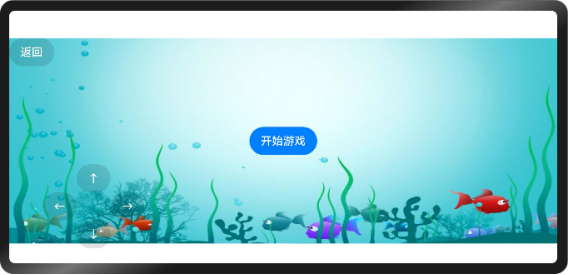
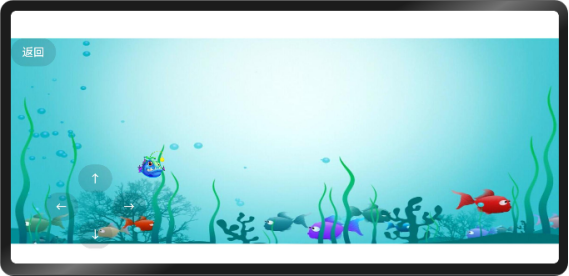
"小鱼游戏"页面是是一个以海洋为主题的游戏页面。画面背景是浅蓝色的海水,左上角有一个写着"返回"的灰色按钮。页面左侧分布着一些操作箭头图标,包括向上、向左、向右和向下箭头,用于控制游戏小鱼角色的移动。
在画面中,有多条颜色各异的鱼在游动,水中还生长着绿色的水草和一些深色的珊瑚,增添了海洋场景的真实感。页面中还有一些气泡元素,进一步丰富了水下环境的氛围。整体画面给人一种轻松、有趣的感觉,仿佛置身于海底世界中玩游戏。
点击"开始游戏",进入游戏。
点击"上下左右"按键,可以控制小鱼移动。
2 核心功能实现
我们将实现一个以海洋为背景的小鱼游动游戏页面,包含以下交互元素:
(1)左上角的「返回」按钮。
(2)初始状态的「开始游戏」按钮。
(3)游戏开始后的方向控制按钮(← ↑ ↓ →)。
(4)可操控的小鱼形象(会移动、转向)。
2.1 页面基础结构
在pages创建FishPage.ets作为"小鱼游戏"页面。页面基础结构。代码如下:
|----------------------------------------------------------------------------------------------------------------------------------------------------------------------------------------------------------------------------------------------------------------------------------------------------------------------------------------------------------------------------------------------------------------------------------------------------------------------|
| import router from '@ohos.router' @Entry @Component struct AnimationPage { // 小鱼坐标 @State fishX: number = 200 @State fishY: number = 180 // 小鱼角度 @State angle: number = 0 // 小鱼图片 @State src: Resource = $r('app.media.fish') // 是否开始游戏 @State isBegin: boolean = false build() { Row() { Stack(){ // 返回按钮 Button('返回') .position({x:0, y: 0}) .backgroundColor('#20101010') .onClick(() => { // 返回上一页 router.back() }) ... } } } } |
2.2 游戏"开始按钮"
点击"开始按钮",进入游戏,点击后出现我们能控制的小鱼。代码如下。
|-----------------------------------------------------------------------------------------------------------------------------------------------------------------------------------------|
| if (!this .isBegin){ // 开始按钮 Button('开始游戏') .onClick(() => { animateToImmediately( {duration: 1000}, () => { // 点击后显示小鱼 this .isBegin = true } ) }) } |
2.3 小鱼显示与转场动画
游戏开始后,需要显示小鱼,定义小鱼图片。代码如下:
|-------------------------------------------------------------------------------------------------------------------------------------------------------------------------------------------------------------------------------------------------------------------------------------------------------------------------------------------------------|
| else { // 小鱼图片 Image(this .src) .position({x: this .fishX - 20, y: this .fishY - 20}) .rotate({angle:this .angle, centerX: '50%', centerY: '50%'}) .width(40) .height(40) //.animation({duration: 500, curve: Curve.Smooth}) .transition({ type: TransitionType.Insert, opacity: 0, translate: {x: -250} }) } |
.transition({}):
这行代码调用了组件的 transition方法,用于配置组件转场动画的相关参数。大括号内是具体的动画参数配置对象。
type: TransitionType.Insert,:
type参数用于指定动画的类型。这里将其设置为 TransitionType.Insert,表示该动画是针对组件插入场景的,TransitionType是一个枚举类型,用于明确动画适用的具体时机类别。
opacity: 0,:opacity参数控制组件的不透明度。这里设置为 0,意味着在动画过程中,组件的不透明度会从初始状态完全透明(opacity: 0)过渡到完全不透明显式(opacity: 1)。这样在小鱼入场时,会有一个逐渐显式的视觉效果。
translate: {x: -250}:translate参数用于实现组件的平移效果,它是一个对象,里面可以分别设置 x(横向)、y(纵向)、z(竖向,在二维场景下可能无效)方向的平移距离。这里只设置了 x: -250,表示在动画过程中,组件会在水平方向(x轴)向右平移 250 个单位。也就是说,小鱼入场时会从原本位置向右移动一段距离,呈现出平移的过渡动画效果。
2.4 方向控制按钮
控制方向按钮区域,使用"←"、"↑"、"↓"、"→"四个按钮表示,使用animateToImmediately改变小鱼的坐标,从而实现小鱼的平滑移动,代码如下:
|-------------------------------------------------------------------------------------------------------------------------------------------------------------------------------------------------------------------------------------------------------------------------------------------------------------------------------------------------------------------------------------------------------------------------------------------------------------------------------------------------------------------------------------------------------------------------------------------------------------------------------------------------------------------------------------------------------------------------------------------------------------------------------------------------|
| // 操作按钮 Row(){ Button('←').backgroundColor('#20101010') .onClick(() => { animateToImmediately( {duration: 500}, () => { this .fishX -= 20 this .src = r('app.media.fish_rev') } ) }) Column({space: 40}){ Button('↑').backgroundColor('#20101010') .onClick(() =\> { animateToImmediately( {duration: 500}, () =\> { ****this**** .fishY -= 20 } ) }) Button('↓').backgroundColor('#20101010') .onClick(() =\> { animateToImmediately( {duration: 500}, () =\> { ****this**** .fishY += 20 } ) }) } Button('→').backgroundColor('#20101010') .onClick(() =\> { animateToImmediately( {duration: 500}, () =\> { ****this**** .fishX += 20 ****this**** .src = r('app.media.fish') } ) }) } .height(240) .width(240) .justifyContent(FlexAlign.Center) .position({x:0,y:120}) |
animateToImmediately函数用于立即执行一段动画操作,在这个例子中,它会改变 this.fishX、this.fishY的值并切换 this.src所指向的图片资源,从而实现小鱼转向,整个过程会持续 500 毫秒
3 关键实现功能点
(1)状态管理:
使用@State装饰器标记可变变量。
使用isBegin变量控制游戏状态切换。
坐标变量(fishX,fishY)实时更新位置。
(2)动画效果:
animateToImmediately实现即时平滑移动,改变小鱼坐标的位置。
transition添加进场动画。
小鱼的旋转效果通过rotate属性实现。
(3)布局技巧:
Stack层叠布局实现元素叠加。
绝对定位(position)精确控制元素位置。
Column和Row组合排列方向按钮。
(4)资源引用:
使用$r('app.media.xxx')引用图片资源。
需要提前在项目中添加fish.png和sea.jpg图片,设置背景图片。
完整代码如下:
|------------------------------------------------------------------------------------------------------------------------------------------------------------------------------------------------------------------------------------------------------------------------------------------------------------------------------------------------------------------------------------------------------------------------------------------------------------------------------------------------------------------------------------------------------------------------------------------------------------------------------------------------------------------------------------------------------------------------------------------------------------------------------------------------------------------------------------------------------------------------------------------------------------------------------------------------------------------------------------------------------------------------------------------------------------------------------------------------------------------------------------------------------------------------------------------------------------------------------------------------------------------------------------------------------------------------------------------------------------------------------------------------------------------------------------------------------------------------------------------------------------------------------------------------------------------------------------------------------------------------------------------------------------------------------------------------------------------------------------------------------------------------------------------------------------------------------------------------------------------------------------------------------------------------------------------------------------------------|
| import router from '@ohos.router' @Entry @Component struct AnimationPage { // 小鱼坐标 @State fishX: number = 200 @State fishY: number = 180 // 小鱼角度 @State angle: number = 0 // 小鱼图片 @State src: Resource = r('app.media.fish') // 是否开始游戏 @State isBegin: boolean = ****false**** build() { Row() { Stack(){ // 返回按钮 Button('返回') .position({x:0, y: 0}) .backgroundColor('#20101010') .onClick(() =\> { // 返回上一页 router.back() }) ****if**** (!****this**** .isBegin){ // 开始按钮 Button('开始游戏') .onClick(() =\> { animateToImmediately( {duration: 1000}, () =\> { // 点击后显示小鱼 ****this**** .isBegin = ****true**** } ) }) }****else**** { // 小鱼图片 Image(****this**** .src) .position({x: ****this**** .fishX - 20, y: ****this**** .fishY - 20}) .rotate({angle:****this**** .angle, centerX: '50%', centerY: '50%'}) .width(40) .height(40) //.animation({duration: 500, curve: Curve.Smooth}) .transition({ type: TransitionType.Insert, opacity: 0, translate: {x: -250} }) } // 操作按钮 Row(){ Button('←').backgroundColor('#20101010') .onClick(() =\> { animateToImmediately( {duration: 500}, () =\> { ****this**** .fishX -= 20 ****this**** .src = r('app.media.fish_rev') } ) }) Column({space: 40}){ Button('↑').backgroundColor('#20101010') .onClick(() => { animateToImmediately( {duration: 500}, () => { this .fishY -= 20 } ) }) Button('↓').backgroundColor('#20101010') .onClick(() => { animateToImmediately( {duration: 500}, () => { this .fishY += 20 } ) }) } Button('→').backgroundColor('#20101010') .onClick(() => { animateToImmediately( {duration: 500}, () => { this .fishX += 20 this .src = r('app.media.fish') } ) }) } .height(240) .width(240) .justifyContent(FlexAlign.Center) .position({x:0,y:120}) } .height('100%').width('100%') } .height('100%') .width('100%') .backgroundImage(r('app.media.sea')) .backgroundImageSize({height: '105%', width: '100%'}) } } |