HarmonyOS6 - 鸿蒙AI人脸比对实战案例
开发环境为:
开发工具:DevEco Studio 6.0.1 Release
API版本是:API21
本文所有代码都已使用模拟器测试成功!
1. 效果
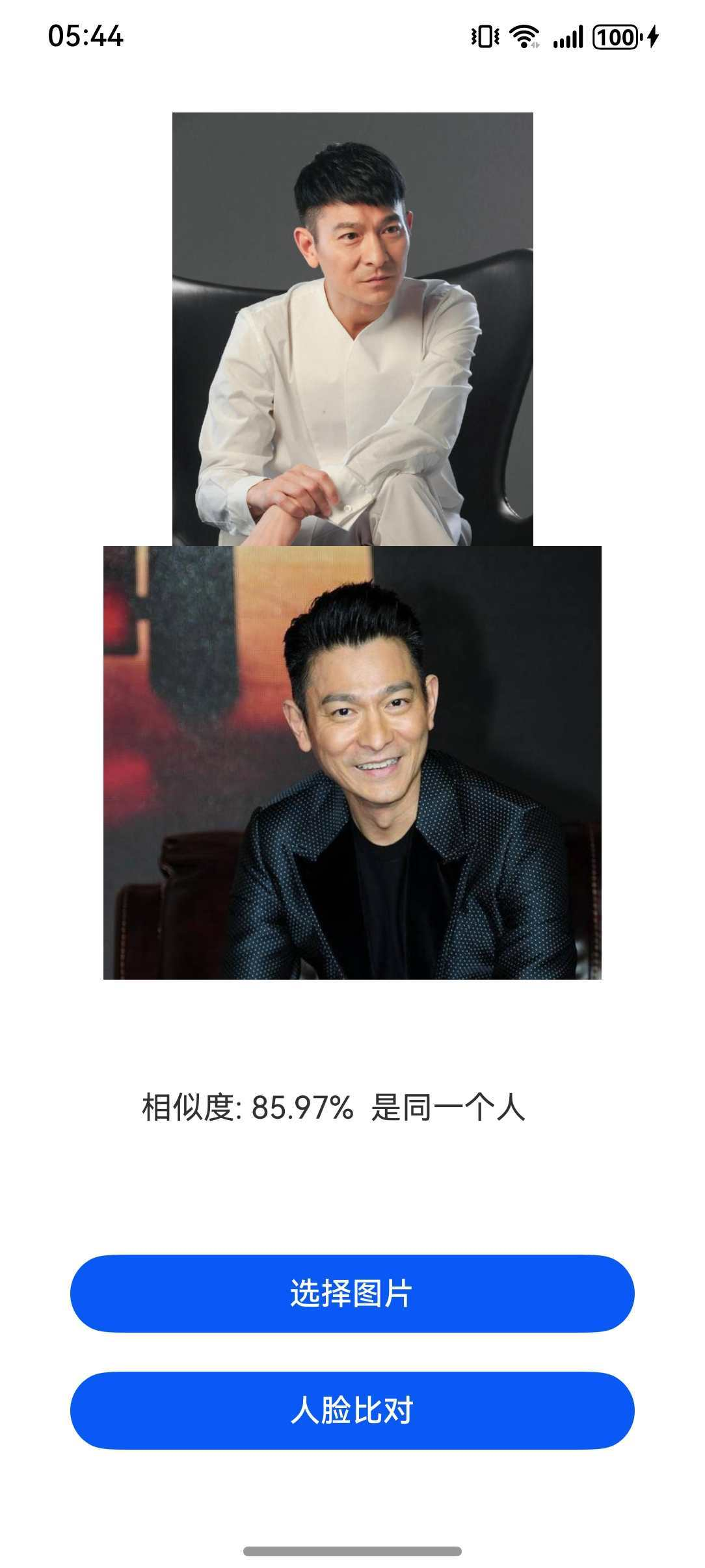
2. 需求
- 点击【选择图片】按钮,弹出图库选择框,从图库选择两张人脸照
- 选择的人脸照显示到页面上
- 点击【人脸对比】按钮,对比两张人脸照的相似度,并给出结果,是否是同一个人
3. 分析
针对以上需求,开发思路录下:
- 页面需要有两个按钮:选择图片和人脸对比
- 需要有拉起图库选择的操作,并且可以同时选择两张图片
- 需要使用到【faceComparator】人脸比对模块
- 显示比对结果到页面上
4. 开发
根据以上需求,参考官网对【faceComparator】人脸比对模块的介绍,我们开始编码
页面代码如下:
js
import { faceComparator } from '@kit.CoreVisionKit';
import { image } from '@kit.ImageKit';
import { hilog } from '@kit.PerformanceAnalysisKit';
import { BusinessError } from '@kit.BasicServicesKit';
import { fileIo } from '@kit.CoreFileKit';
import { photoAccessHelper } from '@kit.MediaLibraryKit';

const TAG: string = "FaceCompareSample";

/**
 * 案例:AI人脸比对
 */
@Entry
@Component
struct Page14 {
  @State chooseImage: PixelMap | undefined = undefined
  @State chooseImage1: PixelMap | undefined = undefined
  @State dataValues: string = ''

  async aboutToAppear(): Promise<void> {
    const initResult = await faceComparator.init();
    hilog.info(0x0000, TAG, `Face comparator initialization result:${initResult}`);
  }

  async aboutToDisappear(): Promise<void> {
    await faceComparator.release();
    hilog.info(0x0000, TAG, 'Face comparator released successfully');
  }

  build() {
    Column() {
      Image(this.chooseImage)
        .objectFit(ImageFit.Fill)
        .height('30%')
        .accessibilityDescription("默认图片1")
      Image(this.chooseImage1)
        .objectFit(ImageFit.Fill)
        .height('30%')
        .accessibilityDescription("默认图片2")
      Text(this.dataValues)
        .copyOption(CopyOptions.LocalDevice)
        .height('15%')
        .margin(10)
        .width('60%')
      Button('选择图片')
        .type(ButtonType.Capsule)
        .fontColor(Color.White)
        .alignSelf(ItemAlign.Center)
        .width('80%')
        .margin(10)
        .onClick(() => {
          // 拉起图库
          void this.selectImage()
        })
      Button('人脸比对')
        .type(ButtonType.Capsule)
        .fontColor(Color.White)
        .alignSelf(ItemAlign.Center)
        .width('80%')
        .margin(10)
        .onClick(() => {
          if (!this.chooseImage || !this.chooseImage1) {
            hilog.error(0x0000, TAG, "Failed to choose image");
            return;
          }
          // 调用人脸比对接口
          let visionInfo: faceComparator.VisionInfo = {
            pixelMap: this.chooseImage,
          };
          let visionInfo1: faceComparator.VisionInfo = {
            pixelMap: this.chooseImage1,
          };
          faceComparator.compareFaces(visionInfo, visionInfo1)
            .then((data: faceComparator.FaceCompareResult) => {
              let faceString = "degree of similarity: " + this.toPercentage(data.similarity) +
                ((data.isSamePerson) ? ". is" : ". no") + " same person";
              hilog.info(0x0000, TAG, "faceString data is " + faceString);
              this.dataValues = faceString;
            })
            .catch((error: BusinessError) => {
              hilog.error(0x0000, TAG, `Face comparison failed. Code: ${error.code}, message: ${error.message}`);
              this.dataValues = `Error: ${error.message}`;
            });
        })
    }
    .width('100%')
    .height('100%')
    .justifyContent(FlexAlign.Center)
  }

  private toPercentage(num: number): string {
    return `${(num * 100).toFixed(2)}%`;
  }

  private async selectImage() {
    let uri = await this.openPhoto()
    if (uri === undefined) {
      hilog.error(0x0000, TAG, "Failed to get two image uris.");
    }
    this.loadImage(uri);
  }

  private async openPhoto(): Promise<string[]> {
    return new Promise<string[]>((resolve, reject) => {
      let photoPicker: photoAccessHelper.PhotoViewPicker = new photoAccessHelper.PhotoViewPicker();
      photoPicker.select({
        MIMEType: photoAccessHelper.PhotoViewMIMETypes.IMAGE_TYPE,
        maxSelectNumber: 2
      }).then(res => {
        resolve(res.photoUris);
      }).catch((err: BusinessError) => {
        hilog.error(0x0000, TAG, `Failed to get photo image uris. code: ${err.code}, message: ${err.message}`);
        reject();
      });
    });
  }

  private loadImage(names: string[]) {
    setTimeout(async () => {
      let imageSource: image.ImageSource | undefined = undefined;
      let fileSource: fileIo.File
      try {
        fileSource = await fileIo.open(names[0], fileIo.OpenMode.READ_ONLY);
        imageSource = image.createImageSource(fileSource.fd);
        this.chooseImage = await imageSource.createPixelMap();
      } catch (error) {
        hilog.error(0x0000, TAG, `Failed to open file. Error: ${error}`);
      }
      try {
        fileSource = await fileIo.open(names[1], fileIo.OpenMode.READ_ONLY);
        imageSource = image.createImageSource(fileSource.fd);
        this.chooseImage1 = await imageSource.createPixelMap();
        await fileIo.close(fileSource);
      } catch (error) {
        hilog.error(0x0000, TAG, `Failed to open the second file. Error: ${error}`);
      }
    }, 100
    )
  }
}
解读:
- openPhoto函数为拉起图库选择框,供用户选择图片
- 选完图片后,将两张图片的数据交给loadImage函数处理,生成对应的PixelMap类型的视觉信息
- faceComparator.compareFaces函数主要是做比对功能,得到比对结果
最后
- 希望本文对你有所帮助!
- 本人如有任何错误或不当之处,请留言指出,谢谢!