Flutter实战:从零实现俄罗斯方块(三)交互控制与事件处理
文章目录
- Flutter实战:从零实现俄罗斯方块(三)交互控制与事件处理
-
- 摘要
- 前言
- 一、键盘事件监听
-
- [1.1 RawKeyboardListener的基本用法](#1.1 RawKeyboardListener的基本用法)
- [1.2 如何映射按键到游戏操作?](#1.2 如何映射按键到游戏操作?)
- [1.3 WASD键位支持](#1.3 WASD键位支持)
- 二、触摸按钮控制
-
- [2.1 按钮布局设计](#2.1 按钮布局设计)
- [2.2 按钮交互反馈](#2.2 按钮交互反馈)
- [2.3 长按连续操作](#2.3 长按连续操作)
- 三、游戏状态管理
-
- [3.1 状态机设计](#3.1 状态机设计)
- [3.2 暂停和继续功能](#3.2 暂停和继续功能)
- [3.3 游戏结束处理](#3.3 游戏结束处理)
- 四、焦点管理
-
- [4.1 FocusNode的作用](#4.1 FocusNode的作用)
- [4.2 自动获取焦点](#4.2 自动获取焦点)
- [4.3 点击重新获取焦点](#4.3 点击重新获取焦点)
- 五、事件处理常见问题
- 六、本文小结
- 参考资料
- 社区支持
摘要
这是我用Flutter开发俄罗斯方块游戏的第三篇文章,主要讲解游戏的交互控制实现。我会分享如何使用RawKeyboardListener监听键盘事件、如何设计触摸控制按钮、如何管理游戏状态(暂停、结束),以及FocusNode焦点管理的技巧。通过这篇文章,你可以了解到Flutter事件处理的完整流程。
关键词:Flutter、事件处理、RawKeyboardListener、FocusNode、游戏控制、OpenHarmony
前言
在前两篇文章中,我已经实现了俄罗斯方块游戏的数据结构和绘制功能。但游戏还需要玩家能够控制方块才行!
这篇文章我主要解决三个问题:
- 如何让键盘控制方块移动和旋转?
- 如何添加屏幕按钮方便触摸屏操作?
- 如何处理暂停、游戏结束等状态?
系列说明:这是Flutter俄罗斯方块游戏开发系列教程的第3篇也是最后一篇。
一、键盘事件监听
1.1 RawKeyboardListener的基本用法
Flutter提供了RawKeyboardListener Widget来监听键盘事件:
dart
RawKeyboardListener(
  focusNode: _focusNode,
  onKey: _handleKeyEvent,
  autofocus: true,
  child: Scaffold(
    // 游戏界面...
  ),
)三个关键参数:
focusNode:焦点控制器(必须有)onKey:按键回调函数autofocus:是否自动获取焦点
1.2 如何映射按键到游戏操作?
我在_handleKeyEvent函数中处理按键:
dart
void _handleKeyEvent(RawKeyEvent event) {
  // 只处理按键按下事件
  if (event is! RawKeyDownEvent) return;

  if (event.logicalKey == LogicalKeyboardKey.arrowLeft) {
    _game.moveLeft();
  } else if (event.logicalKey == LogicalKeyboardKey.arrowRight) {
    _game.moveRight();
  } else if (event.logicalKey == LogicalKeyboardKey.arrowDown) {
    _game.moveDown();
  } else if (event.logicalKey == LogicalKeyboardKey.arrowUp ||
             event.logicalKey == LogicalKeyboardKey.space) {
    _game.rotate();
  } else if (event.logicalKey == LogicalKeyboardKey.keyP) {
    _game.togglePause();
  }
}按键映射表:
| 按键 | LogicalKeyboardKey | 功能 |
|---|---|---|
| ← | arrowLeft |
左移一格 |
| → | arrowRight |
右移一格 |
| ↓ | arrowDown |
加速下落 |
| ↑ | arrowUp |
旋转方块 |
| Space | space |
旋转方块 |
| P | keyP |
暂停/继续 |
1.3 WASD键位支持
很多游戏玩家习惯用WASD控制,我也加上:
dart
void _handleKeyEvent(RawKeyEvent event) {
  if (event is! RawKeyDownEvent) return;

  if (event.logicalKey == LogicalKeyboardKey.arrowLeft ||
      event.logicalKey == LogicalKeyboardKey.keyA) {
    _game.moveLeft();
  } else if (event.logicalKey == LogicalKeyboardKey.arrowRight ||
             event.logicalKey == LogicalKeyboardKey.keyD) {
    _game.moveRight();
  } else if (event.logicalKey == LogicalKeyboardKey.arrowDown ||
             event.logicalKey == LogicalKeyboardKey.keyS) {
    _game.moveDown();
  } else if (event.logicalKey == LogicalKeyboardKey.arrowUp ||
             event.logicalKey == LogicalKeyboardKey.keyW ||
             event.logicalKey == LogicalKeyboardKey.space) {
    _game.rotate();
  } else if (event.logicalKey == LogicalKeyboardKey.keyP) {
    _game.togglePause();
  }
}
二、触摸按钮控制
2.1 按钮布局设计
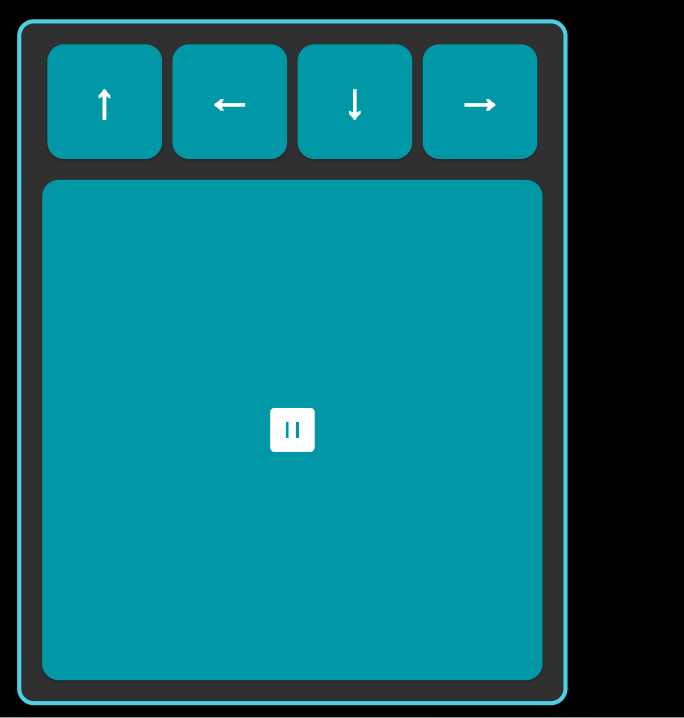
对于触摸屏设备,我设计了方向键布局:
dart
Widget _buildControls(double buttonSize) {
  return Container(
    padding: const EdgeInsets.all(10),
    decoration: BoxDecoration(
      color: Colors.grey[850],
      borderRadius: BorderRadius.circular(8),
      border: Border.all(color: Colors.cyan[300]!, width: 2),
    ),
    child: Column(
      children: [
        // 第一行:↑键
        Row(
          mainAxisAlignment: MainAxisAlignment.center,
          children: [
            _buildControlButton('↑', buttonSize, () => _game.rotate()),
          ],
        ),
        const SizedBox(height: 5),
        // 第二行:← ↓ →键
        Row(
          mainAxisAlignment: MainAxisAlignment.center,
          children: [
            _buildControlButton('←', buttonSize, () => _game.moveLeft()),
            const SizedBox(width: 5),
            _buildControlButton('↓', buttonSize, () => _game.moveDown()),
            const SizedBox(width: 5),
            _buildControlButton('→', buttonSize, () => _game.moveRight()),
          ],
        ),
        const SizedBox(height: 10),
        // 第三行:暂停键
        _buildControlButton('⏸', buttonSize * 3 + 10, () => _game.togglePause()),
      ],
    ),
  );
}
布局效果 :
2.2 按钮交互反馈
dart
Widget _buildControlButton(String label, double size, VoidCallback onPressed) {
  return SizedBox(
    width: size,
    height: size,
    child: ElevatedButton(
      onPressed: onPressed,
      style: ElevatedButton.styleFrom(
        backgroundColor: Colors.cyan[700],
        foregroundColor: Colors.white,
        shape: RoundedRectangleBorder(
          borderRadius: BorderRadius.circular(8),
        ),
        elevation: 4,  // 阴影效果
      ),
      child: FittedBox(
        child: Text(
          label,
          style: const TextStyle(
            fontSize: 20,
            fontWeight: FontWeight.bold,
          ),
        ),
      ),
    ),
  );
}
2.3 长按连续操作
为了方便操作,我实现了长按连续移动:
dart
Widget _buildContinuousButton({
  required String label,
  required double size,
  required VoidCallback onAction,
}) {
  return GestureDetector(
    onLongPressStart: (_) {
      _repeatTimer = Timer.periodic(
        const Duration(milliseconds: 50),
        (timer) => onAction(),
      );
    },
    onLongPressEnd: (_) {
      _repeatTimer?.cancel();
    },
    onTap: onAction,
    child: Container(
      width: size,
      height: size,
      decoration: BoxDecoration(
        color: Colors.cyan[700],
        borderRadius: BorderRadius.circular(8),
      ),
      child: Center(
        child: Text(label, style: const TextStyle(fontSize: 20)),
      ),
    ),
  );
}
三、游戏状态管理
3.1 状态机设计
我用简单的状态变量管理游戏:
dart
class TetrisGame {
  bool paused = false;
  bool gameOver = false;

  bool get isPlaying => !paused && !gameOver;
}状态转换:
初始化 → playing → paused → playing
         ↓
      gameOver
3.2 暂停和继续功能
dart
void togglePause() {
  paused = !paused;
  if (paused) {
    _timer?.cancel();
  } else {
    start();
  }
  updateCallback();
}暂停UI:
dart
if (_game.paused && !_game.gameOver)
  Container(
    color: Colors.black.withValues(alpha: 0.8),
    child: Center(
      child: Text(
        'PAUSED',
        style: TextStyle(
          fontSize: 32,
          color: Colors.yellow[400],
        ),
      ),
    ),
  )
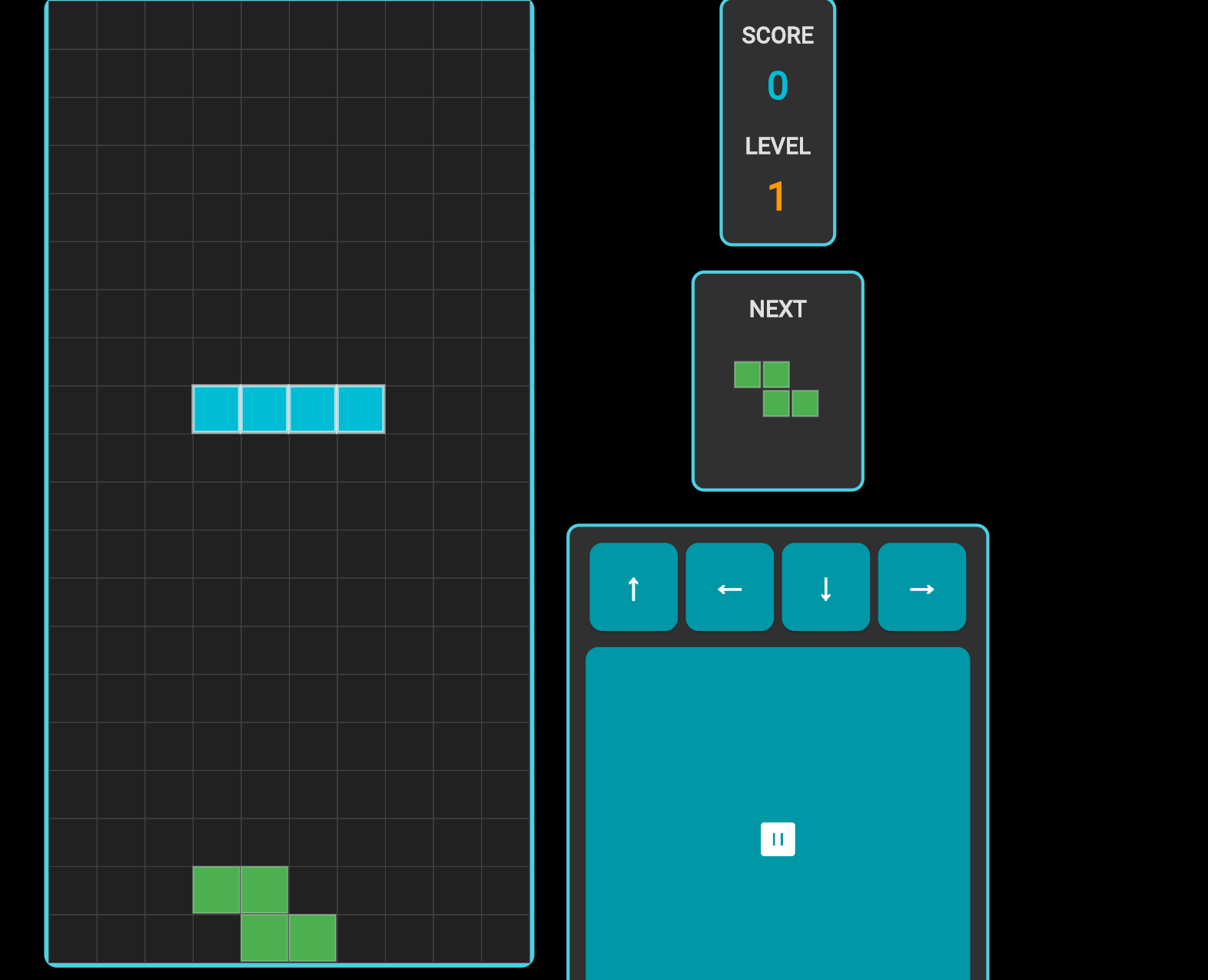
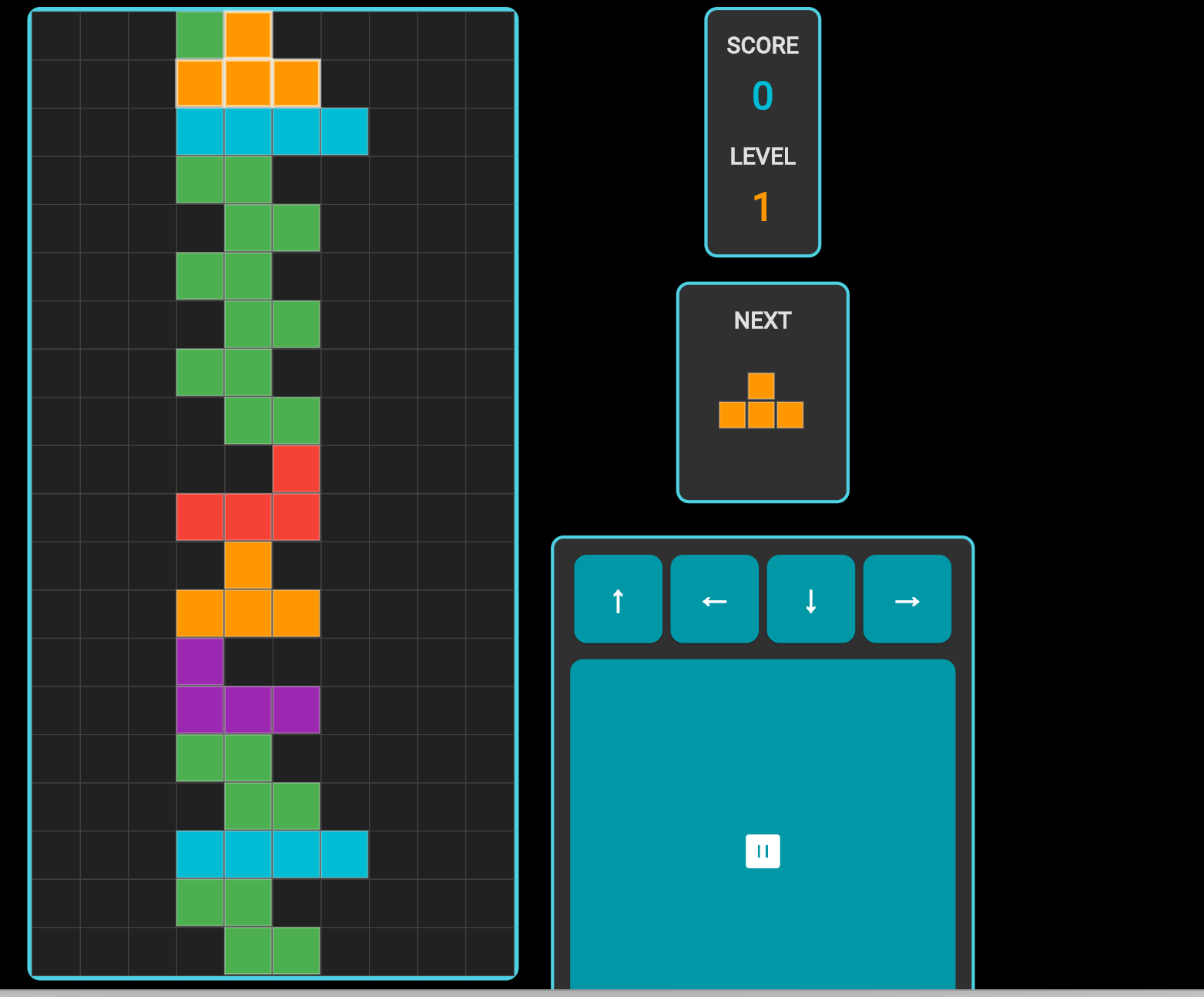
3.3 游戏结束处理
dart
void _spawnPiece() {
  _currentPiece = _nextPiece;
  _nextPiece = _getRandomPiece();
  _currentX = (cols - _currentPiece![0].length) ~/ 2;
  _currentY = 0;

  // 检查是否立即碰撞
  if (_checkCollision(_currentX, _currentY, _currentPiece!)) {
    gameOver = true;
    _timer?.cancel();
  }
}
四、焦点管理
4.1 FocusNode的作用
RawKeyboardListener需要焦点才能接收键盘事件:
dart
class _GamePageState extends State<GamePage> {
  final FocusNode _focusNode = FocusNode();

  @override
  void dispose() {
    _focusNode.dispose();  // 记得释放资源
    super.dispose();
  }
}
4.2 自动获取焦点
dart
RawKeyboardListener(
  focusNode: _focusNode,
  onKey: _handleKeyEvent,
  autofocus: true,  // 自动获取焦点
  child: Scaffold(...),
)
4.3 点击重新获取焦点
dart
GestureDetector(
  onTap: () {
    _focusNode.requestFocus();  // 点击时重新获取焦点
  },
  child: RawKeyboardListener(
    focusNode: _focusNode,
    onKey: _handleKeyEvent,
    child: Scaffold(...),
  ),
)
五、事件处理常见问题
问题1:按键没有响应
原因 :焦点丢失
解决:使用autofocus或点击重新获取焦点
问题2:按键触发了多次
原因 :没有区分KeyDown和KeyUp
解决:只处理KeyDownEvent
dart
if (event is! RawKeyDownEvent) return;问题3:触摸按钮太小
解决:根据屏幕大小动态调整
dart
final buttonSize = isSmallScreen ? 50.0 : 60.0;六、本文小结
这篇文章我讲解了游戏的交互控制实现:
- 键盘控制:RawKeyboardListener监听键盘事件
- 触摸控制:屏幕按钮布局和交互
- 状态管理:暂停、继续、游戏结束
- 焦点管理:FocusNode的正确使用
现在游戏已经完全可以玩了!
系列说明:这是Flutter俄罗斯方块游戏开发系列教程的第3篇,已经全部完结
参考资料
社区支持
欢迎加入开源鸿蒙跨平台社区:
- 社区论坛 :开源鸿蒙跨平台开发者社区
- 技术交流:参与讨论,分享经验
如果本文对你有帮助,欢迎点赞、收藏、评论!