前言
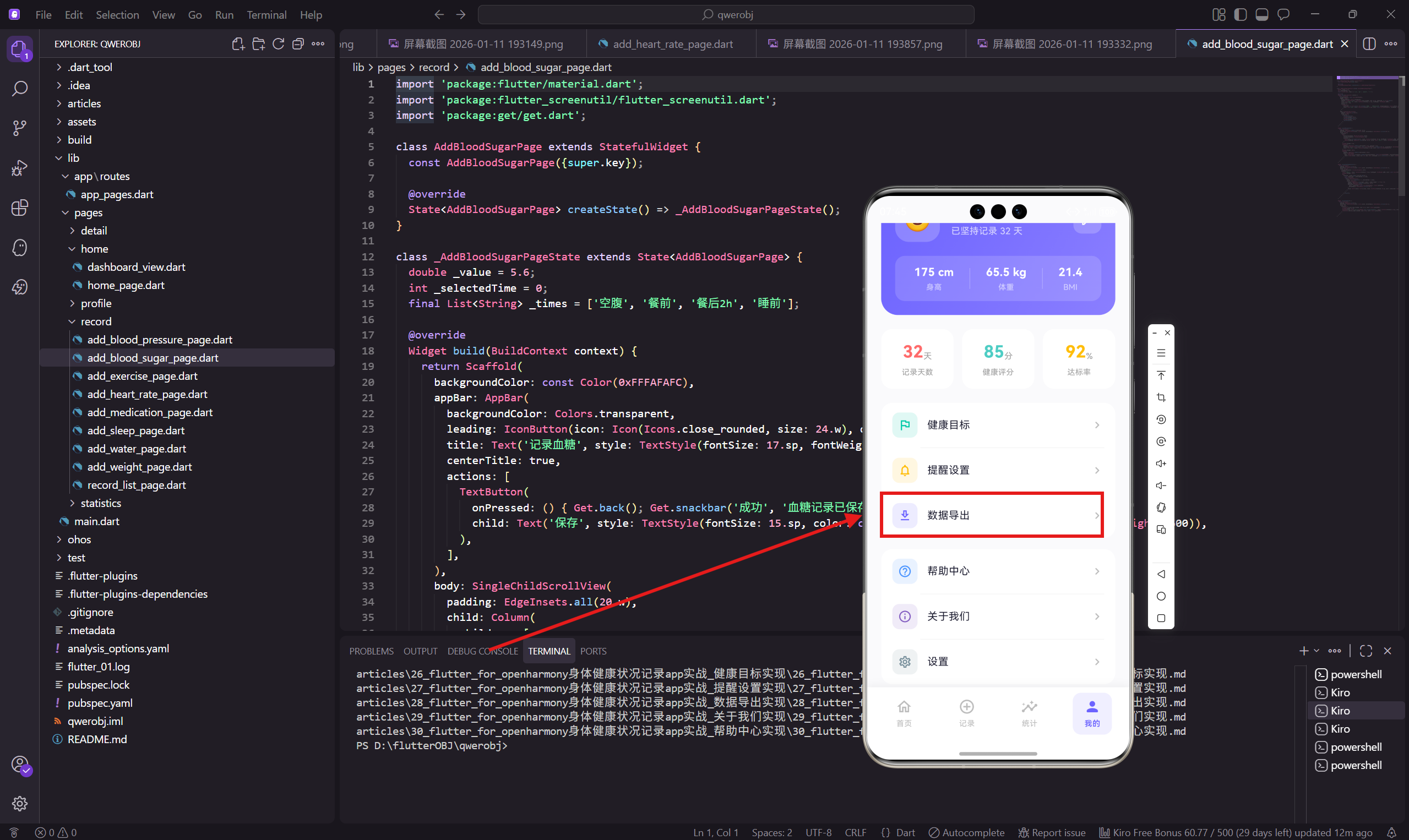
数据导出功能让用户可以把自己的健康数据导出为文件,方便备份、分享给医生或在其他设备上使用。支持导出全部数据或特定类型的数据,以及生成 PDF 格式的健康报告。
这篇文章会讲解数据导出页面的实现,包括导出选项列表和导出功能等核心内容。
页面整体结构
数据导出页面展示多个导出选项,每个选项对应不同的数据类型或格式。
dart
class DataExportPage extends StatelessWidget {
  const DataExportPage({super.key});

  @override
  Widget build(BuildContext context) {
    return Scaffold(
      backgroundColor: const Color(0xFFFAFAFC),
      appBar: AppBar(
        backgroundColor: Colors.transparent,
        leading: IconButton(
          icon: Icon(Icons.arrow_back_ios_rounded, size: 20.w),
          onPressed: () => Get.back()
        ),
        title: Text('数据导出', style: TextStyle(fontSize: 17.sp, fontWeight: FontWeight.w600)),
        centerTitle: true,
      ),
      body: Padding(
        padding: EdgeInsets.all(20.w),
        child: Column(
          children: [
            _buildExportOption('导出全部数据', '包含所有健康记录', Icons.folder_outlined),
            SizedBox(height: 12.h),
            _buildExportOption('导出体重数据', '仅体重相关记录', Icons.monitor_weight_outlined),
            SizedBox(height: 12.h),
            _buildExportOption('导出血压数据', '仅血压相关记录', Icons.favorite_border_rounded),
            SizedBox(height: 12.h),
            _buildExportOption('生成健康报告', 'PDF格式报告', Icons.description_outlined),
          ],
        ),
      ),
    );
  }
}
页面使用统一的浅灰色背景,四个导出选项垂直排列,间距为 12.h。
导出选项组件
导出选项组件展示图标、标题和描述。
dart
Widget _buildExportOption(String title, String subtitle, IconData icon) {
  return Container(
    padding: EdgeInsets.all(16.w),
    decoration: BoxDecoration(
      color: Colors.white,
      borderRadius: BorderRadius.circular(16.r)
    ),
    child: Row(
      children: [
        Container(
          padding: EdgeInsets.all(10.w),
          decoration: BoxDecoration(
            color: const Color(0xFF6C63FF).withOpacity(0.12),
            borderRadius: BorderRadius.circular(12.r)
          ),
          child: Icon(icon, size: 22.w, color: const Color(0xFF6C63FF)),
        ),
        SizedBox(width: 14.w),
        Expanded(
          child: Column(
            crossAxisAlignment: CrossAxisAlignment.start,
            children: [
              Text(title, style: TextStyle(
                fontSize: 15.sp,
                fontWeight: FontWeight.w500,
                color: const Color(0xFF1A1A2E)
              )),
              SizedBox(height: 2.h),
              Text(subtitle, style: TextStyle(
                fontSize: 12.sp,
                color: Colors.grey[500]
              )),
            ],
          ),
        ),
        Icon(Icons.chevron_right_rounded, size: 20.w, color: Colors.grey[400]),
      ],
    ),
  );
}
每个选项左边是带紫色背景的图标,中间是标题和描述,右边是箭头图标提示可点击。图标背景使用主题色的 12% 透明度,和整体设计风格保持一致。
导出确认弹窗
点击导出选项后弹出确认弹窗:
dart
void _showExportConfirmation(BuildContext context, String type) {
  showDialog(
    context: context,
    builder: (context) => AlertDialog(
      shape: RoundedRectangleBorder(
        borderRadius: BorderRadius.circular(20.r),
      ),
      title: Text('导出数据', style: TextStyle(
        fontSize: 17.sp,
        fontWeight: FontWeight.w600,
        color: const Color(0xFF1A1A2E),
      )),
      content: Column(
        mainAxisSize: MainAxisSize.min,
        crossAxisAlignment: CrossAxisAlignment.start,
        children: [
          Text('确定要导出$type吗?', style: TextStyle(
            fontSize: 14.sp,
            color: Colors.grey[700],
          )),
          SizedBox(height: 12.h),
          Text('导出的文件将保存到设备存储中', style: TextStyle(
            fontSize: 12.sp,
            color: Colors.grey[500],
          )),
        ],
      ),
      actions: [
        TextButton(
          onPressed: () => Navigator.pop(context),
          child: Text('取消', style: TextStyle(
            fontSize: 14.sp,
            color: Colors.grey[600],
          )),
        ),
        TextButton(
          onPressed: () {
            Navigator.pop(context);
            _exportData(type);
          },
          child: Text('导出', style: TextStyle(
            fontSize: 14.sp,
            color: const Color(0xFF6C63FF),
            fontWeight: FontWeight.w600,
          )),
        ),
      ],
    ),
  );
}
确认弹窗告知用户导出的内容和保存位置,用户可以选择取消或确认导出。
数据导出逻辑
根据导出类型执行不同的导出逻辑:
dart
void _exportData(String type) async {
  // 显示加载提示
  Get.dialog(
    Center(
      child: Container(
        padding: EdgeInsets.all(20.w),
        decoration: BoxDecoration(
          color: Colors.white,
          borderRadius: BorderRadius.circular(12.r),
        ),
        child: Column(
          mainAxisSize: MainAxisSize.min,
          children: [
            const CircularProgressIndicator(
              valueColor: AlwaysStoppedAnimation(Color(0xFF6C63FF)),
            ),
            SizedBox(height: 16.h),
            Text('正在导出...', style: TextStyle(
              fontSize: 14.sp,
              color: const Color(0xFF1A1A2E),
            )),
          ],
        ),
      ),
    ),
    barrierDismissible: false,
  );

  try {
    String filePath;

    switch (type) {
      case '全部数据':
        filePath = await _exportAllData();
        break;
      case '体重数据':
        filePath = await _exportWeightData();
        break;
      case '血压数据':
        filePath = await _exportBloodPressureData();
        break;
      case '健康报告':
        filePath = await _generateHealthReport();
        break;
      default:
        throw Exception('未知的导出类型');
    }

    Get.back(); // 关闭加载弹窗
    _showExportSuccess(filePath);

  } catch (e) {
    Get.back(); // 关闭加载弹窗
    _showExportError(e.toString());
  }
}
导出过程中显示加载提示,完成后显示成功或失败的提示。
导出全部数据
导出全部数据为 JSON 格式:
dart
Future<String> _exportAllData() async {
  // 收集所有数据
  final data = {
    'exportTime': DateTime.now().toIso8601String(),
    'weight': await _getWeightRecords(),
    'bloodPressure': await _getBloodPressureRecords(),
    'bloodSugar': await _getBloodSugarRecords(),
    'heartRate': await _getHeartRateRecords(),
    'sleep': await _getSleepRecords(),
    'exercise': await _getExerciseRecords(),
    'water': await _getWaterRecords(),
    'medication': await _getMedicationRecords(),
  };

  // 转换为 JSON
  final jsonString = jsonEncode(data);

  // 保存到文件
  final directory = await getApplicationDocumentsDirectory();
  final fileName = 'health_data_${DateTime.now().millisecondsSinceEpoch}.json';
  final file = File('${directory.path}/$fileName');
  await file.writeAsString(jsonString);

  return file.path;
}
全部数据导出为 JSON 文件,包含所有类型的健康记录和导出时间。
导出特定类型数据
导出特定类型的数据为 CSV 格式:
dart
Future<String> _exportWeightData() async {
  final records = await _getWeightRecords();

  // 生成 CSV 内容
  final csvContent = StringBuffer();
  csvContent.writeln('日期,时间,体重(kg),备注');

  for (final record in records) {
    csvContent.writeln(
      '${record['date']},${record['time']},${record['weight']},${record['note'] ?? ''}'
    );
  }

  // 保存到文件
  final directory = await getApplicationDocumentsDirectory();
  final fileName = 'weight_data_${DateTime.now().millisecondsSinceEpoch}.csv';
  final file = File('${directory.path}/$fileName');
  await file.writeAsString(csvContent.toString());

  return file.path;
}
CSV 格式方便在 Excel 等软件中打开和分析。
生成健康报告
生成 PDF 格式的健康报告:
dart
Future<String> _generateHealthReport() async {
  // 收集报告数据
  final reportData = await _collectReportData();

  // 生成报告内容
  final reportContent = '''
健康报告
生成时间:${DateTime.now().toString().substring(0, 19)}

一、基本信息
姓名:${reportData['name']}
性别:${reportData['gender']}
年龄:${reportData['age']}岁

二、健康指标
1. 体重
   当前:${reportData['currentWeight']} kg
   目标:${reportData['targetWeight']} kg
   本月变化:${reportData['weightChange']} kg

2. 血压
   平均收缩压:${reportData['avgSystolic']} mmHg
   平均舒张压:${reportData['avgDiastolic']} mmHg
   状态:${reportData['bpStatus']}

3. 睡眠
   平均时长:${reportData['avgSleep']} 小时
   质量评估:${reportData['sleepQuality']}

4. 运动
   本周运动:${reportData['weeklyExercise']} 分钟
   目标完成:${reportData['exerciseGoalPercent']}%

三、健康建议
${reportData['suggestions'].join('\n')}
''';

  // 保存为文本文件(实际应用中可以用 pdf 库生成 PDF)
  final directory = await getApplicationDocumentsDirectory();
  final fileName = 'health_report_${DateTime.now().millisecondsSinceEpoch}.txt';
  final file = File('${directory.path}/$fileName');
  await file.writeAsString(reportContent);

  return file.path;
}
健康报告包含基本信息、各项健康指标和个性化建议。
导出成功提示
导出成功后显示提示,并提供分享选项:
dart
void _showExportSuccess(String filePath) {
  Get.bottomSheet(
    Container(
      padding: EdgeInsets.all(20.w),
      decoration: BoxDecoration(
        color: Colors.white,
        borderRadius: BorderRadius.vertical(top: Radius.circular(20.r)),
      ),
      child: Column(
        mainAxisSize: MainAxisSize.min,
        children: [
          Icon(Icons.check_circle, size: 48.w, color: const Color(0xFF00C9A7)),
          SizedBox(height: 16.h),
          Text('导出成功', style: TextStyle(
            fontSize: 18.sp,
            fontWeight: FontWeight.w600,
            color: const Color(0xFF1A1A2E),
          )),
          SizedBox(height: 8.h),
          Text('文件已保存到设备存储', style: TextStyle(
            fontSize: 13.sp,
            color: Colors.grey[500],
          )),
          SizedBox(height: 20.h),
          Row(
            children: [
              Expanded(
                child: OutlinedButton(
                  onPressed: () => Get.back(),
                  style: OutlinedButton.styleFrom(
                    padding: EdgeInsets.symmetric(vertical: 12.h),
                    side: BorderSide(color: Colors.grey[300]!),
                    shape: RoundedRectangleBorder(
                      borderRadius: BorderRadius.circular(10.r),
                    ),
                  ),
                  child: Text('完成', style: TextStyle(
                    fontSize: 14.sp,
                    color: Colors.grey[600],
                  )),
                ),
              ),
              SizedBox(width: 12.w),
              Expanded(
                child: ElevatedButton(
                  onPressed: () {
                    Get.back();
                    _shareFile(filePath);
                  },
                  style: ElevatedButton.styleFrom(
                    backgroundColor: const Color(0xFF6C63FF),
                    padding: EdgeInsets.symmetric(vertical: 12.h),
                    shape: RoundedRectangleBorder(
                      borderRadius: BorderRadius.circular(10.r),
                    ),
                  ),
                  child: Text('分享', style: TextStyle(
                    fontSize: 14.sp,
                    fontWeight: FontWeight.w600,
                    color: Colors.white,
                  )),
                ),
              ),
            ],
          ),
        ],
      ),
    ),
  );
}
成功提示用绿色勾选图标,提供"完成"和"分享"两个按钮。
导出失败提示
导出失败时显示错误提示:
dart
void _showExportError(String error) {
  Get.snackbar(
    '导出失败',
    error,
    snackPosition: SnackPosition.TOP,
    backgroundColor: const Color(0xFFFF6B6B),
    colorText: Colors.white,
    duration: const Duration(seconds: 3),
  );
}
错误提示用红色背景,显示在顶部。
小结
数据导出页面通过清晰的选项列表,让用户可以方便地导出不同类型的健康数据。
核心设计要点包括:导出选项使用统一的卡片样式,导出过程显示加载提示,成功后提供分享选项。这些设计让用户能轻松备份和分享自己的健康数据。
欢迎加入开源鸿蒙跨平台社区:https://openharmonycrossplatform.csdn.net