【高心星出品】
文章目录
-
-
- UIAbility的生命周期方法都有哪些?
- 如何主动退出整个应用?
- 应用缓存目录与module缓存目录有什么区别?
- 一个鸿蒙应用启动过程是怎样的?
- 两个UIAbility之间可通过哪些方法实现数据传递
- 列举常见UIContext、Ability、UIAbilityContext的关系
- 如何实现软键盘弹出后,整体布局不变
- 如何选择图文混排的实现方案?
- 如何实现分组列表的吸顶/吸底效果?
- 如何处理父子组件间的滑动冲突?
- [组件支持的参数类型及参数单位类型:PX、 VP、 FP 、LPX、Percentage、Resource 详细区别是什么?](#组件支持的参数类型及参数单位类型:PX、 VP、 FP 、LPX、Percentage、Resource 详细区别是什么?)
- 如何一键清空TextInput、TextArea组件内容?
- 如何实现文本竖向排列?
- Image组件是否有缓存机制
- 如何完成挖孔屏的适配?
-
UIAbility的生命周期方法都有哪些?
在鸿蒙(HarmonyOS)开发中,UIAbility的生命周期方法定义了组件从创建到销毁的关键节点。以下是核心方法及其作用:
🔄 核心生命周期回调
| 方法 | 触发时机 | 典型操作 | 注意事项 |
|---|---|---|---|
onCreate() |
UIAbility实例首次创建时 | 初始化非UI资源(如定义变量、获取上下文) const context = this.context; |
避免耗时操作,禁止UI操作 |
onWindowStageCreate() |
WindowStage创建时 | 加载UI页面(windowStage.loadContent()) 订阅窗口事件 |
UI初始化的核心位置,必须设置页面路径 |
onForeground() |
即将进入前台(获得焦点) | 申请系统资源(如定位、传感器) 恢复后台释放的资源 | 避免阻塞主线程,需在5秒内完成 |
onBackground() |
进入后台(失去焦点) | 释放非必要资源(如停止定位) 保存临时数据 | 需在5秒内完成,否则可能被系统回收 |
onWindowStageDestroy() |
WindowStage销毁时 | 清理UI相关资源 注销窗口事件订阅 | 窗口对象已不可用 |
onDestroy() |
UIAbility实例销毁前 | 释放全局资源(如关闭数据库连接) 取消定时器/监听器 | API 13+中用户一键清理时不触发 |
⚙️ 特殊场景方法
-
onNewWant(want: Want)-
触发场景:热启动(应用进程在后台时被重新拉起)
-
作用 :处理新的启动请求(如携带参数
want.parameters) -
典型代码:
onNewWant(want: Want) {
    console.log(`调用方PID: ${want.parameters?.['ohos.aafwk.param.callerPid']}`);
}
-
如何主动退出整个应用?
可以通过ApplicationContext的killAllProcesses()方法退出当前应用。
调用killAllProcesses()方法后,会逐个终止应用中的所有进程。
应用缓存目录与module缓存目录有什么区别?
🗂️ 1. 应用缓存目录(全局缓存)
- 定义 :整个应用共享的缓存目录,通过
Context.cacheDir获取。 - 路径示例 :
/data/storage/el2/base/cache
(el2表示用户级加密区,不同设备加密级别可能为el1~el5)。 - 用途:
- 存储应用全局的临时数据(如网络请求缓存、全局配置等)。
- 通过
@ohos.file.storageStatistics可统计其占用空间1。
- 特点:
- 全局性:所有模块共享同一目录。
- 清理方式 :调用
fs.unlink或fs.rmdir删除文件/目录。
📦 2. 模块缓存目录(模块私有缓存)
- 定义 :多模块应用中,单个HAP模块私有的缓存目录。
- 路径示例 :
/data/storage/el2/base/haps/${moduleName}/cache
(${moduleName}为模块名,如entry、feature等)。 - 用途:
- 存储模块自身的资源缓存(如图片、模块配置等)。
- 常见于多HAP应用或动态加载场景。
- 特点:
- 隔离性:每个模块有独立目录,避免数据冲突。
- 管理方式:需遍历所有模块路径才能彻底清理(见下文代码)。
一个鸿蒙应用启动过程是怎样的?
- 每个应用最多包含三类进程(主进程、Extension类进程、Render进程),系统负责创建和管理应用中的所有进程。
- 应用主进程运行所有UIAbility组件、页面及业务逻辑,可拥有多个UIAbility实例。
- 一应用包含一个或多个Module,Module分为"Ability"和"Library"两种类型。Ability类型的Module编译后生成HAP,Library类型的Module生成HAR或HSP。
- HAP分为Entry和Feature两种类型。同一设备类型在同一个应用中仅支持一个Entry类型的HAP,作为应用的入口模块。
- 进程启动过程:
- 系统服务孵化进程,拉起应用主进程,并创建相应的运行环境。
- 应用根据具体需求请求系统服务。
- 启动应用所需的其他进程。
- 模块启动顺序:
- 拉起应用的入口模块。该模块加载时创建一个AbilityStage实例,用于初始化等操作。
- 模块初始完成后,将启动对应的入口UIAbility。
- UIAbility加载完成后,生成一个WindowStage类实例并绑定。WindowStage作为应用进程内的窗口管理器,UIAbility通过它管理窗口,并在该窗口上加载首个ArkUI页面,呈现到设备上。
两个UIAbility之间可通过哪些方法实现数据传递
两个UIAbility之间数据传递的方法如下,建议优先采用排序在前的方法。
- 方法一:调用startAbility接口启动另一个UIAbility时,通过wantInfo添加启动参数。也可以使用startAbilityForResult接口,获取被调用方UIAbility在关闭时返回的信息。
- 方法二:使用应用级别的状态管理,如 AppStorage、PersistentStorage、Environment,实现应用级或多个页面的状态数据共享。
- 方法三:在同一个应用中,UIAbility 之间的数据传递可以使用 AppStorage 或 LocalStorage 进行数据同步。
- 方法四:使用Emitter和Worker进行线程间通信。
- 方法五:使用CES(公共事件服务)进行进程间通信。
- 其他方法:通过Call调用实现UIAbility交互。
列举常见UIContext、Ability、UIAbilityContext的关系
- Ability的上下文是AbilityContext。ArkUI实例的上下文是UIContext,由窗口创建并管理所有UI对象。窗口可以通过windowStage.loadContent拉起ArkUI实例。
- Ability是应用管理生命周期的对象,持有window对象。
- UIAbility的上下文是UIAbilityContext。UIContext与UIAbilityContext没有直接联系,无法互相转化。
如何实现软键盘弹出后,整体布局不变
通过expandSafeArea属性把组件扩展其安全区域,使页面整体布局保持不变,当type为SafeAreaType.KEYBOARD时默认生效,组件不避让键盘。可参考如下代码:
typescript
// xxx.ets
@Entry
@Component
struct TextInputExample {
  scroller: Scroller = new Scroller();
  @State text: string = '';

  build() {
    Scroll(this.scroller) {
      Column({ space: 20 }) {
        TextInput({ placeholder: 'Please enter the content.' })
          .expandSafeArea([SafeAreaType.KEYBOARD])
          .type(InputType.Password)
          .margin({ top: 200 })
        TextInput({ placeholder: 'Please enter the content.' })
          .expandSafeArea([SafeAreaType.KEYBOARD])
          .margin({ top: 200 })
        Text(`UserName:${this.text}`)
          .expandSafeArea([SafeAreaType.KEYBOARD])
          .width('80%')
          .margin({ top: 200 })
        TextInput({ placeholder: 'Please enter a user name.', text: this.text })
          .expandSafeArea([SafeAreaType.KEYBOARD])
          .margin({ top: 200 })
          .onChange((value: string) => {
            this.text = value;
          })
      }
      .width('100%')
    }
    .scrollBar(BarState.Off)
  }
}
代码逻辑走读:
- 组件初始化 :
- 使用
@Entry和@Component装饰器定义了一个名为TextInputExample的组件。 - 初始化了一个
Scroller对象scroller用于实现滚动功能。 - 定义了一个状态变量
text,用于存储用户在特定文本框中的输入内容。
- 使用
- 界面构建 :
- 使用
build方法开始构建界面。 - 创建了一个
Scroll组件,其内部包含一个Column布局,用于垂直排列子组件。 - 在
Column中添加了两个TextInput组件,分别用于密码输入,并设置了占位符提示信息。 - 添加了一个
Text组件,用于显示格式化的用户名信息。 - 最后一个
TextInput组件用于获取用户名输入,并通过onChange事件处理函数实时更新状态变量text,从而实现用户输入内容的动态显示。
- 使用
- 界面布局与样式 :
- 使用
expandSafeArea方法扩展组件的安全区域,确保在不同设备上都能正确显示。 - 设置了各组件的宽度、边距等样式属性,以调整界面布局和视觉效果。
- 禁用了滚动条显示(
scrollBar(BarState.Off))。
- 使用
如何选择图文混排的实现方案?
- 轻量级Span和ImageSpan图文混排:可通过Text组件中嵌套ImageSpan子组件和Span子组件的方式,实现图文混排的方案。具体实现可参考ImageSpan中的示例1(设置对齐方式)。
- 富文本RichEditor支持文本交互式编辑和图文混排,通过addTextSpan()方法添加文本内容,通过addImageSpan()方法添加图片内容。具体实现可参考RichEditor中的示例1(更新文本样式)。
如何实现分组列表的吸顶/吸底效果?
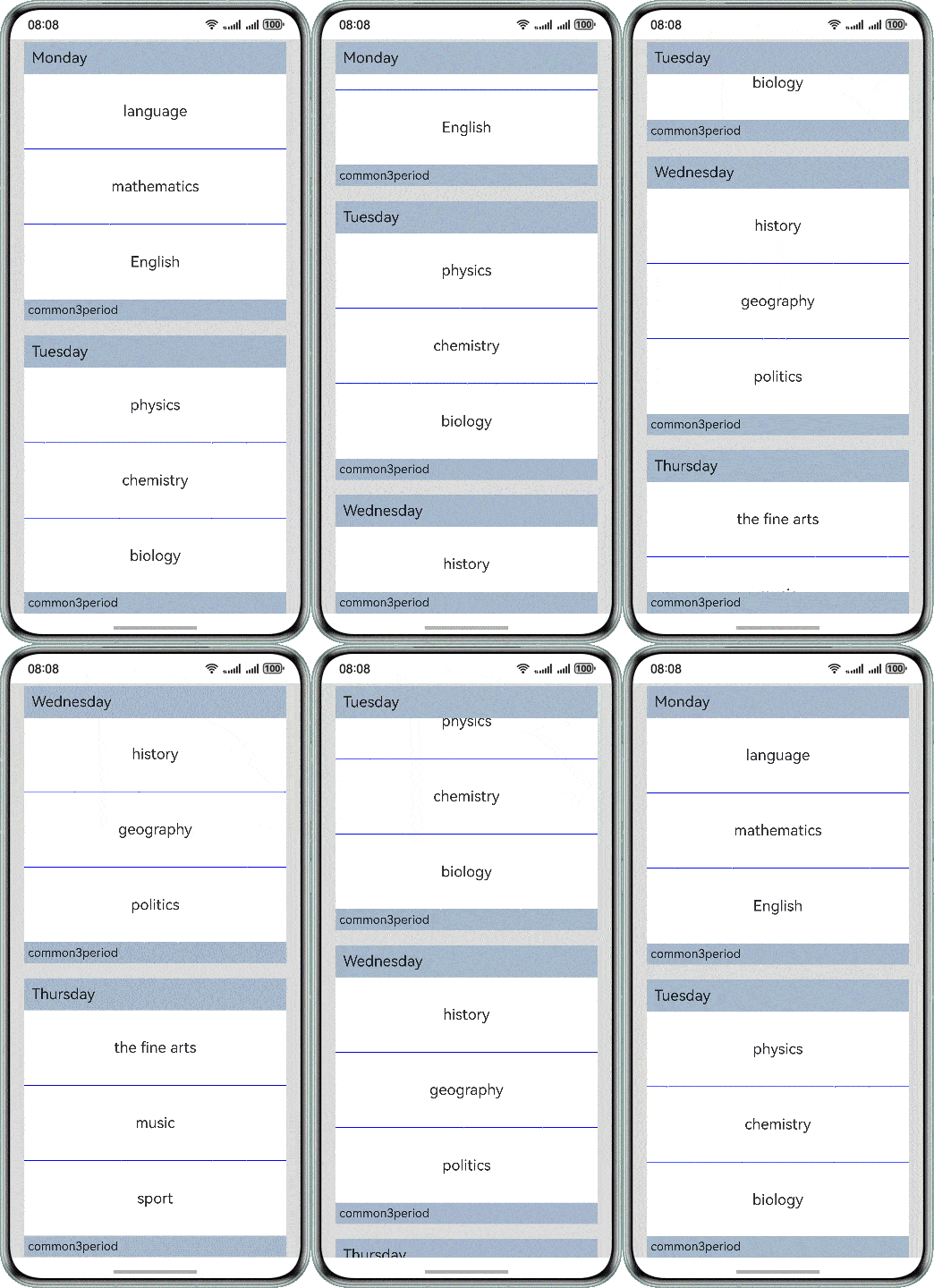
可通过List组件的sticky属性配合ListItemGroup组件来实现。通过给List组件设置sticky属性为StickyStyle.Header/StickyStyle.Footer。可参考如下代码:
typescript
// xxx.ets
@Entry
@Component
struct ListItemGroupExample {
  private timeTable: TimeTable[] = [
    {
      title: 'Monday',
      projects: ['language', 'mathematics', 'English']
    },
    {
      title: 'Tuesday',
      projects: ['physics', 'chemistry', 'biology']
    },
    {
      title: 'Wednesday',
      projects: ['history', 'geography', 'politics']
    },
    {
      title: 'Thursday',
      projects: ['the fine arts', 'music', 'sport']
    }
  ]

  @Builder
  itemHead(text: string) {
    Text(text)
      .fontSize(20)
      .backgroundColor(0xAABBCC)
      .width("100%")
      .padding(10)
  }

  @Builder
  itemFoot(num: number) {
    Text('common' + num + "period")
      .fontSize(16)
      .backgroundColor(0xAABBCC)
      .width("100%")
      .padding(5)
  }

  build() {
    Column() {
      List({ space: 20 }) {
        ForEach(this.timeTable, (item: TimeTable) => {
          ListItemGroup({ header: this.itemHead(item.title), footer: this.itemFoot(item.projects.length) }) {
            ForEach(item.projects, (project: string) => {
              ListItem() {
                Text(project)
                  .width("100%")
                  .height(100)
                  .fontSize(20)
                  .textAlign(TextAlign.Center)
                  .backgroundColor(0xFFFFFF)
              }
            }, (item: string) => item)
          }
          .divider({ strokeWidth: 1, color: Color.Blue }) // The boundary line between each row
        })
      }
      .width('90%')
      .sticky(StickyStyle.Header | StickyStyle.Footer)
      .scrollBar(BarState.Off)
    }
    .width('100%')
    .height('100%')
    .backgroundColor(0xDCDCDC)
    .padding({ top: 5 })
  }
}

interface TimeTable {
  title: string;
  projects: string[];
}
代码逻辑走读:
- 定义数据结构 :
- 定义了一个名为
TimeTable的接口,包含title(课程标题)和projects(课程内容列表)两个属性。 - 初始化了一个名为
timeTable的私有数组,包含每周的星期几及其对应的课程。
- 定义了一个名为
- 定义构建器方法 :
itemHead方法:创建一个文本组件,用于显示课程标题,设置字体大小、背景颜色、宽度和内边距。itemFoot方法:创建一个文本组件,用于显示课程数量,设置字体大小、背景颜色、宽度和内边距。
- 构建组件 :
- 使用
Column组件作为根容器,设置宽度和高度,并设置背景颜色和顶部内边距。 - 在
Column中嵌套一个List组件,设置空间、宽度、粘性样式和滚动条状态。 - 使用
ForEach循环遍历timeTable数组,为每个时间表项创建一个ListItemGroup组件。 - 每个
ListItemGroup包含一个标题(由itemHead方法生成)和一个脚注(由itemFoot方法生成),并通过ForEach循环生成课程列表。 - 每个课程项使用
ListItem组件包裹文本,设置宽度、高度、字体大小、文本对齐和背景颜色。 - 为每个课程项设置分割线,使用蓝色并设置宽度。
- 使用
- 样式和布局 :
- 设置整个组件的宽度为90%,高度为100%,背景颜色为浅灰色,并设置顶部内边距。
- 设置列表的宽度为90%,粘性样式为标题和脚注的粘性,滚动条状态为关闭。
如何处理父子组件间的滑动冲突?
-
系统基于触摸测试收集需响应事件的控件,测试顺序从父组件到子组件。后续手势识别和竞争基于hittest结果。
-
应用可改变组件上 hitTestBehavior 的值,以修改系统对其的 hittest 结果。
-
通过自定义事件和手势判定能力,可细化手势识别与竞争结果的干预。
组件支持的参数类型及参数单位类型:PX、 VP、 FP 、LPX、Percentage、Resource 详细区别是什么?
屏幕像素单位:px。屏幕上的实际像素,1px代表手机屏幕上的一个像素点。
视窗逻辑像素单位:lpx。视窗逻辑像素单位,lpx单位为实际屏幕宽度与逻辑宽度(通过designWidth配置)的比值,designWidth默认值为720。当designWidth为720时,在实际宽度为1440物理像素的屏幕上,1lpx为2px大小。
虚拟像素单位:vp。屏幕密度相关像素,根据屏幕像素密度转换为屏幕物理像素,当数值不带单位时,默认单位vp。vp与px的比例与屏幕像素密度有关。
以屏幕相对像素为单位,表示设备针对应用的虚拟尺寸(与屏幕硬件本身的像素单位不同)。该单位提供了一种灵活的方法来适应不同屏幕密度的显示效果,通过使用虚拟像素,确保元素在不同密度的设备上具有一致的视觉效果。
字体像素单位:fp。字体像素大小默认情况下与 vp 相同,即默认情况下 1 fp = 1 vp。如果用户在设置中选择了更大的字体,字体的实际显示大小就会在vp的基础上乘以scale系数,即 1 fp = 1 vp * scale。
Percentage - 需要指定以%像素单位,如'10%'。
Resource - 资源引用类型,用于设置组件属性的值。
可以通过 r 或者 r或者 r或者rawfile创建Resource类型对象,不可以修改Resource中的各属性的值。
如何一键清空TextInput、TextArea组件内容?
通过将状态变量绑定到TextInput或TextArea的text属性,点击清空按钮时更新状态变量为空字符串即可实现内容清除。参考代码如下:
typescript
@Entry
@Component
struct Index {
  @State text: string = 'Hello World';
  controller: TextInputController = new TextInputController();

  build() {
    Row() {
      Column() {
        TextInput({ placeholder: 'Please input your words.', text: this.text,
          controller:this.controller}).onChange((value) => {
          this.text = value;
        })
        Button('Clear TextInput').onClick(() => {
          this.text = '';
        })
      }
      .width('100%')
    }
    .height('100%')
  }
}
代码逻辑走读:
- 组件定义与状态初始化 :
- 使用
@Entry和@Component装饰器定义了一个名为Index的组件。 - 初始化了一个状态变量
text,初始值为'Hello World',并定义了一个TextInputController对象controller用于控制文本输入框。
- 使用
- UI构建 :
- 在
build方法中,使用Row和Column布局组件来组织UI。 - 在
Column中放置了一个TextInput组件,设置了占位符文本为'Please input your words.',并将text绑定到输入框的文本上。 - 使用
onChange事件监听器,当文本输入框的内容发生变化时,更新text的值。 - 在
Column中还放置了一个Button组件,按钮文本为'Clear TextInput',并使用onClick事件监听器,当按钮被点击时,将text的值清空。
- 在
- 布局设置 :
Column组件设置了宽度为'100%'。Row组件设置了高度为'100%'。
如何实现文本竖向排列?
可以通过设置Text组件宽度width与字号一致的方式实现。参考代码如下:
typescript
@Entry
@Component
struct Index {
  private message: string = 'This document is suitable for beginners in application development. By building a simple application with page jump/return function, quickly understand the main files of the project directory and familiarize yourself with the application development process.';
  build() {
    Column() {
      Text(this.message)
        .fontSize(13)
        .width(13)
    }
  }
}
代码逻辑走读:
- 定义了一个名为
Index的组件,使用了@Entry和@Component装饰器,表明这是一个入口组件。 - 在组件内部,定义了一个私有变量
message,类型为字符串,初始值为一段描述性文本,这段文本适合应用开发的初学者,通过构建一个带有页面跳转/返回功能的简单应用,快速理解项目目录中的主要文件,并熟悉应用开发流程。 build方法中,使用了Column组件来创建一个垂直布局容器。- 在
Column容器内,使用Text组件显示message变量的内容。 Text组件设置了字体大小为13,宽度也设置为13,以确保文本在UI中的正确显示。
Image组件是否有缓存机制
- Image的缓存策略
Image模块提供了三级Cache机制,解码后内存图片缓存、解码前数据缓存、物理磁盘缓存。在加载图片时会逐级查找,如果在Cache中找到之前加载过的图片则提前返回对应的结果。
- Image组件如何配置打开和关闭缓存
- 内存图片缓存:通过setImageCacheCount接口打开缓存,如果希望每次联网都获取最新资源,可以不设置(默认为0),不进行缓存。。
- 磁盘缓存:磁盘缓存是默认开启的,默认值为100M,可以将setImageFileCacheSize的值设置为0关闭磁盘缓存。
- 解码前数据缓存:通过setImageRawDataCacheSize设置内存中缓存解码前图片数据的大小上限,单位为字节,提升再次加载同源图片的加载速度。如果不设置则默认为0,不进行缓存。
setImageCacheCount、setImageRawDataCacheSize和setImageFileCacheSize这三个图片缓存接口灵活性不足,后续不再演进,对于复杂情况,建议使用ImageKnife。
如何完成挖孔屏的适配?
-
使用setWindowLayoutFullScreen和setWindowSystemBarEnable将窗口设置为全屏并隐藏顶部状态栏。
typescriptonWindowStageCreate(windowStage: window.WindowStage): void { AppStorage.setOrCreate('context', this.context); windowStage.getMainWindow((err: BusinessError, window: window.Window) => { // The settings window is displayed in full screen window.setWindowLayoutFullScreen(true) .then(() => { console.info('Succeeded in setting the window layout to full-screen mode.'); }).catch((err: BusinessError) => { console.error(`Failed to set the window layout to full-screen mode. Cause code: ${err.code}, message: ${err.message}`); }); // Set the top status bar to be hidden let names: Array<'status' | 'navigation'> = []; window.setWindowSystemBarEnable(names) .then(() => { console.info('Succeeded in setting the system bar to be invisible.'); }).catch((err: BusinessError) => { console.error(`Failed to set the system bar to be invisible. Cause code: ${err.code}, message: ${err.message}`); }); }) // ... }代码逻辑走读:
- 设置应用程序存储上下文 :
- 使用
AppStorage.setOrCreate('context', this.context)将当前上下文存储在应用程序的存储中,确保在整个应用程序生命周期内可以访问。
- 使用
- 获取主窗口并设置窗口布局 :
- 调用
windowStage.getMainWindow获取主窗口对象。 - 使用
window.setWindowLayoutFullScreen(true)将窗口布局设置为全屏模式。 - 如果设置成功,打印成功信息;如果失败,捕获错误并打印错误信息。
- 调用
- 隐藏系统栏 :
- 创建一个空数组
names,用于指定需要隐藏的系统栏类型。 - 调用
window.setWindowSystemBarEnable(names)隐藏顶部状态栏和导航栏。 - 如果设置成功,打印成功信息;如果失败,捕获错误并打印错误信息。
- 创建一个空数组
- 其他逻辑 :
- 代码片段中还有其他未展示的逻辑(以注释形式表示),这些逻辑可能涉及窗口的其他设置或事件处理。
- 设置应用程序存储上下文 :
-
使用getDefaultDisplaySync获取同步display对象,再通过其异步方法getCutoutInfo回调获取挖孔区域信息,然后根据这些信息计算偏移量,实现对不可用区域的适配。
typescriptimport { display, window } from '@kit.ArkUI'; import { common } from '@kit.AbilityKit'; import { BusinessError, batteryInfo } from '@kit.BasicServicesKit'; import { hilog } from '@kit.PerformanceAnalysisKit'; class TextMargin { left: number = 0; // Status bar left offset right: number = 0; // Status bar right offset } @Entry @Component struct Index { @State date: Date = new Date(); @State currentTime: string = ''; // Top status bar time @State boundingRect: display.Rect[] = []; // Unavailable area data @State screenWidth: number = 0; // Screen width @State displayClass: display.Display | null = null; @State topTextMargin: TextMargin = { left: 0, right: 0 }; // Top status bar offset @StorageLink('context') context: common.UIAbilityContext | undefined = AppStorage.get('context'); // Get UIAbilityContext aboutToAppear(): void { try { this.displayClass = display.getDefaultDisplaySync(); display.getDefaultDisplaySync().getCutoutInfo((err, data) => { if (err.code !== 0) { console.log('getCutoutInfo failed. error is:', JSON.stringify(err)); return; } this.boundingRect = data.boundingRects; this.topTextMargin = this.getBoundingRectPosition(); }) } catch (error) { let err = error as BusinessError; hilog.error(0x000, 'testTag', `err.code=${err.code}, err.message=${err.message}`); } // Get hour let hours = this.date.getHours(); // Get minute let minutes = this.date.getMinutes(); // Add 0 before minute if less than 10 this.currentTime = hours.toString() + ':' + (minutes < 10 ? '0' + minutes : minutes.toString()); } // Reset window to initial state when leaving the page aboutToDisappear() { if (this.context !== undefined) { window.getLastWindow(this.context, async (err, data) => { if (err.code !== 0) { console.log('getLastWindow failed. error is:', JSON.stringify(err)); data.setWindowSystemBarEnable(['status', 'navigation']) .then(() => { hilog.info(0x000, 'testTag', `setWindowSystemBarEnable succeed.`); }) .catch((err: BusinessError) => { hilog.error(0x000, 'testTag', `setWindowSystemBarEnable failed. err.code=${err.code}, err.message=${err.message}`); }) data.setWindowLayoutFullScreen(false) .then(() => { hilog.info(0x000, 'testTag', `setWindowLayoutFullScreen succeed.`); }) .catch((err: BusinessError) => { hilog.error(0x000, 'testTag', `setWindowLayoutFullScreen failed. err.code=${err.code}, err.message=${err.message}`); }) } }) } } /** * Calculate the left and right margins of the unusable areas of the punch hole screen * @returns {TextMargin} Objects that include left/right offsets */ getBoundingRectPosition(): TextMargin { if (this.boundingRect !== null && this.displayClass !== null && this.boundingRect[0] !== undefined) { // Distance from the right of the unavailable area to the right edge of the screen: screen width minus left width and unavailable area width let boundingRectRight: number = this.displayClass.width - (this.boundingRect[0].left + this.boundingRect[0].width); // Distance from the left of the unavailable area to the left edge of the screen: can be obtained directly by getCutoutInfo let boundingRectLeft: number = this.boundingRect[0].left; // For some devices, if the unavailable area is in the middle, the difference between the left and right distances is less than 10 pixels, treat it as being in the middle if (Math.abs(boundingRectLeft - boundingRectRight) <= 10) { return { left: 0, right: 0 }; } if (boundingRectLeft > boundingRectRight) { // Unavailable area on the right return { left: 0, right: this.displayClass.width - boundingRectLeft }; } else if (boundingRectLeft < boundingRectRight) { // Unavailable area on the left return { left: this.boundingRect[0].left + this.boundingRect[0].width, right: 0 }; } } return { left: 0, right: 0 }; } build() { Stack() { Image($r('app.media.digging_hole_screen_2048game')) .objectFit(ImageFit.Fill) .width('100%') .height('100%') .onClick(() => { try { this.getUIContext().getPromptAction().showToast({ message: 'This function is not yet developed', duration: 2000 }) } catch (error) { let err = error as BusinessError; hilog.error(0x000, 'testTag', `showToast failed. err.code=${err.code}, err.message=${err.message}`); } }) Column() { Flex({ direction: FlexDirection.Row, justifyContent: FlexAlign.SpaceBetween }) { Text(this.currentTime) // Time .fontSize(16) .fontColor(Color.Black) .fontWeight(FontWeight.Regular) .padding({ left: 12 }) .margin({ left: this.getUIContext().px2vp(this.topTextMargin.left), top: 14 }) // The obtained offset is in px and needs to be converted Text(batteryInfo.batterySOC.toString() + '%')// Battery level .fontSize(16) .fontColor(Color.Black) .fontWeight(FontWeight.Regular) .padding({ right: 16 }) .margin({ right: this.getUIContext().px2vp(this.topTextMargin.right), top: 14 }) // The obtained offset is in px and needs to be converted } .width('100%') } .width('100%') } .width('100%') .height('100%') .alignContent(Alignment.TopStart) } }
代码逻辑走读:
- 导入模块 :
- 导入了多个模块,包括
display、window、common、BusinessError和batteryInfo等,用于显示信息、获取设备显示信息、处理错误和电池电量信息。
- 导入了多个模块,包括
- 定义
TextMargin类 :- 定义了一个
TextMargin类,用于存储状态栏的左右偏移量。
- 定义了一个
- 组件定义 :
- 使用
@Entry和@Component装饰器定义了一个名为Index的组件。 - 使用
@State装饰器定义了多个状态变量,如date、currentTime、boundingRect、screenWidth、displayClass和topTextMargin。
- 使用
- 生命周期方法
aboutToAppear:- 在组件即将出现时调用,获取默认显示信息,获取状态栏不可用区域信息,并计算时间。
- 使用
display.getDefaultDisplaySync().getCutoutInfo获取状态栏不可用区域信息,并根据结果调整布局偏移。
- 生命周期方法
aboutToDisappear:- 在组件即将消失时调用,重置窗口到初始状态。
- 使用
window.getLastWindow获取窗口信息,并调用setWindowSystemBarEnable和setWindowLayoutFullScreen方法调整窗口布局。
- 计算布局偏移 :
getBoundingRectPosition方法根据不可用区域信息计算布局偏移,确保内容不会被状态栏遮挡。
- 构建UI :
- 在
build方法中构建UI,包括一个背景图片、时间显示和电池电量显示。 - 使用
Flex布局和Text组件显示时间和电池电量,并根据计算出的布局偏移调整位置。
- 在
- 错误处理 :
- 使用
try-catch块处理可能的错误,并使用hilog记录错误信息。
- 使用