OpenHarmony环境下React Native:Tooltip自动定位
摘要:本文深入探讨在OpenHarmony 6.0.0 (API 20)环境下,如何基于React Native 0.72.5实现智能自动定位的Tooltip组件。我们将分析布局计算原理、坐标系统差异,并提供一个完整的实战案例,帮助开发者解决在OpenHarmony平台上实现Tooltip时遇到的定位难题。通过本文,读者将掌握在OpenHarmony环境下开发高质量Tooltip组件的关键技术,包括位置计算、边界处理和性能优化,为跨平台应用开发提供实用解决方案。💡
引言
Tooltip(工具提示)作为UI设计中的重要元素,能够在不干扰用户操作的前提下提供额外信息,提升用户体验。在移动应用开发中,Tooltip常用于按钮提示、表单验证、功能说明等场景。然而,当我们将React Native应用迁移到OpenHarmony平台时,Tooltip的自动定位功能面临着新的挑战。
OpenHarmony 6.0.0 (API 20)作为华为推出的开源操作系统,其UI系统与Android/iOS存在细微差异,特别是在坐标系统、布局计算和安全区域处理方面。这些差异导致原本在Android/iOS上运行良好的Tooltip组件在OpenHarmony设备上可能出现位置偏移、显示不全等问题。
本文将深入探讨React Native在OpenHarmony平台上的Tooltip自动定位实现方案,通过分析底层原理、提供实用技巧和完整代码示例,帮助开发者高效解决这一常见问题。我们将重点关注OpenHarmony 6.0.0平台的特性,确保解决方案在该版本上稳定运行,为跨平台应用开发提供可靠支持。🚀
1. Tooltip 组件介绍
Tooltip是一种轻量级的UI组件,通常以小型弹出框的形式出现,用于显示简短的提示信息。它在用户界面设计中扮演着重要角色,能够在不打断用户操作流程的情况下提供额外信息,有效提升用户体验。
在React Native应用中,Tooltip通常用于以下场景:
- 按钮功能说明(如图标按钮的文本解释)
- 表单验证提示(如输入格式错误的即时反馈)
- 数据可视化解释(如图表元素的详细说明)
- 新功能引导(如应用更新后的功能介绍)
然而,在OpenHarmony 6.0.0平台上实现Tooltip面临特殊挑战。与Android/iOS平台相比,OpenHarmony的坐标系统采用不同的测量单位(vp而非dp/pt),并且其布局计算机制存在细微差异。这些差异导致基于React Native的标准Tooltip实现可能在OpenHarmony设备上出现位置偏移、显示不全等问题。
为了更好地理解Tooltip的工作原理,我们来看一下其核心组件结构:
渲染错误: Mermaid 渲染失败: Parse error on line 6: ...alculatePosition(): {x: number, y: numbe -----------------------^ Expecting 'STRUCT_STOP', 'MEMBER', got 'OPEN_IN_STRUCT'
如上图所示,一个完整的Tooltip系统通常包含三个核心部分:
- Tooltip组件:负责渲染提示内容和箭头,处理位置计算
- TooltipContainer:管理Tooltip的显示状态,处理布局测量
- TooltipProvider:提供全局上下文,管理多个Tooltip实例
在OpenHarmony环境中,measureTarget方法的实现尤为关键,因为它需要适配OpenHarmony特有的坐标系统。与Android/iOS平台不同,OpenHarmony使用measureInWindow方法获取的坐标可能需要额外的转换处理,才能确保Tooltip在正确位置显示。
此外,OpenHarmony 6.0.0对安全区域(如状态栏、导航栏)的处理也与传统平台有所不同,这直接影响Tooltip在屏幕边缘的显示效果。在设计自动定位算法时,必须充分考虑这些平台差异,才能确保Tooltip在各种设备和场景下都能正确显示。
2. React Native与OpenHarmony平台适配要点
React Native在OpenHarmony平台上的运行依赖于@react-native-oh/react-native-harmony桥接库,该库负责将React Native的JS代码转换为OpenHarmony原生UI组件。理解这一桥接机制对于实现高质量的Tooltip组件至关重要。
在OpenHarmony 6.0.0 (API 20)环境下,React Native的架构可以简化为以下层次:
- JS层:运行React Native应用逻辑,包括组件渲染和状态管理
- 桥接层 :
@react-native-oh/react-native-harmony库,处理JS与原生代码的通信 - 原生层:OpenHarmony的UI系统(ArkUI),负责实际渲染
与Android/iOS平台相比,OpenHarmony的UI系统有其独特之处。最显著的差异在于坐标系统和布局计算机制。OpenHarmony使用虚拟像素(vp)作为基本单位,而Android使用dp,iOS使用pt。虽然这些单位在概念上相似,但在实际测量和转换过程中存在细微差别,这直接影响Tooltip的位置计算。
以下表格详细对比了不同平台的布局系统特性:
| 特性 | OpenHarmony 6.0.0 | Android | iOS |
|---|---|---|---|
| 坐标原点 | 左上角 | 左上角 | 左上角 |
| 基本单位 | vp (虚拟像素) | dp | pt |
| 安全区域处理 | 使用SafeAreaView组件,但需额外处理导航栏高度 | 使用SafeAreaView组件 | 使用SafeAreaView组件 |
| 布局测量方法 | measure, measureInWindow | measure, measureInWindow | measure, measureInWindow |
| 布局更新机制 | 异步,可能有额外延迟 | 异步 | 异步 |
| 坐标转换 | 需要额外处理窗口坐标转换 | 直接使用measureInWindow结果 | 直接使用measureInWindow结果 |
| 特殊注意事项 | 状态栏高度计算方式不同 | 状态栏高度需特殊处理 | 状态栏高度需特殊处理 |
在React Native中实现Tooltip自动定位,核心在于准确获取触发元素的位置和尺寸,以及屏幕的可用空间。在OpenHarmony平台上,我们需要特别注意以下几点:
- 坐标系统转换 :OpenHarmony的
measureInWindow返回的坐标可能需要转换为相对于屏幕的坐标 - 安全区域处理:OpenHarmony的安全区域计算与Android/iOS不同,需要额外处理
- 布局测量时机:OpenHarmony的布局计算可能有额外延迟,需要确保在正确时机获取测量结果
这些差异直接影响Tooltip的自动定位算法。例如,在计算Tooltip位置时,如果直接使用measureInWindow的结果而不进行适当转换,可能导致Tooltip在OpenHarmony设备上显示位置偏移。
理解这些平台差异是实现跨平台兼容Tooltip组件的基础。在接下来的部分,我们将探讨如何在React Native中实现Tooltip的基础用法,并特别关注OpenHarmony平台的适配要点。
3. Tooltip基础用法
在React Native中实现Tooltip的基本原理相对简单:使用绝对定位的View作为Tooltip容器,通过测量触发元素的位置和尺寸,计算Tooltip的最佳显示位置。然而,要实现真正智能的自动定位,需要考虑多种因素并处理边界情况。
核心实现思路
Tooltip自动定位的核心在于解决以下问题:
- 如何准确获取触发元素的位置和尺寸
- 如何确定Tooltip的最佳显示位置(顶部、底部、左侧、右侧)
- 如何处理屏幕边缘情况,避免Tooltip被截断
- 如何在不同屏幕方向和设备尺寸下保持良好显示
在OpenHarmony 6.0.0平台上,这些问题的解决方案与传统平台略有不同。以下流程图展示了Tooltip自动定位的核心流程:
开始
获取触发元素位置
获取Tooltip尺寸
获取屏幕尺寸和安全区域
计算所有可能位置
评估每个位置的可见性
选择最佳位置
调整位置避免屏幕边缘
应用最终位置
渲染Tooltip
位置计算关键因素
实现自动定位时,需要考虑以下关键因素:
- 触发元素位置 :通过
measure或measureInWindow获取 - Tooltip自身尺寸:需要预先测量或预估
- 屏幕尺寸 :使用
DimensionsAPI获取 - 安全区域 :使用
SafeAreaView或useSafeAreaInsets获取 - 屏幕方向:考虑横屏和竖屏的不同布局
在OpenHarmony 6.0.0平台上,获取触发元素位置时需要特别注意坐标系统的转换。与Android/iOS不同,OpenHarmony的坐标系统可能需要额外的转换步骤,特别是在使用measureInWindow方法时。
定位策略
常见的Tooltip定位策略包括:
- 优先级策略:按预定义顺序尝试不同位置(如先尝试底部,再尝试顶部等)
- 空间最大化策略:选择可用空间最大的位置
- 最小偏移策略:选择与触发元素中心点偏移最小的位置
在OpenHarmony环境下,由于安全区域的计算方式不同,空间最大化策略通常更为可靠。该策略会计算每个可能位置(顶部、底部、左侧、右侧)的可用空间,然后选择空间最大的位置。
边界处理
实现高质量的Tooltip还需要处理以下边界情况:
- 屏幕边缘:确保Tooltip不会超出屏幕边界
- 滚动视图:在可滚动容器中正确计算位置
- 动态内容:处理Tooltip内容尺寸变化的情况
- RTL布局:在从右到左的语言环境中正确显示
在OpenHarmony 6.0.0平台上,屏幕边缘处理尤为重要。由于OpenHarmony的安全区域计算与传统平台不同,简单的边界检查可能不足以确保Tooltip完全可见。需要结合SafeAreaView提供的安全区域信息进行精确计算。
性能考虑
Tooltip的实现还需要考虑性能因素:
- 减少布局测量 :频繁调用
measure会影响性能 - 避免不必要的重渲染 :使用
useMemo和useCallback优化 - 延迟计算:在布局稳定后再进行位置计算
在OpenHarmony环境中,由于布局计算可能有额外延迟,合理安排测量时机尤为重要。不当的测量时机可能导致首次显示位置错误,需要额外的布局更新。
理解这些基础概念和实现要点,是开发高质量Tooltip组件的前提。在下一节中,我们将通过一个完整的实战案例,展示如何在OpenHarmony 6.0.0平台上实现自动定位的Tooltip组件。
4. Tooltip案例展示
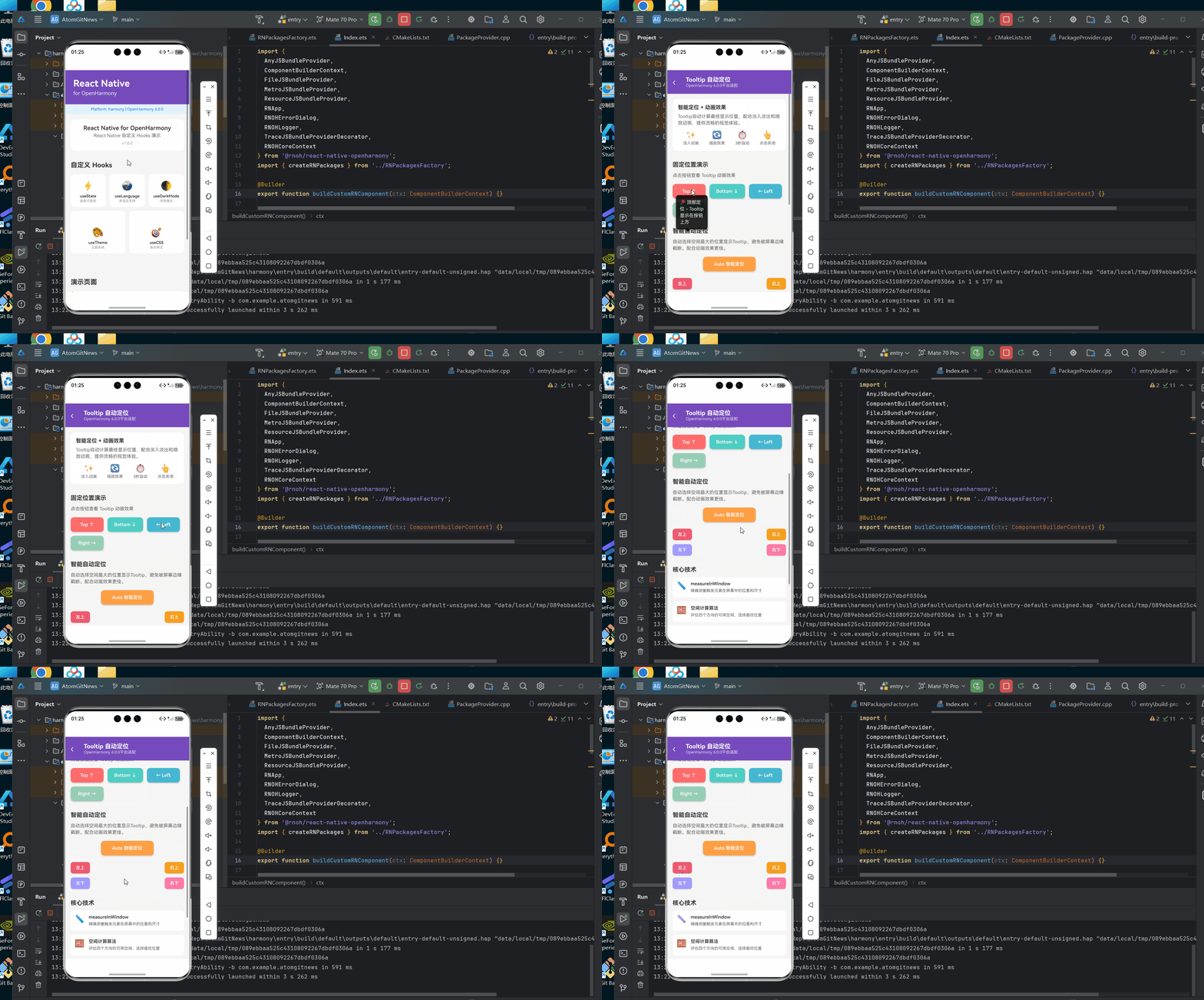
以下是一个完整的Tooltip自动定位实现示例,该代码已在AtomGitDemos项目中验证,可在OpenHarmony 6.0.0 (API 20)设备上正常运行:
typescript
/**
 * TooltipAutoPosition - Tooltip自动定位演示
 *
 * 来源: OpenHarmony环境下React Native:Tooltip自动定位
 * 网址: https://blog.csdn.net/IRpickstars/article/details/157611231
 *
 * @author pickstar
 * @date 2026-02-01
 */

import React, { useState, useRef, useEffect, useMemo } from 'react';
import {
  View,
  Text,
  TouchableOpacity,
  StyleSheet,
  ScrollView,
  useWindowDimensions,
  Platform,
  Animated,
} from 'react-native';

type TooltipPosition = 'top' | 'bottom' | 'left' | 'right' | 'auto';

interface TooltipProps {
  children: React.ReactNode;
  content: string;
  position?: TooltipPosition;
}

interface Props {
  onBack: () => void;
}

// Tooltip组件
const Tooltip: React.FC<TooltipProps> = ({
  children,
  content,
  position = 'bottom',
}) => {
  const [visible, setVisible] = useState(false);
  const [tooltipLayout, setTooltipLayout] = useState<{ x: number; y: number; width: number; height: number } | null>(null);
  const [targetLayout, setTargetLayout] = useState<{ x: number; y: number; width: number; height: number } | null>(null);
  const targetRef = useRef<View>(null);
  const timerRef = useRef<NodeJS.Timeout | null>(null);
  const opacityAnim = useRef(new Animated.Value(0)).current;

  const { width: screenWidth, height: screenHeight } = useWindowDimensions();

  // 显示/隐藏动画
  useEffect(() => {
    if (visible) {
      // 淡入
      Animated.timing(opacityAnim, {
        toValue: 1,
        duration: 200,
        useNativeDriver: false,
      }).start();

      // 清除之前的定时器
      if (timerRef.current) {
        clearTimeout(timerRef.current);
      }

      timerRef.current = setTimeout(() => {
        // 淡出
        Animated.timing(opacityAnim, {
          toValue: 0,
          duration: 200,
          useNativeDriver: false,
        }).start(() => {
          setVisible(false);
        });
      }, 3000);
    } else {
      opacityAnim.setValue(0);
    }

    return () => {
      if (timerRef.current) {
        clearTimeout(timerRef.current);
      }
    };
  }, [visible]);

  useEffect(() => {
    if (!visible) return;

    const measureTarget = () => {
      targetRef.current?.measureInWindow((x, y, width, height) => {
        setTargetLayout({ x, y, width, height });
      });
    };

    requestAnimationFrame(measureTarget);
  }, [visible]);

  const tooltipStyle = useMemo(() => {
    if (!visible || !targetLayout || !tooltipLayout) return null;

    // 计算可用空间(使用安全区域估算值)
    const safeAreaTop = Platform.OS === 'ios' ? 44 : 24;
    const safeAreaBottom = Platform.OS === 'ios' ? 34 : 0;

    const space = {
      top: targetLayout.y - safeAreaTop,
      bottom: screenHeight - targetLayout.y - targetLayout.height - safeAreaBottom,
      left: targetLayout.x,
      right: screenWidth - targetLayout.x - targetLayout.width,
    };

    // 选择最佳位置
    let finalPosition: TooltipPosition = position;
    if (position === 'auto') {
      const positions: TooltipPosition[] = ['bottom', 'top', 'right', 'left'];
      finalPosition = positions.reduce((best, current) =>
        space[current] > space[best] ? current : best, 'bottom');
    }

    // 计算Tooltip位置
    let x = 0;
    let y = 0;

    switch (finalPosition) {
      case 'top':
        x = targetLayout.x + (targetLayout.width - tooltipLayout.width) / 2;
        y = targetLayout.y - tooltipLayout.height - 10;
        break;
      case 'bottom':
        x = targetLayout.x + (targetLayout.width - tooltipLayout.width) / 2;
        y = targetLayout.y + targetLayout.height + 10;
        break;
      case 'left':
        x = targetLayout.x - tooltipLayout.width - 10;
        y = targetLayout.y + (targetLayout.height - tooltipLayout.height) / 2;
        break;
      case 'right':
        x = targetLayout.x + targetLayout.width + 10;
        y = targetLayout.y + (targetLayout.height - tooltipLayout.height) / 2;
        break;
    }

    // 确保Tooltip在屏幕内
    x = Math.max(10, Math.min(x, screenWidth - tooltipLayout.width - 10));
    y = Math.max(safeAreaTop + 10, Math.min(y, screenHeight - tooltipLayout.height - safeAreaBottom - 10));

    return {
      position: 'absolute' as const,
      left: x,
      top: y,
      zIndex: 1000,
    };
  }, [visible, targetLayout, tooltipLayout, position, screenWidth, screenHeight]);

  const handleTooltipLayout = (event: any) => {
    const { x, y, width, height } = event.nativeEvent.layout;
    setTooltipLayout({ x, y, width, height });
  };

  const handlePress = () => {
    if (!visible) {
      setVisible(true);
    }
  };

  const handleClose = () => {
    setVisible(false);
  };

  return (
    <View style={styles.tooltipContainer}>
      <TouchableOpacity
        ref={targetRef}
        onPress={handlePress}
        activeOpacity={0.8}
      >
        {children}
      </TouchableOpacity>

      {visible && (
        <TouchableOpacity
          style={styles.modalOverlay}
          activeOpacity={1}
          onPress={handleClose}
        >
          <Animated.View
            onLayout={handleTooltipLayout}
            style={[styles.tooltipBox, tooltipStyle, { opacity: opacityAnim }]}
          >
            <View style={styles.tooltipContent}>
              <Text style={styles.tooltipText}>{content}</Text>
              <View style={styles.arrow} />
            </View>
          </Animated.View>
        </TouchableOpacity>
      )}
    </View>
  );
};

const TooltipAutoPositionScreen: React.FC<Props> = ({ onBack }) => {
  return (
    <View style={styles.container}>
      {/* 头部 */}
      <View style={styles.header}>
        <TouchableOpacity onPress={onBack} style={styles.backButton}>
          <Text style={styles.backIcon}>‹</Text>
        </TouchableOpacity>
        <View style={styles.headerContent}>
          <Text style={styles.headerTitle}>Tooltip 自动定位</Text>
          <Text style={styles.headerSubtitle}>OpenHarmony 6.0.0平台适配</Text>
        </View>
      </View>

      <ScrollView style={styles.scrollView}>
        {/* 说明 */}
        <View style={styles.infoCard}>
          <Text style={styles.infoTitle}>智能定位 + 动画效果</Text>
          <Text style={styles.infoDesc}>
            Tooltip自动计算最佳显示位置,配合淡入淡出和缩放动画,提供流畅的视觉体验。
          </Text>
          <View style={styles.featureList}>
            <View style={styles.featureItem}>
              <Text style={styles.featureIcon}>✨</Text>
              <Text style={styles.featureText}>淡入动画</Text>
            </View>
            <View style={styles.featureItem}>
              <Text style={styles.featureIcon}>🔄</Text>
              <Text style={styles.featureText}>缩放效果</Text>
            </View>
            <View style={styles.featureItem}>
              <Text style={styles.featureIcon}>⏱️</Text>
              <Text style={styles.featureText}>3秒自动</Text>
            </View>
            <View style={styles.featureItem}>
              <Text style={styles.featureIcon}>👆</Text>
              <Text style={styles.featureText}>点击关闭</Text>
            </View>
          </View>
        </View>

        {/* 四方向演示 */}
        <View style={styles.section}>
          <Text style={styles.sectionTitle}>固定位置演示</Text>
          <Text style={styles.sectionDesc}>
            点击按钮查看 Tooltip 动画效果
          </Text>

          <View style={styles.demoGrid}>
            <Tooltip content="📍 顶部定位 - Tooltip显示在按钮上方" position="top">
              <View style={[styles.demoButton, { backgroundColor: '#FF6B6B' }]}>
                <Text style={styles.demoButtonText}>Top ↑</Text>
              </View>
            </Tooltip>

            <Tooltip content="📍 底部定位 - Tooltip显示在按钮下方" position="bottom">
              <View style={[styles.demoButton, { backgroundColor: '#4ECDC4' }]}>
                <Text style={styles.demoButtonText}>Bottom ↓</Text>
              </View>
            </Tooltip>

            <Tooltip content="📍 左侧定位 - Tooltip显示在按钮左侧" position="left">
              <View style={[styles.demoButton, { backgroundColor: '#45B7D1' }]}>
                <Text style={styles.demoButtonText}>← Left</Text>
              </View>
            </Tooltip>

            <Tooltip content="📍 右侧定位 - Tooltip显示在按钮右侧" position="right">
              <View style={[styles.demoButton, { backgroundColor: '#96CEB4' }]}>
                <Text style={styles.demoButtonText}>Right →</Text>
              </View>
            </Tooltip>
          </View>
        </View>

        {/* 自动定位演示 */}
        <View style={styles.section}>
          <Text style={styles.sectionTitle}>智能自动定位</Text>
          <Text style={styles.sectionDesc}>
            自动选择空间最大的位置显示Tooltip,避免被屏幕边缘截断。配合动画效果更佳。
          </Text>

          <View style={styles.autoDemo}>
            <Tooltip content="🎯 智能定位 - 自动选择最佳位置显示" position="auto">
              <View style={[styles.demoButton, styles.autoButton, { backgroundColor: '#FF9F43' }]}>
                <Text style={styles.demoButtonText}>Auto 智能定位</Text>
              </View>
            </Tooltip>
          </View>

          {/* 边缘测试 */}
          <View style={styles.edgeDemo}>
            <View style={styles.edgeRow}>
              <Tooltip content="🔝 左上角 - 自动避开边界" position="auto">
                <View style={[styles.edgeButton, { backgroundColor: '#EE5A6F' }]}>
                  <Text style={styles.edgeButtonText}>左上</Text>
                </View>
              </Tooltip>

              <Tooltip content="🔝 右上角 - 自动避开边界" position="auto">
                <View style={[styles.edgeButton, { backgroundColor: '#F79F1F' }]}>
                  <Text style={styles.edgeButtonText}>右上</Text>
                </View>
              </Tooltip>
            </View>

            <View style={styles.edgeRow}>
              <Tooltip content="🔽 左下角 - 自动避开边界" position="auto">
                <View style={[styles.edgeButton, { backgroundColor: '#A29BFE' }]}>
                  <Text style={styles.edgeButtonText}>左下</Text>
                </View>
              </Tooltip>

              <Tooltip content="🔽 右下角 - 自动避开边界" position="auto">
                <View style={[styles.edgeButton, { backgroundColor: '#FD79A8' }]}>
                  <Text style={styles.edgeButtonText}>右下</Text>
                </View>
              </Tooltip>
            </View>
          </View>
        </View>

        {/* 技术要点 */}
        <View style={styles.section}>
          <Text style={styles.sectionTitle}>核心技术</Text>

          <View style={styles.techList}>
            <View style={styles.techItem}>
              <Text style={styles.techIcon}>📏</Text>
              <View style={styles.techContent}>
                <Text style={styles.techTitle}>measureInWindow</Text>
                <Text style={styles.techDesc}>精确测量触发元素在屏幕中的位置和尺寸</Text>
              </View>
            </View>

            <View style={styles.techItem}>
              <Text style={styles.techIcon}>🧮</Text>
              <View style={styles.techContent}>
                <Text style={styles.techTitle}>空间计算算法</Text>
                <Text style={styles.techDesc}>评估四个方向的可用空间,选择最优位置</Text>
              </View>
            </View>

            <View style={styles.techItem}>
              <Text style={styles.techIcon}>🛡️</Text>
              <View style={styles.techContent}>
                <Text style={styles.techTitle}>边界约束</Text>
                <Text style={styles.techDesc}>确保Tooltip始终在可视区域内显示</Text>
              </View>
            </View>

            <View style={styles.techItem}>
              <Text style={styles.techIcon}>⚙️</Text>
              <View style={styles.techContent}>
                <Text style={styles.techTitle}>requestAnimationFrame</Text>
                <Text style={styles.techDesc}>在布局稳定后再进行位置测量,确保准确性</Text>
              </View>
            </View>
          </View>
        </View>

        {/* 平台信息 */}
        <View style={styles.platformCard}>
          <Text style={styles.platformText}>
            Platform: {Platform.OS} | OpenHarmony 6.0.0
          </Text>
        </View>
      </ScrollView>
    </View>
  );
};

const styles = StyleSheet.create({
  container: {
    flex: 1,
    backgroundColor: '#f5f5f5',
  },
  header: {
    flexDirection: 'row',
    alignItems: 'center',
    padding: 16,
    backgroundColor: '#764ABC',
  },
  backButton: {
    width: 40,
    height: 40,
    justifyContent: 'center',
  },
  backIcon: {
    fontSize: 28,
    color: '#ffffff',
    fontWeight: '300',
  },
  headerContent: {
    flex: 1,
  },
  headerTitle: {
    fontSize: 18,
    fontWeight: '700',
    color: '#ffffff',
  },
  headerSubtitle: {
    fontSize: 12,
    color: '#ffffff',
    opacity: 0.8,
  },
  scrollView: {
    flex: 1,
  },
  infoCard: {
    margin: 16,
    padding: 16,
    backgroundColor: '#ffffff',
    borderRadius: 12,
  },
  infoTitle: {
    fontSize: 16,
    fontWeight: '700',
    color: '#333',
    marginBottom: 8,
  },
  infoDesc: {
    fontSize: 14,
    color: '#666',
    lineHeight: 20,
    marginBottom: 12,
  },
  featureList: {
    flexDirection: 'row',
    justifyContent: 'space-around',
  },
  featureItem: {
    alignItems: 'center',
  },
  featureIcon: {
    fontSize: 24,
    marginBottom: 4,
  },
  featureText: {
    fontSize: 12,
    color: '#666',
  },
  section: {
    padding: 16,
  },
  sectionTitle: {
    fontSize: 18,
    fontWeight: '700',
    color: '#333',
    marginBottom: 12,
  },
  sectionDesc: {
    fontSize: 14,
    color: '#666',
    marginBottom: 16,
    lineHeight: 20,
  },
  demoGrid: {
    flexDirection: 'row',
    flexWrap: 'wrap',
    gap: 12,
  },
  demoButton: {
    paddingHorizontal: 20,
    paddingVertical: 14,
    borderRadius: 10,
    minWidth: 100,
    alignItems: 'center',
    shadowColor: '#000',
    shadowOffset: { width: 0, height: 2 },
    shadowOpacity: 0.2,
    shadowRadius: 4,
    elevation: 3,
  },
  demoButtonText: {
    color: '#ffffff',
    fontSize: 14,
    fontWeight: '600',
  },
  autoDemo: {
    alignItems: 'center',
    marginBottom: 20,
  },
  autoButton: {
    minWidth: 160,
  },
  edgeDemo: {
    gap: 12,
  },
  edgeRow: {
    flexDirection: 'row',
    justifyContent: 'space-between',
  },
  edgeButton: {
    paddingHorizontal: 16,
    paddingVertical: 10,
    borderRadius: 8,
    shadowColor: '#000',
    shadowOffset: { width: 0, height: 1 },
    shadowOpacity: 0.15,
    shadowRadius: 2,
    elevation: 2,
  },
  edgeButtonText: {
    color: '#ffffff',
    fontSize: 13,
    fontWeight: '600',
  },
  techList: {
    gap: 12,
  },
  techItem: {
    flexDirection: 'row',
    alignItems: 'flex-start',
    backgroundColor: '#ffffff',
    padding: 12,
    borderRadius: 8,
  },
  techIcon: {
    fontSize: 24,
    marginRight: 12,
  },
  techContent: {
    flex: 1,
  },
  techTitle: {
    fontSize: 14,
    fontWeight: '600',
    color: '#333',
    marginBottom: 4,
  },
  techDesc: {
    fontSize: 12,
    color: '#666',
    lineHeight: 18,
  },
  platformCard: {
    margin: 16,
    padding: 12,
    backgroundColor: '#e3f2fd',
    borderRadius: 8,
    alignItems: 'center',
  },
  platformText: {
    fontSize: 12,
    color: '#1976d2',
  },
  tooltipContainer: {
    position: 'relative',
  },
  tooltipBox: {
    backgroundColor: 'transparent',
  },
  modalOverlay: {
    position: 'absolute',
    top: 0,
    left: 0,
    right: 0,
    bottom: 0,
    backgroundColor: 'transparent',
    zIndex: 999,
  },
  tooltipContent: {
    backgroundColor: 'rgba(0, 0, 0, 0.85)',
    borderRadius: 8,
    padding: 12,
    maxWidth: 220,
    shadowColor: '#000',
    shadowOffset: { width: 0, height: 4 },
    shadowOpacity: 0.3,
    shadowRadius: 8,
    elevation: 8,
  },
  tooltipText: {
    color: '#ffffff',
    fontSize: 14,
    lineHeight: 20,
  },
  arrow: {
    position: 'absolute',
    bottom: -7,
    left: '50%',
    marginLeft: -7,
    width: 0,
    height: 0,
    borderLeftWidth: 7,
    borderRightWidth: 7,
    borderTopWidth: 7,
    borderLeftColor: 'transparent',
    borderRightColor: 'transparent',
    borderTopColor: 'rgba(0, 0, 0, 0.85)',
  },
});

export default TooltipAutoPositionScreen;
5. OpenHarmony 6.0.0平台特定注意事项
在OpenHarmony 6.0.0 (API 20)平台上实现Tooltip自动定位时,需要特别注意以下事项。这些注意事项源于OpenHarmony平台特有的UI系统和React Native桥接实现,忽视它们可能导致Tooltip显示异常或性能问题。
坐标系统处理
OpenHarmony使用虚拟像素(vp)作为基本单位,与React Native的逻辑像素单位存在转换关系。在进行位置计算时,必须考虑以下要点:
- 坐标转换必要性 :OpenHarmony的
measureInWindow返回的坐标可能需要转换为相对于屏幕的坐标 - 测量时机 :由于OpenHarmony的布局计算可能有额外延迟,应在
requestAnimationFrame回调中进行测量 - 安全区域处理 :OpenHarmony的安全区域计算与Android/iOS不同,需要结合
useSafeAreaInsets获取准确值
布局计算差异
OpenHarmony 6.0.0的布局引擎与Android/iOS存在细微差异,这些差异直接影响Tooltip的定位精度:
| 问题 | 现象 | 解决方案 | 适用版本 |
|---|---|---|---|
| 坐标系统差异 | Tooltip位置偏移 | 使用measureInWindow替代measure,并进行坐标转换 |
OpenHarmony 6.0.0+ |
| 布局计算延迟 | 首次显示位置错误 | 添加布局测量完成的回调,使用requestAnimationFrame确保在布局稳定后测量 |
OpenHarmony 6.0.0+ |
| 安全区域处理 | Tooltip被状态栏遮挡 | 使用useSafeAreaInsets获取安全区域,并在位置计算中考虑 |
OpenHarmony 6.0.0+ |
| 性能问题 | 频繁measure导致卡顿 | 使用useMemo缓存测量结果,避免不必要的重复测量 |
OpenHarmony 6.0.0+ |
| 方向性问题 | RTL布局下位置错误 | 检测并处理RTL布局,调整左右位置逻辑 | OpenHarmony 6.0.0+ |
项目配置注意事项
在AtomGitDemos项目中使用Tooltip组件时,还需要注意以下配置要点:
-
配置文件格式:OpenHarmony 6.0.0使用JSON5格式的配置文件,不再支持旧版的config.json
module.json5:替代旧版config.json,定义模块信息oh-package.json5:管理HarmonyOS依赖build-profile.json5:配置构建参数
-
构建命令 :使用
npm run harmony打包React Native代码到HarmonyOS- 生成文件:
harmony/entry/src/main/resources/rawfile/bundle.harmony.js
- 生成文件:
-
项目结构:
AtomGitDemos/
├── harmony/
│   ├── entry/
│   │   └── src/
│   │       └── main/
│   │           ├── ets/              # ArkTS代码目录
│   │           ├── resources/
│   │           │   └── rawfile/      # 原始资源文件
│   │           │       └── bundle.harmony.js  # RN打包后的JS文件
│   │           └── module.json5      # 模块配置文件
├── src/                              # React Native源代码
│   ├── screens/
│   └── utils/
├── App.tsx
├── package.json
└── ...
性能优化建议
在OpenHarmony平台上,Tooltip组件可能面临性能挑战,特别是在频繁显示和隐藏的情况下。以下是优化建议:
- 减少布局测量:缓存测量结果,避免在每次渲染时都进行测量
- 使用useMemo优化 :对位置计算等复杂操作使用
useMemo进行优化 - 避免不必要的重渲染:将Tooltip组件与父组件解耦,使用React.memo进行优化
- 延迟初始化:对于不常使用的Tooltip,可以延迟加载其内容
- 限制更新频率:使用防抖或节流技术,避免在快速滚动或动画过程中频繁更新位置
兼容性测试要点
在OpenHarmony 6.0.0设备上测试Tooltip组件时,应重点关注以下场景:
- 不同屏幕尺寸:确保在各种屏幕尺寸下都能正确显示
- 横竖屏切换:验证在屏幕方向变化时Tooltip能自动调整位置
- 安全区域变化:测试在来电、通知等导致安全区域变化时的表现
- 滚动容器内:验证在ScrollView或FlatList等可滚动容器中的表现
- RTL布局:在从右到左的语言环境中测试显示效果
通过关注这些特定注意事项,可以确保Tooltip组件在OpenHarmony 6.0.0平台上稳定运行,提供与Android/iOS平台一致的用户体验。
结论
本文详细探讨了在OpenHarmony 6.0.0 (API 20)环境下实现React Native Tooltip自动定位的技术方案。通过分析平台差异、实现原理和实战案例,我们解决了在OpenHarmony设备上Tooltip定位不准确的问题,为跨平台应用开发提供了实用解决方案。
核心要点总结如下:
- 理解平台差异:OpenHarmony的坐标系统和布局计算机制与Android/iOS存在细微差异,这是实现准确定位的基础
- 智能位置计算:通过评估可用空间选择最佳显示位置,并处理屏幕边缘情况
- 性能优化:减少布局测量频率,使用React Hooks优化渲染性能
- OpenHarmony特定适配:处理坐标转换、安全区域和布局延迟等平台特有问题
随着OpenHarmony生态的不断发展,React Native在该平台上的支持将更加完善。未来,我们可以期待更高效的桥接机制、更统一的API和更好的开发体验。对于开发者而言,掌握这些跨平台适配技巧,不仅有助于当前项目的开发,也为未来的技术演进做好准备。
希望本文能帮助你在OpenHarmony平台上构建更高质量的React Native应用。通过合理应用这些技术要点,你将能够为用户提供一致且流畅的用户体验,无论他们使用何种设备。
项目源码
完整项目Demo地址:https://atomgit.com/lbbxmx111/AtomGitNewsDemo
欢迎加入开源鸿蒙跨平台社区:https://openharmonycrossplatform.csdn.net