个人主页:ujainu
文章目录
-
- 引言
- 一、整体通信流程概览
- 二、渲染进程详解:用户交互与消息发送
-
- [2.1 输入与按钮绑定](#2.1 输入与按钮绑定)
- [2.2 保存逻辑:`saveNote()`](#2.2 保存逻辑:
saveNote()) - [2.3 接收保存结果:`ipcRenderer.on('save-result')`](#2.3 接收保存结果:
ipcRenderer.on('save-result'))
- 三、主进程详解:安全写入本地文件
-
- [3.1 监听保存请求:`ipcMain.on('save-note')`](#3.1 监听保存请求:
ipcMain.on('save-note')) - [3.2 获取标准文档目录:`app.getPath('documents')`](#3.2 获取标准文档目录:
app.getPath('documents')) - [3.3 同步写入文件:`fs.writeFileSync`](#3.3 同步写入文件:
fs.writeFileSync) - [3.4 错误处理与结果回传](#3.4 错误处理与结果回传)
- [3.1 监听保存请求:`ipcMain.on('save-note')`](#3.1 监听保存请求:
- 四、关键安全与权限考量
-
- [✅ 安全加固建议(生产环境必做):](#✅ 安全加固建议(生产环境必做):)
- [五、HarmonyOS PC 专属适配要点](#五、HarmonyOS PC 专属适配要点)
- 六、功能对比:不同文件保存策略
- 七、扩展建议
- 完整代码
- 八、总结
引言
在桌面应用开发中,"保存用户数据到本地"是最基础也最关键的交互之一。Electron 凭借其融合 Web 技术与 Node.js 能力的独特架构,使得这一操作既直观又强大。
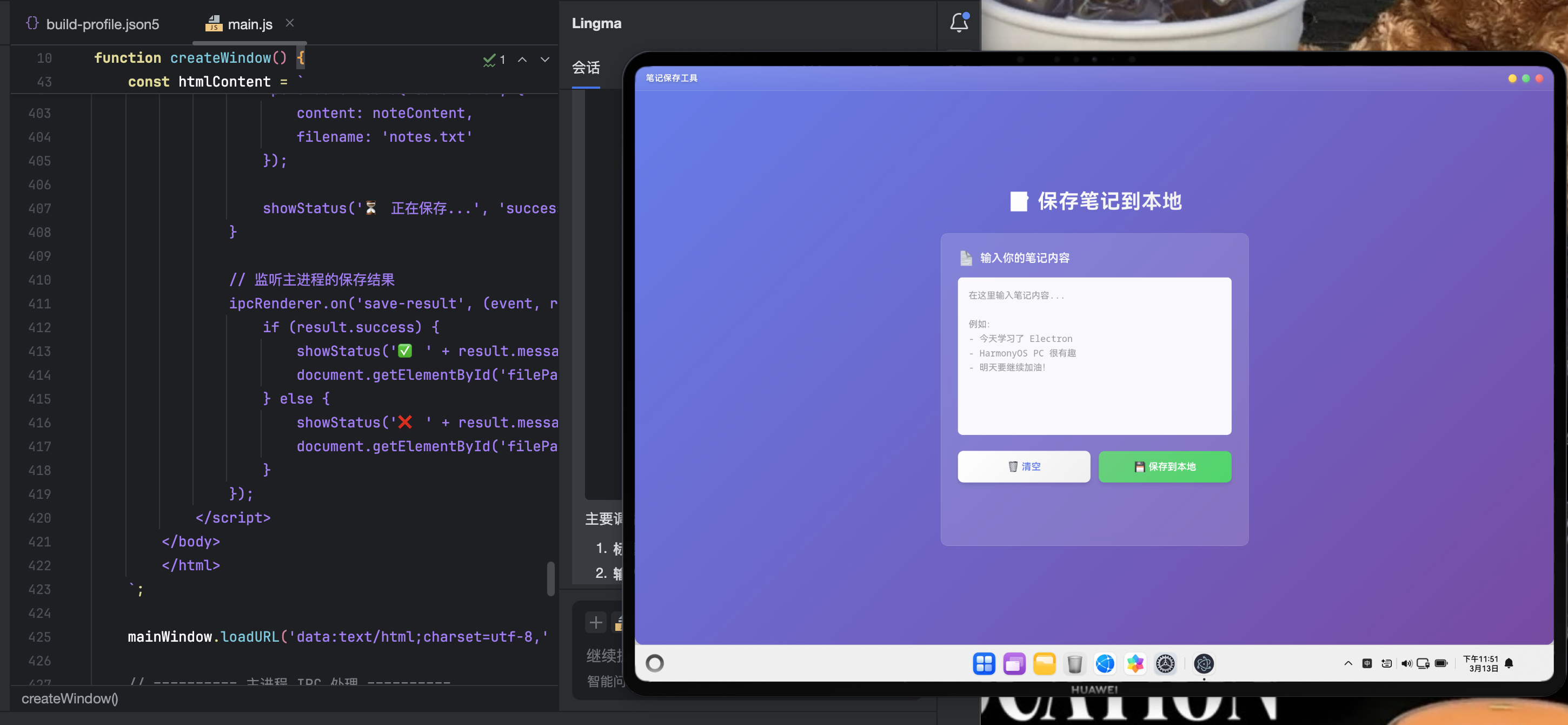
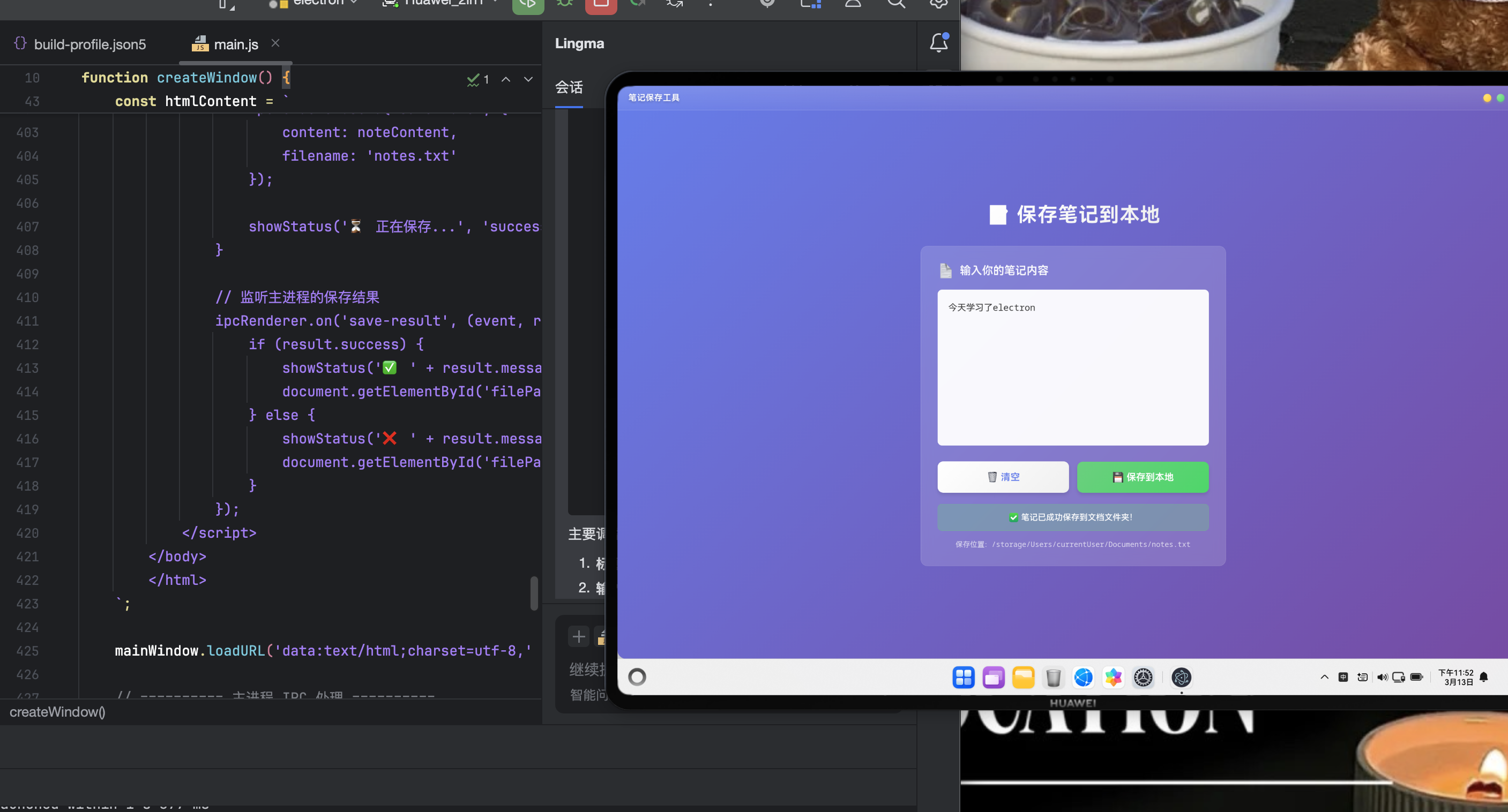
本文将深入剖析一个典型场景:用户在页面输入框中编辑内容,点击"保存"按钮后,内容被写入系统"文档"目录下的 notes.txt 文件 。我们将使用 ipcRenderer.send() 触发保存请求,主进程通过 fs.writeFileSync 同步写入文件,并通过 IPC 回传结果状态。
该方案已在 HarmonyOS PC 的 Linux 兼容层成功运行,特别适合鸿蒙生态下的轻量级笔记、配置或日志类工具开发。
一、整体通信流程概览
整个功能依赖 渲染进程 → 主进程 → 文件系统 → 渲染进程 的闭环:
文件系统 (fs) 主进程 (Main) 渲染进程 (UI) 文件系统 (fs) 主进程 (Main) 渲染进程 (UI) ipcRenderer.send('save-note', {content}) fs.writeFileSync(path, content) 写入成功/失败 event.reply('save-result', {success, message, filePath}) 显示状态提示 + 文件路径
✅ 设计原则:
- 渲染进程不直接访问文件系统(安全隔离)
- 所有 I/O 操作由主进程代理执行
- 用户反馈实时、明确、带路径信息
二、渲染进程详解:用户交互与消息发送
2.1 输入与按钮绑定
html
<textarea id="noteInput" placeholder="在这里输入笔记内容..."></textarea>
<button class="action-btn save" onclick="saveNote()">💾 保存到本地</button>- 使用原生
<textarea>确保多行文本支持。 user-select: text在 CSS 中显式启用文本选择(因全局禁用了user-select: none)。
2.2 保存逻辑:saveNote()
js
function saveNote() {
    const noteContent = document.getElementById('noteInput').value;
    if (!noteContent.trim()) {
        showStatus('❌ 请输入内容后再保存', 'error');
        return;
    }
    ipcRenderer.send('save-note', {
        content: noteContent,
        filename: 'notes.txt'
    });
    showStatus('⏳ 正在保存...', 'success');
}关键点解析:
| 步骤 | 说明 |
|---|---|
| 空值校验 | trim() 防止纯空格提交,提升用户体验 |
| 消息结构 | 包含 content 和 filename,便于主进程灵活处理 |
| 即时反馈 | 发送后立即显示"正在保存",避免用户重复点击 |
💡 为什么不用
dialog.showSaveDialog?本例目标是固定保存到"文档"目录 ,无需用户选择路径,简化流程。若需自定义路径,则应引入
dialog模块(后文扩展建议)。
2.3 接收保存结果:ipcRenderer.on('save-result')
js
ipcRenderer.on('save-result', (event, result) => {
    if (result.success) {
        showStatus('✅ ' + result.message, 'success');
        document.getElementById('filePath').textContent = '保存位置:' + result.filePath;
    } else {
        showStatus('❌ ' + result.message, 'error');
    }
});- 结构化响应 :
{ success, message, filePath }便于前端统一处理。 - 路径展示:让用户知道文件具体存哪里,增强可信度(尤其在 HarmonyOS 等新系统中)。
三、主进程详解:安全写入本地文件
3.1 监听保存请求:ipcMain.on('save-note')
js
ipcMain.on('save-note', (event, data) => {
    // 处理逻辑...
});data即渲染进程传来的{ content, filename }对象。- 此处未做额外验证(因来源可信),但生产环境可增加类型检查。
3.2 获取标准文档目录:app.getPath('documents')
js
const documentsPath = app.getPath('documents');
const filePath = path.join(documentsPath, data.filename);
为什么用 app.getPath('documents')?
| 方法 | 路径示例(Linux/HarmonyOS PC) | 优势 |
|---|---|---|
app.getPath('documents') |
/home/user/Documents/ |
跨平台、符合用户习惯、有写权限 |
__dirname |
应用安装目录 | 可能无写权限,且非用户可见区域 |
| 硬编码路径 | /home/user/notes.txt |
不可移植,多用户环境失效 |
✅ HarmonyOS PC 适配关键 :
在兼容层中,
app.getPath('documents')会正确映射到用户的 "文档"目录,确保文件可被其他应用(如文件管理器)访问。
3.3 同步写入文件:fs.writeFileSync
js
fs.writeFileSync(filePath, data.content, 'utf-8');参数说明:
filePath:完整绝对路径data.content:用户输入的字符串'utf-8':指定编码,避免中文乱码(HarmonyOS 中文支持必备)
⚠️ 同步 vs 异步:
writeFileSync是阻塞式,简单可靠,适合小文件(<1MB)- 若处理大文件或高频写入,应改用
fs.writeFile+async/await避免卡死主进程
3.4 错误处理与结果回传
js
try {
    fs.writeFileSync(...);
    event.reply('save-result', { success: true, ... });
} catch (error) {
    event.reply('save-result', { success: false, message: error.message });
}- 必须包裹
try/catch:文件写入可能因权限、磁盘满、路径非法等失败。 - 错误信息透传 :将
error.message返回前端,便于调试(如"EACCES: permission denied")。
四、关键安全与权限考量
尽管当前配置启用了 nodeIntegration,但文件写入操作仍严格限制在主进程,这是安全设计的核心:
| 风险 | 本方案如何规避 |
|---|---|
| 渲染进程直接写任意文件 | ❌ 不可能,fs 仅在主进程可用 |
路径遍历攻击(如 ../../etc/passwd) |
⚠️ 当前未过滤 filename,存在风险 |
| 覆盖系统关键文件 | ⚠️ 若 filename 被篡改,可能写入危险位置 |
✅ 安全加固建议(生产环境必做):
-
白名单文件名:
jsconst allowedFilenames = ['notes.txt', 'log.txt']; if (!allowedFilenames.includes(data.filename)) { throw new Error('非法文件名'); } -
强制限定目录:
jsconst safePath = path.join(documentsPath, path.basename(data.filename)); // path.basename() 剥离路径,只保留文件名 -
迁移到
preload模式 :彻底禁用nodeIntegration,通过预加载脚本暴露saveNote方法。
五、HarmonyOS PC 专属适配要点
| 问题 | 解决方案 |
|---|---|
| 中文乱码 | 显式指定 utf-8 编码 |
| 文档目录不可写 | 使用 app.getPath('documents') 而非硬编码 |
| 硬件加速导致透明窗口异常 | app.disableHardwareAcceleration() 必须调用 |
| 字体渲染模糊 | CSS 中指定 PingFang SC, Microsoft YaHei 等高 DPI 字体 |
六、功能对比:不同文件保存策略
| 方案 | 适用场景 | 用户控制 | 安全性 | 代码复杂度 |
|---|---|---|---|---|
| 固定路径写入(本文) | 日志、自动备份、配置 | 无 | 高(主进程控制) | ★☆☆ |
dialog.showSaveDialog |
用户主动保存 | 有(选路径/文件名) | 高 | ★★☆ |
| 渲染进程直写(不推荐) | 快速原型 | 有 | 极低(XSS 可删系统文件) | ★☆☆ |
📌 结论:对于"自动保存到标准位置"的需求,本文方案是最简洁、安全、用户友好的选择。
七、扩展建议
- 追加模式 :若需记录多条笔记,可改用
fs.appendFileSync。 - 自动保存 :监听
textarea的input事件,500ms 后触发保存(防抖)。 - 文件存在提示 :写入前检查
fs.existsSync(filePath),弹窗确认覆盖。 - 多格式支持 :根据扩展名
.txt/.md自动切换内容格式。
完整代码
javascript
const { app, BrowserWindow, ipcMain, dialog } = require('electron');
const fs = require('fs');
const path = require('path');
let mainWindow;
// 1. 在 Electron 层面禁用硬件加速
app.disableHardwareAcceleration();
function createWindow() {
// 获取屏幕尺寸
const { width: screenWidth, height: screenHeight } = screen.getPrimaryDisplay().workAreaSize;
// 窗口尺寸
const windowWidth = 650;
const windowHeight = 550;
// 计算居中位置
const x = (screenWidth - windowWidth) / 2;
const y = (screenHeight - windowHeight) / 2;
mainWindow = new BrowserWindow({
width: windowWidth,
height: windowHeight,
x: x,
y: y,
frame: false,
transparent: true,
resizable: false,
movable: true,
minimizable: true,
closable: true,
skipTaskbar: false,
roundedCorners: true,
hasShadow: true,
webPreferences: {
nodeIntegration: true,
contextIsolation: false,
},
});
// 创建 HTML 内容(包含文件保存功能)
const htmlContent = `
<!DOCTYPE html>
<html>
<head>
<meta charset="UTF-8">
<style>
* {
margin: 0;
padding: 0;
box-sizing: border-box;
user-select: none;
}
body {
font-family: 'PingFang SC', 'Microsoft YaHei', 'Helvetica Neue', Arial, sans-serif;
overflow: hidden;
background: transparent;
}
.window-container {
width: 100%;
height: 100vh;
background: linear-gradient(135deg, #667eea 0%, #764ba2 100%);
border-radius: 16px;
overflow: hidden;
display: flex;
flex-direction: column;
box-shadow: 0 20px 60px rgba(0, 0, 0, 0.3);
}
.title-bar {
height: 44px;
background: linear-gradient(to bottom, rgba(255, 255, 255, 0.15), rgba(255, 255, 255, 0.05));
backdrop-filter: blur(20px);
-webkit-backdrop-filter: blur(20px);
display: flex;
justify-content: space-between;
align-items: center;
padding: 0 20px;
-webkit-app-region: drag;
border-bottom: 1px solid rgba(255, 255, 255, 0.1);
}
.title-text {
color: white;
font-size: 15px;
font-weight: 600;
letter-spacing: 0.5px;
text-shadow: 0 2px 4px rgba(0, 0, 0, 0.2);
font-family: 'SF Pro Display', 'Segoe UI', 'PingFang SC', sans-serif;
}
.window-controls {
display: flex;
gap: 10px;
-webkit-app-region: no-drag;
}
.control-btn {
width: 14px;
height: 14px;
border-radius: 50%;
border: none;
cursor: pointer;
transition: all 0.3s cubic-bezier(0.4, 0, 0.2, 1);
position: relative;
outline: none;
}
.control-btn::before {
content: '';
position: absolute;
top: 50%;
left: 50%;
transform: translate(-50%, -50%);
width: 100%;
height: 100%;
border-radius: 50%;
background: radial-gradient(circle at 30% 30%, rgba(255, 255, 255, 0.3), transparent);
}
.control-btn:hover {
transform: scale(1.1);
}
.control-btn:active {
transform: scale(0.95);
}
.close-btn {
background: linear-gradient(135deg, #ff6b6b, #ee5a5a);
box-shadow: 0 2px 4px rgba(255, 107, 107, 0.4);
}
.close-btn:hover {
background: linear-gradient(135deg, #ff5252, #e04545);
box-shadow: 0 3px 8px rgba(255, 107, 107, 0.6);
}
.minimize-btn {
background: linear-gradient(135deg, #ffd93d, #ffcd38);
box-shadow: 0 2px 4px rgba(255, 217, 61, 0.4);
}
.minimize-btn:hover {
background: linear-gradient(135deg, #ffc929, #ffbd2e);
box-shadow: 0 3px 8px rgba(255, 217, 61, 0.6);
}
.maximize-btn {
background: linear-gradient(135deg, #6bcf7f, #4fd66a);
box-shadow: 0 2px 4px rgba(107, 207, 127, 0.4);
}
.maximize-btn:hover {
background: linear-gradient(135deg, #5dd66f, #45c75f);
box-shadow: 0 3px 8px rgba(107, 207, 127, 0.6);
}
.content {
flex: 1;
display: flex;
flex-direction: column;
justify-content: center;
align-items: center;
color: white;
padding: 40px 50px;
}
h1 {
font-size: 36px;
font-weight: 700;
background: linear-gradient(135deg, #ffffff 0%, #f0f0f0 100%);
-webkit-background-clip: text;
-webkit-text-fill-color: transparent;
background-clip: text;
text-shadow: none;
letter-spacing: 1px;
margin-bottom: 35px;
font-family: 'SF Pro Display', 'PingFang SC', 'Microsoft YaHei', sans-serif;
}
.editor-area {
width: 100%;
max-width: 550px;
background: rgba(255, 255, 255, 0.15);
backdrop-filter: blur(10px);
-webkit-backdrop-filter: blur(10px);
border-radius: 12px;
padding: 30px;
border: 1px solid rgba(255, 255, 255, 0.2);
}
.editor-title {
font-size: 20px;
font-weight: 600;
margin-bottom: 20px;
color: rgba(255, 255, 255, 0.95);
font-family: 'SF Pro Text', 'PingFang SC', sans-serif;
display: flex;
align-items: center;
gap: 10px;
}
.icon {
font-size: 24px;
}
.textarea-container {
margin-bottom: 25px;
}
textarea {
width: 100%;
height: 280px;
background: rgba(255, 255, 255, 0.95);
border: 2px solid rgba(255, 255, 255, 0.3);
border-radius: 8px;
padding: 18px;
font-size: 16px;
font-family: 'SF Pro Text', 'PingFang SC', 'Microsoft YaHei', monospace;
resize: none;
outline: none;
transition: all 0.3s ease;
color: #333;
user-select: text;
line-height: 1.6;
}
textarea:focus {
border-color: rgba(255, 255, 255, 0.8);
box-shadow: 0 0 20px rgba(255, 255, 255, 0.3);
}
textarea::placeholder {
color: #999;
}
.button-group {
display: flex;
gap: 15px;
}
.action-btn {
flex: 1;
padding: 18px 25px;
background: linear-gradient(135deg, #ffffff, #f0f0f0);
border: none;
border-radius: 10px;
color: #667eea;
font-size: 17px;
font-weight: 600;
cursor: pointer;
transition: all 0.3s ease;
font-family: 'SF Pro Text', 'PingFang SC', sans-serif;
box-shadow: 0 4px 6px rgba(0, 0, 0, 0.1);
display: flex;
align-items: center;
justify-content: center;
gap: 10px;
}
.action-btn:hover {
transform: translateY(-2px);
box-shadow: 0 6px 12px rgba(0, 0, 0, 0.2);
}
.action-btn:active {
transform: translateY(0);
}
.action-btn.save {
background: linear-gradient(135deg, #6bcf7f, #4fd66a);
color: white;
}
.action-btn.save:hover {
background: linear-gradient(135deg, #5dd66f, #45c75f);
}
.status-message {
margin-top: 20px;
padding: 15px;
border-radius: 8px;
font-size: 15px;
font-weight: 500;
text-align: center;
font-family: 'SF Pro Text', sans-serif;
opacity: 0;
transition: opacity 0.3s ease;
}
.status-message.show {
opacity: 1;
}
.status-message.success {
background: rgba(107, 207, 127, 0.3);
color: #ffffff;
border: 1px solid rgba(107, 207, 127, 0.5);
}
.status-message.error {
background: rgba(255, 107, 107, 0.3);
color: #ffffff;
border: 1px solid rgba(255, 107, 107, 0.5);
}
.file-path {
margin-top: 15px;
font-size: 13px;
color: rgba(255, 255, 255, 0.7);
font-family: 'SF Pro Text', monospace;
text-align: center;
word-break: break-all;
}
</style>
</head>
<body>
<div class="window-container">
<div class="title-bar">
<div class="title-text">笔记保存工具</div>
<div class="window-controls">
<button class="control-btn minimize-btn" onclick="minimizeWindow()" title="最小化"></button>
<button class="control-btn maximize-btn" onclick="maximizeWindow()" title="最大化"></button>
<button class="control-btn close-btn" onclick="closeWindow()" title="关闭"></button>
</div>
</div>
<div class="content">
<h1>📝 保存笔记到本地</h1>
<div class="editor-area">
<div class="editor-title">
<span class="icon">📄</span>
输入你的笔记内容
</div>
<div class="textarea-container">
<textarea id="noteInput" placeholder="在这里输入笔记内容... 例如: - 今天学习了 Electron - HarmonyOS PC 很有趣 - 明天要继续加油!"></textarea>
</div>
<div class="button-group">
<button class="action-btn" onclick="clearContent()">
🗑️ 清空
</button>
<button class="action-btn save" onclick="saveNote()">
💾 保存到本地
</button>
</div>
<div class="status-message" id="statusMessage"></div>
<div class="file-path" id="filePath"></div>
</div>
</div>
</div>
<script>
const { ipcRenderer } = require('electron');
// 窗口控制函数
function closeWindow() {
ipcRenderer.send('close-window');
}
function minimizeWindow() {
ipcRenderer.send('minimize-window');
}
function maximizeWindow() {
ipcRenderer.send('maximize-window');
}
// 清空内容
function clearContent() {
document.getElementById('noteInput').value = '';
showStatus('已清空', 'success');
}
// 显示状态消息
function showStatus(message, type) {
const statusEl = document.getElementById('statusMessage');
statusEl.textContent = message;
statusEl.className = 'status-message show ' + type;
setTimeout(() => {
statusEl.className = 'status-message';
}, 3000);
}
// 保存笔记
function saveNote() {
const noteContent = document.getElementById('noteInput').value;
if (!noteContent || noteContent.trim() === '') {
showStatus('❌ 请输入内容后再保存', 'error');
return;
}
// 发送消息给主进程,请求保存文件
ipcRenderer.send('save-note', {
content: noteContent,
filename: 'notes.txt'
});
showStatus('⏳ 正在保存...', 'success');
}
// 监听主进程的保存结果
ipcRenderer.on('save-result', (event, result) => {
if (result.success) {
showStatus('✅ ' + result.message, 'success');
document.getElementById('filePath').textContent = '保存位置:' + result.filePath;
} else {
showStatus('❌ ' + result.message, 'error');
document.getElementById('filePath').textContent = '';
}
});
</script>
</body>
</html>
`;
mainWindow.loadURL('data:text/html;charset=utf-8,' + encodeURIComponent(htmlContent));
// ========== 主进程 IPC 处理 ==========
// 处理保存笔记的请求
ipcMain.on('save-note', (event, data) => {
try {
// 获取用户的文档目录
const documentsPath = app.getPath('documents');
const filePath = path.join(documentsPath, data.filename);
console.log('准备保存文件到:', filePath);
console.log('文件内容:', data.content);
// 使用 Node.js 的 fs.writeFileSync 写入文件
// 这是同步写入,会阻塞直到写入完成
fs.writeFileSync(filePath, data.content, 'utf-8');
console.log('文件保存成功:', filePath);
// 发送成功消息回渲染进程
event.reply('save-result', {
success: true,
message: '笔记已成功保存到文档文件夹!',
filePath: filePath,
filename: data.filename
});
} catch (error) {
console.error('保存文件失败:', error);
// 发送错误消息回渲染进程
event.reply('save-result', {
success: false,
message: '保存失败:' + error.message,
filePath: '',
filename: data.filename
});
}
});
// 监听窗口控制事件
ipcMain.on('close-window', () => {
mainWindow.close();
});
ipcMain.on('minimize-window', () => {
mainWindow.minimize();
});
ipcMain.on('maximize-window', () => {
if (mainWindow.isMaximized()) {
mainWindow.unmaximize();
} else {
mainWindow.maximize();
}
});
}
// 引入 screen 模块
const { screen } = require('electron');
app.whenReady().then(createWindow);
// 处理 macOS 上的所有窗口关闭事件
app.on('window-all-closed', () => {
app.quit();
});运行界面:
八、总结
本文通过一个"保存笔记到 文档/notes.txt"的完整案例,系统讲解了 Electron 中如何安全、可靠地将用户输入持久化到本地文件。核心要点包括:
- IPC 作为唯一通信通道,确保渲染进程无法直接访问文件系统;
app.getPath('documents')提供跨平台标准路径,完美适配 HarmonyOS PC;- 同步写入 + 错误捕获 保证操作原子性与反馈完整性;
- 前端状态反馈 + 路径展示 极大提升用户体验。
此模式可直接复用于配置保存、日志记录、草稿自动备份等场景,是 Electron 桌面应用开发的基础范式之一。掌握它,你就迈出了构建专业级鸿蒙桌面应用的关键一步。
欢迎加入开源鸿蒙PC社区:https://harmonypc.csdn.net/