目录
-
- [1. 输入元素](#1. 输入元素)
-
- [1.1 TextInput](#1.1 TextInput)
- [1.2 焦点范围](#1.2 焦点范围)
- [1.3 TextEdit](#1.3 TextEdit)
- [1.4 Keys 元素](#1.4 Keys 元素)
1. 输入元素
我们已经将 MouseArea 用作鼠标输入元素。接下来,我们将重点关注键盘输入。我们从文本编辑元素开始: TextInput 和 TextEdit 。
1.1 TextInput
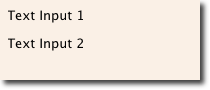
TextInput 允许用户输入一行文本。该元素支持输入限制,例如 validator 、 inputMask 和 echoMode 。
// textinput.qml

import QtQuick

Rectangle {
    width: 200
    height: 80
    color: "linen"

    TextInput {
        id: input1
        x: 8; y: 8
        width: 96; height: 20
        focus: true
        text: "Text Input 1"
    }

    TextInput {
        id: input2
        x: 8; y: 36
        width: 96; height: 20
        text: "Text Input 2"
    }
}
用户可以通过点击 TextInput 内部来切换焦点。为了支持通过键盘切换焦点,我们可以使用 KeyNavigation 附加属性,以通过Tab按键来切换到另一个TextInput。
// textinput2.qml

import QtQuick

Rectangle {
    width: 200
    height: 80
    color: "linen"

    TextInput {
        id: input1
        x: 8; y: 8
        width: 96; height: 20
        focus: true
        text: "Text Input 1"
        KeyNavigation.tab: input2
    }

    TextInput {
        id: input2
        x: 8; y: 36
        width: 96; height: 20
        text: "Text Input 2"
        KeyNavigation.tab: input1
    }
}
KeyNavigation 附加属性支持一组预设的导航键,通过将元素 ID 与特定的按键操作绑定,即可在按下该键时切换焦点。
文本输入元素除了闪烁的光标和输入的文本外,没有其他的视觉呈现。为了让用户能够识别出该元素是一个输入框,它需要一些视觉装饰;例如,一个简单的矩形。在将 TextInput 置于某个元素内部时,请确保导出你希望外部访问的主要属性。
我们将这段代码移入名为 TLineEditV1 的自定义组件中,以便重复使用。
// TLineEditV1.qml

import QtQuick

Rectangle {
    width: 96; height: input.height + 8
    color: "lightsteelblue"
    border.color: "gray"

    property alias text: input.text
    property alias input: input

    TextInput {
        id: input
        anchors.fill: parent
        anchors.margins: 4
        focus: true
    }
}
如果您想完整地导出 TextInput ,可以使用 property alias input: input 来导出该元素。第一个 input 是属性名称,而第二个输入是元素 id。
然后,我们使用新的 TLineEditV1 组件重写了 KeyNavigation 示例。
Rectangle {
    ...
    TLineEditV1 {
        id: input1
        ...
    }
    TLineEditV1 {
        id: input2
        ...
    }
}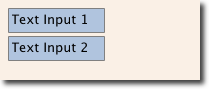
尝试使用 Tab 键进行导航。你会发现焦点并没有切换到 input2 。仅仅简单地使用 focus: true 是不够的。问题在于,当焦点转移到 input2 元素时, TlineEditV1 内部的顶级项目(即我们的 Rectangle )接收到了焦点,但没有将焦点转发给 TextInput 。为了防止这种情况,QML 提供了 FocusScope 。
1.2 焦点范围
焦点范围(FocusScope)声明,当焦点范围获得焦点时,最后一个设置了 focus: true 的子元素将获得焦点。因此,它会将焦点转发给最后一个请求焦点的子元素。我们将创建 TLineEdit 组件的第二个版本,名为 TLineEditV2,并使用焦点范围作为根元素。
我们的示例现在如下所示:
Rectangle {
    ...
    TLineEditV2 {
        id: input1
        ...
    }
    TLineEditV2 {
        id: input2
        ...
    }
}
现在按下 Tab 键可以成功地在两个组件之间切换焦点,并且组件内部正确的子元素也会获得焦点。
1.3 TextEdit
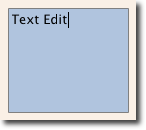
TextEdit 与 TextInput 非常相似,支持多行文本编辑字段。它没有文本约束属性,因为这取决于对文本内容尺寸的查询( contentHeight , contentWidth )。我们还创建了一个名为 TTextEdit 的自定义组件,用于提供编辑背景,并使用焦点作用域(focus scope)来实现更好的焦点转发。
// TTextEdit.qml

import QtQuick

FocusScope {
    width: 96; height: 96
    Rectangle {
        anchors.fill: parent
        color: "lightsteelblue"
        border.color: "gray"

    }

    property alias text: input.text
    property alias input: input

    TextEdit {
        id: input
        anchors.fill: parent
        anchors.margins: 4
        focus: true
    }
}
你可以像使用 TLineEdit 组件一样使用它
// textedit.qml

import QtQuick

Rectangle {
    width: 136
    height: 120
    color: "linen"

    TTextEdit {
        id: input
        x: 8; y: 8
        width: 120; height: 104
        focus: true
        text: "Text Edit"
    }
}
1.4 Keys 元素
通过附加属性 Keys ,可以根据特定的按键操作执行代码。例如,为了移动和缩放一个正方形,我们可以挂载到上、下、左、右键来平移元素,并使用加号和减号键来缩放元素。
// keys.qml

import QtQuick

DarkSquare {
    width: 400; height: 200

    GreenSquare {
        id: square
        x: 8; y: 8
    }
    focus: true
    Keys.onLeftPressed: square.x -= 8
    Keys.onRightPressed: square.x += 8
    Keys.onUpPressed: square.y -= 8
    Keys.onDownPressed: square.y += 8
    Keys.onPressed: function (event) {
        switch(event.key) {
            case Qt.Key_Plus:
                square.scale += 0.2
                break;
            case Qt.Key_Minus:
                square.scale -= 0.2
                break;
        }
    }
}