封装Canvas画布hooks
js
import { } from "vue"

// ==================== 常量定义 ====================

/**
 * 默认 canvas 宽度
 * @type {number}
 */
const defaultWidth = 750

/**
 * 默认 canvas 高度
 * @type {number}
 */
const defaultHeigth = 1334

/**
 * 默认背景颜色
 * @type {string}
 */
const defaultRectBgColor = '#fff'

/**
 * 创建微信小程序 canvas 实例
 * @param {string} id - canvas 节点的 id 选择器
 * @param {object} that - 组件实例(用于 createSelectorQuery)
 * @param {number} width - canvas 宽度,默认 750
 * @param {number} height - canvas 高度,默认 1334
 * @returns {Promise<{canvas: object, ctx: object}>} 返回包含 canvas 实例和 2d 上下文的对象
 */
const createCanvasMiniWX = (id, that, width = defaultWidth, height = defaultHeigth) => {
	return new Promise((resolve, reject) => {
		const selectQuery = uni.createSelectorQuery().in(that)
		selectQuery.select(id)
			.fields({
				node: true,
				size: true
			})
			.exec((res) => {
				const canvas = res[0].node
				if (!canvas) {
					return reject()
				}
				canvas.width = width
				canvas.height = height
				const ctx = canvas.getContext('2d')
				resolve({
					canvas,
					ctx
				})
			})
	})
}

/**
 * 创建 Web/H5 环境 canvas 实例
 * @param {number} width - canvas 宽度,默认 750
 * @param {number} height - canvas 高度,默认 1334
 * @returns {Promise<{canvas: HTMLCanvasElement, ctx: CanvasRenderingContext2D}>} 返回包含 canvas 元素和 2d 上下文的对象
 */
const createCanvasWEB = (width = defaultWidth, height = defaultHeigth) => {
	return new Promise((resolve, reject) => {
		const canvas = document.createElement('canvas')
		canvas.width = width
		canvas.height = height
		canvas.style.display = 'none'
		canvas.style.backgroundColor = '#ffffff'
		document.body.appendChild(canvas)
		const ctx = canvas.getContext('2d')

		// // 设置填充样式为白色
		// ctx.fillStyle = 'white';
		// // 填充整个画布
		// ctx.fillRect(0, 0, canvas.width, canvas.height);

		resolve({
			ctx,
			canvas
		})
	})
}

/**
 * 在微信小程序环境中创建图片对象
 * @param {string} src - 图片地址
 * @param {object} canvas - canvas 实例
 * @returns {Promise<Image>} 返回加载完成的图片对象
 */
const createImageMiniWX = (src, canvas) => {
	return new Promise((resolve, reject) => {
		const image = canvas.createImage()
		image.src = src
		image.crossOrigin = 'anonymous'
		// 图片加载完成回调
		image.onload = () => {
			resolve(image)
		}
		image.onerror = (err) => {
			reject(err)
		}
	})
}

/**
 * 在 Web/H5 环境中创建图片对象
 * @param {string} src - 图片地址
 * @returns {Promise<HTMLImageElement>} 返回加载完成的图片对象
 * @description 会为 HTTP 链接添加时间戳参数以避免缓存问题
 */
const createImageWEB = (src) => {
	return new Promise((resolve, reject) => {
		const image = new Image()
		let url = src.split('?')[0]
		if (url && url.startsWith('http')) {
			url = url + '?timstamp=' + Date.now()
			// url = url + '?x-oss-process=image/format,jpg/resize,w_500,h_500/quality,q_100'

		}
		image.src = url
		image.crossOrigin = 'anonymous'

		// 图片加载完成回调
		image.onload = () => {
			resolve(image)
		}
		image.onerror = (err) => {
			reject(err)
		}
	})
}

/**
 * 跨平台创建 canvas 实例(兼容微信小程序和 H5)
 * @param {string} id - canvas 节点的 id 选择器(小程序端必需)
 * @param {object} that - 组件实例(小程序端必需)
 * @param {number} width - canvas 宽度,默认 750
 * @param {number} height - canvas 高度,默认 1334
 * @returns {Promise<{canvas: object|HTMLCanvasElement, ctx: object|CanvasRenderingContext2D}>} 返回包含 canvas 实例和 2d 上下文的对象
 */
export const createCanvas = (id, that, width = defaultWidth, height = defaultHeigth) => {
	// #ifdef MP-WEIXIN
	return createCanvasMiniWX(id, that, width, height)
	// #endif

	// #ifdef H5
	return createCanvasWEB(width, height)
	// #endif
}

/**
 * 跨平台创建图片对象(兼容微信小程序和 H5)
 * @param {string} src - 图片地址
 * @param {object} canvas - canvas 实例(小程序端必需)
 * @returns {Promise<Image|HTMLImageElement>} 返回加载完成的图片对象
 */
export const createImage = (src, canvas) => {
	// #ifdef MP-WEIXIN
	return createImageMiniWX(src, canvas)
	// #endif

	// #ifdef H5
	return createImageWEB(src)
	// #endif
}

/**
 * 绘制圆形图片
 * @param {object} ctx - canvas 2d 绘图上下文
 * @param {Image|HTMLImageElement} image - 图片对象
 * @param {object} position - 位置和尺寸配置 {x, y, width, height}
 * @param {boolean} rect - 是否绘制矩形背景,默认 false
 * @param {string} bgColor - 背景颜色,默认 '#fff'
 */
export const drawCircleImage = (ctx, image, position, rect = false, bgColor = defaultRectBgColor) => {
	const {
		x,
		y,
		width,
		height
	} = position
	if (rect) {
		ctx.beginPath()
		ctx.fillStyle = bgColor
		ctx.fillRect(x, y, width, height)
	}


	const r = width / 2
	ctx.save()
	ctx.beginPath()
	ctx.arc(x + r, y + r, r, 0, 2 * Math.PI)
	ctx.clip()
	ctx.drawImage(image, x, y, width, height)
	ctx.restore()
}

/**
 * 绘制图片(支持圆形或矩形)
 * @param {object} canvas - canvas 实例
 * @param {object} ctx - canvas 2d 绘图上下文
 * @param {string} url - 图片地址
 * @param {object} position - 位置和尺寸配置 {x, y, width, height}
 * @param {object} ext - 扩展配置 {circle: 是否圆形, rect: 是否绘制背景, bgColor: 背景颜色}
 */
export const drawImage = async (canvas, ctx, url, position, ext = {}) => {
	const {
		circle,
		rect,
		bgColor
	} = ext
	const image = await createImage(url, canvas)
	if (circle) {
		drawCircleImage(ctx, image, position, rect, bgColor)
	} else {
		const {
			x,
			y,
			width,
			height
		} = position
		ctx.drawImage(image, x, y, width, height)
	}
}

/**
 * 绘制单行文本
 * @param {object} ctx - canvas 2d 绘图上下文
 * @param {string} text - 文本内容
 * @param {object} position - 位置和样式配置 {x, y, size, color, baseLine, maxWidth}
 * @param {boolean} throughtLine - 是否绘制删除线
 */
export const drawText = (ctx, text, position, throughtLine) => {
	const color = position?.color || '#333'
	const size = position?.size || 24
	const x = position?.x || 0
	const y = position?.y || 0
	const baseLine = position?.baseLine || 'top'
	const maxWidth = position?.maxWidth

	ctx.fillStyle = color
	ctx.font = `${size}px seri`
	ctx.textBaseline = baseLine
	ctx.fillText(text, x, y)

	if (!throughtLine) return
	const textWidth = ctx.measureText(text).width
	const lineY = y + size / 2
	ctx.beginPath()
	ctx.moveTo(x, lineY)
	ctx.lineTo(x + textWidth, lineY)
	ctx.stroke()
	ctx.beginPath()
}

/**
 * 绘制多行文本(支持自动换行和省略号)
 * @param {object} ctx - canvas 2d 绘图上下文
 * @param {string} str - 文本内容
 * @param {object} position - 位置和样式配置 {x, y, size, color, maxWidth, lineHeight, line, baseLine}
 * @description 当文本行数超过指定行数时,最后一行自动添加省略号
 */
export const drawTextMutilLine = (ctx, str, position) => {
	const {
		x,
		y,
		size,
		blod,
		color,
		maxWidth,
		lineHeight,
		line,
		baseLine
	} = position
	ctx.textBaseline = baseLine
	// 字体
	ctx.font = size + 'px seri'
	// 颜色
	ctx.fillStyle = color || '#333'
	// 文本处理
	let strArr = str.split('');
	let row = [];
	let temp = '';
	for (let i = 0; i < strArr.length; i++) {
		if (ctx.measureText(temp).width < maxWidth) {
			temp += strArr[i];
		} else {
			i--; //这里添加了i-- 是为了防止字符丢失,效果图中有对比
			row.push(temp);
			temp = '';
		}
	}
	row.push(temp); // row有多少项则就有多少行

	//如果数组长度大于2,现在只需要显示两行则只截取前两项,把第二行结尾设置成'...'
	if (row.length > line) {
		let rowCut = row.slice(0, line);
		let rowPart = rowCut[line - 1];
		let test = '';
		let empty = [];
		for (let i = 0; i < rowPart.length; i++) {
			if (ctx.measureText(test).width < maxWidth) {
				test += rowPart[i];
			} else {
				break;
			}
		}
		empty.push(test);
		let group = empty[0] + '...' //这里只显示两行,超出的用...表示
		rowCut.splice(line - 1, 1, group);
		row = rowCut;
	}
	// 把文本绘制到画布中
	for (let i = 0; i < row.length; i++) {
		// 一次渲染一行
		ctx.fillText(row[i], x, y + i * lineHeight, maxWidth);
	}
	// 保存当前画布状态
	ctx.save()
	// 将之前在绘图上下文中的描述(路径、变形、样式)画到 canvas 中。
	// ctx.draw()
}

// 绘制背景
const drawBg = (ctx, bgColor) => {
	ctx.beginPath()
	ctx.fillStyle = bgColor
	ctx.fillRect(0, 0, ctx.canvas.width, ctx.canvas.height)
}


/**
 * Canvas 绘图组合 hook(主入口函数)
 * @param {string} id - canvas 节点的 id 选择器(小程序端必需)
 * @param {object} that - 组件实例(小程序端必需)
 * @param {number} width - canvas 宽度,默认 750
 * @param {number} height - canvas 高度,默认 1334
 * @returns {Promise<object>} 返回包含 canvas、ctx 及各种绘图方法的对象
 * @description 提供统一的绘图接口,返回方法包含:
 *   - createImageFn: 创建图片对象
 *   - drawCircleImageFn: 绘制圆形图片
 *   - drawImageFn: 绘制普通图片
 *   - drawTextFn: 绘制单行文本
 *   - drawTextMutilLineFn: 绘制多行文本
 */
export const useCanvas = async (id, that, width = defaultWidth, height = defaultHeigth) => {
	let canvas, ctx;
	const res = await createCanvas(id, that, width, height)
	canvas = res.canvas
	ctx = res.ctx
	return {
		canvas,
		ctx,
		createImageFn: (url) => createImage(url, canvas),
		drawCircleImageFn: (image, position, rect = true, bgColor = defaultRectBgColor) => drawCircleImage(ctx,
			image, position, rect = true, bgColor = defaultRectBgColor),
		drawImageFn: (url, position, ext = {}) => drawImage(canvas, ctx, url, position, ext),
		drawTextFn: (text, position, throughtLine) => drawText(ctx, text, position, throughtLine),
		drawTextMutilLineFn: (text, position) => drawTextMutilLine(ctx, text, position),
		drawBgFn: (bgColor) => drawBg(ctx, bgColor),
	}
}
export default useCanvas
操作文档
useCanvas 使用文档
一个跨平台的 Canvas 绘图工具,兼容微信小程序和 H5 环境,用于绘制海报、图片、文本等。
功能特性
- ✅ 跨平台支持(微信小程序 + H5)
- ✅ 图片绘制(支持圆形/矩形)
- ✅ 文本绘制(单行/多行自动换行)
- ✅ 省略号处理(超出行数自动添加
...) - ✅ 删除线支持
- ✅ 自动处理跨域图片加载
快速开始
基础用法
javascript
import { useCanvas } from '@/hooks/useCanvas.js'

// 在组件中使用
const { canvas, ctx, drawImageFn, drawTextFn } = await useCanvas(
  'myCanvas',  // canvas 节点 id
  this,        // 组件实例
  750,         // 宽度(可选,默认 750)
  1334         // 高度(可选,默认 1334)
)

// 绘制图片
await drawImageFn('https://example.com/image.png', {
  x: 0,
  y: 0,
  width: 750,
  height: 400
})

// 绘制文本
drawTextFn('Hello World', {
  x: 100,
  y: 500,
  size: 32,
  color: '#333333'
})
API 文档
主入口函数
useCanvas(id, that, width, height)
初始化 Canvas 绘图环境,返回绘图对象和方法。
| 参数 | 类型 | 必填 | 说明 |
|---|---|---|---|
id |
string | 是 | canvas 节点的 id 选择器(小程序端必需) |
that |
object | 是 | 组件实例(小程序端必需) |
width |
number | 否 | canvas 宽度,默认 750 |
height |
number | 否 | canvas 高度,默认 1334 |
返回值:
javascript
{
  canvas: Canvas实例,
  ctx: CanvasRenderingContext2D实例,
  createImageFn: Function,       // 创建图片对象
  drawCircleImageFn: Function,   // 绘制圆形图片
  drawImageFn: Function,         // 绘制图片
  drawTextFn: Function,          // 绘制单行文本
  drawTextMutilLineFn: Function  // 绘制多行文本
}
绘图方法
1. 绘制图片
javascript
await drawImageFn(url, position, ext)绘制普通图片或圆形图片。
| 参数 | 类型 | 必填 | 说明 |
|---|---|---|---|
url |
string | 是 | 图片地址 |
position |
object | 是 | 位置和尺寸配置 |
ext |
object | 否 | 扩展配置 |
position 配置:
| 属性 | 类型 | 说明 |
|---|---|---|
x |
number | x 坐标 |
y |
number | y 坐标 |
width |
number | 宽度 |
height |
number | 高度 |
ext 配置:
| 属性 | 类型 | 默认值 | 说明 |
|---|---|---|---|
circle |
boolean | false | 是否绘制圆形图片 |
rect |
boolean | false | 是否绘制背景矩形 |
bgColor |
string | '#fff' | 背景颜色 |
示例:
javascript
// 普通图片
await drawImageFn('https://example.com/bg.png', {
  x: 0,
  y: 0,
  width: 750,
  height: 1334
})

// 圆形头像
await drawImageFn('https://example.com/avatar.png', {
  x: 50,
  y: 100,
  width: 200,
  height: 200
}, {
  circle: true,
  rect: true,
  bgColor: '#f5f5f5'
})
2. 绘制圆形图片
javascript
drawCircleImageFn(image, position, rect, bgColor)直接绘制圆形图片(需要先创建图片对象)。
| 参数 | 类型 | 默认值 | 说明 |
|---|---|---|---|
image |
Image | 是 | 图片对象 |
position |
object | 是 | 位置和尺寸配置 {x, y, width, height} |
rect |
boolean | true | 是否绘制矩形背景 |
bgColor |
string | '#fff' | 背景颜色 |
示例:
javascript
const img = await createImageFn('https://example.com/avatar.png')
drawCircleImageFn(img, {
  x: 50,
  y: 100,
  width: 200,
  height: 200
}, true, '#f5f5f5')
3. 绘制单行文本
javascript
drawTextFn(text, position, throughtLine)绘制单行文本,支持删除线。
| 参数 | 类型 | 默认值 | 说明 |
|---|---|---|---|
text |
string | 是 | 文本内容 |
position |
object | 是 | 位置和样式配置 |
throughtLine |
boolean | false | 是否绘制删除线 |
position 配置:
| 属性 | 类型 | 默认值 | 说明 |
|---|---|---|---|
x |
number | 0 | x 坐标 |
y |
number | 0 | y 坐标 |
size |
number | 24 | 字体大小 |
color |
string | '#333' | 字体颜色 |
baseLine |
string | 'top' | 文本基线对齐方式 |
maxWidth |
number | - | 最大宽度(可选) |
示例:
javascript
// 普通文本
drawTextFn('欢迎来到物业系统', {
  x: 50,
  y: 300,
  size: 36,
  color: '#333333'
})

// 带删除线的文本
drawTextFn('原价: ¥999', {
  x: 50,
  y: 400,
  size: 28,
  color: '#999999'
}, true)
4. 绘制多行文本
javascript
drawTextMutilLineFn(text, position)绘制多行文本,支持自动换行和省略号处理。
| 参数 | 类型 | 说明 |
|---|---|---|
text |
string | 文本内容 |
position |
object | 位置和样式配置 |
position 配置:
| 属性 | 类型 | 默认值 | 说明 |
|---|---|---|---|
x |
number | 0 | x 坐标 |
y |
number | 0 | y 坐标(起始位置) |
size |
number | - | 字体大小(必填) |
color |
string | '#333' | 字体颜色 |
maxWidth |
number | - | 最大宽度(必填) |
lineHeight |
number | - | 行高(必填) |
line |
number | - | 最大行数(必填) |
baseLine |
string | - | 文本基线对齐方式 |
示例:
javascript
// 最多显示 2 行,超出显示省略号
drawTextMutilLineFn('这是一段很长的文本内容,用于演示多行文本自动换行和省略号的功能...', {
  x: 50,
  y: 500,
  size: 28,
  color: '#666666',
  maxWidth: 650,
  lineHeight: 40,
  line: 2,
  baseLine: 'top'
})
5. 创建图片对象
javascript
const img = await createImageFn(url)创建并加载图片对象(一般配合 drawCircleImageFn 使用)。
| 参数 | 类型 | 说明 |
|---|---|---|
url |
string | 图片地址 |
注意: H5 环境下会自动为 HTTP 链接添加时间戳参数以避免缓存问题。
完整示例
生成海报示例
vue
<template>
  <view>
    <canvas id="posterCanvas" type="2d"></canvas>
    <image v-if="posterUrl" :src="posterUrl"></image>
  </view>
</template>

<script>
import { useCanvas } from '@/hooks/useCanvas.js'

export default {
  data() {
    return {
      posterUrl: ''
    }
  },
  async mounted() {
    await this.drawPoster()
  },
  methods: {
    async drawPoster() {
      const { canvas, ctx, drawImageFn, drawTextFn, drawTextMutilLineFn } = await useCanvas(
        'posterCanvas',
        this,
        750,
        1334
      )

      // 1. 绘制背景图
      await drawImageFn('https://example.com/bg.png', {
        x: 0,
        y: 0,
        width: 750,
        height: 1334
      })

      // 2. 绘制圆形头像
      await drawImageFn('https://example.com/avatar.png', {
        x: 50,
        y: 80,
        width: 200,
        height: 200
      }, {
        circle: true,
        rect: true,
        bgColor: '#fff'
      })

      // 3. 绘制用户名
      drawTextFn('张三', {
        x: 280,
        y: 120,
        size: 36,
        color: '#333333'
      })

      // 4. 绘制多行描述
      drawTextMutilLineFn('这是一段很长的描述文本,用于演示多行自动换行功能...', {
        x: 50,
        y: 320,
        size: 28,
        color: '#666666',
        maxWidth: 650,
        lineHeight: 40,
        line: 3,
        baseLine: 'top'
      })

      // 5. 绘制商品图
      await drawImageFn('https://example.com/product.png', {
        x: 50,
        y: 450,
        width: 650,
        height: 500
      })

      // 6. 绘制价格
      drawTextFn('¥99.00', {
        x: 50,
        y: 1000,
        size: 48,
        color: '#ff0000'
      })

      // 7. 生成图片
      uni.canvasToTempFilePath({
        canvas: canvas,
        success: (res) => {
          this.posterUrl = res.tempFilePath
        }
      }, this)
    }
  }
}
</script>
常量配置
| 常量 | 值 | 说明 |
|---|---|---|
defaultWidth |
750 | 默认 canvas 宽度 |
defaultHeigth |
1334 | 默认 canvas 高度 |
defaultRectBgColor |
'#fff' | 默认背景颜色 |
注意事项
- 小程序端需要传入组件实例 :使用
uni.createSelectorQuery().in(that)查询节点 - 图片跨域问题 :图片地址需要支持跨域访问,H5 会自动处理
crossOrigin = 'anonymous' - 异步加载 :图片绘制是异步的,需要使用
await等待加载完成 - Canvas 节点类型 :小程序端需要设置
type="2d"属性
平台差异
| 功能 | 微信小程序 | H5 |
|---|---|---|
| Canvas 创建 | canvas.createImage() |
new Image() |
| 节点查询 | uni.createSelectorQuery().in(that) |
document.createElement('canvas') |
| 跨域图片 | 需配置下载域名 | 需服务端支持 CORS |
| 缓存处理 | - | 自动添加时间戳 |
常见问题
Q: 小程序端 canvas 为空?
A: 检查 canvas 节点是否设置了 type="2d",并确保节点已渲染完成再调用。
Q: 图片加载失败?
A: 检查图片地址是否正确,小程序端需在后台配置 downloadFile 合法域名。
Q: 文本显示位置不对?
A: 检查 baseLine 参数,默认是 'top',根据需要调整为 'middle' 或 'bottom'。
更新日志
- v1.0.0 - 初始版本,支持基础图片和文本绘制
项目实际使用
这里记录原本项目中使用方法,不一定是最优写发,可更具自己项目来实现
invite-apply.vue
html
<template>
	<invite-apply-canvas v-if="showCanvas" :userInfo="userInfo" :data="data" :url="url" @finished="onFinished"
						 @qrcodeFinished="onQrcodeFinished" @error="onError"></invite-apply-canvas>
</template>
<script setup>
import storePoster from "@/store/poster"
import storeUserInfo from "@/store/userInfo"
import {
	watch,
	computed,
	defineProps
} from "vue"
import useHomeData from '@/hooks/useHomeData.js'

const { userInfo } = storeUserInfo()
// 获取家庭信息
const { userHomeInfo, getHomeInfoData } = useHomeData()
getHomeInfoData()

const {
	applyPoster
} = storePoster()


const props = defineProps({
	data: {
		type: Object,
		default: () => ({})
	}
})


const url = computed(() => {
	if (props.data.id) {
		let origin = window.location.origin
		return `${origin}/#/pagesFamily/apply/apply?id=${props.data.id}`
	}
	return ''
})

const showCanvas = computed(() => {
	const bool = url.value && !applyPoster.value.loading && !applyPoster.value.url
	// if(!!bool) {
	// 	applyPoster.value.loading = true
	// }
	console.log(bool)
	return bool
})

const onFinished = (url) => {
	applyPoster.value.url = url
	applyPoster.value.loading = false
}
const onQrcodeFinished = (url) => {
	applyPoster.value.qrcode = url
	// console.log('家庭二维码绘制成功')
}
const onError = (err) => {
	applyPoster.value.loading = false
}


</script>

<style lang="scss">
.comp-invite-canvas {
	width: 622rpx;
	margin: 0 auto;

	.canvas {
		position: fixed;
		left: 100vw;
	}

	.canvas-img-box {
		width: 100%;
		border-radius: 24rpx;
		overflow: hidden;

		.canvas-img {
			width: 100%;
		}

		.no-canvas-img-box {
			text-align: center;
			font-size: 28rpx;
			font-weight: bold;
			line-height: 1118rpx;
			letter-spacing: 2rpx;
			background: #fff;
			// background-image: url('http://cdn.jiyouzhenxuan.com/upload/tjgyq-hb.png');
			// background-repeat: no-repeat;
			// background-size: 100%;
		}
	}

	.tip {
		text-align: center;
		font-size: 32rpx;
		font-weight: bold;
		color: #bcbcbc;
		line-height: 68rpx;
	}
}
</style>
invite-apply-canvas
html
<template>
<view class="comp-invite-canvas">
<canvas class="canvas" :style="{ 'backgroundColor': '#fff' }" :width="750" :height="1334"
canvas-id="canvas-invite-home" id="canvas-invite-home"></canvas>
<my-canvas-qrcode @catchError="onError" :data="url" @finished="onFinished"></my-canvas-qrcode>
</view>
</template>
<script>
import useCanvas from "@/hooks/useCanvas.js"
export default {
emits: ['finished', 'err', 'qrcodeFinished'],
props: {
userInfo: {
type: Object,
default: () => ({})
},
data: {
type: Object,
default: () => ({})
},
url: {
type: String,
required: true
},
recommendInfo: {
type: Object,
default: () => ({})
},
platformInfo: {
type: Object,
default: () => ({})
}
},
data() {
return {
// 家庭分享
bg: 'http://cdn.joytup.com/poster/xq-share-poster.png',
icon: 'https://cdn.joytup.com/poster/home-share-icon.png',
logo: 'https://cdn.joytup.com/plg-logo.jpg',
tip: '长按识别加入我们的小区',
qrcodeImg: '',
canvasImg: '',
position: {
img: {
width: 670,
height: 1078,
x: 0,
y: 0,
},
bg: {
width: 670,
// height: 1078,
height: 890,
x: 0,
y: 0,
},
qrcode: {
width: 140,
height: 140,
x: 502,
y: 914,
},
logo: {
width: 40,
height: 40,
x: 552,
y: 964,
},
name: {
size: 32,
x: 102,
y: 942,
color: '#19191A',
maxWidth: 400
},
headImgUrl: {
width: 64,
height: 64,
x: 24,
y: 950,
},
tip: {
size: 24,
x: 100,
y: 994,
color: '#97979B'
},
icon: {
width: 40,
height: 20,
x: 370,
y: 1000,
},
}
}
},
mounted() {
},
methods: {
onError(err) {
this.$emit('err', err)
},
onFinished(url) {
this.qrcodeImg = url
this.$emit('qrcodeFinished', url)
this.draw()
},
async draw() {
let bool = true
const {
canvas,
ctx,
drawImageFn,
drawTextFn,
drawCircleImageFn,
drawBgFn
} = await useCanvas('canvas-invite-home', this, 670, 1078).catch(() => {
bool = false
})
if (!bool) return
await drawBgFn('#fff')
await drawImageFn(this.bg, this.position.bg).catch((err) => {
})
await drawImageFn(this.qrcodeImg, this.position.qrcode).catch((err) => {
})
await drawImageFn(this.logo, this.position.logo, {
circle: true,
rect: true,
}).catch((err) => {
})
// 分享小区信息
if (this.data.logo) {
await drawImageFn(this.data.logo, this.position.headImgUrl, {
circle: false,
rect: false,
bgColor: '#fff'
})
}
drawTextFn(this.data.name, this.position.name)
drawTextFn(this.tip, this.position.tip)
await drawImageFn(this.icon, this.position.icon).catch((err) => {
})
// const imgurl = canvas.toDataURL("image/jpeg", 1.0)
const imgurl = canvas.toDataURL()
this.canvasImg = imgurl
this.$emit('finished', imgurl)
}
}
}
</script>
<style lang="scss">
.comp-invite-canvas {
width: 622rpx;
margin: 0 auto;
.canvas {
position: fixed;
left: 100vw;
}
.canvas-img-box {
width: 100%;
border-radius: 24rpx;
overflow: hidden;
.canvas-img {
width: 100%;
}
.no-canvas-img-box {
text-align: center;
font-size: 28rpx;
font-weight: bold;
line-height: 1118rpx;
letter-spacing: 2rpx;
background: #fff;
// background-image: url('http://cdn.jiyouzhenxuan.com/upload/tjgyq-hb.png');
// background-repeat: no-repeat;
// background-size: 100%;
}
}
.tip {
text-align: center;
font-size: 32rpx;
font-weight: bold;
color: #bcbcbc;
line-height: 68rpx;
}
}
</style>
```
显示页面
```html
<template>
<view class="page-invite">
<my-navigation></my-navigation>
<view class="flex-between-center" style="margin: 0 24rpx 24rpx;">
<view class=""></view>
<view class="refresh flex-center" @click="refresh">
<view class="">重新绘制</view>
</view>
</view>
<view class="canvas-img-box">
<image v-if="inviteUrl" class="canvas-img" :src="inviteUrl" mode="widthFix"></image>
<view v-else class="no-canvas-img-box flex-center">
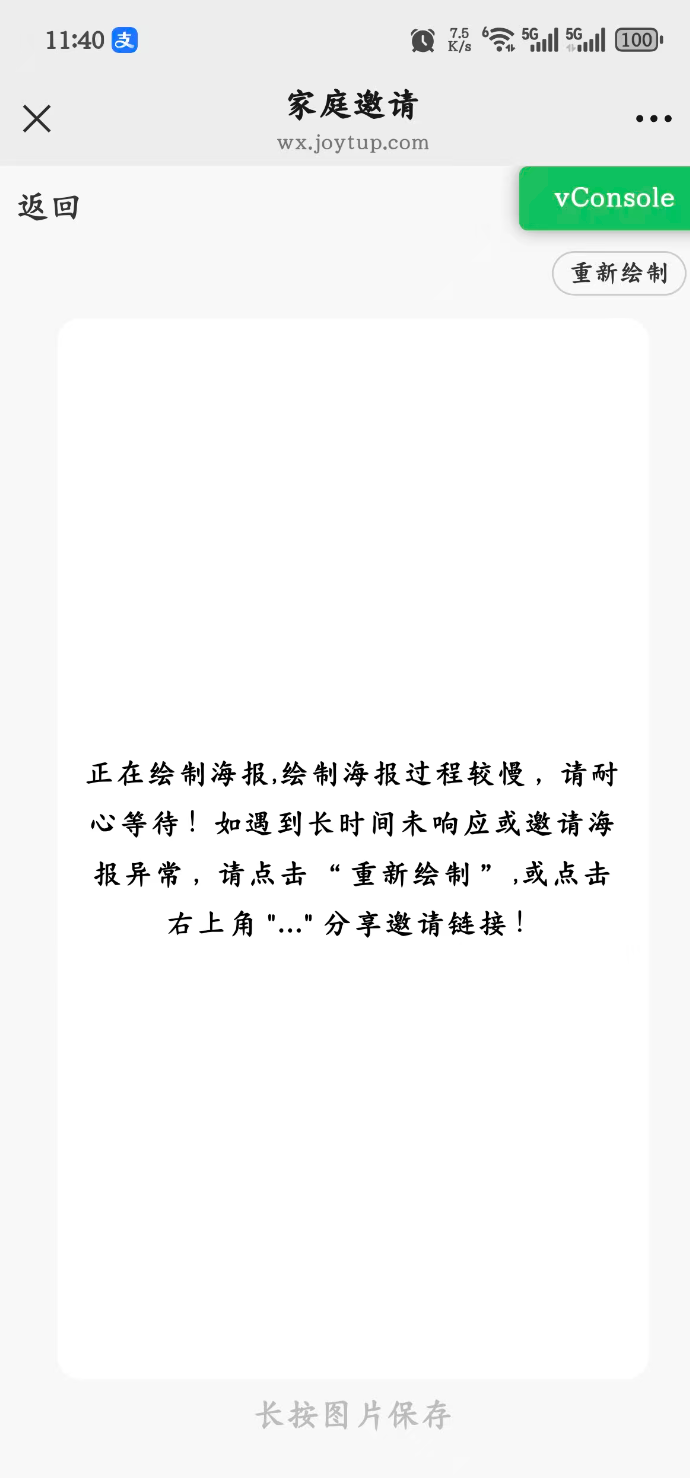
正在绘制海报,绘制海报过程较慢,请耐心等待!如遇到长时间未响应或邀请海报异常,请点击 "重新绘制" ,或点击右上角 "..." 分享邀请链接!
</view>
</view>
<view class="tip">
长按图片保存
</view>
<invite-apply :data="communityData" />
</view>
</template>
<script setup>
import storeRecommendInfo from "@/store/recommendInfo.js"
import {
onLoad
} from "@dcloudio/uni-app"
import {
ref,
computed,
watch
} from "vue"
import {
getPlatformInfo
} from "@/api/common.js"
import useHideMenuItem from "@/hooks/useHideMenuItem"
import storePoster from "@/store/poster"
import onShare from "@/assets/third/share"
import storeUserInfo from "@/store/userInfo"
import useHomeData from '@/hooks/useHomeData.js'
import { compoundDetail } from "@/api/property.js"
// 获取家庭信息
const { userHomeInfo, getHomeInfoData } = useHomeData()
getHomeInfoData()
useHideMenuItem()
const { userInfo } = storeUserInfo()
const {
applyPoster,
} = storePoster()
const {
recommendInfo
} = storeRecommendInfo()
const options = ref({})
// 小区详情信息
const communityData = ref({})
const getPropertyInfo = async () => {
const res = await compoundDetail({ id: options.value.id })
communityData.value = res.data || {}
}
const inviteUrl = computed(() => {
return applyPoster.value?.url
})
const url = computed(() => {
if (userHomeInfo.value.id) {
let origin = window.location.origin
return `${origin}/#/pagesFamily/apply/apply?id=${userHomeInfo.value.id}`
}
return ''
})
const refresh = () => {
applyPoster.value.url = ''
applyPoster.value.loading = false
}
onLoad((option) => {
options.value = option
if (!applyPoster.value.url) {
applyPoster.value.loading = false
}
refresh()
getPropertyInfo()
})
watch(
() => [userInfo.value, url.value],
() => {
if (userInfo.value?.id && url.value) {
const data = {
title: '申请邀请',
desc: userInfo.value.agentName + '邀请您加入小区',
imgUrl: userInfo.value.headImgUrl,
link: url.value,
}
onShare(data)
}
}, {
immediate: true
}
)
</script>
<style lang="scss">
.refresh {
padding: 4rpx 16rpx;
line-height: 32rpx;
color: #333;
font-size: 24rpx;
font-weight: 400;
border: 1px solid #ccc;
border-radius: 24rpx;
// background: $color-primary;
// color: #fff;
}
.page-invite {
.invite-panel {
border-radius: 24rpx;
overflow: hidden;
}
}
.canvas-img-box {
width: 622rpx;
margin: 0 auto;
// width: 100%;
border-radius: 24rpx;
overflow: hidden;
.canvas-img {
width: 100%;
// background-color: #fff;
}
.no-canvas-img-box {
padding: 24rpx;
height: 1118rpx;
text-align: center;
font-size: 28rpx;
font-weight: 500;
line-height: 48rpx;
letter-spacing: 2rpx;
background: #fff;
}
}
.tip {
text-align: center;
font-size: 32rpx;
font-weight: bold;
color: #bcbcbc;
line-height: 68rpx;
}
</style>
```
## 实现效果图
显示生成的图片地址,图片可以直接长按下载或者识别二维码,这里的二维码不是固定的,又是生成的,使用uview的二维码组件生成获取链接,载使用画布绘制
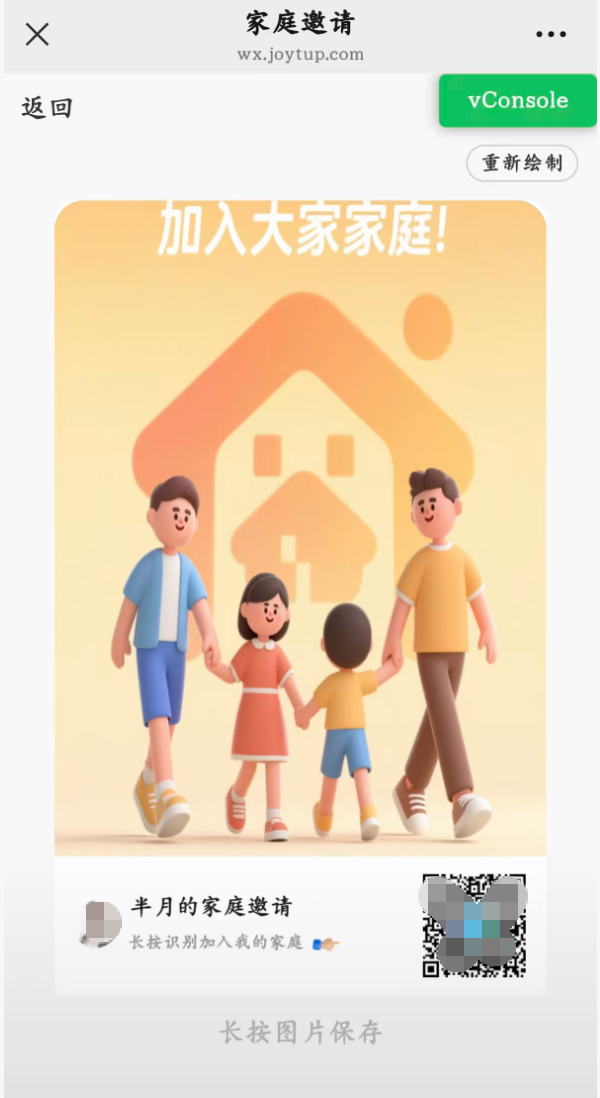
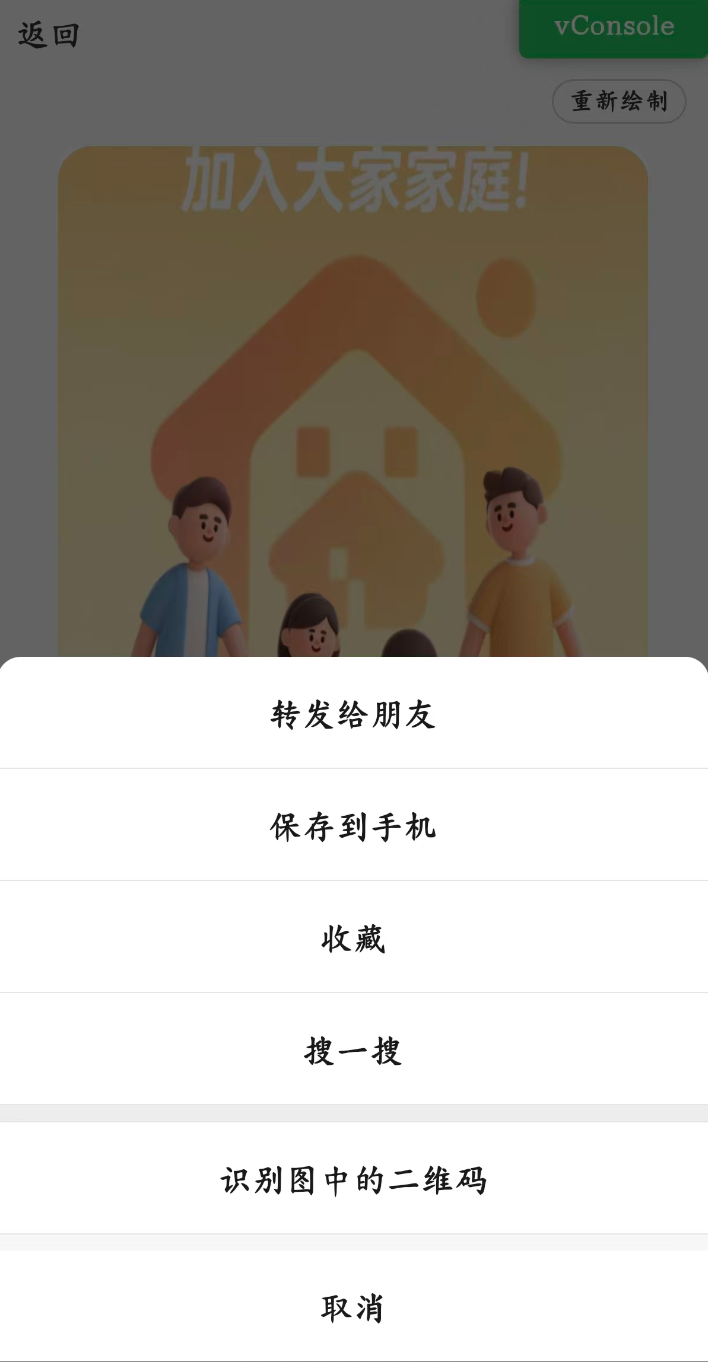
还可以画整个图片背景的,这里不贴代码,直接贴长按保存的图片