
个人主页:ujainu
欢迎加入开源鸿蒙跨平台社区:https://openharmonycrossplatform.csdn.net
文章目录
-
- [一、鸿蒙设计语言在 Flutter 中的落地实践](#一、鸿蒙设计语言在 Flutter 中的落地实践)
- [二、数据模型定义:Note 类](#二、数据模型定义:Note 类)
- [三、主界面:HomePage(StatefulWidget + ListView)](#三、主界面:HomePage(StatefulWidget + ListView))
-
- [1. 状态管理:使用 StatefulWidget](#1. 状态管理:使用 StatefulWidget)
- [四、列表项:Dismissible 实现左滑删除](#四、列表项:Dismissible 实现左滑删除)
- 五、新建与编辑:NoteEditorPage
-
- [1. 页面跳转与参数传递](#1. 页面跳转与参数传递)
- [2. NoteEditorPage 实现](#2. NoteEditorPage 实现)
- [六、完整可运行代码(Flutter + OpenHarmony)](#六、完整可运行代码(Flutter + OpenHarmony))
- 结语
在移动应用开发的学习路径中,记事本(Notes App) 常被视为"Hello World"级别的实战项目。它虽简单,却完整覆盖了 数据建模、状态管理、页面跳转、用户交互、UI 规范 等核心技能。而当我们将其限定在 Flutter + OpenHarmony 平台,并遵循 鸿蒙设计语言(HarmonyOS Design) 时,更需关注 简洁性、留白感与圆角美学。
本文将带你从零构建一个 完全基于内存的临时记事本 ,实现完整的 增(Create)、查(Read)、改(Update)、删(Delete) 四大操作。所有数据仅在 App 运行期间存在于 List<Note> 中,关闭即清空------这正是"零依赖"、"无数据库"的轻量级开发范式。
✅ 为什么先做内存版?
- 快速验证 UI 与交互逻辑
- 避免早期陷入数据库配置细节
- 为后续集成持久化(如 Drift / SQLite)打下坚实基础
- 特别适合 OpenHarmony 轻量设备快速原型开发
一、鸿蒙设计语言在 Flutter 中的落地实践
OpenHarmony 强调 "自然、高效、一致" 的用户体验,其视觉规范可提炼为三大关键词:
- 简洁(Simplicity):去除冗余装饰,聚焦内容本身
- 留白(Breathing Space):合理间距提升可读性与呼吸感
- 圆角(Rounded Corners):柔和边界增强亲和力
在 Flutter 中,我们通过以下方式精准还原:
- 启用 Material 3 (
useMaterial3: true),获得现代圆角组件 - 使用
Card包裹列表项,默认圆角 12px - 设置统一内边距(
padding: 16)与项间距(margin: bottom 12) - 文字颜色采用
Colors.grey[800](标题)与Colors.grey(预览/时间) - 图标使用标准 Material Icons(OpenHarmony 兼容良好)
📌 重要提示 :虽然 OpenHarmony 有自研 UI 框架 ArkUI,但 Flutter 应用运行于其上时,遵循 Material Design 即可获得流畅、合规的体验,无需强行模仿原生组件。
二、数据模型定义:Note 类
首先定义笔记的核心结构。由于是内存操作,我们使用普通 Dart 类即可:
dart
class Note {
  final String id;
  String title;
  String content;
  final DateTime createdAt;

  Note({
    required this.title,
    this.content = '',
  })  : id = DateTime.now().microsecondsSinceEpoch.toString(),
        createdAt = DateTime.now();

  // 用于编辑时保留原始 ID
  Note.withId({
    required this.id,
    required this.title,
    required this.content,
    required this.createdAt,
  });
}
🔍 关键设计说明:
id使用微秒时间戳生成,确保唯一性(内存场景足够)- 提供两个构造函数:新建用默认构造,编辑用
withId保留原 IDcreatedAt仅在创建时赋值,不可修改
三、主界面:HomePage(StatefulWidget + ListView)
主界面负责展示笔记列表,并提供 新建入口 和 左滑删除 功能。
1. 状态管理:使用 StatefulWidget
由于数据在内存中动态变化,我们选择最直接的 StatefulWidget:
dart
class HomePage extends StatefulWidget {
  const HomePage({super.key});

  @override
  State<HomePage> createState() => _HomePageState();
}

class _HomePageState extends State<HomePage> {
  final List<Note> _notes = []; // 内存数据源

  @override
  Widget build(BuildContext context) {
    return Scaffold(
      appBar: AppBar(
        title: const Text('我的笔记', style: TextStyle(fontWeight: FontWeight.w500)),
        backgroundColor: Colors.white,
        foregroundColor: Colors.black,
        elevation: 0,
      ),
      body: _buildNoteList(),
      floatingActionButton: FloatingActionButton(
        onPressed: _onAddNote,
        child: const Icon(Icons.add),
      ),
    );
  }

  Widget _buildNoteList() {
    if (_notes.isEmpty) {
      return const Center(
        child: Text('暂无笔记', style: TextStyle(color: Colors.grey)),
      );
    }
    return ListView.builder(
      padding: const EdgeInsets.all(16),
      itemCount: _notes.length,
      itemBuilder: (context, index) {
        final note = _notes[index];
        return _buildNoteItem(note, index);
      },
    );
  }
}
✅ 优化点:
- 空状态友好提示
- 统一
padding: 16保证留白- 使用
ListView.builder按需渲染,性能更优
四、列表项:Dismissible 实现左滑删除
Flutter 提供 Dismissible 组件,轻松实现 iOS 风格的滑动删除:
dart
Widget _buildNoteItem(Note note, int index) {
  return Dismissible(
    key: Key(note.id), // 必须唯一
    direction: DismissDirection.endToStart, // 仅允许左滑
    background: Container(
      color: Colors.red,
      alignment: Alignment.centerRight,
      padding: const EdgeInsets.only(right: 20),
      child: const Icon(Icons.delete, color: Colors.white),
    ),
    onDismissed: (direction) {
      setState(() {
        _notes.removeAt(index);
      });
      // 可选:显示 SnackBar 提示
      ScaffoldMessenger.of(context).showSnackBar(
        SnackBar(content: Text('已删除 "${note.title}"')),
      );
    },
    child: _buildNoteCard(note),
  );
}

Widget _buildNoteCard(Note note) {
  return Card(
    margin: const EdgeInsets.only(bottom: 12),
    shape: RoundedRectangleBorder(borderRadius: BorderRadius.circular(12)),
    child: Padding(
      padding: const EdgeInsets.all(16),
      child: Column(
        crossAxisAlignment: CrossAxisAlignment.start,
        children: [
          Text(
            note.title,
            style: const TextStyle(
              fontSize: 18,
              fontWeight: FontWeight.bold,
              color: Colors.grey,
            ),
            maxLines: 1,
            overflow: TextOverflow.ellipsis,
          ),
          const SizedBox(height: 8),
          if (note.content.isNotEmpty)
            Text(
              note.content,
              maxLines: 2,
              overflow: TextOverflow.ellipsis,
              style: const TextStyle(color: Colors.grey),
            ),
          const SizedBox(height: 12),
          Text(
            _formatTime(note.createdAt),
            style: const TextStyle(color: Colors.grey, fontSize: 12),
          ),
        ],
      ),
    ),
  );
}

String _formatTime(DateTime time) {
  return '${time.year}-${time.month.toString().padLeft(2, '0')}-${time.day.toString().padLeft(2, '0')} '
      '${time.hour.toString().padLeft(2, '0')}:${time.minute.toString().padLeft(2, '0')}';
}
⚠️ 关键细节:
key: Key(note.id)确保 Flutter 能正确识别被删除项background自定义删除背景(红色 + 删除图标)onDismissed中调用setState触发 UI 更新- 使用
ScaffoldMessenger显示操作反馈
五、新建与编辑:NoteEditorPage
通过 Navigator.push 打开编辑页,并支持 双向数据传递。
1. 页面跳转与参数传递
dart
// 在 HomePage 中
void _onAddNote() {
  Navigator.push(
    context,
    MaterialPageRoute(builder: (_) => const NoteEditorPage()),
  ).then((result) {
    if (result != null && result is Note) {
      setState(() {
        _notes.insert(0, result); // 插入到顶部
      });
    }
  });
}

// 编辑已有笔记
void _onEditNote(Note note) {
  Navigator.push(
    context,
    MaterialPageRoute(
      builder: (_) => NoteEditorPage(
        existingNote: note,
      ),
    ),
  ).then((result) {
    if (result != null && result is Note) {
      setState(() {
        final index = _notes.indexWhere((n) => n.id == result.id);
        if (index != -1) {
          _notes[index] = result; // 替换原笔记
        }
      });
    }
  });
}
2. NoteEditorPage 实现
dart
class NoteEditorPage extends StatefulWidget {
  final Note? existingNote; // null 表示新建

  const NoteEditorPage({this.existingNote, super.key});

  @override
  State<NoteEditorPage> createState() => _NoteEditorPageState();
}

class _NoteEditorPageState extends State<NoteEditorPage> {
  late final TextEditingController _titleController;
  late final TextEditingController _contentController;

  @override
  void initState() {
    super.initState();
    if (widget.existingNote != null) {
      _titleController = TextEditingController(text: widget.existingNote!.title);
      _contentController = TextEditingController(text: widget.existingNote!.content);
    } else {
      _titleController = TextEditingController();
      _contentController = TextEditingController();
    }
  }

  @override
  void dispose() {
    _titleController.dispose();
    _contentController.dispose();
    super.dispose();
  }

  void _saveNote() {
    final title = _titleController.text.trim();
    if (title.isEmpty) return;

    final note = widget.existingNote != null
        ? Note.withId(
            id: widget.existingNote!.id,
            title: title,
            content: _contentController.text.trim(),
            createdAt: widget.existingNote!.createdAt,
          )
        : Note(title: title, content: _contentController.text.trim());

    Navigator.pop(context, note);
  }

  @override
  Widget build(BuildContext context) {
    return Scaffold(
      appBar: AppBar(
        title: Text(widget.existingNote == null ? '新建笔记' : '编辑笔记'),
        backgroundColor: Colors.white,
        foregroundColor: Colors.black,
        elevation: 0,
        actions: [
          IconButton(
            icon: const Icon(Icons.save),
            onPressed: _saveNote,
          ),
        ],
      ),
      body: Padding(
        padding: const EdgeInsets.all(16),
        child: Column(
          children: [
            TextField(
              controller: _titleController,
              decoration: const InputDecoration(
                hintText: '标题',
                border: InputBorder.none,
                focusedBorder: InputBorder.none,
              ),
              style: const TextStyle(fontSize: 20, fontWeight: FontWeight.bold),
              maxLines: 1,
            ),
            const Divider(height: 24),
            Expanded(
              child: TextField(
                controller: _contentController,
                decoration: const InputDecoration(
                  hintText: '写下你的想法...',
                  border: InputBorder.none,
                  focusedBorder: InputBorder.none,
                ),
                maxLines: null,
                keyboardType: TextInputType.multiline,
              ),
            ),
          ],
        ),
      ),
    );
  }
}
✅ 关键逻辑:
- 通过
existingNote区分新建/编辑- 编辑时保留原
id和createdAt- 使用
Navigator.pop(context, note)返回数据- 标题为空时不保存(防误操作)
六、完整可运行代码(Flutter + OpenHarmony)
以下代码整合了所有模块,可直接复制到 main.dart 中运行:
dart
// main.dart - 内存版鸿蒙记事本(CRUD)
import 'package:flutter/material.dart';

// ==================== 数据模型 ====================
class Note {
  final String id;
  String title;
  String content;
  final DateTime createdAt;

  Note({required this.title, this.content = ''})
      : id = DateTime.now().microsecondsSinceEpoch.toString(),
        createdAt = DateTime.now();

  Note.withId({
    required this.id,
    required this.title,
    required this.content,
    required this.createdAt,
  });
}

// ==================== 编辑页面 ====================
class NoteEditorPage extends StatefulWidget {
  final Note? existingNote;

  const NoteEditorPage({this.existingNote, super.key});

  @override
  State<NoteEditorPage> createState() => _NoteEditorPageState();
}

class _NoteEditorPageState extends State<NoteEditorPage> {
  late final TextEditingController _titleController;
  late final TextEditingController _contentController;

  @override
  void initState() {
    super.initState();
    if (widget.existingNote != null) {
      _titleController = TextEditingController(text: widget.existingNote!.title);
      _contentController = TextEditingController(text: widget.existingNote!.content);
    } else {
      _titleController = TextEditingController();
      _contentController = TextEditingController();
    }
  }

  @override
  void dispose() {
    _titleController.dispose();
    _contentController.dispose();
    super.dispose();
  }

  void _saveNote() {
    final title = _titleController.text.trim();
    if (title.isEmpty) return;
    final note = widget.existingNote != null
        ? Note.withId(
            id: widget.existingNote!.id,
            title: title,
            content: _contentController.text.trim(),
            createdAt: widget.existingNote!.createdAt,
          )
        : Note(title: title, content: _contentController.text.trim());
    Navigator.pop(context, note);
  }

  @override
  Widget build(BuildContext context) {
    return Scaffold(
      appBar: AppBar(
        title: Text(widget.existingNote == null ? '新建笔记' : '编辑笔记'),
        backgroundColor: Colors.white,
        foregroundColor: Colors.black,
        elevation: 0,
        actions: [IconButton(icon: const Icon(Icons.save), onPressed: _saveNote)],
      ),
      body: Padding(
        padding: const EdgeInsets.all(16),
        child: Column(
          children: [
            TextField(
              controller: _titleController,
              decoration: const InputDecoration(
                hintText: '标题',
                border: InputBorder.none,
                focusedBorder: InputBorder.none,
              ),
              style: const TextStyle(fontSize: 20, fontWeight: FontWeight.bold),
              maxLines: 1,
            ),
            const Divider(height: 24),
            Expanded(
              child: TextField(
                controller: _contentController,
                decoration: const InputDecoration(
                  hintText: '写下你的想法...',
                  border: InputBorder.none,
                  focusedBorder: InputBorder.none,
                ),
                maxLines: null,
                keyboardType: TextInputType.multiline,
              ),
            ),
          ],
        ),
      ),
    );
  }
}

// ==================== 主界面 ====================
class HomePage extends StatefulWidget {
  const HomePage({super.key});

  @override
  State<HomePage> createState() => _HomePageState();
}

class _HomePageState extends State<HomePage> {
  final List<Note> _notes = [];

  void _onAddNote() {
    Navigator.push(context, MaterialPageRoute(builder: (_) => const NoteEditorPage()))
        .then((result) {
      if (result != null && result is Note) {
        setState(() => _notes.insert(0, result));
      }
    });
  }

  void _onEditNote(Note note) {
    Navigator.push(
      context,
      MaterialPageRoute(builder: (_) => NoteEditorPage(existingNote: note)),
    ).then((result) {
      if (result != null && result is Note) {
        setState(() {
          final index = _notes.indexWhere((n) => n.id == result.id);
          if (index != -1) _notes[index] = result;
        });
      }
    });
  }

  String _formatTime(DateTime time) {
    return '${time.year}-${time.month.toString().padLeft(2, '0')}-${time.day.toString().padLeft(2, '0')} '
        '${time.hour.toString().padLeft(2, '0')}:${time.minute.toString().padLeft(2, '0')}';
  }

  Widget _buildNoteCard(Note note) {
    return Card(
      margin: const EdgeInsets.only(bottom: 12),
      shape: RoundedRectangleBorder(borderRadius: BorderRadius.circular(12)),
      child: Padding(
        padding: const EdgeInsets.all(16),
        child: Column(
          crossAxisAlignment: CrossAxisAlignment.start,
          children: [
            Text(note.title, style: const TextStyle(fontSize: 18, fontWeight: FontWeight.bold, color: Colors.grey),
                maxLines: 1, overflow: TextOverflow.ellipsis),
            const SizedBox(height: 8),
            if (note.content.isNotEmpty)
              Text(note.content, maxLines: 2, overflow: TextOverflow.ellipsis, style: const TextStyle(color: Colors.grey)),
            const SizedBox(height: 12),
            Text(_formatTime(note.createdAt), style: const TextStyle(color: Colors.grey, fontSize: 12)),
          ],
        ),
      ),
    );
  }

  Widget _buildNoteItem(Note note, int index) {
    return Dismissible(
      key: Key(note.id),
      direction: DismissDirection.endToStart,
      background: Container(
        color: Colors.red,
        alignment: Alignment.centerRight,
        padding: const EdgeInsets.only(right: 20),
        child: const Icon(Icons.delete, color: Colors.white),
      ),
      onDismissed: (direction) {
        setState(() => _notes.removeAt(index));
        ScaffoldMessenger.of(context).showSnackBar(SnackBar(content: Text('已删除 "${note.title}"')));
      },
      child: GestureDetector(
        onTap: () => _onEditNote(note),
        child: _buildNoteCard(note),
      ),
    );
  }

  Widget _buildNoteList() {
    if (_notes.isEmpty) {
      return const Center(child: Text('暂无笔记', style: TextStyle(color: Colors.grey)));
    }
    return ListView.builder(
      padding: const EdgeInsets.all(16),
      itemCount: _notes.length,
      itemBuilder: (context, index) => _buildNoteItem(_notes[index], index),
    );
  }

  @override
  Widget build(BuildContext context) {
    return Scaffold(
      appBar: AppBar(
        title: const Text('我的笔记', style: TextStyle(fontWeight: FontWeight.w500)),
        backgroundColor: Colors.white,
        foregroundColor: Colors.black,
        elevation: 0,
      ),
      body: _buildNoteList(),
      floatingActionButton: FloatingActionButton(onPressed: _onAddNote, child: const Icon(Icons.add)),
    );
  }
}

// ==================== 主程序入口 ====================
void main() {
  runApp(MaterialApp(
    debugShowCheckedModeBanner: false,
    useMaterial3: true, // 启用 Material 3(圆角等)
    home: HomePage(),
  ));
}
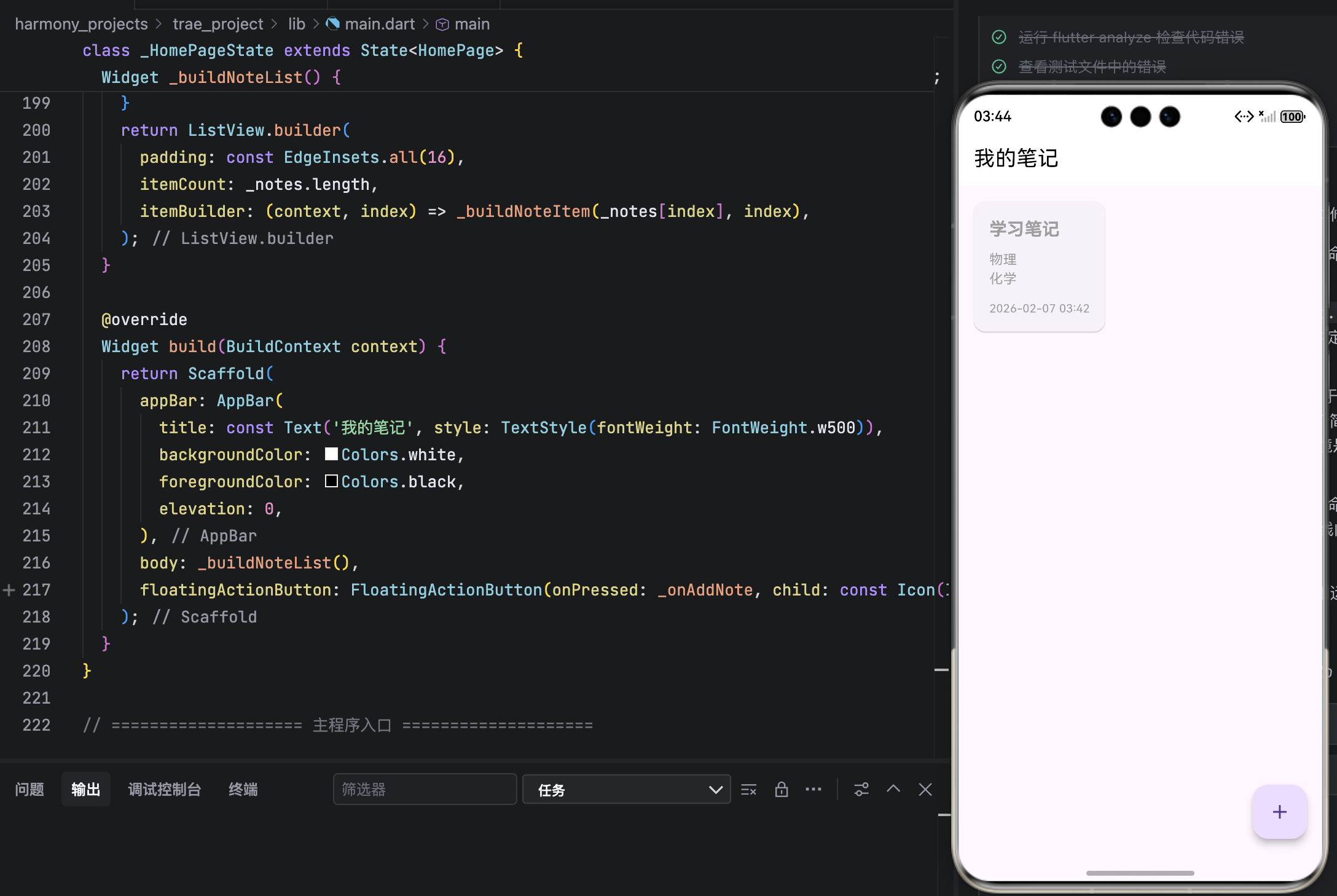
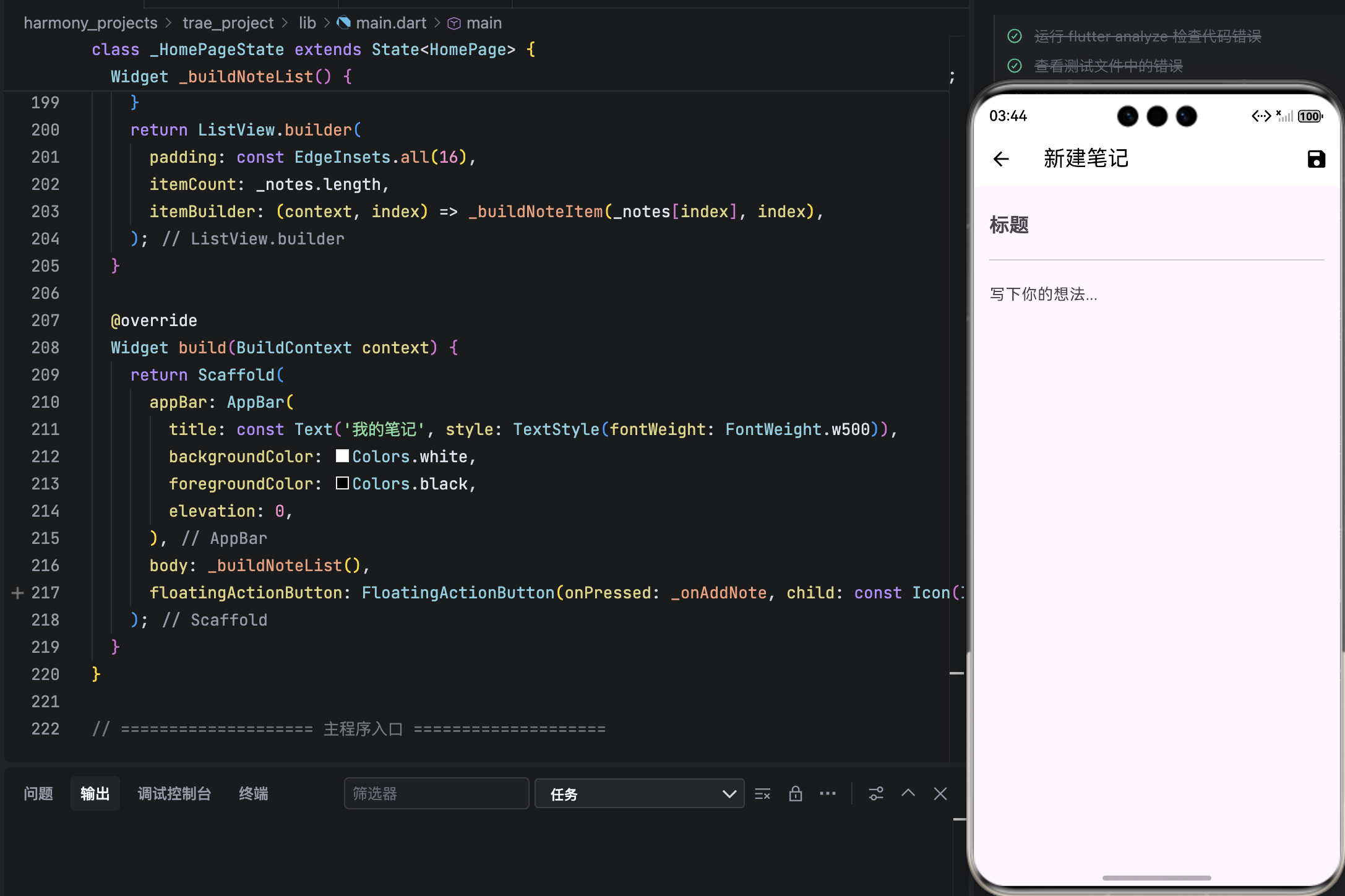
运行界面
结语
本文成功构建了一个 零依赖、纯内存、全功能 CRUD 的鸿蒙风格记事本。通过 StatefulWidget 管理状态、Dismissible 实现滑动删除、Navigator 完成页面跳转,我们验证了 Flutter 在 OpenHarmony 平台上构建简洁高效应用的能力。
此内存版虽不具备持久化能力,却是后续进阶的完美起点。在下一篇中,我们将引入 Drift(Moor),将数据安全存储至设备本地,实现真正的"永不丢失"。