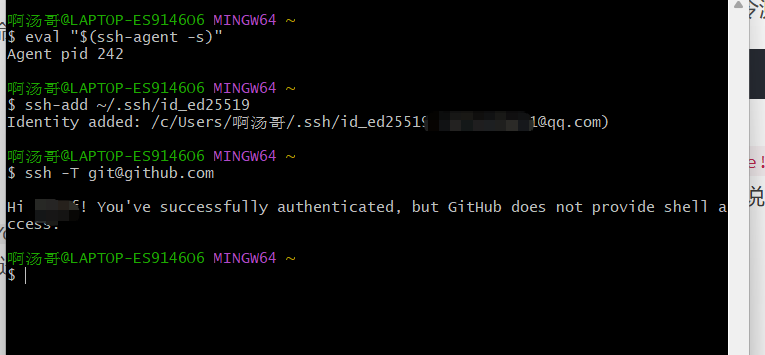
报错结果如下
bash
git@github.com: Permission denied (publickey).
fatal: Could not read from remote repository.
Please make sure you have the correct access rights
and the repository exists.
适用场景 :在 Git Bash 中执行 git push / git pull / git clone 时提示权限被拒绝。 核心原理:配置 SSH 密钥,让 GitHub 认识你的电脑。
步骤 1️⃣:检查本地是否已有 SSH 密钥
在 PowerShell中执行以下命令,查看是否已经生成过密钥:
bash
ls -al ~/.ssh- 如果有文件 :看到
id_rsa和id_rsa.pub(或id_ed25519等),说明密钥已存在,请跳过步骤 2,直接去步骤 3 复制公钥。 - 如果没有文件:提示"No such file or directory",请继续步骤 2 生成新的密钥。
步骤 2️⃣:生成新的 SSH 密钥
如果检查后发现没有密钥,运行以下命令生成(请将邮箱替换为你自己的 GitHub 邮箱):
bash
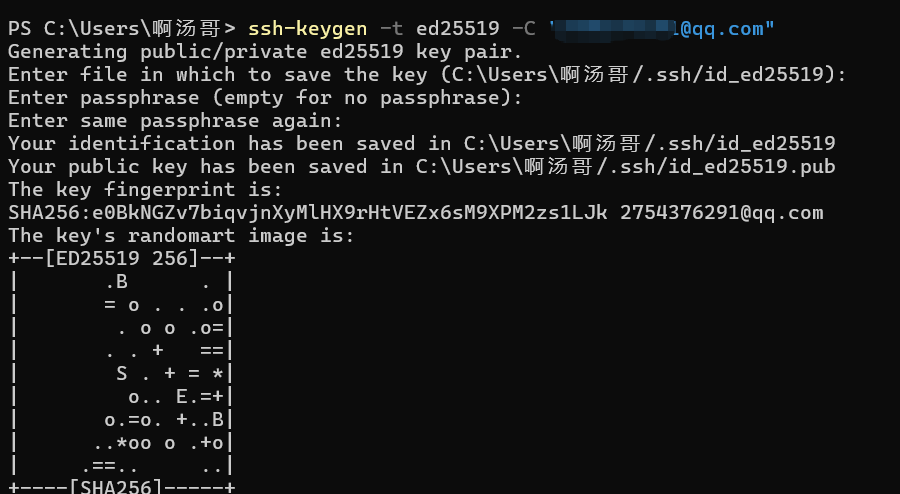
ssh-keygen -t ed25519 -C "xxx@qq.com"- 操作提示
- 出现
Enter file in which to save the key:直接按 回车 使用默认路径。 - 出现
Enter passphrase:建议直接回车留空(为了方便免密操作);如果设置了密码,以后每次操作 Git 都会要求输入这个密码。
- 出现
步骤 3️⃣:将公钥复制到剪贴板
我们需要把公钥(.pub 文件)的内容发给 GitHub。
-
在 Git Bash 中查看公钥内容:
bashcat ~/.ssh/id_ed25519.pub(如果是 RSA 密钥,请输入
cat ~/.ssh/id_rsa.pub) -
复制 输出的全部内容(从
ssh-ed25519开始,一直到你的邮箱地址结束)。

步骤 4️⃣:在 GitHub 上添加 SSH Key
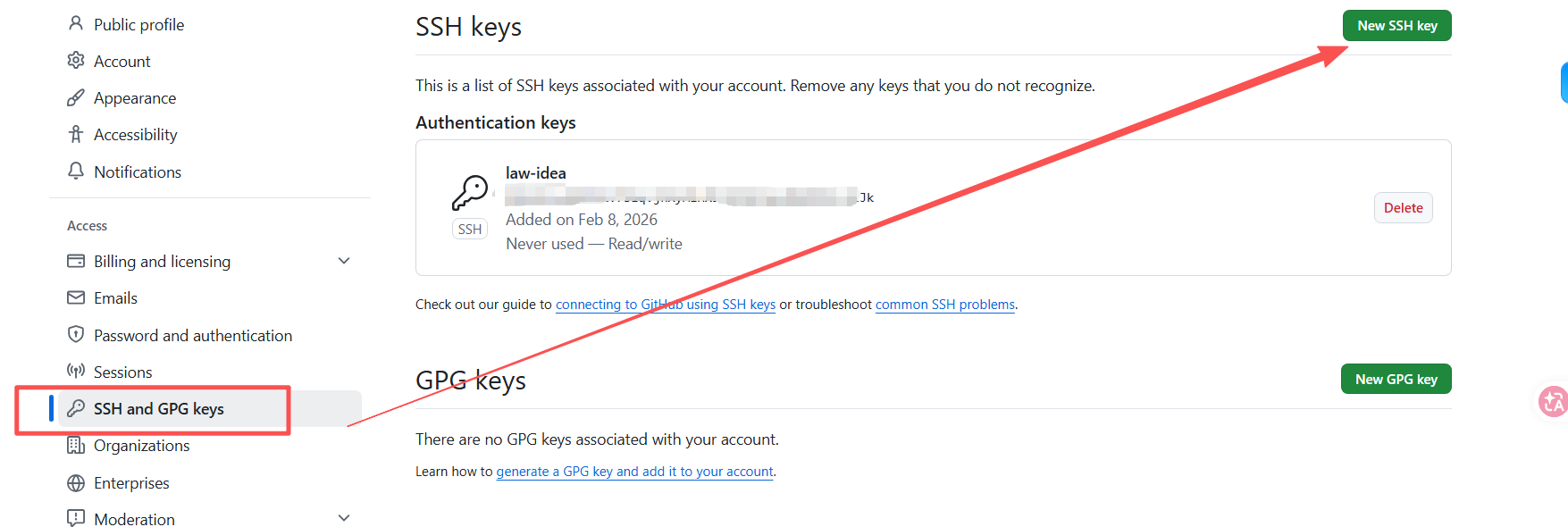
- 登录 GitHub,点击右上角头像 -> Settings。
- 点击左侧菜单的 SSH and GPG keys。
- 点击 New SSH key 按钮。
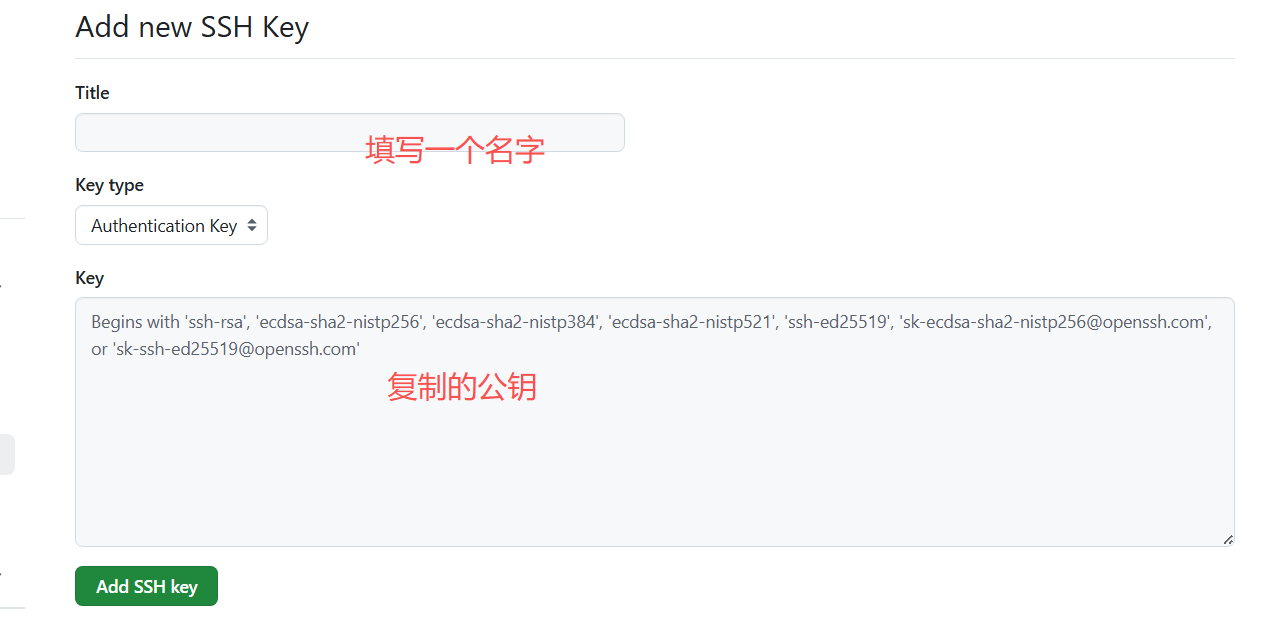
- Title 填写一个名字(例如:My Windows PC)。
- Key 粘贴刚才复制的公钥内容。
- 点击 Add SSH key 保存。
步骤 5️⃣:启动 SSH Agent 并添加私钥
这一步是让 Git Bash 认识刚才生成的密钥。
-
启动 Agent
(在 Git Bash 中执行):
basheval "$(ssh-agent -s)" -
添加私钥
bashssh-add ~/.ssh/id_ed25519(如果是 RSA 密钥,请输入
ssh-add ~/.ssh/id_rsa)- 如果提示
Identity added,说明成功了。
- 如果提示
✅ 最终验证
在 Git Bash 中输入以下命令测试连接:
bash
ssh -T git@github.com- 如果看到
Hi username! You've successfully authenticated...,说明配置成功!现在你可以正常进行代码推送了。