前言
在开发时间管理类应用时,时间选择器是一个非常常见的功能。本文将通过近期接触的一个实际案例,详细讲解如何在 HarmonyOS 应用中实现一个自定义的时间选择器。我们这个案例中的选择器支持半小时为单位的时间选择,适合用于记录时间块等场景。
本教程适合 HarmonyOS 初学者阅读,你将学习到:
- 如何创建自定义对话框(CustomDialog)
- 如何使用 TextPicker 组件
- 如何管理对话框的状态
- 如何在父组件中调用对话框并获取返回值
应用场景
在本应用中,用户需要记录已经完成的时间块。当用户点击"记录时间"按钮时,会弹出一个对话框,让用户选择开始时间和结束时间。
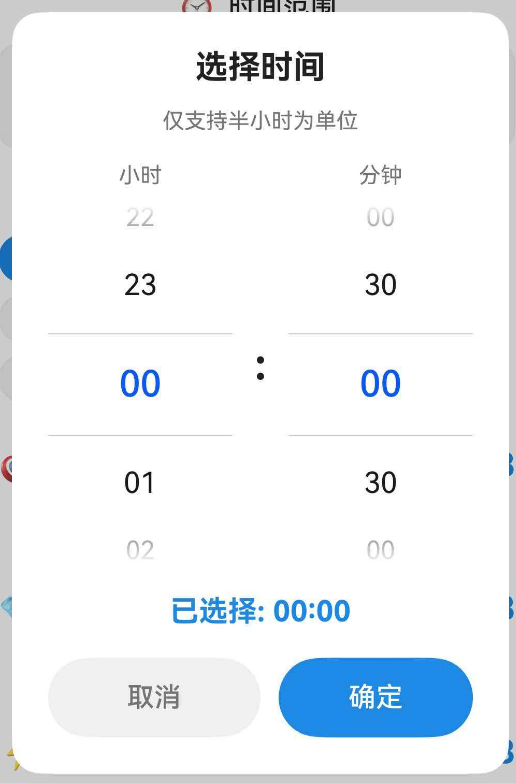
注:时间选择器支持小时和分钟的独立选择,分钟只能选择 00 或 30
核心知识点
1. CustomDialog 自定义对话框
在 HarmonyOS 中,@CustomDialog 装饰器用于创建自定义对话框。与系统提供的标准对话框不同,自定义对话框可以完全控制布局和交互逻辑。
typescript
@CustomDialog
struct TimePickerDialogContent {
  controller: CustomDialogController  // 对话框控制器
  // ... 其他属性和方法
}
2. CustomDialogController 对话框控制器
CustomDialogController 用于控制对话框的显示和关闭。在父组件中创建控制器实例,然后调用 open() 方法显示对话框。
typescript
private timePickerController: CustomDialogController | null = null

// 创建并打开对话框
this.timePickerController = new CustomDialogController({
  builder: TimePickerDialogContent({ /* 参数 */ }),
  autoCancel: true,
  alignment: DialogAlignment.Center
})
this.timePickerController.open()- builder:自定义弹窗内容构造器。
- autoCancel:是否允许点击遮障层退出,true表示关闭弹窗。false表示不关闭弹窗。
- alignment:弹窗在竖直方向上的对齐方式。
3. @State 状态管理
@State 装饰器用于声明组件的状态变量。当状态变量的值发生变化时,UI 会自动更新。
typescript
@State tempHour: number = 0      // 临时存储选中的小时
@State tempMinute: number = 0    // 临时存储选中的分钟
完整实现
第一步:定义对话框结构
首先,我们创建一个自定义对话框组件,定义它需要的属性:
typescript
@CustomDialog
struct TimePickerDialogContent {
  controller: CustomDialogController           // 对话框控制器(必需)
  selectedTime: Date = new Date()              // 当前选中的时间
  onConfirm: (hour: number, minute: number) => void = () => {}  // 确认回调

  @State tempHour: number = 0                  // 临时小时值
  @State tempMinute: number = 0                // 临时分钟值

  // 小时选项(0-23)
  private hours: string[] = [
    '00', '01', '02', '03', '04', '05', '06', '07', '08', '09', '10', '11',
    '12', '13', '14', '15', '16', '17', '18', '19', '20', '21', '22', '23'
  ]

  // 分钟选项(只有 00 和 30)
  private minutes: string[] = ['00', '30']

  // ... 后续代码
}
代码说明:
controller:对话框控制器,用于关闭对话框selectedTime:父组件传入的初始时间onConfirm:确认按钮的回调函数,将选中的时间传回父组件tempHour和tempMinute:使用@State装饰,当用户滑动选择器时,这些值会实时更新hours和minutes:提供给 TextPicker 的选项数组
第二步:初始化时间值
在对话框显示之前,我们需要将传入的 selectedTime 转换为小时和分钟,并调整到最近的半小时:
typescript
aboutToAppear(): void {
  // 获取小时(0-23)
  this.tempHour = this.selectedTime.getHours()

  // 将分钟调整为最近的半小时
  const minutes = this.selectedTime.getMinutes()

  if (minutes < 15) {
    // 0-14分钟 → 向下取整到 00
    this.tempMinute = 0
  } else if (minutes < 45) {
    // 15-44分钟 → 向上取整到 30
    this.tempMinute = 30
  } else {
    // 45-59分钟 → 向上取整到下一个小时的 00
    this.tempHour = (this.tempHour + 1) % 24  // % 24 确保不超过 23
    this.tempMinute = 0
  }
}
代码说明:
aboutToAppear()是组件生命周期方法,在组件即将显示时调用- 我们将任意分钟值调整为 00 或 30,这样用户看到的初始值就是半小时对齐的
- 使用
% 24确保小时值在 0-23 范围内(例如 23 点 50 分会变成 0 点 00 分)
第三步:构建 UI 布局
接下来,我们使用 build() 方法构建对话框的 UI:
typescript
build() {
  Column() {
    // 标题
    Text('选择时间')
      .fontSize(18)
      .fontWeight(FontWeight.Bold)
      .fontColor($r('app.color.text_primary'))
      .margin({ bottom: 12 })

    // 提示文字
    Text('仅支持半小时为单位')
      .fontSize(12)
      .fontColor($r('app.color.text_secondary'))
      .margin({ bottom: 16 })

    // 时间选择器区域
    Row() {
      // 小时选择器
      Column() {
        Text('小时')
          .fontSize(12)
          .fontColor($r('app.color.text_secondary'))
          .margin({ bottom: 8 })

        TextPicker({
          range: this.hours,           // 选项数组
          selected: this.tempHour      // 默认选中项的索引
        })
          .onChange((value: string | string[], index: number | number[]) => {
            // 当用户滑动选择器时触发
            if (typeof index === 'number') {
              this.tempHour = index  // 更新小时值
            }
          })
      }
      .layoutWeight(1)  // 占据一半宽度

      // 分隔符
      Text(':')
        .fontSize(24)
        .fontWeight(FontWeight.Bold)
        .fontColor($r('app.color.text_primary'))
        .margin({ left: 12, right: 12 })

      // 分钟选择器
      Column() {
        Text('分钟')
          .fontSize(12)
          .fontColor($r('app.color.text_secondary'))
          .margin({ bottom: 8 })

        TextPicker({
          range: this.minutes,
          selected: this.tempMinute === 0 ? 0 : 1  // 0分钟→索引0,30分钟→索引1
        })
          .onChange((value: string | string[], index: number | number[]) => {
            if (typeof index === 'number') {
              // 将索引转换为实际分钟值
              this.tempMinute = index === 0 ? 0 : 30
            }
          })
      }
      .layoutWeight(1)
    }
    .width('100%')
    .margin({ bottom: 16 })

    // 显示当前选中的时间
    Text(`已选择: ${this.tempHour.toString().padStart(2, '0')}:${this.tempMinute.toString().padStart(2, '0')}`)
      .fontSize(16)
      .fontWeight(FontWeight.Bold)
      .fontColor($r('app.color.primary_color'))
      .margin({ bottom: 16 })

    // 按钮区域
    Row() {
      // 取消按钮
      Button('取消')
        .fontSize(15)
        .fontColor($r('app.color.text_secondary'))
        .backgroundColor($r('app.color.input_background'))
        .borderRadius(22)
        .layoutWeight(1)
        .height(44)
        .onClick(() => {
          this.controller.close()  // 关闭对话框,不返回任何值
        })

      // 确定按钮
      Button('确定')
        .fontSize(15)
        .fontColor(Color.White)
        .backgroundColor($r('app.color.primary_color'))
        .borderRadius(22)
        .layoutWeight(1)
        .height(44)
        .margin({ left: 10 })
        .onClick(() => {
          // 调用回调函数,将选中的时间传回父组件
          this.onConfirm(this.tempHour, this.tempMinute)
          this.controller.close()  // 关闭对话框
        })
    }
    .width('100%')
  }
  .width('75%')                                      // 对话框宽度为屏幕的 75%
  .padding(20)
  .backgroundColor($r('app.color.card_background'))  // 使用主题颜色
  .borderRadius(16)                                  // 圆角
}
代码说明:
-
TextPicker 组件:
range:选项数组,可以是字符串数组selected:默认选中项的索引(从 0 开始)onChange:当用户滑动选择器时触发,参数index是选中项的索引
-
layoutWeight 属性:
- 用于在 Row 或 Column 中分配剩余空间
- 两个 Column 都设置为 1,表示平分宽度
-
padStart() 方法:
- 用于在字符串前面补零,例如
'5'.padStart(2, '0')返回'05' - 确保时间显示为两位数格式
- 用于在字符串前面补零,例如
第四步:在父组件中使用
现在,我们在父组件中创建并打开这个时间选择器:
typescript
@Component
export struct AddTimeBlockDialog {
  @State startTime: Date = new Date()  // 开始时间
  @State endTime: Date = new Date()    // 结束时间

  private startTimePickerController: CustomDialogController | null = null

  // 格式化时间显示(例如:14:30)
  private formatTime(date: Date): string {
    const hours = date.getHours().toString().padStart(2, '0')
    const minutes = date.getMinutes().toString().padStart(2, '0')
    return `${hours}:${minutes}`
  }

  // 打开开始时间选择器
  private openStartTimePicker(): void {
    this.startTimePickerController = new CustomDialogController({
      builder: TimePickerDialogContent({
        selectedTime: this.startTime,  // 传入当前时间
        onConfirm: (hour: number, minute: number) => {
          // 用户点击确定后,更新开始时间
          const newTime = new Date(this.startTime)
          newTime.setHours(hour)
          newTime.setMinutes(minute)
          newTime.setSeconds(0)
          newTime.setMilliseconds(0)
          this.startTime = newTime  // 更新状态,UI 会自动刷新
        }
      }),
      autoCancel: true,                    // 点击对话框外部自动关闭
      alignment: DialogAlignment.Center,   // 居中显示
      customStyle: true                    // 使用自定义样式
    })
    this.startTimePickerController.open()  // 显示对话框
  }

  build() {
    Column() {
      // 开始时间按钮
      Button() {
        Column() {
          Text('开始')
            .fontSize(11)
            .fontColor($r('app.color.text_secondary'))
          Text(this.formatTime(this.startTime))
            .fontSize(16)
            .fontWeight(FontWeight.Medium)
            .fontColor($r('app.color.text_primary'))
            .margin({ top: 2 })
        }
      }
      .backgroundColor($r('app.color.input_background'))
      .borderRadius(10)
      .padding(12)
      .onClick(() => {
        this.openStartTimePicker()  // 点击按钮打开选择器
      })
    }
  }
}
代码说明:
-
CustomDialogController 配置:
builder:指定对话框的内容组件autoCancel:是否允许点击外部关闭alignment:对话框在屏幕上的位置customStyle:是否使用自定义样式(如果为 false,会使用系统默认样式)
-
回调函数:
onConfirm是一个箭头函数,当用户点击确定时被调用- 我们在回调中更新
startTime状态,UI 会自动刷新显示新时间
-
Date 对象操作:
- 创建新的 Date 对象:
new Date(this.startTime) - 设置小时和分钟:
setHours()和setMinutes() - 清零秒和毫秒:确保时间精确到分钟
- 创建新的 Date 对象:
关键技术点详解
1. 为什么使用 CustomDialog 而不是系统对话框?
HarmonyOS 提供了 TimePickerDialog 系统对话框,但它不支持限制分钟选择(例如只能选择 00 或 30)。通过自定义对话框,我们可以:
- 完全控制 UI 样式
- 自定义选择范围
- 添加额外的提示信息
- 实现特殊的业务逻辑
2. 为什么需要 tempHour 和 tempMinute?
我们不能直接修改 selectedTime,因为:
- 用户可能会点击"取消"按钮,此时不应该修改原始时间
- 只有当用户点击"确定"时,才通过回调函数将新时间传回父组件
- 这种设计模式称为"临时状态",确保用户操作的可撤销性
3. 如何实现半小时对齐?
在 aboutToAppear() 中,我们使用了一个简单的算法:
- 0-14 分钟 → 00 分钟(向下取整)
- 15-44 分钟 → 30 分钟(向上取整)
- 45-59 分钟 → 下一个小时的 00 分钟(向上取整)
这样可以确保用户看到的初始值总是半小时对齐的,提供更好的用户体验。
扩展功能
1. 添加快捷时间按钮
你可以在对话框中添加一些快捷按钮,例如"当前时间"、"整点"等:
typescript
Row() {
  Button('当前时间')
    .onClick(() => {
      const now = new Date()
      this.tempHour = now.getHours()
      this.tempMinute = now.getMinutes() < 30 ? 0 : 30
    })

  Button('整点')
    .onClick(() => {
      this.tempMinute = 0
    })
}
2. 限制时间范围
如果你需要限制用户只能选择某个时间范围(例如今天之内),可以在 onConfirm 回调中添加验证:
typescript
onConfirm: (hour: number, minute: number) => {
  const newTime = new Date(this.startTime)
  newTime.setHours(hour)
  newTime.setMinutes(minute)

  // 检查是否超过当前时间
  const now = new Date()
  if (newTime > now) {
    // 显示错误提示
    promptAction.showToast({
      message: '不能选择未来的时间',
      duration: 2000
    })
    return
  }

  this.startTime = newTime
}
3. 支持更细粒度的时间选择
如果需要支持 15 分钟为单位,只需修改 minutes 数组:
typescript
private minutes: string[] = ['00', '15', '30', '45']然后在 onChange 中相应调整:
typescript
onChange((value: string | string[], index: number | number[]) => {
  if (typeof index === 'number') {
    this.tempMinute = index * 15  // 0→0, 1→15, 2→30, 3→45
  }
})
常见问题
Q1: 为什么对话框没有显示?
检查以下几点:
- 是否调用了
controller.open() - 对话框的宽度和高度是否设置合理
- 是否有其他对话框已经打开(同时只能显示一个对话框)
Q2: 如何修改对话框的背景颜色?
在 build() 方法的最外层 Column 中修改 backgroundColor 属性:
typescript
Column() {
  // ...
}
.backgroundColor('#FFFFFF')  // 使用十六进制颜色
// 或
.backgroundColor($r('app.color.card_background'))  // 使用资源颜色
总结
通过本教程,我们学习了如何在 HarmonyOS 中实现一个自定义时间选择器。核心要点包括:
- 使用
@CustomDialog创建自定义对话框 - 使用
CustomDialogController控制对话框的显示和关闭 - 使用
@State管理对话框内部状态 - 使用
TextPicker组件实现滚动选择 - 通过回调函数将选中的值传回父组件
- 实现半小时对齐的业务逻辑
这个时间选择器可以直接应用到你的项目中,也可以根据需求进行扩展和定制。希望这篇教程对你有所帮助!