文章目录
-
- [一、onAreaChange 核心概念](#一、onAreaChange 核心概念)
-
- [1.1 什么是组件区域(Area)](#1.1 什么是组件区域(Area))
- [1.2 onAreaChange 接口签名](#1.2 onAreaChange 接口签名)
- 二、触发时机与使用限制
-
- [2.1 触发时机](#2.1 触发时机)
- 三、基础用法示例
-
- [3.1 最简监听写法(官方示例同款)](#3.1 最简监听写法(官方示例同款))
- [3.2 获取各字段的正确写法](#3.2 获取各字段的正确写法)
- [3.3 position vs globalPosition 的区别](#3.3 position vs globalPosition 的区别)
- 四、可运行完整示例:双栏对比面板
- 五、代码结构详解
-
- [5.1 State 状态设计](#5.1 State 状态设计)
- [5.2 onAreaChange 回调逻辑](#5.2 onAreaChange 回调逻辑)
- [5.3 @Builder 信息行复用](#5.3 @Builder 信息行复用)
- [六、onAreaChange 与其他事件的对比](#六、onAreaChange 与其他事件的对比)
-
- [6.1 onAreaChange vs onClick 坐标](#6.1 onAreaChange vs onClick 坐标)
- [6.2 onAreaChange vs onVisibleAreaChange](#6.2 onAreaChange vs onVisibleAreaChange)
- 总结
一、onAreaChange 核心概念
1.1 什么是组件区域(Area)
Area 是 ArkUI 中描述组件布局区域的核心接口,包含组件在布局完成后的尺寸 与位置信息,涵盖两套坐标系:
屏幕左上角 (0,0)
    │
    │  globalPosition.x / globalPosition.y
    │  (相对屏幕全局坐标)
    ▼
  ┌──────────────────────────────┐
  │         父容器               │
  │                              │
  │   position.x / position.y   │
  │   (相对父容器坐标)          │
  │    ┌─────────────────┐       │
  │    │   被监听的组件   │       │
  │    │  width × height │       │
  │    └─────────────────┘       │
  └──────────────────────────────┘
1.2 onAreaChange 接口签名
typescript
// API 8+,适用于所有通用组件
onAreaChange(event: (oldValue: Area, newValue: Area) => void): T| 参数 | 类型 | 说明 |
|---|---|---|
oldValue |
Area |
区域变化前的布局信息 |
newValue |
Area |
区域变化后的布局信息(当前最新值) |
| 返回值 | 组件实例 T |
支持链式调用 |
二、触发时机与使用限制
2.1 触发时机
组件首次挂载渲染完成
        ↓
onAreaChange 首次触发(oldValue 通常为 0)

        ......用户交互 / 布局变化......

组件宽高或位置发生变化
        ↓
onAreaChange 再次触发(oldValue = 上次 newValue)
会触发 onAreaChange 的场景:
- 组件首次渲染完成(初始化触发一次,oldValue 各字段为 0)
- 内容变化导致组件尺寸变化(如 Text 追加内容后宽高改变)
- 父容器尺寸变化导致子组件位置/尺寸联动变化
- 条件渲染切换后组件重新挂载
- 屏幕旋转 或窗口大小变化
三、基础用法示例
3.1 最简监听写法(官方示例同款)
与官方示例保持一致的最简写法,点击 Text 追加内容触发宽高变化:
typescript
@Entry
@Component
struct AreaBasicDemo {
  @State value: string = 'Text'
  @State sizeValue: string = ''

  build() {
    Column() {
      Text(this.value)
        .backgroundColor(Color.Green)
        .margin(30)
        .fontSize(20)
        .onClick(() => {
          this.value = this.value + 'Text'
        })
        .onAreaChange((oldValue: Area, newValue: Area) => {
          console.info(
            `Ace: on area change, oldValue is ${JSON.stringify(oldValue)} value is ${JSON.stringify(newValue)}`
          )
          this.sizeValue = JSON.stringify(newValue)
        })
      Text('new area is: \n' + this.sizeValue).margin({ right: 30, left: 30 })
    }
    .width('100%').height('100%').margin({ top: 30 })
  }
}
控制台输出示例:
Ace: on area change,
  oldValue is {"width":0,"height":0,"position":{"x":0,"y":0},"globalPosition":{"x":0,"y":0}}
  value is    {"width":56.7,"height":27.3,"position":{"x":30,"y":30},"globalPosition":{"x":30,"y":30}}
首次触发时 oldValue 全为 0,这是组件从未布局到完成首次布局的必然结果,属于正常现象。
3.2 获取各字段的正确写法
由于 Area 字段类型为 Length,读取数值时需先用 Number() 转换:
typescript
.onAreaChange((oldValue: Area, newValue: Area) => {
  // ✅ 正确:Number() 转换后再调用 number 方法
  const w = Number(newValue.width).toFixed(1)
  const h = Number(newValue.height).toFixed(1)
  const px = Number(newValue.position?.x ?? 0).toFixed(1)
  const py = Number(newValue.position?.y ?? 0).toFixed(1)
  const gx = Number(newValue.globalPosition?.x ?? 0).toFixed(1)
  const gy = Number(newValue.globalPosition?.y ?? 0).toFixed(1)

  // ❌ 错误:直接调用 .toFixed() 会报 ArkTSCheck 错误
  // const w = newValue.width.toFixed(1)  // Property 'toFixed' does not exist on type 'Length'
})
3.3 position vs globalPosition 的区别
typescript
@Entry
@Component
struct CoordDemo {
  @State posInfo: string = '等待触发...'

  build() {
    Column() {
      // 嵌套容器,用于体现 position 与 globalPosition 的差异
      Column() {
        Text('观察坐标差异')
          .backgroundColor('#B3E5FC')
          .padding(14)
          .fontSize(16)
          .onAreaChange((_old: Area, newValue: Area) => {
            const posX    = Number(newValue.position?.x ?? 0).toFixed(0)
            const posY    = Number(newValue.position?.y ?? 0).toFixed(0)
            const globalX = Number(newValue.globalPosition?.x ?? 0).toFixed(0)
            const globalY = Number(newValue.globalPosition?.y ?? 0).toFixed(0)
            this.posInfo =
              `position(相对父容器): (${posX}, ${posY})\n` +
              `globalPosition(相对屏幕): (${globalX}, ${globalY})`
          })
      }
      .padding(40)       // 父容器 padding 会使 position 与 globalPosition 产生差值
      .backgroundColor('#E1F5FE')

      Text(this.posInfo).fontSize(13).margin(20).fontColor('#37474F')
    }
    .width('100%').height('100%').margin({ top: 30 })
  }
}| 坐标系 | 参考原点 | 典型用途 |
|---|---|---|
position |
父容器左上角 | 组件在父容器内的相对定位、内部布局计算 |
globalPosition |
屏幕左上角 | 浮层/Popup 定位、跨组件坐标换算、触摸区域判断 |
四、可运行完整示例:双栏对比面板
以下是结合官方示例精心设计的完整可运行演示页面 ,与 index.ets 代码结构保持一致,包含:
- 点击追加内容触发宽高变化的被监听 Text 组件
- 左右双栏对比展示变化前(
oldValue)和变化后(newValue)的 6 个字段 - 点击次数与区域变化次数的实时统计
position/globalPosition双坐标系说明卡片- 完整 JSON 日志输出到控制台
typescript
@Entry
@Component
struct AreaExample {
  @State value: string = 'Text'
  @State clickCount: number = 0
  @State changeCount: number = 0

  // 旧区域信息各字段
  @State oldWidth: string = '-'
  @State oldHeight: string = '-'
  @State oldPosX: string = '-'
  @State oldPosY: string = '-'
  @State oldGlobalX: string = '-'
  @State oldGlobalY: string = '-'

  // 新区域信息各字段
  @State newWidth: string = '-'
  @State newHeight: string = '-'
  @State newPosX: string = '-'
  @State newPosY: string = '-'
  @State newGlobalX: string = '-'
  @State newGlobalY: string = '-'

  build() {
    Column({ space: 16 }) {

      // ── 标题 ──────────────────────────────────────────
      Text('onAreaChange 区域变化事件')
        .fontSize(22)
        .fontWeight(FontWeight.Bold)
        .margin({ top: 24, bottom: 8 })

      // ── 被监听的文本组件 ──────────────────────────────
      Text(this.value)
        .backgroundColor(Color.Green)
        .fontColor(Color.White)
        .borderRadius(8)
        .padding(12)
        .fontSize(20)
        .onClick(() => {
          this.clickCount++
          this.value = this.value + ' Text'
        })
        .onAreaChange((oldValue: Area, newValue: Area) => {
          this.changeCount++

          // 旧区域(Area.width/height 类型为 Length,需先转 number)
          this.oldWidth   = Number(oldValue.width).toFixed(1)
          this.oldHeight  = Number(oldValue.height).toFixed(1)
          this.oldPosX    = Number(oldValue.position?.x ?? 0).toFixed(1)
          this.oldPosY    = Number(oldValue.position?.y ?? 0).toFixed(1)
          this.oldGlobalX = Number(oldValue.globalPosition?.x ?? 0).toFixed(1)
          this.oldGlobalY = Number(oldValue.globalPosition?.y ?? 0).toFixed(1)

          // 新区域
          this.newWidth   = Number(newValue.width).toFixed(1)
          this.newHeight  = Number(newValue.height).toFixed(1)
          this.newPosX    = Number(newValue.position?.x ?? 0).toFixed(1)
          this.newPosY    = Number(newValue.position?.y ?? 0).toFixed(1)
          this.newGlobalX = Number(newValue.globalPosition?.x ?? 0).toFixed(1)
          this.newGlobalY = Number(newValue.globalPosition?.y ?? 0).toFixed(1)

          console.info(
            `[onAreaChange #${this.changeCount}] ` +
            `old=${JSON.stringify(oldValue)} new=${JSON.stringify(newValue)}`
          )
        })

      // ── 操作提示 ──────────────────────────────────────
      Text(`点击次数:${this.clickCount}  区域变化次数:${this.changeCount}`)
        .fontSize(13)
        .fontColor('#888888')

      // ── 区域信息对比面板 ───────────────────────────────
      Row({ space: 12 }) {
        // 旧区域
        Column({ space: 6 }) {
          Text('变化前(oldValue)')
            .fontSize(14).fontWeight(FontWeight.Bold).fontColor('#e74c3c')
          this.AreaInfoItem('宽度 width',    this.oldWidth,   'vp')
          this.AreaInfoItem('高度 height',   this.oldHeight,  'vp')
          this.AreaInfoItem('position.x',   this.oldPosX,    'vp')
          this.AreaInfoItem('position.y',   this.oldPosY,    'vp')
          this.AreaInfoItem('globalPos.x',  this.oldGlobalX, 'vp')
          this.AreaInfoItem('globalPos.y',  this.oldGlobalY, 'vp')
        }
        .layoutWeight(1)
        .padding(12)
        .backgroundColor('#fff5f5')
        .borderRadius(8)

        // 新区域
        Column({ space: 6 }) {
          Text('变化后(newValue)')
            .fontSize(14).fontWeight(FontWeight.Bold).fontColor('#27ae60')
          this.AreaInfoItem('宽度 width',    this.newWidth,   'vp')
          this.AreaInfoItem('高度 height',   this.newHeight,  'vp')
          this.AreaInfoItem('position.x',   this.newPosX,    'vp')
          this.AreaInfoItem('position.y',   this.newPosY,    'vp')
          this.AreaInfoItem('globalPos.x',  this.newGlobalX, 'vp')
          this.AreaInfoItem('globalPos.y',  this.newGlobalY, 'vp')
        }
        .layoutWeight(1)
        .padding(12)
        .backgroundColor('#f0fff4')
        .borderRadius(8)
      }
      .width('100%')
      .padding({ left: 16, right: 16 })

      // ── 使用说明 ───────────────────────────────────────
      Column({ space: 6 }) {
        Text('使用说明').fontSize(14).fontWeight(FontWeight.Bold)
        Text('• 点击绿色文字可追加内容,触发宽高变化')
          .fontSize(13).fontColor('#555555')
        Text('• position 为相对父容器的坐标(vp)')
          .fontSize(13).fontColor('#555555')
        Text('• globalPosition 为相对屏幕左上角的坐标(vp)')
          .fontSize(13).fontColor('#555555')
        Text('• 控制台可查看完整 JSON 日志')
          .fontSize(13).fontColor('#555555')
      }
      .alignItems(HorizontalAlign.Start)
      .width('100%')
      .padding({ left: 16, right: 16, top: 8, bottom: 8 })
      .backgroundColor('#f8f8f8')
      .borderRadius(8)
      .margin({ left: 16, right: 16 })

    }
    .width('100%')
    .height('100%')
    .margin({ top: 8 })
  }

  // ── 信息行构建器 ───────────────────────────────────────
  @Builder
  AreaInfoItem(label: string, value: string, unit: string) {
    Row() {
      Text(label).fontSize(12).fontColor('#666666').layoutWeight(1)
      Text(`${value} ${unit}`).fontSize(12).fontWeight(FontWeight.Medium)
    }
  }
}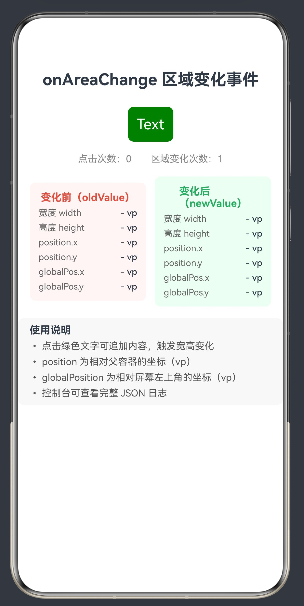
图:运行效果示意------点击绿色文字追加内容,组件宽高变化触发 onAreaChange;左右双栏分别展示 oldValue / newValue 的全部 6 个字段,顶部计数器同步更新
五、代码结构详解
5.1 State 状态设计
示例将 oldValue 与 newValue 的 6 个字段分别拆解为 12 个独立 @State 字符串:
typescript
// 不直接存储 Area 对象,而是拆解为字符串字段,原因:
// 1. Area 不是内置可序列化对象,直接作为 @State 需要 @Observed
// 2. 拆解后每个字段独立响应式,UI 精确刷新对应 Text 组件
// 3. 已通过 Number().toFixed(1) 格式化,UI 层无需二次处理
@State oldWidth: string = '-'
@State oldHeight: string = '-'
@State oldPosX: string = '-'
// ...其余字段类似
5.2 onAreaChange 回调逻辑
typescript
.onAreaChange((oldValue: Area, newValue: Area) => {
  this.changeCount++

  // 关键:Area 字段类型为 Length(string | number 联合类型)
  // 必须通过 Number() 转为 number,才能调用 .toFixed()
  this.oldWidth = Number(oldValue.width).toFixed(1)

  // position 和 globalPosition 使用可选链 ?.,防止字段不存在时报错
  // ?? 0 提供默认值,避免 NaN
  this.oldPosX  = Number(oldValue.position?.x ?? 0).toFixed(1)
  this.oldGlobalX = Number(oldValue.globalPosition?.x ?? 0).toFixed(1)

  // 控制台完整 JSON 日志,便于调试
  console.info(`[onAreaChange #${this.changeCount}] old=${JSON.stringify(oldValue)} new=${JSON.stringify(newValue)}`)
})
5.3 @Builder 信息行复用
typescript
// @Builder 复用信息行,避免 12 行重复的 Row+Text 写法
// label: 字段名(如 "宽度 width")
// value: 当前值(如 "56.7")
// unit:  单位(统一为 "vp")
@Builder
AreaInfoItem(label: string, value: string, unit: string) {
  Row() {
    Text(label).fontSize(12).fontColor('#666666').layoutWeight(1)
    Text(`${value} ${unit}`).fontSize(12).fontWeight(FontWeight.Medium)
  }
}
六、onAreaChange 与其他事件的对比
6.1 onAreaChange vs onClick 坐标
| 对比项 | onAreaChange |
onClick |
|---|---|---|
| 触发时机 | 组件布局变化时 | 用户点击时 |
| 坐标来源 | 组件自身的布局坐标 | 触摸点的位置坐标 |
position |
相对父容器的组件位置 | 相对组件的触摸位置 |
globalPosition |
相对屏幕的组件位置 | 相对窗口的触摸位置 |
| 典型用途 | 响应式布局、浮层对齐 | 用户交互响应 |
6.2 onAreaChange vs onVisibleAreaChange
| 对比项 | onAreaChange |
onVisibleAreaChange |
|---|---|---|
| 监听内容 | 组件布局区域(宽高+坐标) | 组件可见比例(0.0~1.0) |
| 触发条件 | 尺寸或位置变化 | 进入/离开视口 |
| 典型用途 | 响应式尺寸适配、坐标获取 | 懒加载、曝光埋点 |
总结
onAreaChange提供变化前后双快照 :oldValue与newValue同时传入回调,可直接计算尺寸/位置的变化增量,无需手动缓存上一次的值- Area 接口含两套坐标系 :
position(相对父容器)适合内部布局计算,globalPosition(相对屏幕)适合浮层/Popup 精确定位 Length类型是常见陷阱 :Area的所有字段均为string | number联合类型,调用数值方法前必须用Number()转换,可选链?.+?? 0防止运行时崩溃- 首次触发 oldValue 全为 0 :初始布局完成时必定触发一次,
oldValue各字段为 0 属于正常现象,业务代码中需按需过滤 - 高频场景注意限流 :内容频繁变化时
onAreaChange触发频率较高,建议加时间戳节流,避免不必要的计算开销
如果这篇文章对你有帮助,欢迎点赞👍、收藏⭐、关注🔔,你的支持是我持续创作的动力!