本文译自「BoxWithConstraints in Jetpack Compose: The Complete Deep Dive」,原文链接proandroiddev.com/boxwithcons...,由Sehaj kahlon发布于2026年2月15日。
关键点:这个组件存在的意义是什么?
让我来描述一下你可能经历过的场景。
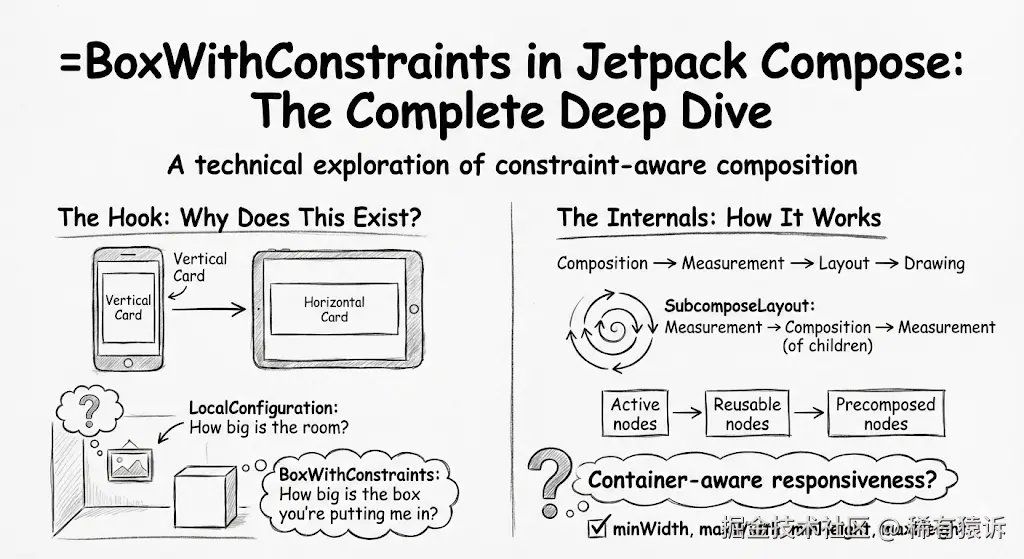
你正在构建一个卡片组件。在手机上,它应该垂直堆叠:图片在上,文字在下。在平板电脑上,它应该水平拉伸:图片在左,文字在右。需求很简单,对吧?
你的第一反应可能是:
kotlin
@Composable
fun AdaptiveCard() {
    val configuration = LocalConfiguration.current
    if (configuration.screenWidthDp < 600) {
        VerticalCard()
    } else {
        HorizontalCard()
    }
}
这种方法存在缺陷。 原因如下。
LocalConfiguration.current.screenWidthDp 返回的是屏幕宽度。但如果你的卡片位于 NavigationRail 中呢?或者在分屏应用中?或者在 ChromeOS 的可调整大小的窗口中呢?你的卡片并不关心屏幕大小------它只关心实际分配给它的空间。
这就是 BoxWithConstraints 解决的根本问题:它告诉你父元素分配给你的空间大小,而不是屏幕大小。
可以这样理解:
-
LocalConfiguration= "房间有多大?" -
BoxWithConstraints= "你把我放在的盒子有多大?"
相框并不关心你的房子有多大。它只关心分配给它的墙面空间。
内部机制:底层工作原理
Compose 执行模型(以及 BoxWithConstraints 为何会破坏它)
要理解 BoxWithConstraints,你必须首先了解 Compose 的执行流程:
bash
Composition → Measurement → Layout → Drawing在标准的 Compose 代码中:
-
组合 :你声明 UI 树(
Column { Text("Hello") }) -
测量:系统测量每个节点
-
布局:节点定位
-
绘制:像素绘制到屏幕上
这个顺序不可更改。组合先于测量。你无法测量尚未组合的内容。
但是 BoxWithConstraints 提出了一个不寻常的问题:"我能否在决定组合内容之前就知道我的约束条件?"
这就像要求厨师在烹饪之前先摆盘一样。
引入子组合:Compose 的延迟组合机制
BoxWithConstraints 通过子组合实现此功能,该机制将组合操作延迟到测量时执行。
以下是实际实现(为清晰起见已简化):
kotlin
@Composable
fun BoxWithConstraints(
    modifier: Modifier = Modifier,
    contentAlignment: Alignment = Alignment.TopStart,
    propagateMinConstraints: Boolean = false,
    content: @Composable BoxWithConstraintsScope.() -> Unit,
) {
    SubcomposeLayout(modifier) { constraints ->
        // We're NOW in the measurement phase, but we can compose!
        val scope = BoxWithConstraintsScopeImpl(this, constraints)
        val measurables = subcompose(Unit) { scope.content() }

        // Standard Box measurement logic follows...
        with(measurePolicy) { measure(measurables, constraints) }
    }
}
关键在于 SubcomposeLayout。它反转了正常的流程:
bash
Normal:

Composition → Measurement
Subcompose: Measurement → Composition (of children) → Measurement (of children)
当父元素请求 BoxWithConstraints 测量自身时,它会:
-
接收约束条件
-
创建一个包含这些约束条件的作用域
-
此时组合子元素
-
测量已组合的子元素
-
返回测量结果
这就是为什么 BoxWithConstraints 被认为是"重量级"的原因。它在测量阶段执行组合操作。
三层节点架构
在内部,SubcomposeLayout 将子节点分为三个不同的区域进行管理:
bash
[Active nodes] [Reusable nodes] [Precomposed nodes]
     ↑

     ↑

     ↑
  Currently

  "Recycled"

  Pre-composed
    used

    for reuse

ahead of time活动节点:当前测量阶段正在使用的插槽。
可重用节点:之前已激活但仍保留的插槽(类似于 RecyclerView 的可回收视图)。当需要类似内容时,这些插槽会被"重新激活",而不是创建新的组合。
预组合节点 :通过 precompose() 预先组合的插槽(惰性列表内部使用此功能在即将显示的项目可见之前进行组合)。
正是这种架构使得 LazyColumn 能够流畅滚动。它不会创建和销毁组合,而是在这三个节点池之间进行节点的轮换。
约束:深入解析
在 BoxWithConstraintsScope 中,你可以访问四个属性:
kotlin
interface BoxWithConstraintsScope : BoxScope {
    val minWidth: Dp
    val maxWidth: Dp
    val minHeight: Dp
    val maxHeight: Dp
    val constraints: Constraints  // The raw pixel-based constraints
}
这些属性的实际含义是什么?
**maxWidth** / **maxHeight**:父元素提供的最大空间。如果为 Dp.Infinity,则表示父元素允许你"随意使用"(通常来自可滚动容器)。
**minWidth** / **minHeight**:父元素期望的最小高度。通常为 0.dp,但如果父元素使用了 propagateMinConstraints = true 或你使用的是基于 weight 的布局,则该值可能不为零。
屏幕尺寸陷阱
kotlin
BoxWithConstraints {
    // These are NOT the screen dimensions!
    val width = maxWidth   // Space YOUR PARENT gave YOU
    val height = maxHeight // Space YOUR PARENT gave YOU
}
考虑以下层级结构:
kotlin
Row(Modifier.fillMaxSize()) {
    NavigationRail { /* 80.dp wide */ }
    BoxWithConstraints(Modifier.weight(1f)) {
        // maxWidth here is (screenWidth - 80.dp)
        // NOT screenWidth!
    }
}
这正是 BoxWithConstraints 存在的意义。LocalConfiguration 会给出错误的答案。
有界约束与无界约束
这里有一个容易引起混淆的细微差别:
kotlin
LazyColumn {
    item {
        BoxWithConstraints {
            // maxHeight == Dp.Infinity !!!
            // Because LazyColumn offers infinite vertical space
        }

        }
maxHeight 的值为 Infinity,因为 LazyColumn 不会限制其子元素的高度,它会滚动。这是预期行为,但这意味着你不能在可滚动容器内使用 maxHeight 来进行响应式布局。
实际用例
用例 1:响应式卡片布局
此卡片会根据可用空间(而非屏幕方向)在垂直和水平布局之间切换:
kotlin
@Composable
fun ResponsiveProductCard(
    imageUrl: String,
    title: String,
    description: String,
    modifier: Modifier = Modifier
) {
    BoxWithConstraints(modifier = modifier) {
        val isWide = maxWidth > 400.dp

        if (isWide) {
            // Horizontal layout: image left, text right
            Row(
                modifier = Modifier.fillMaxWidth(),
                horizontalArrangement = Arrangement.spacedBy(16.dp)
            ) {
                AsyncImage(
                    model = imageUrl,
                    contentDescription = null,
                    modifier = Modifier
                        .weight(0.4f)
                        .aspectRatio(1f)
                )
                Column(
                    modifier = Modifier.weight(0.6f),
                    verticalArrangement = Arrangement.Center
                ) {
                    Text(title, style = MaterialTheme.typography.headlineSmall)
                    Spacer(Modifier.height(8.dp))
                    Text(description, style = MaterialTheme.typography.bodyMedium)
                }
            }
        } else {
            // Vertical layout: image top, text bottom
            Column {
                AsyncImage(
                    model = imageUrl,
                    contentDescription = null,
                    modifier = Modifier
                        .fillMaxWidth()
                        .aspectRatio(16f / 9f)
                )
                Spacer(Modifier.height(12.dp))
                Text(title, style = MaterialTheme.typography.headlineSmall)
                Spacer(Modifier.height(4.dp))
                Text(description, style = MaterialTheme.typography.bodyMedium)
            }
        }
    }
}为什么这比检查屏幕尺寸更好:将此卡片放入双列网格中,即使在平板电脑上,它也会自动显示垂直布局。它真正实现了对_其_容器的响应式布局。
用例 2:动态文本大小
自动调整文本大小以适应可用宽度:
kotlin
@Composable
fun AutoSizeTitle(
    text: String,
    modifier: Modifier = Modifier
) {
    BoxWithConstraints(modifier = modifier) {
        val fontSize = when {
            maxWidth < 200.dp -> 14.sp
            maxWidth < 300.dp -> 18.sp
            maxWidth < 400.dp -> 24.sp
            else -> 32.sp
        }

        Text(
            text = text,
            fontSize = fontSize,
            maxLines = 1,
            overflow = TextOverflow.Ellipsis,
            modifier = Modifier.fillMaxWidth()
        )
    }
}
用例 3:基于宽度的网格项数
动态计算网格列数:
kotlin
@Composable
fun AdaptiveGrid(
    items: List<Item>,
    modifier: Modifier = Modifier
) {
    BoxWithConstraints(modifier = modifier.fillMaxWidth()) {
        val columns = maxOf(1, (maxWidth / 160.dp).toInt())

        LazyVerticalGrid(
            columns = GridCells.Fixed(columns),
            horizontalArrangement = Arrangement.spacedBy(8.dp),
            verticalArrangement = Arrangement.spacedBy(8.dp)
        ) {
            items(items) { item ->
                GridItem(item)
            }
        }
    }
}
性能陷阱和最佳实践
何时不应使用 BoxWithConstraints
1. 当一个简单的修饰符就足够时
kotlin
// ❌ Overkill
BoxWithConstraints {
    Box(Modifier.size(maxWidth * 0.5f, maxHeight * 0.5f))
}
kotlin
// ✅ Just use fillMaxSize with a fraction
Box(Modifier.fillMaxSize(0.5f))
2. 当你只是检查屏幕方向时
kotlin
// ❌ Using BoxWithConstraints for screen-level decisions
BoxWithConstraints {
    if (maxWidth > maxHeight) LandscapeLayout() else PortraitLayout()
}
kotlin
// ✅ Use LocalConfiguration for screen-level decisions
val configuration = LocalConfiguration.current
if (configuration.orientation == Configuration.ORIENTATION_LANDSCAPE) {
    LandscapeLayout()
} else {
    PortraitLayout()
}
3.在 LazyColumn/LazyRow 元素内部
这是一个常见的错误:
kotlin
// ❌ Performance issue
LazyColumn {
    items(1000) { index ->
        BoxWithConstraints {  // Subcomposition per item!
            ItemContent(index)
        }
    }
}
每个元素都会触发子组合。如果元素数量为 1000,则在滚动过程中会重复执行子组合。相反,将 BoxWithConstraints 提升到父级:
kotlin
// ✅ Single subcomposition
BoxWithConstraints {
    val itemHeight = if (maxWidth > 400.dp) 120.dp else 80.dp
    LazyColumn {
        items(1000) { index ->
            ItemContent(index, height = itemHeight)
        }
    }
}
更轻量级的替代方案
基于百分比的尺寸:
kotlin
// Use Modifier.fillMaxWidth(fraction)
Box(Modifier.fillMaxWidth(0.8f))
kotlin
// Use Modifier.weight in Row/Column
Row {
    Box(Modifier.weight(1f))  // 25%
    Box(Modifier.weight(3f))  // 75%
}For aspect ratio:
kotlin
Box(Modifier.aspectRatio(16f / 9f))不使用子组件的自定义尺寸逻辑:
kotlin
// Custom Layout is lighter than SubcomposeLayout
Layout(
    content = { /* your content */ }
) { measurables, constraints ->
    // Full control over measurement without subcomposition cost
    // But you can't make composition decisions here
}
窗口尺寸类(屏幕级响应式):
kotlin
// Material3's adaptive APIs
val windowSizeClass = calculateWindowSizeClass(activity)
when (windowSizeClass.widthSizeClass) {
    WindowWidthSizeClass.Compact -> CompactLayout()
    WindowWidthSizeClass.Medium -> MediumLayout()
    WindowWidthSizeClass.Expanded -> ExpandedLayout()
}
重要陷阱和边界情况
1. 固有尺寸不起作用
这将导致崩溃:
kotlin
Row {
    Text(
        "Hello",
        modifier = Modifier.height(IntrinsicSize.Min)
    )
    BoxWithConstraints {
        // CRASH: "Asking for intrinsic measurements of
        // SubcomposeLayout layouts is not supported"
    }
}
SubcomposeLayout 无法回答"你的固有尺寸是多少?"因为它在接收到实际约束之前无法确定要组合的内容。
解决方法 :为 BoxWithConstraints 添加显式的大小修饰符:
kotlin
BoxWithConstraints(Modifier.height(100.dp)) {
    // Now intrinsic measurement isn't needed
}
2. 首次组合时序
在首次组合时,BoxWithConstraints 还没有约束。子元素会先使用占位符值进行组合,然后再使用实际约束重新组合。这意味着:
-
内部的
LaunchedEffect等效果可能会触发两次 -
基于约束的初始状态计算可能需要保护
最佳实践:保护基于约束的逻辑:
kotlin
BoxWithConstraints {
    if (constraints.hasBoundedWidth) {
        val columns = (maxWidth / 160.dp).toInt()
        // Safe to use
    }
}
3. 通常不需要嵌套 BoxWithConstraints
如果你发现自己需要嵌套它们:
kotlin
BoxWithConstraints {
    BoxWithConstraints {  // Usually unnecessary
        // ...
    }
}
内部的 BoxWithConstraints 具有相同的约束(除非被修改)。只需使用外部作用域即可。
4. 状态提升的重要性(详见此处)
由于测量期间内容会被子组合,因此在 BoxWithConstraints 内部创建的状态具有特殊的生命周期特征:
kotlin
BoxWithConstraints {
    // This state is created during MEASUREMENT, not composition
    var count by remember { mutableStateOf(0) }

    // If parent re-measures without recomposing, this state persists
    // But if the slot is "recycled", it might reset
}
最佳实践 :将重要状态提升到 BoxWithConstraints 之上:
kotlin
var count by remember { mutableStateOf(0) }
kotlin
BoxWithConstraints {
    // count is stable regardless of subcomposition lifecycle
    Text("Count: $count")
}
5. propagateMinConstraints 参数
kotlin
BoxWithConstraints(propagateMinConstraints = true) {
    // Children now MUST be at least minWidth x minHeight
    // This can cause unexpected overflow if children
    // have their own size requirements
}
仅当你明确希望强制子元素具有最小尺寸时才使用此参数。
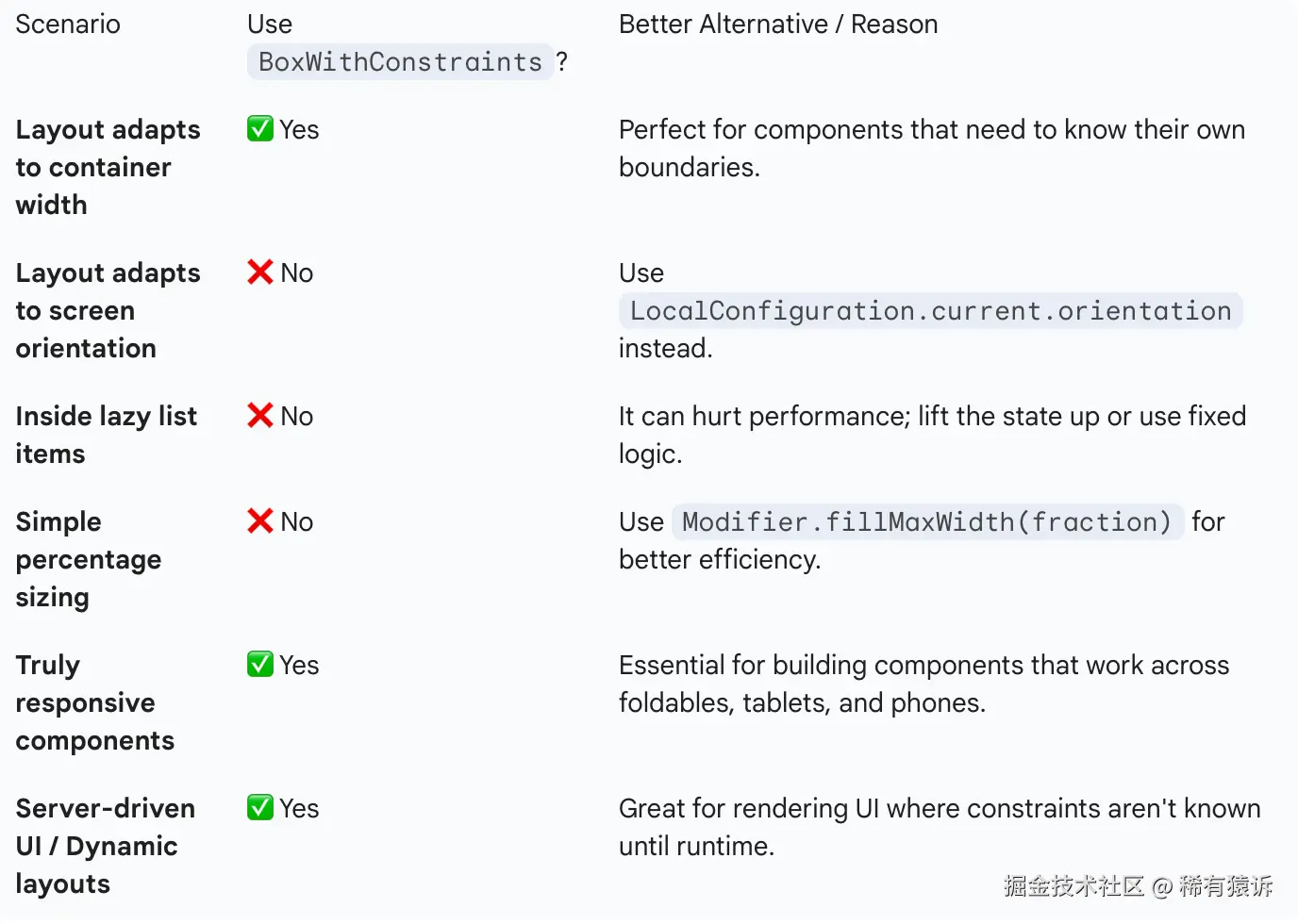
总结:何时使用 BoxWithConstraints
结语
BoxWithConstraints 是一个表面看似简单,但当你理解其底层机制后,会发现它蕴含着丰富的内涵。它不仅仅是一个**"告诉你自身大小的盒子"**,而是一种允许元素组合决策依赖于布局信息的机制。
当你真正需要容器感知响应式布局 时,请使用它。如果更简单的修饰符就能满足需求,则应避免使用它。永远记住:它会带来额外的开销,因为它本质上与常规代码合成不同。
最好的代码并非使用最复杂的 API,而是使用最适合当前任务的 API。
如果这篇深度解析对你有所帮助,请考虑与你的团队分享。知识共享才能促进 Android 社区的发展。
欢迎搜索并关注 公众号「稀有猿诉」 获取更多的优质文章!
保护原创,请勿转载!