【Agent】Ubuntu22.04安装部署Openclaw(养龙虾)图文教程及免费Token攻略
-
-
- 1.安装Ubuntu22.04系统
- 2.配置网络源
- 3.安装ssh服务支持远程部署(可不安装)
- 4.获取api-key
- 5.安装配置Openclaw
- 6.安装过程中的问题解决
-
- [1.解决 Gateway service not installed](#1.解决 Gateway service not installed)
- [2.解决RPC probe: failed(Gateway start blocked: set gateway.mode=local (current: unset) or pass --allow-unconfigured.)](#2.解决RPC probe: failed(Gateway start blocked: set gateway.mode=local (current: unset) or pass --allow-unconfigured.))
- [3.解决unauthorized: gateway token mismatch (open the dashboard URL and paste the token in Control UI settings)](#3.解决unauthorized: gateway token mismatch (open the dashboard URL and paste the token in Control UI settings))
- [7. 配置模型和apikey](#7. 配置模型和apikey)
- 8.打开网页与龙虾交流
- 9.配置skills
- 10.Openclaw实用案例
-
1.安装Ubuntu22.04系统
安装部署Openclaw所需硬件基本配置如下:
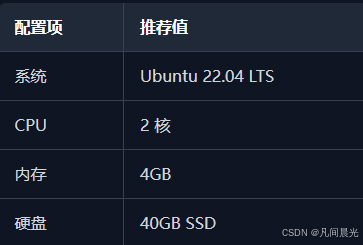
可以参考虚拟机安装Ubuntu22.04系统安装系统。
2.配置网络源
安装好系统后,依次执行以下命令修改网络源:
bash
# 1.备份网络源配置文件
sudo cp /etc/apt/sources.list /etc/apt/sources.list.bak
# 2.修改网络源配置文件
sudo tee /etc/apt/sources.list <<-'EOF'
deb https://mirrors.aliyun.com/ubuntu/ jammy main restricted universe multiverse
deb-src https://mirrors.aliyun.com/ubuntu/ jammy main restricted universe multiverse
deb https://mirrors.aliyun.com/ubuntu/ jammy-security main restricted universe multiverse
deb-src https://mirrors.aliyun.com/ubuntu/ jammy-security main restricted universe multiverse
deb https://mirrors.aliyun.com/ubuntu/ jammy-updates main restricted universe multiverse
deb-src https://mirrors.aliyun.com/ubuntu/ jammy-updates main restricted universe multiverse
deb https://mirrors.aliyun.com/ubuntu/ jammy-backports main restricted universe multiverse
deb-src https://mirrors.aliyun.com/ubuntu/ jammy-backports main restricted universe multiverse
EOF
# 3.导入22.04官方公钥(无弃用警告)
sudo curl -fsSL https://keyserver.ubuntu.com/pks/lookup?op=get&search=0x3B4FE6ACC0B21F32 | sudo gpg --dearmor -o /etc/apt/trusted.gpg.d/ubuntu-official.gpg
# 4.清理缓存并更新
sudo apt clean && sudo apt update
3.安装ssh服务支持远程部署(可不安装)
依次执行以下命令安装ssh服务:
bash
# 1.安装SSH服务(必须装这个才能被其他设备远程连接)
sudo apt install openssh-server -y
# 2.立即启动SSH服务
sudo systemctl start ssh
# 3.设置开机自启(重启电脑也能用)
sudo systemctl enable ssh
# 4.查看SSH状态
sudo systemctl status ssh
4.获取api-key
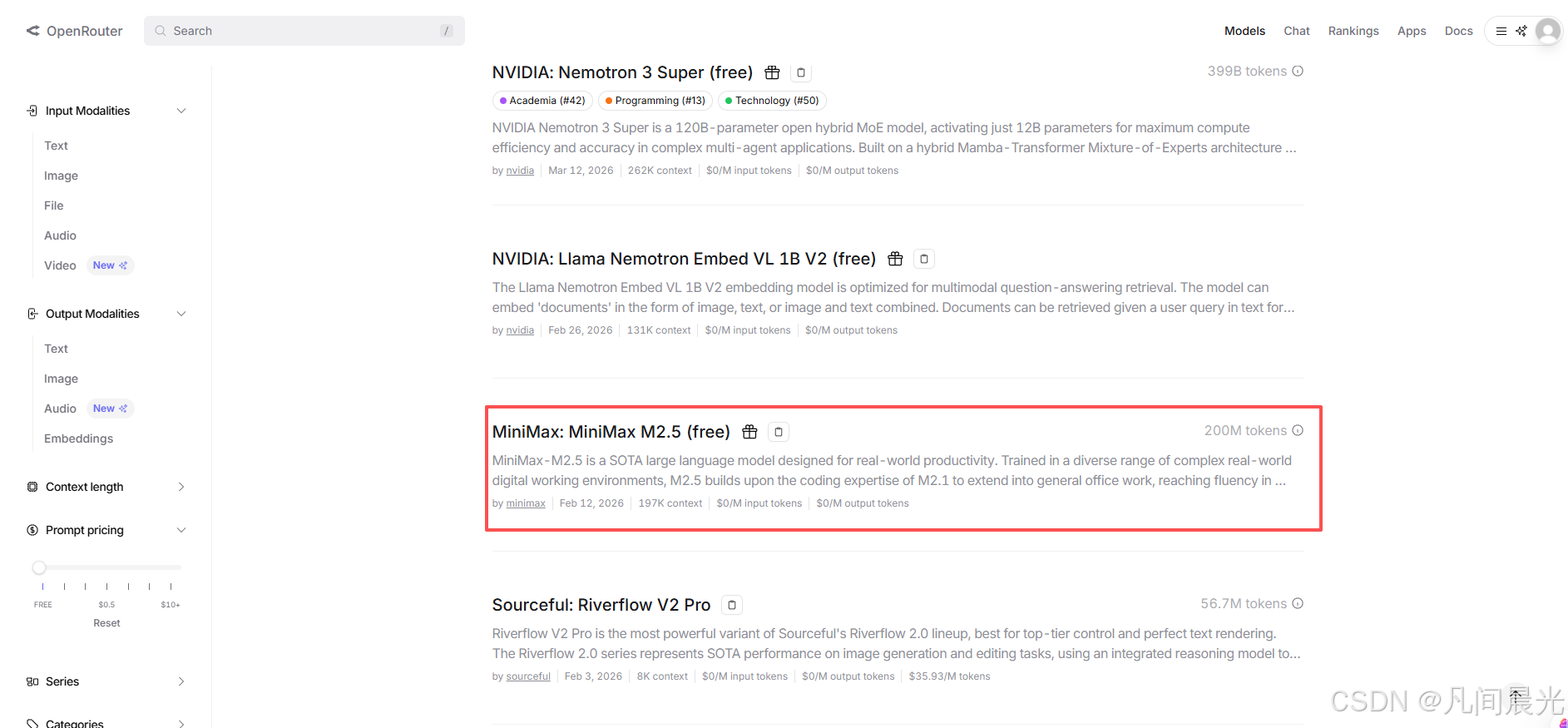
【AI工具】免费获取各类AI大模型APIKEY的使用教程,以硅基流动+Deepseek为例
我本次用的是OpenRouter的**"openrouter/stepfun/step-3.5-flash:free",、"openrouter/qwen/qwen3-coder:free"、"openrouter/z-ai/glm-4.5-air:free"**等免费模型
5.安装配置Openclaw
执行命令:curl -fsSL https://openclaw.ai/install.sh | bash
这个安装脚本会自动帮你搞定所有依赖(Node.js、Git......),然后直接进入交互式配置向导。
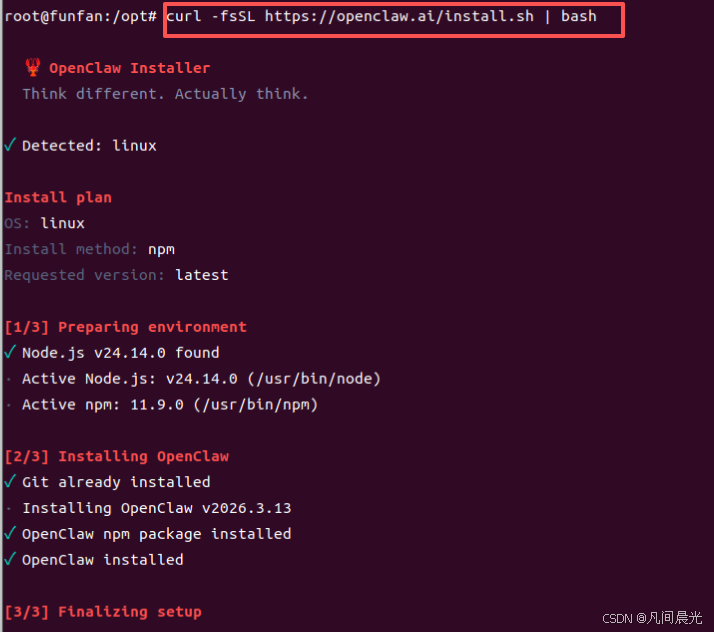
配置选择如下:
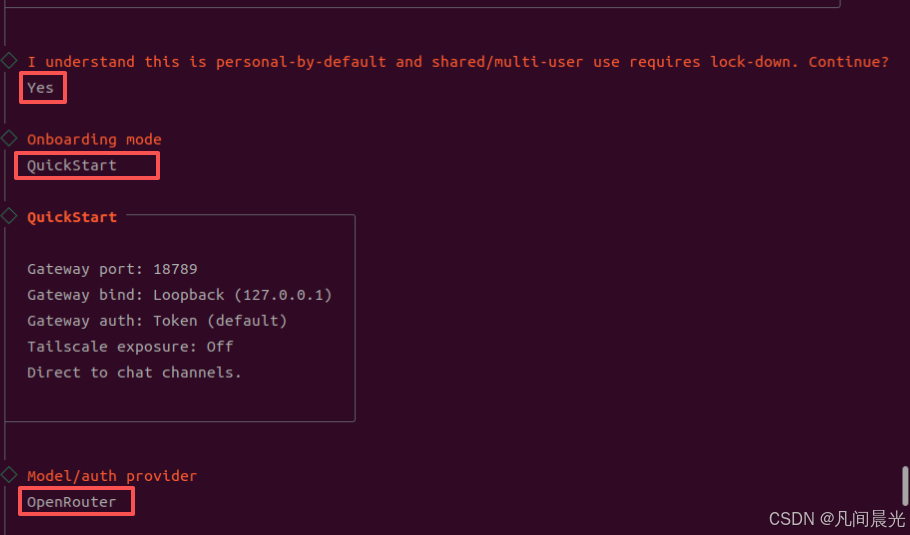
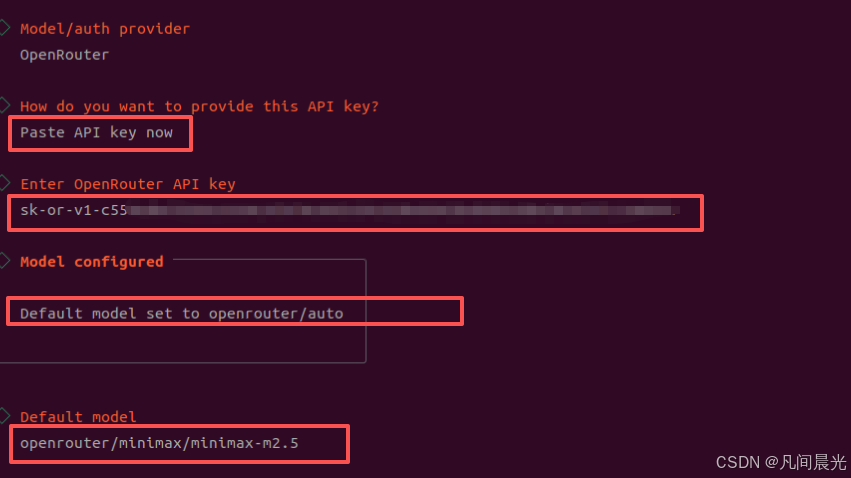
剩下的几个配置先跳过
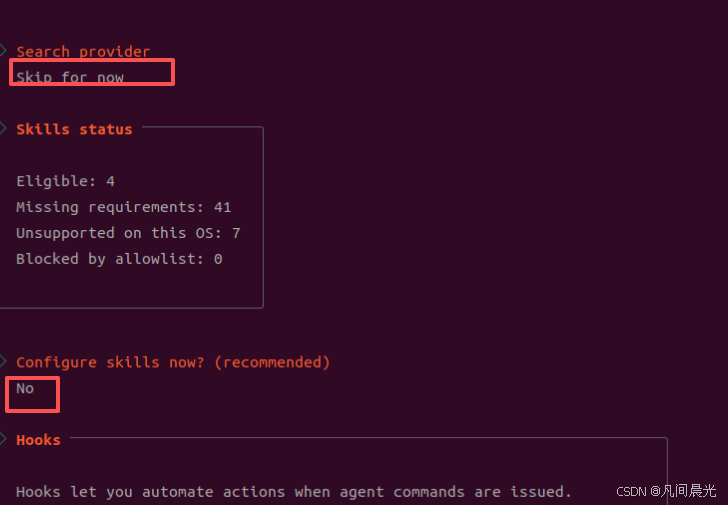
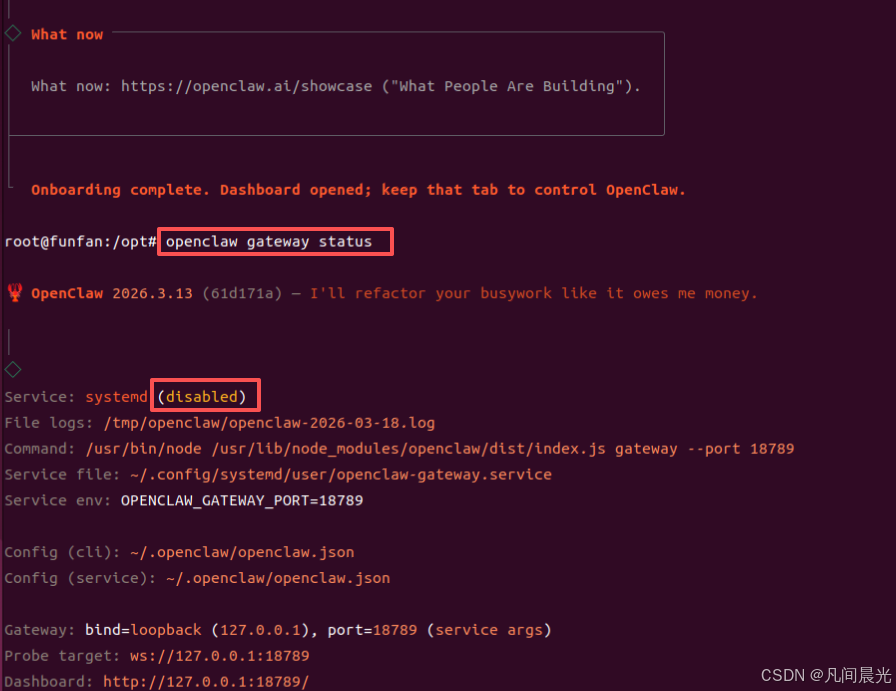
6.安装过程中的问题解决
执行openclaw gateway status检查openclaw状态为未启动
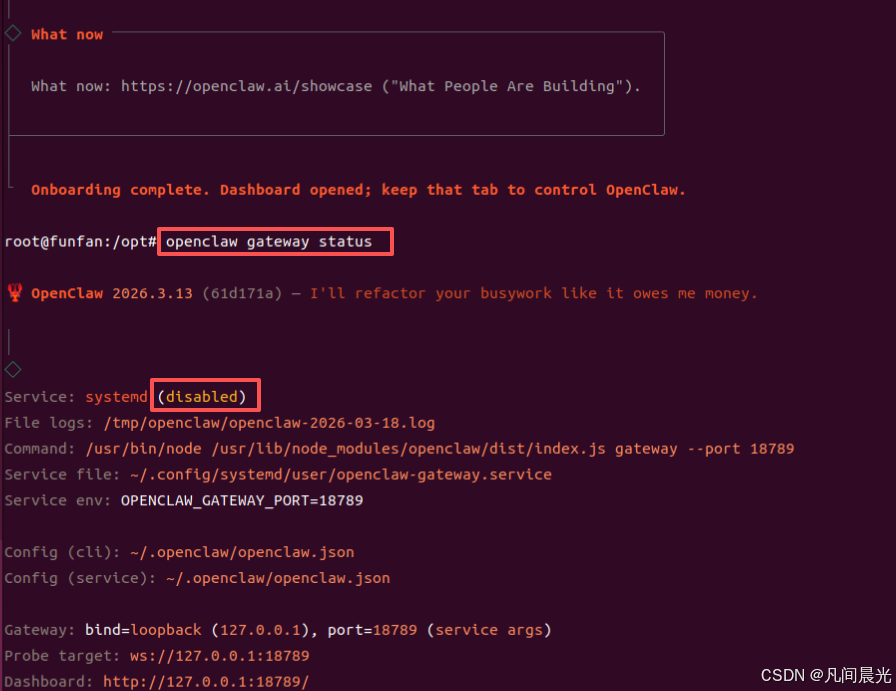
修复步骤如下:
1.解决 Gateway service not installed
1.执行openclaw gateway install安装 OpenClaw 系统服务()
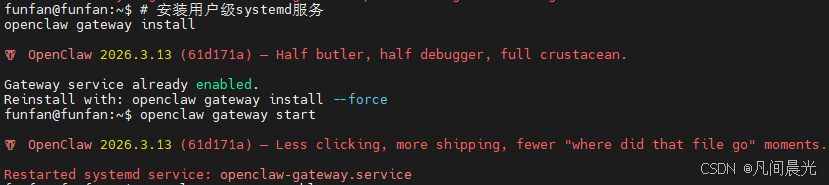
2.执行openclaw gateway start启动网关服务
3.执行openclaw gateway enable设置开机自启
4.执行openclaw gateway status查看网关状态
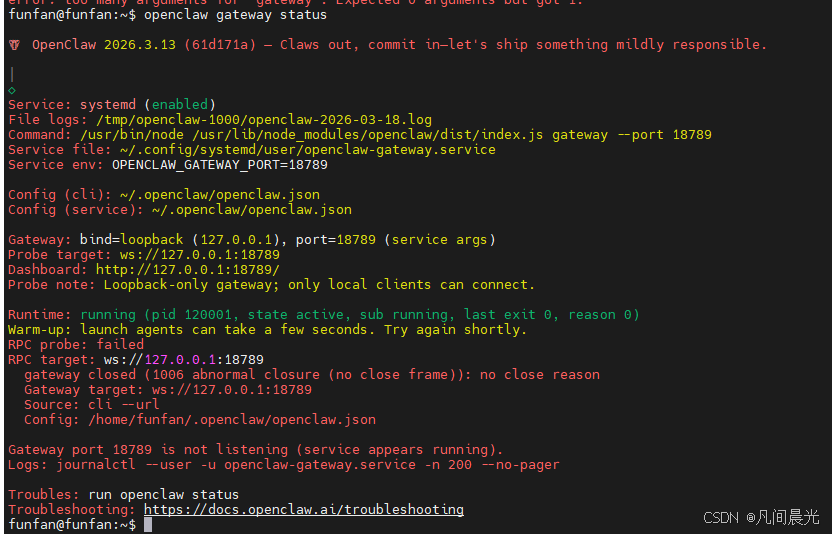
2.解决RPC probe: failed(Gateway start blocked: set gateway.mode=local (current: unset) or pass --allow-unconfigured.)
根据 openclaw gateway status 输出,服务本身已安装并显示正在运行,但关键的 RPC 连接失败,且端口 18789 并未真正监听。这与官方文档中"Gateway will not start or service installed but not running"一节描述的情况高度吻合。
执行journalctl --user -u openclaw-gateway.service -n 50 --no-pager -f可以看到详细的报错信息:
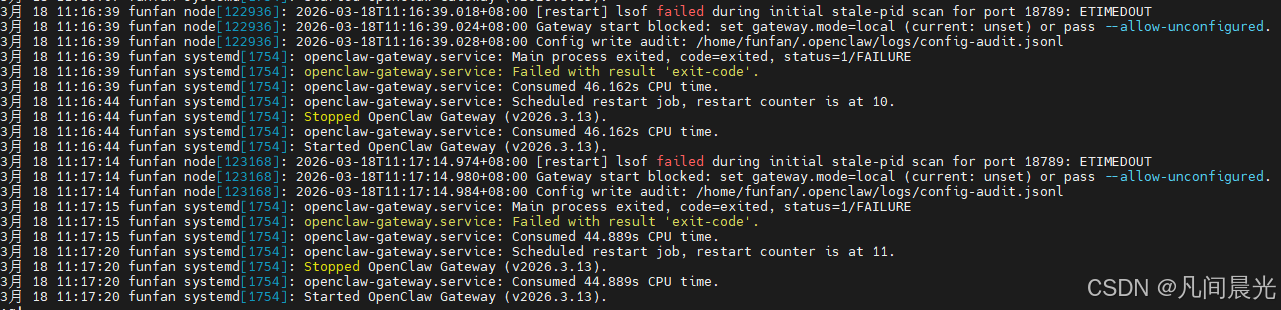
日志显示 gateway 启动被阻止,原因是 "Gateway start blocked: set gateway.mode=local (current: unset) or pass --allow-unconfigured."。这意味着配置文件中的 gateway.mode 没有设置,导致启动被阻止。这与我们之前的分析一致,服务虽然 systemd 启动,但进程初始化失败退出(status 1),然后 systemd 不断重启(restart counter 增加)。日志中还提到 lsof failed,但这是次要的,核心是 mode 未设置
按以下步骤完成配置:
bash
# 1.编辑配置文件
nano ~/.openclaw/openclaw.json
# 2.添加/修改 gateway.mode 字段(注意:记住这里的token配置,后面登录会用到)
{
  "gateway": {
    "port": 18789,
    "mode": "local"
    "auth": {
      // 这里只放认证相关字段,如 "token" 或 "password"
    }
  },
  // 其他配置...
}
# 3.保存文件并退出编辑器(nano 中按 Ctrl+O 保存,Ctrl+X 退出)。
# 4.重启 gateway 服务
systemctl --user restart openclaw-gateway
# 5.检查服务状态
openclaw gateway status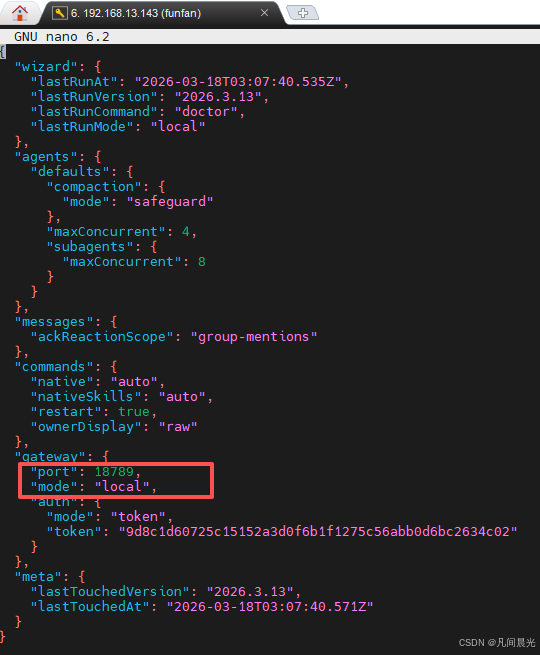
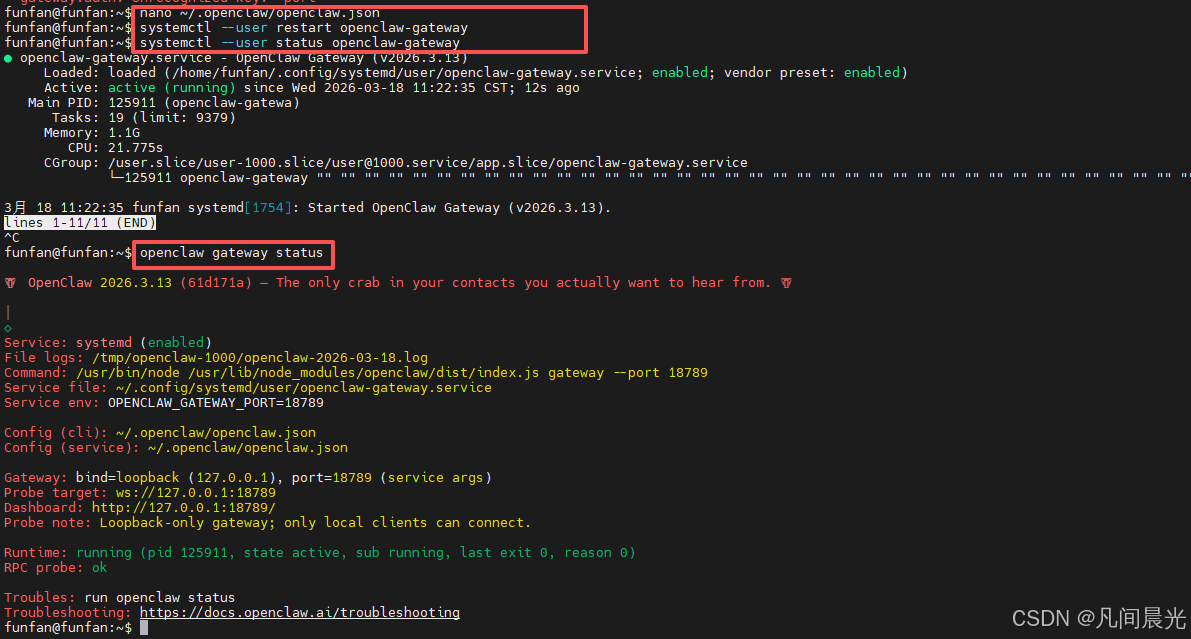
可以看到Openclaw正常启动了。
3.解决unauthorized: gateway token mismatch (open the dashboard URL and paste the token in Control UI settings)
执行openclaw dashboard --no-open生成包含正确令牌的仪表盘 URL
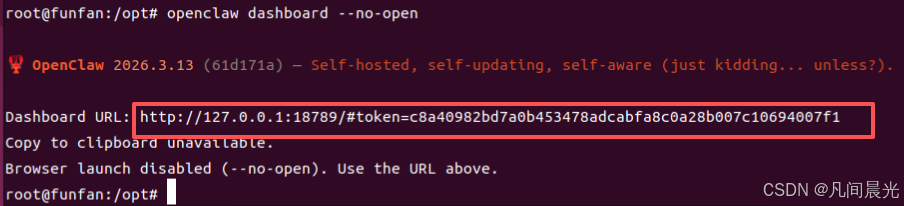
打开url地址,看到以下页面:
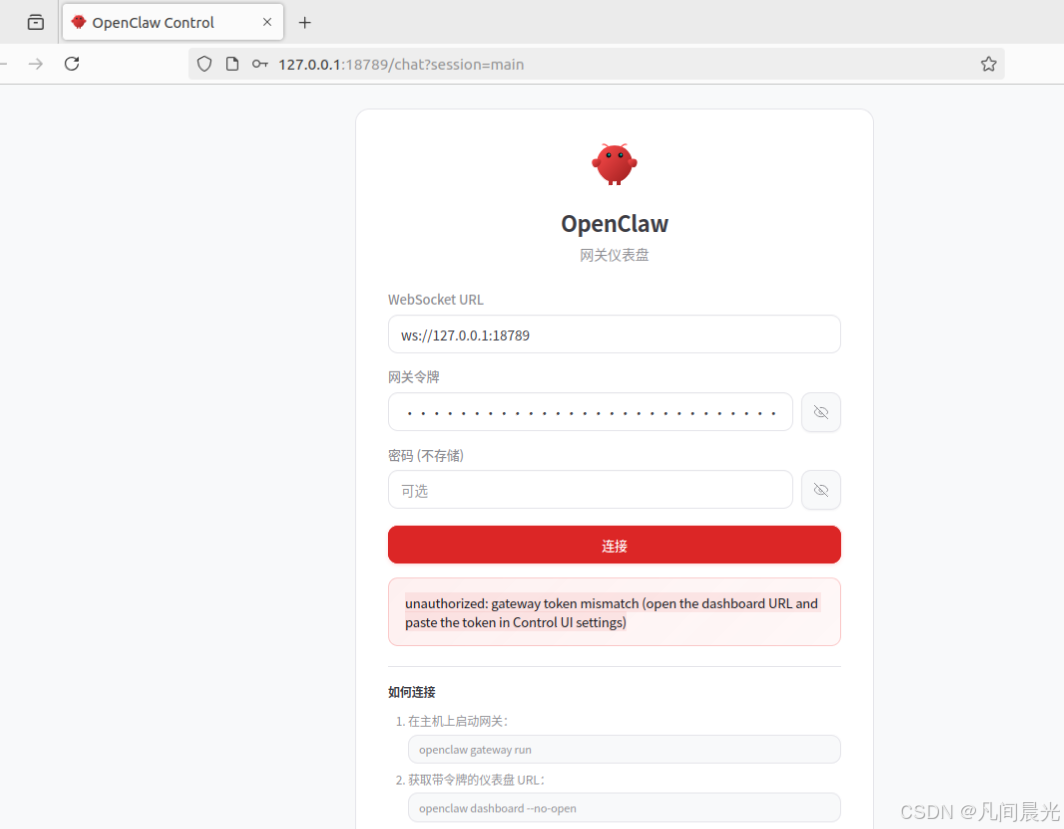
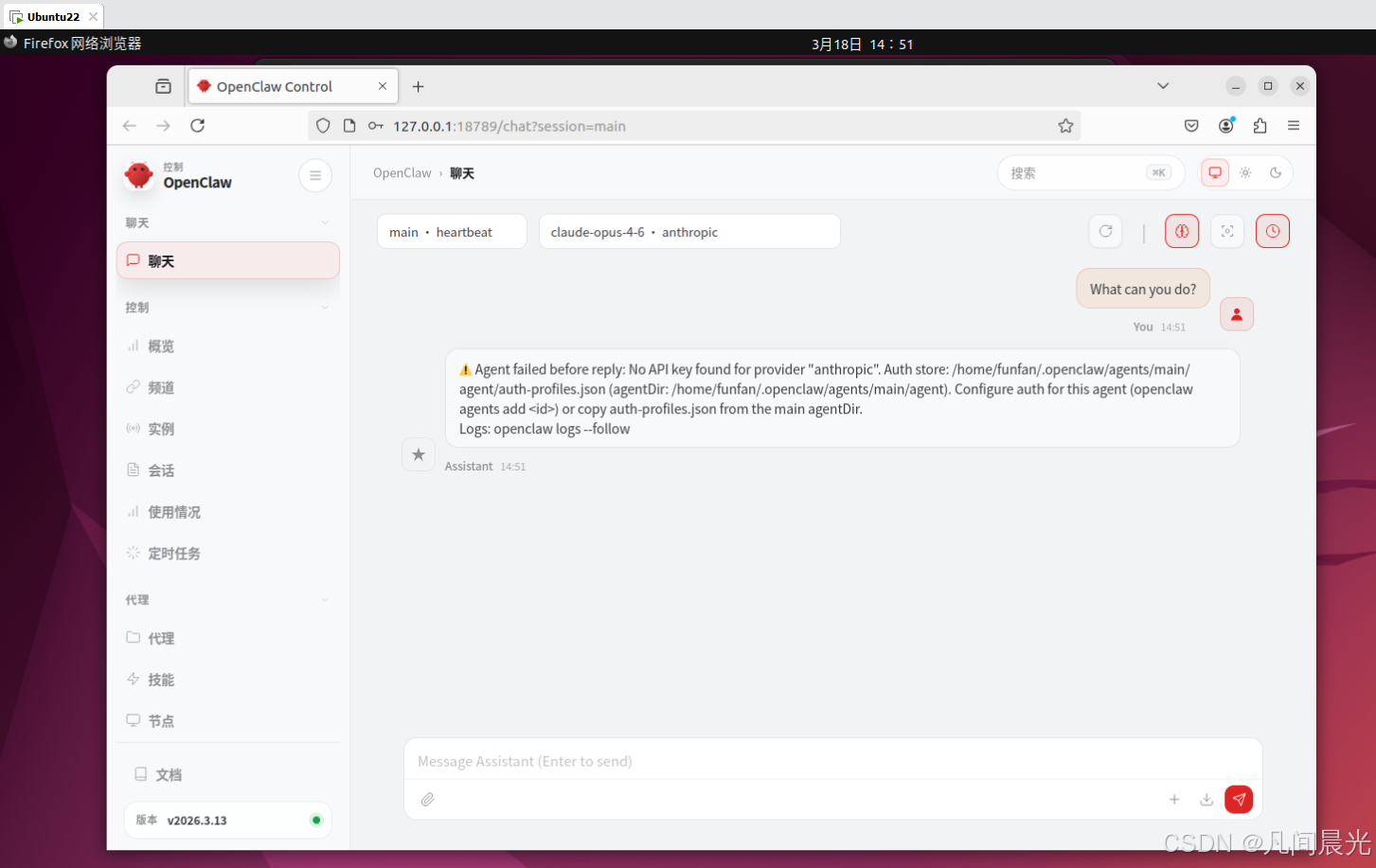
连接失败时,执行nano ~/.openclaw/openclaw.json,将其中的token配置项的值复制到网关令牌中即可连接成功
7. 配置模型和apikey
执行nano ~/.openclaw/openclaw.json编辑openclaw配置文件。可以参考以下配置(替换自己想用的模型和apikey)
bash
{
  "meta": {
    "lastTouchedVersion": "2026.3.13",
    "lastTouchedAt": "2026-03-18T08:49:59.347Z"
  },
  "wizard": {
    "lastRunAt": "2026-03-18T08:37:25.135Z",
    "lastRunVersion": "2026.3.13",
    "lastRunCommand": "configure",
    "lastRunMode": "local"
  },
  "auth": {
    "profiles": {
      "openrouter:default": {
        "provider": "openrouter",
        "mode": "api_key"
      }
    }
  },
  "env": {
  	"OPENROUTER_API_KEY": "sk-orxxxxxxxxxxxxxxxxxxxxxxxxxx替换为自己的apikey"
  },
  "agents": {
    "defaults": {
      "model": {
        "primary": "openrouter/auto",
        "fallbacks": [
          "openrouter/stepfun/step-3.5-flash:free",
          "openrouter/qwen/qwen3-coder:free",
          "openrouter/z-ai/glm-4.5-air:free"
        ]
      },
      "models": {
        "openrouter/auto": {
          "alias": "OpenRouter"
        },
        "openrouter/stepfun/step-3.5-flash:free": {},
        "openrouter/qwen/qwen3-coder:free": {},
        "openrouter/z-ai/glm-4.5-air:free": {}
      },
      "compaction": {
        "mode": "safeguard"
      },
      "maxConcurrent": 4,
      "subagents": {
        "maxConcurrent": 8
      }
    },
    "list": [
      {
        "id": "main",
        "model": "openrouter/stepfun/step-3.5-flash:free"
      }
    ]
  },
  "messages": {
    "ackReactionScope": "group-mentions"
  },
  "commands": {
    "native": "auto",
    "nativeSkills": "auto",
    "restart": true,
    "ownerDisplay": "raw"
  },
  "gateway": {
    "port": 18789,
    "mode": "local",
    "auth": {
      "mode": "token",
      "token": "123456"
    }
  }
}
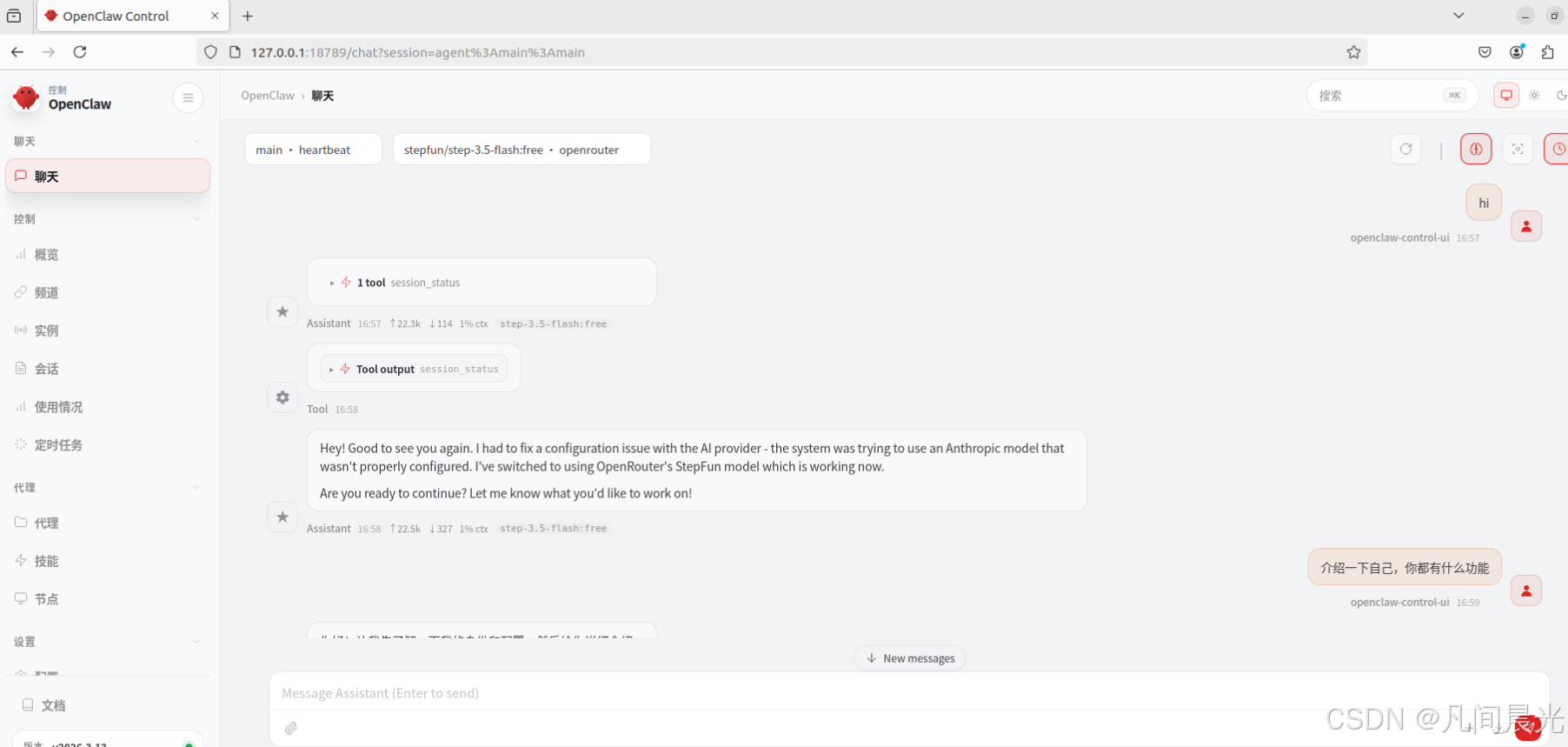
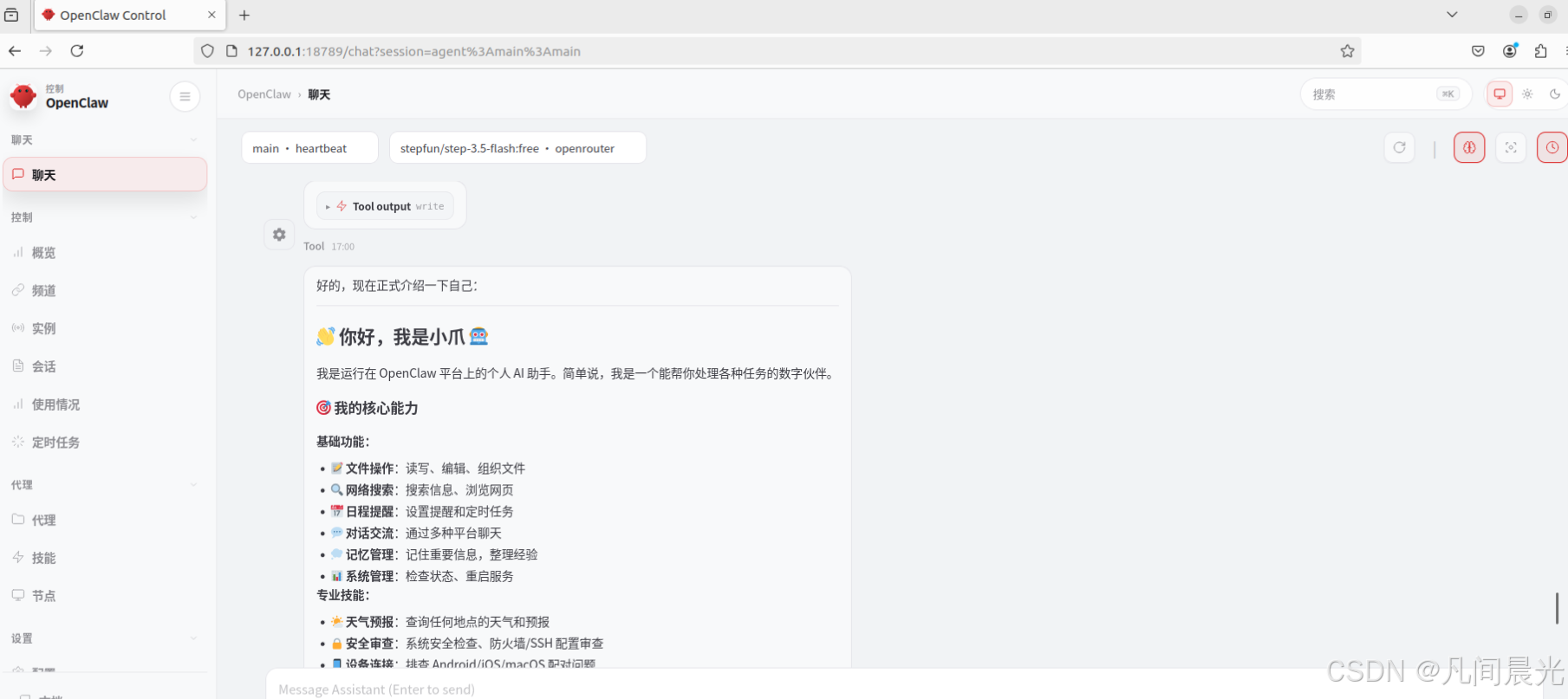
8.打开网页与龙虾交流
配置完成后即可打开网页与龙虾交流:
9.配置skills
未完待续
10.Openclaw实用案例
未完待续