参考文档:
安装与配置
- 在Windows PowerShell里面安装wsl工具,即ubuntu虚拟机:wsl --install
如果需要代理,配置环境变量:$env:HTTP_PROXY="http://127.0.0.1:1234"
$env:HTTPS_PROXY="http://127.0.0.1:1234"
- 装好ubuntu之后,装OpenClaw:
curl -fsSL https://openclaw.ai/install.sh | bash
下载完成后进入安装配置步骤,需要注意模型和API Key等
- 最后选择Channel,这里选FeiShu
最后,OpenClaw输出:
◓  Installing Gateway service...
Installed systemd service: /home/sj/.config/systemd/user/openclaw-gateway.service
◇  Gateway service installed.
│
◇
Feishu: failed (unknown) - API error: app do not have bot
Agents: main (default)
Heartbeat interval: 30m (main)
Session store (main): /home/sj/.openclaw/agents/main/sessions/sessions.json (0 entries)
│
◇  Optional apps ────────────────────────╮
│                                        │
│  Add nodes for extra features:         │
│  - macOS app (system + notifications)  │
│  - iOS app (camera/canvas)             │
│  - Android app (camera/canvas)         │
│                                        │
├────────────────────────────────────────╯
│
◇  Control UI ─────────────────────────────────────────────────────────────────────╮
│                                                                                  │
│  Web UI: http://127.0.0.1:18888/                                                 │
│  Web UI (with token):                                                            │
│  http://127.0.0.1:18888/#token=fedec17785dc9ccc37d02532f822447e9f54a37100fd4eb1  │
│  Gateway WS: ws://127.0.0.1:18888                                                │
│  Gateway: reachable                                                              │
│  Docs: https://docs.openclaw.ai/web/control-ui                                   │
│                                                                                  │
├──────────────────────────────────────────────────────────────────────────────────╯
│
◇  Start TUI (best option!) ─────────────────────────────────╮
│                                                            │
│  This is the defining action that makes your agent you.    │
│  Please take your time.                                    │
│  The more you tell it, the better the experience will be.  │
│  We will send: "Wake up, my friend!"                       │
│                                                            │
├────────────────────────────────────────────────────────────╯
│
◇  Token ────────────────────────────────────────────────────────────────────────────────────╮
│                                                                                            │
│  Gateway token: shared auth for the Gateway + Control UI.                                  │
│  Stored in: ~/.openclaw/openclaw.json (gateway.auth.token) or OPENCLAW_GATEWAY_TOKEN.      │
│  View token: openclaw config get gateway.auth.token                                        │
│  Generate token: openclaw doctor --generate-gateway-token                                  │
│  Web UI keeps dashboard URL tokens in memory for the current tab and strips them from the  │
│  URL after load.                                                                           │
│  Open the dashboard anytime: openclaw dashboard --no-open                                  │
│  If prompted: paste the token into Control UI settings (or use the tokenized dashboard     │
│  URL).                                                                                     │
│                                                                                            │
├────────────────────────────────────────────────────────────────────────────────────────────╯
│
◇  How do you want to hatch your bot?
│  Hatch in TUI (recommended)
 openclaw tui - ws://127.0.0.1:18888 - agent main - session main

 session agent:main:main


 Wake up, my friend!
然后,你就可以在这里和它聊天 了。
连接飞书
(1)去飞书开放平台https://open.feishu.cn/创建一个应用,查看其APP ID 和 APP Secret.
(2)需要上线该应用,在该应用左侧的"版本管理与发布"里面,直接点击"创建版本"一直往下就行
(3)可以在飞书开放平台右上角的"开发者后台"里面看到"企业自建应用"
(4) 需要开通应用权限
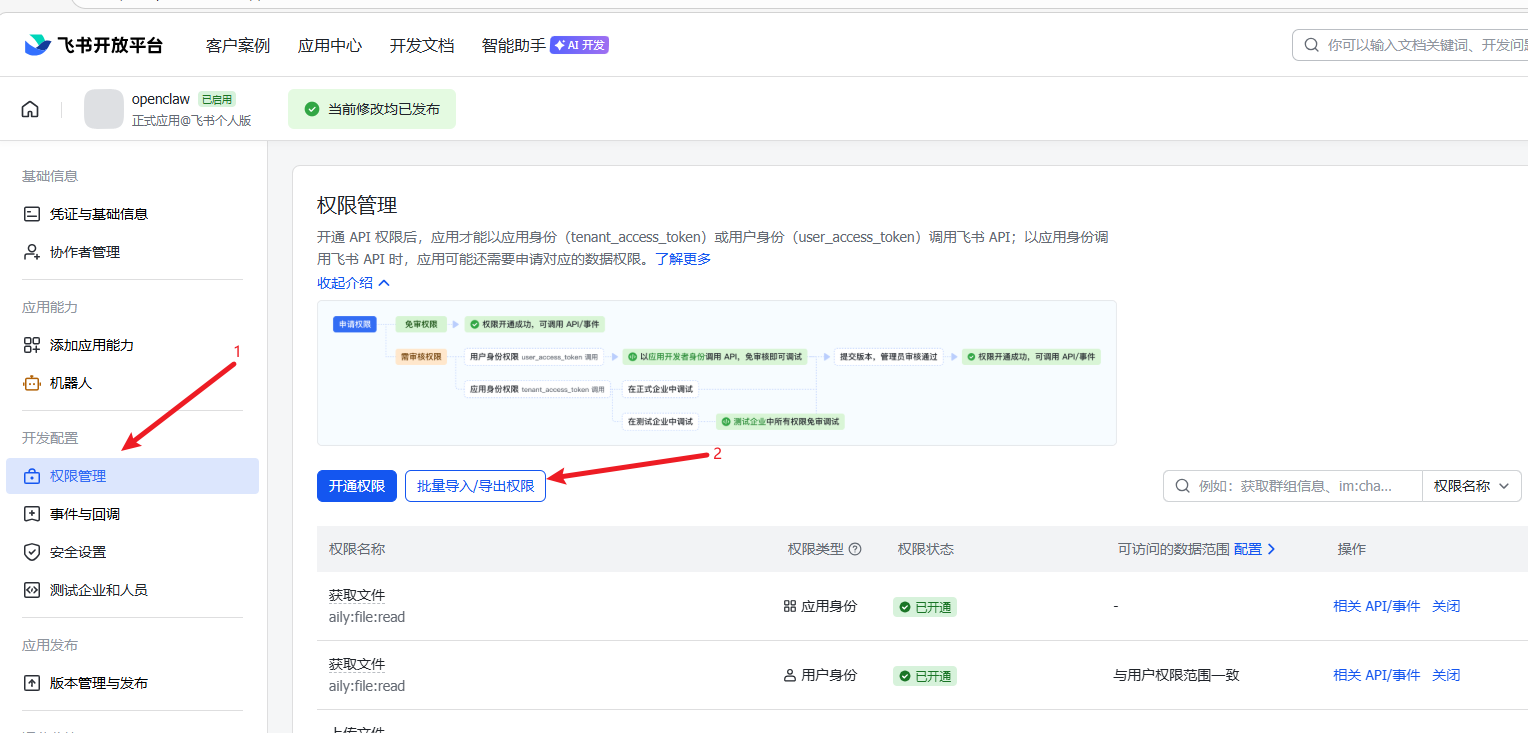
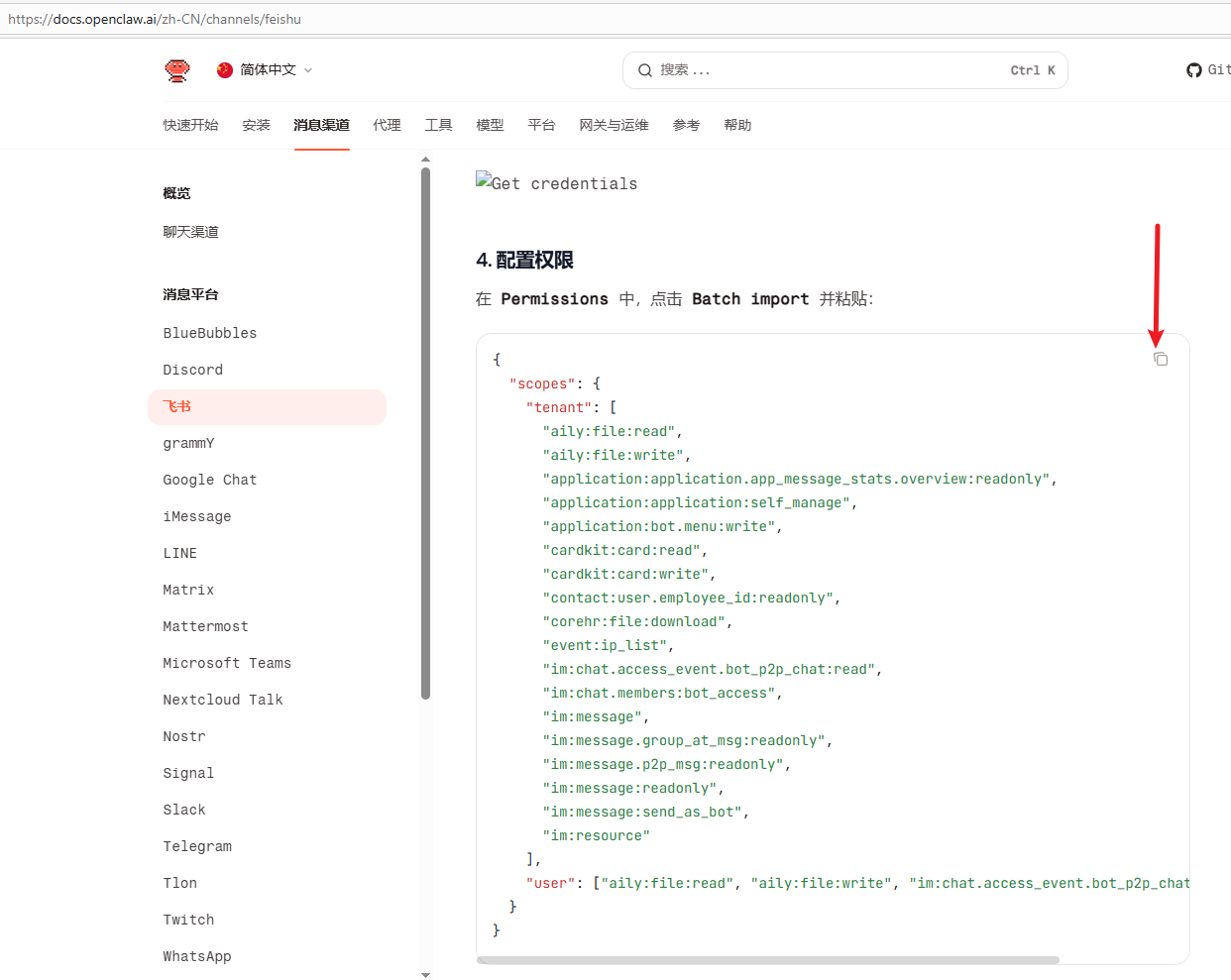
把飞书 - OpenClaw页面的权限配置填写在上图的"批量导入权限"页面填空处,点击下一步确认权限。
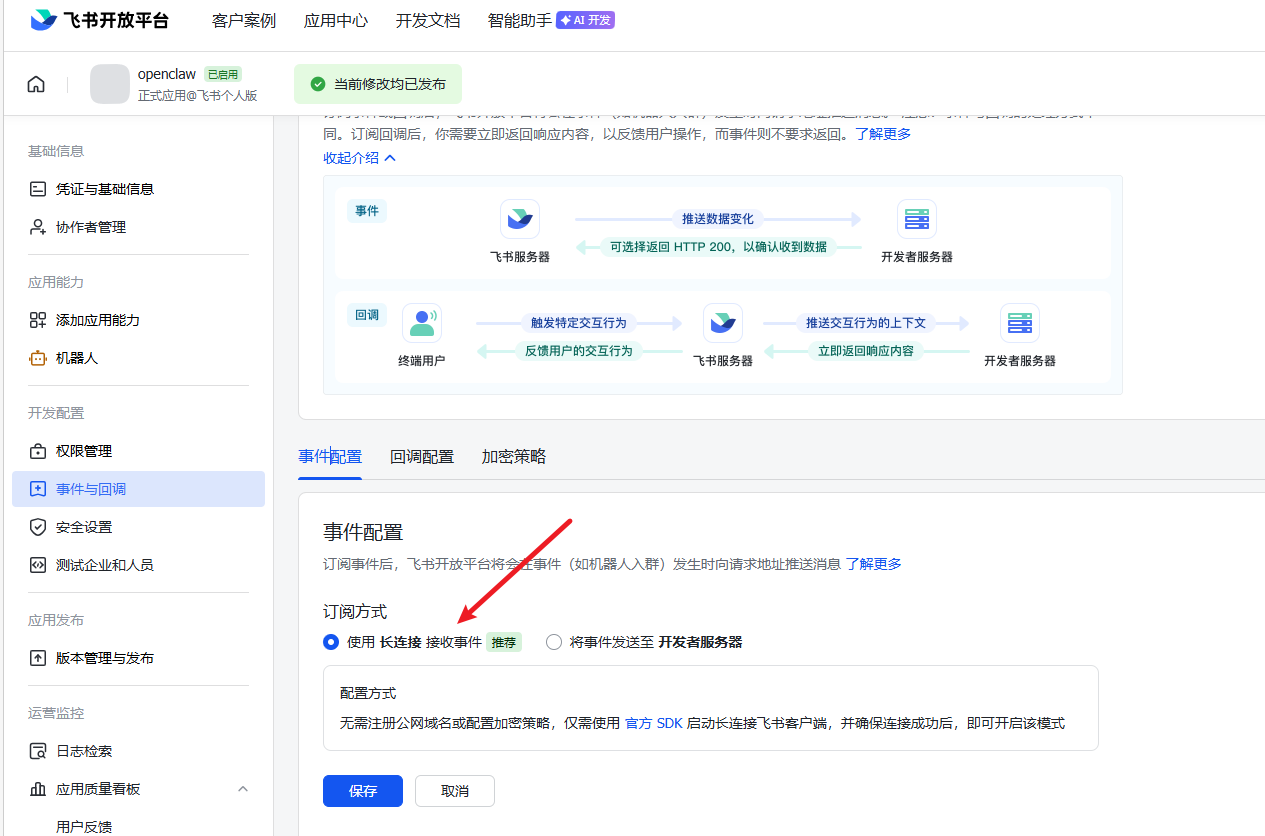
然后配置事件回调,注意用"长连接"方式。
配置完成之后,需要再次发布修改,即再次执行第(2)步,需要填写一个新的版本再发布哈。
此时,你去飞书上搜索你刚刚创建的应用名称,例如"openclaw", 那么会找到该联系人,给它发送一个消息:
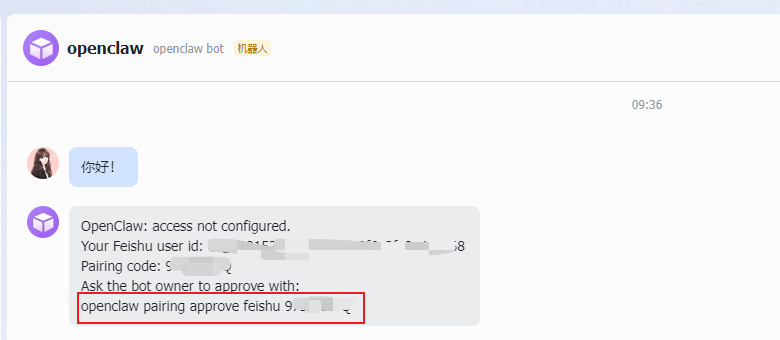
把上图红色框框里面的命令敲到wsl本地的openclaw交互界面,显示如下:

配置就完成了,你就可以通过飞书和openclaw聊天了