- uniapp内置了vuex,不需要通过npm重新安装,直接引用即可
1、创建 Vuex Store
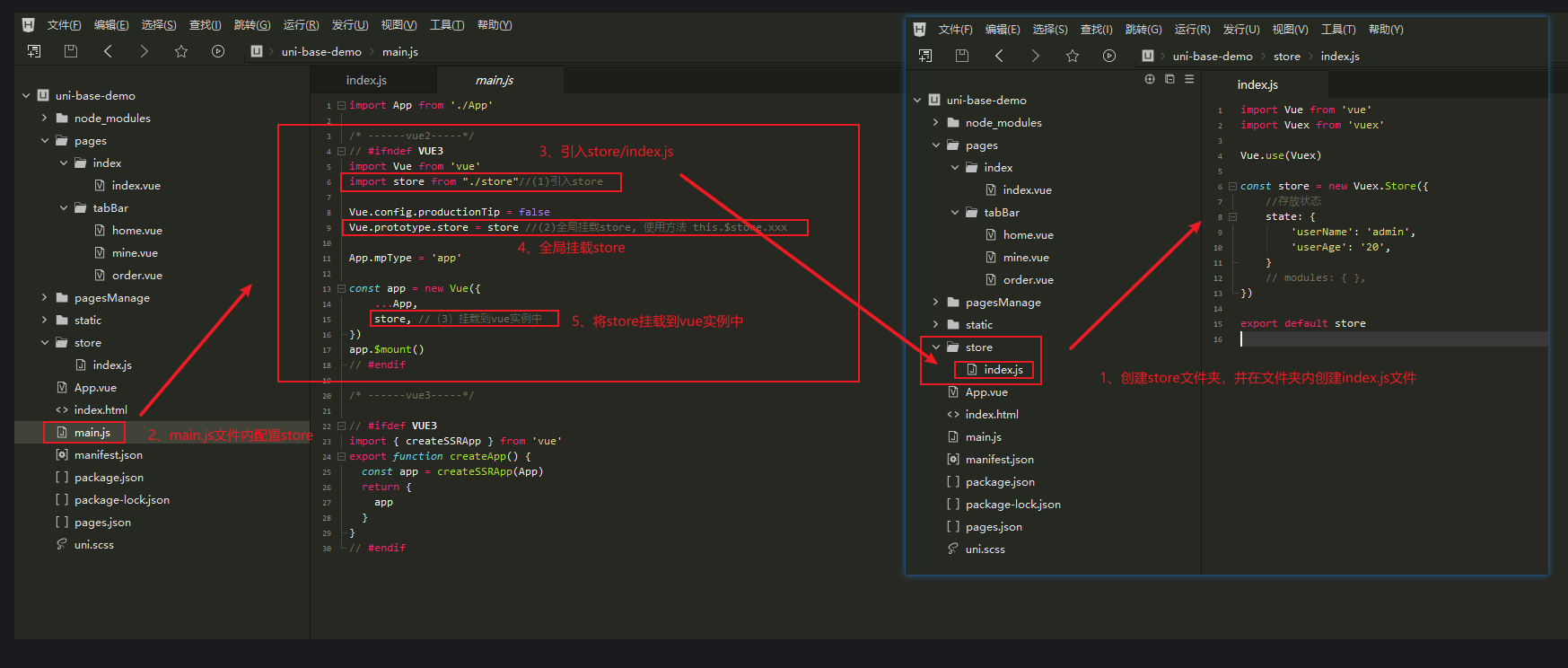
(1)在uniapp项目根目录下创建 store/index.js
import Vue from 'vue'
import Vuex from 'vuex'

Vue.use(Vuex)

const store = new Vuex.Store({
	//存放状态
	state: {
		'userName': 'admin',
		'userAge': '20',
	}
	// modules: { },
})

export default store
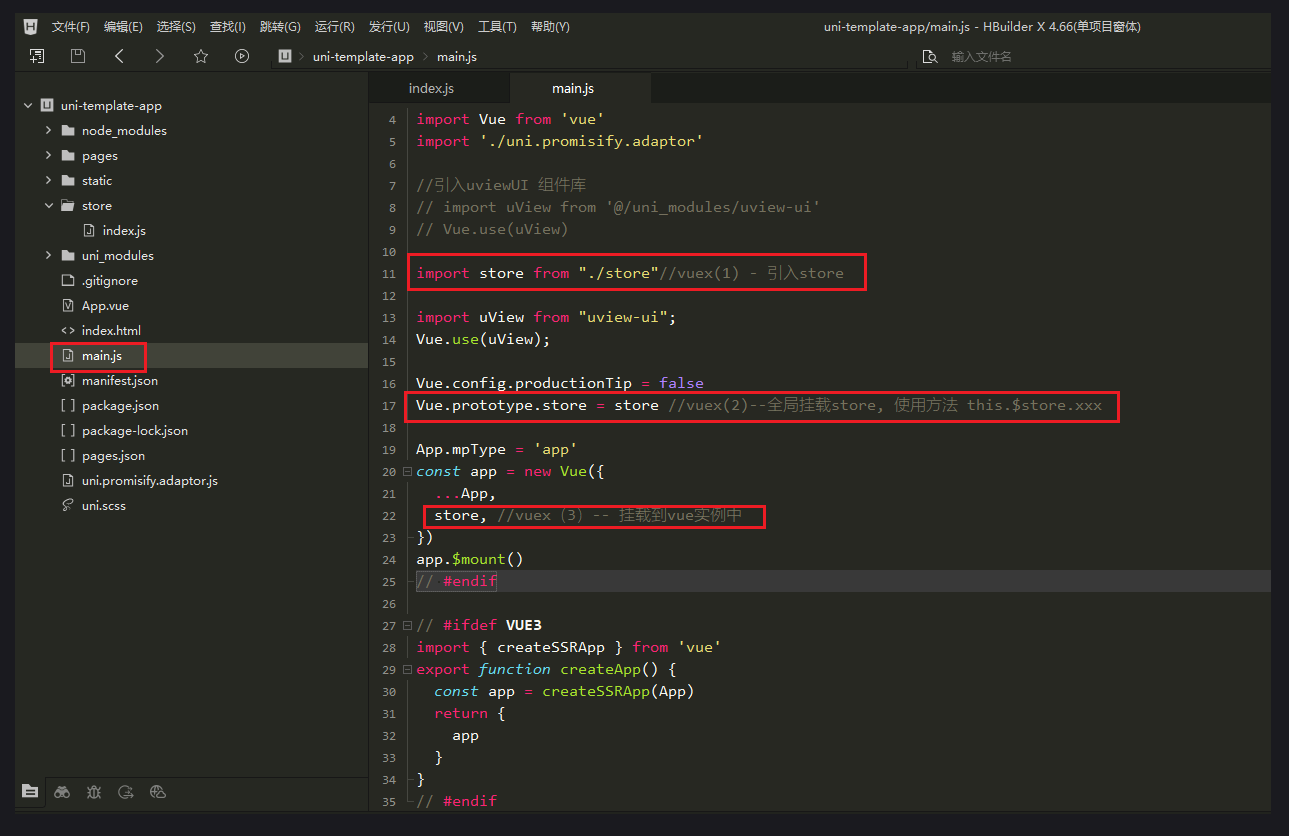
(2)main.js中去配置store,并挂载到vue实例中
import App from './App'

// #ifndef VUE3
import Vue from 'vue'
import './uni.promisify.adaptor'

//引入uviewUI 组件库
// import uView from '@/uni_modules/uview-ui'
// Vue.use(uView)

import store from "./store"//vuex(1) - 引入store

import uView from "uview-ui";
Vue.use(uView);

Vue.config.productionTip = false
Vue.prototype.store = store //vuex(2)--全局挂载store, 使用方法 this.$store.xxx

App.mpType = 'app'
const app = new Vue({
  ...App,
  store, //vuex(3)-- 挂载到vue实例中
})
app.$mount()
// #endif

// #ifdef VUE3
import { createSSRApp } from 'vue'
export function createApp() {
  const app = createSSRApp(App)
  return {
    app
  }
}
// #endif
2、uniapp页面中vuex的调用
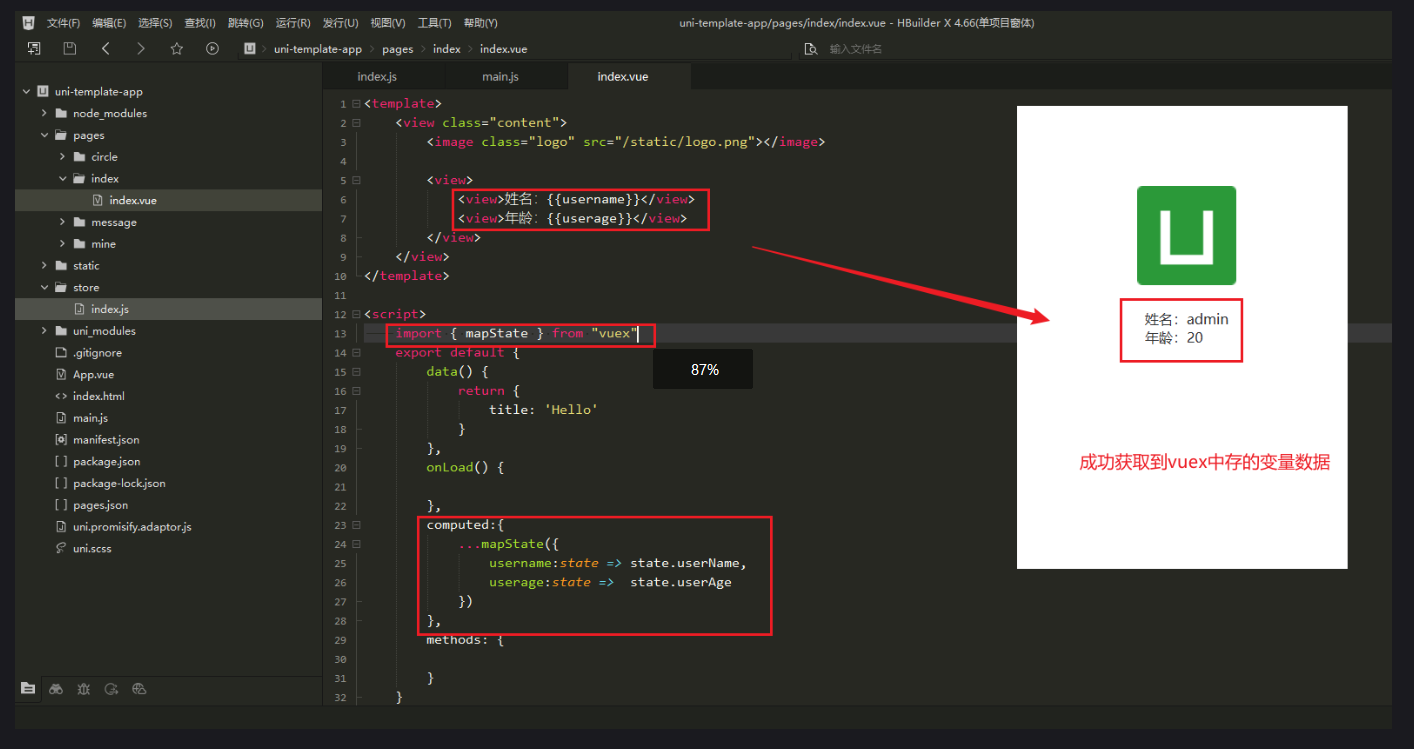
'方法1、使用vuex中的 mapState 辅助函数获取 (推荐使用)'
import {mapState} from 'vuex' //方法3、通过引入 mapState 辅助函数获取store中值

//方法3:mapState 获取store中数据
 computed: {
      ...mapState({
        //从state中拿到数据,箭头函数更简便
        username: state => state.userName,
        userage: state => state.userAge,
      }),
},

/*==========================其他调用方式================================*/

'方法2、目标页面直接引入store/index.js文件调用'

import store from "@/store/index.js"
 computed:{
      username(){
        return store.state.userName //方法1、直接引用store--获取数据
      },
  },

'方法3、通过main.js中全局挂载的store获取'

 computed:{
      userage(){
        return this.$store.state.userAge //方法2、通过main.js的挂载使用 => this.$store
      }
},
<template>
	<view class="content">
		<image class="logo" src="/static/logo.png"></image>

		<view>
			<view>姓名:{{username}}</view>
			<view>年龄:{{userage}}</view>
		</view>
	</view>
</template>

<script>
	import { mapState } from "vuex"//(1)通过引入mapState辅助函数获取store中值
	export default {
		data() {
			return {
				title: 'Hello'
			}
		},
		onLoad() {

		},
		computed:{
			...mapState({
				username:state => state.userName,
				userage:state =>  state.userAge
			})
		},
		methods: {

		}
	}
</script>

<style>
	.content {
		display: flex;
		flex-direction: column;
		align-items: center;
		justify-content: center;
	}

	.logo {
		height: 200rpx;
		width: 200rpx;
		margin-top: 200rpx;
		margin-left: auto;
		margin-right: auto;
		margin-bottom: 50rpx;
	}

	.text-area {
		display: flex;
		justify-content: center;
	}

	.title {
		font-size: 36rpx;
		color: #8f8f94;
	}
</style>
3、获取设备基本信息并保存到vuex中
(1)store/index.js 添加设备信息元素,并添加同步异步修改方法
import Vue from 'vue'
import Vuex from 'vuex'
Vue.use(Vuex) //注册并使用vuex

// vuex 主要包括 5大模块 state、mutations、actions、 getters、modules

//Vuex.Store 构造器选项
const store = new Vuex.Store({
	//存放状态
	state: {
		'userName': 'admin',
		'userAge': '20',
		systemInfo: '', //存储设备信息
		statusBarHeight: 0, //设备顶部状态栏信息
	},
	//获取数据
	getters: {},

	//执行同步操作方法
	mutations: {
		//设置设备信息
		SET_SYSTEM_INFO(state, data) {
			console.warn('--vuex--> setSystemInfo--', state, data)
			state.systemInfo = data ? data : ''
		},
		//设置顶部导航栏高度
		SET_STATUS_BAR_HEIGHT(state, data) {
			console.warn('---vuex--> setStatusBarHeight--', state, data)
			state.setStatusBarHeight = data || 0
		},
	},
	//提交 mutations (执行异步操作方法)
	actions: {
		SET_SYSTEM_INFO_ASYNC(context, value) {
			context.commit('SET_SYSTEM_INFO', value)
		},
		SET_STATUS_BAR_HEIGHT_ASYNC(context, value) {
			context.commit('SET_STATUS_BAR_HEIGHT', value)
		},
	},

	//细分模块
	modules: {}
})
//默认导出
export default store
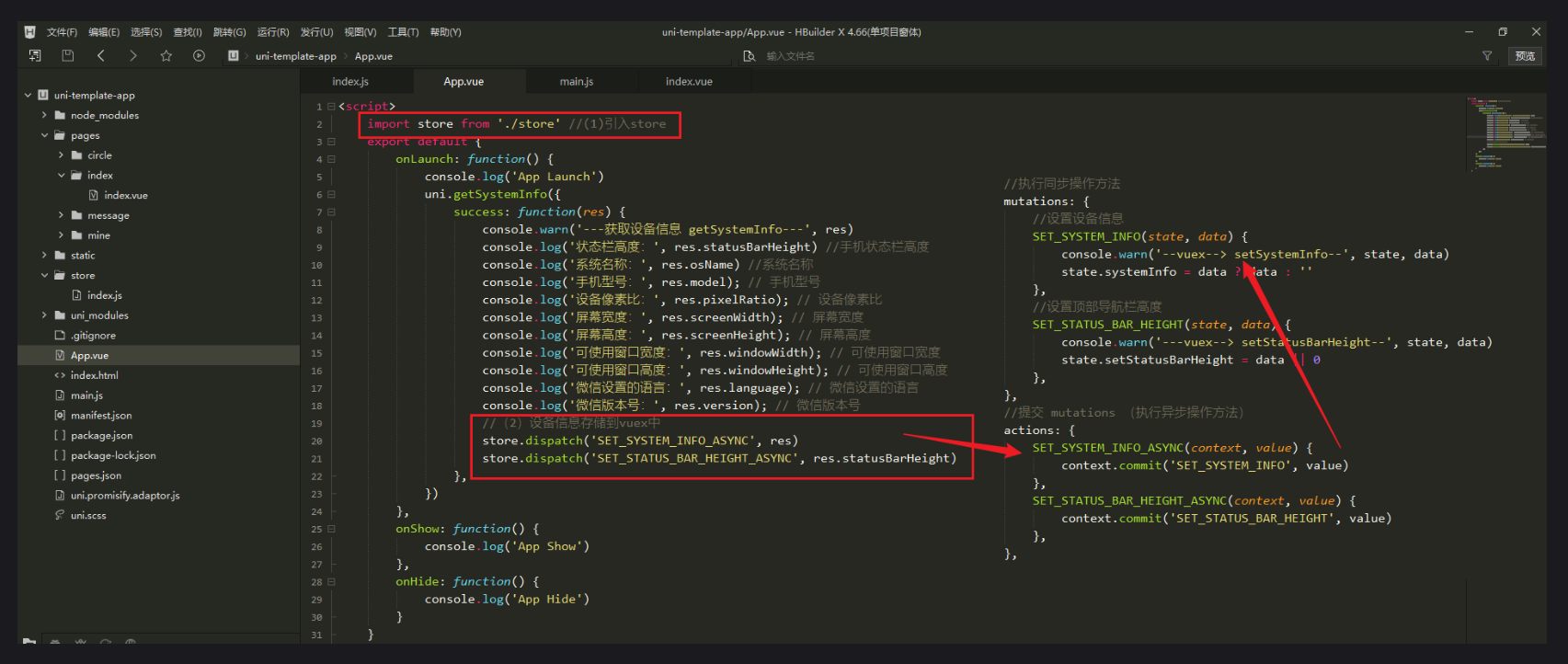
(2)App.vue中获取设备基础信息,并存储到vuex中
<script>
	import store from './store' //(1)引入store
	export default {
		onLaunch: function() {
			console.log('App Launch')
			uni.getSystemInfo({
				success: function(res) {
					console.warn('---获取设备信息 getSystemInfo---', res)
					console.log('状态栏高度:', res.statusBarHeight) //手机状态栏高度
					console.log('系统名称:', res.osName) //系统名称
					console.log('手机型号:', res.model); // 手机型号
					console.log('设备像素比:', res.pixelRatio); // 设备像素比
					console.log('屏幕宽度:', res.screenWidth); // 屏幕宽度
					console.log('屏幕高度:', res.screenHeight); // 屏幕高度
					console.log('可使用窗口宽度:', res.windowWidth); // 可使用窗口宽度
					console.log('可使用窗口高度:', res.windowHeight); // 可使用窗口高度
					console.log('微信设置的语言:', res.language); // 微信设置的语言
					console.log('微信版本号:', res.version); // 微信版本号
					//(2)设备信息存储到vuex中
					store.dispatch('SET_SYSTEM_INFO_ASYNC', res)
					store.dispatch('SET_STATUS_BAR_HEIGHT_ASYNC', res.statusBarHeight)
				},
			})
		},
		onShow: function() {
			console.log('App Show')
		},
		onHide: function() {
			console.log('App Hide')
		}
	}
</script>

<style lang="scss">
	/*每个页面公共css */
	/* 注意要写在第一行,同时给style标签加入lang="scss"属性 */
	// @import "@/uni_modules/uview-ui/index.scss";

	@import "uview-ui/index.scss";
</style>
(3)效果展示
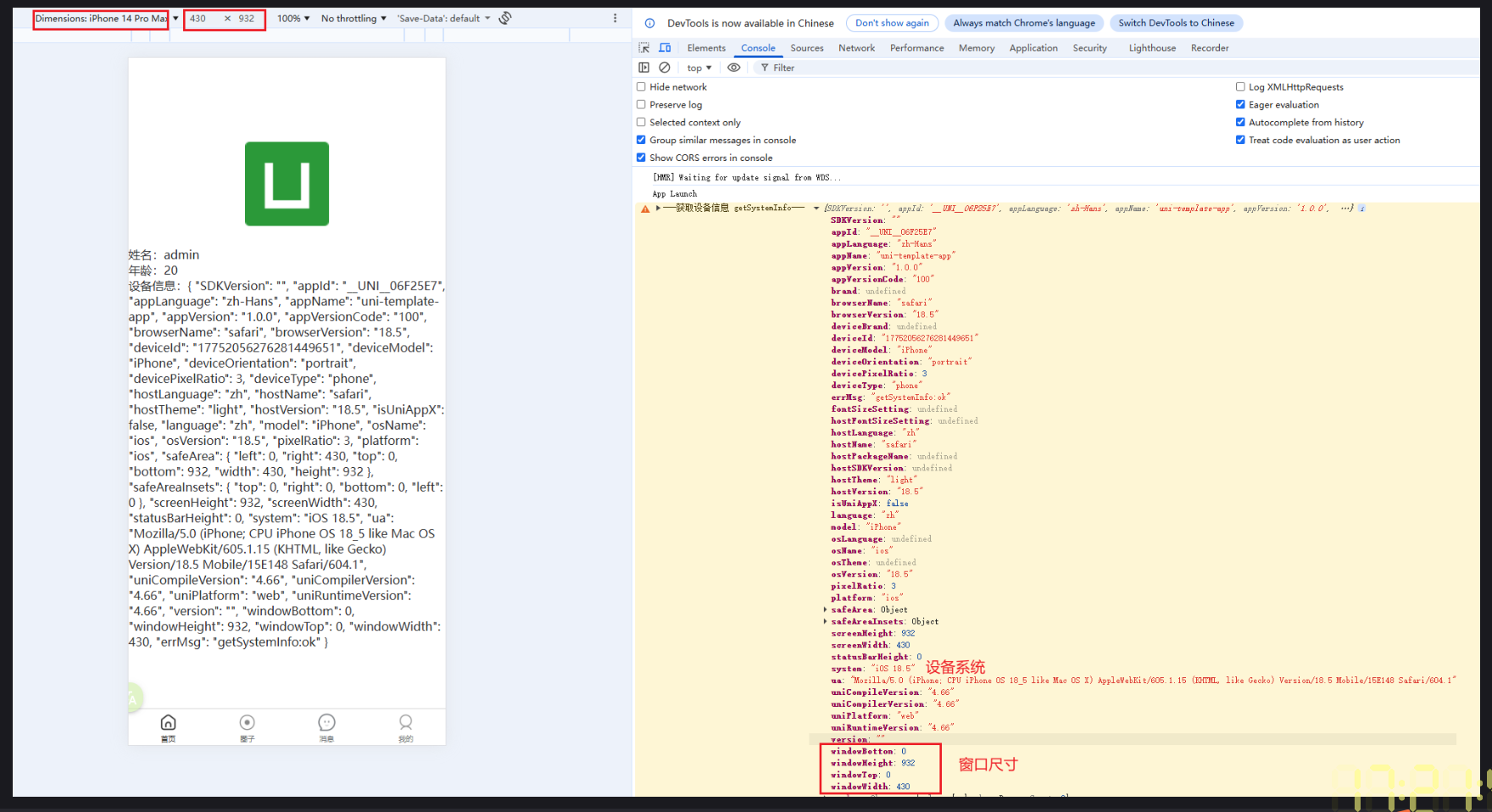
(4)拓展知识
// 调用方式需要加上模块路径 -- 调用mutations方法
this.$store.commit('system/setSystemInfoAsync')  // ✓ 正确
// 或
...mapMutations('system', ['setSystemInfoAsync'])

// 页面调用 action方法
this.$store.dispatch('setSystemInfoAsync')