欢迎加入开源鸿蒙跨平台社区 :https://openharmonycrossplatform.csdn.net
项目基于 RN 0.72.90 开发
📋 前言
在移动应用开发中,文件系统操作是一项基础需求,特别是在文件存储、缓存管理、日志记录等场景中。react-native-fs 是一个功能强大的文件系统操作库,提供了完整的文件读写、目录管理、文件下载上传等功能,是实现本地文件管理的理想选择。
但是鸿蒙系统已经限制了直接访问手机的系统目录,这个库的功能要综合考虑使用。
🎯 库简介
基本信息
- 库名称 :
react-native-fs - 版本信息 :
2.20.1支持 RN 0.72 版本,2.21.0支持 RN 0.77 版本 - 官方仓库: https://github.com/itinance/react-native-fs
- 鸿蒙仓库: https://atomgit.com/openharmony-sig/rntpc_react-native-fs
- 主要功能 :
- 📁 文件读写操作
- 📂 目录创建与管理
- 📥 文件下载
- 📤 文件上传
- 🔐 文件哈希计算
- 📱 跨平台支持(iOS、Android、HarmonyOS)
为什么需要文件系统库?
| 特性 | 原生方案 | react-native-fs |
|---|---|---|
| 跨平台一致性 | ⚠️ 需分别开发 | ✅ 统一 API |
| 文件读写 | ⚠️ 需封装 | ✅ 开箱即用 |
| 目录管理 | ⚠️ 复杂实现 | ✅ 简单调用 |
| 文件下载 | ⚠️ 需自行实现 | ✅ 内置支持 |
| 进度回调 | ⚠️ 需手动处理 | ✅ 自动回调 |
| HarmonyOS 支持 | ⚠️ 需适配 | ✅ 完善适配 |
核心功能
| 功能 | 说明 | HarmonyOS 支持 |
|---|---|---|
| readFile | 读取文件 | ✅ |
| writeFile | 写入文件 | ✅ |
| appendFile | 追加文件内容 | ✅ |
| mkdir | 创建目录 | ✅ |
| readDir | 读取目录 | ✅ |
| unlink | 删除文件/目录 | ✅ |
| exists | 检查文件是否存在 | ✅ |
| stat | 获取文件信息 | ✅ |
| copyFile | 复制文件 | ✅ |
| moveFile | 移动文件 | ✅ |
| downloadFile | 下载文件 | ✅ |
| hash | 计算文件哈希 | ✅ (部分) |
兼容性验证
在以下环境验证通过:
- RNOH : 0.72.90; SDK : HarmonyOS 6.0.0 Release SDK; IDE : DevEco Studio 6.0.2; ROM: 6.0.0
📦 安装步骤
1. 安装依赖
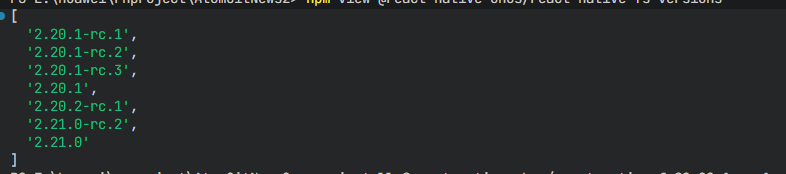
bash
# RN 0.72 版本
npm install @react-native-ohos/react-native-fs@2.20.1-rc.1

# RN 0.77 版本
npm install @react-native-ohos/react-native-fs@2.21.0-rc.1

# 或者使用 yarn
yarn add @react-native-ohos/react-native-fs
2. 验证安装
安装完成后,检查 package.json 文件:
json
{
  "dependencies": {
    "@react-native-ohos/react-native-fs": "^2.20.1-rc.1"
  }
}
🔧 HarmonyOS 平台配置 ⭐
1. 引入原生端代码
打开 harmony/entry/oh-package.json5,添加以下依赖:
json5
"dependencies": {
  "@react-native-ohos/react-native-fs": "file:../../node_modules/@react-native-ohos/react-native-fs/harmony/fs.har"
}
点击右上角的 sync 按钮,或者在终端执行:
bash
cd entry
ohpm install
2. 配置 CMakeLists
打开 entry/src/main/cpp/CMakeLists.txt,添加:
c
set(OH_MODULES "${CMAKE_CURRENT_SOURCE_DIR}/../../../oh_modules")

# RNOH_BEGIN: manual_package_linking_1
+ add_subdirectory("${OH_MODULES}/@react-native-ohos/react-native-fs/src/main/cpp" ./fs)
# RNOH_END: manual_package_linking_1

# RNOH_BEGIN: manual_package_linking_2
+ target_link_libraries(rnoh_app PUBLIC rnoh_fs)
# RNOH_END: manual_package_linking_2
3. 引入 RNFSPackage
打开 entry/src/main/cpp/PackageProvider.cpp,添加:
cpp
#include "RNOH/PackageProvider.h"
#include "generated/RNOHGeneratedPackage.h"
+ #include "RNFSPackage.h"

using namespace rnoh;

std::vector<std::shared_ptr<Package>> PackageProvider::getPackages(Package::Context ctx) {
    return {
      std::make_shared<RNOHGeneratedPackage>(ctx),
      + std::make_shared<RNFSPackage>(ctx)
    };
}
打开 entry/src/main/ets/RNPackagesFactory.ts,添加:
typescript
+ import { FsPackage } from '@react-native-ohos/react-native-fs/ts';

export function createRNPackages(ctx: RNPackageContext): RNPackage[] {
  return [
    new SamplePackage(ctx),
    + new FsPackage(ctx)
  ];
}
4. 配置权限
在 entry/src/main/module.json5 中添加文件读写权限:
json
{
  "module": {
    "requestPermissions": [
      {
        "name": "ohos.permission.READ_MEDIA",
        "reason": "$string:read_media_reason",
        "usedScene": {
          "abilities": ["EntryAbility"],
          "when": "inuse"
        }
      },
      {
        "name": "ohos.permission.WRITE_MEDIA",
        "reason": "$string:write_media_reason",
        "usedScene": {
          "abilities": ["EntryAbility"],
          "when": "inuse"
        }
      }
    ]
  }
}
5. 添加权限说明
打开 entry/src/main/resources/base/element/string.json,添加权限说明:
json
{
  "string": [
    {
      "name": "read_media_reason",
      "value": "用于读取本地文件"
    },
    {
      "name": "write_media_reason",
      "value": "用于保存和管理本地文件"
    }
  ]
}
📖 API 详解
静态属性 - 目录路径
| 属性 | 说明 | HarmonyOS 支持 | 实际路径 |
|---|---|---|---|
| DocumentDirectoryPath | 文档目录 | ✅ | /data/storage/el2/base/haps/entry/files |
| CachesDirectoryPath | 缓存目录 | ✅ | /data/storage/el2/base/haps/entry/cache |
| TemporaryDirectoryPath | 临时目录 | ✅ | /data/storage/el2/base/temp |
| LibraryDirectoryPath | 库目录 | ✅ | /data/storage/el2/base/preferences |
| MainBundlePath | 主包目录 | ✅ | 应用资源目录 |
| ExternalDirectoryPath | 外部存储目录 | ❌ | Android only |
| ExternalStorageDirectoryPath | 外部存储根目录 | ❌ | Android only |
tsx
import RNFS from 'react-native-fs';

console.log('文档目录:', RNFS.DocumentDirectoryPath);
console.log('缓存目录:', RNFS.CachesDirectoryPath);
console.log('临时目录:', RNFS.TemporaryDirectoryPath);
readFile - 读取文件
读取指定路径的文件内容。
类型 :(path: string, encoding?: string) => Promise<string>
参数:
| 参数 | 类型 | 必填 | 说明 |
|---|---|---|---|
| path | string | 是 | 文件路径 |
| encoding | string | 否 | 编码格式(utf8/ascii/base64) |
使用场景:
- 读取文本文件
- 读取配置文件
- 读取JSON数据
tsx
import RNFS from 'react-native-fs';

const readFileContent = async () => {
  const path = `${RNFS.DocumentDirectoryPath}/config.json`;
  try {
    const content = await RNFS.readFile(path, 'utf8');
    console.log('文件内容:', content);
    return JSON.parse(content);
  } catch (error) {
    console.error('读取文件失败:', error);
  }
};
writeFile - 写入文件
将内容写入指定路径的文件。
类型 :(path: string, content: string, encoding?: string) => Promise<void>
参数:
| 参数 | 类型 | 必填 | 说明 |
|---|---|---|---|
| path | string | 是 | 文件路径 |
| content | string | 是 | 文件内容 |
| encoding | string | 否 | 编码格式(utf8/ascii/base64) |
使用场景:
- 保存配置文件
- 写入日志文件
- 保存用户数据
tsx
import RNFS from 'react-native-fs';

const writeFileContent = async (data: object) => {
  const path = `${RNFS.DocumentDirectoryPath}/config.json`;
  try {
    await RNFS.writeFile(path, JSON.stringify(data), 'utf8');
    console.log('文件写入成功');
  } catch (error) {
    console.error('写入文件失败:', error);
  }
};
appendFile - 追加文件内容
将内容追加到指定文件的末尾。
类型 :(path: string, content: string, encoding?: string) => Promise<void>
使用场景:
- 日志记录
- 数据追加
tsx
import RNFS from 'react-native-fs';

const appendLog = async (message: string) => {
  const path = `${RNFS.DocumentDirectoryPath}/app.log`;
  const timestamp = new Date().toISOString();
  const logLine = `[${timestamp}] ${message}\n`;
  try {
    await RNFS.appendFile(path, logLine, 'utf8');
  } catch (error) {
    console.error('追加日志失败:', error);
  }
};
mkdir - 创建目录
创建指定路径的目录。
类型 :(path: string) => Promise<void>
使用场景:
- 创建缓存目录
- 创建用户数据目录
tsx
import RNFS from 'react-native-fs';

const createDirectory = async (folderName: string) => {
  const path = `${RNFS.DocumentDirectoryPath}/${folderName}`;
  try {
    await RNFS.mkdir(path);
    console.log('目录创建成功:', path);
  } catch (error) {
    console.error('创建目录失败:', error);
  }
};
readDir - 读取目录
读取指定目录下的所有文件和子目录。
类型 :(path: string) => Promise<ReadDirItem[]>
返回值:文件/目录信息数组
| 属性 | 类型 | 说明 |
|---|---|---|
| ctime | Date | 创建时间 |
| mtime | Date | 修改时间 |
| name | string | 名称 |
| path | string | 完整路径 |
| size | number | 大小(字节) |
| isFile | boolean | 是否为文件 |
| isDirectory | boolean | 是否为目录 |
tsx
import RNFS from 'react-native-fs';

const listFiles = async () => {
  const path = RNFS.DocumentDirectoryPath;
  try {
    const files = await RNFS.readDir(path);
    files.forEach((file) => {
      console.log('名称:', file.name);
      console.log('路径:', file.path);
      console.log('大小:', file.size);
      console.log('是否文件:', file.isFile());
      console.log('是否目录:', file.isDirectory());
    });
    return files;
  } catch (error) {
    console.error('读取目录失败:', error);
  }
};
exists - 检查文件是否存在
检查指定路径的文件或目录是否存在。
类型 :(path: string) => Promise<boolean>
tsx
import RNFS from 'react-native-fs';

const checkFileExists = async (fileName: string) => {
  const path = `${RNFS.DocumentDirectoryPath}/${fileName}`;
  try {
    const exists = await RNFS.exists(path);
    console.log('文件存在:', exists);
    return exists;
  } catch (error) {
    console.error('检查文件失败:', error);
    return false;
  }
};
unlink - 删除文件/目录
删除指定路径的文件或目录。
类型 :(path: string) => Promise<void>
tsx
import RNFS from 'react-native-fs';

const deleteFile = async (fileName: string) => {
  const path = `${RNFS.DocumentDirectoryPath}/${fileName}`;
  try {
    await RNFS.unlink(path);
    console.log('删除成功');
  } catch (error) {
    console.error('删除失败:', error);
  }
};
stat - 获取文件信息
获取指定路径的文件或目录的详细信息。
类型 :(path: string) => Promise<StatResult>
返回值:
| 属性 | 类型 | 说明 |
|---|---|---|
| ctime | Date | 创建时间 |
| mtime | Date | 修改时间 |
| size | number | 大小(字节) |
| mode | number | 文件权限 |
| isFile | boolean | 是否为文件 |
| isDirectory | boolean | 是否为目录 |
tsx
import RNFS from 'react-native-fs';

const getFileInfo = async (fileName: string) => {
  const path = `${RNFS.DocumentDirectoryPath}/${fileName}`;
  try {
    const stat = await RNFS.stat(path);
    console.log('文件大小:', stat.size);
    console.log('创建时间:', stat.ctime);
    console.log('修改时间:', stat.mtime);
    return stat;
  } catch (error) {
    console.error('获取文件信息失败:', error);
  }
};
copyFile - 复制文件
将文件复制到指定路径。
类型 :(from: string, to: string) => Promise<void>
tsx
import RNFS from 'react-native-fs';

const copyFile = async (sourceName: string, destName: string) => {
  const sourcePath = `${RNFS.DocumentDirectoryPath}/${sourceName}`;
  const destPath = `${RNFS.DocumentDirectoryPath}/${destName}`;
  try {
    await RNFS.copyFile(sourcePath, destPath);
    console.log('复制成功');
  } catch (error) {
    console.error('复制失败:', error);
  }
};
moveFile - 移动文件
将文件移动到指定路径。
类型 :(from: string, to: string) => Promise<void>
tsx
import RNFS from 'react-native-fs';

const moveFile = async (sourceName: string, destName: string) => {
  const sourcePath = `${RNFS.DocumentDirectoryPath}/${sourceName}`;
  const destPath = `${RNFS.DocumentDirectoryPath}/${destName}`;
  try {
    await RNFS.moveFile(sourcePath, destPath);
    console.log('移动成功');
  } catch (error) {
    console.error('移动失败:', error);
  }
};
downloadFile - 下载文件
从网络下载文件到本地。
类型 :(options: DownloadFileOptions) => Promise<DownloadResult>
参数:
| 属性 | 类型 | 必填 | 说明 |
|---|---|---|---|
| fromUrl | string | 是 | 下载URL |
| toFile | string | 是 | 本地保存路径 |
| headers | object | 否 | 请求头 |
| background | boolean | 否 | 是否后台下载 |
| progress | function | 否 | 下载进度回调 |
| progressDivider | number | 否 | 进度回调间隔 |
返回值:
| 属性 | 类型 | 说明 |
|---|---|---|
| jobId | number | 下载任务ID |
| statusCode | number | HTTP状态码 |
| bytesWritten | number | 已写入字节数 |
tsx
import RNFS from 'react-native-fs';

const downloadFile = async (url: string, fileName: string) => {
  const destPath = `${RNFS.DocumentDirectoryPath}/${fileName}`;

  try {
    const result = await RNFS.downloadFile({
      fromUrl: url,
      toFile: destPath,
      background: true,
      progress: (data) => {
        const percentage = Math.floor((data.bytesWritten / data.contentLength) * 100);
        console.log(`下载进度: ${percentage}%`);
      },
      progressDivider: 10,
    });

    console.log('下载完成:', result);
    return destPath;
  } catch (error) {
    console.error('下载失败:', error);
  }
};
hash - 计算文件哈希
计算文件的哈希值。
类型 :(path: string, algorithm: string) => Promise<string>
参数:
path: 文件路径algorithm: 算法类型(md5/sha1/sha256)
HarmonyOS 支持: md5, sha1, sha256
tsx
import RNFS from 'react-native-fs';

const calculateHash = async (fileName: string) => {
  const path = `${RNFS.DocumentDirectoryPath}/${fileName}`;
  try {
    const md5 = await RNFS.hash(path, 'md5');
    console.log('MD5:', md5);

    const sha256 = await RNFS.hash(path, 'sha256');
    console.log('SHA256:', sha256);

    return { md5, sha256 };
  } catch (error) {
    console.error('计算哈希失败:', error);
  }
};
📋 完整示例

ts
import React, { useState } from 'react';
import {
  View,
  Text,
  StyleSheet,
  ScrollView,
  TouchableOpacity,
  SafeAreaView,
  StatusBar,
  Alert,
  TextInput,
} from 'react-native';
import RNFS from 'react-native-fs';

interface FileItem {
  name: string;
  path: string;
  isFile: boolean;
  size: number;
}

const App: React.FC = () => {
  const [files, setFiles] = useState<FileItem[]>([]);
  const [fileName, setFileName] = useState('test.txt');
  const [fileContent, setFileContent] = useState('Hello, HarmonyOS!');
  const [result, setResult] = useState<string>('');

  const listFiles = async () => {
    try {
      const items = await RNFS.readDir(RNFS.DocumentDirectoryPath);
      const fileList: FileItem[] = items.map((item) => ({
        name: item.name,
        path: item.path,
        isFile: item.isFile(),
        size: item.size,
      }));
      setFiles(fileList);
      setResult(`找到 ${fileList.length} 个文件/目录`);
    } catch (error) {
      console.error('读取目录失败:', error);
      Alert.alert('错误', '读取目录失败');
    }
  };

  const writeFile = async () => {
    const path = `${RNFS.DocumentDirectoryPath}/${fileName}`;
    try {
      await RNFS.writeFile(path, fileContent, 'utf8');
      setResult(`文件写入成功: ${path}`);
      Alert.alert('成功', '文件写入成功');
      listFiles();
    } catch (error) {
      console.error('写入文件失败:', error);
      Alert.alert('错误', '写入文件失败');
    }
  };

  const readFile = async () => {
    const path = `${RNFS.DocumentDirectoryPath}/${fileName}`;
    try {
      const exists = await RNFS.exists(path);
      if (!exists) {
        Alert.alert('提示', '文件不存在');
        return;
      }
      const content = await RNFS.readFile(path, 'utf8');
      setResult(`文件内容:\n${content}`);
    } catch (error) {
      console.error('读取文件失败:', error);
      Alert.alert('错误', '读取文件失败');
    }
  };

  const deleteFile = async (name: string) => {
    const path = `${RNFS.DocumentDirectoryPath}/${name}`;
    try {
      await RNFS.unlink(path);
      setResult(`文件删除成功: ${name}`);
      Alert.alert('成功', '文件删除成功');
      listFiles();
    } catch (error) {
      console.error('删除文件失败:', error);
      Alert.alert('错误', '删除文件失败');
    }
  };

  const createDirectory = async () => {
    const path = `${RNFS.DocumentDirectoryPath}/new_folder`;
    try {
      await RNFS.mkdir(path);
      setResult(`目录创建成功: ${path}`);
      Alert.alert('成功', '目录创建成功');
      listFiles();
    } catch (error) {
      console.error('创建目录失败:', error);
      Alert.alert('错误', '创建目录失败');
    }
  };

  const getFileInfo = async (name: string) => {
    const path = `${RNFS.DocumentDirectoryPath}/${name}`;
    try {
      const stat = await RNFS.stat(path);
      setResult(
        `文件信息:\n` +
        `名称: ${name}\n` +
        `大小: ${stat.size} 字节\n` +
        `类型: ${stat.isFile() ? '文件' : '目录'}\n` +
        `修改时间: ${stat.mtime}`
      );
    } catch (error) {
      console.error('获取文件信息失败:', error);
      Alert.alert('错误', '获取文件信息失败');
    }
  };

  const showPaths = () => {
    setResult(
      `目录路径:\n` +
      `文档目录: ${RNFS.DocumentDirectoryPath}\n` +
      `缓存目录: ${RNFS.CachesDirectoryPath}\n` +
      `临时目录: ${RNFS.TemporaryDirectoryPath}`
    );
  };

  return (
    <SafeAreaView style={styles.container}>
      <StatusBar barStyle="dark-content" backgroundColor="#FFFFFF" />
      <View style={styles.header}>
        <Text style={styles.headerTitle}>文件系统管理</Text>
      </View>

      <ScrollView style={styles.content}>
        <View style={styles.section}>
          <Text style={styles.sectionTitle}>文件操作</Text>

          <TextInput
            style={styles.input}
            value={fileName}
            onChangeText={setFileName}
            placeholder="文件名"
          />

          <TextInput
            style={[styles.input, styles.textArea]}
            value={fileContent}
            onChangeText={setFileContent}
            placeholder="文件内容"
            multiline
          />

          <View style={styles.buttonRow}>
            <TouchableOpacity style={[styles.button, styles.halfButton]} onPress={writeFile}>
              <Text style={styles.buttonText}>写入</Text>
            </TouchableOpacity>
            <TouchableOpacity style={[styles.button, styles.halfButton]} onPress={readFile}>
              <Text style={styles.buttonText}>读取</Text>
            </TouchableOpacity>
          </View>
        </View>

        <View style={styles.section}>
          <Text style={styles.sectionTitle}>目录操作</Text>

          <View style={styles.buttonRow}>
            <TouchableOpacity style={[styles.button, styles.halfButton]} onPress={listFiles}>
              <Text style={styles.buttonText}>列出文件</Text>
            </TouchableOpacity>
            <TouchableOpacity style={[styles.button, styles.halfButton]} onPress={createDirectory}>
              <Text style={styles.buttonText}>创建目录</Text>
            </TouchableOpacity>
          </View>

          <TouchableOpacity style={styles.button} onPress={showPaths}>
            <Text style={styles.buttonText}>显示路径</Text>
          </TouchableOpacity>
        </View>

        <View style={styles.section}>
          <Text style={styles.sectionTitle}>文件列表 ({files.length})</Text>
          {files.map((file, index) => (
            <View key={index} style={styles.fileItem}>
              <View style={styles.fileInfo}>
                <Text style={styles.fileName}>
                  {file.isFile ? '📄' : '📁'} {file.name}
                </Text>
                <Text style={styles.fileSize}>
                  {file.isFile ? `${file.size} 字节` : '目录'}
                </Text>
              </View>
              <View style={styles.fileActions}>
                <TouchableOpacity onPress={() => getFileInfo(file.name)}>
                  <Text style={styles.actionText}>信息</Text>
                </TouchableOpacity>
                <TouchableOpacity onPress={() => deleteFile(file.name)}>
                  <Text style={[styles.actionText, styles.deleteText]}>删除</Text>
                </TouchableOpacity>
              </View>
            </View>
          ))}
        </View>

        <View style={styles.section}>
          <Text style={styles.sectionTitle}>结果</Text>
          <View style={styles.resultContainer}>
            <Text style={styles.resultText}>{result || '暂无结果'}</Text>
          </View>
        </View>
      </ScrollView>
    </SafeAreaView>
  );
};

const styles = StyleSheet.create({
  container: {
    flex: 1,
    backgroundColor: '#F5F5F5',
  },
  header: {
    flexDirection: 'row',
    alignItems: 'center',
    justifyContent: 'center',
    padding: 16,
    backgroundColor: '#FFFFFF',
    borderBottomWidth: 1,
    borderBottomColor: '#E5E5EA',
  },
  headerTitle: {
    fontSize: 20,
    fontWeight: '700',
    color: '#333333',
  },
  content: {
    flex: 1,
    padding: 16,
  },
  section: {
    backgroundColor: '#FFFFFF',
    borderRadius: 12,
    padding: 16,
    marginBottom: 16,
  },
  sectionTitle: {
    fontSize: 18,
    fontWeight: '600',
    color: '#333333',
    marginBottom: 12,
  },
  input: {
    borderWidth: 1,
    borderColor: '#E5E5EA',
    borderRadius: 8,
    paddingHorizontal: 16,
    paddingVertical: 12,
    fontSize: 16,
    marginBottom: 10,
  },
  textArea: {
    height: 80,
    textAlignVertical: 'top',
  },
  buttonRow: {
    flexDirection: 'row',
    gap: 10,
  },
  button: {
    backgroundColor: '#007AFF',
    paddingVertical: 14,
    borderRadius: 8,
    alignItems: 'center',
    marginBottom: 10,
  },
  halfButton: {
    flex: 1,
    marginBottom: 0,
  },
  buttonText: {
    color: '#FFFFFF',
    fontSize: 16,
    fontWeight: '600',
  },
  fileItem: {
    flexDirection: 'row',
    justifyContent: 'space-between',
    alignItems: 'center',
    paddingVertical: 12,
    borderBottomWidth: 1,
    borderBottomColor: '#F0F0F0',
  },
  fileInfo: {
    flex: 1,
  },
  fileName: {
    fontSize: 16,
    color: '#333333',
  },
  fileSize: {
    fontSize: 14,
    color: '#999999',
    marginTop: 2,
  },
  fileActions: {
    flexDirection: 'row',
    gap: 16,
  },
  actionText: {
    fontSize: 14,
    color: '#007AFF',
  },
  deleteText: {
    color: '#FF3B30',
  },
  resultContainer: {
    backgroundColor: '#F8F8F8',
    borderRadius: 8,
    padding: 12,
    minHeight: 80,
  },
  resultText: {
    fontSize: 14,
    color: '#666666',
    fontFamily: 'monospace',
  },
});

export default App;
⚠️ 注意事项
1. HarmonyOS 不支持的 API
以下 API 在 HarmonyOS 上不支持:
| API | 说明 |
|---|---|
| uploadFiles | 文件上传 |
| stopDownload | 停止下载 |
| getFSInfo | 获取文件系统信息 |
| ExternalDirectoryPath | 外部存储目录 |
| ExternalStorageDirectoryPath | 外部存储根目录 |
如需文件上传功能,建议使用 @react-native-ohos/react-native-blob-util 库。
2. 目录权限
HarmonyOS 的文件系统有严格的权限控制:
DocumentDirectoryPath: 应用私有目录,可自由读写CachesDirectoryPath: 缓存目录,系统可能自动清理TemporaryDirectoryPath: 临时目录,应用退出后可能清理
3. 文件路径
始终使用库提供的静态路径属性,不要硬编码路径:
tsx
// 正确
const path = `${RNFS.DocumentDirectoryPath}/file.txt`;

// 错误
const path = '/data/storage/el2/base/haps/entry/files/file.txt';
4. 错误处理
所有文件操作都可能失败,务必使用 try-catch:
tsx
try {
  await RNFS.writeFile(path, content);
} catch (error) {
  console.error('写入失败:', error);
  Alert.alert('错误', '文件操作失败');
}
5. 大文件处理
处理大文件时,建议使用流式读取或分块处理:
tsx
// 分块读取
const chunk = await RNFS.read(path, 1024, 0, 'base64');
6. 编码格式
支持的编码格式:
utf8: 文本文件(默认)ascii: ASCII 文本base64: 二进制文件的 Base64 编码
7. 下载文件
下载文件时建议添加进度回调,提升用户体验:
tsx
await RNFS.downloadFile({
  fromUrl: url,
  toFile: destPath,
  progress: (data) => {
    const percent = Math.floor((data.bytesWritten / data.contentLength) * 100);
    updateProgress(percent);
  },
});