前言:很多东西不记录下,过段时间不用就容易忘...
一、实现步骤:
- 在根目录按规范创建底部tab的页面,
- 在app.json中配置,告诉项目使用的tab配置,
- 在tab指向的页面中,配置tab排列的顺序,通过onshow中配置加载tab的排列顺序,
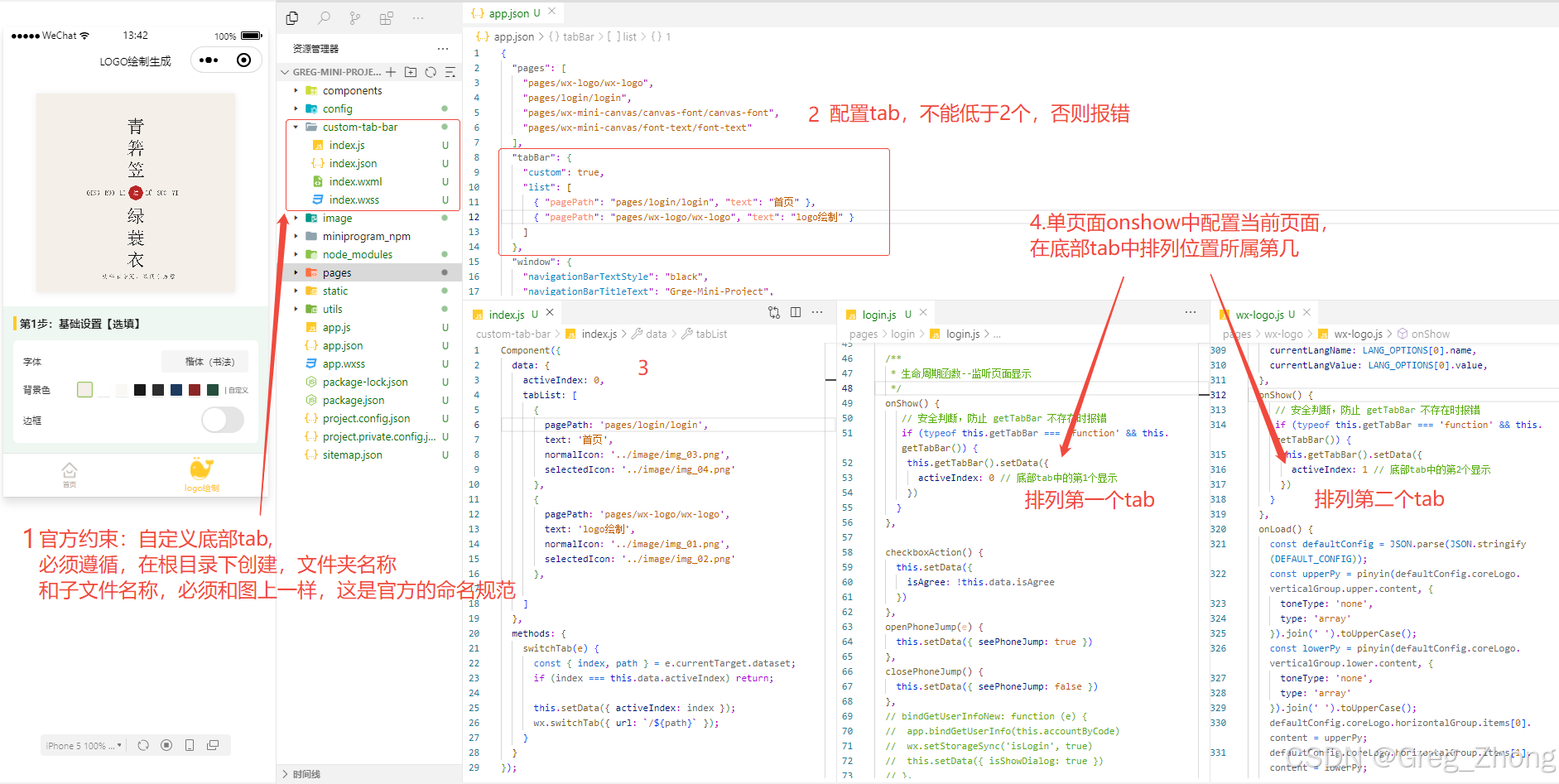
二、完整代码:
-
根目录创建的自定义tab的代码:
bashComponent({ data: { activeIndex: 0, tabList: [ { pagePath: 'pages/login/login', text: '首页', normalIcon: '../image/img_03.png', selectedIcon: '../image/img_04.png' }, { pagePath: 'pages/wx-logo/wx-logo', text: 'logo绘制', normalIcon: '../image/img_01.png', selectedIcon: '../image/img_02.png' }, ] }, methods: { switchTab(e) { const { index, path } = e.currentTarget.dataset; if (index === this.data.activeIndex) return; this.setData({ activeIndex: index }); wx.switchTab({ url: `/${path}` }); } } });bash<view class="tab-bar"> <view wx:for="{{tabList}}" wx:key="index" class="tab-item {{activeIndex === index ? 'active' : ''}}" bindtap="switchTab" data-index="{{index}}" data-path="{{item.pagePath}}" > <!-- 图标区域:替换为你的图片路径 --> <image src="{{activeIndex === index ? item.selectedIcon : item.normalIcon}}" class="tab-icon" /> <!-- 文字区域 --> <text class="tab-text">{{item.text}}</text> </view> </view>bash/* TabBar 容器:固定底部,适配安全区域 */ .tab-bar { position: fixed; bottom: 0; left: 0; right: 0; height: 124rpx; background: #ffffff; display: flex; border-top: 1px solid #e6e6e6; padding-bottom: env(safe-area-inset-bottom); /* 适配 iPhone 底部安全区域 */ z-index: 999; } /* 单个 Tab 项:平分宽度,居中布局 */ .tab-item { flex: 1; display: flex; flex-direction: column; align-items: center; justify-content: center; transition: all 0.2s ease; /* 平滑过渡动画 */ } /* 图标样式:默认尺寸 24px,选中 28px(主流放大比例) */ .tab-icon { width: 48rpx; height: 48rpx; margin-bottom: 2px; transition: all 0.2s ease; } .tab-item.active .tab-icon { width: 28px; height: 28px; } /* 文字样式:默认 12px #999,选中 14px 主题色(参考微信绿) */ .tab-text { font-size: 20rpx; /* color: #999999; */ color: #b2aaa2; transition: all 0.2s ease; } .tab-item.active .tab-text { font-size: 24rpx; color: #ffca28; /* 选中颜色,可自行修改 */ font-weight: 500; /* 选中时微加粗,增强视觉效果 */ }json中官方说需要配置,我发现配不配都不影响,看个人
bash{ "component": true } -
app.json中的配置
bash"tabBar": { "custom": true, "list": [ { "pagePath": "pages/login/login", "text": "首页" }, { "pagePath": "pages/wx-logo/wx-logo", "text": "logo绘制" } ] }, -
底部tab配置跳转的页面中的配置,
bashonShow() { // 安全判断,防止 getTabBar 不存在时报错 if (typeof this.getTabBar === 'function' && this.getTabBar()) { this.getTabBar().setData({ activeIndex: 0 // 底部tab中的第1个显示 }) } },
三、总结:初次自定义tab的几个误区
- 直接给自定义的tab文件,随便取名和随便放在其他文件夹内,最后就是无效果,
- 在app.json中配置自定义tab的对应页面,以为底部tab的渲染顺序遵从这个数组内的排列顺序?
- 其实是遵循在具体页面路径中配置的activeIndex的值的大小,进行排列的,(有时候配置完,需要点击2下才能选中,就是这个下标配置有问题)