1. 任务
ⅰ. 你需要提交以下内容,要求图文结合:
记录工具安装的过程,提交要求题目的 Writeup
记录 linux 搭建的过程,提交 linux 基础命令的学习笔记
学有余力可以继续学习其他内容和知识(如 http 协议、php 基础语法),并提交笔记
https://markdown.com.cn/basic-syntax/
ⅱ. 以下工具的安装和使用是本周必须掌握的内容,它们支撑着下一周及后续漏洞的学习
- 浏览器开发者工具 F12 /查看网页源代码(浏览器自带的,不用下):最权威的一集。
- Hackbar: 浏览器插件,能够在页面上直接完成 请求/响应内容编辑,完成各种包括但是不限于伪造的工作。
- Burp Suite /Yakit: 代理抓包软件,用于 Web 应用程序的渗透测试和攻击,也有爆破等功能
- dirsearch:目录扫描工具,在使用此工具前,你得先了解一下网页的目录是什么,什么叫对网页目录的 URL 访问(这里就可以借助 AI 了)
- python3+pip:脚本编写工具
- sqlmap:自动化 SQL 注入工具
- 蚁剑: webshell 管理工具
- Docker:拉镜像,搭靶场
ⅲ. 题目
https://www.nssctf.cn/problem/3412
https://www.nssctf.cn/problem/382
向 AI 询问什么是 GET/POST 请求,可以利用 AI 分析这段简单的php代码是什么意思
ⅳ. 你可以使用以下任意方式搭建 linux 环境,这里也需要你自行检索学习搭建方式,并提交搭建过程:
VMware 虚拟机
WSL
服务器平台
linux 系统可以选择装 Kali 或 Ubuntu,不推荐环境不太兼容的 CentOS
史上最全的Linux常用命令汇总(超全面!超详细!)收藏这一篇就够了!-CSDN博客
Linux入门教程(非常详细)从零基础入门到精通,看完这一篇就够了_linux学习-CSDN博客
2. 前情提要
由于上学期有参加培训,所以工具什么的都有了,本周将在上面基础上再学习一丢丢知识【其实上学期刚开始学的有所遗漏,题目和文章都没看。。。】
a. 三道题过一下
ⅰ. 题目1
1. 题目
https://www.nssctf.cn/problem/3412
什么是HTTP呢?查一查吧 https://developer.mozilla.org/zh-CN/docs/Web/HTTP
在本题中,你需要学习如何发起一个HTTP请求。
你可以尝试使用多种工具(如Postman,Python)完成此题。
https://github.com/XDSEC/moeCTF_2021
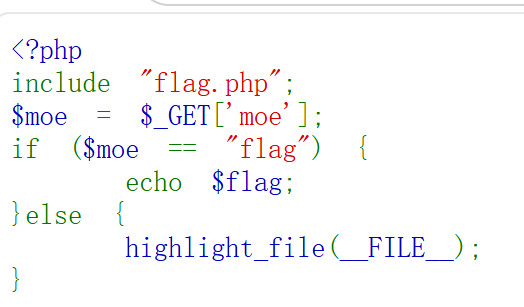
2. 解题

ⅱ. 题目2
1. 题目
https://www.nssctf.cn/problem/382
flag以NSSCTF{}形式提交
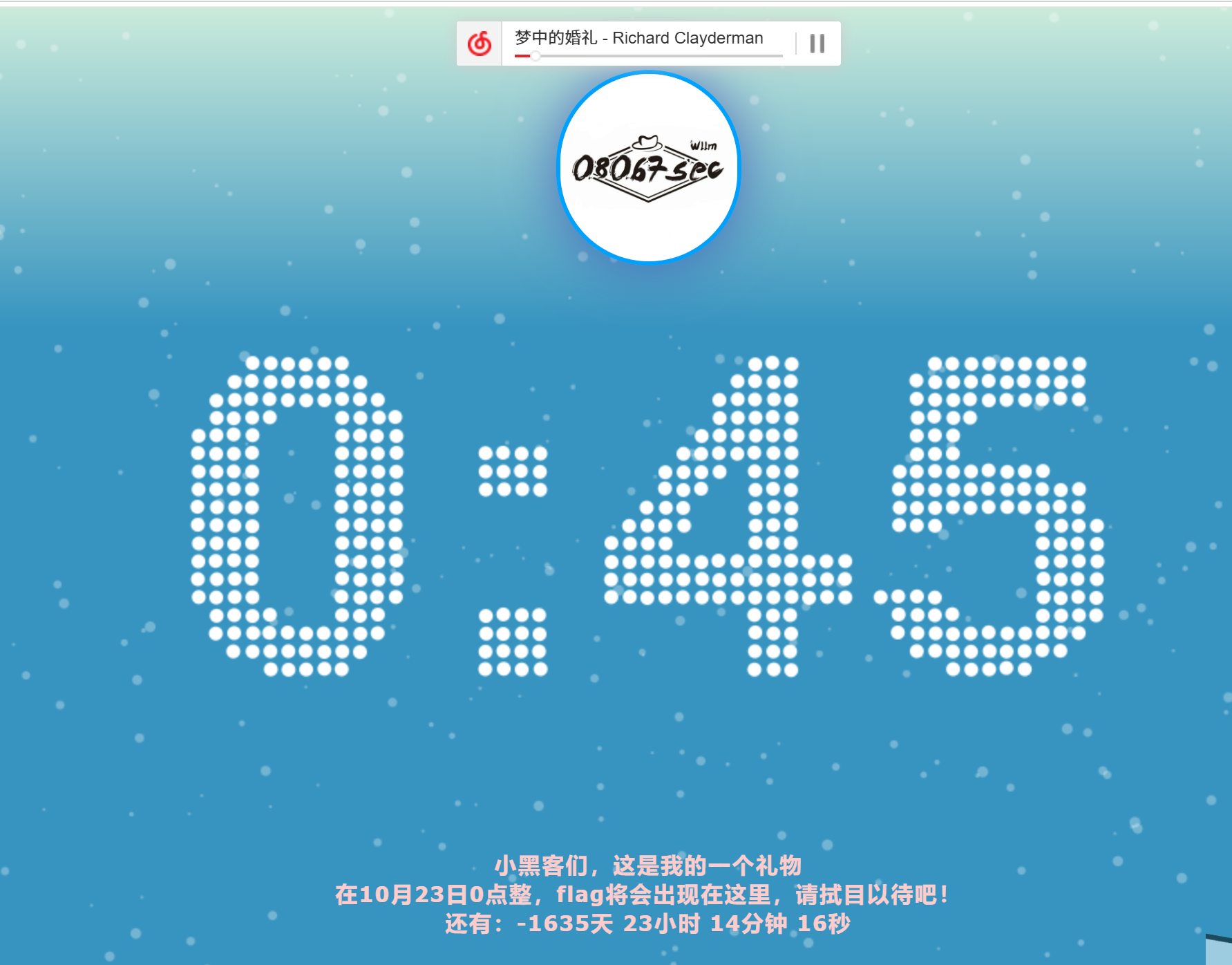
2. 解题【个人竟然没有写出来!!呃呃】
a. 错解
看题非常显而易见的,用post把时间改掉【不是】
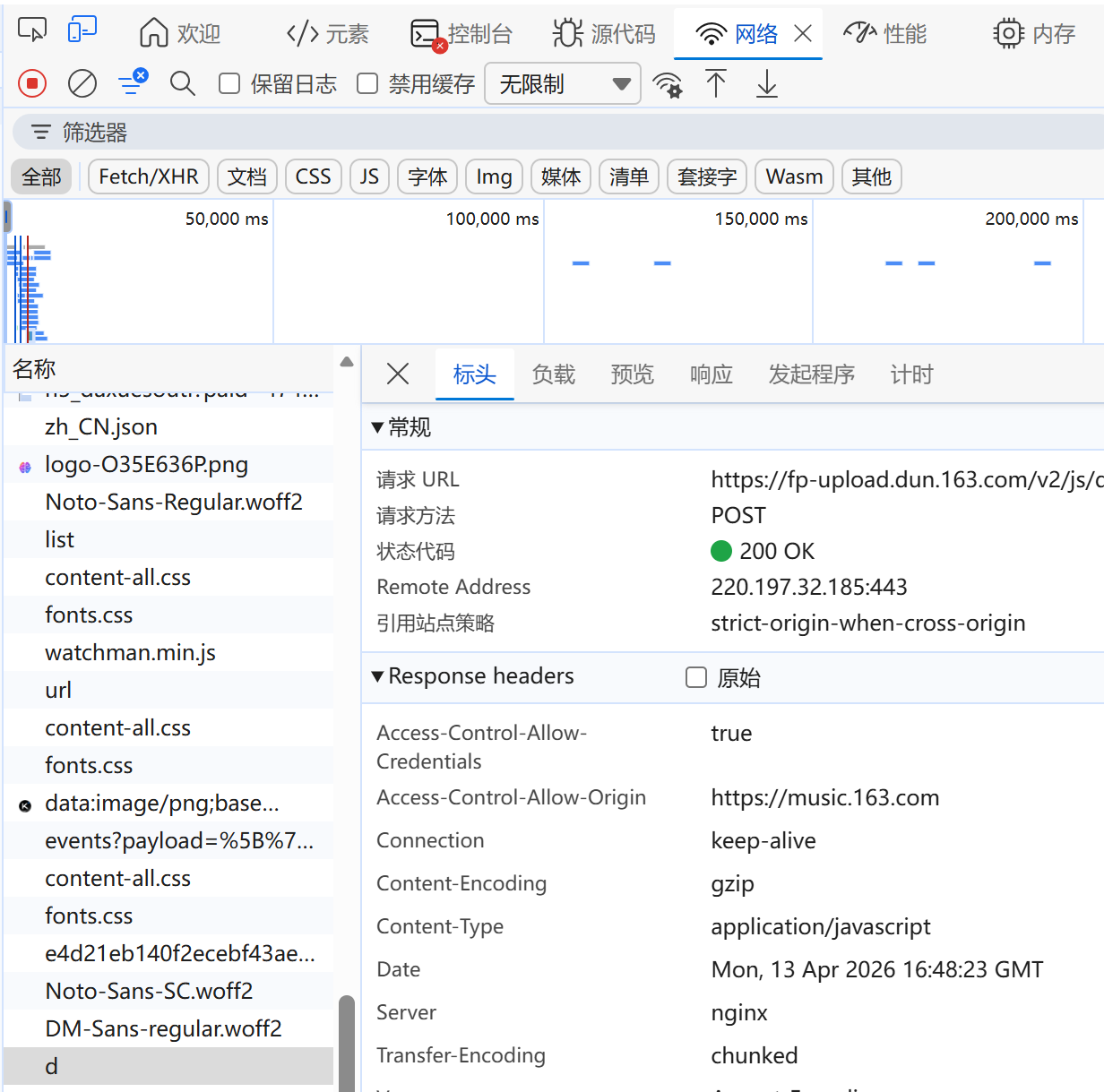
看这里格式:date Mon, 13 Apr 2026 16:48:23 GMT
【根据计算,应该是2021.10.23】
Sat, 23 Oct 2021 00:00:00 GMT
b. 正解
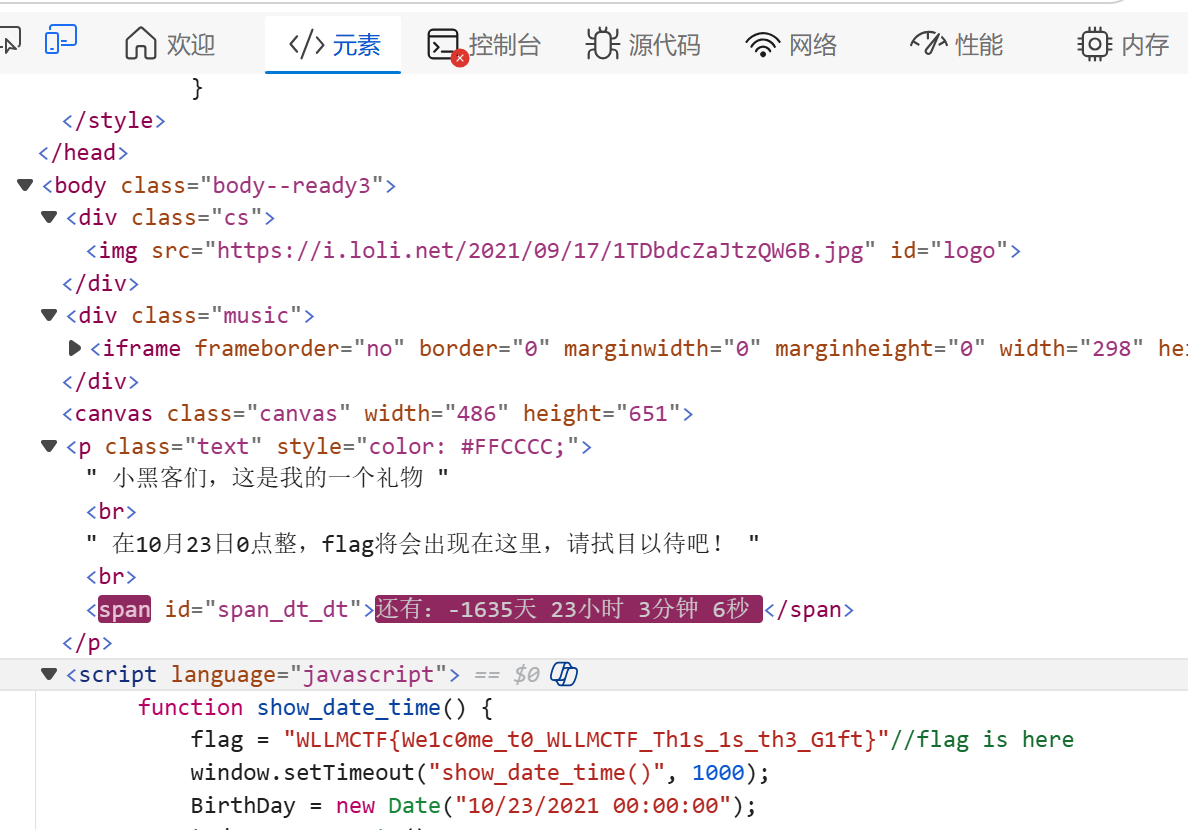
就在代码审计里
ⅲ. 题目3
1. 题目
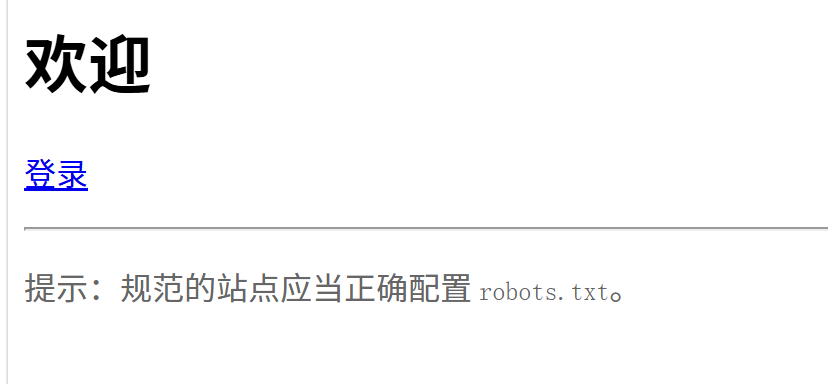
2. 解题
- 先把url改了,后缀/robots.txt【猜测,因为他没有说正确的配置要求是什么】
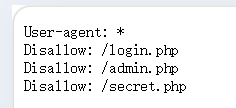
看见这个
- 三个url改过来,,在/secret.php
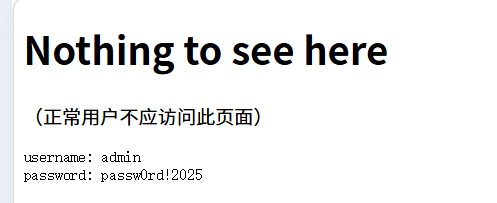
找到了,输入即可
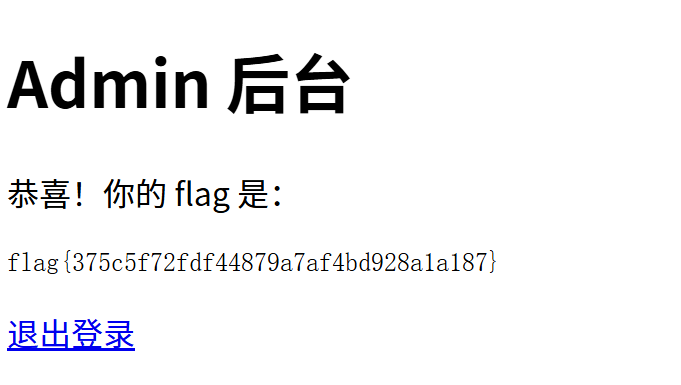
b. 工具
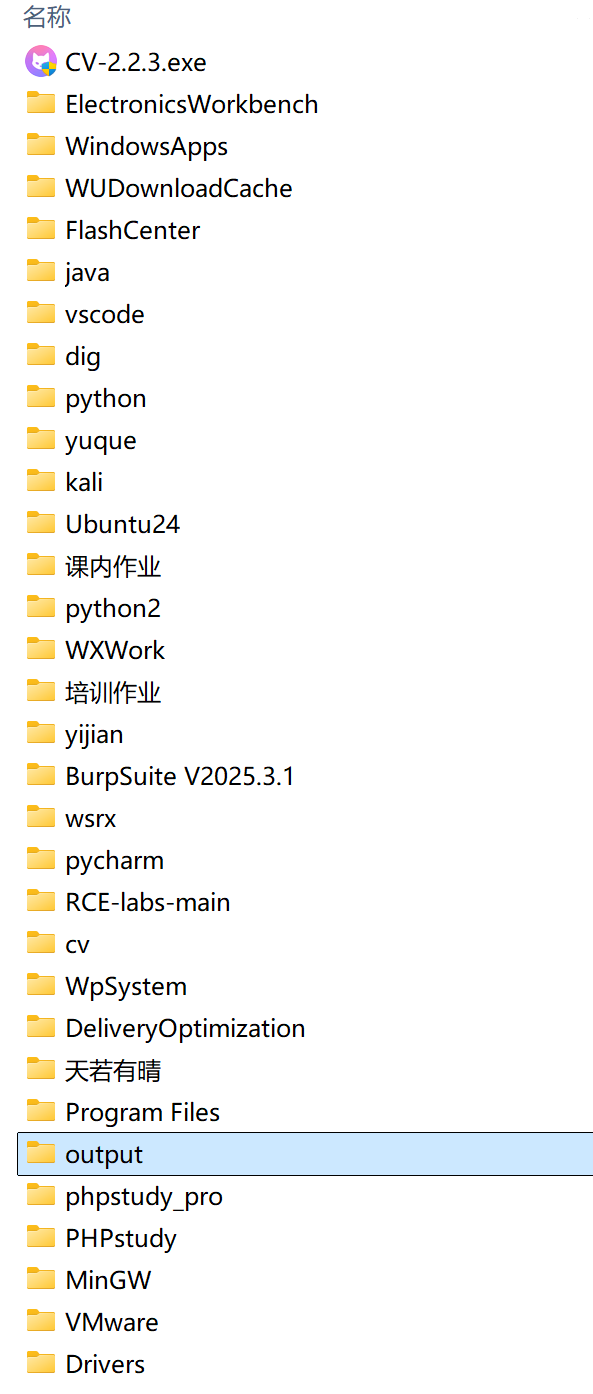
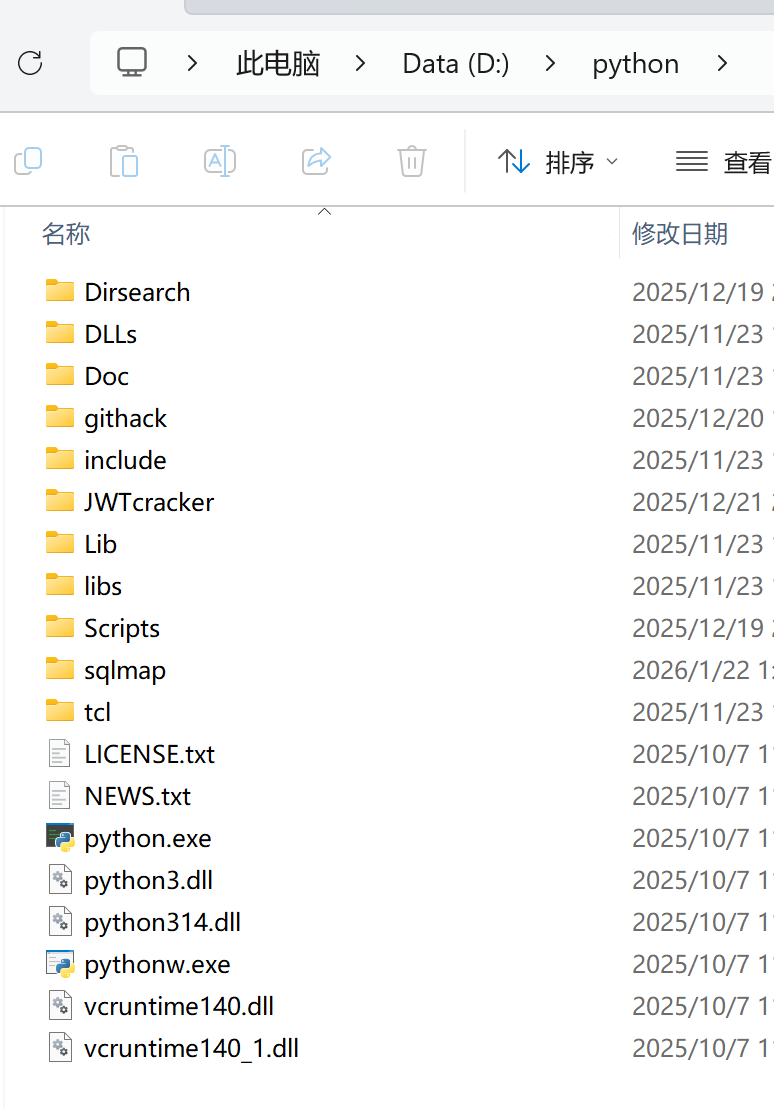
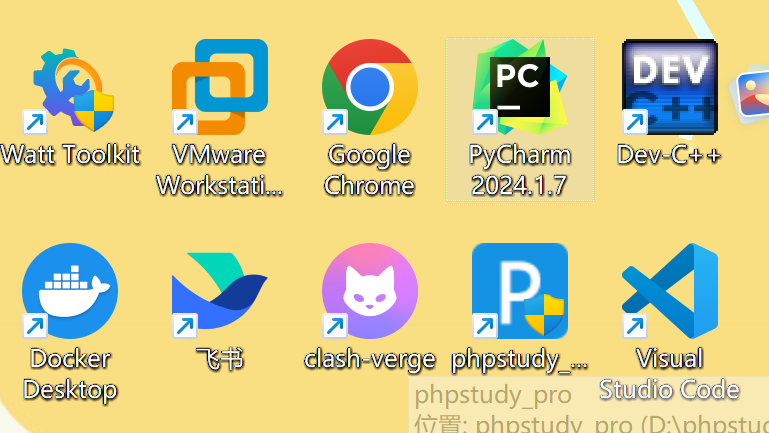
这是目前所有的工具了。。。
3. 知识点学习
a. markdown语法
来源:https://markdown.com.cn/basic-syntax/
https://markdown.com.cn/editor/markdown在线编译器
ⅰ. 标题语法
|--------------------------|----------------------------|------------------------|
| Markdown语法 | HTML | 预览效果 |
| # Heading level 1 | <h1>Heading level 1</h1> | ## Heading level 1 |
| ## Heading level 2 | <h2>Heading level 2</h2> | ### Heading level 2 |
| ### Heading level 3 | <h3>Heading level 3</h3> | #### Heading level 3 |
| #### Heading level 4 | <h4>Heading level 4</h4> | ##### Heading level 4 |
| ##### Heading level 5 | <h5>Heading level 5</h5> | ###### Heading level 5 |
| ###### Heading level 6 | <h6>Heading level 6</h6> | ###### Heading level 6 |
#的个数代码标题的号,<h?></h?>
【# 和标题之间进行分隔】
【选择:====做底,是一级标题,------做底,是二级标题】
ⅱ. 段落语法
使用空白行将一行或多行文本进行分隔
|---------------------------------------------------------------------------------------------------|-----------------------------------------------------------------------------------------------------------------|----------------------------------------------------------------------------------------------|
| Markdown语法 | HTML | 预览效果 |
| I really like using Markdown. I think I'll use it to format all of my documents from now on. | <p>I really like using Markdown.</p> <p>I think I'll use it to format all of my documents from now on.</p> | I really like using Markdown. I think I'll use it to format all of my documents from now on. |
ⅲ. 换行语法
在一行的末尾添加两个或多个空格,然后按回车键,即可创建一个换行(<br>)
|-----------------------------------------------------------|----------------------------------------------------------------------|------------------------------------------------------|
| Markdown语法 | HTML | 预览效果 |
| This is the first line. And this is the second line. | <p>This is the first line.<br> And this is the second line.</p> | This is the first line. And this is the second line. |
<p></p>
ⅳ. 强调语法
1. 黑体
要加粗文本,请在单词或短语的前后各添加两个星号 (asterisks)或下划线(underscores)。
如需加粗一个单词或短语的中间部分用以表示强调的话,请在要加粗部分的两侧各添加两个星号。
|---------------------------------|-------------------------------------------|----------------------------|
| Markdown语法 | HTML | 预览效果 |
| I just love **bold text**. | I just love <strong>bold text</strong>. | I just love bold text. |
| I just love __bold text__. | I just love <strong>bold text</strong>. | I just love bold text. |
| Love**is**bold | Love<strong>is</strong>bold | Loveisbold |
<strong></strong>
【Love__is__bold不行,格式兼容问题】
2. 斜体
请在单词或短语前后添加一个星号或下划线。
要斜体突出单词的中间部分,请在字母前后各添加一个星号,中间不要带空格
|----------------------------------------|-----------------------------------------------|--------------------------------------|
| Markdown语法 | HTML | 预览效果 |
| Italicized text is the *cat's meow*. | Italicized text is the <em>cat's meow</em>. | Italicized text is the cat's meow. |
| Italicized text is the _cat's meow_. | Italicized text is the <em>cat's meow</em>. | Italicized text is the cat's meow. |
| A*cat*meow | A<em>cat</em>meow | Acatmeow |
<em></em>
3. 粗体和斜体
【注意:黑体**A**,斜体*A*】
|-------------------------------------------|---------------------------------------------------------------|-----------------------------------------|
| Markdown语法 | HTML | 预览效果 |
| This text is ***really important***. | This text is <strong><em>really important</em></strong>. | This text is really important. |
| This text is ___really important___. | This text is <strong><em>really important</em></strong>. | This text is really important. |
| This text is __*really important*__. | This text is <strong><em>really important</em></strong>. | This text is really important. |
| This text is **_really important_**. | This text is <strong><em>really important</em></strong>. | This text is really important. |
| This is really***very***important text. | This is really<strong><em>very</em></strong>important text. | This is reallyveryimportant text. |
ⅴ. 引用语法
要创建块引用,请在段落前添加一个 > 符号。
> Dorothy followed her through many of the beautiful rooms in her castle.渲染效果如下所示:
Dorothy followed her through many of the beautiful rooms in her castle.
ⅰ. 多个段落的块引用
块引用可以包含多个段落。为段落之间的空白行添加一个 > 符号。
> Dorothy followed her through many of the beautiful rooms in her castle.
>
> The Witch bade her clean the pots and kettles and sweep the floor and keep the fire fed with wood.
渲染效果如下:
Dorothy followed her through many of the beautiful rooms in her castle.
The Witch bade her clean the pots and kettles and sweep the floor and keep the fire fed with wood.
ⅱ. 嵌套块引用
块引用可以嵌套。在要嵌套的段落前添加一个 >> 符号。
> Dorothy followed her through many of the beautiful rooms in her castle.
>
>> The Witch bade her clean the pots and kettles and sweep the floor and keep the fire fed with wood.
渲染效果如下:
Dorothy followed her through many of the beautiful rooms in her castle.
The Witch bade her clean the pots and kettles and sweep the floor and keep the fire fed with wood.
ⅲ. 带有其它元素的块引用
块引用可以包含其他 Markdown 格式的元素。并非所有元素都可以使用,你需要进行实验以查看哪些元素有效。
> #### The quarterly results look great!
>
> - Revenue was off the chart.
> - Profits were higher than ever.
>
>  *Everything* is going according to **plan**.
渲染效果如下:
1. The quarterly results look great!
- Revenue was off the chart.
- Profits were higher than ever.
Everything is going according to plan.
ⅵ. 列表语法
可以将多个条目组织成有序或无序列表。
1. 有序列表
每个列表项前添加数字并紧跟一个英文句点【必须从数字1开始,但是不用按顺序】
|--------------------------------------------------------------------------------------------------------------|----------------------------------------------------------------------------------------------------------------------------------------------------------------------------------------|------------------------------------------------------------------------------------------------------------------|
| Markdown语法 | HTML | 预览效果 |
| 1. First item 2. Second item 3. Third item 4. Fourth item | <ol> <li>First item</li> <li>Second item</li> <li>Third item</li> <li>Fourth item</li> </ol> | 1. First item 2. Second item 3. Third item 4. Fourth item |
| 1. First item 1. Second item 1. Third item 1. Fourth item | <ol> <li>First item</li> <li>Second item</li> <li>Third item</li> <li>Fourth item</li> </ol> | 1. First item 2. Second item 3. Third item 4. Fourth item |
| 1. First item 8. Second item 3. Third item 5. Fourth item | <ol> <li>First item</li> <li>Second item</li> <li>Third item</li> <li>Fourth item</li> </ol> | 1. First item 2. Second item 3. Third item 4. Fourth item |
| 1. First item 2. Second item 3. Third item 1. Indented item 2. Indented item 4. Fourth item | <ol> <li>First item</li> <li>Second item</li> <li>Third item <ol> <li>Indented item</li> <li>Indented item</li> </ol> </li> <li>Fourth item</li> </ol> | 1. First item 2. Second item 3. Third item 1. 1. Indented item 2. Indented item 1. Fourth item |
<ol></ol>
2. 无序列表
请在每个列表项前面添加破折号 (-)、星号 (*) 或加号 (+) 。
缩进一个或多个列表项可创建嵌套列表。
|--------------------------------------------------------------------------------------------------------|----------------------------------------------------------------------------------------------------------------------------------------------------------------------------------------|-----------------------------------------------------------------------------------------------------------|
| Markdown语法 | HTML | 预览效果 |
| - First item - Second item - Third item - Fourth item | <ul> <li>First item</li> <li>Second item</li> <li>Third item</li> <li>Fourth item</li> </ul> | * First item * Second item * Third item * Fourth item |
| * First item * Second item * Third item * Fourth item | <ul> <li>First item</li> <li>Second item</li> <li>Third item</li> <li>Fourth item</li> </ul> | * First item * Second item * Third item * Fourth item |
| + First item + Second item + Third item + Fourth item | <ul> <li>First item</li> <li>Second item</li> <li>Third item</li> <li>Fourth item</li> </ul> | * First item * Second item * Third item * Fourth item |
| - First item - Second item - Third item - Indented item - Indented item - Fourth item | <ul> <li>First item</li> <li>Second item</li> <li>Third item <ul> <li>Indented item</li> <li>Indented item</li> </ul> </li> <li>Fourth item</li> </ul> | * First item * Second item * Third item * * Indented item * Indented item * Fourth item |
<ul></ul>
ⅶ. 代码语法
要将单词或短语表示为代码,请将其包裹在反引号 (`````) 中。
|--------------------------------------------|--------------------------------------------------|--------------------------------------|
| Markdown语法 | HTML | 预览效果 |
| At the command prompt, type `nano`. | At the command prompt, type <code>nano</code>. | At the command prompt, type nano . |
1. 转义反引号
如果你要表示为代码的单词或短语中包含一个或多个反引号,则可以通过将单词或短语包裹在双反引号
(````````)中。
|---------------------------------------------|----------------------------------------------------|---------------------------------------|
| Markdown语法 | HTML | 预览效果 |
| Use `code` in your Markdown file. | <code>Use `code` in your Markdown file.</code> | Use `code` in your Markdown file. |
2. 代码块
要创建代码块,请将代码块的每一行缩进至少四个空格或一个制表符。
ⅷ. 分割线语法
要创建分隔线,请在单独一行上使用三个或多个星号 (***)、破折号 (---) 或下划线
(___) ,并且不能包含其他内容。
***

---

_________________
【为了兼容性,请在分隔线的前后均添加空白行。】
ⅸ. 链接语法
链接文本放在中括号内,链接地址放在后面的括号中,链接title可选。
超链接Markdown语法代码:[超链接显示名](超链接地址 "超链接title")
对应的HTML代码:<a href="超链接地址" title="超链接title">超链接显示名</a>
这是一个链接 [Markdown语法](https://markdown.com.cn)。渲染效果如下:
这是一个链接 Markdown语法(opens new window)。
1. 给链接增加 Title
链接title是当鼠标悬停在链接上时会出现的文字,这个title是可选的,它放在圆括号中链接地址后面,跟链接地址之间以空格分隔。
这是一个链接 [Markdown语法](https://markdown.com.cn "最好的markdown教程")。渲染效果如下:
这是一个链接 Markdown语法(opens new window)。
2. 网址和Email地址
使用尖括号可以很方便地把URL或者email地址变成可点击的链接。
<https://markdown.com.cn>
<fake@example.com>
渲染效果如下:
https://markdown.com.cn(opens new window)
fake@example.com
3. 带格式化的链接
强调 链接, 在链接语法前后增加星号。
要将链接表示为代码,请在方括号中添加反引号。
I love supporting the **[EFF](https://eff.org)**.
This is the *[Markdown Guide](https://www.markdownguide.org)*.
See the section on [`code`](#code).
渲染效果如下:
I love supporting the EFF(opens new window).
This is the Markdown Guide(opens new window).
See the section on code.
4. 引用类型链接
引用样式链接是一种特殊的链接,它使URL在Markdown中更易于显示和阅读。
参考样式链接分为两部分:与文本保持内联 的部分以及存储在文件中其他位置的部分,以使文本易于阅读。
a. 链接的第一部分格式
引用类型的链接的第一部分使用两组括号进行格式设置。
第一组方括号包围应显示为链接的文本。第二组括号显示了一个标签,该标签用于指向您存储在文档其他位置的链接。
尽管不是必需的,可以在第一组和第二组括号之间包含一个空格。第二组括号中的标签不区分大小写,可以包含字母,数字,空格或标点符号。
以下示例格式对于链接的第一部分效果相同:
[hobbit-hole][1][hobbit-hole] [1]
b. 链接的第二部分格式
引用类型链接的第二部分使用以下属性设置格式:
- 放在括号中的标签,其后紧跟一个冒号和至少一个空格(例如
[label]:)。 - 链接的URL,可以选择将其括在尖括号中。
- 链接的可选标题,可以将其括在双引号,单引号或括号中。
以下示例格式对于链接的第二部分效果相同:
[1]: https://en.wikipedia.org/wiki/Hobbit#Lifestyle[1]: https://en.wikipedia.org/wiki/Hobbit#Lifestyle "Hobbit lifestyles"[1]: https://en.wikipedia.org/wiki/Hobbit#Lifestyle 'Hobbit lifestyles'[1]: https://en.wikipedia.org/wiki/Hobbit#Lifestyle (Hobbit lifestyles)[1]: <https://en.wikipedia.org/wiki/Hobbit#Lifestyle> "Hobbit lifestyles"[1]: <https://en.wikipedia.org/wiki/Hobbit#Lifestyle> 'Hobbit lifestyles'[1]: <https://en.wikipedia.org/wiki/Hobbit#Lifestyle> (Hobbit lifestyles)
可以将链接的第二部分放在Markdown文档中的任何位置。有些人将它们放在出现的段落之后,有些人则将它们放在文档的末尾(例如尾注或脚注)。
X. 图片语法
要添加图像,请使用感叹号 (!), 然后在方括号增加替代文本,图片链接放在圆括号里,括号里的链接后可以增加一个可选的图片标题文本。
插入图片Markdown语法代码:。
对应的HTML代码:<img src="图片链接" alt="图片alt" title="图片title">
给图片增加链接,请将图像的Markdown 括在方括号中,然后将链接添加在圆括号中。
[](https://markdown.com.cn)Xⅰ. 转义字符语法
1. 可做转义的字符
以下列出的字符都可以通过使用反斜杠字符从而达到转义目的。
|-----------|-----------------------------------------------------------------------------------------------------------------------------------------------------------------|
| Character | Name |
| \ | backslash |
| ` | backtick (see also escaping backticks in code) |
| * | asterisk |
| _ | underscore |
| { } | curly braces |
| | brackets |
| ( ) | parentheses |
| # | pound sign |
| + | plus sign |
| - | minus sign (hyphen) |
| . | dot |
| ! | exclamation mark |
| | | pipe (see also escaping pipe in tables) |
2. 特殊字符自动转义
在 HTML 文件中,有两个字符需要特殊处理: < 和 & 。
< 符号用于起始标签,
& 符号则用于标记 HTML 实体,
如果你只是想要使用这些符号,你必须要使用实体的形式 ,像是 < 和 &。
a. 必须掌握的核心转义(补)【html中】
|----------|------------|--------------------------|
| 原始字符 | 转义后的样子 | 说明 |
| < | < | 小于号,因为会被误认为HTML标签开头,必须转义 |
| > | > | 大于号,因为会被误认为HTML标签结尾,必须转义 |
| & | & | 和号,因为它本身是转义的起始符,必须转义 |
| " | " | 双引号,在HTML标签属性里使用时需要转义 |
| ' | ' | 单引号,HTML5标准支持 |
b. 故而,例子
ⅰ. 在html中(手动)
如果你要打「AT&T」 ,你必须要写成「AT&T」 ,还得转换网址内的 & 符号,如果你要链接到:
http://images.google.com/images?num=30&q=larry+bird你必须要把网址转成:
http://images.google.com/images?num=30&q=larry+bird才能放到链接标签的 href 属性里。
ⅱ. markdown(自动)
Markdown 允许你直接使用这些符号,它帮你自动转义字符。
如果你使用 & 符号的作为 HTML 实体的一部分,那么它不会被转换,而在其它情况下,它则会被转换成 &。
©Markdown 将不会对这段文字做修改,但是如果你这样写:
AT&TMarkdown 就会将它转为:
AT&T类似的状况也会发生在 < 符号上,因为 Markdown 支持 行内 HTML ,如果你使用 < 符号作为 HTML 标签的分隔符,那 Markdown 也不会对它做任何转换,但是如果你是写:
4 < 5Markdown 将会把它转换为:
4 < 5Xⅱ. 内嵌 HTML 标签
对于 Markdown 涵盖范围之外的标签,都可以直接在文件里面用 HTML 本身。如需使用 HTML,不需要额外标注这是 HTML 或是 Markdown,只需 HTML 标签添加到 Markdown 文本中即可。
1. 行级內联标签
HTML 的行级內联标签如 <span>、<cite>、<del> 不受限制,可以在 Markdown 的段落、列表或是标题里任意使用。
This **word** is bold. This <em>word</em> is italic.渲染效果如下:
This word is bold. This word is italic.
2. 区块标签
区块元素──比如 <div>、<table>、<pre>、<p> 等标签,必须在前后加上空行,以便于内容区分。
而且这些元素的开始与结尾标签,不可以用 tab 或是空白来缩进。
Markdown 会自动识别这区块元素,避免在区块标签前后加上没有必要的 <p> 标签。
例如,在 Markdown 文件里加上一段 HTML 表格:
This is a regular paragraph.

<table>
    <tr>
        <td>Foo</td>
    </tr>
</table>

This is another regular paragraph.
请注意,Markdown 语法在 HTML 区块标签中将不会被进行处理。例如,你无法在 HTML 区块内使用 Markdown 形式的*强调*。【应该就是不能混合使用】
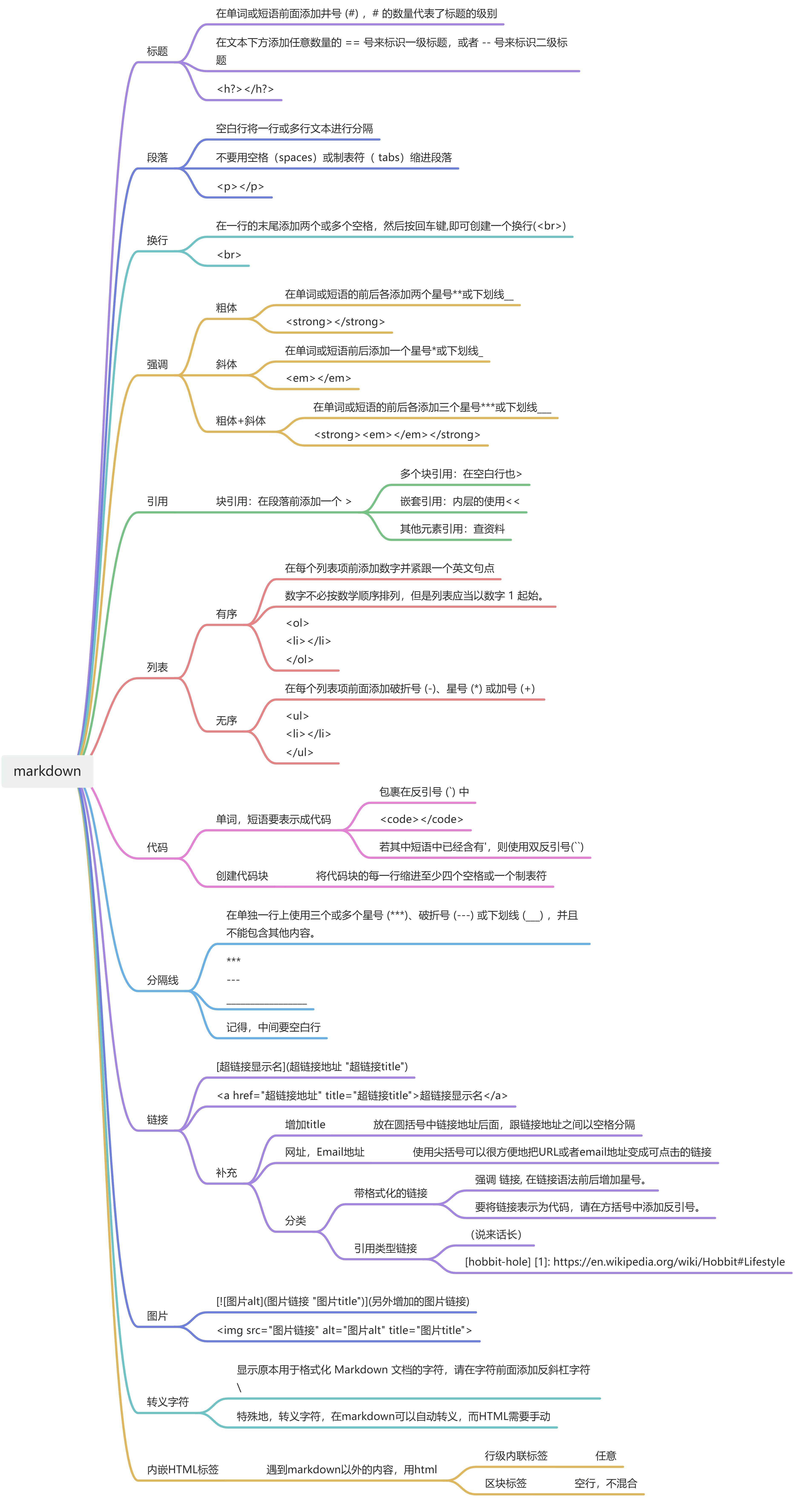
Xⅲ. 总结(快速可直接看【个人理】)
b. linux 系统知识了解
ⅰ. 系统
linux 系统可以选择装 Kali 或 Ubuntu,【这两个都搞了】


但是个人对虚拟机使用的频率还是不高
1. 知识点的学习
史上最全的Linux常用命令汇总(超全面!超详细!)收藏这一篇就够了!-CSDN博客
Linux入门教程(非常详细)从零基础入门到精通,看完这一篇就够了_linux学习-CSDN博客
a. 云服务器
https://www.runoob.com/linux/linux-cloud-server.html
要使用云服务器的时候看这个贴子
b. Linux命令
【我很好奇这个命令是要都背下来吗。。。】
- Linux 命令大全 | 菜鸟教程【总结板块】
- Linux 教程 | 菜鸟教程
- 史上最全的Linux常用命令汇总(超全面!超详细!)收藏这一篇就够了!-CSDN博客
- Linux入门教程(非常详细)从零基础入门到精通,看完这一篇就够了_linux学习-CSDN博客
- 这四个都是关于命令的
c. 基础知识
ⅰ. 什么是Linux
Linux:它是一个开源免费、稳定高效、适合多用户使用的操作系统,从个人学习到企业级服务器都能用到,也是做网络安全渗透测试的常用系统
ⅱ. 什么是shell?
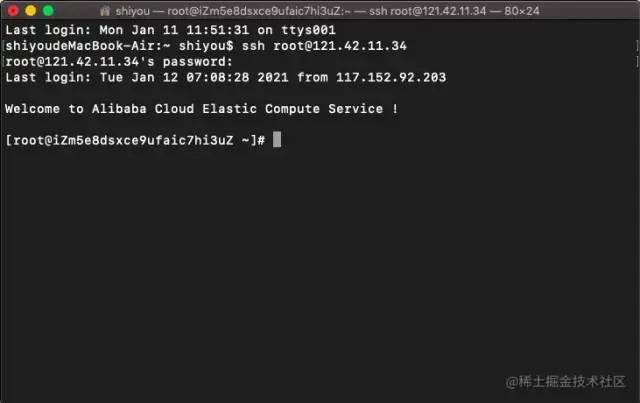
这个黑色面板就是shell
- Shell是一个程序,提供一个与用户对话的环境 。这个环境只有一个命令提示符 ,让用户从键盘输入命令,所以又称为命令行环境(command line interface,简写为CLI)。Shell 接收到用户输入的命令,将命令送入操作系统执行,并将结果返回给用户。
- Shell是一个命令解释器,解释用户输入的命令。它支持变量、条件判断、循环操作等语法,所以用户可以用Shell命令写出各种小程序,又称为Shell脚本。这些脚本都通过Shell的解释执行,而不通过编译。
- Shell是一个工具箱,提供了各种小工具,供用户方便地使用操作系统的功能。
ⅲ. Shell 的种类
【目前个人见过的,bash算一个】
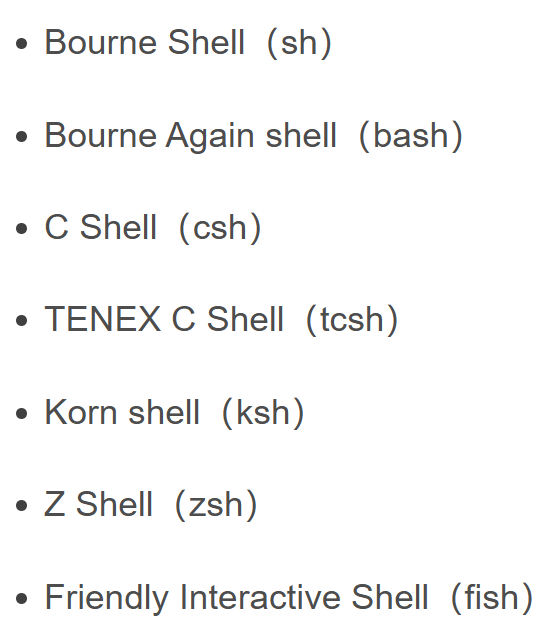
通过执行echo $SHELL命令可以查看到当前正在使用的Shell。还可以通过cat /etc/shells查看当前系统安装的所有Shell种类。
ⅳ. 命令
执行一个简单的命令pwd:
[root@iZm5e8dsxce9ufaic7hi3uZ ~]# pwd
/root
【查当前所在目录的】
命令解析:
- root:表示用户名;
- iZm5e8dsxce9ufaic7hi3uZ:表示主机名;
- ~:表示目前所在目录为家目录,其中root用户的家目录是 /root普通用户的家目录在 /home 下;
- #:指示你所具有的权限(root用户为# ,普通用户为$ )。
- 执行
whoami命令可以查看当前用户名; - 执行
hostname命令可以查看当前主机名;
命令格式
command parameters(命令 参数)
长短参数
单个参数:ls -a(a 是英文 all 的缩写,表示"全部")
多个参数:ls -al(全部文件 + 列表形式展示)
单个长参数:ls --all
多个长参数:ls --reverse --all
长短混合参数:ls --all -l
参数值
短参数:command -p 10(例如:ssh root@121.42.11.34 -p 22)
长参数:command --paramters=10(例如:ssh root@121.42.11.34 --port=22)
ⅴ. 快捷方式
【这个复制粘贴和windows里的ctrl +c不一样】
通过上下方向键 ↑ ↓ 来调取过往执行过的Linux命令;

命令或参数仅需输入前几位就可以用 Tab 键补全;

Ctrl + R :用于查找使用过的命令(history命令用于列出之前使用过的所有命令,然后输入!命令加上编号 (!2) 就可以直接执行该历史命令);

Ctrl + L:清除屏幕并将当前行移到页面顶部;

Ctrl + C:中止当前正在执行的命令;

Ctrl + U:从光标位置剪切到行首;

Ctrl + K:从光标位置剪切到行尾;

Ctrl + W:剪切光标左侧的一个单词;

Ctrl + Y:粘贴Ctrl + U | K | Y剪切的命令;

Ctrl + A:光标跳到命令行的开头;

Ctrl + E:光标跳到命令行的结尾;

Ctrl + D:关闭Shell会话;
ⅵ. 文件和目录
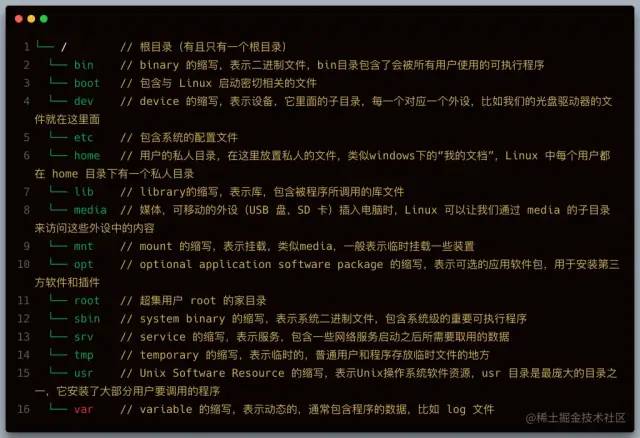
查询路径【pwd/which】