因为项目里同时有echarts的地图,地图需要弹跳动画,还有2d饼图和3d饼图.这里有一个坑,动画必须要ECharts 5.3.0+,而地图弹跳动画 → 需要 ECharts 5.3.0+ → 但 5.3.0+ 又和 echarts-gl 不兼容 → 3D 饼图出不来。所以这里用的是threejs,效果如下
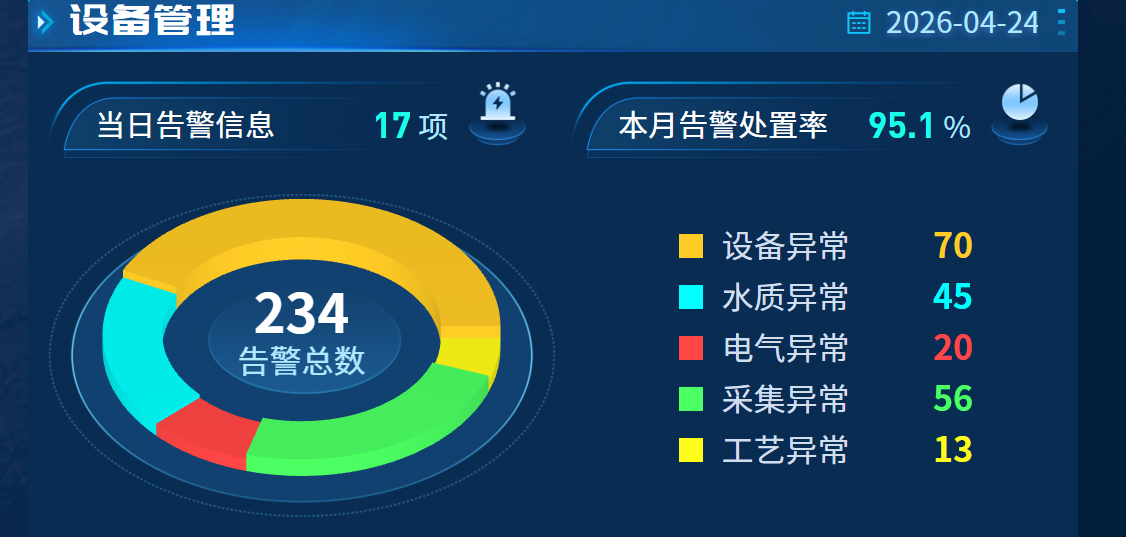
先需要下载threejs
c
npm install three
c
<template>
  <div class="chart_3dPie_box">
    <div ref="chartContainer" class="chart-container" />
    <div class="total_num">
      <div class="num">{{ chartData }}</div>
      <div class="text">告警总数</div>
    </div>
    <div class="flex-space-between chart-legend">
      <div v-for="(item, index) in lableData" :key="index" class="chart-item">
        <div class="chart_item_label flex_center">
          <div
            :style="{ backgroundColor: item.color }"
            class="chart_item_color"
          />
          {{ item.label }}
        </div>
        <div :style="{ color: item.color }" class="chart_item_value">
          {{ item.value }}
        </div>
      </div>
    </div>
  </div>
</template>

<script>
import * as THREE from "three";
import { OrbitControls } from "three/examples/jsm/controls/OrbitControls";
import fontData from "../../../../assets/font/DINPro-Regular.otf";
export default {
  name: "ThreeDPieChart",
  computed: {
    chartData() {
      // 总和
      return this.config.data.reduce((sum, item) => sum + item.value, 0);
    },
  },
  data() {
    return {
      lableData: [
        { label: "设备异常", value: 70, color: "#FFCC26" },
        { label: "水质异常", value: 45, color: "#00FFFF" },
        { label: "电气异常", value: 20, color: "#FF4747" },
        { label: "采集异常", value: 56, color: "#4BFF64" },
        { label: "工艺异常", value: 13, color: "#FFFC19" },
      ],
      config: {
        data: [
          { label: "电气异常", value: 100 },
          { label: "水质异常", value: 45 },
          { label: "电气异常", value: 20 },
          { label: "采集异常", value: 56 },
          { label: "工艺异常", value: 13 },
        ],
        colors: ["#FFCC26", "#00FFFF", "#FF4747", "#4BFF64", "#FFFC19"],
        height: 10,
        heightFactor: 4,
      },
      renderer: null,
      scene: null,
      camera: null,
      controls: null,
      font: null,
      animationId: null,
    };
  },
  mounted() {
    this.initChart();
    window.addEventListener("resize", this.handleResize);
  },
  beforeDestroy() {
    this.cleanup();
  },
  methods: {
    initChart() {
      if (!this.$refs.chartContainer) return;

      const containerWidth = this.$refs.chartContainer.clientWidth;
      const containerHeight = this.$refs.chartContainer.clientHeight;
      const outR = Math.min(containerWidth, containerHeight) * 0.58; // 调整饼图的大小
      const innerR = outR * 0.7; // 内圈大小

      // 1. 初始化渲染器(启用抗锯齿和更高的阴影质量)
      this.renderer = new THREE.WebGLRenderer({
        antialias: true,
        alpha: true, // 允许透明背景
      });
      this.renderer.setSize(containerWidth, containerHeight);
      this.renderer.shadowMap.enabled = true;
      this.renderer.shadowMap.type = THREE.PCFSoftShadowMap; // 更柔和的阴影
      this.renderer.outputEncoding = THREE.sRGBEncoding; // 更好的颜色渲染
      this.$refs.chartContainer.appendChild(this.renderer.domElement);

      // 2. 创建场景(设置适当的背景色)
      this.scene = new THREE.Scene();

      // 添加光源
      const light1 = new THREE.PointLight(0xfff3e0, 0.5);
      light1.position.set(0, 1200, 2160);
      this.scene.add(light1);

      // 环境光(调整强度解决颜色变暗)
      const ambientLight = new THREE.AmbientLight(0xffffff, 0.6);
      this.scene.add(ambientLight);

      // 4. 创建相机
      this.camera = new THREE.OrthographicCamera(
        containerWidth / -2,
        containerWidth / 2,
        containerHeight / 2,
        containerHeight / -2,
        1,
        2000
      );

      // 特写镜头:相机距离拉近
      this.camera.position.set(0, 1000, 1200);
      this.camera.lookAt(0, 0, 0);

      // 5. 控制器设置
      this.controls = new OrbitControls(this.camera, this.renderer.domElement);

      // 6. 加载字体(添加加载状态提示)
      this.loadFont(outR, innerR);
    },

    loadFont(outR, innerR) {
      const fontLoader = new THREE.FontLoader();
      this.font = fontLoader.parse(fontData);
      this.createPieChart(outR, innerR);
    },

    createPieChart(outR, innerR) {
      const group = new THREE.Group();
      group.rotation.x = -Math.PI / 2; // 更精确的旋转
      group.position.y = 10; // 移动饼图的位置,向下移动 30 个单位

      this.scene.add(group);

      const totalValue = this.config.data.reduce(
        (sum, item) => sum + item.value,
        0
      );

      let startAngle = 0;
      this.config.data.forEach((item, index) => {
        const angleLength = (item.value / totalValue) * Math.PI * 2; // 使用弧度制更精确
        const height =
          this.config.height +
          (item.value / totalValue) *
            this.config.height *
            this.config.heightFactor;

        // 使用更鲜艳的颜色
        const color = new THREE.Color(this.config.colors[index]);
        color.convertSRGBToLinear(); // 确保颜色正确渲染

        this.createPieSegment(
          group,
          outR,
          innerR,
          height,
          startAngle,
          angleLength,
          color,
          item.value,
          item.label // 添加标签显示
        );

        startAngle += angleLength;
      });

      this.animate();
    },

    createPieSegment(
      group,
      outR,
      innerR,
      height,
      startAngle,
      angleLength,
      color,
      text,
      label
    ) {
      // 1. 创建形状
      const shape = new THREE.Shape();
      shape.absarc(0, 0, outR, startAngle, startAngle + angleLength, false);
      shape.lineTo(
        Math.cos(startAngle + angleLength) * innerR,
        Math.sin(startAngle + angleLength) * innerR
      );
      shape.absarc(0, 0, innerR, startAngle + angleLength, startAngle, true);

      // 2. 挤出设置
      const extrudeSettings = {
        curveSegments: 100,
        steps: 2,
        depth: height,
        bevelEnabled: true,
        bevelThickness: 1,
        bevelSize: 0,
        bevelOffset: 0,
        bevelSegments: 1,
      };

      // 3. 创建网格(使用更亮的材质)
      const geometry = new THREE.ExtrudeGeometry(shape, extrudeSettings);
      const material = new THREE.MeshPhongMaterial({
        color: color,
        shininess: 20,
        roughness: 0.6,
      });

      const mesh = new THREE.Mesh(geometry, material);
      group.add(mesh);

      // 4. 添加文本(如果字体已加载)
      if (this.font) {
        this.addTextToSegment(
          mesh,
          outR,
          innerR,
          height,
          startAngle,
          angleLength,
          text
        );
      }

      // 5. 添加标签(可选)
      this.addLabelToSegment(group, outR, startAngle, angleLength, label);
    },

    addTextToSegment(
      mesh,
      outR,
      innerR,
      height,
      startAngle,
      angleLength,
      text
    ) {
      try {
        // 计算文本位置和角度
        const midAngle = startAngle + angleLength / 2;
        const radius = (outR + innerR) / 2;

        // 创建文本几何体
        const textGeometry = new THREE.TextGeometry(text, {
          font: this.font,
          size: 11,
          height: 2,
          curveSegments: 12,
          bevelEnabled: false,
        });

        // 计算文本居中
        textGeometry.computeBoundingBox();
        const textWidth =
          textGeometry.boundingBox.max.x - textGeometry.boundingBox.min.x;

        // 创建文本材质(更醒目的颜色)
        const textMaterial = new THREE.MeshPhongMaterial({
          color: 0xffffff,
        });

        const textMesh = new THREE.Mesh(textGeometry, textMaterial);

        // 定位和旋转文本
        textMesh.position.set(
          Math.cos(midAngle) * radius - textWidth / 2,
          Math.sin(midAngle) * radius - 10,
          height + 0
        );

        textMesh.rotation.set(
          120, // X轴旋转90度使文字立起来
          0, // Y轴不需要旋转
          0 // Z轴旋转使文字朝向圆心
        );

        // textMesh.rotation.z = midAngle + Math.PI / 2;
        // textMesh.rotation.x = Math.PI / 2;

        mesh.add(textMesh);
      } catch (error) {
        console.error("创建文本失败:", error);
      }
    },

    addLabelToSegment(group, radius, startAngle, angleLength, label) {
      // 创建简单的标签(使用CSS2DRenderer或Three.js精灵)
      // 这里简化为控制台输出
      console.log(`Segment Label: ${label}`);
    },

    animate() {
      this.animationId = requestAnimationFrame(this.animate);
      this.controls.update();
      this.renderer.render(this.scene, this.camera);
    },

    handleResize() {
      if (!this.renderer || !this.camera || !this.$refs.chartContainer) return;

      const width = this.$refs.chartContainer.clientWidth;
      const height = this.$refs.chartContainer.clientHeight;

      this.camera.left = width / -2;
      this.camera.right = width / 2;
      this.camera.top = height / 2;
      this.camera.bottom = height / -2;
      this.camera.updateProjectionMatrix();

      this.renderer.setSize(width, height);
    },

    cleanup() {
      window.removeEventListener("resize", this.handleResize);
      if (this.animationId) {
        cancelAnimationFrame(this.animationId);
      }
      if (
        this.renderer &&
        this.$refs.chartContainer &&
        this.$refs.chartContainer.contains(this.renderer.domElement)
      ) {
        this.$refs.chartContainer.removeChild(this.renderer.domElement);
      }

      // 释放资源
      if (this.scene) {
        while (this.scene.children.length > 0) {
          this.scene.remove(this.scene.children[0]);
        }
      }
    },
  },
};
</script>

<style lang="scss" scoped>
.chart_3dPie_box {
  position: relative;
  .chart-container {
    position: absolute;
    top: 0;
    left: 0;
    width: 507px;
    height: 343px;
    padding: 0;
    overflow: hidden;
    //   background: url(~@/assets/images/dz_img.png) center bottom 40%/200px  87px no-repeat;
    background: url("~@/assets/images/dz_img.png") no-repeat center center;
    background-size: 100%/200px 100%;
  }

  .total_num {
    width: 507px;
    height: 343px;
    position: absolute;
    left: 0;
    top: 0;
    display: flex;
    flex-direction: column;
    align-items: center;
    justify-content: center;

    .num {
      position: absolute;
      top: 88px;
      font-family: SourceHanSansCN-Bold;
      font-weight: bold;
      font-size: 54px;
      color: #ffffff;
    }
    .text {
      position: absolute;
      bottom: 142px;
      font-family: Source Han Sans CN;
      font-weight: 400;
      font-size: 32px;
      color: #b0e8ff;
    }
  }

  .chart-legend {
    position: absolute;
    top: 0;
    right: 0;
    width: calc(50% - 121px);
    padding: 36px 0;
    display: flex;
    flex-direction: column;
    // gap: 14px;

    .chart-item {
      width: 100%;
      padding-right: 94px;
      display: flex;
      align-items: center;
      justify-content: space-between;
      .chart_item_color {
        width: 24px;
        height: 24px;
        margin-right: 19px;
      }
      .chart_item_label {
        font-family: Source Han Sans CN;
        font-weight: 400;
        font-size: 32px;
        color: #d1deee;
      }
      .chart_item_value {
        font-family: SourceHanSansCN-Bold;
        font-weight: bold;
        font-size: 34px;
        color: #ffcc26;
      }
    }
  }
}
</style>