大家好,我是鸿蒙Jack。本期我想结合自己的《时光旅记》APP,聊一下我是怎么把 Service Collaboration Kit 真正接进业务里的。
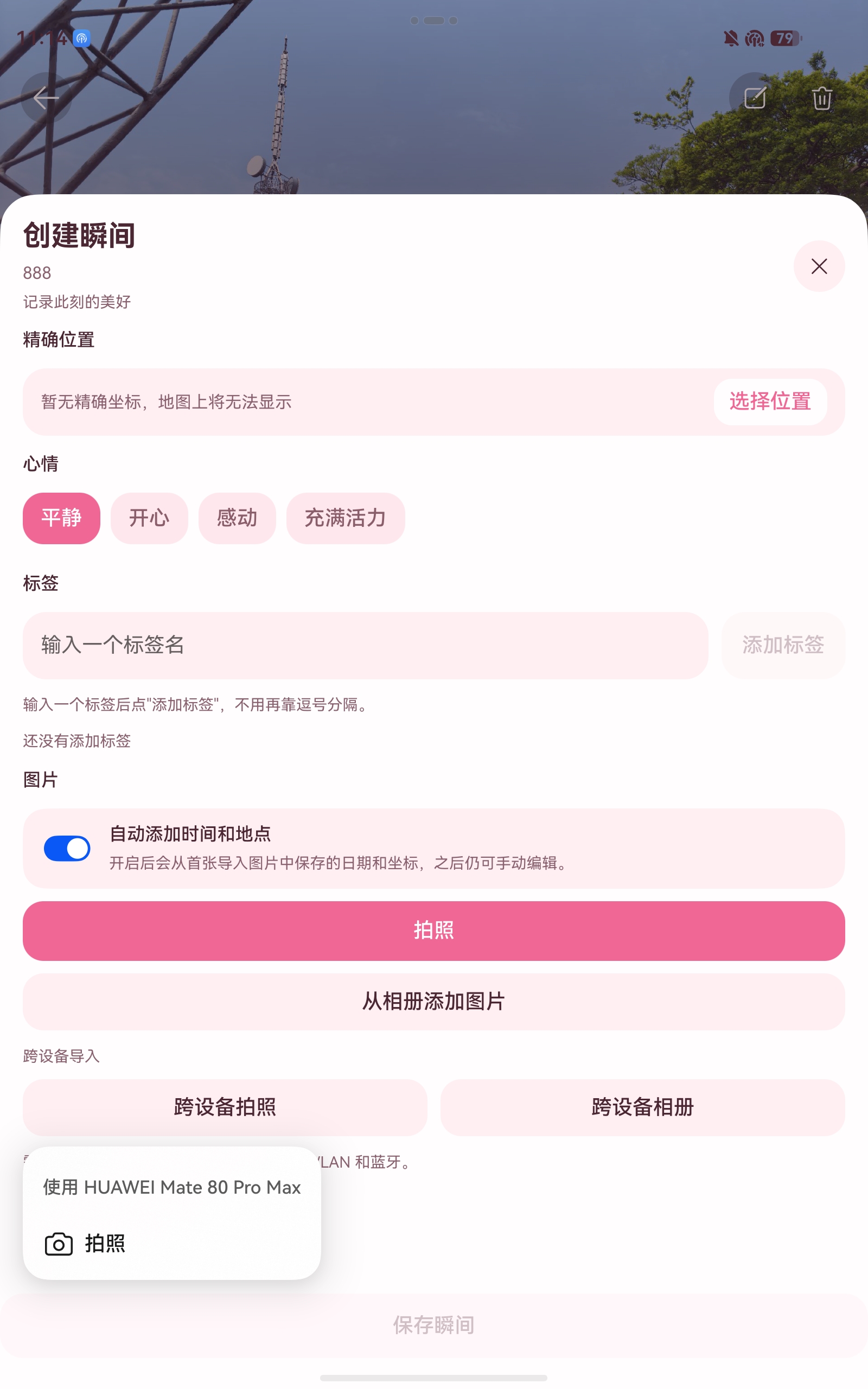
我这次要解决的不是"把一个官方示例跑起来",而是一个很具体的产品问题:用户经常在平板上整理旅行瞬间、写游记、补标签,但真正拍照的主设备往往还是手机。如果我要求用户先用手机拍完,再手动切回平板挑图,流程就断了。更自然的做法,是让平板里的"瞬间编辑器"直接拉起手机拍照,或者直接访问另一台设备的图库,把结果回传到当前这条瞬间草稿里。
这件事就很适合交给 Service Collaboration Kit。
我先扫了项目里原来的接法
我先在项目里扫了一遍,Service Collaboration Kit 的实际落点只有一条链路。
我最早是在 TravelMomentEditorDialog.ets 这个旅行瞬间编辑弹窗里接的,里面直接放了两个跨设备按钮:
- 一个用于跨设备拍照。
- 一个用于跨设备相册导入。
真正的数据处理不在这个对话框里,而是在 TravelMomentEditorPage.ets。远端设备回传 stateCode、bufferType、buffer 以后,宿主页面再继续做四件事:记录当前导入会话、解析文件名、把图片落到当前小本沙箱目录、把草稿媒体追加到 draftMediaItems,必要时顺手做一轮照片 EXIF 自动填充。
这条链路本身没有问题,但 UI 入口和状态码细节都散在业务页面里,后面要复用或者写文章都不太顺手。所以我这次的做法不是把所有业务逻辑都抽掉,而是只把应该抽的那一层抽出来:把"跨设备入口"和"状态语义"封成一个 Jack 开头的组件,业务页继续保留图片保存权。
这个场景里,Kit 和业务的分工应该怎么切
我在《时光旅记》里最后是这样拆的。
TravelMomentEditorDialog 瞬间编辑器
JackMomentRemoteImport
createCollaborationServiceMenuItems
CollaborationServiceStateDialog
TravelMomentEditorPage.onRemoteCollaborationState
远端文件名缓存
图片写入当前小本沙箱
追加 draftMediaItems
按需自动填充 EXIF 元数据
我不建议把"图片写到哪里、媒体记录怎么建、草稿数组怎么追加"这些逻辑塞进组件内部。因为这些都和你的业务模型强绑定。今天我这里是《时光旅记》的"小本"和"瞬间";换一个应用,也许是"工单附件"或者"表单照片",保存规则完全不一样。组件只应该收敛协同能力入口,而不应该吞掉业务所有权。
这套能力在页面里是怎么跑起来的
Service Collaboration Kit 真正要记住的只有三件事。
第一,createCollaborationServiceMenuItems 必须写在 Menu 里。
第二,CollaborationServiceStateDialog 必须常驻在页面树里。它不会破坏布局,但你不放它,远端状态就接不回来。
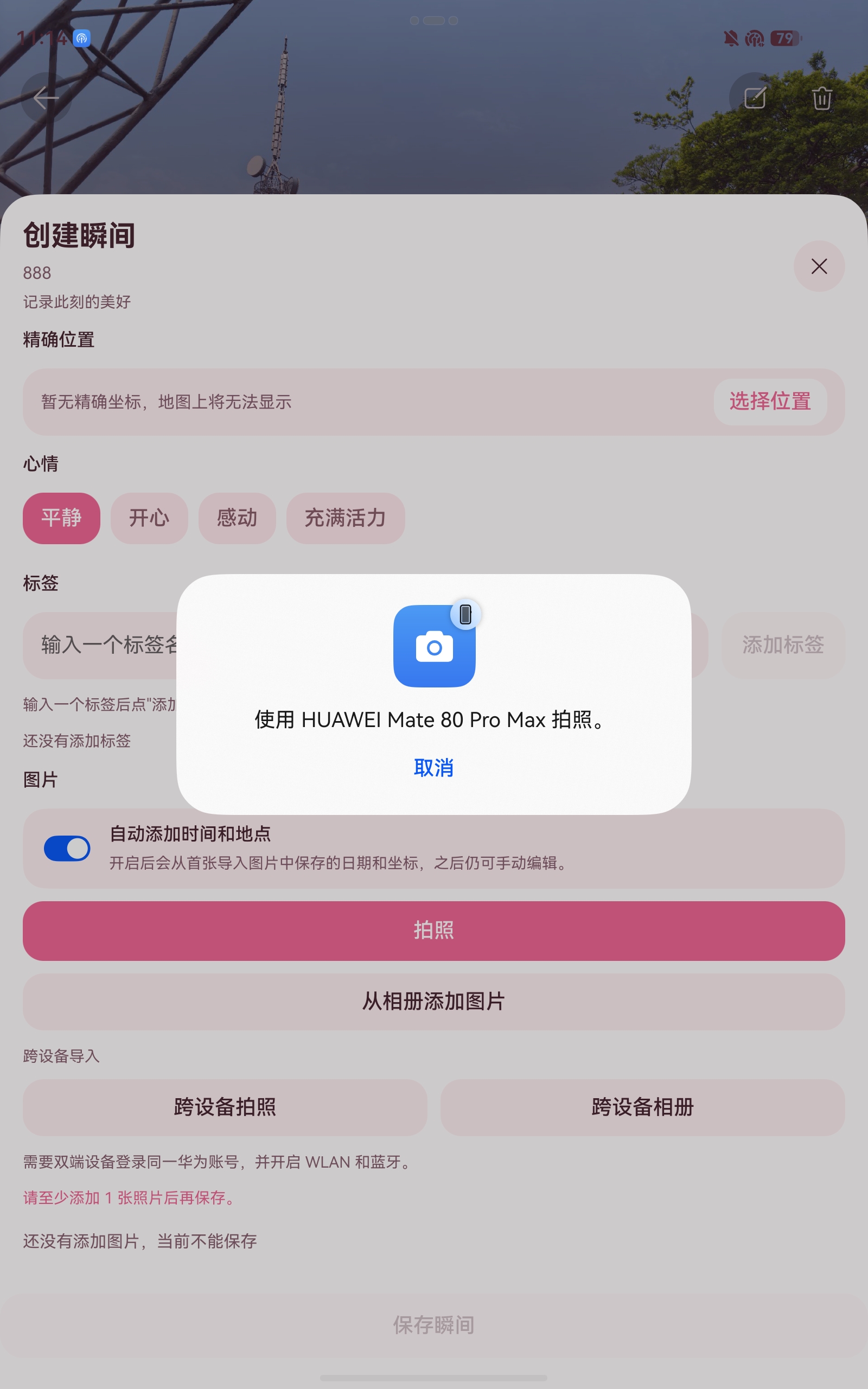
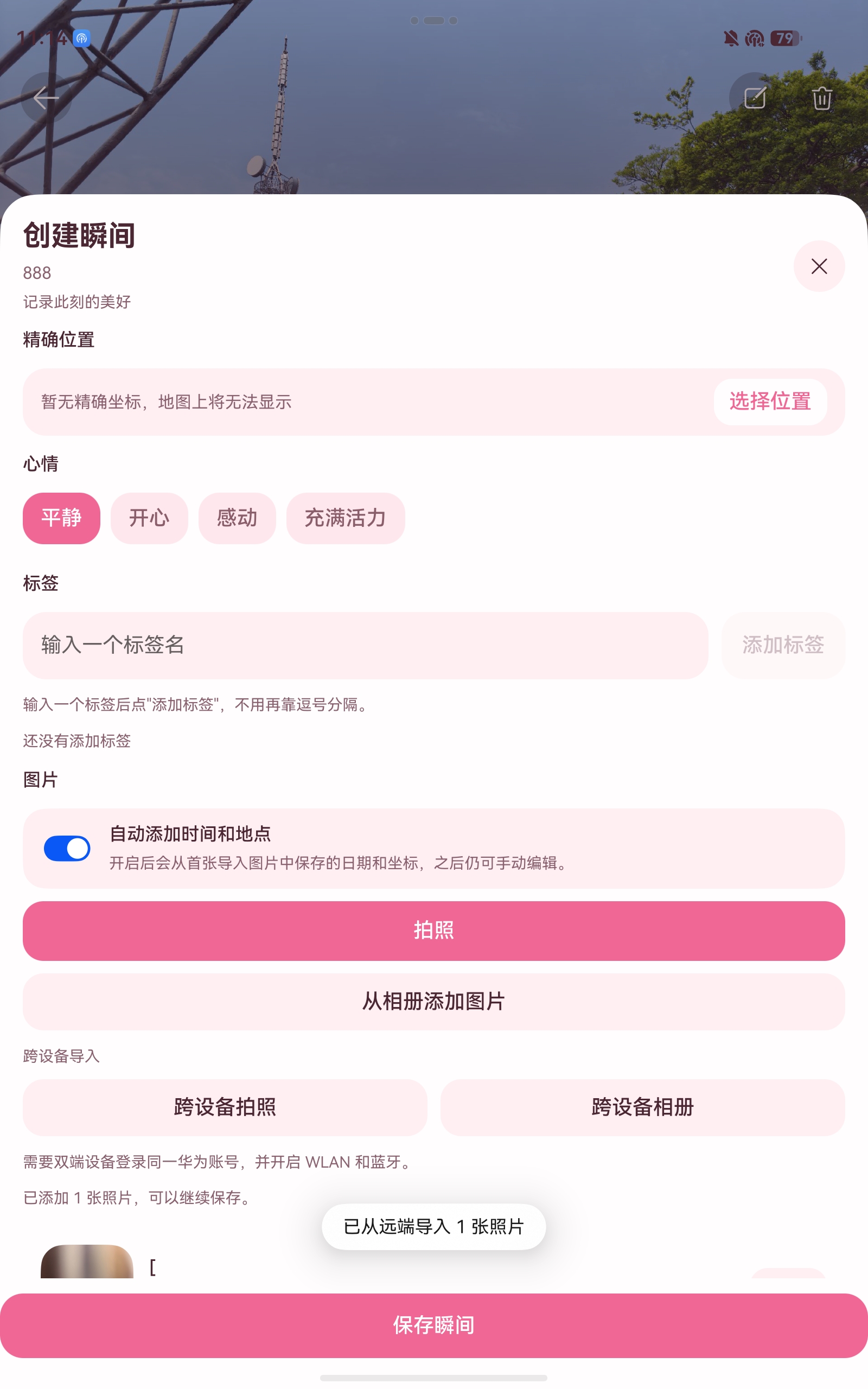
第三,onState 并不是"只回一张图"。它是一整条会话流。我的瞬间编辑器里会先收到开始状态,再可能收到一个或多个文件名,之后收到一张或多张图片,最后才收到"图片全部回传结束"。
整个过程我在业务上是这样理解的:
TravelMomentEditorPage 远端设备 Service Collaboration Kit JackMomentRemoteImport TravelMomentEditorDialog 用户 TravelMomentEditorPage 远端设备 Service Collaboration Kit JackMomentRemoteImport TravelMomentEditorDialog 用户 点击跨设备拍照或跨设备相册 bindMenu() createCollaborationServiceMenuItems(...) 选择远端设备 拉起对端拍照或图库能力 onState(1001202004, ...) 会话开始 回传文件名 onState(1001202006, general.fileName, buffer) 缓存文件名 回传图片 onState(0, general.image, buffer) 写入沙箱并追加草稿 全部图片回传结束 onState(1001202005, ...) 结束会话并提示成功
如果你把这条时序先想清楚,后面的代码会非常干净。
我为什么没有继续把代码直接写在对话框里
原因很简单。原来的 TravelMomentEditorDialog 同时承担了三类东西:
- 业务表单 UI。
- 跨设备协同入口。
- 远端状态桥接。
一开始这样写问题不大,但只要你后面想在别的页面复用,或者想把"跨设备拍照"和"跨设备相册"单独讲清楚,就会发现这段代码没有稳定边界。
所以我这次抽了一个组件:JackMomentRemoteImport。
这个组件只做四件事:
- 在页面里挂
CollaborationServiceStateDialog。 - 输出"跨设备拍照 / 跨设备相册"两个按钮。
- 统一封装三参数版本的
createCollaborationServiceMenuItems。 - 提供状态码枚举和文本缓冲解析助手,顺手把业务页里的魔法数字清掉。
效果图应该放在哪里
文章写到这里,通常我会放三张图,方便把产品感和代码链路对上。
完整封装代码
下面我用一份整理过的完整示例代码把这个场景讲清楚。核心一共四段:协同组件、统一导出、瞬间编辑弹窗接入代码、宿主页面的回调处理代码。
1. src/shared/components/JackMomentRemoteImport.ets
arkts
import { util } from '@kit.ArkTS';
import {
  CollaborationDeviceFilterType,
  CollaborationServiceFilter,
  CollaborationServiceStateDialog,
  createCollaborationServiceMenuItems
} from '@kit.ServiceCollaborationKit';
import { ThemePalette } from '../../utils/ThemePalette';

export interface JackMomentRemoteImportStatePayload {
  stateCode: number;
  bufferType: string;
  buffer: ArrayBuffer;
}

export interface JackMomentRemoteImportMenuOptions {
  filters: Array<CollaborationServiceFilter>;
  receiveMaxCount: number;
  deviceTypes: Array<CollaborationDeviceFilterType>;
}

export enum JackMomentRemoteImportStateCode {
  SUCCESS = 0,
  REMOTE_CANCELED = 1001202001,
  INTERNAL_ERROR = 1001202002,
  LOCAL_CANCELED = 1001202003,
  STARTED = 1001202004,
  ALL_IMAGES_RETURNED = 1001202005,
  FILE_NAME_RETURNED = 1001202006,
  INVALID_RECEIVE_MAX_COUNT = 1001202007,
  ALL_VIDEOS_RETURNED = 1001202015,
  MULTI_VIDEOS_RETURNING = 1001202016
}

export class JackMomentRemoteImportHelper {
  public static readonly IMAGE_BUFFER_TYPE: string = 'general.image';
  public static readonly FILE_NAME_BUFFER_TYPE: string = 'general.fileName';
  public static readonly VIDEO_BUFFER_TYPE: string = 'general.video';

  public static decodeTextBuffer(buffer: ArrayBuffer): string {
    try {
      let decoder: util.TextDecoder = util.TextDecoder.create('utf-8', { ignoreBOM: true });
      return decoder.decodeToString(new Uint8Array(buffer)).trim();
    } catch (_error) {
      return '';
    }
  }

  public static isImageSuccess(payload: JackMomentRemoteImportStatePayload): boolean {
    return payload.stateCode === JackMomentRemoteImportStateCode.SUCCESS &&
      payload.bufferType === JackMomentRemoteImportHelper.IMAGE_BUFFER_TYPE;
  }

  public static isFileNamePayload(payload: JackMomentRemoteImportStatePayload): boolean {
    return payload.bufferType === JackMomentRemoteImportHelper.FILE_NAME_BUFFER_TYPE ||
      payload.stateCode === JackMomentRemoteImportStateCode.FILE_NAME_RETURNED;
  }
}

@Component
export struct JackMomentRemoteImport {
  enabled: boolean = true;
  title: string = '跨设备导入';
  takePhotoButtonText: string = '跨设备拍照';
  imagePickerButtonText: string = '跨设备相册';
  helperText: string = '需要双端设备登录同一华为账号,并开启 WLAN 和蓝牙。';
  takePhotoOptions: JackMomentRemoteImportMenuOptions = {
    filters: [CollaborationServiceFilter.TAKE_PHOTO],
    receiveMaxCount: 1,
    deviceTypes: [
      CollaborationDeviceFilterType.PHONE,
      CollaborationDeviceFilterType.TABLET
    ]
  };
  imagePickerOptions: JackMomentRemoteImportMenuOptions = {
    filters: [CollaborationServiceFilter.IMAGE_PICKER],
    receiveMaxCount: 20,
    deviceTypes: [
      CollaborationDeviceFilterType.PHONE,
      CollaborationDeviceFilterType.TABLET,
      CollaborationDeviceFilterType.PC_2IN1
    ]
  };
  onState?: (payload: JackMomentRemoteImportStatePayload) => void;
  @BuilderParam buildFooter?: () => void;

  build(): void {
    Column({ space: 10 }) {
      CollaborationServiceStateDialog({
        onState: (stateCode: number, bufferType: string, buffer: ArrayBuffer): void => {
          if (this.onState) {
            this.onState({
              stateCode: stateCode,
              bufferType: bufferType,
              buffer: buffer
            });
          }
        }
      })

      if (this.title.length > 0) {
        Text(this.title)
          .width('100%')
          .fontSize(12)
          .lineHeight(18)
          .fontColor(ThemePalette.textSecondary())
      }

      Row({ space: 10 }) {
        Button(this.takePhotoButtonText)
          .layoutWeight(1)
          .height(44)
          .enabled(this.enabled)
          .backgroundColor(ThemePalette.surfaceSecondary())
          .fontColor(ThemePalette.textPrimary())
          .borderRadius(16)
          .bindMenu(this.buildRemoteTakePhotoMenu)

        Button(this.imagePickerButtonText)
          .layoutWeight(1)
          .height(44)
          .enabled(this.enabled)
          .backgroundColor(ThemePalette.surfaceSecondary())
          .fontColor(ThemePalette.textPrimary())
          .borderRadius(16)
          .bindMenu(this.buildRemoteImagePickerMenu)
      }
      .width('100%')

      if (this.helperText.length > 0) {
        Text(this.helperText)
          .width('100%')
          .fontSize(12)
          .lineHeight(18)
          .fontColor(ThemePalette.textSecondary())
      }

      if (this.buildFooter) {
        this.buildFooter();
      }
    }
    .width('100%')
  }

  @Builder
  private buildRemoteTakePhotoMenu(): void {
    Menu() {
      createCollaborationServiceMenuItems(
        this.takePhotoOptions.filters,
        this.takePhotoOptions.receiveMaxCount,
        this.takePhotoOptions.deviceTypes
      )
    }
  }

  @Builder
  private buildRemoteImagePickerMenu(): void {
    Menu() {
      createCollaborationServiceMenuItems(
        this.imagePickerOptions.filters,
        this.imagePickerOptions.receiveMaxCount,
        this.imagePickerOptions.deviceTypes
      )
    }
  }
}
2. src/shared/components/index.ets
arkts
export * from './JackMomentRemoteImport';3. src/features/moments/TravelMomentEditorDialog.ets 接入代码
这一步我只让瞬间编辑器负责展示入口,不让它关心远端图片怎么保存。
arkts
import { JackMomentRemoteImport } from '../../shared/components';

JackMomentRemoteImport({
  enabled: !this.isBusy,
  onState: (payload) => {
    if (this.onRemoteCollaborationState) {
      this.onRemoteCollaborationState(payload.stateCode, payload.bufferType, payload.buffer);
    }
  },
  buildFooter: () => {
    Text(this.hasPhotoDraftMedia() ? `已添加 ${this.getDraftPhotoCount()} 张照片,可以继续保存。` :
      '请至少添加 1 张照片后再保存。')
      .width('100%')
      .fontSize(12)
      .lineHeight(18)
      .fontColor(this.hasPhotoDraftMedia() ? ThemePalette.textSecondary() : ThemePalette.accentPrimary())
  }
})
4. src/features/moments/TravelMomentEditorPage.ets 回调处理代码
真正和《时光旅记》业务绑定的部分在这里。当前小本 ID、文件名缓存、沙箱落盘、草稿媒体追加,全都由宿主页面自己控制。
arkts
import {
  JackMomentRemoteImportHelper,
  JackMomentRemoteImportStateCode
} from '../../shared/components';

private handleMomentRemoteCollaborationState(stateCode: number, bufferType: string, buffer: ArrayBuffer): void {
  this.remoteCollaborationStateTask = this.remoteCollaborationStateTask
    .then(() => this.processMomentRemoteCollaborationState(stateCode, bufferType, buffer))
    .catch(() => {
      this.resetRemoteCollaborationSession();
      this.isBusy = false;
      this.showToast($r('app.string.toast_media_failed'));
    });
}

private async processMomentRemoteCollaborationState(
  stateCode: number,
  bufferType: string,
  buffer: ArrayBuffer
): Promise<void> {
  if (stateCode === JackMomentRemoteImportStateCode.STARTED) {
    this.resetRemoteCollaborationSession();
    this.remoteCollaborationNotebookId = this.momentNotebookIdInput;
    return;
  }

  if (bufferType === JackMomentRemoteImportHelper.FILE_NAME_BUFFER_TYPE ||
    stateCode === JackMomentRemoteImportStateCode.FILE_NAME_RETURNED) {
    let fileName: string = JackMomentRemoteImportHelper.decodeTextBuffer(buffer);
    if (fileName.length > 0) {
      this.remoteCollaborationFileNames.push(fileName);
    }
    return;
  }

  if (stateCode === JackMomentRemoteImportStateCode.ALL_IMAGES_RETURNED) {
    if (this.remoteCollaborationImportedCount > 0) {
      this.showToast(`已从远端导入 ${this.remoteCollaborationImportedCount} 张照片`);
    }
    this.resetRemoteCollaborationSession();
    return;
  }

  if (stateCode === JackMomentRemoteImportStateCode.REMOTE_CANCELED) {
    this.resetRemoteCollaborationSession();
    this.showToast('远端设备已取消本次操作');
    return;
  }

  if (stateCode === JackMomentRemoteImportStateCode.INTERNAL_ERROR) {
    this.resetRemoteCollaborationSession();
    this.showToast('跨设备协同失败,请检查双端 WLAN 和蓝牙后重试');
    return;
  }

  if (stateCode === JackMomentRemoteImportStateCode.LOCAL_CANCELED) {
    this.resetRemoteCollaborationSession();
    return;
  }

  if (stateCode === JackMomentRemoteImportStateCode.INVALID_RECEIVE_MAX_COUNT) {
    this.resetRemoteCollaborationSession();
    this.showToast('跨设备图片数量配置无效');
    return;
  }

  if (stateCode !== JackMomentRemoteImportStateCode.SUCCESS ||
    bufferType !== JackMomentRemoteImportHelper.IMAGE_BUFFER_TYPE) {
    return;
  }

  if (this.remoteCollaborationNotebookId.length === 0) {
    return;
  }

  let notebook: NotebookRecord | undefined = this.getNotebookById(this.remoteCollaborationNotebookId);
  let hostContext: Context | undefined = this.getUIContext().getHostContext();
  if (notebook === undefined) {
    this.resetRemoteCollaborationSession();
    this.showToast($r('app.string.toast_need_notebook'));
    return;
  }
  if (hostContext === undefined) {
    return;
  }

  let preferredName: string = this.consumeRemoteCollaborationFileName();
  let shouldAutoFillMeta: boolean = this.shouldAutoFillMomentMetaFromImportedPhoto();
  this.isBusy = true;
  try {
    let target: SandboxFileTarget = await writeImageBufferToSandbox(
      hostContext,
      this.remoteCollaborationNotebookId,
      buffer,
      preferredName.length > 0 ? preferredName : 'remote_photo.jpg',
      'jpg'
    );
    this.draftMediaItems = this.draftMediaItems.concat([
      createMediaRecord(MediaKind.PHOTO, target.fileUri, target)
    ]);
    this.remoteCollaborationImportedCount += 1;
    if (shouldAutoFillMeta) {
      await this.applyImportedPhotoExif([target.fileUri], true);
    }
  } finally {
    this.isBusy = false;
  }
}

private consumeRemoteCollaborationFileName(): string {
  if (this.remoteCollaborationFileNames.length === 0) {
    return '';
  }
  let fileName: string = this.remoteCollaborationFileNames[0];
  this.remoteCollaborationFileNames = this.remoteCollaborationFileNames.slice(1);
  return fileName;
}

private resetRemoteCollaborationSession(): void {
  this.remoteCollaborationFileNames = [];
  this.remoteCollaborationImportedCount = 0;
  this.remoteCollaborationNotebookId = '';
}
这套代码里最关键的两个判断
第一个判断,是把 1001202004 当成一次会话的起点。因为我必须在这一刻锁定"这批远端图片要落到哪个小本里"。如果你不在开始状态记录 remoteCollaborationNotebookId,后面图片回来了,业务页就不知道该往哪个目录写。
第二个判断,是只在 stateCode === 0 且 bufferType === general.image 时才真正落盘。因为 onState 回来的不只是图片,还可能是文件名,也可能只是会话状态。如果你不把这两层判断写严,回调里很容易把无效 buffer 当成图片处理。
关于权限和设备限制,我最后是怎么落地的
这一点我建议一定要分开理解。
Service Collaboration Kit 这一层,关键前提是设备条件,不是本地运行时权限。双端要登录同一华为账号,要打开 WLAN 和 蓝牙,最好还在同一局域网。
但一旦你把它接进真实业务,就会连到你自己的媒体处理链路。比如我这里还会把图片写进小本沙箱,还会走本地拍照、系统相册、EXIF 自动填充,所以《时光旅记》最终依然要处理自己那套媒体权限。不要把"协同能力是否可用"和"业务图片链路是否完整"混为一谈。
我在《时光旅记》里实际踩住的边界
最后再补一句经验。
这类能力最容易写偏的地方,是一上来就想做一个"万能跨设备素材组件",把回传文件直接帮业务写死。我这次刻意没有这么做。因为对《时光旅记》来说,真正重要的不是"拿到一张图",而是"把这张图准确落到当前小本的当前瞬间草稿里,并且不破坏后面的 EXIF 自动填充、媒体移除和保存逻辑"。
所以我这里的封装原则很明确:组件抽入口,页面保业务。这样抽完以后,TravelMomentEditorDialog 干净了,TravelMomentEditorPage 里的状态码也不再是裸数字,后面如果我要把这套入口挪到旅行计划、打卡封面、图片工厂,也可以复用同一套组件,而不用重写一遍设备选择逻辑。
如果你也在做类似的跨设备拍照或跨设备选图场景,我建议先把自己的业务保存链路想清楚,再接 Service Collaboration Kit。这个顺序反过来,后面大概率要返工。