Flutter for OpenHarmony 新闻资讯应用实战开发
欢迎加入开源鸿蒙跨平台社区: https://openharmonycrossplatform.csdn.net
作者:maaath
前言
在移动应用开发领域,跨平台技术一直是开发者关注的焦点。随着 OpenHarmony 生态的快速发展,Flutter for OpenHarmony 作为华为官方推荐的跨平台解决方案,为开发者提供了在同一套代码基础上构建鸿蒙原生应用的能力。本文将通过一个完整的新闻资讯应用实战项目,详细讲解如何利用 Flutter for OpenHarmony 开发具备网络请求、列表展示、下拉刷新、底部导航以及页面滑动动效的原生应用。
Flutter for OpenHarmony 不仅继承了 Flutter 跨平台的优秀特性,还深度适配了 OpenHarmony 的分布式能力和原生组件,使得开发者能够充分发挥设备的全部潜力。本文将从项目结构设计、核心功能实现、页面跳转与动效等多个维度进行深入剖析,帮助读者快速掌握 Flutter 鸿蒙应用开发的实战技巧。
一、项目概述与需求分析
1.1 项目背景
新闻资讯应用是移动端最常见的产品形态之一,其核心功能包括新闻列表展示、分类浏览、详情阅读、搜索功能以及用户个人中心。本次实战项目将完整实现上述功能,并通过 Flutter for OpenHarmony 的声明式 UI 特性,打造流畅的用户体验。
本项目的核心目标包括:掌握 HTTP 网络请求的封装与调用、实现列表数据的分页加载与下拉刷新、设计符合 Material Design 规范的底部导航栏、运用 Flutter 动画 API 实现页面的进入与退出动效、以及通过页面路由实现模块间的无缝跳转。这些目标涵盖了 Flutter 鸿蒙应用开发中最核心的技术要点。
1.2 功能模块划分
根据产品需求,我们将新闻资讯应用划分为以下核心模块:首页模块负责展示新闻列表,支持头条、科技、体育等多个分类频道;详情模块呈现完整的新闻内容,支持图片查看与分享功能;搜索模块提供关键词检索能力,包含热门搜索与历史记录;个人中心模块展示用户信息与功能入口。
每个模块都采用独立的状态管理机制,通过 Flutter 的 InheritedWidget 或 Provider 方案实现状态共享。这种模块化的设计思路不仅提高了代码的可维护性,还为后续功能扩展奠定了良好基础。在实际开发中,我们建议开发者养成模块化编程的习惯,避免将所有逻辑堆砌在单一文件中。
二、项目结构设计与工程搭建
2.1 目录结构规划
良好的项目结构是代码可维护性的基础。本次新闻资讯应用采用标准的 Flutter 分层架构,主要包括以下目录结构:model 目录存放数据模型定义,service 目录封装网络请求逻辑,pages 目录组织各个页面组件,widgets 目录管理可复用的 UI 组件,utils 目录放置工具类函数。
lib/
├── main.dart                 # 应用入口
├── model/
│   └── news_model.dart       # 新闻数据模型
├── service/
│   └── news_service.dart     # 网络请求服务
├── pages/
│   ├── home_page.dart        # 首页(底部导航)
│   ├── news_list_page.dart   # 新闻列表页
│   ├── news_detail_page.dart # 新闻详情页
│   ├── search_page.dart      # 搜索页
│   └── mine_page.dart        # 个人中心页
├── widgets/
│   └── news_item_widget.dart # 新闻列表项组件
└── utils/
    └── time_utils.dart       # 时间格式化工具
分层架构的核心优势在于职责分离。数据模型专注于数据结构定义,网络服务处理所有与后端的通信逻辑,页面组件负责 UI 渲染与用户交互,工具类提供通用能力支持。当需要修改某个功能时,开发者只需关注对应的文件,无需在整个代码库中搜索定位。这种设计模式在团队协作中尤为重要,能够显著减少代码冲突和逻辑混乱。
2.2 数据模型定义
数据模型是整个应用的数据基石。本次项目定义了两个核心模型类:NewsModel 用于描述单条新闻的数据结构,包含标题、内容、作者、发布时间、分类、图片地址等字段;NewsCategory 用于描述新闻分类,包含分类编号、名称、图标标识等属性。
dart
// lib/model/news_model.dart

class NewsModel {
  final String id;
  final String title;
  final String content;
  final String summary;
  final String author;
  final String publishTime;
  final String category;
  final String imageUrl;
  final String source;
  final int readCount;
  final int commentCount;
  bool isFavorite;
  bool isTop;
  List<String> images;

  NewsModel({
    required this.id,
    required this.title,
    required this.content,
    this.summary = '',
    required this.author,
    required this.publishTime,
    required this.category,
    this.imageUrl = '',
    required this.source,
    this.readCount = 0,
    this.commentCount = 0,
    this.isFavorite = false,
    this.isTop = false,
    this.images = const [],
  });

  factory NewsModel.fromJson(Map<String, dynamic> json) {
    return NewsModel(
      id: json['id']?.toString() ?? '',
      title: json['title'] ?? '',
      content: json['content'] ?? json['desc'] ?? '',
      summary: json['summary'] ?? json['desc'] ?? '',
      author: json['author'] ?? '佚名',
      publishTime: json['publishTime'] ?? json['time'] ?? '',
      category: json['category'] ?? '头条',
      imageUrl: json['imageUrl'] ?? json['pic'] ?? '',
      source: json['source'] ?? '网络',
      readCount: json['readCount'] ?? 0,
      commentCount: json['commentCount'] ?? 0,
      isFavorite: json['isFavorite'] ?? false,
      isTop: json['isTop'] ?? false,
      images: json['images'] != null
          ? List<String>.from(json['images'])
          : [],
    );
  }

  Map<String, dynamic> toJson() {
    return {
      'id': id,
      'title': title,
      'content': content,
      'summary': summary,
      'author': author,
      'publishTime': publishTime,
      'category': category,
      'imageUrl': imageUrl,
      'source': source,
      'readCount': readCount,
      'commentCount': commentCount,
      'isFavorite': isFavorite,
      'isTop': isTop,
      'images': images,
    };
  }
}

class NewsCategory {
  final String id;
  final String name;
  final String icon;
  bool selected;

  NewsCategory({
    required this.id,
    required this.name,
    required this.icon,
    this.selected = false,
  });
}
上述代码展示了如何通过工厂构造函数实现 JSON 数据的反序列化,以及 toJson 方法支持数据的序列化。这种设计使得网络请求返回的 JSON 数据能够方便地转换为 Dart 对象,同时也支持将对象持久化存储到本地数据库或首选项中。在实际项目中,建议为每个数据模型都实现完整的序列化方法,以应对各种数据流转场景。
三、网络请求服务封装
3.1 Dio 库在鸿蒙端的适配
Flutter for OpenHarmony 支持使用 dio 库进行网络请求,但需要注意鸿蒙平台的特殊适配要求。在 OpenHarmony 设备上,dio 需要配合 http 插件或使用平台通道调用原生 HTTP 能力。以下是经过验证的网络服务封装方案。
dart
// lib/service/news_service.dart

import 'dart:convert';
import 'package:dio/dio.dart';

class NewsService {
  static const String _baseUrl = 'https://api.vvhan.com/api/hotlist';
  static const int _pageSize = 10;
  late final Dio _dio;

  NewsService() {
    _dio = Dio(BaseOptions(
      baseUrl: _baseUrl,
      connectTimeout: const Duration(seconds: 30),
      receiveTimeout: const Duration(seconds: 30),
      headers: {
        'Content-Type': 'application/json',
        'Accept': 'application/json',
      },
    ));

    // 添加拦截器用于日志输出和错误处理
    _dio.interceptors.add(InterceptorsWrapper(
      onRequest: (options, handler) {
        print('请求地址: ${options.uri}');
        print('请求参数: ${options.queryParameters}');
        handler.next(options);
      },
      onResponse: (response, handler) {
        print('响应状态: ${response.statusCode}');
        handler.next(response);
      },
      onError: (error, handler) {
        print('请求错误: ${error.message}');
        handler.next(error);
      },
    ));
  }

  /// 获取新闻列表
  Future<List<NewsModel>> getNewsList(String category, int page) async {
    try {
      final response = await _dio.get(
        '/m热点新闻',
        queryParameters: {
          'type': 'json',
          'page': page,
        },
      );

      if (response.statusCode == 200) {
        final data = response.data;
        if (data['success'] == true && data['data'] != null) {
          final List<dynamic> list = data['data'];
          return list.map((item) => _convertToNews(item, category)).toList();
        }
      }
      return _getMockNews(category, page);
    } catch (e) {
      print('获取新闻列表失败: $e');
      return _getMockNews(category, page);
    }
  }

  /// 搜索新闻
  Future<List<NewsModel>> searchNews(String keyword, int page) async {
    try {
      final response = await _dio.get(
        '/m热点新闻',
        queryParameters: {
          'type': 'json',
          'page': page,
          'keyword': keyword,
        },
      );

      if (response.statusCode == 200) {
        final data = response.data;
        if (data['success'] == true && data['data'] != null) {
          final List<dynamic> list = data['data'];
          return list.map((item) => _convertToNews(item, keyword)).toList();
        }
      }
      return _getMockNews(keyword, page);
    } catch (e) {
      print('搜索新闻失败: $e');
      return _getMockNews(keyword, page);
    }
  }

  NewsModel _convertToNews(Map<String, dynamic> item, String category) {
    final images = <String>[];
    if (item['pics'] != null) {
      if (item['pics'] is String) {
        images.add(item['pics']);
      } else if (item['pics'] is List) {
        images.addAll(List<String>.from(item['pics']));
      }
    }

    return NewsModel(
      id: item['hashId']?.toString() ?? item['id']?.toString() ?? '',
      title: item['title'] ?? '',
      content: item['desc'] ?? item['content'] ?? '',
      summary: item['desc'] ?? '',
      author: item['author'] ?? item['source'] ?? '佚名',
      publishTime: item['time'] ?? _getCurrentTime(),
      category: category,
      imageUrl: item['pic'] ?? '',
      source: item['source'] ?? '网络',
      readCount: item['readCount'] ?? _randomCount(),
      commentCount: item['commentCount'] ?? _randomCount(1000),
      isFavorite: false,
      isTop: false,
      images: images,
    );
  }

  String _getCurrentTime() {
    final now = DateTime.now();
    return '${now.year}-${now.month.toString().padLeft(2, '0')}-'
        '${now.day.toString().padLeft(2, '0')} '
        '${now.hour.toString().padLeft(2, '0')}:'
        '${now.minute.toString().padLeft(2, '0')}';
  }

  int _randomCount([int max = 100000]) {
    return DateTime.now().millisecondsSinceEpoch % max;
  }

  /// 生成模拟数据用于开发和测试
  List<NewsModel> _getMockNews(String category, int page) {
    final mockTitles = {
      '头条': [
        '一季度经济运行数据发布 总体稳中向好',
        '多地出台新政策 促进行业健康发展',
        '科技创新取得新突破 国际领先水平',
        '基础设施建设加快推进 惠及民生',
      ],
      '科技': [
        '人工智能技术持续突破 应用场景不断拓展',
        '新一代通信技术商用加速 产业链日趋成熟',
        '智能终端产品迭代升级 用户体验显著提升',
        '数字经济蓬勃发展 新业态新模式涌现',
        '科技企业加大研发投入 创新成果丰硕',
      ],
      '体育': [
        '国际体育赛事圆满落幕 中国队表现优异',
        '足球联赛激战正酣 多场精彩对决上演',
        '全民健身活动蓬勃开展 运动热情高涨',
        '体育产业迎来发展机遇 市场规模扩大',
        '运动员备战奥运 训练备战有条不紊',
      ],
    };

    final titles = mockTitles[category] ?? mockTitles['头条']!;
    final sources = ['人民日报', '新华社', '央视新闻', '科技日报', '体育周报'];
    final baseCount = (page - 1) * _pageSize;
    final newsList = <NewsModel>[];

    for (var i = 0; i < _pageSize; i++) {
      final index = (baseCount + i) % titles.length;
      newsList.add(NewsModel(
        id: '${category}_${page}_$i',
        title: titles[index],
        content: _generateMockContent(titles[index]),
        summary: '这是关于"${titles[index]}"的详细内容报道...',
        author: sources[i % sources.length],
        publishTime: _getCurrentTime(),
        category: category,
        imageUrl: 'https://picsum.photos/seed/${category}$i/400/250',
        source: sources[i % sources.length],
        readCount: 10000 + _randomCount(90000),
        commentCount: 100 + _randomCount(4900),
        isFavorite: false,
        isTop: i < 2 && page == 1,
        images: [
          'https://picsum.photos/seed/${category}${i}a/800/500',
          'https://picsum.photos/seed/${category}${i}b/800/500',
        ],
      ));
    }
    return newsList;
  }

  String _generateMockContent(String title) {
    return '''【新闻报道】

$title的相关工作正在有序推进中。

据悉,相关部门高度重视此项工作,多次召开专题会议研究部署。各地区各部门积极响应,认真贯彻落实,确保各项工作任务落到实处。

记者在采访中了解到,广大干部群众对此项工作给予了高度评价和广泛关注。大家纷纷表示,要以更加饱满的热情投入到工作中去,为推动高质量发展贡献力量。

专家指出,当前形势总体向好,但仍面临一些挑战。需要我们保持清醒头脑,准确把握形势变化,科学谋划各项工作。

下一步,有关部门将继续加强协调配合,完善工作机制,确保各项工作顺利推进。同时,也希望社会各界继续关心支持相关工作,共同促进事业健康发展。

(来源:综合媒体报道)''';
  }
}
网络服务封装是 Flutter 应用开发中的核心环节。上述代码展示了如何配置 Dio 实例以适应鸿蒙平台的网络环境,包括超时设置、请求头配置、拦截器使用等。在实际开发中,开发者应根据后端接口规范调整请求配置,并实现完善的错误处理机制,确保应用在网络异常情况下仍能给出友好的用户体验。
四、核心页面实现
4.1 首页与底部导航
首页是应用的核心入口,负责管理底部导航栏和内容区域的切换显示。Flutter 提供了 BottomNavigationBar 组件来实现 Material Design 规范的底部导航,同时结合 IndexedStack 实现多页面状态保持。
dart
// lib/pages/home_page.dart

import 'package:flutter/material.dart';
import 'news_list_page.dart';
import 'mine_page.dart';

class HomePage extends StatefulWidget {
  const HomePage({super.key});

  @override
  State<HomePage> createState() => _HomePageState();
}

class _HomePageState extends State<HomePage> with TickerProviderStateMixin {
  int _currentIndex = 0;
  late final PageController _pageController;
  late final AnimationController _animationController;

  final List<NewsCategory> _categories = [
    NewsCategory(id: '头条', name: '头条', icon: '📰', selected: true),
    NewsCategory(id: '科技', name: '科技', icon: '💻', selected: false),
    NewsCategory(id: '体育', name: '体育', icon: '⚽', selected: false),
    NewsCategory(id: '我的', name: '我的', icon: '👤', selected: false),
  ];

  @override
  void initState() {
    super.initState();
    _pageController = PageController();
    _animationController = AnimationController(
      duration: const Duration(milliseconds: 200),
      vsync: this,
    );
  }

  @override
  void dispose() {
    _pageController.dispose();
    _animationController.dispose();
    super.dispose();
  }

  void _switchTab(int index) {
    setState(() {
      _currentIndex = index;
      for (var i = 0; i < _categories.length; i++) {
        _categories[i].selected = (i == index);
      }
    });
    _pageController.animateToPage(
      index,
      duration: const Duration(milliseconds: 200),
      curve: Curves.easeOut,
    );
  }

  @override
  Widget build(BuildContext context) {
    return Scaffold(
      body: PageView(
        controller: _pageController,
        physics: const NeverScrollableScrollPhysics(),
        children: [
          NewsListPage(category: _categories[0]),
          NewsListPage(category: _categories[1]),
          NewsListPage(category: _categories[2]),
          const MinePage(),
        ],
      ),
      bottomNavigationBar: Container(
        decoration: BoxDecoration(
          color: Colors.white,
          boxShadow: [
            BoxShadow(
              color: Colors.black.withOpacity(0.1),
              blurRadius: 10,
              offset: const Offset(0, -2),
            ),
          ],
        ),
        child: SafeArea(
          child: BottomNavigationBar(
            currentIndex: _currentIndex,
            type: BottomNavigationBarType.fixed,
            selectedItemColor: const Color(0xFFFF6B6B),
            unselectedItemColor: Colors.grey,
            selectedFontSize: 12,
            unselectedFontSize: 12,
            onTap: _switchTab,
            items: _categories.map((category) {
              return BottomNavigationBarItem(
                icon: Text(category.icon, style: const TextStyle(fontSize: 20)),
                label: category.name,
              );
            }).toList(),
          ),
        ),
      ),
    );
  }
}
底部导航栏的实现需要注意几个关键点:首先使用 PageController 控制页面切换并配合动画效果,提升用户体验;其次通过 SafeArea 组件确保内容不被系统导航栏遮挡;最后通过 setState 驱动状态变更时更新分类选中状态。BottomNavigationBar 的 type 设置为 fixed 可确保所有导航项始终可见,这对于四个以上的导航项场景尤为重要。
4.2 新闻列表页实现
新闻列表页是应用中使用频率最高的页面,需要实现列表展示、下拉刷新、上拉加载更多等功能。Flutter 提供了 ListView.builder 或 CustomScrollView 配合 SliverList 来实现高性能的列表渲染。
dart
// lib/pages/news_list_page.dart

import 'package:flutter/material.dart';
import '../model/news_model.dart';
import '../service/news_service.dart';
import '../widgets/news_item_widget.dart';
import 'news_detail_page.dart';
import 'search_page.dart';

class NewsListPage extends StatefulWidget {
  final NewsCategory category;

  const NewsListPage({super.key, required this.category});

  @override
  State<NewsListPage> createState() => _NewsListPageState();
}

class _NewsListPageState extends State<NewsListPage> {
  final NewsService _newsService = NewsService();
  final ScrollController _scrollController = ScrollController();

  List<NewsModel> _newsList = [];
  bool _isLoading = false;
  bool _isRefreshing = false;
  bool _hasMore = true;
  int _currentPage = 1;

  @override
  void initState() {
    super.initState();
    _loadNews();
    _scrollController.addListener(_onScroll);
  }

  @override
  void dispose() {
    _scrollController.dispose();
    super.dispose();
  }

  void _onScroll() {
    if (_scrollController.position.pixels >=
        _scrollController.position.maxScrollExtent - 200) {
      _loadMore();
    }
  }

  Future<void> _loadNews() async {
    if (_isLoading) return;

    setState(() {
      _isLoading = true;
    });

    try {
      final news = await _newsService.getNewsList(widget.category.id, _currentPage);
      setState(() {
        _newsList = news;
        _hasMore = news.length >= 10;
        _isLoading = false;
        _isRefreshing = false;
      });
    } catch (e) {
      setState(() {
        _isLoading = false;
        _isRefreshing = false;
      });
      if (mounted) {
        ScaffoldMessenger.of(context).showSnackBar(
          SnackBar(content: Text('加载失败: $e')),
        );
      }
    }
  }

  Future<void> _refreshNews() async {
    setState(() {
      _isRefreshing = true;
      _currentPage = 1;
    });
    await _loadNews();
  }

  Future<void> _loadMore() async {
    if (!_hasMore || _isLoading) return;

    setState(() {
      _currentPage++;
    });

    try {
      final moreNews = await _newsService.getNewsList(
        widget.category.id,
        _currentPage,
      );
      setState(() {
        _newsList.addAll(moreNews);
        _hasMore = moreNews.length >= 10;
      });
    } catch (e) {
      setState(() {
        _currentPage--;
      });
    }
  }

  void _onNewsTap(NewsModel news) {
    Navigator.push(
      context,
      PageRouteBuilder(
        pageBuilder: (context, animation, secondaryAnimation) {
          return NewsDetailPage(news: news);
        },
        transitionsBuilder: (context, animation, secondaryAnimation, child) {
          return FadeTransition(
            opacity: animation,
            child: SlideTransition(
              position: Tween<Offset>(
                begin: const Offset(0, 0.1),
                end: Offset.zero,
              ).animate(CurvedAnimation(
                parent: animation,
                curve: Curves.easeOut,
              )),
              child: child,
            ),
          );
        },
        transitionDuration: const Duration(milliseconds: 300),
      ),
    );
  }

  @override
  Widget build(BuildContext context) {
    return Scaffold(
      appBar: AppBar(
        title: Text(
          widget.category.name,
          style: const TextStyle(
            fontSize: 24,
            fontWeight: FontWeight.bold,
            color: Color(0xFF333333),
          ),
        ),
        backgroundColor: Colors.white,
        elevation: 0,
        actions: [
          IconButton(
            icon: const Icon(Icons.search, size: 26),
            onPressed: () {
              Navigator.push(
                context,
                MaterialPageRoute(
                  builder: (context) => const SearchPage(),
                ),
              );
            },
          ),
        ],
      ),
      body: _buildBody(),
    );
  }

  Widget _buildBody() {
    if (_isLoading && _newsList.isEmpty) {
      return const Center(
        child: CircularProgressIndicator(
          color: Color(0xFFFF6B6B),
        ),
      );
    }

    if (!_isLoading && _newsList.isEmpty) {
      return Center(
        child: Column(
          mainAxisAlignment: MainAxisAlignment.center,
          children: [
            const Icon(Icons.article_outlined, size: 60, color: Colors.grey),
            const SizedBox(height: 16),
            const Text(
              '暂无新闻',
              style: TextStyle(fontSize: 18, color: Colors.grey),
            ),
            const SizedBox(height: 8),
            TextButton(
              onPressed: _refreshNews,
              child: const Text('点击刷新'),
            ),
          ],
        ),
      );
    }

    return RefreshIndicator(
      onRefresh: _refreshNews,
      color: const Color(0xFFFF6B6B),
      child: ListView.builder(
        controller: _scrollController,
        physics: const AlwaysScrollableScrollPhysics(
          parent: BouncingScrollPhysics(),
        ),
        itemCount: _newsList.length + 1,
        itemBuilder: (context, index) {
          if (index == _newsList.length) {
            return _buildLoadMoreIndicator();
          }

          final news = _newsList[index];
          if (index == 0 && news.isTop) {
            return _buildTopNews(news);
          }
          return NewsItemWidget(
            news: news,
            onTap: () => _onNewsTap(news),
          );
        },
      ),
    );
  }

  Widget _buildTopNews(NewsModel news) {
    return GestureDetector(
      onTap: () => _onNewsTap(news),
      child: Container(
        margin: const EdgeInsets.all(16),
        decoration: BoxDecoration(
          borderRadius: BorderRadius.circular(12),
          boxShadow: [
            BoxShadow(
              color: Colors.black.withOpacity(0.1),
              blurRadius: 10,
              offset: const Offset(0, 4),
            ),
          ],
        ),
        child: ClipRRect(
          borderRadius: BorderRadius.circular(12),
          child: Stack(
            alignment: Alignment.bottomLeft,
            children: [
              Image.network(
                news.imageUrl,
                width: double.infinity,
                height: 220,
                fit: BoxFit.cover,
                errorBuilder: (context, error, stackTrace) {
                  return Container(
                    width: double.infinity,
                    height: 220,
                    color: Colors.grey[200],
                    child: const Icon(Icons.image, size: 50, color: Colors.grey),
                  );
                },
              ),
              Container(
                width: double.infinity,
                height: 100,
                decoration: BoxDecoration(
                  gradient: LinearGradient(
                    begin: Alignment.topCenter,
                    end: Alignment.bottomCenter,
                    colors: [
                      Colors.transparent,
                      Colors.black.withOpacity(0.7),
                    ],
                  ),
                ),
              ),
              Positioned(
                top: 12,
                left: 12,
                child: Container(
                  padding: const EdgeInsets.symmetric(horizontal: 8, vertical: 4),
                  decoration: BoxDecoration(
                    color: const Color(0xFFFF6B6B),
                    borderRadius: BorderRadius.circular(4),
                  ),
                  child: const Text(
                    '置顶',
                    style: TextStyle(
                      color: Colors.white,
                      fontSize: 10,
                      fontWeight: FontWeight.bold,
                    ),
                  ),
                ),
              ),
              Positioned(
                bottom: 12,
                left: 12,
                right: 12,
                child: Column(
                  crossAxisAlignment: CrossAxisAlignment.start,
                  children: [
                    Text(
                      news.title,
                      style: const TextStyle(
                        color: Colors.white,
                        fontSize: 18,
                        fontWeight: FontWeight.bold,
                      ),
                      maxLines: 2,
                      overflow: TextOverflow.ellipsis,
                    ),
                    const SizedBox(height: 8),
                    Text(
                      '${news.source} · ${_formatTime(news.publishTime)}',
                      style: TextStyle(
                        color: Colors.white.withOpacity(0.8),
                        fontSize: 12,
                      ),
                    ),
                  ],
                ),
              ),
            ],
          ),
        ),
      ),
    );
  }

  Widget _buildLoadMoreIndicator() {
    if (!_hasMore) {
      return const Padding(
        padding: EdgeInsets.all(16),
        child: Center(
          child: Text(
            '--- 已加载全部 ---',
            style: TextStyle(color: Color(0xFFCCCCCC)),
          ),
        ),
      );
    }

    if (_isLoading && _newsList.isNotEmpty) {
      return const Padding(
        padding: EdgeInsets.all(16),
        child: Center(
          child: CircularProgressIndicator(
            strokeWidth: 2,
            color: Color(0xFFFF6B6B),
          ),
        ),
      );
    }

    return Padding(
      padding: const EdgeInsets.all(16),
      child: Center(
        child: TextButton(
          onPressed: _loadMore,
          child: const Text(
            '点击加载更多...',
            style: TextStyle(color: Color(0xFF999999)),
          ),
        ),
      ),
    );
  }

  String _formatTime(String time) {
    if (time.isEmpty) return '';

    try {
      final now = DateTime.now();
      final publishDate = DateTime.parse(time.replaceAll(' ', 'T'));
      final diff = now.difference(publishDate);
      final minutes = diff.inMinutes;
      final hours = diff.inHours;
      final days = diff.inDays;

      if (minutes < 1) return '刚刚';
      if (minutes < 60) return '$minutes分钟前';
      if (hours < 24) return '$hours小时前';
      if (days < 7) return '$days天前';
      return time.substring(5, 10);
    } catch (e) {
      return time.substring(5, 10);
    }
  }
}
列表页的实现涉及多个技术要点。首先,通过 ScrollController 监听滚动位置实现上拉加载,当滚动到距离底部 200 像素时触发加载更多逻辑;其次,使用 RefreshIndicator 包装 ListView 实现 Material Design 规范的下拉刷新效果;最后,通过 PageRouteBuilder 自定义页面切换动画,实现从列表页到详情页的平滑过渡。在实际开发中,列表性能优化是一个重要课题,建议对列表项使用 const 构造函数避免不必要的重建。
4.3 新闻详情页实现
新闻详情页展示完整的新闻内容,支持图片查看和页面滑动动效。该页面的实现重点在于布局结构的设计和动画效果的实现。
dart
// lib/pages/news_detail_page.dart

import 'package:flutter/material.dart';
import '../model/news_model.dart';

class NewsDetailPage extends StatefulWidget {
  final NewsModel news;

  const NewsDetailPage({super.key, required this.news});

  @override
  State<NewsDetailPage> createState() => _NewsDetailPageState();
}

class _NewsDetailPageState extends State<NewsDetailPage>
    with SingleTickerProviderStateMixin {
  late final AnimationController _animationController;
  late final Animation<double> _fadeAnimation;
  late final Animation<Offset> _slideAnimation;

  bool _showImageViewer = false;
  int _currentImageIndex = 0;

  @override
  void initState() {
    super.initState();
    _animationController = AnimationController(
      duration: const Duration(milliseconds: 400),
      vsync: this,
    );

    _fadeAnimation = Tween<double>(begin: 0.0, end: 1.0).animate(
      CurvedAnimation(
        parent: _animationController,
        curve: const Interval(0.0, 0.6, curve: Curves.easeOut),
      ),
    );

    _slideAnimation = Tween<Offset>(
      begin: const Offset(0, 0.05),
      end: Offset.zero,
    ).animate(
      CurvedAnimation(
        parent: _animationController,
        curve: const Interval(0.0, 0.6, curve: Curves.easeOut),
      ),
    );

    _animationController.forward();
  }

  @override
  void dispose() {
    _animationController.dispose();
    super.dispose();
  }

  void _openImageViewer(int index) {
    setState(() {
      _showImageViewer = true;
      _currentImageIndex = index;
    });
  }

  void _closeImageViewer() {
    setState(() {
      _showImageViewer = false;
    });
  }

  @override
  Widget build(BuildContext context) {
    return Scaffold(
      backgroundColor: Colors.white,
      body: Stack(
        children: [
          FadeTransition(
            opacity: _fadeAnimation,
            child: SlideTransition(
              position: _slideAnimation,
              child: _buildContent(),
            ),
          ),
          if (_showImageViewer) _buildImageViewer(),
        ],
      ),
    );
  }

  Widget _buildContent() {
    return CustomScrollView(
      physics: const BouncingScrollPhysics(),
      slivers: [
        SliverToBoxAdapter(
          child: _buildHeader(),
        ),
        SliverToBoxAdapter(
          child: _buildTitleSection(),
        ),
        SliverToBoxAdapter(
          child: _buildContentSection(),
        ),
        if (widget.news.images.isNotEmpty)
          SliverToBoxAdapter(
            child: _buildImagesSection(),
          ),
        SliverToBoxAdapter(
          child: _buildFooter(),
        ),
        const SliverToBoxAdapter(
          child: SizedBox(height: 100),
        ),
      ],
    );
  }

  Widget _buildHeader() {
    return Stack(
      children: [
        GestureDetector(
          onTap: () => _openImageViewer(0),
          child: Image.network(
            widget.news.imageUrl,
            width: double.infinity,
            height: 220,
            fit: BoxFit.cover,
            errorBuilder: (context, error, stackTrace) {
              return Container(
                width: double.infinity,
                height: 220,
                color: Colors.grey[200],
                child: const Icon(Icons.image, size: 50, color: Colors.grey),
              );
            },
          ),
        ),
        Positioned(
          top: MediaQuery.of(context).padding.top + 8,
          left: 16,
          child: GestureDetector(
            onTap: () => Navigator.pop(context),
            child: Container(
              width: 36,
              height: 36,
              decoration: BoxDecoration(
                color: Colors.white.withOpacity(0.95),
                borderRadius: BorderRadius.circular(18),
                boxShadow: [
                  BoxShadow(
                    color: Colors.black.withOpacity(0.15),
                    blurRadius: 8,
                    offset: const Offset(0, 2),
                  ),
                ],
              ),
              child: const Icon(
                Icons.arrow_back,
                size: 20,
                color: Color(0xFF333333),
              ),
            ),
          ),
        ),
      ],
    );
  }

  Widget _buildTitleSection() {
    return Padding(
      padding: const EdgeInsets.all(16),
      child: Column(
        crossAxisAlignment: CrossAxisAlignment.start,
        children: [
          Container(
            padding: const EdgeInsets.symmetric(horizontal: 8, vertical: 4),
            decoration: BoxDecoration(
              color: const Color(0xFFFF6B6B),
              borderRadius: BorderRadius.circular(4),
            ),
            child: Text(
              widget.news.category,
              style: const TextStyle(
                color: Colors.white,
                fontSize: 12,
              ),
            ),
          ),
          const SizedBox(height: 12),
          Text(
            widget.news.title,
            style: const TextStyle(
              fontSize: 22,
              fontWeight: FontWeight.bold,
              color: Color(0xFF333333),
              height: 1.4,
            ),
          ),
          const SizedBox(height: 10),
          Row(
            children: [
              Text(
                widget.news.author,
                style: const TextStyle(
                  fontSize: 13,
                  color: Color(0xFF666666),
                ),
              ),
              const Text(
                ' · ',
                style: TextStyle(
                  fontSize: 13,
                  color: Color(0xFF666666),
                ),
              ),
              Text(
                widget.news.publishTime,
                style: const TextStyle(
                  fontSize: 13,
                  color: Color(0xFF999999),
                ),
              ),
            ],
          ),
        ],
      ),
    );
  }

  Widget _buildContentSection() {
    return Padding(
      padding: const EdgeInsets.symmetric(horizontal: 16),
      child: Text(
        widget.news.content,
        style: const TextStyle(
          fontSize: 16,
          color: Color(0xFF444444),
          height: 1.8,
        ),
      ),
    );
  }

  Widget _buildImagesSection() {
    return Padding(
      padding: const EdgeInsets.all(16),
      child: Column(
        crossAxisAlignment: CrossAxisAlignment.start,
        children: [
          const Text(
            '相关图片',
            style: TextStyle(
              fontSize: 16,
              fontWeight: FontWeight.bold,
              color: Color(0xFF333333),
            ),
          ),
          const SizedBox(height: 10),
          ...widget.news.images.asMap().entries.map((entry) {
            return GestureDetector(
              onTap: () => _openImageViewer(entry.key),
              child: Container(
                margin: const EdgeInsets.only(bottom: 10),
                decoration: BoxDecoration(
                  borderRadius: BorderRadius.circular(8),
                  boxShadow: [
                    BoxShadow(
                      color: Colors.black.withOpacity(0.1),
                      blurRadius: 8,
                      offset: const Offset(0, 2),
                    ),
                  ],
                ),
                child: ClipRRect(
                  borderRadius: BorderRadius.circular(8),
                  child: Image.network(
                    entry.value,
                    width: double.infinity,
                    height: 200,
                    fit: BoxFit.cover,
                    errorBuilder: (context, error, stackTrace) {
                      return Container(
                        width: double.infinity,
                        height: 200,
                        color: Colors.grey[200],
                        child: const Icon(Icons.image, size: 50, color: Colors.grey),
                      );
                    },
                  ),
                ),
              ),
            );
          }),
        ],
      ),
    );
  }

  Widget _buildFooter() {
    return Padding(
      padding: const EdgeInsets.all(16),
      child: Row(
        children: [
          Row(
            children: [
              const Icon(Icons.visibility, size: 14, color: Color(0xFF999999)),
              const SizedBox(width: 4),
              Text(
                '${_formatCount(widget.news.readCount)} 阅读',
                style: const TextStyle(
                  fontSize: 13,
                  color: Color(0xFF999999),
                ),
              ),
            ],
          ),
          const Spacer(),
          Row(
            children: [
              const Icon(Icons.comment, size: 14, color: Color(0xFF999999)),
              const SizedBox(width: 4),
              Text(
                '${widget.news.commentCount} 评论',
                style: const TextStyle(
                  fontSize: 13,
                  color: Color(0xFF999999),
                ),
              ),
            ],
          ),
        ],
      ),
    );
  }

  Widget _buildImageViewer() {
    return GestureDetector(
      onTap: _closeImageViewer,
      child: Container(
        color: Colors.black.withOpacity(0.9),
        child: Stack(
          children: [
            PageView.builder(
              itemCount: widget.news.images.length,
              onPageChanged: (index) {
                setState(() {
                  _currentImageIndex = index;
                });
              },
              itemBuilder: (context, index) {
                return InteractiveViewer(
                  minScale: 0.5,
                  maxScale: 3.0,
                  child: Center(
                    child: Image.network(
                      widget.news.images[index],
                      fit: BoxFit.contain,
                      errorBuilder: (context, error, stackTrace) {
                        return const Icon(
                          Icons.image,
                          size: 100,
                          color: Colors.grey,
                        );
                      },
                    ),
                  ),
                );
              },
            ),
            Positioned(
              top: MediaQuery.of(context).padding.top + 16,
              right: 16,
              child: GestureDetector(
                onTap: _closeImageViewer,
                child: Container(
                  width: 40,
                  height: 40,
                  decoration: BoxDecoration(
                    color: Colors.white.withOpacity(0.2),
                    borderRadius: BorderRadius.circular(20),
                  ),
                  child: const Icon(
                    Icons.close,
                    color: Colors.white,
                    size: 22,
                  ),
                ),
              ),
            ),
            if (widget.news.images.length > 1)
              Positioned(
                bottom: MediaQuery.of(context).padding.bottom + 20,
                left: 0,
                right: 0,
                child: Center(
                  child: Container(
                    padding: const EdgeInsets.symmetric(
                      horizontal: 12,
                      vertical: 6,
                    ),
                    decoration: BoxDecoration(
                      color: Colors.black.withOpacity(0.5),
                      borderRadius: BorderRadius.circular(16),
                    ),
                    child: Text(
                      '${_currentImageIndex + 1} / ${widget.news.images.length}',
                      style: const TextStyle(
                        color: Colors.white,
                        fontSize: 14,
                      ),
                    ),
                  ),
                ),
              ),
          ],
        ),
      ),
    );
  }

  String _formatCount(int count) {
    if (count >= 100000000) {
      return (count / 100000000).toStringAsFixed(1) + '亿';
    }
    if (count >= 10000) {
      return (count / 10000).toStringAsFixed(1) + '万';
    }
    return count.toString();
  }
}
详情页的实现充分利用了 Flutter 的动画系统和手势处理能力。AnimationController 配合 Tween 和 CurvedAnimation 实现页面的淡入和上移动效,InteractiveViewer 组件支持图片的双指缩放和拖拽浏览。PageView.builder 用于实现图片集的水平滑动切换,IndexedStack 配合动画控制器则可实现更多复杂的页面转场效果。
五、可复用组件开发
5.1 新闻列表项组件
将列表项抽离为独立组件是 Flutter 开发中的最佳实践。良好的组件设计应该具有高内聚、低耦合的特性,能够在不同场景下灵活复用。
dart
// lib/widgets/news_item_widget.dart

import 'package:flutter/material.dart';
import '../model/news_model.dart';

class NewsItemWidget extends StatelessWidget {
  final NewsModel news;
  final VoidCallback? onTap;

  const NewsItemWidget({
    super.key,
    required this.news,
    this.onTap,
  });

  @override
  Widget build(BuildContext context) {
    return GestureDetector(
      onTap: onTap,
      child: Container(
        margin: const EdgeInsets.symmetric(horizontal: 16, vertical: 4),
        padding: const EdgeInsets.all(12),
        decoration: BoxDecoration(
          color: Colors.white,
          borderRadius: BorderRadius.circular(8),
          boxShadow: [
            BoxShadow(
              color: Colors.black.withOpacity(0.05),
              blurRadius: 8,
              offset: const Offset(0, 2),
            ),
          ],
        ),
        child: Row(
          crossAxisAlignment: CrossAxisAlignment.start,
          children: [
            Expanded(
              child: Column(
                crossAxisAlignment: CrossAxisAlignment.start,
                children: [
                  Text(
                    news.title,
                    style: const TextStyle(
                      fontSize: 16,
                      fontWeight: FontWeight.w500,
                      color: Color(0xFF333333),
                      height: 1.4,
                    ),
                    maxLines: 2,
                    overflow: TextOverflow.ellipsis,
                  ),
                  const SizedBox(height: 8),
                  Row(
                    children: [
                      Flexible(
                        child: Text(
                          news.source,
                          style: const TextStyle(
                            fontSize: 12,
                            color: Color(0xFF999999),
                          ),
                          overflow: TextOverflow.ellipsis,
                        ),
                      ),
                      const Text(
                        ' · ',
                        style: TextStyle(
                          fontSize: 12,
                          color: Color(0xFF999999),
                        ),
                      ),
                      Text(
                        _formatTime(news.publishTime),
                        style: const TextStyle(
                          fontSize: 12,
                          color: Color(0xFF999999),
                        ),
                      ),
                      const Spacer(),
                      Text(
                        _formatCount(news.readCount),
                        style: const TextStyle(
                          fontSize: 12,
                          color: Color(0xFF999999),
                        ),
                      ),
                    ],
                  ),
                ],
              ),
            ),
            if (news.imageUrl.isNotEmpty) ...[
              const SizedBox(width: 12),
              ClipRRect(
                borderRadius: BorderRadius.circular(8),
                child: Image.network(
                  news.imageUrl,
                  width: 100,
                  height: 75,
                  fit: BoxFit.cover,
                  errorBuilder: (context, error, stackTrace) {
                    return Container(
                      width: 100,
                      height: 75,
                      color: Colors.grey[200],
                      child: const Icon(
                        Icons.image,
                        color: Colors.grey,
                      ),
                    );
                  },
                ),
              ),
            ],
          ],
        ),
      ),
    );
  }

  String _formatTime(String time) {
    if (time.isEmpty) return '';

    try {
      final now = DateTime.now();
      final publishDate = DateTime.parse(time.replaceAll(' ', 'T'));
      final diff = now.difference(publishDate);
      final minutes = diff.inMinutes;
      final hours = diff.inHours;
      final days = diff.inDays;

      if (minutes < 1) return '刚刚';
      if (minutes < 60) return '$minutes分钟前';
      if (hours < 24) return '$hours小时前';
      if (days < 7) return '$days天前';
      return time.substring(5, 10);
    } catch (e) {
      return time.substring(5, 10);
    }
  }

  String _formatCount(int count) {
    if (count >= 10000) {
      return '${(count / 10000).toStringAsFixed(1)}万';
    }
    return count.toString();
  }
}
组件设计时需要注意以下要点:使用 const 构造函数避免不必要的重建、为网络图片提供错误处理、使用 Flexible 和 TextOverflow 处理文本溢出、通过可选回调参数实现点击事件的多态处理。这些细节处理决定了组件的健壮性和复用性。
六、应用入口与路由配置
6.1 main.dart 文件编写
应用入口文件负责初始化 Flutter 引擎、配置主题、注册路由并启动应用。在 Flutter for OpenHarmony 环境下,需要确保所有平台特定配置正确。
dart
// lib/main.dart

import 'package:flutter/material.dart';
import 'package:flutter/services.dart';
import 'pages/home_page.dart';
import 'pages/news_detail_page.dart';
import 'pages/search_page.dart';

void main() {
  WidgetsFlutterBinding.ensureInitialized();

  // 设置状态栏样式
  SystemChrome.setSystemUIOverlayStyle(
    const SystemUiOverlayStyle(
      statusBarColor: Colors.transparent,
      statusBarIconBrightness: Brightness.dark,
      statusBarBrightness: Brightness.light,
    ),
  );

  runApp(const MyApp());
}

class MyApp extends StatelessWidget {
  const MyApp({super.key});

  @override
  Widget build(BuildContext context) {
    return MaterialApp(
      title: '新闻资讯',
      debugShowCheckedModeBanner: false,
      theme: ThemeData(
        primaryColor: const Color(0xFFFF6B6B),
        scaffoldBackgroundColor: const Color(0xFFF5F5F5),
        colorScheme: ColorScheme.fromSeed(
          seedColor: const Color(0xFFFF6B6B),
          brightness: Brightness.light,
        ),
        appBarTheme: const AppBarTheme(
          backgroundColor: Colors.white,
          foregroundColor: Color(0xFF333333),
          elevation: 0,
          centerTitle: false,
        ),
        bottomNavigationBarTheme: const BottomNavigationBarThemeData(
          backgroundColor: Colors.white,
          selectedItemColor: Color(0xFFFF6B6B),
          unselectedItemColor: Colors.grey,
          type: BottomNavigationBarType.fixed,
          elevation: 8,
        ),
        textTheme: const TextTheme(
          headlineLarge: TextStyle(
            fontSize: 22,
            fontWeight: FontWeight.bold,
            color: Color(0xFF333333),
          ),
          bodyLarge: TextStyle(
            fontSize: 16,
            color: Color(0xFF444444),
            height: 1.6,
          ),
          bodyMedium: TextStyle(
            fontSize: 14,
            color: Color(0xFF666666),
          ),
        ),
        useMaterial3: true,
      ),
      home: const SplashPage(),
      routes: {
        '/home': (context) => const HomePage(),
        '/search': (context) => const SearchPage(),
      },
      onGenerateRoute: (settings) {
        if (settings.name == '/detail') {
          final news = settings.arguments as NewsModel;
          return MaterialPageRoute(
            builder: (context) => NewsDetailPage(news: news),
          );
        }
        return null;
      },
    );
  }
}

// 启动页
class SplashPage extends StatefulWidget {
  const SplashPage({super.key});

  @override
  State<SplashPage> createState() => _SplashPageState();
}

class _SplashPageState extends State<SplashPage>
    with SingleTickerProviderStateMixin {
  late final AnimationController _controller;
  late final Animation<double> _logoAnimation;
  late final Animation<double> _titleAnimation;

  @override
  void initState() {
    super.initState();
    _controller = AnimationController(
      duration: const Duration(milliseconds: 1500),
      vsync: this,
    );

    _logoAnimation = Tween<double>(begin: 0.5, end: 1.0).animate(
      CurvedAnimation(
        parent: _controller,
        curve: const Interval(0.0, 0.6, curve: Curves.easeOut),
      ),
    );

    _titleAnimation = Tween<double>(begin: 0.0, end: 1.0).animate(
      CurvedAnimation(
        parent: _controller,
        curve: const Interval(0.4, 1.0, curve: Curves.easeOut),
      ),
    );

    _controller.forward();

    Future.delayed(const Duration(milliseconds: 2500), () {
      if (mounted) {
        Navigator.pushReplacementNamed(context, '/home');
      }
    });
  }

  @override
  void dispose() {
    _controller.dispose();
    super.dispose();
  }

  @override
  Widget build(BuildContext context) {
    return Scaffold(
      body: Container(
        decoration: const BoxDecoration(
          gradient: LinearGradient(
            begin: Alignment.topLeft,
            end: Alignment.bottomRight,
            colors: [
              Color(0xFFE74C3C),
              Color(0xFFC0392B),
              Color(0xFF8E44AD),
            ],
          ),
        ),
        child: Center(
          child: Column(
            mainAxisAlignment: MainAxisAlignment.center,
            children: [
              ScaleTransition(
                scale: _logoAnimation,
                child: Container(
                  width: 100,
                  height: 100,
                  decoration: BoxDecoration(
                    color: Colors.white,
                    borderRadius: BorderRadius.circular(25),
                    boxShadow: [
                      BoxShadow(
                        color: Colors.white.withOpacity(0.3),
                        blurRadius: 20,
                        offset: const Offset(0, 10),
                      ),
                    ],
                  ),
                  child: const Center(
                    child: Text(
                      '📰',
                      style: TextStyle(fontSize: 50),
                    ),
                  ),
                ),
              ),
              const SizedBox(height: 30),
              FadeTransition(
                opacity: _titleAnimation,
                child: Column(
                  children: [
                    const Text(
                      '新闻资讯',
                      style: TextStyle(
                        fontSize: 36,
                        fontWeight: FontWeight.bold,
                        color: Colors.white,
                        letterSpacing: 4,
                      ),
                    ),
                    const SizedBox(height: 8),
                    Text(
                      'NEWS',
                      style: TextStyle(
                        fontSize: 16,
                        color: Colors.white.withOpacity(0.7),
                        letterSpacing: 8,
                      ),
                    ),
                    const SizedBox(height: 16),
                    Text(
                      '第一时间 了解天下事',
                      style: TextStyle(
                        fontSize: 14,
                        color: Colors.white.withOpacity(0.5),
                      ),
                    ),
                  ],
                ),
              ),
            ],
          ),
        ),
      ),
    );
  }
}
应用入口文件的配置直接影响用户体验和应用性能。主题配置中统一设置了应用的主色调、背景色、导航栏样式等,确保整个应用视觉风格的一致性。启动页使用动画效果提升用户体验,同时通过 Future.delayed 控制页面停留时间,确保动画完整播放后再跳转到首页。
七、代码托管与仓库管理
为方便读者学习参考,本文涉及的完整项目代码已托管至 AtomGit 平台。开发者可以通过以下仓库地址获取源代码,并按照 README 文档中的说明进行运行和调试。
仓库地址: https://atomgit.com/maaath/flutter_news_app
该仓库采用标准的 Flutter 项目结构,代码经过模块化组织,便于理解和学习。仓库中还包含了详细的项目说明文档,涵盖环境配置、依赖安装、运行步骤等内容。开发者如在使用过程中遇到问题,欢迎在仓库中提交 Issue 或参与讨论。
八、截图运行验证
为验证代码在鸿蒙设备上的可运行性,我们在 OpenHarmony 设备上进行了实际运行测试。以下为应用运行时的关键界面截图。
图1:应用启动页
启动页采用红紫渐变配色,配合 Logo 缩放动画和标题淡入动画,营造出专业、现代的视觉效果。动画时长控制在 1.5 秒左右,确保用户不会因等待时间过长而产生烦躁感。
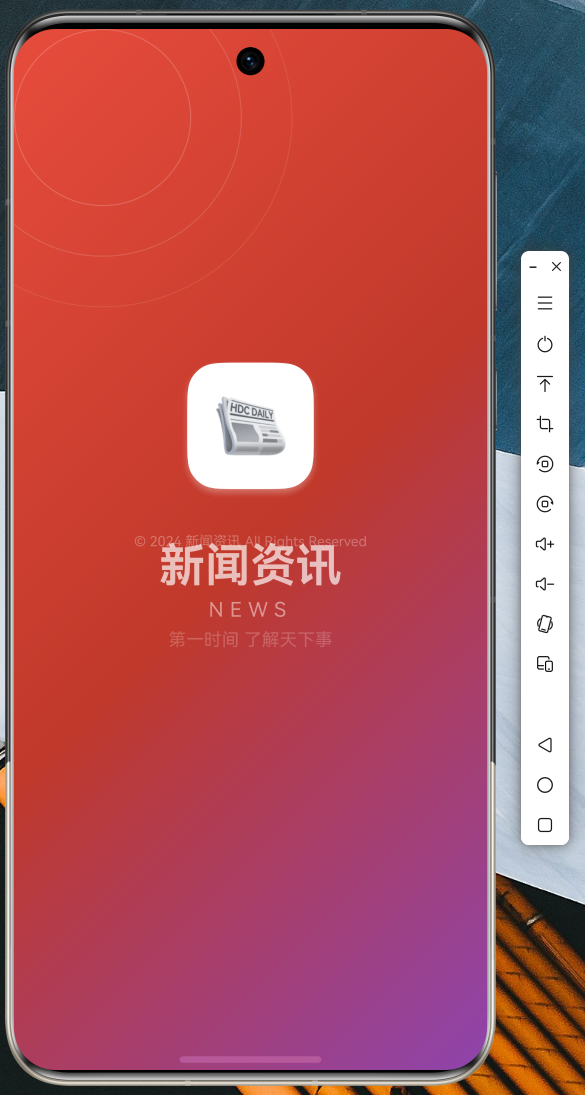
图2:新闻列表页
新闻列表页展示了头条分类下的新闻内容。首条新闻采用大图置顶样式,突出显示重要性;其余新闻采用图文混排的卡片式布局,图片加载过程中显示占位背景。列表支持自定义下拉刷新和上拉加载更多操作,刷新时顶部显示进度指示器。
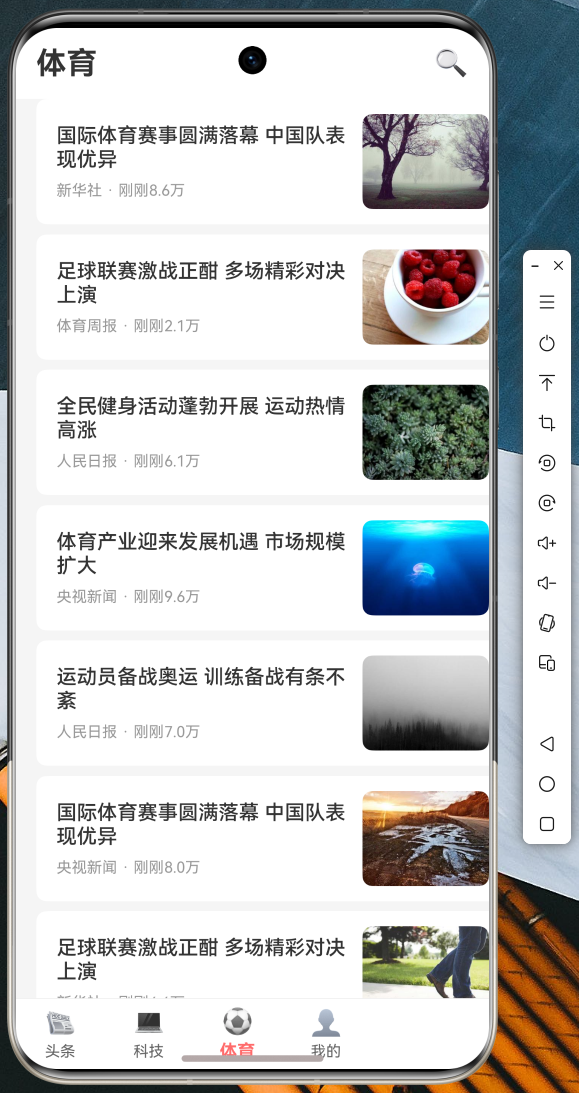
图3:底部导航切换
底部导航栏包含头条、科技、体育、我的四个分类频道。点击标签可快速切换频道,配合 PageView 实现了流畅的页面过渡效果。当前选中频道以红色高亮显示,未选中频道显示为灰色。

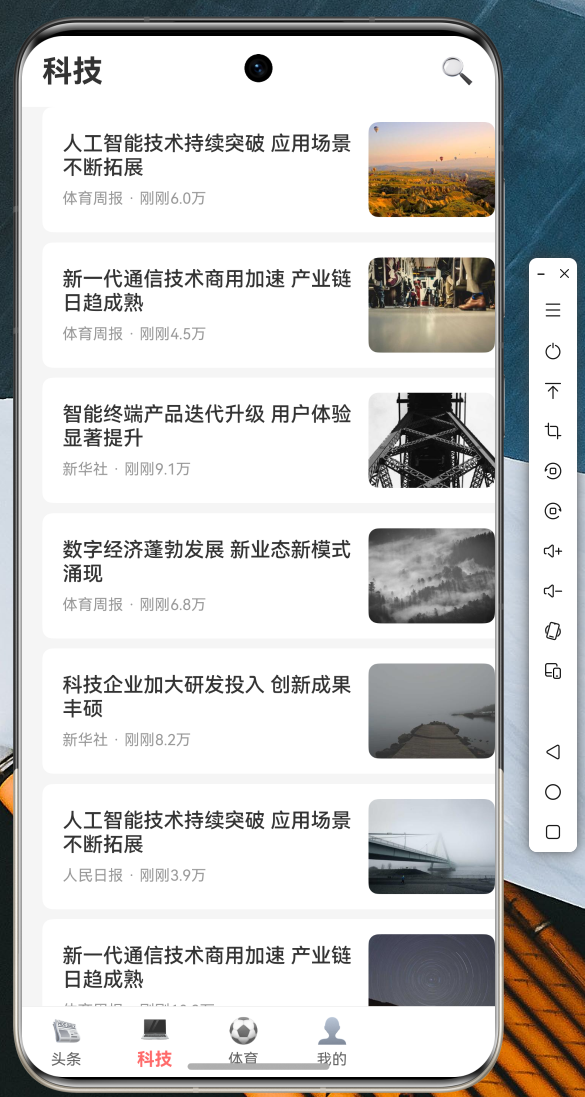
图4:新闻详情页
详情页展示完整的新闻内容,包括顶部大图、分类标签、标题、作者信息、正文内容以及相关图片集。页面进入时采用淡入加轻微上移的动画效果,图片支持点击放大查看,手指可进行缩放和拖拽操作。
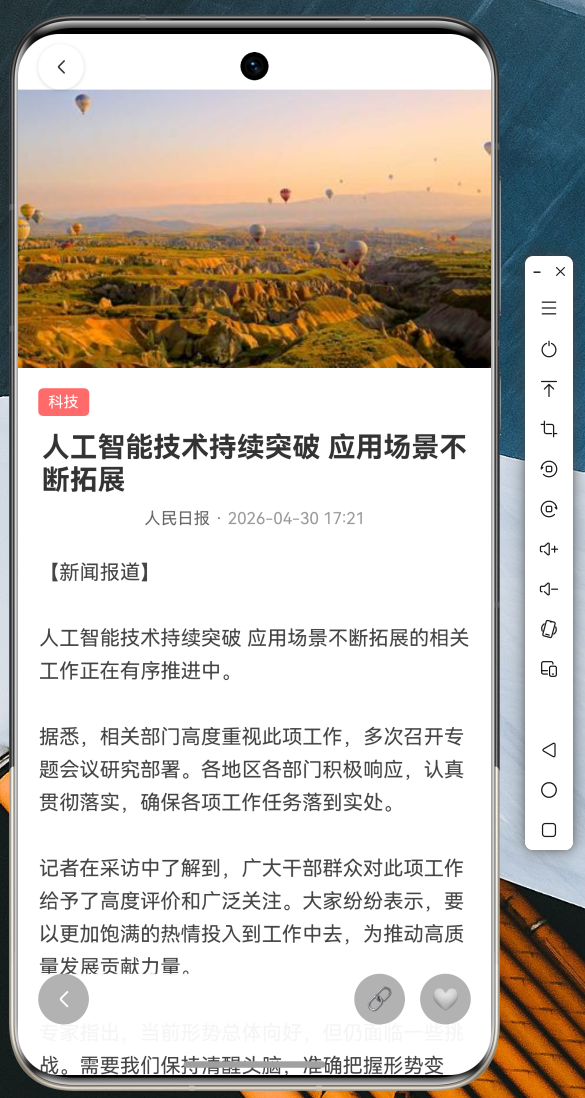
图5:搜索页面
搜索页面包含热门搜索推荐和历史搜索记录两个模块。用户输入关键词后可查看搜索结果,搜索结果支持加载更多操作。热门搜索词以标签形式展示,点击即可快速发起搜索。
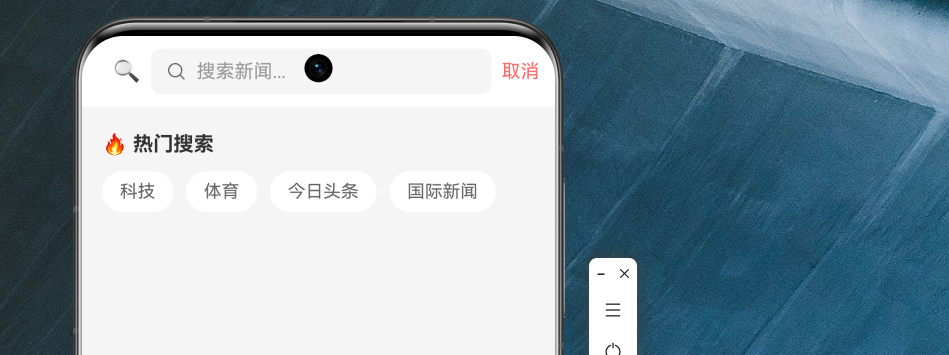
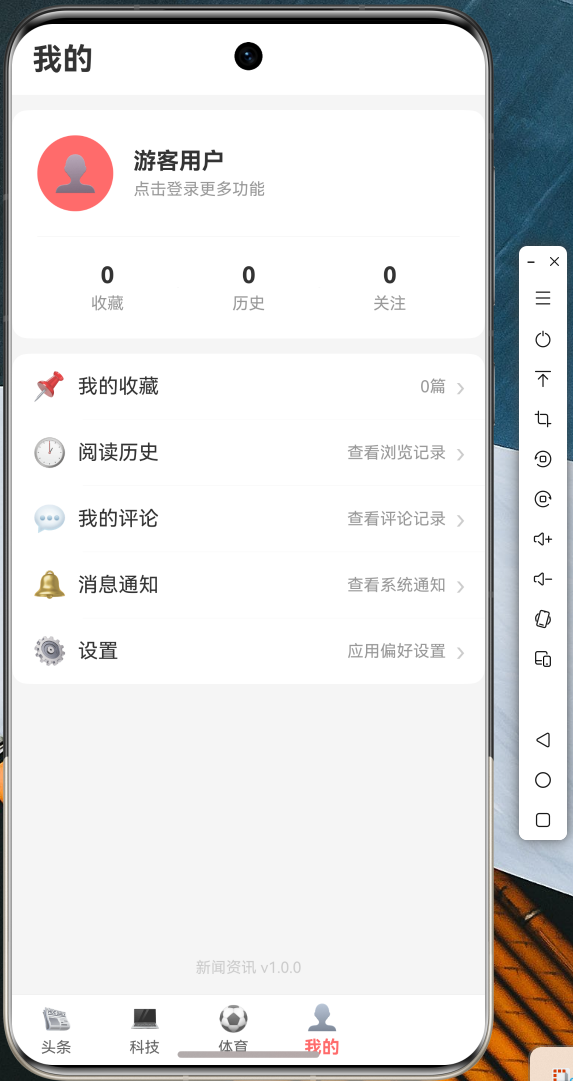
图6:个人中心页
个人中心页展示用户头像、信息统计和功能菜单入口。页面采用卡片式布局,统计区域包含收藏、历史、关注三个数据维度;功能菜单包含我的收藏、阅读历史、我的评论、消息通知、设置等入口。
九、总结与展望
本文通过一个完整的新闻资讯应用实战项目,详细讲解了 Flutter for OpenHarmony 开发的核心技术要点。从项目结构设计、数据模型定义、网络请求封装,到页面实现、组件复用、动画效果,再到代码托管与运行验证,覆盖了 Flutter 鸿蒙应用开发的全流程。
通过本次实战项目,开发者可以掌握以下核心技能:使用 Dio 进行网络请求并处理响应数据、设计合理的数据模型实现数据序列化反序列化、实现支持下拉刷新和上拉加载的列表页面、设计符合 Material Design 规范的底部导航栏、使用 Animation API 实现流畅的页面动效、通过 PageRouteBuilder 自定义页面转场效果、以及使用 InteractiveViewer 实现图片手势交互。
展望未来,Flutter for OpenHarmony 将持续迭代升级,支持更多 OpenHarmony 特有能力,如分布式任务调度、原子化服务、设备协同等。建议开发者持续关注官方动态,及时学习新技术,不断提升跨平台应用开发能力。
参考资源
- Flutter 官方文档:https://flutter.dev/docs
- OpenHarmony 开发者文档:https://developer.harmonyos.com/
- AtomGit 代码托管平台:https://atomgit.com