简介
重要性
-
由于IT系统中,准确的计时非常重要,有很多种原因需要准确计时:
-
在网络传输中,数据包括和日志需要准确的时间戳
-
各种应用程序中,如订单信息,交易信息等 都需要准确的时间戳
-
Linux的两个时钟
-
硬件时钟RTC (Real Time Clock):即BIOS时钟,也就是我们主板中用电池供电的时钟,是将时间写入到BIOS中,系统断电后时间不会丢失,可以在开机时通过主板程序中进行设置
查看硬件时间
[root@server ~]# hwclock
2023-05-30 09:48:32.535594+08:00
系统时钟 (System Clock) :顾名思义也就是Linux系统内核时钟、软件时钟,是由Linux内核来提供的,系统时钟是基于内存,如果系统断电时间就会丢失
# 查看系统时间
[root@server ~]# date
2023年 05月 30日 星期二 09:50:50 CST

[root@server ~]# date  -s  10:00    # 修改为错误的时间
2023年 05月 30日 星期二 10:00:00 CST
[root@server ~]# date
2023年 05月 30日 星期二 10:00:01 CST
[root@server ~]# hwclock  -s        # 向硬件时间同步
[root@server ~]# date
2023年 05月 30日 星期二 09:51:50 CST
设置日期时间
timedatectl命令设置
# [root@server ~]# timedatectl  # 显示当前的日期和时间
		   Local time: 三 2023-11-15 13:00:26 CST       # 本地时间
           Universal time: 三 2023-11-15 05:00:26 UTC   # 世界时间
                 RTC time: 三 2023-11-15 06:16:16       # 硬件时间
                Time zone: Asia/Shanghai (CST, +0800)   # 时区
System clock synchronized: yes                          # 时间是否已同步
              NTP service: active                       # 时间同步服务已启动
          RTC in local TZ: no # no表示硬件时钟设置为协调世界时(UTC),yes表示硬件时钟设置为本地时间

[root@server ~]# systemctl status chronyd  # 查看时间同步服务状态(由于默认使用chrony服务同步时间,不再使用ntp服务)

[root@server ~]# timedatectl set-ntp no  # 关闭时间同步,以方便修改日期时间

[root@server ~]# systemctl status chronyd

[root@server ~]# timedatectl set-time "2023-12-12"  # 设置新日期

[root@server ~]# timedatectl set-time "12:12:12"

[root@server ~]# timedatectl
               Local time: 二 2023-12-12 12:12:22 CST
           Universal time: 二 2023-12-12 04:12:22 UTC
                 RTC time: 二 2023-12-12 04:12:23
                Time zone: Asia/Shanghai (CST, +0800)
System clock synchronized: no
              NTP service: inactive
          RTC in local TZ: no

[root@server ~]# timedatectl list-timezones | grep Asia # 查看可用时区

[root@server ~]# timedatectl set-timezone Asia/Shanghai  # 设置时区
date命令设置
[root@server ~]# date  # 显示

[root@server ~]# date +"%Y-%m-%d %H:%M:%S"  # 格式显示

# 设置日期时间
[root@server ~]# date  -s  2023-11-15
2023年 11月 15日 星期三 00:00:00 CST
[root@server ~]# date  -s  14:33:33
2023年 11月 15日 星期三 14:33:33 CST
[root@server ~]# date
2023年 11月 15日 星期三 14:33:34 CST- 注意:以便于以后的实验正常执行,可恢复快照后继续
NTP
-
NTP:(Network Time Protocol,网络时间协议)是由RFC 1305定义的时间同步协议,用来在分布式时间服务器和客户端之间进行时间同步。
-
==NTP基于UDP报文进行传输,使用的UDP端口号为123==
-
NTP可以对网络内所有具有时钟的设备进行时钟同步,使网络内所有设备的时钟保持一致,从而使设备能够提供基于统一时间的多种应用,对于运行NTP的本地系统,既可以接受来自其他时钟源的同步,又可以作为时钟源同步其他的时钟,并且可以和其他设备互相同步。
-
NTP的其精度在局域网内可达0.1ms,在互联网上绝大多数的地方其精度可以达到1-50ms
Chrony介绍
[root@server ~]# date  -s  10:30
2023年 05月 30日 星期二 10:30:00 CST[root@server ~]# vim /etc/chrony.conf
# 定位第3行,删除后添加阿里的时间同步服务地址
server ntp.aliyun.com iburst
# 注意:也可以先清空chrony.conf内容,将阿里开源提供的时间服务器推荐配置复制粘贴到该文件中
server ntp.aliyun.com iburst
stratumweight 0
driftfile /var/lib/chrony/drift
rtcsync
makestep 10 3
bindcmdaddress 127.0.0.1
bindcmdaddress ::1
keyfile /etc/chrony.keys
commandkey 1
generatecommandkey
logchange 0.5
logdir /var/log/chrony[root@server ~]# systemctl restart chronyd[root@server ~]# chronyc sources -v
.-- Source mode '^' = server, '=' = peer, '#' = local clock.
/ .- Source state '*' = current best, '+' = combined, '-' = not combined,
| / 'x' = may be in error, '~' = too variable, '?' = unusable.
|| .- xxxx [ yyyy ] +/- zzzz
|| Reachability register (octal) -. | xxxx = adjusted offset,
|| Log2(Polling interval) --. | | yyyy = measured offset,
|| \ | | zzzz = estimated error.
|| | | \
MS Name/IP address Stratum Poll Reach LastRx Last sample
==========================================================================
^* 203.107.6.88 2 6 17 56 +493us[ -335us] +/- 34ms[root@server ~]# c
Local time: 二 2023-05-30 10:24:39 CST
Universal time: 二 2023-05-30 02:24:39 UTC
RTC time: 二 2023-05-30 02:24:40
Time zone: Asia/Shanghai (CST, +0800)
System clock synchronized: yes # yes 表名已同步
NTP service: active
RTC in local TZ: no
[root@server ~]# date
2023年 05月 30日 星期二 10:26:14 CST 实验2
-
chrony是一个开源的自由软件,它能帮助你保持系统时钟与时钟服务器(NTP)同步,因此让你的时间保持精确。
-
chrony由两个程序组成,分别是chronyd和chronyc
-
chronyd:是一个后台运行的守护进程,用于调整内核中运行的系统时钟和时钟服务器同步。它确定计算机增减时间的比率,并对此进行补偿。
-
chronyc:提供了一个用户界面,用于监控性能并进行多样化的配置。它可以在chronyd实例控制的计算机上工作,也可以在一台不同的远程计算机上工作
-
-
chronyd服务作为服务客户端时使用UDP323端口,作为服务端时(allow参数开启)会使用UDP123端口
[root@server ~]# ss -lntup | grep chronyd -
注意:Chrony与NTP都是时间同步软件,两个软件不能够同时开启,会出现时间冲突,openeuler中默认使用chrony作为时间服务器,不在支持NTP软件包
[root@server ~]# systemctl status ntp # 查看ntp状态安装与配置
安装:
# 默认已安装,若需要安装则可执行:

[root@server ~]# yum  install  chrony  -y

[root@server ~]# systemctl start  chronyd

[root@server ~]# systemctl enable  chronyd
Chrony配置文件分析
-
主配置文件:/etc/chrony.conf
-
同步时间
-
第一步:先修改成错误时间
[root@server ~]# vim /etc/chrony.conf
# 使用 pool.ntp.org 项目中的公共服务器。
# 或者使用server开头的服务器,理论上想添加多少时间服务器都可以
# iburst表示的是首次同步的时候快速同步
pool pool.ntp.org iburst
# 根据实际时间计算出服务器增减时间的比率,然后记录到一个文件中,在系统重启后为系统做出最佳时间 补偿调整。
driftfile /var/lib/chrony/drift
# 如果系统时钟的偏移量大于1秒,则允许系统时钟在前三次更新中步进。
# Allow the system clock to be stepped in the first three updates if its offset is larger than 1 second.
makestep 1.0 3
# 启用实时时钟(RTC)的内核同步。
# Enable kernel synchronization of the real-time clock (RTC).
rtcsync
# 通过使用 hwtimestamp 指令启用硬件时间戳
# Enable hardware timestamping on all interfaces that support it.
#hwtimestamp *
# Increase the minimum number of selectable sources required to adjust the system clock.
#minsources 2
# 指定 NTP 客户端地址,以允许或拒绝连接到扮演时钟服务器的机器
# Allow NTP client access from local network.
#allow 192.168.48.0/24
# Serve time even if not synchronized to a time source.
# local stratum 10
# 指定包含 NTP 身份验证密钥的文件。
# Specify file containing keys for NTP authentication.
# keyfile /etc/chrony.keys
# 指定日志文件的目录。
# Specify directory for log files.
logdir /var/log/chrony
# 选择日志文件要记录的信息。
# Select which information is logged.
# log measurements statistics tracking同步时间服务器
授时中心
ntp.ntsc.ac.cn  国家授时中心
ntp.aliyun.com  阿里云
ntp.tencent.com 腾讯云
实验1
-
同步时间
-
第一步:先修改成错误时间
-
第二步:编制chrony的配置文件
-
第三步:重启服务
-
第三步:时间同步
-
第五步:查看时间是否同步
-
搭建本地时间同步服务器
-
架构
| 性质 | IP地址 | 同步对象 |
|---|---|---|
| 服务端server | 192.168.48.130 | ntp.aliyun.com |
| 客户端node1 | 192.168.48.131 | 192.168.48.130 |
-
要求
-
服务端server向阿里时间服务器进行时间同步,
-
客户端node1向服务端server进行时间同步
-
-
第一步:定位服务端server
# 安装软件
[root@server ~]# yum install chrony -y # 默认已安装
# 编辑配置文件,定位第3行,修改为阿里的时间服务地址
[root@server ~]# vim /etc/chrony.conf
server ntp.aliyun.com iburst
# 重启服务
[root@server ~]# systemctl restart chronyd
# 测试
[root@server ~]# chronyc sources -v
[root@server ~]# timedatectl status
# 设置允许客户端时间同步
[root@server ~]# vim /etc/chrony.conf
26 allow 192.168.48.131/24 # 定位第26行,设置谁可以访问本机进行同步
[root@server ~]# systemctl restart chronyd- 第二步:定位客户端node1
# 安装软件
[root@node1 ~]# yum install chrony -y
# 编辑配置文件
[root@node1 ~]# vim /etc/chrony.conf # 修改第3行为server的地址
server 192.168.48.130 iburst
# 重启服务
[root@node1 ~]# systemctl restart chronyd
# 测试
[root@node1 ~]# chronyc sources -v
.-- Source mode '^' = server, '=' = peer, '#' = local clock.
/ .- Source state '*' = current best, '+' = combined, '-' = not combined,
| / 'x' = may be in error, '~' = too variable, '?' = unusable.
|| .- xxxx [ yyyy ] +/- zzzz
|| Reachability register (octal) -. | xxxx = adjusted offset,
|| Log2(Polling interval) --. | | yyyy = measured offset,
|| \ | | zzzz = estimated error.
|| | | \
MS Name/IP address Stratum Poll Reach LastRx Last sample
=========================================================================
^* 192.168.48.130 3 6 17 39 +20us[ +252us] +/- 38ms
[root@node1 ~]# timedatectl status
Local time: 二 2023-05-30 11:08:37 CST
Universal time: 二 2023-05-30 03:08:37 UTC
RTC time: 二 2023-05-30 03:08:38
Time zone: Asia/Shanghai (CST, +0800)
System clock synchronized: yes
NTP service: active
RTC in local TZ: no-
注意:客户端同步失败的原因
-
检查网络连通性,需要能ping通
-
检查服务端的allow参数
-
需要重启服务
-
chronyc命令
查看时间服务器:
[root@server ~]# chronyc sources -v # -v参数表示显示内容是否有解释
.-- Source mode '^' = server, '=' = peer, '#' = local clock.
/ .- Source state '*' = current best, '+' = combined, '-' = not combined,
| / 'x' = may be in error, '~' = too variable, '?' = unusable.
|| .- xxxx [ yyyy ] +/- zzzz
|| Reachability register (octal) -. | xxxx = adjusted offset,
|| Log2(Polling interval) --. | | yyyy = measured offset,
|| \ | | zzzz = estimated error.
|| | | \
MS Name/IP address Stratum Poll Reach LastRx Last sample
======================================================================
chronyc sources输出分析
-
*M:这表示信号源的模式。^ 表示服务器,*=表示对等方,#表示本地连接的参考时钟。
-
S:此列指示源的状态
| * | chronyd当前同步到的源 |
|---|---|
| + | 表示可接受的信号源,与选定的信号源组合在一起 |
| - | 表示被合并算法排除的可接受源 |
| ? | 表示已失去连接的源 |
| x | 表示chronyd认为是虚假行情的时钟(即,其时间与大多数其他来源不一致) |
| ~ | 表示时间似乎具有太多可变性的来源 |
-
Name/IP address:显示服务器源的名称或IP地址
-
Stratum:表示源的层级,层级1表示本地连接的参考时钟,第2层表示通过第1层级计算机的时钟实现同步,依此类推
-
Poll:表示源轮询频率,以秒为单位,值是基数2的对数,例如值6表示每64秒进行一次测量,chronyd会根据当时的情况自动改变轮询频率
-
Reach:表示源的可达性的锁存值(八进制数值),该锁存值有8位,并在当接收或丢失一次时进行一次更新,值377表示最后八次传输都收到了有效的回复
-
LastRx:表示从源收到最近的一次的时间,通常是几秒钟,字母m,h,d或y分别表示分钟,小时,天或年
-
*Last sample:表示本地时钟与上次测量时源的偏移量,方括号左侧的数字表示原始测量值,方括号右侧表示偏差值,*+/-指示器后面的数字表示测量中的误差范围。正偏移表示本地时钟位于源时钟之前
其它命令
- 查看时间服务器的状态
[root@server ~]# chronyc sourcestats -v- 查看时间服务器是否在线
[root@server ~]# chronyc activity -v- 同步系统时钟
[root@server ~]# chronyc -a makestep常见时区
-
UTC 整个地球分为二十四时区,每个时区都有自己的本地时间。在国际无线电通信场合,为了统一起见,使用一个统一的时间,称为通用协调时(UTC, Universal Time Coordinated)。
-
GMT 格林威治标准时间 (Greenwich Mean Time)指位于英国伦敦郊区的格林尼治天文台的标准时间,因为本初子午线被定义在通过那里的经线。(UTC与GMT时间基本相同,本文中不做区分)
-
CST 中国标准时间 (China Standard Time)GMT + 8 = UTC + 8 = CST
-
DST夏令时(Daylight Saving Time) 指在夏天太阳升起的比较早时,将时间拨快一小时,以提早日光的使用。(中国不使用)
第三章 远程登录服务
简介
概念
- 远程连接服务器通过文字或图形接口方式来远程登录系统,让你在远程终端前登录linux主机以取得可操作主机接口(shell),而登录后的操作感觉就像是坐在系统前面一样
功能:
-
分享主机的运算能力
-
服务器类型:有限度开放连接
-
工作站类型:只对内网开放
分类
文字接口:
- 明文传输:Telnet、RSH等,目前非常少用
# 使用wireshark抓包分析工具验证telnet明文传输
[root@server ~]# yum install telnet-server -y # 安装telnet
[root@server ~]# systemctl start telnet.socket # 启动服务
# 使用xshell 新建telnet连接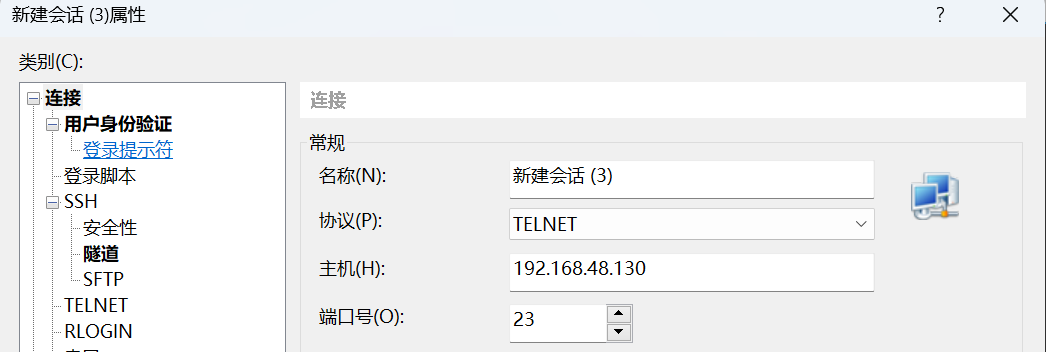
# 在https://www.wireshark.org/download.html下载安装wireshar
# 启动wireshark,选择捕获VMnet8网卡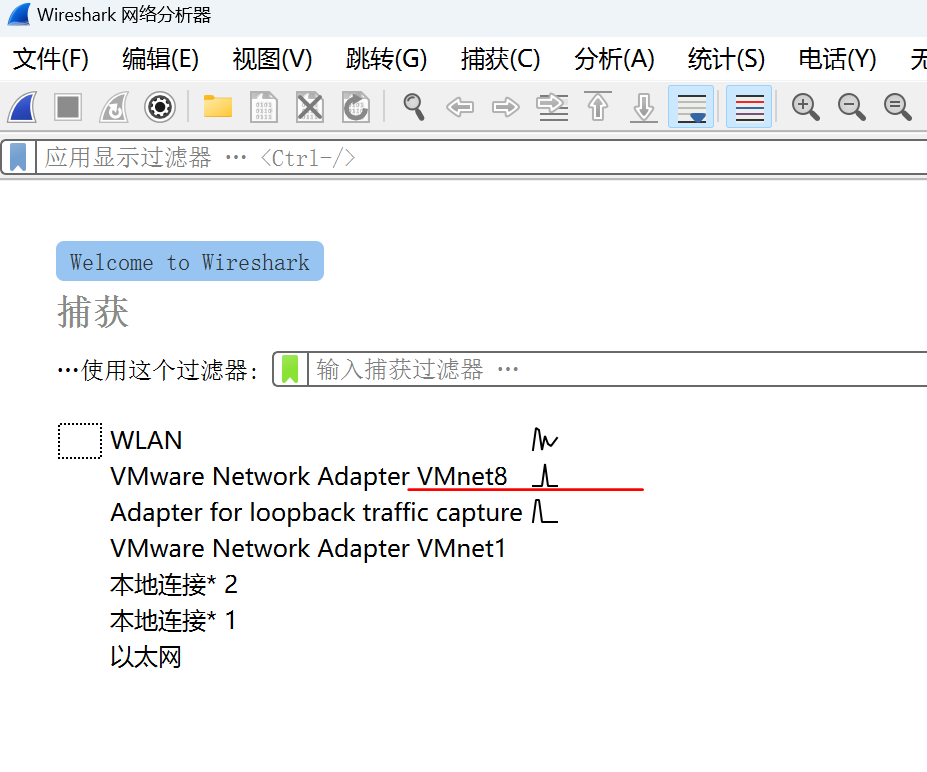
# 在xshell中输入ip a 或其它命令
# 在wireshark选择记录后单右->追踪流->TCP流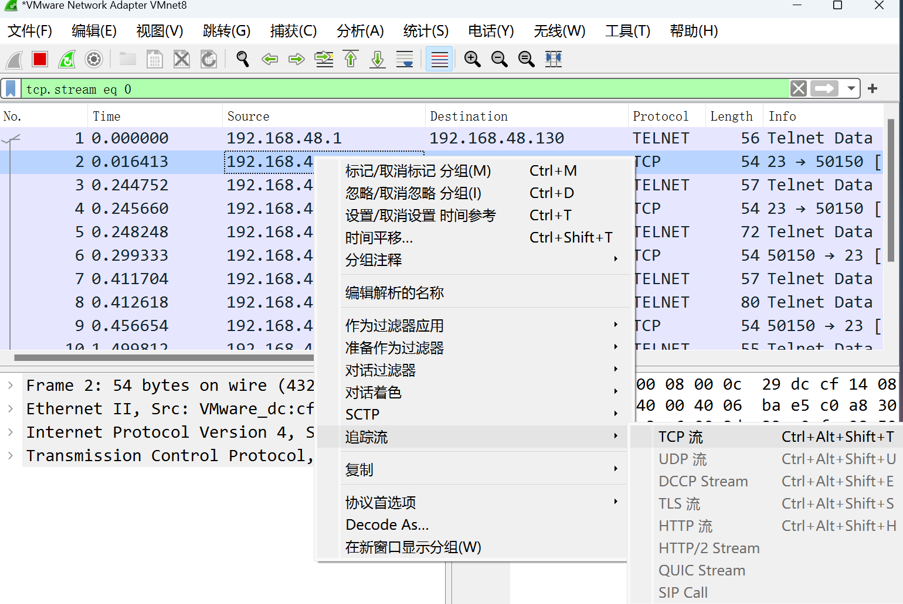
# 可以看到是明文传输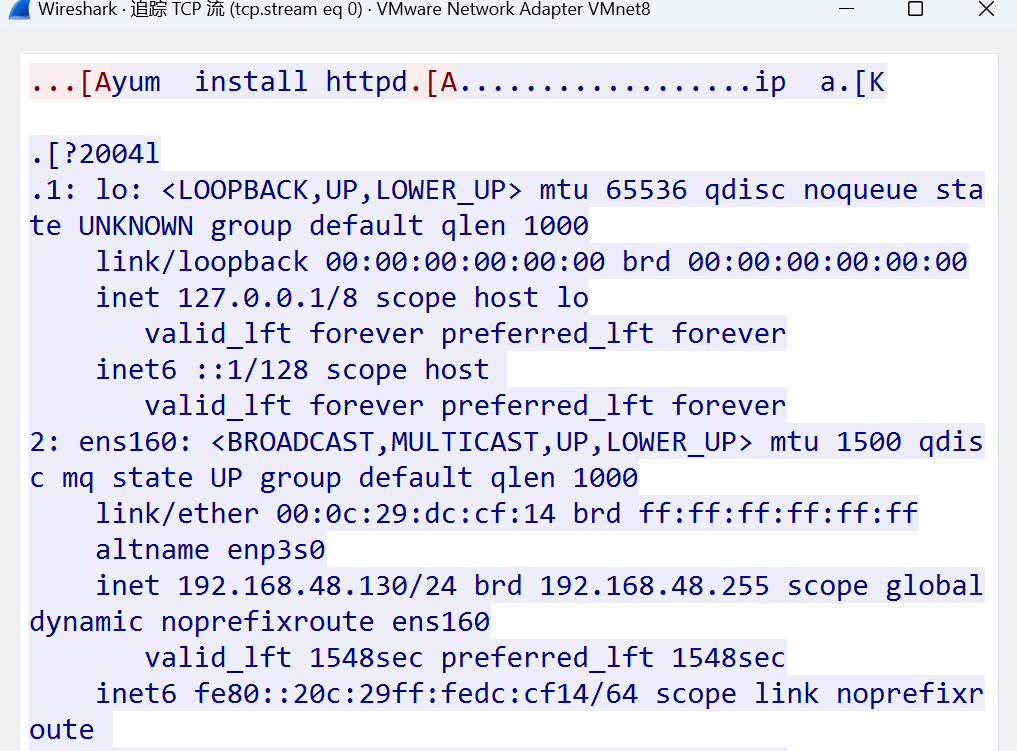
- 加密传输:SSH为主,已经取代明文传输
# 关闭上述telnet连接,建立ssh连接,查看是否为加密传输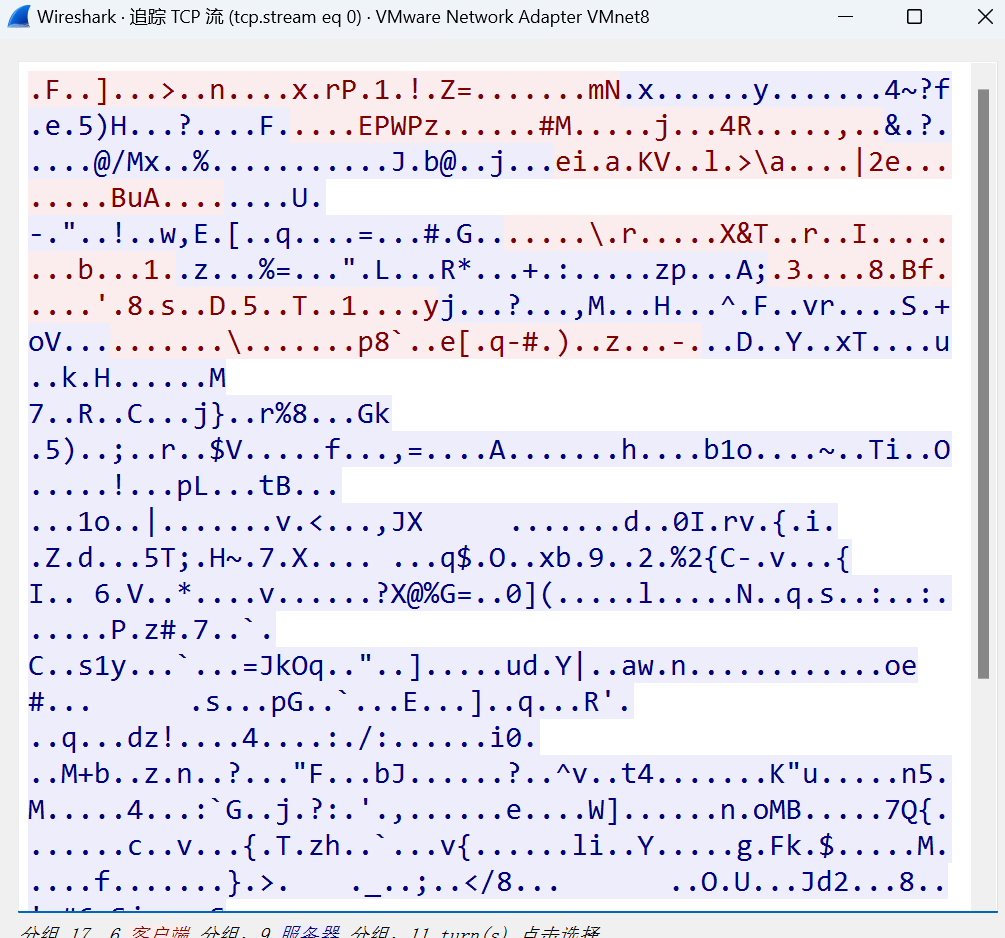
图形接口:
- XDMCP、VNC、XRDP等
文字接口连接服务器:
-
SSH(Secure Shell Protocol,安全壳程序协议)由 IETF 的网络小组(Network Working Group)所制定,可以通过数据包加密技术将等待传输的数据包加密后再传输到网络上。
-
ssh协议本身提供两个服务器功能:
-
一个是类似telnet的远程连接使用shell的服务器;
-
另一个就是类似ftp服务的sftp-server,提供更安全的ftp服务。
-
连接加密技术简介
-
目前常见的网络数据包加密技术通常是通过"非对称密钥系统"来处理的。
-
主要通过两把不一样的公钥与私钥来进行加密与解密的过程。
密钥解析:
-
公钥(public key):提供给远程主机进行数据加密的行为,所有人都可获得你的公钥来将数据加密。
-
私钥(private key):远程主机使用你的公钥加密的数据,在本地端就能够使用私钥来进行解密。私钥只有自己拥有。
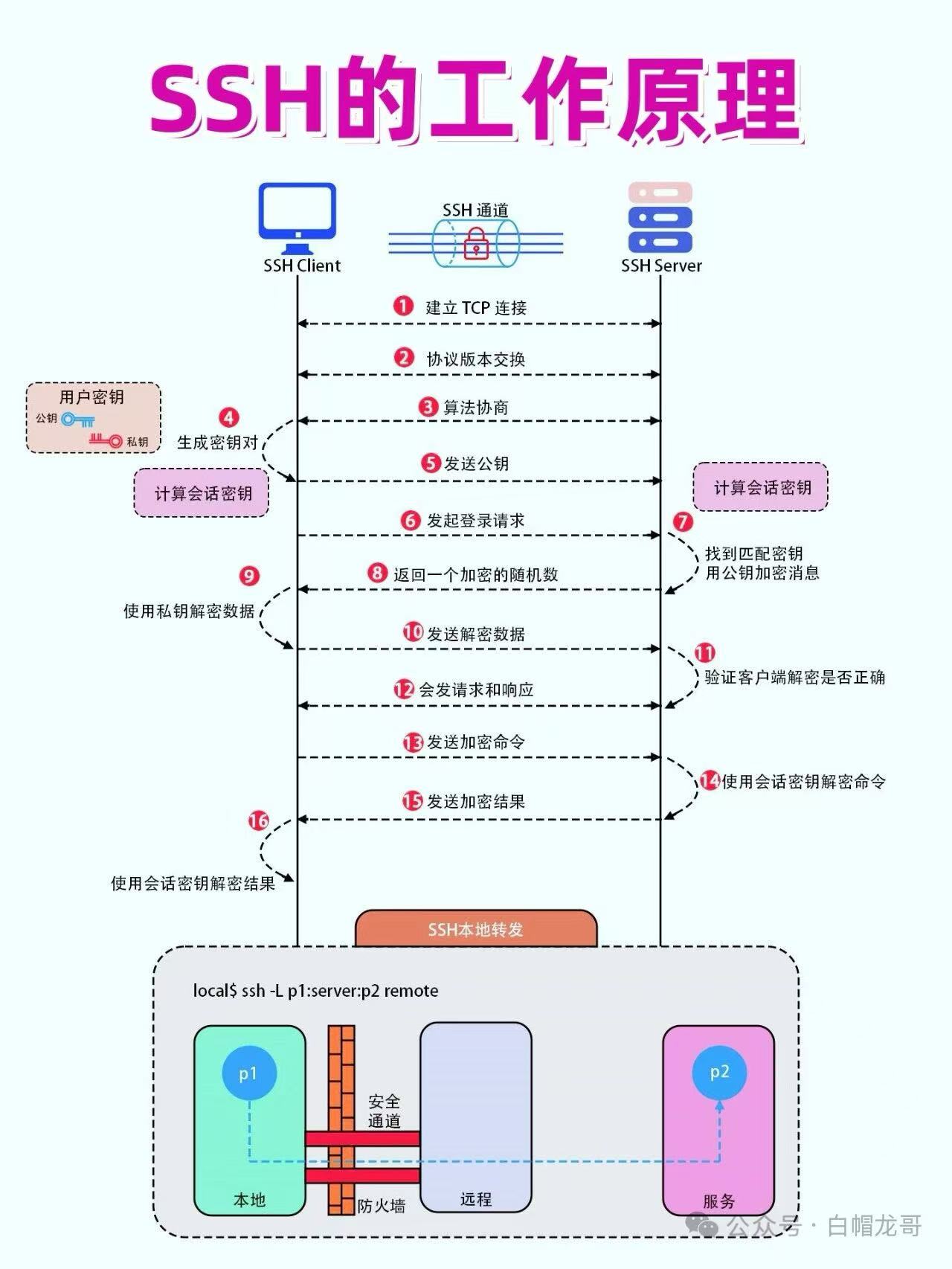
SSH工作过程:
- 服务端与客户端要经历如下五个阶段:
-
第一步:版本协商 & 握手
-
客户端发起连接,访问服务端 22 端口
-
双方交换 SSH 协议版本(一般只支持 SSHv2)
-
协商加密算法、压缩算法、密钥交换算法
-
-
第二步:密钥交换(建立安全加密通道)
-
服务端主动发送主机公钥给客户端
-
客户端第一次连接会弹出提示:
[root@master ~]# ssh root@192.168.88.134 The authenticity of host '192.168.88.134 (192.168.88.134)' can't be established. ED25519 key fingerprint is SHA256:rmcDNl0YvlVExhUe7j0SjBl/Lx6rq+RgqSKTEoxGJwM. This key is not known by any other names Are you sure you want to continue connecting (yes/no/[fingerprint])?-
意思:无法确认 192.168.88.134 这台服务器是不是安全、正规的,ED25519 key......是这台机器的 SSH 唯一安全指纹码,相当于服务器的身份证号,用来防止被伪装、劫持。这个密钥 / 身份,你的电脑从来没记录过、不认识。是否需要继续连接?
-
输入:yes,服务端公钥保存到客户端
~/.ssh/known_hosts文件中 -
双方利用非对称加密 + 迪菲赫尔曼算法协商生成一把会话密钥(对称密钥) ,后续所有数据,全部用这把对称密钥加密传输
-
-
第三步:身份认证(核心两种方式)
-
密码认证:输入账户和密码
-
密钥认证(免密登录)
-
-
第四步:建立会话链接并传输数据
-
注意:关键文件对应
-
服务端主机密钥:
/etc/ssh/ -
客户端记录服务器公钥:
~/.ssh/known_hosts -
服务端存放客户端公钥:
~/.ssh/authorized_keys
-
SSH服务配置
安装ssh
[root@server ~]# yum install openssh-server配置文件分析:
[root@server ~]# vim /etc/ssh/sshd_config21.#Port 22 # 默认监听22端口,可修改
22.#AddressFamily any # IPV4和IPV6协议家族用哪个,any表示二者均有
23.#ListenAddress 0.0.0.0 # 指明监控的地址,0.0.0.0表示本机的所有地址(默认可修改)
24.#ListenAddress :: # 指明监听的IPV6的所有地址格式
26.#HostKey /etc/ssh/ssh_host_rsa_key # rsa私钥认证,默认
27.#HostKey /etc/ssh/ssh_host_ecdsa_key # ecdsa私钥认证
28.#HostKey /etc/ssh/ssh_host_ed25519_key # ed25519私钥认证
34 #SyslogFacility AUTH # ssh登录系统的时会记录信息并保存在/var/log/secure
35.#LogLevel INFO # 日志的等级
39.#LoginGraceTime 2m # 登录的宽限时间,默认2分钟没有输入密码,则自动断开连接
40 PermitRootLogin yes # 允许管理员root登录
41.#StrictModes yes # 是否让sshd去检查用户主目录或相关文件的权限数据
42.#MaxAuthTries 6 # 最大认证尝试次数,最多可以尝试6次输入密码。之后需要等待某段时间后才能再次输入密码
43.#MaxSessions 10 # 允许的最大会话数
49.AuthorizedKeysFile .ssh/authorized_keys # 选择基于密钥验证时,客户端生成一对公私钥之后,会将公钥放到.ssh/authorizd_keys里面
65 #PasswordAuthentication yes # 登录ssh时是否进行密码验证
66 #PermitEmptyPasswords no # 登录ssh时是否允许密码为空
……
123.Subsystem sftp /usr/libexec/openssh/sftp-server #支持 SFTP ,如果注释掉,则不支持sftp连接
AllowUsers user1 user2 #登录白名单(默认没有这个配置,需要自己手动添加),允许远程登录的用户。如果名单中没有的用户,则提示拒绝登录ssh实验
实验1
-
修改ssh服务器端的端口号
-
第一步:服务端操作,编辑配置文件,修改端口号
[root@server ~]# vim  /etc/ssh/sshd_config  # 定位第21行,去掉# 后修改端口号
21 Port 2222- 第二步:服务端操作,重启服务
[root@server ~]# systemctl restart sshd # 注意:ssh的服务名位sshd
[root@server ~]# yum install net-tools # 安装网络工具才可使用netstat命令
[root@server ~]# netstat -ntlp # 查看端口号是否已修改
[root@server ~]# ip a 查看本机IP地址- 第三步:客户端操作,ssh登录服务端
[root@node1 ~]# ssh root@192.168.48.130
# 尝试登录被拒绝,22端口已关闭
ssh: connect to host 192.168.48.130 port 22: Connection refused
# 注意:Windows的xshell 使用 ssh root@192.168.48.130:2222 格式访问
root@node1 ~]# ssh -p 2222 root@192.168.48.130 # 指明以2222端口登录服务端
The authenticity of host '[192.168.48.130]:2222 ([192.168.48.130]:2222)' can't be established.
ED25519 key fingerprint is SHA256:K7nvJFkfIh+p9YytEGR44wLbTfpB0Y52oVou0UdG6nc.
This key is not known by any other names
Are you sure you want to continue connecting (yes/no/[fingerprint])? yes # 输入yes
Warning: Permanently added '[192.168.48.130]:2222' (ED25519) to the list of known hosts.
root@192.168.48.130's password: # 输入服务端账户密码
Activate the web console with: systemctl enable --now cockpit.socket
Register this system with Red Hat Insights: insights-client --register
Create an account or view all your systems at https://red.ht/insights-dashboard
Last login: Tue May 30 13:57:25 2023 from 192.168.48.1
[root@server ~]#
# 注销登录
[root@server ~]# exit # 注销,回到node1主机,或者使用ctrl+d进行注销
注销
Connection to 192.168.48.130 closed.实验2
-
拒绝root账户远程登录
-
方法:使用配置文件中的Permitrootlogin参数进行实现
-
参数值:
| 参数类别 | 是否允许ssh登录 | 登录方式 | 交互shell |
|---|---|---|---|
| yes | 允许 | 无限制 | 无限制 |
| no | 不允许 | 无 | 无 |
| prohibit-password | 允许 | 仅允许使用密码 | 无限制 |
| forced-commands only | 允许 | 仅允许密钥 | 授权的口令 |
[root@server ~]# vim  /etc/ssh/sshd_config
PermitRootLogin no # yes修改为no- 第二步:服务端重启服务
[root@server ~]# systemctl restart sshd- 第三步:客户端,测试
[root@node1 ~]# ssh  root@192.168.48.130
root@192.168.48.130's password:         # 拒绝root连接ssh
Permission denied, please try again.
实验3
-
允许特定账户进行ssh登录,其它账户无法登录
-
第一步:服务端添加新账户
[root@server ~]# useradd  test
[root@server ~]# passwd test- 第二步:服务端修改主配置文件
[root@server ~]# vim /etc/ssh/sshd_config
AllowUsers test # 第一行添加
[root@server ~]# systemctl restart sshd- 第三步:客户端测试
[root@node1 ~]# ssh test@192.168.48.130
The authenticity of host '192.168.48.130 (192.168.48.130)' can't be established.
ED25519 key fingerprint is SHA256:K7nvJFkfIh+p9YytEGR44wLbTfpB0Y52oVou0UdG6nc.
This key is not known by any other names
Are you sure you want to continue connecting (yes/no/[fingerprint])? yes # 输入yes
Warning: Permanently added '192.168.48.130' (ED25519) to the list of known hosts.
test@192.168.48.130's password: # 密码123456
Register this system with Red Hat Insights: insights-client --register
Create an account or view all your systems at https://red.ht/insights-dashboard
[test@server ~]$ # 按下ctrl+d进行注销
注销
[root@node1 ~]# ssh root@192.168.48.130 # 测试其它账户可否登录
root@192.168.48.130's password:
Permission denied, please try again实验4
ssh-keygen
-
ssh-keygen是用于生成、管理、转换密钥的工具
-
格式:
[root@server ~]# ssh-keygen -t rsa-
分析
-
-t:指定密钥类型
-
rsa:使用rsa公钥加密算法,可以产生公钥和私钥
-
执行后会在对应账户目录中产生一个隐藏目录.ssh,其中有2个文件
-
id_rsa:私钥文件
-
id_rsa.pub:公钥文件
-
-
虚拟之间实现密钥的登录(免密登录)
-
预处理:2台机子都恢复快照
-
第一步:定位客户端,制作公私钥对
[root@node1 ~]# ssh-keygen -t rsa # 一路回车- 第二步:定位客户端,将公钥上传到服务器端
[root@node1 ~]# ssh-copy-id root@192.168.48.130 # 输入服务端的账户及IP地址
The authenticity of host '192.168.48.130 (192.168.48.130)' can't be established.
ED25519 key fingerprint is SHA256:K7nvJFkfIh+p9YytEGR44wLbTfpB0Y52oVou0UdG6nc.
This key is not known by any other names
Are you sure you want to continue connecting (yes/no/[fingerprint])? yes # 输入yes
/usr/bin/ssh-copy-id: INFO: attempting to log in with the new key(s), to filter out any that are already installed
/usr/bin/ssh-copy-id: INFO: 1 key(s) remain to be installed -- if you are prompted now it is to install the new keys
root@192.168.48.130's password: # 输入服务端root账户的的密码
Number of key(s) added: 1
Now try logging into the machine, with: "ssh 'root@192.168.48.130'"
and check to make sure that only the key(s) you wanted were added.
# 注意:客户端将公钥上传到服务器端后,服务器端的/root/.ssh/authorized_keys文件会存储客户端的公钥数据- 第三步:客户端测试
[root@node1 ~]# ssh root@192.168.48.130
Activate the web console with: systemctl enable --now cockpit.socket
Register this system with Red Hat Insights: insights-client --register
Create an account or view all your systems at https://red.ht/insights-dashboard
Last login: Wed Mar 22 11:31:31 2023
[root@server ~]# - 第四步:由于是要实现服务端与客户端相互免密,则将上述操作在服务端在执行一遍
实验5
-
xshell使用密钥登陆
-
之前xshell使用的是密码登录,现在通过密钥的配置,实现无密码登录
# 注意:先在服务器端检查/root/.ssh/authorized_keys是否存在,它时存储公钥的文件,若不存在需要新建
# 服务器端操作
[root@server ~]# cd /root
[root@server ~]# ls -a
[root@server ~]# mkdir .ssh
[root@server ~]# cd .ssh
[root@server .ssh]# vim authorized_keys
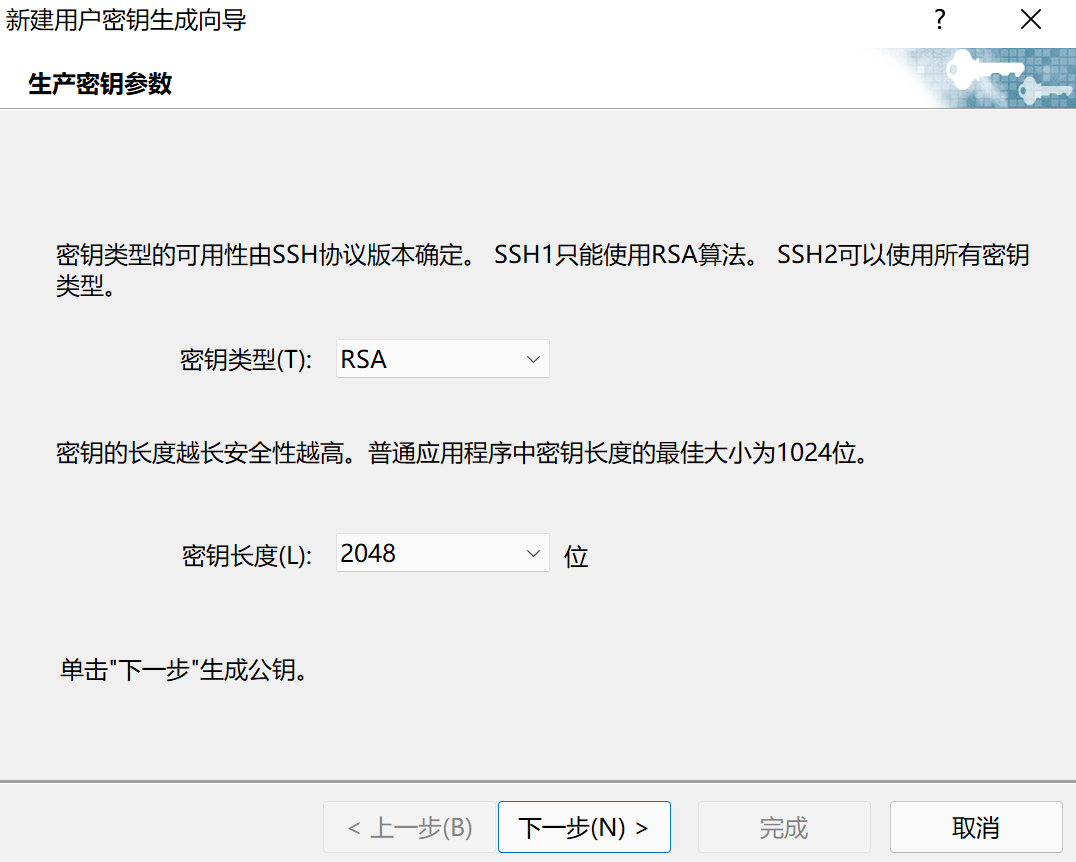
# 有时需要注意.ssh目录的权限- 打开xshell开始操作,新建密钥:
- 下一步:
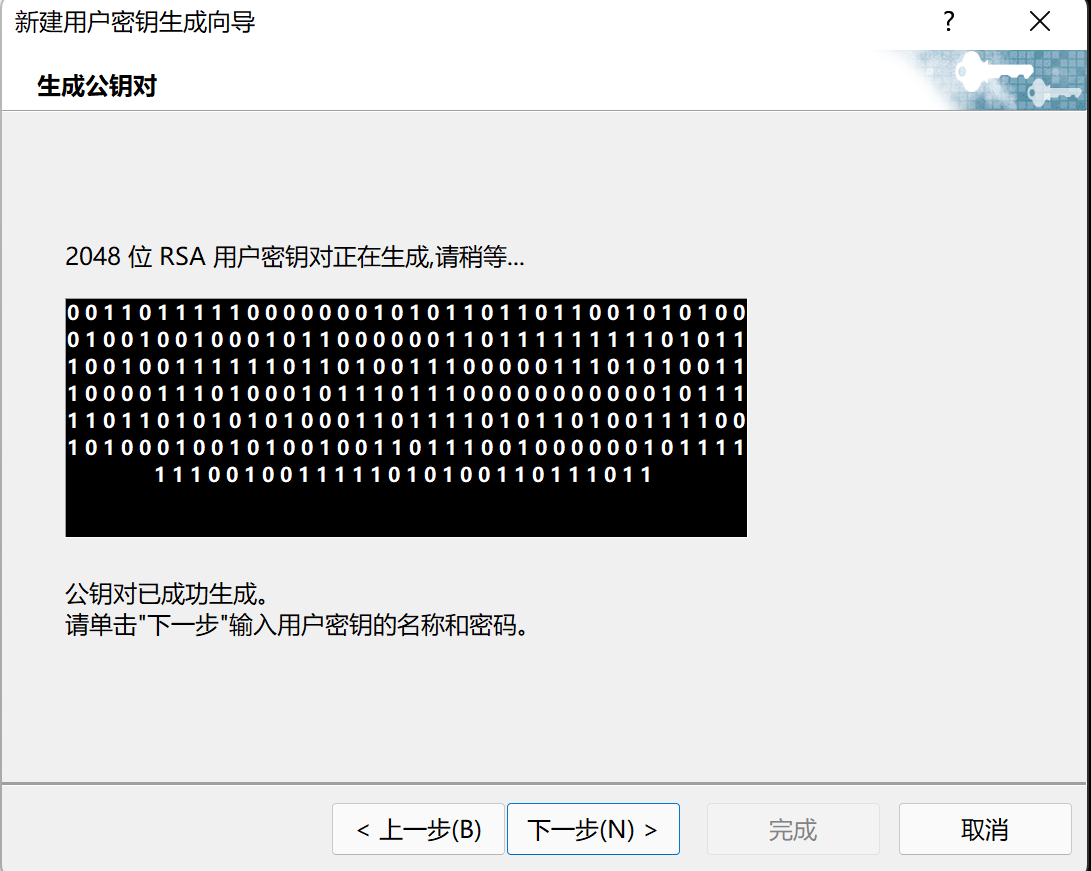
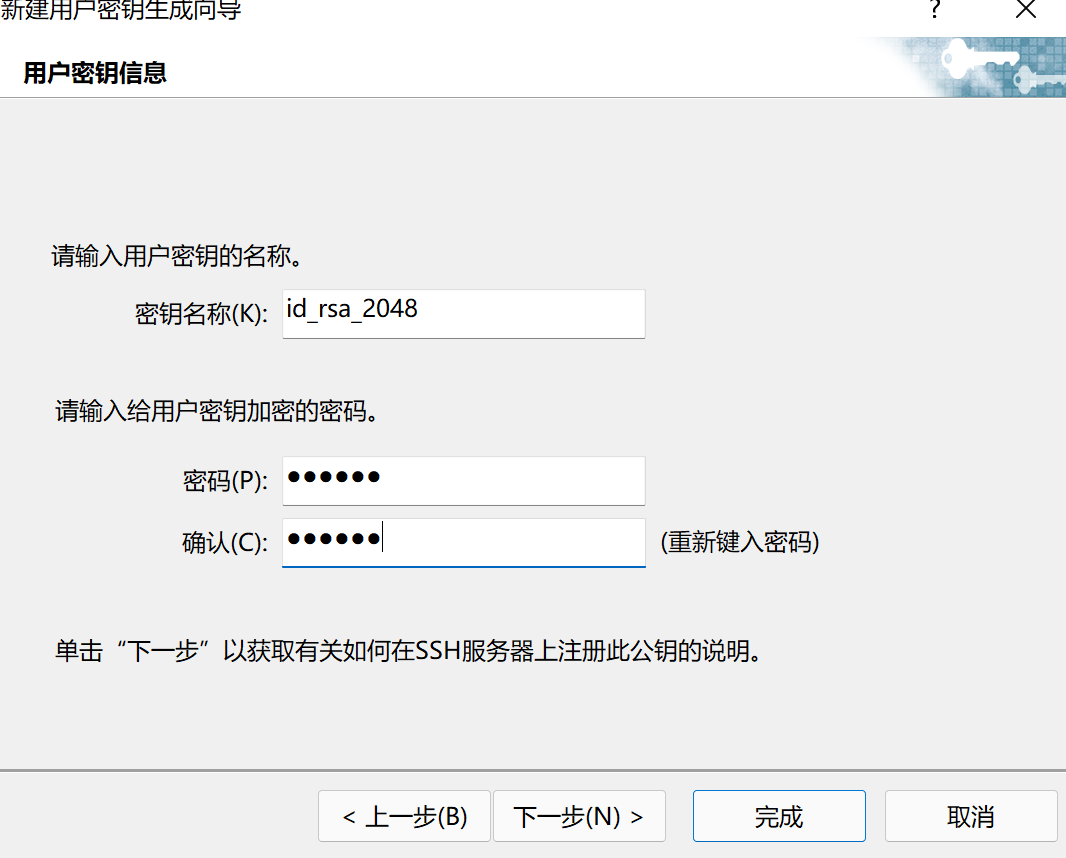
- 设置密钥文件名加密密码(可不设)
- 产生公钥,并==另存为文件==
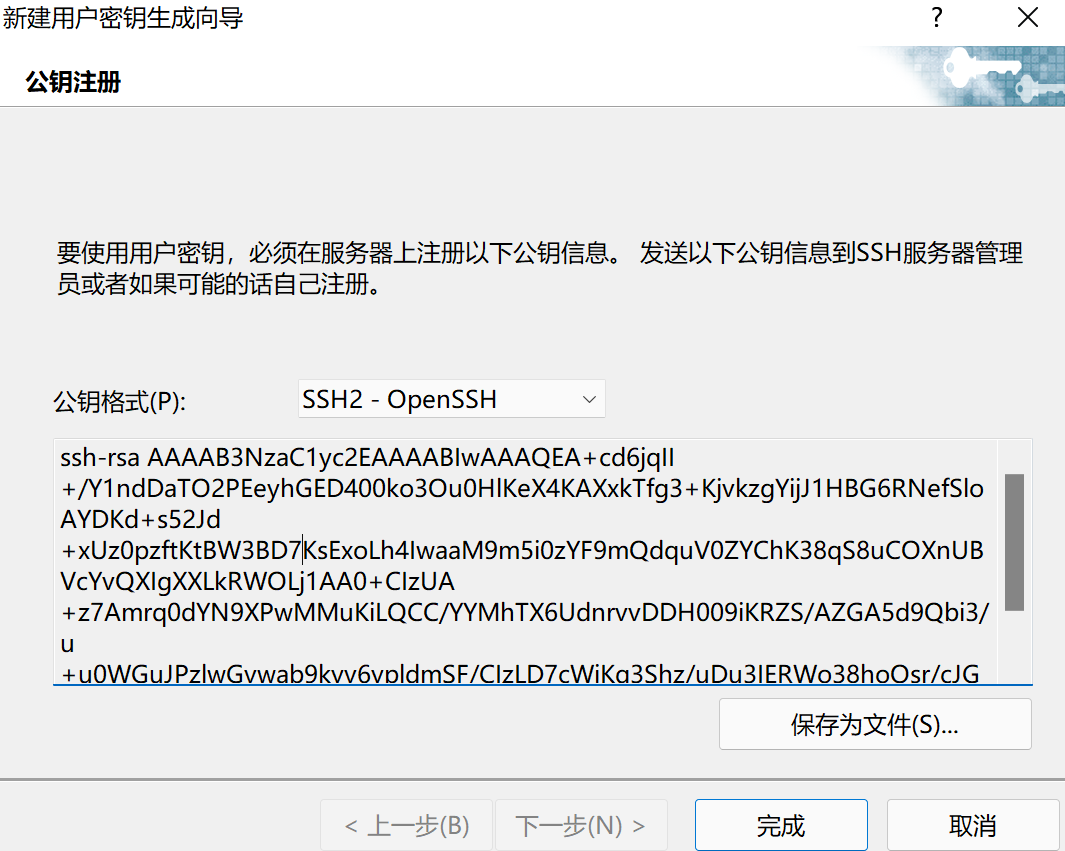
- 将windows中保存的公钥文件以==记事本==的方式打开,复制内容,拷贝到Linux服务器端的
/root/.ssh/authorized_keys文件中后保存退出,并重启服务:
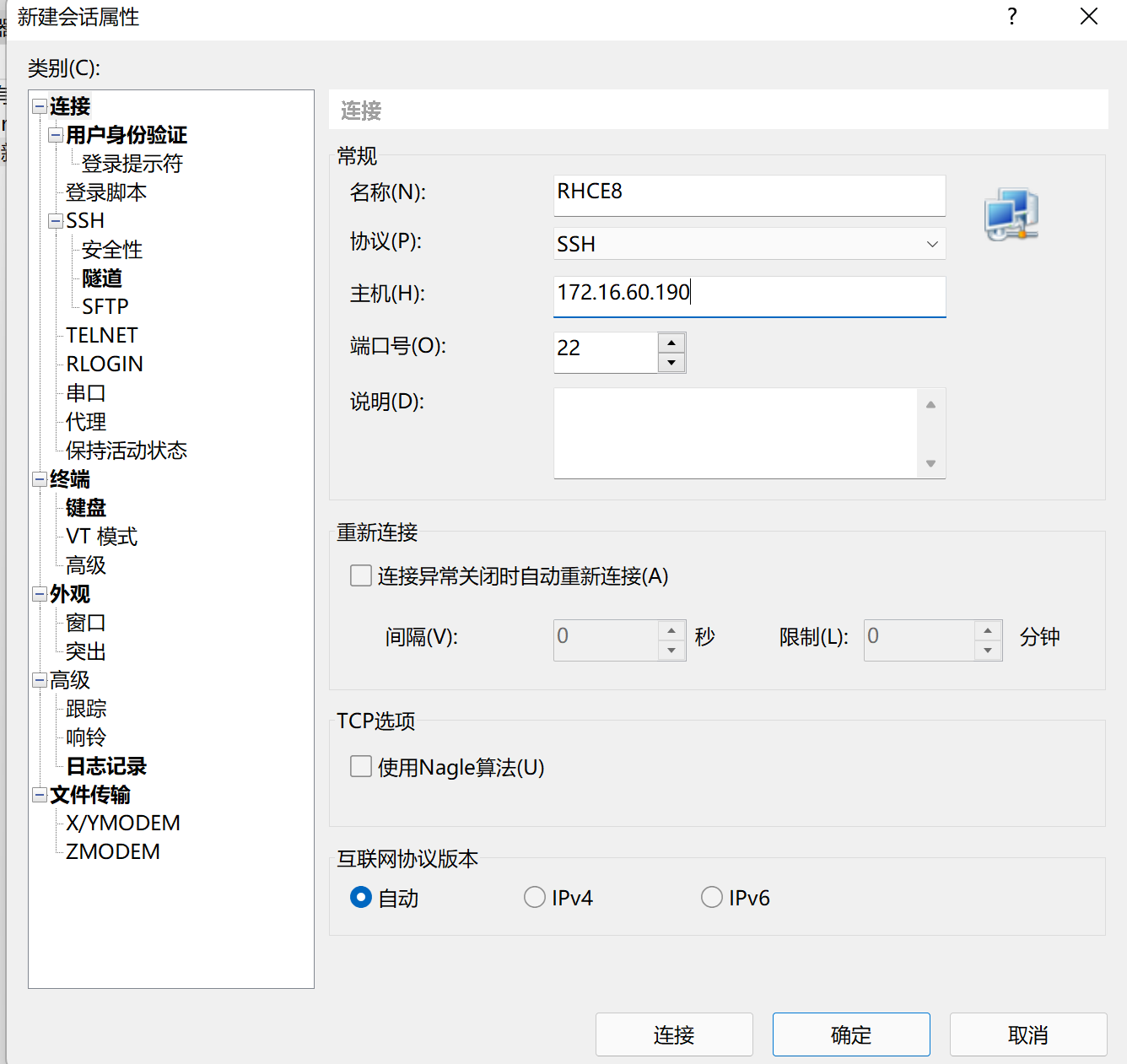
[root@server .ssh]# systemctl restart sshd- xshell中新建会话:
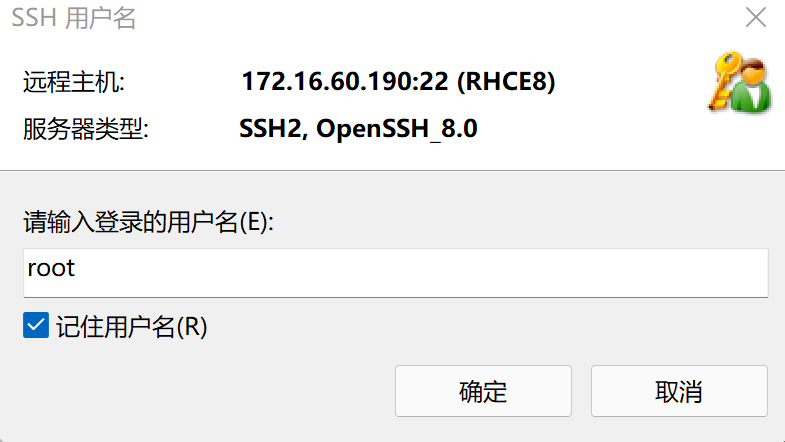
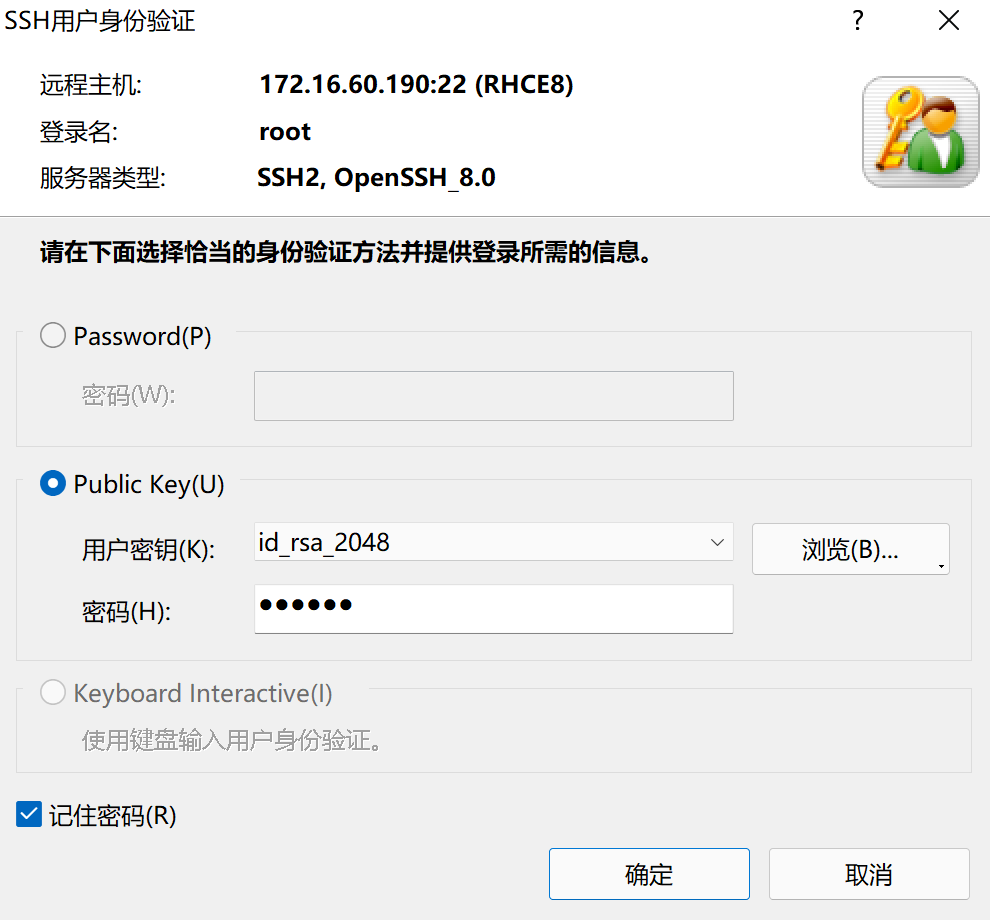
- 点击==用户身份验证==,选择==Public Key== 方式验证登录,点击连接
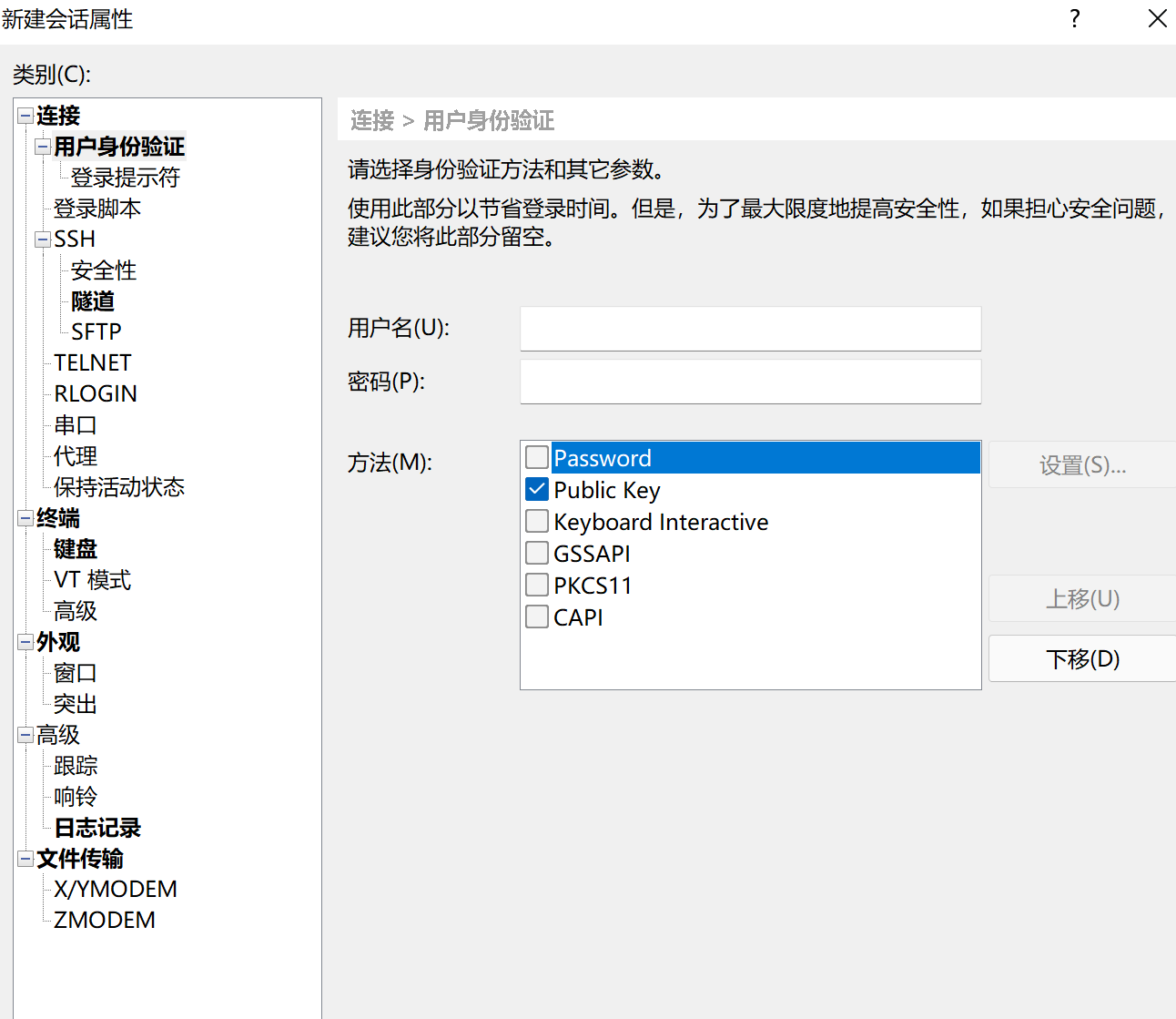
- 设置以什么身份登录:
- 输入密钥密码
- 成功