Android 副屏(Virtual Display)创建与悬浮窗画中画显示实战
前言
在 Android 自动化、多任务场景中,我们经常需要将目标 App 启动到一个独立的虚拟屏幕上运行,不干扰用户主屏操作,同时在主屏以画中画悬浮窗的形式实时预览副屏画面,并支持用户通过触摸悬浮窗来操控副屏中的 App。
本文基于实际项目经验,完整讲解:
- 如何创建和管理 VirtualDisplay
- 如何通过 ImageReader 实时捕获副屏画面
- 如何以悬浮窗形式展示画中画预览
- 如何处理悬浮窗上的点击和滑动,并映射注入到副屏
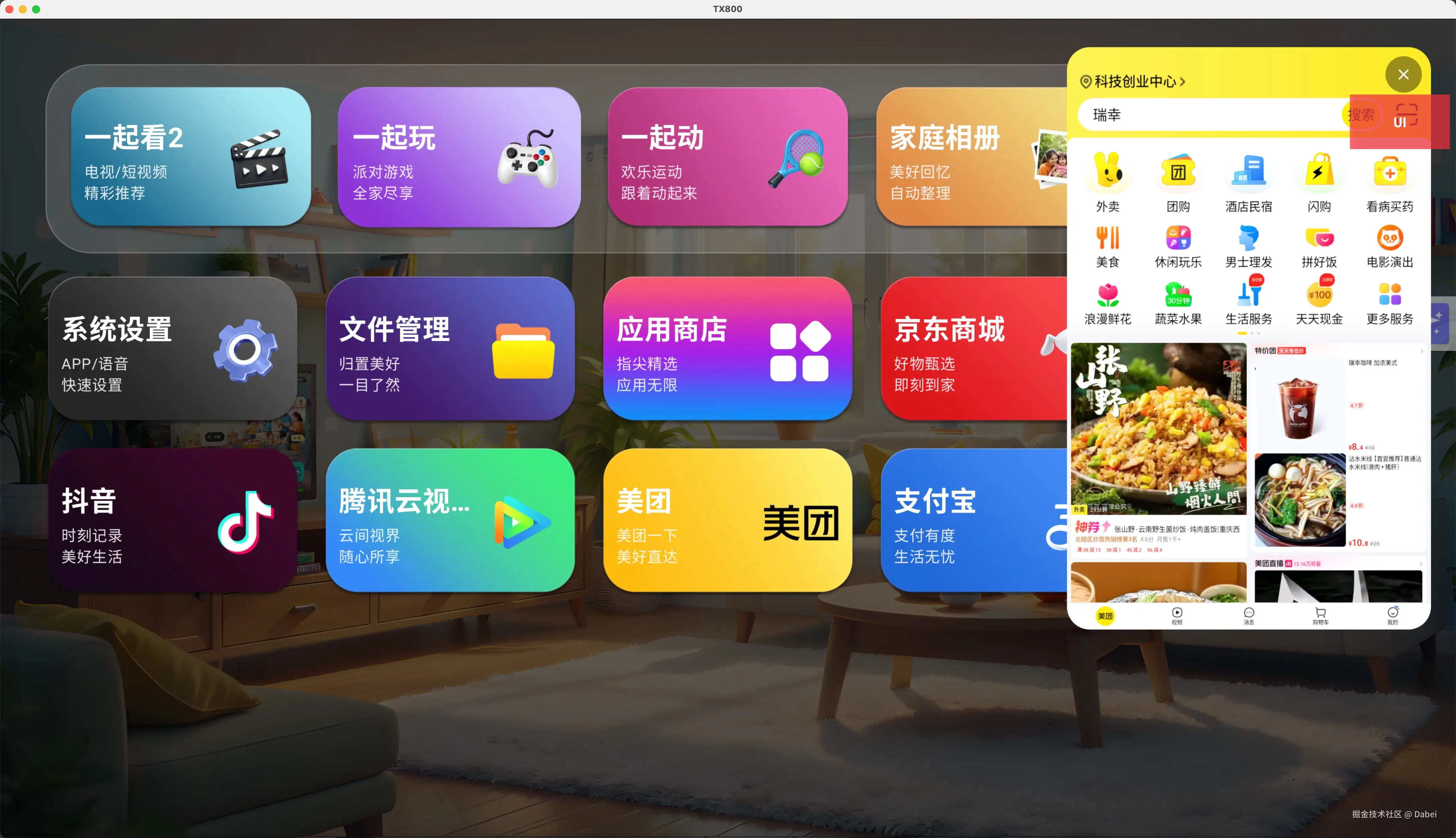
一、整体架构
scss
┌──────────────────────────────────────────────────────┐
│                  主屏 (Default Display)                │
│                                                      │
│  ┌────────────────────────────────────────────────┐  │
│  │  悬浮窗 (WindowManager.TYPE_APPLICATION_OVERLAY)│  │
│  │  ┌──────────────────────────────────────────┐  │  │
│  │  │  ImageView (FIT_CENTER 显示副屏截图)      │  │  │
│  │  │  ↕ OnTouchListener                       │  │  │
│  │  │  触摸坐标 → mapToVirtualDisplay() 映射    │  │  │
│  │  └──────────────────────────────────────────┘  │  │
│  └────────────────────────────────────────────────┘  │
│                         ▲ Bitmap                      │
│                         │                            │
│  ┌──────────────────────┴─────────────────────────┐  │
│  │  ImageReader (RGBA_8888, 实时帧捕获)            │  │
│  │         ↑ Surface                              │  │
│  │  ┌─────┴──────────────────────────────────┐    │  │
│  │  │  VirtualDisplay (副屏)                  │    │  │
│  │  │  - 目标 App 运行在此 Display 上          │    │  │
│  │  │  - input -d displayId tap/swipe 注入     │    │  │
│  │  └────────────────────────────────────────┘    │  │
│  └────────────────────────────────────────────────┘  │
└──────────────────────────────────────────────────────┘
核心数据流:
- 渲染方向:App → VirtualDisplay → ImageReader.Surface → Bitmap → 悬浮窗 ImageView
- 交互方向 :用户触摸悬浮窗 → 坐标映射 →
input -d displayId tap/swipe→ 副屏 App 响应
二、VirtualDisplay 管理器
2.1 单例设计
副屏在整个应用生命周期中只需要一个实例,使用 object 单例管理:
kotlin
object VirtualDisplayManager {

    private const val TAG = "VirtualDisplayMgr"
    private const val DISPLAY_NAME = "SimpleAOA-Screen"

    // 通过系统属性动态配置副屏参数(方便不同设备适配)
    private const val PROP_VD_WIDTH = "persist.sys.bd.virtual_width"
    private const val PROP_VD_HEIGHT = "persist.sys.bd.virtual_height"
    private const val PROP_VD_DPI = "persist.sys.bd.virtual_dpi"

    private const val DEFAULT_WIDTH = 800
    private const val DEFAULT_HEIGHT = 1280
    private const val DEFAULT_DPI = 180

    val WIDTH: Int get() = getSystemPropertyInt(PROP_VD_WIDTH, DEFAULT_WIDTH)
    val HEIGHT: Int get() = getSystemPropertyInt(PROP_VD_HEIGHT, DEFAULT_HEIGHT)
    private val DENSITY_DPI: Int get() = getSystemPropertyInt(PROP_VD_DPI, DEFAULT_DPI)

    @Volatile var enabled: Boolean = true

    private var virtualDisplay: VirtualDisplay? = null
    private var imageReader: ImageReader? = null
    private var displayId: Int = Display.INVALID_DISPLAY
    private val inputExecutor = Executors.newSingleThreadExecutor()

    /** 记录通过副屏启动过的包名,关闭时统一 force-stop */
    private val launchedPackages: MutableSet<String> = Collections.synchronizedSet(mutableSetOf())
}
2.2 创建副屏
关键点:
- 使用
ImageReader作为 Surface 提供者,这样可以逐帧捕获画面用于预览 - 标志位组合决定了副屏的能力(触摸支持、焦点管理等)
kotlin
@Synchronized
fun ensureDisplay(context: Context): Int {
    if (!enabled) return Display.INVALID_DISPLAY
    if (virtualDisplay != null && displayId != Display.INVALID_DISPLAY) {
        return displayId  // 已存在,直接复用
    }
    return createDisplay(context)
}

private fun createDisplay(context: Context): Int {
    val w = WIDTH
    val h = HEIGHT
    val dpi = DENSITY_DPI

    // 1. 创建 ImageReader 作为渲染目标
    imageReader = ImageReader.newInstance(w, h, PixelFormat.RGBA_8888, 2)

    val dm = context.getSystemService(Context.DISPLAY_SERVICE) as DisplayManager

    // 2. 组合标志位
    val flags = DisplayManager.VIRTUAL_DISPLAY_FLAG_PUBLIC or
        DisplayManager.VIRTUAL_DISPLAY_FLAG_OWN_CONTENT_ONLY or
        DisplayManager.VIRTUAL_DISPLAY_FLAG_PRESENTATION or
        getOptionalFlag("VIRTUAL_DISPLAY_FLAG_TRUSTED") or       // 系统签名才有
        getOptionalFlag("VIRTUAL_DISPLAY_FLAG_SUPPORTS_TOUCH") or // 支持触摸
        getOptionalFlag("VIRTUAL_DISPLAY_FLAG_OWN_FOCUS")         // 独立焦点

    // 3. 创建虚拟显示器
    virtualDisplay = dm.createVirtualDisplay(
        DISPLAY_NAME, w, h, dpi,
        imageReader!!.surface, flags
    )

    displayId = virtualDisplay!!.display.displayId
    Log.i(TAG, "副屏创建成功: displayId=$displayId, ${w}x${h}@${dpi}dpi")
    return displayId
}
2.3 标志位详解
| 标志位 | 作用 | 是否需要系统签名 |
|---|---|---|
FLAG_PUBLIC |
允许其他应用在此 Display 上显示 | 是 |
FLAG_OWN_CONTENT_ONLY |
仅显示创建者的内容 | 否 |
FLAG_PRESENTATION |
标记为演示用途 | 否 |
FLAG_TRUSTED |
系统信任的显示器 | 是 |
FLAG_SUPPORTS_TOUCH |
支持触摸输入注入 | 是 |
FLAG_OWN_FOCUS |
副屏有独立焦点,不抢主屏焦点 | 是 |
注意:
FLAG_TRUSTED、FLAG_SUPPORTS_TOUCH、FLAG_OWN_FOCUS是隐藏 API,需要系统签名权限。通过反射获取,不存在时返回 0 不影响编译。
kotlin
private fun getOptionalFlag(name: String): Int {
    return try {
        DisplayManager::class.java.getField(name).getInt(null)
    } catch (_: Exception) { 0 }
}
2.4 帧捕获
通过 ImageReader 获取副屏当前画面的 JPEG 字节(用于 AI 分析等场景):
kotlin
fun captureFrame(): ByteArray? {
    val reader = imageReader ?: return null
    val image = reader.acquireLatestImage() ?: return null
    return try {
        val plane = image.planes[0]
        val buffer = plane.buffer
        val rowStride = plane.rowStride
        val pixelStride = plane.pixelStride
        val rowPadding = rowStride - pixelStride * WIDTH

        val bitmap = Bitmap.createBitmap(
            WIDTH + rowPadding / pixelStride, HEIGHT,
            Bitmap.Config.ARGB_8888
        )
        bitmap.copyPixelsFromBuffer(buffer)

        // 裁掉行填充
        val cropped = if (rowPadding > 0) {
            Bitmap.createBitmap(bitmap, 0, 0, WIDTH, HEIGHT).also { bitmap.recycle() }
        } else bitmap

        val stream = ByteArrayOutputStream()
        cropped.compress(Bitmap.CompressFormat.JPEG, 50, stream)
        cropped.recycle()
        stream.toByteArray()
    } finally {
        image.close()
    }
}
三、向副屏注入点击和滑动
这是副屏交互的核心------通过 input 命令的 -d displayId 参数,将触摸事件注入到指定显示器。
3.1 注入点击
kotlin
fun injectTap(x: Int, y: Int) {
    val id = getDisplayId() ?: return
    inputExecutor.execute {
        try {
            Runtime.getRuntime().exec(
                arrayOf("input", "-d", id.toString(), "tap", x.toString(), y.toString())
            ).waitFor(5, TimeUnit.SECONDS)
        } catch (e: Exception) {
            Log.w(TAG, "injectTap 失败: ${e.message}")
        }
    }
}
3.2 注入滑动
kotlin
fun injectSwipe(x1: Int, y1: Int, x2: Int, y2: Int, durationMs: Long) {
    val id = getDisplayId() ?: return
    inputExecutor.execute {
        try {
            Runtime.getRuntime().exec(
                arrayOf("input", "-d", id.toString(), "swipe",
                    x1.toString(), y1.toString(),
                    x2.toString(), y2.toString(),
                    durationMs.toString())
            ).waitFor(5, TimeUnit.SECONDS)
        } catch (e: Exception) {
            Log.w(TAG, "injectSwipe 失败: ${e.message}")
        }
    }
}
3.3 input 命令说明
bash
# 在指定 displayId 上点击坐标 (400, 640)
input -d 2 tap 400 640

# 在指定 displayId 上从 (400,800) 滑动到 (400,200),耗时 300ms
input -d 2 swipe 400 800 400 200 300
注意:
input -d需要shell权限或系统签名。普通第三方 App 无法使用,需要系统应用或 ADB 权限。
四、悬浮窗画中画预览
4.1 预览窗口类设计
kotlin
class VirtualDisplayPreview(private val context: Context) {

    companion object {
        private const val TAP_SLOP_DP = 10f
        private const val PROP_PREVIEW_SCALE = "persist.sys.bd.virtual_preview_scale"
        private const val DEFAULT_SCALE = 1.2f
    }

    private val windowManager = context.getSystemService(Context.WINDOW_SERVICE) as WindowManager
    private val mainHandler = Handler(Looper.getMainLooper())
    private var overlayView: View? = null
    private var imageView: ImageView? = null
    private var isShowing = false

    /** 触摸开关,自动化运行时设为 false 避免用户误触 */
    var touchEnabled = true

    // 触摸手势状态
    private var touchDownX = 0f
    private var touchDownY = 0f
    private var touchDownTime = 0L
    private val tapSlop by lazy {
        TAP_SLOP_DP * context.resources.displayMetrics.density
    }
}
4.2 显示悬浮窗
kotlin
fun show() {
    if (isShowing) return
    val reader = VirtualDisplayManager.getImageReader() ?: return

    val view = LayoutInflater.from(context)
        .inflate(R.layout.view_preview_overlay, null, false)
    val iv = view.findViewById<ImageView>(R.id.iv_overlay_preview)
    val closeBtn = view.findViewById<ImageButton>(R.id.btn_overlay_close)

    // 清掉残留帧
    try { reader.acquireLatestImage()?.close() } catch (_: Exception) {}

    closeBtn.setOnClickListener {
        onCloseListener?.invoke()
        hide()
    }
    iv.setOnTouchListener { v, event -> handlePreviewTouch(v, event) }

    // 预览窗口尺寸 = 副屏尺寸 × 缩放比例
    val scale = VirtualDisplayManager.getSystemPropertyFloat(PROP_PREVIEW_SCALE, DEFAULT_SCALE)
    val overlayWidth = (VirtualDisplayManager.WIDTH * scale).toInt()
    val overlayHeight = (VirtualDisplayManager.HEIGHT * scale).toInt()

    val params = WindowManager.LayoutParams(
        overlayWidth, overlayHeight,
        WindowManager.LayoutParams.TYPE_APPLICATION_OVERLAY,
        WindowManager.LayoutParams.FLAG_NOT_FOCUSABLE
            or WindowManager.LayoutParams.FLAG_LAYOUT_IN_SCREEN,
        PixelFormat.TRANSLUCENT
    ).apply {
        gravity = Gravity.TOP or Gravity.END
        x = dp(22)
        y = dp(25)
    }

    windowManager.addView(view, params)
    overlayView = view
    imageView = iv
    isShowing = true

    // 注册帧监听,实时更新预览画面
    reader.setOnImageAvailableListener(imageListener, mainHandler)
}
4.3 实时帧更新
通过 ImageReader.OnImageAvailableListener 持续获取副屏新帧:
kotlin
private val imageListener = ImageReader.OnImageAvailableListener { reader ->
    val image = reader.acquireLatestImage() ?: return@OnImageAvailableListener
    try {
        val plane = image.planes[0]
        val buffer = plane.buffer
        val width = VirtualDisplayManager.WIDTH
        val height = VirtualDisplayManager.HEIGHT
        val rowStride = plane.rowStride
        val pixelStride = plane.pixelStride
        val rowPadding = rowStride - pixelStride * width

        val bitmap = Bitmap.createBitmap(
            width + rowPadding / pixelStride, height, Bitmap.Config.ARGB_8888
        )
        bitmap.copyPixelsFromBuffer(buffer)

        val finalBitmap = if (rowPadding > 0) {
            Bitmap.createBitmap(bitmap, 0, 0, width, height).also { bitmap.recycle() }
        } else bitmap

        mainHandler.post {
            imageView?.setImageBitmap(finalBitmap) ?: finalBitmap.recycle()
        }
    } finally {
        image.close()
    }
}
4.4 隐藏时防止 Buffer 满
关键细节:隐藏预览后仍需消费 ImageReader 的帧,否则 buffer 满会导致副屏 App 停止渲染:
kotlin
/** 隐藏时持续消费帧,防止 buffer 满 */
private val drainListener = ImageReader.OnImageAvailableListener { reader ->
    reader.acquireLatestImage()?.close()
}

fun hide() {
    if (!isShowing) return
    // 切换到 drain 模式,不再更新 UI 但持续消费帧
    VirtualDisplayManager.getImageReader()
        ?.setOnImageAvailableListener(drainListener, mainHandler)
    removeOverlay()
}
五、触摸坐标映射(核心难点)
5.1 问题
悬浮窗中的 ImageView 使用 FIT_CENTER 缩放模式显示副屏画面。用户触摸的是 ImageView 上的坐标,但需要转换为副屏的像素坐标才能正确注入。
需要处理:
- ImageView 与副屏的宽高比可能不同(letterbox 黑边)
- 缩放比例计算
- 边界裁剪
5.2 映射算法
kotlin
/**
 * 将预览 View 上的触摸坐标映射到虚拟屏像素坐标。
 * 考虑 FIT_CENTER 的 letterbox 偏移。
 */
private fun mapToVirtualDisplay(v: View, touchX: Float, touchY: Float): Pair<Int, Int>? {
    val vw = v.width.toFloat()   // ImageView 实际宽度
    val vh = v.height.toFloat()  // ImageView 实际高度
    if (vw <= 0 || vh <= 0) return null

    val vdW = VirtualDisplayManager.WIDTH.toFloat()   // 副屏宽度
    val vdH = VirtualDisplayManager.HEIGHT.toFloat()  // 副屏高度

    // FIT_CENTER: 取宽高中较小的缩放比
    val scale = min(vw / vdW, vh / vdH)

    // 实际渲染区域大小
    val renderedW = vdW * scale
    val renderedH = vdH * scale

    // letterbox 偏移(居中对齐产生的边距)
    val offsetX = (vw - renderedW) / 2f
    val offsetY = (vh - renderedH) / 2f

    // 触摸点相对于渲染内容的坐标
    val contentX = touchX - offsetX
    val contentY = touchY - offsetY

    // 超出渲染区域则忽略(点在黑边上)
    if (contentX < 0 || contentY < 0 || contentX > renderedW || contentY > renderedH) return null

    // 映射到副屏像素坐标
    val virtualX = (contentX / renderedW * vdW).toInt().coerceIn(0, vdW.toInt() - 1)
    val virtualY = (contentY / renderedH * vdH).toInt().coerceIn(0, vdH.toInt() - 1)
    return virtualX to virtualY
}
5.3 图解映射过程
scss
ImageView (480 x 270)
┌──────────────────────────────────────────────┐
│ offsetX │                          │ offsetX │
│◄───────►│   渲染区域 (renderedW)    │◄───────►│
│         │  ┌────────────────────┐  │         │
│         │  │                    │  │         │
│         │  │  副屏画面内容       │  │         │
│         │  │  (FIT_CENTER)      │  │         │
│         │  │       ● 触摸点      │  │         │
│         │  │                    │  │         │
│         │  └────────────────────┘  │         │
└──────────────────────────────────────────────┘

触摸点 (touchX, touchY)
    ↓ 减去 offset
内容坐标 (contentX, contentY)
    ↓ 除以 rendered 尺寸,乘以副屏尺寸
副屏坐标 (virtualX, virtualY)
    ↓ input -d displayId tap virtualX virtualY
副屏 App 收到点击事件
六、触摸手势识别(点击 vs 滑动)
6.1 完整触摸处理
kotlin
private fun handlePreviewTouch(v: View, event: MotionEvent): Boolean {
    if (!touchEnabled) return true  // 自动化期间吞掉事件

    when (event.actionMasked) {
        MotionEvent.ACTION_DOWN -> {
            touchDownX = event.x
            touchDownY = event.y
            touchDownTime = System.currentTimeMillis()
            return true
        }
        MotionEvent.ACTION_UP -> {
            val dx = event.x - touchDownX
            val dy = event.y - touchDownY
            val elapsed = System.currentTimeMillis() - touchDownTime

            // 映射起点和终点
            val startVd = mapToVirtualDisplay(v, touchDownX, touchDownY) ?: return false
            val endVd = mapToVirtualDisplay(v, event.x, event.y) ?: return false

            if (abs(dx) < tapSlop && abs(dy) < tapSlop) {
                // 移动距离小于阈值 → 判定为点击
                VirtualDisplayManager.injectTap(startVd.first, startVd.second)
            } else {
                // 移动距离大于阈值 → 判定为滑动
                val duration = elapsed.coerceIn(100, 2000)
                VirtualDisplayManager.injectSwipe(
                    startVd.first, startVd.second,
                    endVd.first, endVd.second,
                    duration
                )
            }
            return true
        }
        MotionEvent.ACTION_MOVE -> return true  // 消费但不处理
    }
    return false
}
6.2 手势判定逻辑
| 条件 | 判定结果 | 注入动作 |
|---|---|---|
| 移动距离 < 10dp | 点击(Tap) | input -d {id} tap x y |
| 移动距离 >= 10dp | 滑动(Swipe) | input -d {id} swipe x1 y1 x2 y2 duration |
touchEnabled = false |
吞掉事件 | 无(自动化运行中) |
| 触摸点在黑边区域 | 忽略 | 无 |
滑动时长取实际手指滑动耗时,限制在 100ms ~ 2000ms 之间,保证动作自然。
七、通过无障碍服务操控副屏(进阶)
除了 input 命令注入,还可以通过 AccessibilityService 的 dispatchGesture() 操控副屏:
7.1 手势注入
kotlin
// 在 AccessibilityService 中
private fun dispatchTap(x: Float, y: Float) {
    val path = Path().apply { moveTo(x, y) }
    val stroke = GestureDescription.StrokeDescription(path, 0, 100)
    val gesture = GestureDescription.Builder().addStroke(stroke).build()
    dispatchGesture(gesture, null, null)
}

private fun dispatchSwipe(x1: Float, y1: Float, x2: Float, y2: Float, durationMs: Long) {
    val path = Path().apply {
        moveTo(x1, y1)
        lineTo(x2, y2)
    }
    val stroke = GestureDescription.StrokeDescription(path, 0, durationMs)
    val gesture = GestureDescription.Builder().addStroke(stroke).build()
    dispatchGesture(gesture, null, null)
}
7.2 获取副屏 UI 树(API 33+)
kotlin
fun captureUiTree(targetDisplayId: Int): List<AccessibilityNodeInfo> {
    return if (Build.VERSION.SDK_INT >= 33) {
        // Android 13+ 支持获取所有 Display 的窗口
        getWindowsOnAllDisplays()
            .filterKeys { it == targetDisplayId }
            .values.flatten()
            .mapNotNull { it.root }
    } else {
        // 旧版本通过 getWindows() 过滤
        windows.filter { it.displayId == targetDisplayId }
            .mapNotNull { it.root }
    }
}
八、启动 App 到副屏
kotlin
fun launchAppToVirtualDisplay(context: Context, packageName: String) {
    val displayId = VirtualDisplayManager.ensureDisplay(context)
    if (displayId == Display.INVALID_DISPLAY) return

    // 通过 am start 指定 display
    val cmd = "am start -n $packageName/.MainActivity --display $displayId"
    Runtime.getRuntime().exec(arrayOf("sh", "-c", cmd))

    // 记录包名,后续统一清理
    VirtualDisplayManager.trackLaunchedPackage(packageName)
}
或通过 Intent 方式(需要 ActivityOptions):
kotlin
val options = ActivityOptions.makeBasic()
if (Build.VERSION.SDK_INT >= Build.VERSION_CODES.O) {
    options.launchDisplayId = displayId
}
context.startActivity(intent, options.toBundle())
九、资源释放与生命周期
9.1 释放副屏
kotlin
@Synchronized
fun release() {
    virtualDisplay?.release()
    virtualDisplay = null
    imageReader?.close()
    imageReader = null
    displayId = Display.INVALID_DISPLAY
}
9.2 关闭时清理已启动的 App
kotlin
fun forceStopAllLaunched() {
    val packages = launchedPackages.toList()
    launchedPackages.clear()
    inputExecutor.execute {
        packages.forEach { pkg ->
            Runtime.getRuntime().exec(arrayOf("am", "force-stop", pkg))
                .waitFor(5, TimeUnit.SECONDS)
        }
    }
}
9.3 释放顺序
markdown
1. 关闭预览悬浮窗 (VirtualDisplayPreview.hide())
2. force-stop 副屏上的 App
3. 释放 VirtualDisplay
4. 关闭 ImageReader
十、常见问题
Q1: 副屏画面黑屏/不更新?
- 检查 ImageReader buffer 是否满了(maxImages=2 时,必须及时
acquireLatestImage().close()) - 隐藏预览时要切换到
drainListener持续消费帧
Q2: 触摸点击位置不准?
- 确认 ImageView 的 scaleType 是
FIT_CENTER - 检查
mapToVirtualDisplay()中 letterbox offset 计算是否正确 - 注意副屏分辨率与预览窗口尺寸的比例关系
Q3: 创建 VirtualDisplay 返回 null?
- 需要系统签名权限(
FLAG_PUBLIC+FLAG_TRUSTED) - 普通应用只能使用
MediaProjection.createVirtualDisplay()
Q4: 副屏 App 抢了主屏焦点?
- 添加
VIRTUAL_DISPLAY_FLAG_OWN_FOCUS标志(需系统签名) - 悬浮窗使用
FLAG_NOT_FOCUSABLE
Q5: 悬浮窗需要什么权限?
xml
<uses-permission android:name="android.permission.SYSTEM_ALERT_WINDOW" />运行时检查:
kotlin
if (!Settings.canDrawOverlays(context)) {
    // 引导用户开启
}
十一、总结
| 模块 | 关键技术 |
|---|---|
| 副屏创建 | DisplayManager.createVirtualDisplay() + ImageReader |
| 画面捕获 | ImageReader.OnImageAvailableListener 逐帧获取 Bitmap |
| 悬浮窗显示 | WindowManager + TYPE_APPLICATION_OVERLAY |
| 触摸映射 | FIT_CENTER letterbox 偏移计算 + 坐标比例换算 |
| 事件注入 | input -d displayId tap/swipe(需 shell 权限) |
| 手势识别 | 移动距离阈值区分 tap vs swipe |
| 无障碍操控 | AccessibilityService.dispatchGesture() |
| 生命周期 | drain 防黑屏 + force-stop 清理 + 有序释放 |
整套方案的精髓在于:VirtualDisplay + ImageReader 实现渲染捕获,悬浮窗 ImageView 实现画中画预览,坐标映射 + input 命令实现反向交互控制,形成完整的双向通信闭环。
附录:完整可运行代码
以下是可以直接复制到项目中使用的完整代码,包含所有必要的 import 和配置。
A. AndroidManifest.xml 配置
xml
<?xml version="1.0" encoding="utf-8"?>
<manifest xmlns:android="http://schemas.android.com/apk/res/android">

    <!-- 悬浮窗权限 -->
    <uses-permission android:name="android.permission.SYSTEM_ALERT_WINDOW" />
    <!-- 前台服务 -->
    <uses-permission android:name="android.permission.FOREGROUND_SERVICE" />

    <application ...>

        <service
            android:name=".service.FloatingPreviewService"
            android:exported="false"
            android:foregroundServiceType="specialUse" />

    </application>
</manifest>
B. VirtualDisplayManager.kt(完整版)
kotlin
package com.example.virtualdisplay

import android.content.Context
import android.graphics.Bitmap
import android.graphics.PixelFormat
import android.hardware.display.DisplayManager
import android.hardware.display.VirtualDisplay
import android.media.ImageReader
import android.os.Handler
import android.os.Looper
import android.util.Log
import android.view.Display
import java.io.ByteArrayOutputStream
import java.util.Collections
import java.util.concurrent.Executors
import java.util.concurrent.TimeUnit

/**
 * 副屏(VirtualDisplay)管理单例。
 * 将目标 App 启动到独立虚拟 Display,不干扰主屏。
 *
 * 使用方式:
 *   val displayId = VirtualDisplayManager.ensureDisplay(context)
 *   // 通过 am start --display $displayId 启动 App
 *   // 通过 injectTap / injectSwipe 注入触摸
 *   // 通过 getImageReader() 获取帧用于预览
 */
object VirtualDisplayManager {

    private const val TAG = "VirtualDisplayMgr"
    private const val DISPLAY_NAME = "VD-Preview"

    // ============ 副屏参数(可通过系统属性动态配置) ============
    // 如果不需要系统属性,直接改成 const val 即可
    var WIDTH = 800
        private set
    var HEIGHT = 1280
        private set
    var DENSITY_DPI = 180
        private set

    /** 副屏功能总开关 */
    @Volatile
    var enabled: Boolean = true

    private var virtualDisplay: VirtualDisplay? = null
    private var imageReader: ImageReader? = null
    private var displayId: Int = Display.INVALID_DISPLAY

    private val mainHandler = Handler(Looper.getMainLooper())
    private val inputExecutor = Executors.newSingleThreadExecutor()

    /** 记录通过副屏启动过的包名,关闭时统一 force-stop */
    private val launchedPackages: MutableSet<String> = Collections.synchronizedSet(mutableSetOf())

    // ======================== 公开 API ========================

    /**
     * 配置副屏参数(在 ensureDisplay 之前调用)
     */
    fun configure(width: Int = 800, height: Int = 1280, dpi: Int = 180) {
        WIDTH = width
        HEIGHT = height
        DENSITY_DPI = dpi
    }

    /**
     * 确保副屏存在,返回 displayId。已创建则直接复用。
     * @return displayId,失败返回 Display.INVALID_DISPLAY
     */
    @Synchronized
    fun ensureDisplay(context: Context): Int {
        if (!enabled) {
            Log.d(TAG, "副屏功能已关闭")
            return Display.INVALID_DISPLAY
        }
        if (virtualDisplay != null && displayId != Display.INVALID_DISPLAY) {
            Log.d(TAG, "副屏已存在, displayId=$displayId")
            return displayId
        }
        return createDisplay(context)
    }

    /**
     * 获取当前副屏 displayId,未创建返回 null。
     */
    fun getDisplayId(): Int? =
        if (displayId != Display.INVALID_DISPLAY) displayId else null

    /**
     * 获取 ImageReader,用于画中画预览读取帧。
     */
    fun getImageReader(): ImageReader? = imageReader

    /**
     * 记录一个已启动到副屏的包名(用于后续统一清理)。
     */
    fun trackLaunchedPackage(pkg: String) {
        launchedPackages.add(pkg)
    }

    /**
     * 向副屏注入一次点击。坐标为副屏像素坐标。
     * 需要 shell 权限或系统签名。
     */
    fun injectTap(x: Int, y: Int) {
        val id = getDisplayId() ?: run {
            Log.w(TAG, "injectTap: 副屏未创建")
            return
        }
        inputExecutor.execute {
            try {
                val process = Runtime.getRuntime().exec(
                    arrayOf("input", "-d", id.toString(), "tap", x.toString(), y.toString())
                )
                process.waitFor(5, TimeUnit.SECONDS)
                Log.d(TAG, "injectTap($x, $y) on display $id")
            } catch (e: Exception) {
                Log.w(TAG, "injectTap 失败: ${e.message}")
            }
        }
    }

    /**
     * 向副屏注入一次滑动。坐标为副屏像素坐标。
     * @param durationMs 滑动持续时间(毫秒),影响滑动速度
     */
    fun injectSwipe(x1: Int, y1: Int, x2: Int, y2: Int, durationMs: Long = 300) {
        val id = getDisplayId() ?: run {
            Log.w(TAG, "injectSwipe: 副屏未创建")
            return
        }
        inputExecutor.execute {
            try {
                val process = Runtime.getRuntime().exec(
                    arrayOf(
                        "input", "-d", id.toString(), "swipe",
                        x1.toString(), y1.toString(),
                        x2.toString(), y2.toString(),
                        durationMs.toString()
                    )
                )
                process.waitFor(5, TimeUnit.SECONDS)
                Log.d(TAG, "injectSwipe($x1,$y1 -> $x2,$y2, ${durationMs}ms) on display $id")
            } catch (e: Exception) {
                Log.w(TAG, "injectSwipe 失败: ${e.message}")
            }
        }
    }

    /**
     * 从 ImageReader 抓取当前帧,返回 JPEG 字节数组。
     * 可用于截图保存或发送给 AI 分析。
     */
    fun captureFrame(quality: Int = 50): ByteArray? {
        val reader = imageReader ?: return null
        val image = reader.acquireLatestImage() ?: return null
        return try {
            val plane = image.planes[0]
            val buffer = plane.buffer
            val rowStride = plane.rowStride
            val pixelStride = plane.pixelStride
            val rowPadding = rowStride - pixelStride * WIDTH

            val bitmap = Bitmap.createBitmap(
                WIDTH + rowPadding / pixelStride, HEIGHT,
                Bitmap.Config.ARGB_8888
            )
            bitmap.copyPixelsFromBuffer(buffer)

            val cropped = if (rowPadding > 0) {
                Bitmap.createBitmap(bitmap, 0, 0, WIDTH, HEIGHT).also { bitmap.recycle() }
            } else {
                bitmap
            }

            val stream = ByteArrayOutputStream()
            cropped.compress(Bitmap.CompressFormat.JPEG, quality, stream)
            cropped.recycle()
            stream.toByteArray()
        } catch (e: Exception) {
            Log.e(TAG, "captureFrame 失败", e)
            null
        } finally {
            image.close()
        }
    }

    /**
     * force-stop 所有已记录的副屏包名并清空列表。
     */
    fun forceStopAllLaunched() {
        val packages = launchedPackages.toList()
        launchedPackages.clear()
        if (packages.isEmpty()) return
        inputExecutor.execute {
            packages.forEach { pkg ->
                try {
                    Runtime.getRuntime().exec(arrayOf("am", "force-stop", pkg))
                        .waitFor(5, TimeUnit.SECONDS)
                    Log.i(TAG, "已关闭副屏应用: $pkg")
                } catch (e: Exception) {
                    Log.w(TAG, "forceStopApp 失败 ($pkg): ${e.message}")
                }
            }
        }
    }

    /**
     * 释放副屏所有资源。
     */
    @Synchronized
    fun release() {
        forceStopAllLaunched()
        virtualDisplay?.release()
        virtualDisplay = null
        imageReader?.close()
        imageReader = null
        displayId = Display.INVALID_DISPLAY
        Log.i(TAG, "副屏已释放")
    }

    // ======================== 内部实现 ========================

    private fun createDisplay(context: Context): Int {
        val w = WIDTH
        val h = HEIGHT
        val dpi = DENSITY_DPI
        try {
            // 1. 创建 ImageReader(buffer 数量为 2,够用且不浪费内存)
            imageReader = ImageReader.newInstance(w, h, PixelFormat.RGBA_8888, 2)

            val dm = context.getSystemService(Context.DISPLAY_SERVICE) as DisplayManager

            // 2. 组合标志位(隐藏 flag 通过反射获取,不存在则为 0)
            val flags = DisplayManager.VIRTUAL_DISPLAY_FLAG_PUBLIC or
                DisplayManager.VIRTUAL_DISPLAY_FLAG_OWN_CONTENT_ONLY or
                DisplayManager.VIRTUAL_DISPLAY_FLAG_PRESENTATION or
                getOptionalFlag("VIRTUAL_DISPLAY_FLAG_TRUSTED") or
                getOptionalFlag("VIRTUAL_DISPLAY_FLAG_SUPPORTS_TOUCH") or
                getOptionalFlag("VIRTUAL_DISPLAY_FLAG_OWN_FOCUS")

            // 3. 创建虚拟显示器
            virtualDisplay = dm.createVirtualDisplay(
                DISPLAY_NAME, w, h, dpi,
                imageReader!!.surface, flags
            )

            if (virtualDisplay == null) {
                Log.e(TAG, "createVirtualDisplay 返回 null,可能缺少系统签名权限")
                imageReader?.close()
                imageReader = null
                return Display.INVALID_DISPLAY
            }

            displayId = virtualDisplay!!.display.displayId
            Log.i(TAG, "副屏创建成功: displayId=$displayId, ${w}x${h}@${dpi}dpi, flags=0x${flags.toString(16)}")
            return displayId
        } catch (e: SecurityException) {
            Log.e(TAG, "创建副屏失败,需要系统签名权限: ${e.message}")
            return Display.INVALID_DISPLAY
        } catch (e: Exception) {
            Log.e(TAG, "创建副屏失败: ${e.message}", e)
            return Display.INVALID_DISPLAY
        }
    }

    /**
     * 反射获取 DisplayManager 中的隐藏 flag 常量值。
     * 不存在时返回 0,不影响其他 flag 的 or 运算。
     */
    private fun getOptionalFlag(name: String): Int {
        return try {
            DisplayManager::class.java.getField(name).getInt(null)
        } catch (_: Exception) {
            0
        }
    }
}
C. VirtualDisplayPreview.kt(完整版 --- 悬浮窗画中画 + 触摸交互)
kotlin
package com.example.virtualdisplay

import android.content.Context
import android.graphics.Bitmap
import android.graphics.PixelFormat
import android.media.ImageReader
import android.os.Build
import android.os.Handler
import android.os.Looper
import android.util.Log
import android.view.Gravity
import android.view.LayoutInflater
import android.view.MotionEvent
import android.view.View
import android.view.WindowManager
import android.widget.ImageButton
import android.widget.ImageView
import kotlin.math.abs
import kotlin.math.min

/**
 * 副屏画中画预览悬浮窗。
 *
 * 功能:
 * 1. 在主屏右上角显示一个悬浮窗,实时显示副屏画面
 * 2. 支持触摸交互:点击/滑动会自动映射坐标并注入到副屏
 * 3. 支持关闭按钮和触摸开关(自动化运行时禁用触摸)
 *
 * 使用方式:
 *   val preview = VirtualDisplayPreview(context)
 *   preview.onCloseListener = { /* 关闭副屏逻辑 */ }
 *   preview.show()
 *   // ...
 *   preview.hide()
 */
class VirtualDisplayPreview(private val context: Context) {

    companion object {
        private const val TAG = "VDPreview"

        /** 判定点击 vs 滑动的距离阈值(dp) */
        private const val TAP_SLOP_DP = 10f

        /** 预览窗口相对副屏的缩放比例(1.0 = 与副屏同尺寸) */
        private const val DEFAULT_SCALE = 0.3f

        /** 预览窗口距顶部距离(dp) */
        private const val MARGIN_TOP_DP = 25

        /** 预览窗口距右侧距离(dp) */
        private const val MARGIN_RIGHT_DP = 16
    }

    private val windowManager = context.getSystemService(Context.WINDOW_SERVICE) as WindowManager
    private val mainHandler = Handler(Looper.getMainLooper())
    private var overlayView: View? = null
    private var imageView: ImageView? = null
    private var closeButton: ImageButton? = null
    private var isShowing = false

    /** 触摸开关。自动化运行时设为 false,避免用户误触干扰自动化流程 */
    var touchEnabled = true

    /** 关闭按钮点击回调(在 hide 之前调用) */
    var onCloseListener: (() -> Unit)? = null

    // ============ 触摸手势状态 ============
    private var touchDownX = 0f
    private var touchDownY = 0f
    private var touchDownTime = 0L
    private val tapSlop by lazy {
        TAP_SLOP_DP * context.resources.displayMetrics.density
    }

    // ============ ImageReader 帧监听 ============

    /**
     * 正常显示时的帧监听:将每一帧转为 Bitmap 更新到 ImageView
     */
    private val imageListener = ImageReader.OnImageAvailableListener { reader ->
        val image = reader.acquireLatestImage() ?: return@OnImageAvailableListener
        try {
            val plane = image.planes[0]
            val buffer = plane.buffer
            val width = VirtualDisplayManager.WIDTH
            val height = VirtualDisplayManager.HEIGHT
            val rowStride = plane.rowStride
            val pixelStride = plane.pixelStride
            val rowPadding = rowStride - pixelStride * width

            val bitmap = Bitmap.createBitmap(
                width + rowPadding / pixelStride, height,
                Bitmap.Config.ARGB_8888
            )
            bitmap.copyPixelsFromBuffer(buffer)

            val finalBitmap = if (rowPadding > 0) {
                Bitmap.createBitmap(bitmap, 0, 0, width, height).also { bitmap.recycle() }
            } else {
                bitmap
            }

            mainHandler.post {
                val iv = imageView
                if (iv != null) {
                    iv.setImageBitmap(finalBitmap)
                } else {
                    finalBitmap.recycle()
                }
            }
        } catch (e: Exception) {
            Log.w(TAG, "帧处理失败: ${e.message}")
        } finally {
            image.close()
        }
    }

    /**
     * 隐藏时的帧监听:仅消费帧防止 buffer 满。
     * 如果不消费,ImageReader buffer 满后副屏 App 会停止渲染(ANR 或黑屏)。
     */
    private val drainListener = ImageReader.OnImageAvailableListener { reader ->
        reader.acquireLatestImage()?.close()
    }

    // ======================== 公开 API ========================

    /**
     * 显示画中画预览悬浮窗
     */
    fun show() {
        if (isShowing) return
        val reader = VirtualDisplayManager.getImageReader()
        if (reader == null) {
            Log.w(TAG, "副屏未创建,无法显示预览")
            return
        }

        // 1. 加载布局
        val view = LayoutInflater.from(context)
            .inflate(R.layout.view_preview_overlay, null, false)
        val iv = view.findViewById<ImageView>(R.id.iv_overlay_preview)
        val closeBtn = view.findViewById<ImageButton>(R.id.btn_overlay_close)

        // 2. 清掉残留帧(防止显示上次的旧画面)
        try { reader.acquireLatestImage()?.close() } catch (_: Exception) {}

        // 3. 设置交互
        closeBtn.setOnClickListener {
            onCloseListener?.invoke()
            hide()
        }
        iv.setOnTouchListener { v, event -> handlePreviewTouch(v, event) }

        // 4. 计算预览窗口尺寸
        val overlayWidth = (VirtualDisplayManager.WIDTH * DEFAULT_SCALE).toInt()
        val overlayHeight = (VirtualDisplayManager.HEIGHT * DEFAULT_SCALE).toInt()

        // 5. 配置悬浮窗参数
        val windowType = if (Build.VERSION.SDK_INT >= Build.VERSION_CODES.O) {
            WindowManager.LayoutParams.TYPE_APPLICATION_OVERLAY
        } else {
            @Suppress("DEPRECATION")
            WindowManager.LayoutParams.TYPE_PHONE
        }

        val params = WindowManager.LayoutParams(
            overlayWidth, overlayHeight,
            windowType,
            WindowManager.LayoutParams.FLAG_NOT_FOCUSABLE
                or WindowManager.LayoutParams.FLAG_LAYOUT_IN_SCREEN,
            PixelFormat.TRANSLUCENT
        ).apply {
            gravity = Gravity.TOP or Gravity.END
            x = dp(MARGIN_RIGHT_DP)
            y = dp(MARGIN_TOP_DP)
        }

        // 6. 添加到窗口
        try {
            windowManager.addView(view, params)
            overlayView = view
            imageView = iv
            closeButton = closeBtn
            isShowing = true

            // 7. 开始接收帧
            reader.setOnImageAvailableListener(imageListener, mainHandler)
            Log.i(TAG, "画中画预览已显示 (${overlayWidth}x${overlayHeight})")
        } catch (e: Exception) {
            Log.e(TAG, "显示预览失败: ${e.message}")
        }
    }

    /**
     * 关闭预览悬浮窗。切换到 drain 模式持续消费帧。
     */
    fun hide() {
        if (!isShowing) return
        VirtualDisplayManager.getImageReader()
            ?.setOnImageAvailableListener(drainListener, mainHandler)
        removeOverlay()
        Log.i(TAG, "画中画预览已关闭")
    }

    /**
     * 控制关闭按钮可见性(自动化运行时可隐藏)
     */
    fun setCloseButtonVisible(visible: Boolean) {
        mainHandler.post {
            closeButton?.visibility = if (visible) View.VISIBLE else View.GONE
        }
    }

    fun isShowing(): Boolean = isShowing

    // ======================== 触摸处理 ========================

    /**
     * 处理预览窗口上的触摸事件。
     * - ACTION_DOWN: 记录起始坐标和时间
     * - ACTION_UP: 根据移动距离判定为点击或滑动,映射坐标后注入副屏
     * - ACTION_MOVE: 消费但不处理(防止事件穿透)
     */
    private fun handlePreviewTouch(v: View, event: MotionEvent): Boolean {
        if (!touchEnabled) return true  // 自动化期间吞掉所有事件

        when (event.actionMasked) {
            MotionEvent.ACTION_DOWN -> {
                touchDownX = event.x
                touchDownY = event.y
                touchDownTime = System.currentTimeMillis()
                return true
            }
            MotionEvent.ACTION_UP -> {
                val dx = event.x - touchDownX
                val dy = event.y - touchDownY
                val elapsed = System.currentTimeMillis() - touchDownTime

                // 将起点和终点映射到副屏坐标
                val startVd = mapToVirtualDisplay(v, touchDownX, touchDownY) ?: return false
                val endVd = mapToVirtualDisplay(v, event.x, event.y) ?: return false

                if (abs(dx) < tapSlop && abs(dy) < tapSlop) {
                    // ===== 点击 =====
                    Log.d(TAG, "点击: 预览(${touchDownX.toInt()},${touchDownY.toInt()}) → 副屏(${startVd.first},${startVd.second})")
                    VirtualDisplayManager.injectTap(startVd.first, startVd.second)
                } else {
                    // ===== 滑动 =====
                    val duration = elapsed.coerceIn(100, 2000)
                    Log.d(TAG, "滑动: 副屏(${startVd.first},${startVd.second}) → (${endVd.first},${endVd.second}), ${duration}ms")
                    VirtualDisplayManager.injectSwipe(
                        startVd.first, startVd.second,
                        endVd.first, endVd.second,
                        duration
                    )
                }
                return true
            }
            MotionEvent.ACTION_MOVE -> return true
        }
        return false
    }

    /**
     * 【核心算法】将预览 ImageView 上的触摸坐标映射到副屏像素坐标。
     *
     * 由于 ImageView 使用 FIT_CENTER 缩放模式,画面可能有 letterbox 黑边,
     * 需要计算偏移后再做比例换算。
     *
     * @param v ImageView
     * @param touchX 触摸点在 View 内的 X 坐标
     * @param touchY 触摸点在 View 内的 Y 坐标
     * @return 副屏像素坐标 (x, y),触摸在黑边区域时返回 null
     */
    private fun mapToVirtualDisplay(v: View, touchX: Float, touchY: Float): Pair<Int, Int>? {
        val vw = v.width.toFloat()   // ImageView 实际宽度(像素)
        val vh = v.height.toFloat()  // ImageView 实际高度(像素)
        if (vw <= 0 || vh <= 0) return null

        val vdW = VirtualDisplayManager.WIDTH.toFloat()   // 副屏宽度
        val vdH = VirtualDisplayManager.HEIGHT.toFloat()  // 副屏高度

        // FIT_CENTER 缩放比 = min(View宽/图片宽, View高/图片高)
        val scale = min(vw / vdW, vh / vdH)

        // 图片在 View 中实际渲染的尺寸
        val renderedW = vdW * scale
        val renderedH = vdH * scale

        // 居中对齐产生的偏移(letterbox 黑边宽度)
        val offsetX = (vw - renderedW) / 2f
        val offsetY = (vh - renderedH) / 2f

        // 触摸点相对于渲染内容左上角的坐标
        val contentX = touchX - offsetX
        val contentY = touchY - offsetY

        // 如果点在黑边区域,忽略
        if (contentX < 0 || contentY < 0 || contentX > renderedW || contentY > renderedH) {
            return null
        }

        // 按比例映射到副屏像素坐标,并 clamp 到有效范围
        val virtualX = (contentX / renderedW * vdW).toInt().coerceIn(0, vdW.toInt() - 1)
        val virtualY = (contentY / renderedH * vdH).toInt().coerceIn(0, vdH.toInt() - 1)
        return virtualX to virtualY
    }

    // ======================== 内部工具 ========================

    private fun removeOverlay() {
        try {
            overlayView?.let { windowManager.removeViewImmediate(it) }
        } catch (e: Exception) {
            Log.w(TAG, "移除预览失败: ${e.message}")
        }
        overlayView = null
        imageView = null
        closeButton = null
        isShowing = false
    }

    private fun dp(value: Int): Int {
        return (value * context.resources.displayMetrics.density).toInt()
    }
}
D. 布局文件 view_preview_overlay.xml
xml
<?xml version="1.0" encoding="utf-8"?>
<!-- res/layout/view_preview_overlay.xml -->
<FrameLayout xmlns:android="http://schemas.android.com/apk/res/android"
    android:layout_width="match_parent"
    android:layout_height="match_parent"
    android:background="@android:color/black">

    <!-- 副屏画面显示区域 -->
    <ImageView
        android:id="@+id/iv_overlay_preview"
        android:layout_width="match_parent"
        android:layout_height="match_parent"
        android:scaleType="fitCenter"
        android:contentDescription="副屏预览" />

    <!-- 关闭按钮(右上角) -->
    <ImageButton
        android:id="@+id/btn_overlay_close"
        android:layout_width="28dp"
        android:layout_height="28dp"
        android:layout_gravity="top|end"
        android:layout_margin="4dp"
        android:background="@android:color/transparent"
        android:src="@android:drawable/ic_menu_close_clear_cancel"
        android:contentDescription="关闭预览"
        android:padding="4dp" />

</FrameLayout>
E. FloatingPreviewService.kt(前台服务,管理生命周期)
kotlin
package com.example.virtualdisplay

import android.app.NotificationChannel
import android.app.NotificationManager
import android.app.Service
import android.content.Context
import android.content.Intent
import android.os.Build
import android.os.IBinder
import android.provider.Settings
import android.util.Log
import androidx.core.app.NotificationCompat

/**
 * 前台服务,负责管理副屏和画中画预览的生命周期。
 *
 * 启动:
 *   val intent = Intent(context, FloatingPreviewService::class.java)
 *   intent.putExtra("package_name", "com.target.app")
 *   context.startForegroundService(intent)
 *
 * 停止:
 *   context.stopService(Intent(context, FloatingPreviewService::class.java))
 */
class FloatingPreviewService : Service() {

    companion object {
        private const val TAG = "FloatingPreviewSvc"
        private const val CHANNEL_ID = "virtual_display_preview"
        private const val NOTIFICATION_ID = 1001

        fun hasOverlayPermission(context: Context): Boolean {
            return Settings.canDrawOverlays(context)
        }
    }

    private var preview: VirtualDisplayPreview? = null

    override fun onBind(intent: Intent?): IBinder? = null

    override fun onCreate() {
        super.onCreate()
        startForegroundNotification()
    }

    override fun onStartCommand(intent: Intent?, flags: Int, startId: Int): Int {
        val packageName = intent?.getStringExtra("package_name")

        if (!hasOverlayPermission(this)) {
            Log.e(TAG, "缺少悬浮窗权限")
            stopSelf()
            return START_NOT_STICKY
        }

        // 1. 确保副屏存在
        val displayId = VirtualDisplayManager.ensureDisplay(this)
        if (displayId == android.view.Display.INVALID_DISPLAY) {
            Log.e(TAG, "副屏创建失败")
            stopSelf()
            return START_NOT_STICKY
        }

        // 2. 启动目标 App 到副屏
        if (!packageName.isNullOrEmpty()) {
            launchToDisplay(packageName, displayId)
        }

        // 3. 显示画中画预览
        if (preview == null) {
            preview = VirtualDisplayPreview(this).apply {
                onCloseListener = {
                    VirtualDisplayManager.forceStopAllLaunched()
                    VirtualDisplayManager.release()
                    stopSelf()
                }
            }
        }
        preview?.show()

        return START_NOT_STICKY
    }

    override fun onDestroy() {
        super.onDestroy()
        preview?.hide()
        preview = null
        VirtualDisplayManager.forceStopAllLaunched()
        VirtualDisplayManager.release()
        Log.i(TAG, "服务已销毁,副屏已释放")
    }

    private fun launchToDisplay(packageName: String, displayId: Int) {
        try {
            val launchIntent = packageManager.getLaunchIntentForPackage(packageName)
            if (launchIntent != null) {
                val cmd = "am start -n ${launchIntent.component?.flattenToString()} --display $displayId"
                Runtime.getRuntime().exec(arrayOf("sh", "-c", cmd))
                VirtualDisplayManager.trackLaunchedPackage(packageName)
                Log.i(TAG, "已启动 $packageName 到 display $displayId")
            }
        } catch (e: Exception) {
            Log.e(TAG, "启动应用失败: ${e.message}")
        }
    }

    private fun startForegroundNotification() {
        if (Build.VERSION.SDK_INT >= Build.VERSION_CODES.O) {
            val channel = NotificationChannel(
                CHANNEL_ID, "副屏预览",
                NotificationManager.IMPORTANCE_LOW
            ).apply {
                description = "副屏画中画预览运行中"
            }
            getSystemService(NotificationManager::class.java)
                .createNotificationChannel(channel)
        }

        val notification = NotificationCompat.Builder(this, CHANNEL_ID)
            .setContentTitle("副屏预览运行中")
            .setContentText("正在显示副屏画中画")
            .setSmallIcon(android.R.drawable.ic_menu_view)
            .setOngoing(true)
            .build()

        startForeground(NOTIFICATION_ID, notification)
    }
}
F. 调用示例(Activity 中一键启动)
kotlin
class MainActivity : AppCompatActivity() {

    override fun onCreate(savedInstanceState: Bundle?) {
        super.onCreate(savedInstanceState)
        setContentView(R.layout.activity_main)

        findViewById<Button>(R.id.btn_start_preview).setOnClickListener {
            startVirtualDisplayPreview("com.target.app")
        }

        findViewById<Button>(R.id.btn_stop_preview).setOnClickListener {
            stopService(Intent(this, FloatingPreviewService::class.java))
        }
    }

    private fun startVirtualDisplayPreview(targetPackage: String) {
        // 1. 检查悬浮窗权限
        if (!FloatingPreviewService.hasOverlayPermission(this)) {
            val intent = Intent(
                Settings.ACTION_MANAGE_OVERLAY_PERMISSION,
                Uri.parse("package:$packageName")
            )
            startActivity(intent)
            return
        }

        // 2. 可选:配置副屏参数
        VirtualDisplayManager.configure(width = 720, height = 1280, dpi = 160)

        // 3. 启动服务
        val intent = Intent(this, FloatingPreviewService::class.java).apply {
            putExtra("package_name", targetPackage)
        }
        if (Build.VERSION.SDK_INT >= Build.VERSION_CODES.O) {
            startForegroundService(intent)
        } else {
            startService(intent)
        }
    }
}
G. build.gradle 依赖
groovy
// 无需额外第三方依赖,仅需 AndroidX
dependencies {
    implementation 'androidx.core:core-ktx:1.12.0'
    implementation 'androidx.appcompat:appcompat:1.6.1'
}
使用前提与限制
| 条件 | 说明 |
|---|---|
| 系统签名 | FLAG_PUBLIC + FLAG_TRUSTED 等需要系统签名 |
| Shell 权限 | input -d 命令需要 shell 权限(系统应用或 ADB) |
| 悬浮窗权限 | SYSTEM_ALERT_WINDOW,需运行时引导用户开启 |
| Android 版本 | 建议 Android 8.0+(TYPE_APPLICATION_OVERLAY) |
| 非系统应用替代方案 | 使用 MediaProjection + AccessibilityService.dispatchGesture() |
如果你的应用不是系统签名应用,可以用
MediaProjection.createVirtualDisplay()替代直接创建,用AccessibilityService.dispatchGesture()替代input -d命令注入触摸。