背景
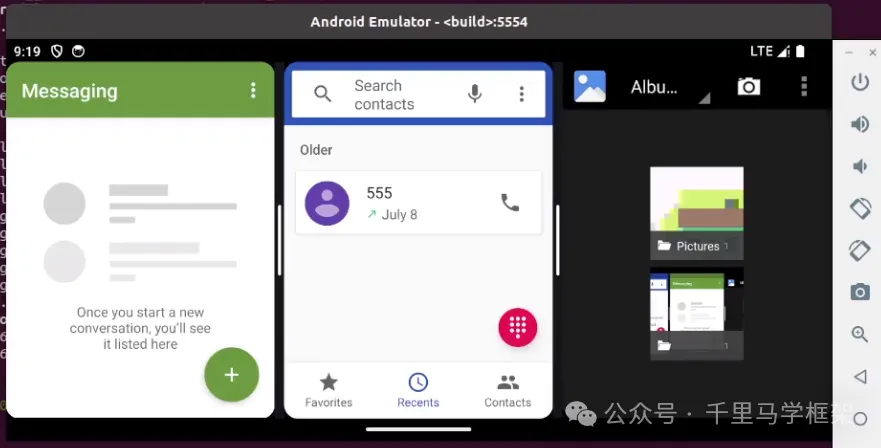
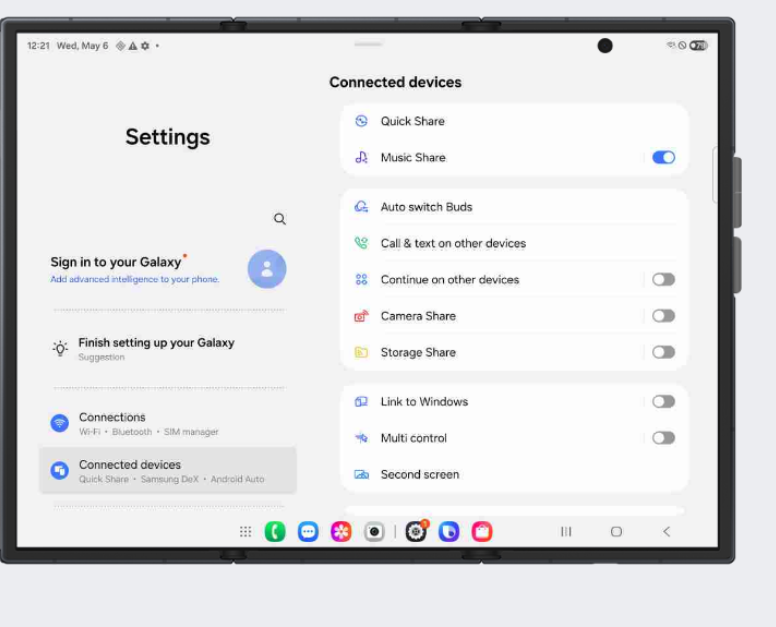
一直有学员在开发一些宽屏幕的设备(如平板,折叠屏等)时候,会经常问一些关于Activity左右排布类似分屏模式也有叫做Activity嵌套的,比如下面设置这种:
 还有就是三分屏模式,三分屏不仅仅是在小米车机上有,其实在一些top手机厂商的折叠屏手机,平板上也是有的:
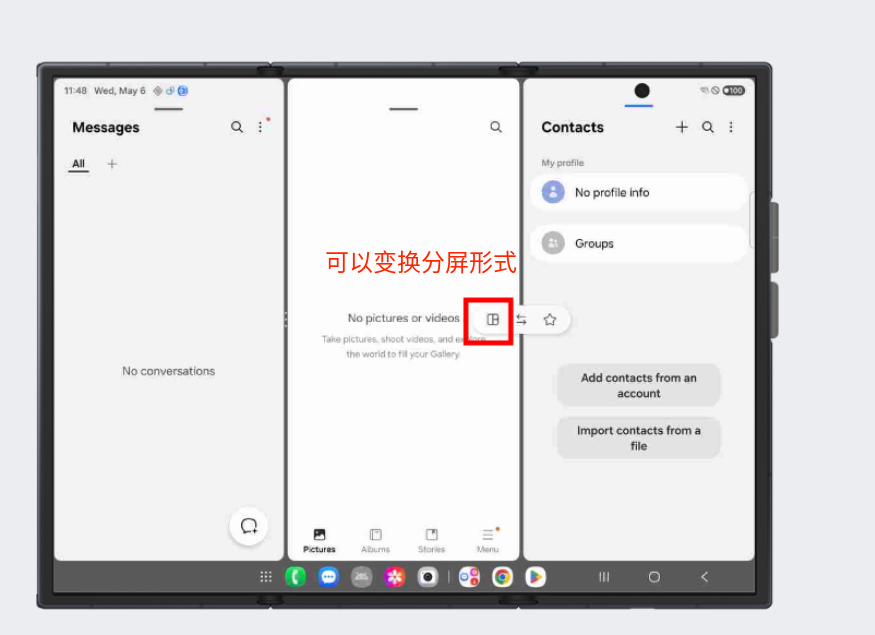
那么今天我们就来调研看看三星这个全球最大手机厂商是如何实现Activity嵌套功能,和三分屏功能的。
Activity类似分屏嵌套功能调研部分
调研进入嵌套Activity模式步骤
1、先把折叠屏模式变成屏幕展开模式
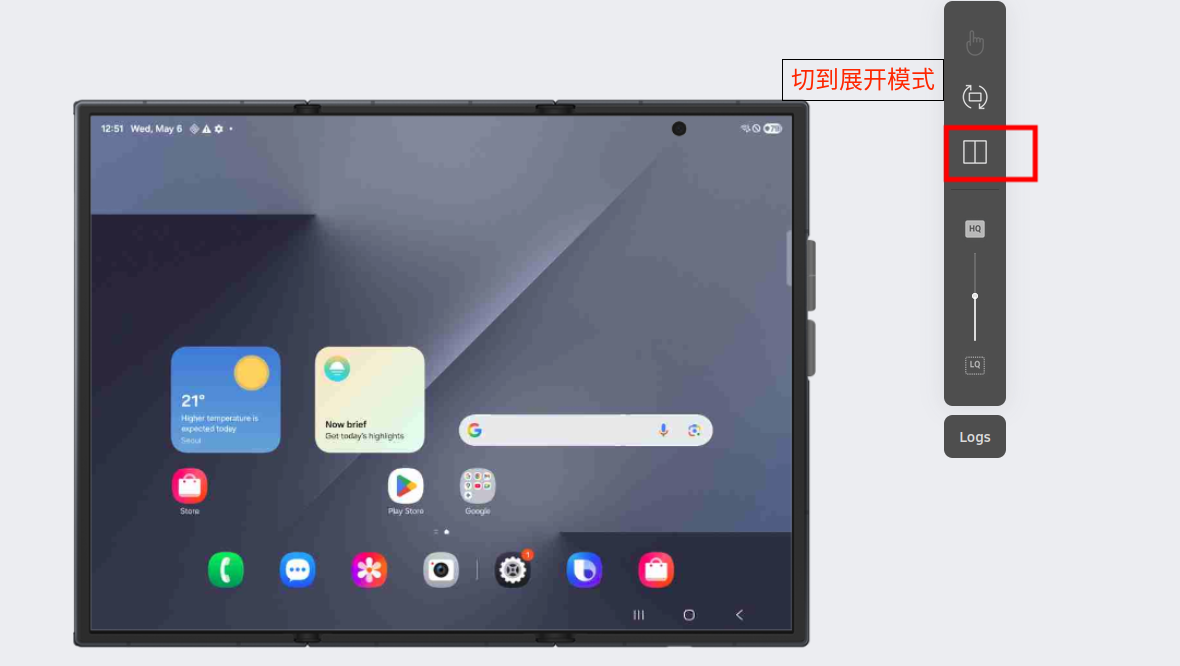
2、折叠模式下打开系统内置的几个Activity,比如Settings既可以出现嵌套模式
Activity类似分屏嵌套显示效果:
dumpsys相关层级结构树:
bash
 └─ DefaultTaskDisplayArea_d0 type=undefined mode=fullscreen override-mode=fullscreen requested-bounds=[0,0][0,0] bounds=[0,0][2160,1584]
       ├─ Task=22 type=standard mode=fullscreen override-mode=undefined requested-bounds=[0,0][0,0] bounds=[0,0][2160,1584]
          ├─ TaskFragment{5e87b94 mode=multi-window} type=standard mode=MULTI-WINDOW override-mode=MULTI-WINDOW requested-bounds=[0,0][0,0] bounds=[907,0][2160,1584]
          │  └─ ActivityRecord{13904920 u0 com.android.settings/.SubSettings t22} type=standard mode=MULTI-WINDOW override-mode=undefined requested-bounds=[0,0][0,0] bounds=[907,0][2160,1584]
          │     └─ e68da16 com.android.settings/com.android.settings.SubSettings type=standard mode=MULTI-WINDOW override-mode=undefined requested-bounds=[0,0][0,0] bounds=[907,0][2160,1584]
          └─ TaskFragment{fa5c95 mode=multi-window} type=standard mode=MULTI-WINDOW override-mode=MULTI-WINDOW requested-bounds=[0,0][0,0] bounds=[0,0][907,1584]
             └─ ActivityRecord{228325473 u0 com.android.settings/.Settings t22} type=standard mode=MULTI-WINDOW override-mode=undefined requested-bounds=[0,0][0,0] bounds=[0,0][907,1584]
                └─ 581b1a4 com.android.settings/com.android.settings.Settings type=standard mode=MULTI-WINDOW override-mode=undefined requested-bounds=[0,0][0,0] bounds=[0,0][907,1584]
从上面成绩结构树可以看出,这个时候其实是有2个Activity展示着
一个Activity是com.android.settings/com.android.settings.Settings 显示区域为
bash
[0,0][907,1584]也就是在左边,显示宽度为907.
另一个Activity是 com.android.settings/com.android.settings.SubSettings 显示的区域是
bash
[907,0][2160,1584]显示在右边,显示宽度为1253,明显比左边的Activity要大。
而且它们的父容器是TaskFragment,而不是常见的Task,所以这里是一个重大差别。
还有两个ActivityRecord及TaskFragment的window mode都是MULTI-WINDOW。
总结这种Activity嵌套原理
1、实际上有两个TaskFragment装载了两个ActivityRecord,分别显示在左右两边的区域
2、两个TaskFragment的window mode都是MULTI-WINDOW
三星三分屏部分功能剖析
进入三分屏步骤
调研该功能首先要学会如何进入三分屏,这个进入三分屏方式还有点特殊,具体步骤如下:
1、首先让折叠屏幕处于展开模式
2、打开2个app的Activity,退出到后台,点击最近任务按钮
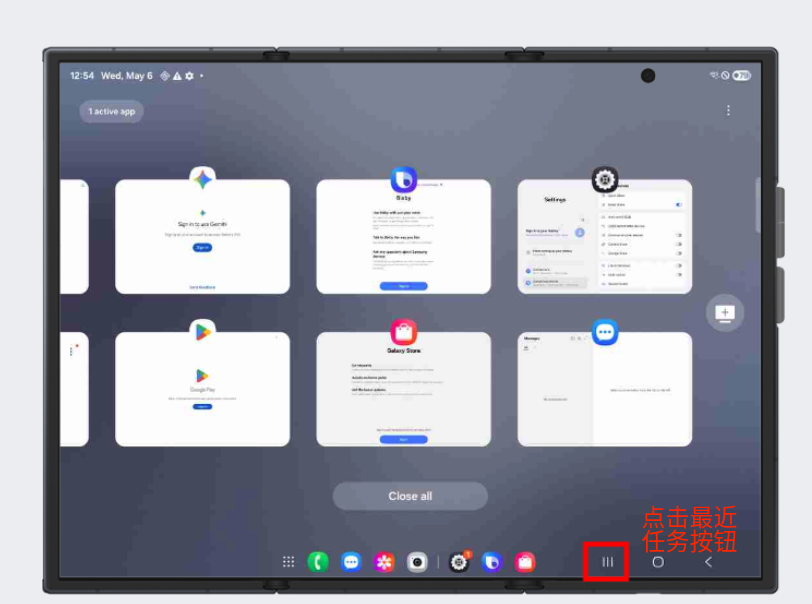
3、点击最近任务卡片,进入二分屏模式
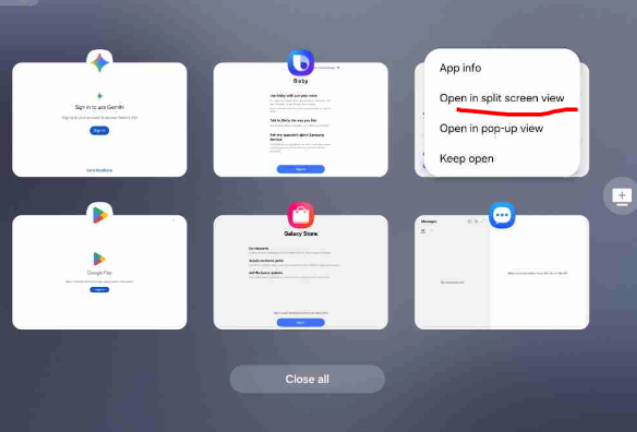
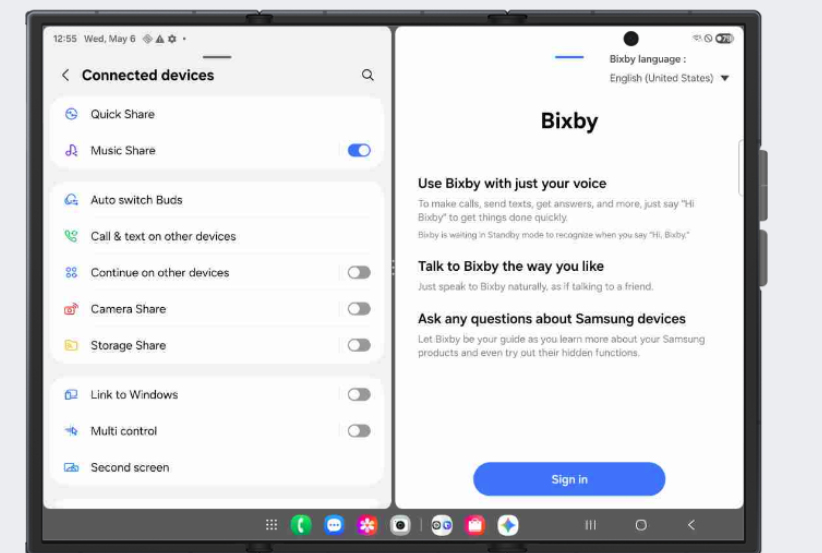
4、再从底部的TaskBar随意拖动一个App图标到上面分屏
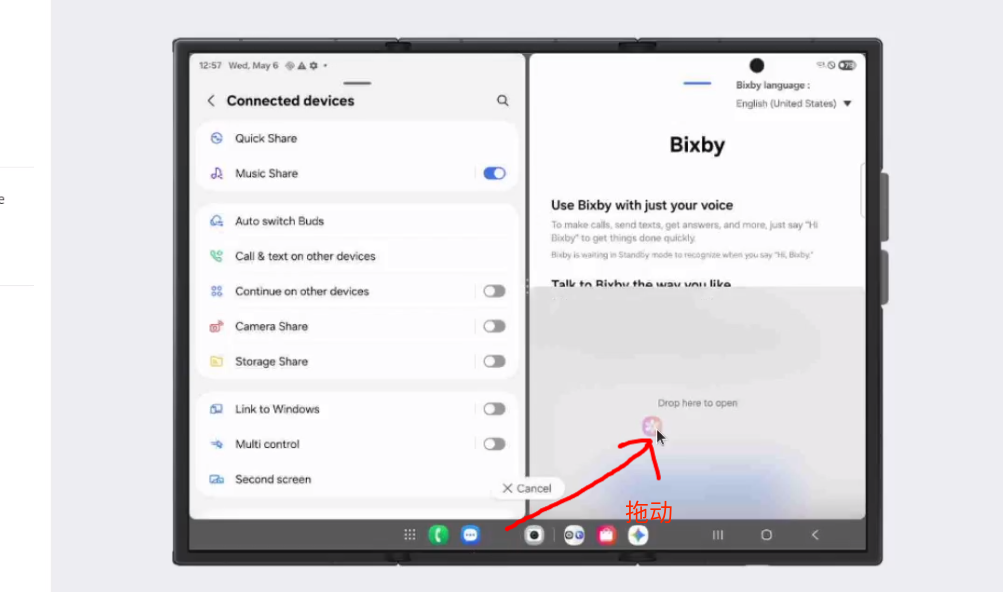
操作完成后就可以进入三分屏的场景
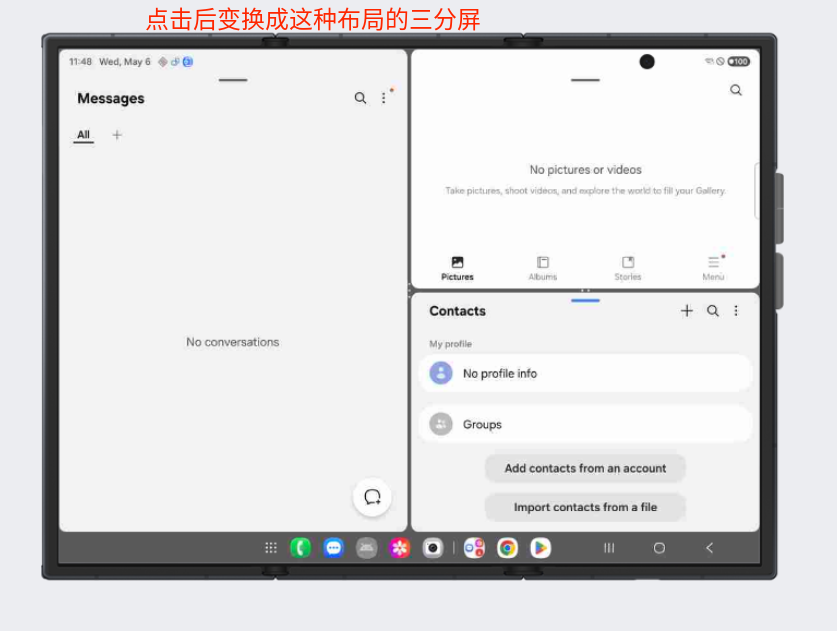
三分屏模式各个功能展示
三分屏可以有不同的布局展示模式
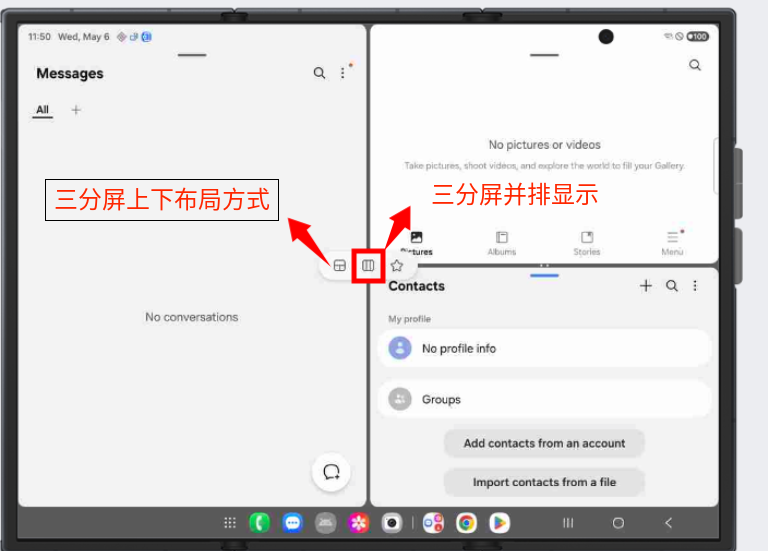
展示的层级结构树情况如下:
bash
DefaultTaskDisplayArea_d0 type=undefined mode=fullscreen override-mode=fullscreen requested-bounds=[0,0][0,0] bounds=[0,0][2160,1584]
          ├─ Task=2 type=standard mode=fullscreen override-mode=fullscreen requested-bounds=[0,0][0,0] bounds=[0,0][2160,1584]
            ├─ Task=5 type=standard mode=MULTI-WINDOW override-mode=MULTI-WINDOW requested-bounds=[1086,750][2160,1488] bounds=[1086,750][2160,1488]
            │  └─ Task=21 type=standard mode=MULTI-WINDOW override-mode=undefined requested-bounds=[0,0][0,0] bounds=[1086,750][2160,1488]
            │     └─ ActivityRecord{141371817 u0 com.samsung.android.messaging/com.android.mms.ui.ConversationComposer t21} type=standard mode=MULTI-WINDOW override-mode=undefined requested-bounds=[0,0][0,0] bounds=[1086,750][2160,1488]
            │        └─ cdfc0d4 com.samsung.android.messaging/com.android.mms.ui.ConversationComposer type=standard mode=MULTI-WINDOW override-mode=undefined requested-bounds=[0,0][0,0] bounds=[1086,750][2160,1488]
            ├─ Task=4 type=standard mode=MULTI-WINDOW override-mode=MULTI-WINDOW requested-bounds=[1086,0][2160,738] bounds=[1086,0][2160,738]
            │  └─ Task=17 type=standard mode=MULTI-WINDOW override-mode=undefined requested-bounds=[0,0][0,0] bounds=[1086,0][2160,738]
            │     └─ ActivityRecord{75259121 u0 com.sec.android.gallery3d/com.samsung.android.gallery.app.activity.GalleryActivity t17} type=standard mode=MULTI-WINDOW override-mode=undefined requested-bounds=[0,0][0,0] bounds=[1086,0][2160,738]
            │        └─ b940895 com.sec.android.gallery3d/com.samsung.android.gallery.app.activity.GalleryActivity type=standard mode=MULTI-WINDOW override-mode=undefined requested-bounds=[0,0][0,0] bounds=[1086,0][2160,738]
            └─ Task=3 type=standard mode=MULTI-WINDOW override-mode=MULTI-WINDOW requested-bounds=[0,0][1074,1488] bounds=[0,0][1074,1488]
               └─ Task=18 type=standard mode=MULTI-WINDOW override-mode=undefined requested-bounds=[0,0][0,0] bounds=[0,0][1074,1488]
                  └─ ActivityRecord{140070050 u0 com.samsung.android.dialer/.DialtactsActivity t18} type=standard mode=MULTI-WINDOW override-mode=undefined requested-bounds=[0,0][0,0] bounds=[0,0][1074,1488]
                     └─ f53e6f1 com.samsung.android.dialer/com.samsung.android.dialer.DialtactsActivity type=standard mode=MULTI-WINDOW override-mode=undefined requested-bounds=[0,0][0,0] bounds=[0,0][1074,1488]
三分屏并排布局展示的效果
展示层级结构树如下:
bash
└─ DefaultTaskDisplayArea_d0 type=undefined mode=fullscreen override-mode=fullscreen requested-bounds=[0,0][0,0] bounds=[0,0][2160,1584]
	├─ Task=2 type=standard mode=fullscreen override-mode=fullscreen requested-bounds=[0,0][0,0] bounds=[0,0][2160,1584]
		├─ Task=5 type=standard mode=MULTI-WINDOW override-mode=MULTI-WINDOW requested-bounds=[1447,0][2160,1488] bounds=[1447,0][2160,1488]
		│  └─ Task=21 type=standard mode=MULTI-WINDOW override-mode=undefined requested-bounds=[0,0][0,0] bounds=[1447,0][2160,1488]
		│     └─ ActivityRecord{141371817 u0 com.samsung.android.messaging/com.android.mms.ui.ConversationComposer t21} type=standard mode=MULTI-WINDOW override-mode=undefined requested-bounds=[0,0][0,0] bounds=[1447,0][2160,1488]
		│        └─ cdfc0d4 com.samsung.android.messaging/com.android.mms.ui.ConversationComposer type=standard mode=MULTI-WINDOW override-mode=undefined requested-bounds=[0,0][0,0] bounds=[1447,0][2160,1488]
		├─ Task=4 type=standard mode=MULTI-WINDOW override-mode=MULTI-WINDOW requested-bounds=[721,0][1435,1488] bounds=[721,0][1435,1488]
		│  └─ Task=17 type=standard mode=MULTI-WINDOW override-mode=undefined requested-bounds=[0,0][0,0] bounds=[721,0][1435,1488]
		│     └─ ActivityRecord{75259121 u0 com.sec.android.gallery3d/com.samsung.android.gallery.app.activity.GalleryActivity t17} type=standard mode=MULTI-WINDOW override-mode=undefined requested-bounds=[0,0][0,0] bounds=[721,0][1435,1488]
		│        └─ b940895 com.sec.android.gallery3d/com.samsung.android.gallery.app.activity.GalleryActivity type=standard mode=MULTI-WINDOW override-mode=undefined requested-bounds=[0,0][0,0] bounds=[721,0][1435,1488]
		└─ Task=3 type=standard mode=MULTI-WINDOW override-mode=MULTI-WINDOW requested-bounds=[0,0][709,1488] bounds=[0,0][709,1488]
		   └─ Task=18 type=standard mode=MULTI-WINDOW override-mode=undefined requested-bounds=[0,0][0,0] bounds=[0,0][709,1488]
			  └─ ActivityRecord{140070050 u0 com.samsung.android.dialer/.DialtactsActivity t18} type=standard mode=MULTI-WINDOW override-mode=undefined requested-bounds=[0,0][0,0] bounds=[0,0][709,1488]
				 └─ f53e6f1 com.samsung.android.dialer/com.samsung.android.dialer.DialtactsActivity type=standard mode=MULTI-WINDOW override-mode=undefined requested-bounds=[0,0][0,0] bounds=[0,0][709,1488]
左右方式显示的三分屏
上下布局方式展示的分屏情况:
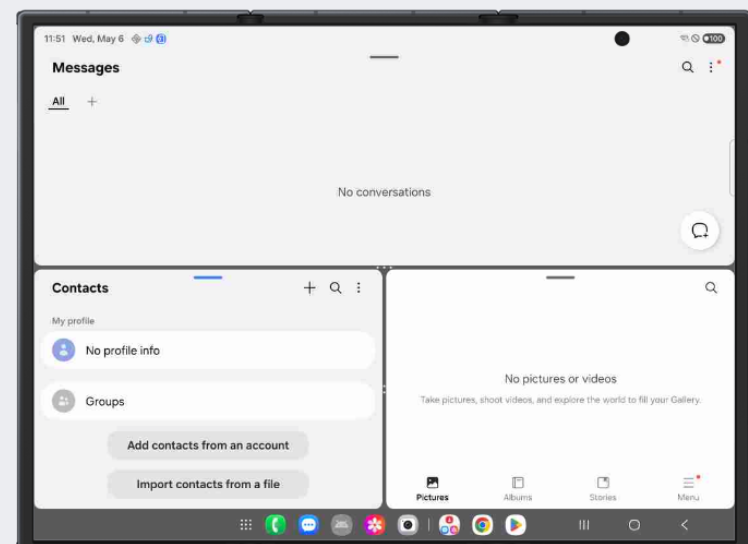
3分屏调用原理剖析:
1、实际上有3分屏和2分屏原理没有任何差别,唯一区别就是多了一个Task
2、3个Task的window mode都是MULTI-WINDOW
3、3个Task的显示bounds分别互不干扰
4、3分屏模式下会有布局上的排布差异,一种是平铺3个Task方式,一种平铺2个Task模式bounds,然后其中一个bound又会装载2个Task的bounds区域
手把手教你做小米车机三分屏
https://mp.weixin.qq.com/s/e65crgwzNKf3162YilkG5Q