引言
在Web开发中,表单是用户与网站交互的核心方式之一。无论是登录注册、数据提交还是用户反馈,表单都扮演着不可或缺的角色。今天我们将通过MDN提供的一个实际挑战,来练习如何使用HTML构建一个结构良好、语义化的反馈表单。这个挑战来自MDN的"构建Web表单"模块,目标是创建一个旅馆的客户反馈表单。通过这个练习,你不仅能巩固表单元素的使用,还能学习到更多关于HTML结构化标记的技巧。
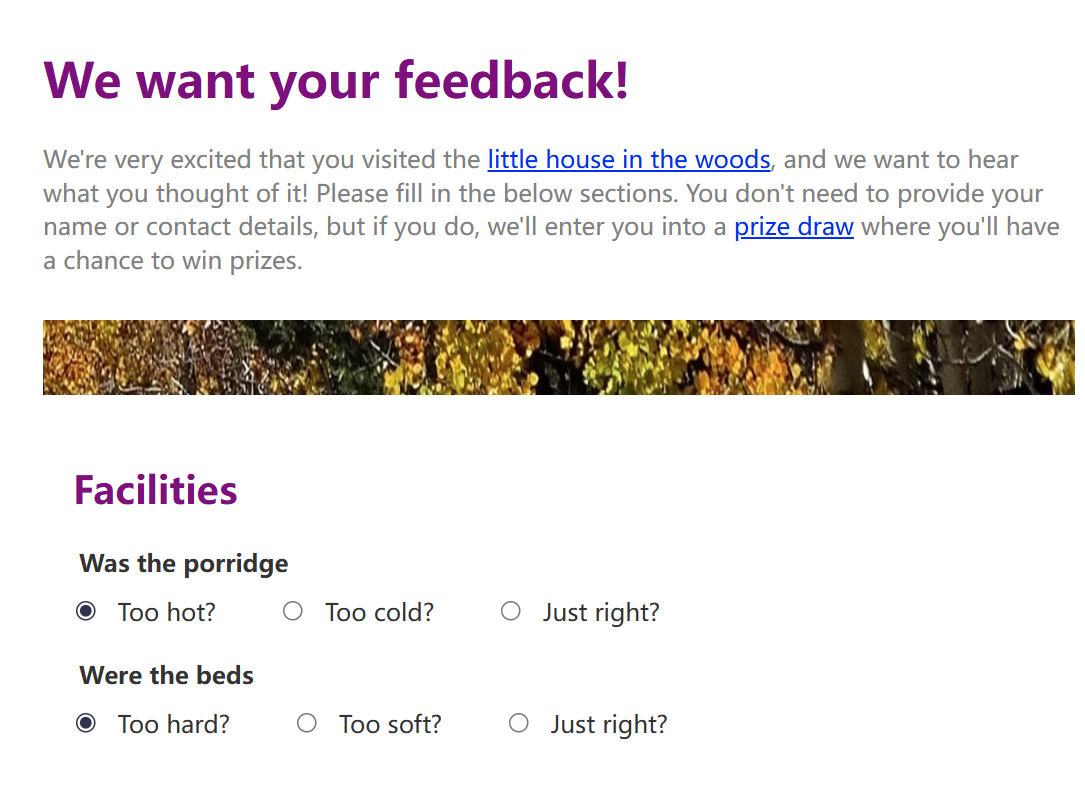
挑战背景与目标
想象你刚刚住进了一家名为"林中小屋"的旅馆,现在需要为它设计一个反馈表单。这个表单包含以下几个主要部分:设施评价、关于你的主人、其他反馈意见以及用户详细信息。我们需要将这些纯文本内容转化为具有实际功能的HTML表单,包括单选按钮、复选框、下拉菜单、文本输入框和提交按钮等。
除此之外,挑战还要求我们添加合适的标题元素、段落标记、链接以及装饰性图片,让整个页面结构完整且语义清晰。下面我们将逐步拆解这个任务。
页面基础结构搭建
在任何HTML项目中,基础结构都是第一步。我们需要创建一个标准的HTML5文档,包含文档类型声明、语言属性以及字符集设置。同时引入外部CSS和JavaScript文件。
html
<!doctype html>
<html lang="en">
  <head>
    <meta charset="utf-8" />
    <title>Forms challenge</title>
    <link href="style.css" rel="stylesheet" />
    <script defer src="index.js"></script>
  </head>
  <body>
    <!-- 页面内容将写在这里 -->
  </body>
</html>这个基础结构中值得注意的知识点是<script defer>属性。defer属性告诉浏览器在HTML解析完成后再执行JavaScript,不会阻塞页面渲染。这是现代Web开发中的最佳实践之一,能够有效提升页面加载性能。
表单元素的整体包装
HTML表单需要一个外层容器来定义表单的范围。我们使用<form>元素来包裹所有表单控件。这个元素告诉浏览器:"这里面包含的所有输入控件都属于同一个表单"。
html
<form action="#" method="post">
  <!-- 所有表单部分将放在这里 -->
</form>
action属性指定表单数据提交的目标URL,这里暂时使用#作为占位符。method属性定义数据提交的HTTP方法,post方法适合传输大量数据或敏感信息。即使在这个练习中没有实际的后端处理,正确设置这些属性也是良好的编码习惯。
标题与段落语义化标记
页面开头有多个层级的文本内容需要标记。主标题"We want your feedback!"应该使用<h1>标签,各个部分的标题如"Facilities"、"About your hosts"等使用<h2>标签。开头的介绍性文字则用<p>标签包裹。
html
<h1>We want your feedback!</h1>

<p>
  We're very excited that you visited the
  <a href="#">little house in the woods</a>,
  and we want to hear what you thought of it! Please fill in the below
  sections. You don't need to provide your name or contact details, but
  if you do, we'll enter you into a
  <a href="#">prize draw</a>
  where you'll have a chance to win prizes.
</p>
语义化标记是HTML的核心原则之一。正确的标题层级不仅帮助搜索引擎理解页面结构,还能让屏幕阅读器用户快速导航页面内容。在这里我们还为"little house in the woods"和"prize draw"添加了链接,使用<a>标签并将href设置为#作为占位符。
装饰性图片的处理方式
题目要求我们在介绍段落下方添加一张宽幅装饰图片。常规做法是使用<img>标签,但这里有一个更好的技术选择。
html
<!-- 常规方法 -->
<img
  src="https://mdn.github.io/shared-assets/images/examples/learn/woodland-strip.jpg"
  alt=""
/>

<!-- 更好的方法:使用CSS背景图 -->
<div class="decorative-image"
     style="background-image: url('https://mdn.github.io/shared-assets/images/examples/learn/woodland-strip.jpg');
            height: 50px;
            max-width: 100%;
            margin: 20px 0;
            background-size: cover;">
</div>挑战的扩展目标要求我们研究更好的装饰性图片处理方式。答案是将图片作为CSS背景而不是HTML中的<img>元素。这样做的理由是:装饰性图片不属于内容,使用CSS背景可以将其与内容完全分离,屏幕阅读器会忽略它,不会给辅助技术用户带来困扰。同时将alt属性设为空字符串也能达到类似效果,但CSS背景是更符合语义的解决方案。
表单分组的容器元素
每个表单部分需要包裹在一个带有class="form-section"的容器中。这可以通过<section>或<div>元素实现。同时,表单项和标签之间需要额外的结构元素来使它们分行显示,我们使用class="separator"的容器。
html
<form action="#" method="post">
  <section class="form-section">
    <h2>Facilities</h2>

    <fieldset>
      <legend>Was the porridge</legend>
      <div class="separator">
        <input type="radio" id="porridge-hot" name="porridge" value="hot" checked />
        <label for="porridge-hot">Too hot?</label>
      </div>
      <div class="separator">
        <input type="radio" id="porridge-cold" name="porridge" value="cold" />
        <label for="porridge-cold">Too cold?</label>
      </div>
      <div class="separator">
        <input type="radio" id="porridge-right" name="porridge" value="right" />
        <label for="porridge-right">Just right?</label>
      </div>
    </fieldset>
  </section>
</form>这里出现了一个重要的知识点:<fieldset>和<legend>的配合使用。<fieldset>用于将相关的表单控件分组,<legend>则为这个组提供标题。在上面的代码中,粥的温度评价三个选项被组织在一起,legend"Was the porridge"说明了这组选项的用途。这不仅在视觉上有帮助,对屏幕阅读器用户来说也能清晰传达控件组的结构。
单选按钮与默认选中
单选按钮通过<input type="radio">实现。同一组单选按钮必须共享相同的name属性值,这样浏览器才知道它们属于同一组,确保用户只能选择其中一个。题目要求第一个选项默认选中,通过添加checked属性实现。
html
<fieldset>
  <legend>Were the beds</legend>
  <div class="separator">
    <input type="radio" id="beds-hard" name="beds" value="hard" checked />
    <label for="beds-hard">Too hard?</label>
  </div>
  <div class="separator">
    <input type="radio" id="beds-soft" name="beds" value="soft" />
    <label for="beds-soft">Too soft?</label>
  </div>
  <div class="separator">
    <input type="radio" id="beds-right" name="beds" value="right" />
    <label for="beds-right">Just right?</label>
  </div>
</fieldset>
label标签的for属性与对应input的id属性值相同,这是实现标签与控件关联的关键。当用户点击标签文字时,关联的输入控件会自动获得焦点或改变状态,极大提升了可用性和可访问性。
复选框组的实现
与单选按钮不同,复选框允许用户选择多个选项。在"描述椅子"这一部分,我们需要将文本转化为一组复选框。
html
<fieldset>
  <legend>Describe the chairs (select all you agree with)</legend>
  <div class="separator">
    <input type="checkbox" id="chairs-comfy" name="chairs" value="comfy" />
    <label for="chairs-comfy">Comfy</label>
  </div>
  <div class="separator">
    <input type="checkbox" id="chairs-luxurious" name="chairs" value="luxurious" />
    <label for="chairs-luxurious">Luxurious</label>
  </div>
  <div class="separator">
    <input type="checkbox" id="chairs-hitech" name="chairs" value="hitech" />
    <label for="chairs-hitech">Hi-tech</label>
  </div>
  <div class="separator">
    <input type="checkbox" id="chairs-pretty" name="chairs" value="pretty" />
    <label for="chairs-pretty">Pretty</label>
  </div>
  <div class="separator">
    <input type="checkbox" id="chairs-majestic" name="chairs" value="majestic" />
    <label for="chairs-majestic">Majestic</label>
  </div>
</fieldset>
复选框的type值是checkbox,同样通过name属性进行分组。与单选按钮不同的是,复选框的name值可以重复,后端会收到所有被勾选的值。从用户体验角度看,选择框通常显示为方形,选中后内部出现勾选标记,给用户明确的视觉反馈。
下拉选择菜单
"关于你的主人"部分需要将选项转化为下拉菜单。使用<select>元素配合<option>子元素来实现。
html
<div class="form-section">
  <h2>About your hosts</h2>

  <div class="separator">
    <label for="favorite-bear">Who's your favorite bear?</label>
    <select id="favorite-bear" name="favorite-bear">
      <option value="">--Please choose an option--</option>
      <option value="papa">Papa bear</option>
      <option value="mama">Mama bear</option>
      <option value="junior">Junior</option>
      <option value="dozer">Dozer</option>
    </select>
  </div>

  <div class="separator">
    <label for="greeting">Which greeting did you prefer?</label>
    <select id="greeting" name="greeting">
      <option value="">--Please choose an option--</option>
      <option value="wave">Wave</option>
      <option value="friendly">Friendly greeting</option>
      <option value="growl">Growl</option>
      <option value="claw">Claw marks in the door</option>
    </select>
  </div>
</div>
select元素创建一个下拉选择框,每个option定义了一个可选项。添加一个空值的提示选项"--Please choose an option--"是一个良好的用户体验实践,它提示用户主动进行选择,避免用户无意识地接受默认选项。value属性定义了提交到服务器的实际值,可以与显示的文字不同。
多行文本输入区域
反馈表单通常需要一个让用户自由输入意见的区域。使用<textarea>元素创建多行文本输入框。
html
<div class="form-section">
  <h2>Any other feedback?</h2>

  <div class="separator">
    <label for="comments">Give us your comments</label>
    <br />
    <textarea id="comments" name="comments" placeholder="Enter your feedback here..."></textarea>
  </div>
</div>textarea元素与单行input的主要区别在于它可以容纳多行文本。rows和cols属性可以控制初始显示的行数和列数,但通过CSS设置width和height更加灵活。这里使用<br />标签将标签和文本区域分隔在不同行。placeholder属性提供灰色提示文字,当用户开始输入时自动消失,帮助用户理解应该填写什么内容。
文本输入框与用户信息收集
收集用户名、邮箱和电话号码需要使用不同类型的input元素。HTML5提供了多种输入类型,每种都有内置的验证规则。
html
<div class="form-section">
  <h2>Your details</h2>

  <div class="separator">
    <label for="name">Name</label>
    <input type="text" id="name" name="name" autocomplete="name" />
  </div>

  <div class="separator">
    <label for="email">Email</label>
    <input type="email" id="email" name="email" autocomplete="email" />
  </div>

  <div class="separator">
    <label for="phone">Phone</label>
    <input type="tel" id="phone" name="phone" autocomplete="tel" />
  </div>
</div>
这里使用了一个重要的知识点:输入类型的语义化。type="email"不仅会在移动设备上弹出适合输入邮箱的键盘,浏览器还会自动验证输入格式是否包含@符号。type="tel"同样会触发数字电话键盘。autocomplete属性帮助浏览器自动填充用户保存的信息,减少输入负担。这些看似微小的细节,共同构成了优质用户体验的基础。
提交按钮的实现
表单需要一个提交按钮来触发数据发送。使用<button>元素或<input type="submit">都可以实现。
html
<div class="form-section">
  <button type="submit">Submit</button>
</div>
button元素的type属性默认为submit,但显式声明能够增加代码可读性。在form标签内部放置的提交按钮,点击后会自动触发表单的提交行为。结合之前的action和method属性,浏览器会按照指定方式将表单数据发送到目标地址。
完整表单结构一览
将上述所有部分整合在一起,我们得到了完整的表单结构。以下是一个简化但完整的版本:
html
<!doctype html>
<html lang="en">
  <head>
    <meta charset="utf-8" />
    <title>Forms challenge</title>
    <link href="style.css" rel="stylesheet" />
  </head>
  <body>
    <h1>We want your feedback!</h1>

    <p>
      We're very excited that you visited the
      <a href="#">little house in the woods</a>,
      and we want to hear what you thought of it! Please fill in the below
      sections. You don't need to provide your name or contact details, but
      if you do, we'll enter you into a
      <a href="#">prize draw</a>
      where you'll have a chance to win prizes.
    </p>

    <div style="background-image: url('https://mdn.github.io/shared-assets/images/examples/learn/woodland-strip.jpg');
                height: 50px; max-width: 100%; margin: 20px 0; background-size: cover;">
    </div>

    <form action="#" method="post">
      <section class="form-section">
        <h2>Facilities</h2>

        <fieldset>
          <legend>Was the porridge</legend>
          <div class="separator">
            <input type="radio" id="porridge-hot" name="porridge" value="hot" checked />
            <label for="porridge-hot">Too hot?</label>
          </div>
          <div class="separator">
            <input type="radio" id="porridge-cold" name="porridge" value="cold" />
            <label for="porridge-cold">Too cold?</label>
          </div>
          <div class="separator">
            <input type="radio" id="porridge-right" name="porridge" value="right" />
            <label for="porridge-right">Just right?</label>
          </div>
        </fieldset>

        <fieldset>
          <legend>Were the beds</legend>
          <div class="separator">
            <input type="radio" id="beds-hard" name="beds" value="hard" checked />
            <label for="beds-hard">Too hard?</label>
          </div>
          <div class="separator">
            <input type="radio" id="beds-soft" name="beds" value="soft" />
            <label for="beds-soft">Too soft?</label>
          </div>
          <div class="separator">
            <input type="radio" id="beds-right" name="beds" value="right" />
            <label for="beds-right">Just right?</label>
          </div>
        </fieldset>

        <fieldset>
          <legend>Describe the chairs (select all you agree with)</legend>
          <div class="separator">
            <input type="checkbox" id="chairs-comfy" name="chairs" value="comfy" />
            <label for="chairs-comfy">Comfy</label>
          </div>
          <div class="separator">
            <input type="checkbox" id="chairs-luxurious" name="chairs" value="luxurious" />
            <label for="chairs-luxurious">Luxurious</label>
          </div>
          <div class="separator">
            <input type="checkbox" id="chairs-hitech" name="chairs" value="hitech" />
            <label for="chairs-hitech">Hi-tech</label>
          </div>
          <div class="separator">
            <input type="checkbox" id="chairs-pretty" name="chairs" value="pretty" />
            <label for="chairs-pretty">Pretty</label>
          </div>
          <div class="separator">
            <input type="checkbox" id="chairs-majestic" name="chairs" value="majestic" />
            <label for="chairs-majestic">Majestic</label>
          </div>
        </fieldset>
      </section>

      <section class="form-section">
        <h2>About your hosts</h2>

        <div class="separator">
          <label for="favorite-bear">Who's your favorite bear?</label>
          <select id="favorite-bear" name="favorite-bear">
            <option value="">--Please choose an option--</option>
            <option value="papa">Papa bear</option>
            <option value="mama">Mama bear</option>
            <option value="junior">Junior</option>
            <option value="dozer">Dozer</option>
          </select>
        </div>

        <div class="separator">
          <label for="greeting">Which greeting did you prefer?</label>
          <select id="greeting" name="greeting">
            <option value="">--Please choose an option--</option>
            <option value="wave">Wave</option>
            <option value="friendly">Friendly greeting</option>
            <option value="growl">Growl</option>
            <option value="claw">Claw marks in the door</option>
          </select>
        </div>
      </section>

      <section class="form-section">
        <h2>Any other feedback?</h2>
        <div class="separator">
          <label for="comments">Give us your comments</label>
          <br />
          <textarea id="comments" name="comments"></textarea>
        </div>
      </section>

      <section class="form-section">
        <h2>Your details</h2>
        <div class="separator">
          <label for="name">Name</label>
          <input type="text" id="name" name="name" />
        </div>
        <div class="separator">
          <label for="email">Email</label>
          <input type="email" id="email" name="email" />
        </div>
        <div class="separator">
          <label for="phone">Phone</label>
          <input type="tel" id="phone" name="phone" />
        </div>
      </section>

      <div class="form-section">
        <button type="submit">Submit</button>
      </div>
    </form>
  </body>
</html>
总结
通过这个挑战,我们实践了构建完整HTML表单的全过程。从基础文档结构到表单元素的包装,从单选按钮、复选框到下拉菜单和文本输入,每一步都体现了语义化标记的重要性。我们还学习了fieldset和legend的分组功能,理解了不同类型input的适用场景,以及装饰性图片的最佳处理方式。
构建表单不仅仅是将输入控件堆砌在页面上,更重要的是考虑用户体验和可访问性。正确使用label关联控件、合理组织表单结构、选择合适的输入类型,这些细节共同决定了表单的质量。希望这篇文章能帮助你在今后的开发中构建更加专业和易用的Web表单。
想要解锁更多HTML 核心标签实战、前端零基础入门干货、开发避坑全指南吗?
持续关注,后续将更新CSS 布局实战、JavaScript 交互基础、全站导航开发等硬核内容,带你从新手快速进阶,轻松搞定前端开发!