前言
欢迎加入开源鸿蒙跨平台社区:https://openharmonycrossplatform.csdn.net
note_app 是一个基于 Flutter 实现的 Note App 笔记应用 。项目核心代码集中在 lib/main.dart,同时保留了 ohos OpenHarmony 平台工程目录,适合作为 Flutter 小应用适配 OpenHarmony 的入门实战案例。
与普通计数器、计算器或待办清单相比,笔记应用更接近真实内容管理场景。它不仅要处理按钮点击,还要处理标题输入、正文输入、多行文本、创建时间、列表摘要、空状态和删除操作。通过这个项目,可以完整理解 Flutter 中 弹窗输入 、列表渲染 、数据建模 、状态刷新 和 平台工程适配 的协作方式。
本文会围绕当前项目真实源码展开,重点拆解以下内容:
NoteApp如何配置应用入口和主题。Note数据模型如何表达标题、正文和创建时间。AlertDialog如何承载新建笔记表单。ListView.builder如何渲染笔记列表。- OpenHarmony 目录在 Flutter 项目中的承载作用。
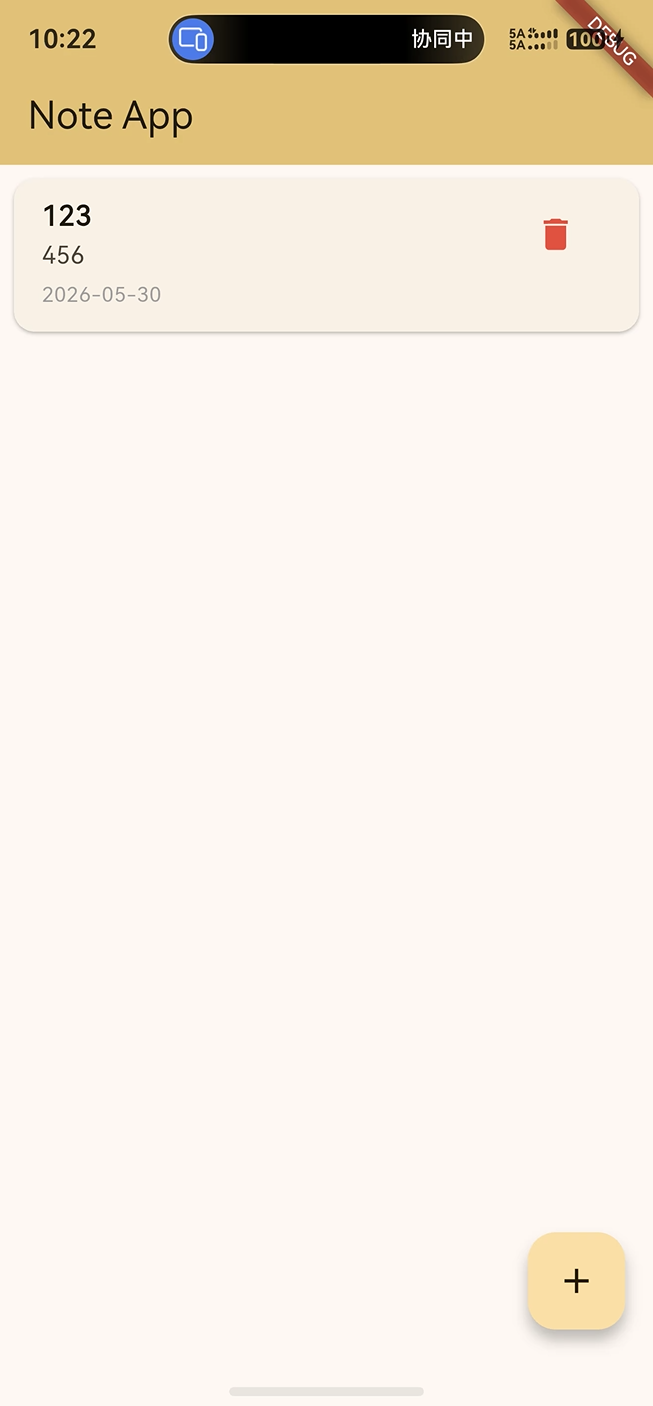
图示说明:本文围绕 Flutter 笔记应用在 OpenHarmony 工程中的组织方式展开,核心源码位于 lib/main.dart。
一、项目背景与功能定位
1.1 项目功能概览
note_app 是一个轻量级笔记应用。用户点击右下角悬浮按钮后,会弹出新建笔记窗口,在窗口中输入标题和正文,点击保存后,新笔记会插入列表顶部。每条笔记在列表中展示标题、内容摘要和创建日期,并提供删除入口。
当前项目已经实现以下功能:
- 点击悬浮按钮打开新建笔记弹窗。
- 在弹窗中输入笔记标题。
- 在多行输入框中填写笔记正文。
- 点击
Save保存笔记。 - 点击
Cancel取消创建。 - 新笔记插入列表顶部。
- 列表展示标题、正文摘要和创建日期。
- 正文过长时使用省略号截断。
- 点击删除按钮移除指定笔记。
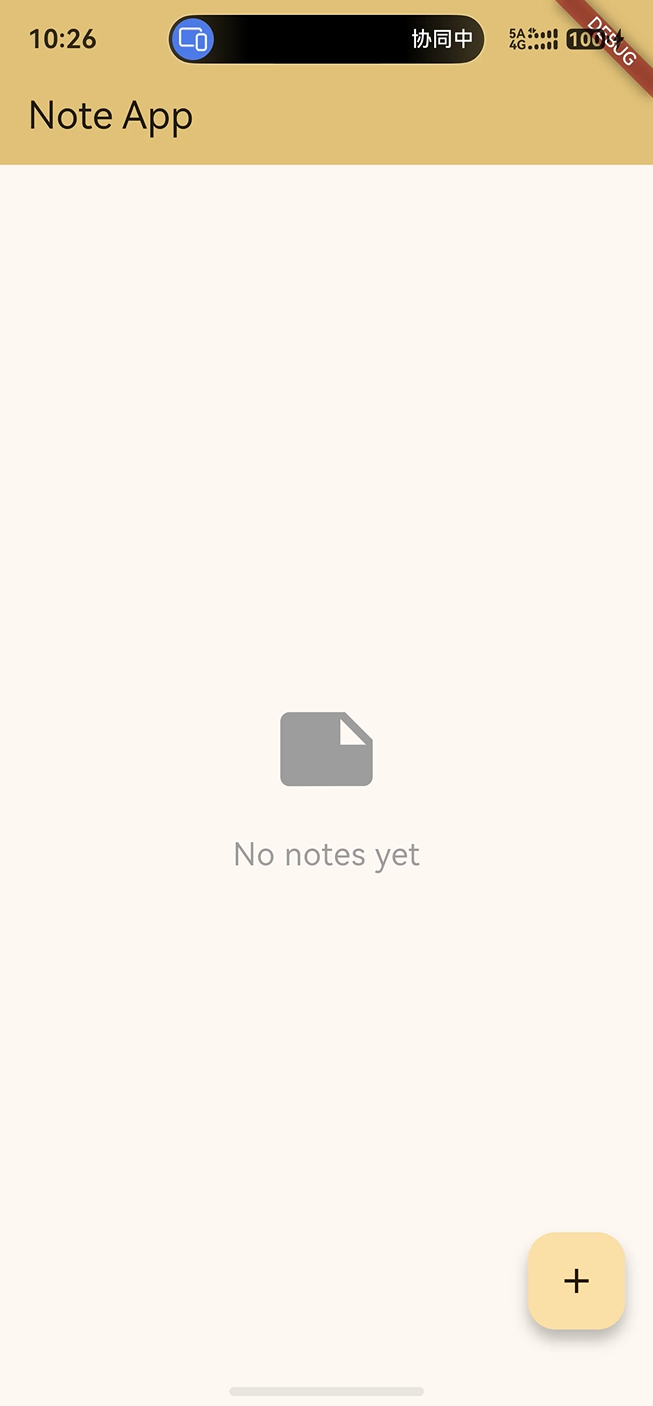
- 没有笔记时展示空状态图标和文案。
1.2 技术关键词
| 关键词 | 在项目中的作用 |
|---|---|
MaterialApp |
提供 Flutter Material 应用根节点 |
StatefulWidget |
承载会变化的笔记列表状态 |
AlertDialog |
作为新建笔记的弹窗容器 |
TextEditingController |
读取标题和正文输入 |
List<Note> |
保存当前页面中的笔记集合 |
ListView.builder |
按笔记数量动态构建列表 |
Card |
作为每条笔记的视觉容器 |
ListTile |
组织标题、摘要、日期和删除按钮 |
TextOverflow.ellipsis |
控制长正文摘要显示 |
DateTime |
保存笔记创建时间 |
1.3 项目交互流程
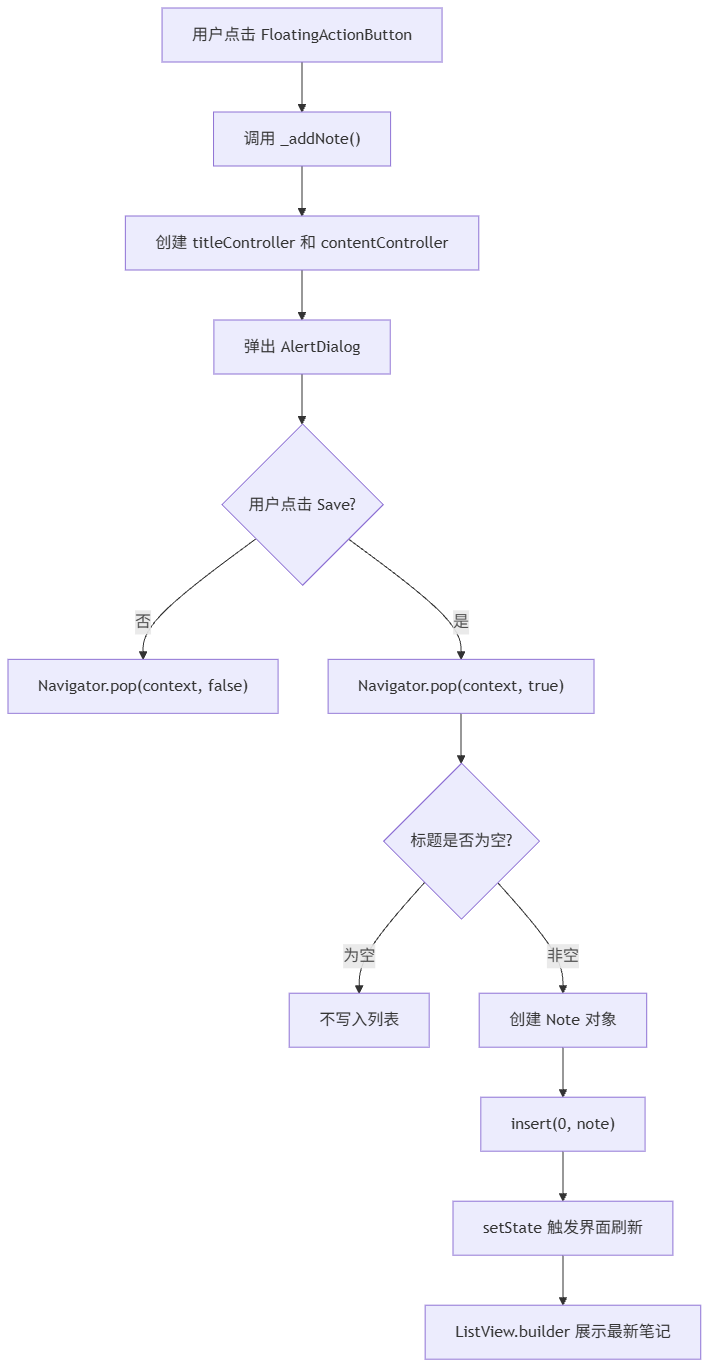
这条链路覆盖了用户操作、弹窗输入、数据创建、列表插入和 UI 刷新的完整过程。
关键点:笔记应用的核心不是"弹出一个框",而是把输入表单、数据模型和列表展示连接成稳定的数据流。
二、项目目录结构分析
2.1 根目录结构
项目采用 Flutter 标准目录,并保留 OpenHarmony 平台工程。
bash
note_app/
├── lib/
│   └── main.dart
├── ohos/
│   ├── AppScope/
│   └── entry/
├── test/
│   └── widget_test.dart
├── pubspec.yaml
├── analysis_options.yaml
└── README.md
2.2 核心目录说明
| 文件或目录 | 作用 | 本文拆解重点 |
|---|---|---|
lib/main.dart |
应用入口、模型、页面、弹窗和列表逻辑 | 全文核心 |
pubspec.yaml |
项目名称、版本、依赖和 Flutter 配置 | 环境与依赖 |
analysis_options.yaml |
Dart 静态分析规则 | 代码规范 |
test/ |
Flutter 测试目录 | 交互验证 |
ohos/ |
OpenHarmony 平台工程 | 平台承载 |
2.3 OpenHarmony 工程目录
ohos 目录中通常包含应用级配置、模块级配置、Ability 入口、页面入口和资源文件。对于当前笔记应用来说,业务逻辑仍然在 Flutter 层,OpenHarmony 侧主要负责承载运行环境。
| OpenHarmony 文件 | 作用 |
|---|---|
AppScope/app.json5 |
应用级配置 |
entry/src/main/module.json5 |
模块级配置 |
EntryAbility.ets |
Ability 生命周期入口 |
Index.ets |
页面承载入口 |
GeneratedPluginRegistrant.ets |
插件注册入口 |
resources/base/element/string.json |
字符串资源 |
resources/base/media/icon.png |
模块图标资源 |
三、环境与依赖配置
3.1 pubspec 基础信息
当前项目名称是 note_app,版本是 1.0.0+1,Dart SDK 约束是 ^3.9.2。
yaml
name: note_app
description: "A new Flutter project."
publish_to: 'none'
version: 1.0.0+1

environment:
  sdk: ^3.9.2
其中 publish_to: 'none' 表示该项目是应用工程,不会作为 Dart package 发布到 pub.dev。
3.2 依赖配置
项目依赖保持轻量,只使用 Flutter SDK、Cupertino 图标和基础测试/静态分析依赖。
yaml
dependencies:
  flutter:
    sdk: flutter

  cupertino_icons: ^1.0.8

dev_dependencies:
  flutter_test:
    sdk: flutter

  flutter_lints: ^5.0.0
这说明当前笔记应用没有引入数据库、网络请求库、富文本编辑器或第三方状态管理库。所有交互都由 Flutter 原生组件完成。
3.3 常用运行命令
| 命令 | 作用 |
|---|---|
flutter pub get |
获取项目依赖 |
flutter analyze |
执行静态分析 |
flutter test |
运行 Flutter 测试 |
flutter run |
启动调试运行 |
flutter build hap |
构建 OpenHarmony HAP 包 |
bash
flutter pub get
flutter analyze
flutter test
flutter run
四、应用入口源码拆解
4.1 main 函数
Flutter 应用从 main() 函数启动。
dart
import 'package:flutter/material.dart';

void main() {
  runApp(const NoteApp());
}
runApp(const NoteApp()) 会把 NoteApp 放到 Flutter 渲染树根节点,后续主题、首页和页面状态都从这里向下展开。
4.2 NoteApp 根组件
NoteApp 是一个 StatelessWidget,它不保存笔记数据,只负责应用级配置。
dart
class NoteApp extends StatelessWidget {
  const NoteApp({super.key});

  @override
  Widget build(BuildContext context) {
    return MaterialApp(
      title: 'Note App',
      theme: ThemeData(
        colorScheme: ColorScheme.fromSeed(seedColor: Colors.amber),
        useMaterial3: true,
      ),
      home: const NoteHomePage(title: 'Note App'),
    );
  }
}
这段代码包含三个关键信息:
- 应用标题是
Note App。 - 主题色使用
Colors.amber,笔记应用呈现出偏温暖的视觉气质。 home指向NoteHomePage,说明首页才是业务状态入口。
4.3 Material 3 配置
dart
theme: ThemeData(
  colorScheme: ColorScheme.fromSeed(seedColor: Colors.amber),
  useMaterial3: true,
),
useMaterial3: true 会影响 AlertDialog、FloatingActionButton、Card、ListTile 等组件的默认样式。对于轻量笔记应用来说,这种默认风格已经足够清晰。
五、Note 数据模型设计
5.1 Note 类源码
当前项目使用 Note 类表达一条笔记。
dart
class Note {
  String title;
  String content;
  DateTime createdAt;

  Note({required this.title, required this.content, DateTime? createdAt})
      : createdAt = createdAt ?? DateTime.now();
}
这个模型包含标题、正文和创建时间。相比直接使用 Map 或两个字符串列表,单独定义模型类能让笔记数据更加明确。
5.2 字段含义
| 字段 | 类型 | 含义 |
|---|---|---|
title |
String |
笔记标题,保存时不能为空 |
content |
String |
笔记正文,可以为空 |
createdAt |
DateTime |
创建时间,默认使用当前时间 |
5.3 初始化列表
构造函数中的初始化列表用于处理创建时间。
dart
Note({required this.title, required this.content, DateTime? createdAt})
    : createdAt = createdAt ?? DateTime.now();
当外部没有传入 createdAt 时,模型会自动记录当前时间。这样列表项就能展示笔记创建日期,也为后续排序和归档提供基础字段。
六、页面状态设计
6.1 NoteHomePage
首页组件接收一个标题,并创建对应的 State。
dart
class NoteHomePage extends StatefulWidget {
  const NoteHomePage({super.key, required this.title});
  final String title;

  @override
  State<NoteHomePage> createState() => _NoteHomePageState();
}
笔记列表会随着新建和删除操作发生变化,因此这里使用 StatefulWidget 是合理的。
6.2 _NoteHomePageState
状态类中定义了笔记列表。
dart
class _NoteHomePageState extends State<NoteHomePage> {
  final List<Note> _notes = [];
}
_notes 是当前页面的内存数据源。每次添加或删除笔记,都围绕这个列表进行。
6.3 状态变化路径
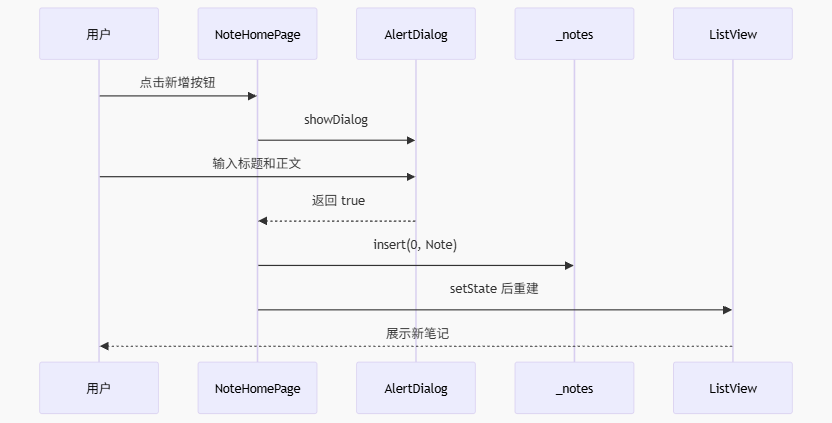
这张时序图展示了页面状态如何从用户操作一路流向列表 UI。
七、新建笔记弹窗实现
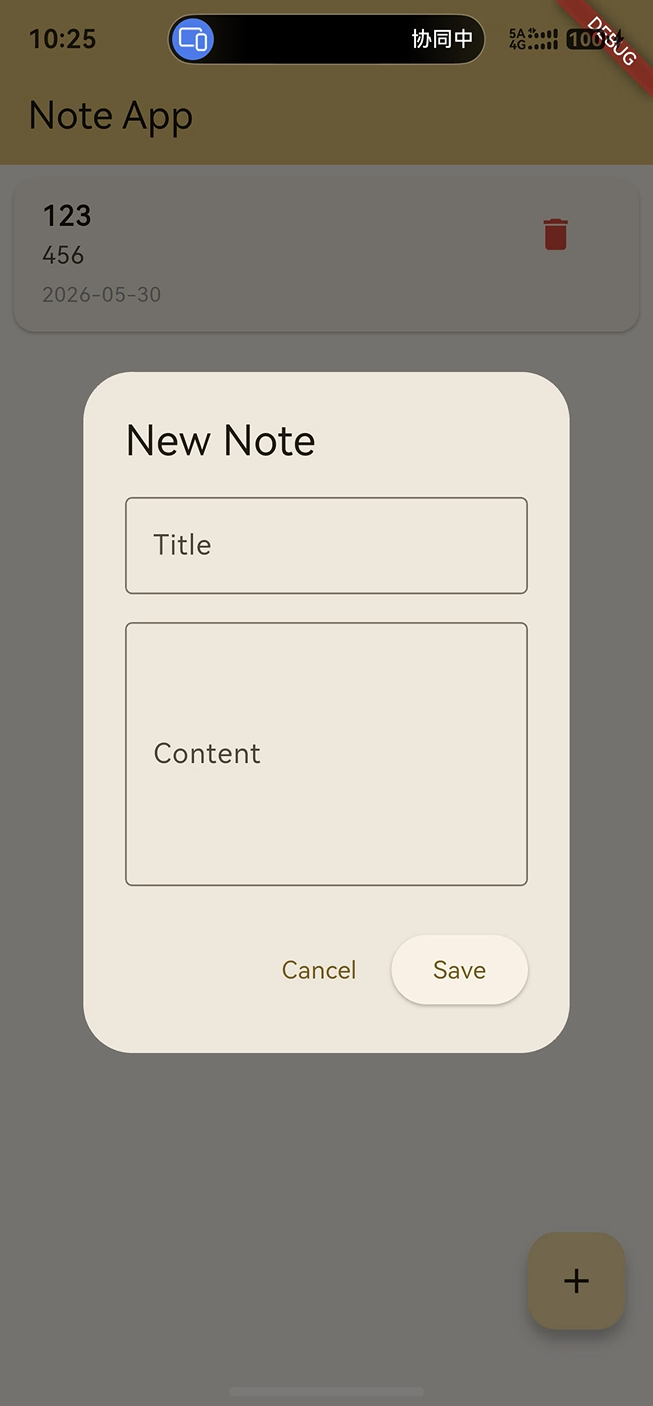
7.1 _addNote 方法整体结构
新建笔记的核心方法是 _addNote()。
dart
void _addNote() async {
  final titleController = TextEditingController();
  final contentController = TextEditingController();

  final result = await showDialog<bool>(
    context: context,
    builder: (context) => AlertDialog(
      title: const Text('New Note'),
      content: Column(
        mainAxisSize: MainAxisSize.min,
        children: [
          TextField(
            controller: titleController,
            decoration: const InputDecoration(
              labelText: 'Title',
              border: OutlineInputBorder(),
            ),
          ),
          const SizedBox(height: 16),
          TextField(
            controller: contentController,
            decoration: const InputDecoration(
              labelText: 'Content',
              border: OutlineInputBorder(),
            ),
            maxLines: 5,
          ),
        ],
      ),
      actions: [
        TextButton(
          onPressed: () => Navigator.pop(context, false),
          child: const Text('Cancel'),
        ),
        ElevatedButton(
          onPressed: () => Navigator.pop(context, true),
          child: const Text('Save'),
        ),
      ],
    ),
  );

  if (result == true && titleController.text.isNotEmpty) {
    setState(() {
      _notes.insert(0, Note(
        title: titleController.text,
        content: contentController.text,
      ));
    });
  }
}
这个方法把输入控制器、弹窗展示、结果判断和列表写入放在同一个流程中,便于阅读完整业务链路。
7.2 TextEditingController
dart
final titleController = TextEditingController();
final contentController = TextEditingController();
标题和正文分别使用独立的控制器。这样可以清晰区分两个输入框的数据来源。
7.3 AlertDialog 内容区域
弹窗内容使用 Column 纵向排列两个输入框。
dart
content: Column(
  mainAxisSize: MainAxisSize.min,
  children: [
    TextField(
      controller: titleController,
      decoration: const InputDecoration(
        labelText: 'Title',
        border: OutlineInputBorder(),
      ),
    ),
    const SizedBox(height: 16),
    TextField(
      controller: contentController,
      decoration: const InputDecoration(
        labelText: 'Content',
        border: OutlineInputBorder(),
      ),
      maxLines: 5,
    ),
  ],
),
mainAxisSize: MainAxisSize.min 可以让弹窗内容高度按内容收缩;maxLines: 5 让正文输入框具备多行编辑能力。
7.4 弹窗按钮返回值
dart
actions: [
  TextButton(
    onPressed: () => Navigator.pop(context, false),
    child: const Text('Cancel'),
  ),
  ElevatedButton(
    onPressed: () => Navigator.pop(context, true),
    child: const Text('Save'),
  ),
],
Navigator.pop(context, false) 表示取消,Navigator.pop(context, true) 表示确认保存。由于 showDialog<bool> 会等待弹窗关闭,外层可以通过 result 判断用户行为。
八、保存笔记与列表插入
8.1 保存条件
弹窗关闭后,代码会判断返回结果和标题内容。
dart
if (result == true && titleController.text.isNotEmpty) {
  setState(() {
    _notes.insert(0, Note(
      title: titleController.text,
      content: contentController.text,
    ));
  });
}
这里要求标题不能为空,正文可以为空。这个规则符合轻量笔记应用的常见使用方式:标题是列表识别的主要信息,正文是补充内容。
8.2 insert(0, note)
dart
_notes.insert(0, Note(
  title: titleController.text,
  content: contentController.text,
));
insert(0, ...) 会把新笔记插入列表最前面。用户保存后立刻在顶部看到最新内容,这比追加到列表末尾更符合笔记类应用的时间顺序。
8.3 setState 刷新
dart
setState(() {
  _notes.insert(0, Note(
    title: titleController.text,
    content: contentController.text,
  ));
});
setState 是当前页面刷新 UI 的触发点。没有它,数据已经进入 _notes,但界面不会立即重建。
关键概念:Flutter 的 UI 是状态的函数。状态变化后触发重建,界面才会反映最新数据。
九、页面骨架与空状态
9.1 Scaffold 结构
页面主体使用 Scaffold。
dart
return Scaffold(
  appBar: AppBar(
    title: Text(widget.title),
    backgroundColor: Theme.of(context).colorScheme.inversePrimary,
  ),
  floatingActionButton: FloatingActionButton(
    onPressed: _addNote,
    child: const Icon(Icons.add),
  ),
  body: _notes.isEmpty
      ? const Center(...)
      : ListView.builder(...),
);
Scaffold 提供了应用栏、悬浮按钮和页面主体区域,是 Material 应用中非常常见的页面骨架。
9.2 AppBar
dart
appBar: AppBar(
  title: Text(widget.title),
  backgroundColor: Theme.of(context).colorScheme.inversePrimary,
),
标题来自 NoteHomePage(title: 'Note App')。背景色使用当前主题生成的 inversePrimary,与 Colors.amber 色彩体系保持一致。
9.3 FloatingActionButton
dart
floatingActionButton: FloatingActionButton(
  onPressed: _addNote,
  child: const Icon(Icons.add),
),
右下角悬浮按钮是新增笔记的主入口。点击后进入 _addNote(),弹出新建笔记窗口。
9.4 空状态展示
当 _notes 为空时,页面展示图标和提示文本。
dart
body: _notes.isEmpty
    ? const Center(
        child: Column(
          mainAxisAlignment: MainAxisAlignment.center,
          children: [
            Icon(Icons.note, size: 64, color: Colors.grey),
            SizedBox(height: 16),
            Text(
              'No notes yet',
              style: TextStyle(fontSize: 18, color: Colors.grey),
            ),
          ],
        ),
      )
    : ListView.builder(...),
空状态的价值在于让页面不会显得空白,也能让用户知道当前还没有创建任何笔记。
十、笔记列表渲染
10.1 ListView.builder
当 _notes 非空时,页面使用 ListView.builder 渲染列表。
dart
ListView.builder(
  itemCount: _notes.length,
  itemBuilder: (context, index) {
    final note = _notes[index];
    return Card(
      margin: const EdgeInsets.all(8),
      child: ListTile(
        title: Text(
          note.title,
          style: const TextStyle(fontWeight: FontWeight.bold),
        ),
        subtitle: Column(
          crossAxisAlignment: CrossAxisAlignment.start,
          children: [
            if (note.content.isNotEmpty)
              Text(
                note.content,
                maxLines: 2,
                overflow: TextOverflow.ellipsis,
              ),
            const SizedBox(height: 4),
            Text(
              _formatDate(note.createdAt),
              style: const TextStyle(fontSize: 12, color: Colors.grey),
            ),
          ],
        ),
        trailing: IconButton(
          icon: const Icon(Icons.delete, color: Colors.red),
          onPressed: () => _deleteNote(index),
        ),
        isThreeLine: true,
      ),
    );
  },
)
ListView.builder 适合长度会变化的列表。它通过 itemCount 控制数量,通过 itemBuilder 按索引构建每一项。
10.2 Card 与 ListTile
每条笔记使用 Card 包裹 ListTile。
| 组件 | 作用 |
|---|---|
Card |
提供列表项视觉边界 |
ListTile.title |
展示笔记标题 |
ListTile.subtitle |
展示正文摘要和日期 |
ListTile.trailing |
放置删除按钮 |
isThreeLine |
为多行内容预留空间 |
10.3 标题样式
dart
title: Text(
  note.title,
  style: const TextStyle(fontWeight: FontWeight.bold),
),
标题使用加粗样式,能在列表中形成主要视觉锚点。
10.4 正文摘要
dart
if (note.content.isNotEmpty)
  Text(
    note.content,
    maxLines: 2,
    overflow: TextOverflow.ellipsis,
  ),
当正文不为空时,列表展示最多两行摘要。超出部分使用省略号处理,避免单条笔记占用过多屏幕空间。
十一、日期格式化
11.1 createdAt 字段来源
每条笔记创建时会记录 createdAt。
dart
Note({
  required this.title,
  required this.content,
  DateTime? createdAt,
}) : createdAt = createdAt ?? DateTime.now();
这个时间在列表中会被格式化为 yyyy-MM-dd。
11.2 _formatDate 方法
dart
String _formatDate(DateTime date) {
  return '${date.year}-${date.month.toString().padLeft(2, '0')}-${date.day.toString().padLeft(2, '0')}';
}
padLeft(2, '0') 用于把月份和日期补齐成两位。例如 2026 年 5 月 3 日会显示为 2026-05-03。
11.3 格式化结果示例
| 输入日期 | 显示结果 |
|---|---|
DateTime(2026, 1, 5) |
2026-01-05 |
DateTime(2026, 5, 30) |
2026-05-30 |
DateTime(2026, 12, 9) |
2026-12-09 |
日期字段虽然很小,但它让笔记列表从纯文本集合变成了可感知时间顺序的内容列表。
十二、删除笔记逻辑
12.1 _deleteNote 方法
删除笔记的逻辑集中在 _deleteNote(index)。
dart
void _deleteNote(int index) {
  setState(() {
    _notes.removeAt(index);
  });
}
removeAt(index) 会从 _notes 中移除指定位置的数据。setState 触发重建后,列表中对应卡片会消失。
12.2 删除按钮绑定
dart
trailing: IconButton(
  icon: const Icon(Icons.delete, color: Colors.red),
  onPressed: () => _deleteNote(index),
),
删除按钮位于 ListTile.trailing,红色图标具有明确的危险操作含义。点击按钮后,根据当前索引删除对应笔记。
12.3 删除后的状态变化
#mermaid-svg-oT0prdw5O7dyR2RW{font-family:"trebuchet ms",verdana,arial,sans-serif;font-size:16px;fill:#333;}@keyframes edge-animation-frame{from{stroke-dashoffset:0;}}@keyframes dash{to{stroke-dashoffset:0;}}#mermaid-svg-oT0prdw5O7dyR2RW .edge-animation-slow{stroke-dasharray:9,5!important;stroke-dashoffset:900;animation:dash 50s linear infinite;stroke-linecap:round;}#mermaid-svg-oT0prdw5O7dyR2RW .edge-animation-fast{stroke-dasharray:9,5!important;stroke-dashoffset:900;animation:dash 20s linear infinite;stroke-linecap:round;}#mermaid-svg-oT0prdw5O7dyR2RW .error-icon{fill:#552222;}#mermaid-svg-oT0prdw5O7dyR2RW .error-text{fill:#552222;stroke:#552222;}#mermaid-svg-oT0prdw5O7dyR2RW .edge-thickness-normal{stroke-width:1px;}#mermaid-svg-oT0prdw5O7dyR2RW .edge-thickness-thick{stroke-width:3.5px;}#mermaid-svg-oT0prdw5O7dyR2RW .edge-pattern-solid{stroke-dasharray:0;}#mermaid-svg-oT0prdw5O7dyR2RW .edge-thickness-invisible{stroke-width:0;fill:none;}#mermaid-svg-oT0prdw5O7dyR2RW .edge-pattern-dashed{stroke-dasharray:3;}#mermaid-svg-oT0prdw5O7dyR2RW .edge-pattern-dotted{stroke-dasharray:2;}#mermaid-svg-oT0prdw5O7dyR2RW .marker{fill:#333333;stroke:#333333;}#mermaid-svg-oT0prdw5O7dyR2RW .marker.cross{stroke:#333333;}#mermaid-svg-oT0prdw5O7dyR2RW svg{font-family:"trebuchet ms",verdana,arial,sans-serif;font-size:16px;}#mermaid-svg-oT0prdw5O7dyR2RW p{margin:0;}#mermaid-svg-oT0prdw5O7dyR2RW .label{font-family:"trebuchet ms",verdana,arial,sans-serif;color:#333;}#mermaid-svg-oT0prdw5O7dyR2RW .cluster-label text{fill:#333;}#mermaid-svg-oT0prdw5O7dyR2RW .cluster-label span{color:#333;}#mermaid-svg-oT0prdw5O7dyR2RW .cluster-label span p{background-color:transparent;}#mermaid-svg-oT0prdw5O7dyR2RW .label text,#mermaid-svg-oT0prdw5O7dyR2RW span{fill:#333;color:#333;}#mermaid-svg-oT0prdw5O7dyR2RW .node rect,#mermaid-svg-oT0prdw5O7dyR2RW .node circle,#mermaid-svg-oT0prdw5O7dyR2RW .node ellipse,#mermaid-svg-oT0prdw5O7dyR2RW .node polygon,#mermaid-svg-oT0prdw5O7dyR2RW .node path{fill:#ECECFF;stroke:#9370DB;stroke-width:1px;}#mermaid-svg-oT0prdw5O7dyR2RW .rough-node .label text,#mermaid-svg-oT0prdw5O7dyR2RW .node .label text,#mermaid-svg-oT0prdw5O7dyR2RW .image-shape .label,#mermaid-svg-oT0prdw5O7dyR2RW .icon-shape .label{text-anchor:middle;}#mermaid-svg-oT0prdw5O7dyR2RW .node .katex path{fill:#000;stroke:#000;stroke-width:1px;}#mermaid-svg-oT0prdw5O7dyR2RW .rough-node .label,#mermaid-svg-oT0prdw5O7dyR2RW .node .label,#mermaid-svg-oT0prdw5O7dyR2RW .image-shape .label,#mermaid-svg-oT0prdw5O7dyR2RW .icon-shape .label{text-align:center;}#mermaid-svg-oT0prdw5O7dyR2RW .node.clickable{cursor:pointer;}#mermaid-svg-oT0prdw5O7dyR2RW .root .anchor path{fill:#333333!important;stroke-width:0;stroke:#333333;}#mermaid-svg-oT0prdw5O7dyR2RW .arrowheadPath{fill:#333333;}#mermaid-svg-oT0prdw5O7dyR2RW .edgePath .path{stroke:#333333;stroke-width:2.0px;}#mermaid-svg-oT0prdw5O7dyR2RW .flowchart-link{stroke:#333333;fill:none;}#mermaid-svg-oT0prdw5O7dyR2RW .edgeLabel{background-color:rgba(232,232,232, 0.8);text-align:center;}#mermaid-svg-oT0prdw5O7dyR2RW .edgeLabel p{background-color:rgba(232,232,232, 0.8);}#mermaid-svg-oT0prdw5O7dyR2RW .edgeLabel rect{opacity:0.5;background-color:rgba(232,232,232, 0.8);fill:rgba(232,232,232, 0.8);}#mermaid-svg-oT0prdw5O7dyR2RW .labelBkg{background-color:rgba(232, 232, 232, 0.5);}#mermaid-svg-oT0prdw5O7dyR2RW .cluster rect{fill:#ffffde;stroke:#aaaa33;stroke-width:1px;}#mermaid-svg-oT0prdw5O7dyR2RW .cluster text{fill:#333;}#mermaid-svg-oT0prdw5O7dyR2RW .cluster span{color:#333;}#mermaid-svg-oT0prdw5O7dyR2RW div.mermaidTooltip{position:absolute;text-align:center;max-width:200px;padding:2px;font-family:"trebuchet ms",verdana,arial,sans-serif;font-size:12px;background:hsl(80, 100%, 96.2745098039%);border:1px solid #aaaa33;border-radius:2px;pointer-events:none;z-index:100;}#mermaid-svg-oT0prdw5O7dyR2RW .flowchartTitleText{text-anchor:middle;font-size:18px;fill:#333;}#mermaid-svg-oT0prdw5O7dyR2RW rect.text{fill:none;stroke-width:0;}#mermaid-svg-oT0prdw5O7dyR2RW .icon-shape,#mermaid-svg-oT0prdw5O7dyR2RW .image-shape{background-color:rgba(232,232,232, 0.8);text-align:center;}#mermaid-svg-oT0prdw5O7dyR2RW .icon-shape p,#mermaid-svg-oT0prdw5O7dyR2RW .image-shape p{background-color:rgba(232,232,232, 0.8);padding:2px;}#mermaid-svg-oT0prdw5O7dyR2RW .icon-shape .label rect,#mermaid-svg-oT0prdw5O7dyR2RW .image-shape .label rect{opacity:0.5;background-color:rgba(232,232,232, 0.8);fill:rgba(232,232,232, 0.8);}#mermaid-svg-oT0prdw5O7dyR2RW .label-icon{display:inline-block;height:1em;overflow:visible;vertical-align:-0.125em;}#mermaid-svg-oT0prdw5O7dyR2RW .node .label-icon path{fill:currentColor;stroke:revert;stroke-width:revert;}#mermaid-svg-oT0prdw5O7dyR2RW :root{--mermaid-font-family:"trebuchet ms",verdana,arial,sans-serif;} 是
否
点击删除按钮
_deleteNote(index)
_notes.removeAt(index)
setState
列表重建
_notes 是否为空
展示空状态
展示剩余笔记
当最后一条笔记被删除后,页面会自动回到空状态。
十三、Flutter 与 OpenHarmony 适配边界
13.1 业务逻辑所在层
当前笔记应用的业务逻辑全部在 Flutter 层完成,包括数据模型、弹窗、列表渲染和删除操作。
text
Flutter 层:
main.dart
NoteApp
Note
NoteHomePage
_NoteHomePageState

OpenHarmony 层:
AppScope
entry
EntryAbility
Index
resources
OpenHarmony 工程负责应用启动、模块配置、资源承载和平台构建。对于当前项目来说,Flutter 层与 OpenHarmony 层的职责边界非常清晰。
13.2 平台文件作用表
| 层级 | 文件 | 作用 |
|---|---|---|
| 应用级 | AppScope/app.json5 |
描述应用整体信息 |
| 模块级 | entry/src/main/module.json5 |
描述 entry 模块信息 |
| Ability | EntryAbility.ets |
应用启动入口 |
| 页面 | Index.ets |
页面承载入口 |
| 资源 | resources/base |
图标、字符串和配置资源 |
| 插件 | GeneratedPluginRegistrant.ets |
插件注册入口 |
13.3 当前项目的适配特点
note_app 当前没有使用网络、相机、定位、传感器、数据库或文件系统权限。它主要验证 Flutter UI 在 OpenHarmony 容器中的展示和基础交互。
这类项目非常适合做跨平台适配入门,因为问题边界较清楚:只要 Flutter 页面能启动,弹窗能输入,列表能刷新,删除能生效,就能验证基础链路。
十四、测试与验证思路
14.1 交互验证路径
完整验证路径可以围绕用户真实操作展开:
- 启动应用,确认页面显示
Note App标题。 - 确认空列表时出现
No notes yet文案和笔记图标。 - 点击右下角加号,确认新建笔记弹窗出现。
- 输入标题和正文,点击
Save。 - 确认新笔记出现在列表顶部。
- 输入长正文,确认列表摘要最多显示两行。
- 点击删除按钮,确认对应笔记被移除。
- 删除全部笔记后,确认页面回到空状态。
14.2 Widget 测试示例
下面的测试验证应用启动后能看到空状态文案。
dart
testWidgets('shows empty note state', (WidgetTester tester) async {
  await tester.pumpWidget(const NoteApp());

  expect(find.text('No notes yet'), findsOneWidget);
  expect(find.byIcon(Icons.note), findsOneWidget);
});
14.3 新建笔记测试示例
下面的测试模拟点击新增按钮、输入标题和正文、保存笔记。
dart
testWidgets('adds a new note', (WidgetTester tester) async {
  await tester.pumpWidget(const NoteApp());

  await tester.tap(find.byIcon(Icons.add));
  await tester.pumpAndSettle();

  await tester.enterText(find.widgetWithText(TextField, 'Title'), 'Flutter Note');
  await tester.enterText(find.widgetWithText(TextField, 'Content'), 'OpenHarmony adaptation note');
  await tester.tap(find.text('Save'));
  await tester.pumpAndSettle();

  expect(find.text('Flutter Note'), findsOneWidget);
  expect(find.text('OpenHarmony adaptation note'), findsOneWidget);
});
14.4 删除笔记测试示例
dart
testWidgets('deletes a note', (WidgetTester tester) async {
  await tester.pumpWidget(const NoteApp());

  await tester.tap(find.byIcon(Icons.add));
  await tester.pumpAndSettle();

  await tester.enterText(find.widgetWithText(TextField, 'Title'), 'Temp Note');
  await tester.tap(find.text('Save'));
  await tester.pumpAndSettle();

  await tester.tap(find.byIcon(Icons.delete));
  await tester.pumpAndSettle();

  expect(find.text('Temp Note'), findsNothing);
  expect(find.text('No notes yet'), findsOneWidget);
});
这些测试覆盖了空状态、新建流程和删除流程,能帮助确认笔记应用的核心交互没有被破坏。
十五、常见问题解析
15.1 为什么新笔记插入到列表顶部
笔记应用通常按时间倒序展示内容,最新创建的笔记更容易被用户再次查看。当前项目使用 _notes.insert(0, note),正好实现了最新内容优先展示。
dart
_notes.insert(0, Note(
  title: titleController.text,
  content: contentController.text,
));
15.2 为什么标题不能为空但正文可以为空
标题是列表中识别一条笔记的主要内容。如果标题为空,列表会出现很难理解的空白卡片。正文可以为空,是因为有些笔记只需要一句标题就能表达含义。
15.3 为什么正文摘要最多两行
列表页面需要保持可浏览性。如果正文全部展开,几条长笔记就会占满整个屏幕。当前项目通过 maxLines: 2 和 TextOverflow.ellipsis 控制摘要长度。
dart
Text(
  note.content,
  maxLines: 2,
  overflow: TextOverflow.ellipsis,
)
15.4 为什么使用 AlertDialog 承载输入表单
当前笔记应用的编辑内容较轻,标题和正文两个输入框可以放在弹窗里完成。AlertDialog 结构清晰,包含标题、内容区和操作按钮,适合这个项目的交互规模。
15.5 为什么当前数据重启后会消失
当前 _notes 只是页面内存状态。
dart
final List<Note> _notes = [];应用关闭后,内存数据会被释放,因此笔记不会持久保存。本文关注的是基础交互和 OpenHarmony 承载链路,所以没有引入数据库或文件存储。
十六、完整业务链路复盘
16.1 创建链路
从点击新增到列表展示,一条笔记会经过以下步骤:
- 用户点击
FloatingActionButton。 - 页面调用
_addNote()。 - 方法创建标题和正文控制器。
showDialog<bool>打开新建弹窗。- 用户输入标题和正文。
- 点击
Save后返回true。 - 判断标题不为空。
- 创建
Note对象。 - 调用
_notes.insert(0, note)。 setState触发页面重建。ListView.builder展示新笔记。
16.2 展示链路
列表展示阶段会从 Note 对象中读取字段:
| 数据来源 | 展示位置 | 展示方式 |
|---|---|---|
note.title |
ListTile.title |
加粗显示 |
note.content |
ListTile.subtitle |
最多两行摘要 |
note.createdAt |
日期文本 | 格式化为 yyyy-MM-dd |
index |
删除操作 | 传入 _deleteNote(index) |
16.3 删除链路
删除链路从红色删除按钮开始:
- 用户点击
Icons.delete。 onPressed调用_deleteNote(index)。_notes.removeAt(index)移除数据。setState触发重建。- 列表更新为删除后的状态。
- 如果列表为空,展示空状态。
十七、核心源码总览
下面把当前项目关键源码合并展示,便于从整体上理解页面结构。
dart
class Note {
  String title;
  String content;
  DateTime createdAt;

  Note({required this.title, required this.content, DateTime? createdAt})
      : createdAt = createdAt ?? DateTime.now();
}

class _NoteHomePageState extends State<NoteHomePage> {
  final List<Note> _notes = [];

  void _addNote() async {
    final titleController = TextEditingController();
    final contentController = TextEditingController();

    final result = await showDialog<bool>(
      context: context,
      builder: (context) => AlertDialog(
        title: const Text('New Note'),
        content: Column(
          mainAxisSize: MainAxisSize.min,
          children: [
            TextField(
              controller: titleController,
              decoration: const InputDecoration(
                labelText: 'Title',
                border: OutlineInputBorder(),
              ),
            ),
            const SizedBox(height: 16),
            TextField(
              controller: contentController,
              decoration: const InputDecoration(
                labelText: 'Content',
                border: OutlineInputBorder(),
              ),
              maxLines: 5,
            ),
          ],
        ),
        actions: [
          TextButton(
            onPressed: () => Navigator.pop(context, false),
            child: const Text('Cancel'),
          ),
          ElevatedButton(
            onPressed: () => Navigator.pop(context, true),
            child: const Text('Save'),
          ),
        ],
      ),
    );

    if (result == true && titleController.text.isNotEmpty) {
      setState(() {
        _notes.insert(0, Note(
          title: titleController.text,
          content: contentController.text,
        ));
      });
    }
  }

  void _deleteNote(int index) {
    setState(() {
      _notes.removeAt(index);
    });
  }
}
这段代码体现了项目的主干:数据模型、内存列表、新建弹窗、保存笔记和删除笔记。
十八、总结
note_app 是一个结构清晰的 Flutter 笔记应用案例。它通过一个 Note 数据模型表达标题、正文和创建时间,通过 AlertDialog 完成新建笔记输入,通过 ListView.builder 动态渲染笔记列表,通过 setState 让 UI 和 _notes 状态保持同步。
从 Flutter 开发角度看,这个项目覆盖了 StatefulWidget 状态管理 、TextField 输入控制 、弹窗表单 、列表卡片布局 、日期格式化 和 条件渲染 。从 OpenHarmony 适配角度看,项目保留了 ohos 平台工程目录,能体现 Flutter 页面在 OpenHarmony 容器中的基本承载方式。
如果把这个项目作为学习路径的一环,它正好处在"简单工具应用"和"真实内容管理应用"之间:代码量不大,但业务链路完整;组件不复杂,但足以展示 Flutter 声明式 UI 的核心思想。
如果这篇文章对你有帮助,欢迎点赞、收藏、关注。你的支持是我持续创作 Flutter 与 OpenHarmony 实战内容的动力!
相关资源
- Flutter 官方文档:https://docs.flutter.dev/
- Dart 官方文档:https://dart.dev/guides
- Flutter Widget 目录:https://docs.flutter.dev/ui/widgets
- Flutter 测试文档:https://docs.flutter.dev/testing
- Material Design 3:https://m3.material.io/
- pub.dev:https://pub.dev/
- OpenHarmony 官网:https://www.openharmony.cn/
- 开源鸿蒙跨平台社区:https://openharmonycrossplatform.csdn.net