文章目录
UISearchController
UISearchController 是苹果提供的一个控制器,专门用来管理搜索功能。它帮你做了三件事:
- 显示一个搜索框(
searchBar) - 监听用户输入
- 通知你去更新搜索结果
协议
首先, 需要遵守协议, 用于在搜索栏中输入后更新搜索结果
objc
<UITableViewDataSource, UITableViewDelegate, UISearchResultsUpdating>
- UISearchResultsUpdating是用于当UISearchController中的搜索文本发生变化时,通知搜索结果控制器更新结果的协议。
- 只有一个方法:updateSearchResultsForSearchController:。
- 通常在里面获取searchBar.text,然后根据文本过滤数据源,刷新tableView。
- 配合UISearchController的searchResultsUpdater属性使用。
- 适用于动态过滤本地数据
这里做一展示
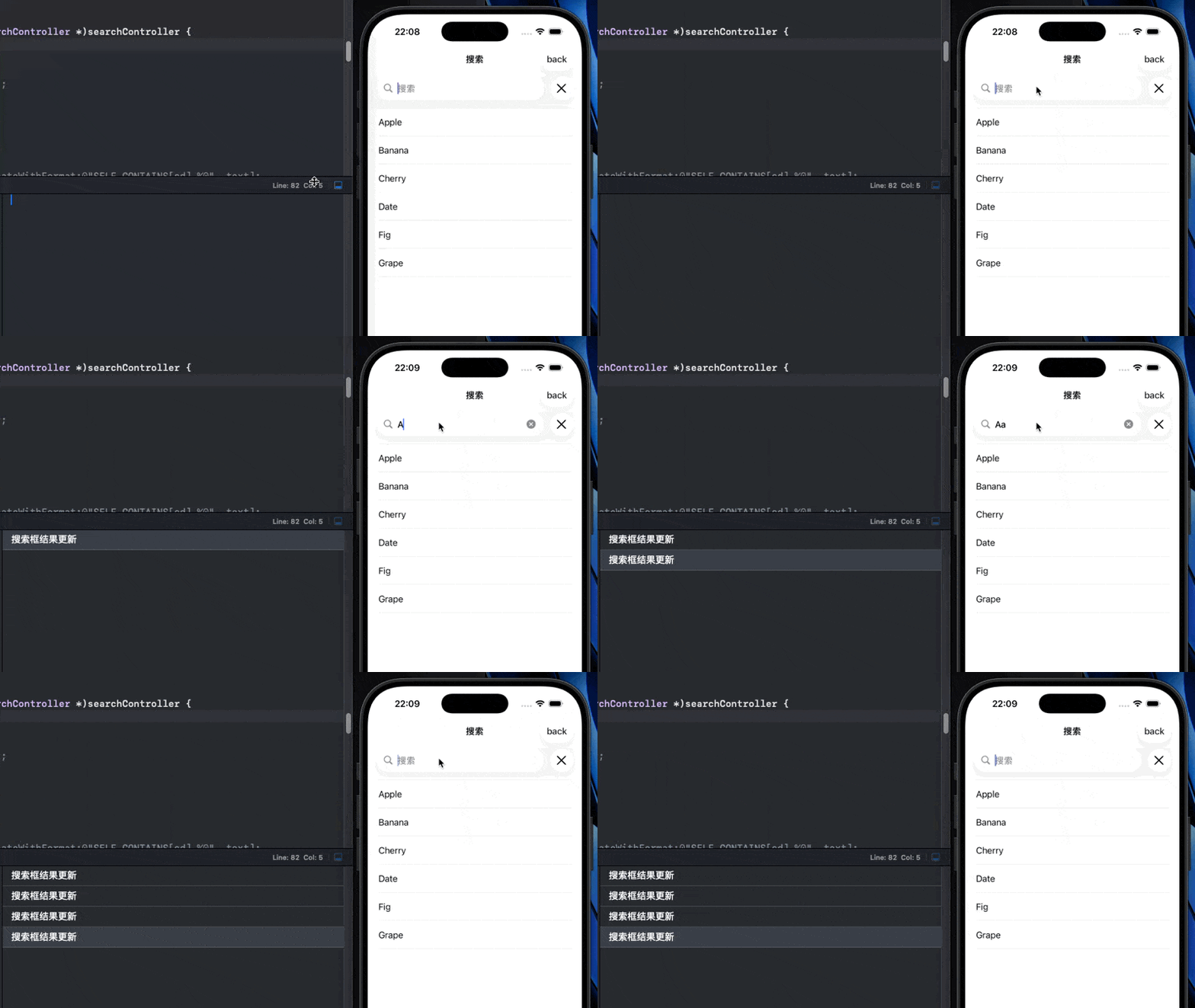
可以看到, 当用户在搜索框中输入、删除或修改文字时,系统会自动调用该协议中唯一的方法:- (void)updateSearchResultsForSearchController:(UISearchController *)searchController 方法
在这个方法中, 可以根据搜索框中的文本(UISearchController.searchBar.text) 来刷新UITableView 或者 UICollectionView
声明属性
objc
// ViewController.m

@interface ViewController ()

@property (nonatomic, strong) UITableView *tableView;
@property (nonatomic, strong) UISearchController *searchController;

@property (nonatomic, strong) NSArray<NSString *> *allData;       // 原始数据,永远不动
@property (nonatomic, strong) NSArray<NSString *> *filteredData;  // 显示用的数据

@end
我们定义声明一个 UITableView 来实时显示我们的搜索结果, 并声明两个NSArray 来作为 UITableView的数据源, allData 用来存储全部的数据, filteredData 这用来存储根据搜索结果筛选的数据
objc
- (void)viewDidLoad {
    [super viewDidLoad];
    self.title = @"搜索";
    // Do any additional setup after loading the view.

    // ① 准备数据
    self.allData = @[@"Apple", @"Banana", @"Cherry", @"Date", @"Fig", @"Grape"];
    self.filteredData = self.allData;

    [self setupTableView];
    [self setupSearchController];

    if (@available(iOS 26.0, *)) {
            self.navigationItem.preferredSearchBarPlacement = UINavigationItemSearchBarPlacementStacked;
            self.navigationItem.searchBarPlacementAllowsToolbarIntegration = NO; // 设置不允许将UISearchController放在工具栏中,保证UISearchController在上方的导航栏中
        }
}
在iOS26之后, UISearchController 默认是添加到toolbar中的,也就是显示在屏幕的下方, 如果要想让 UISearchController 显示在导航栏中, 就需要添加以下代码, 用来规定UISearchController 的位置
objcif (@available(iOS 26.0, *)) { self.navigationItem.preferredSearchBarPlacement = UINavigationItemSearchBarPlacementStacked; // 设置不允许将UISearchController放在工具栏中,保证UISearchController在上方的导航栏中 self.navigationItem.searchBarPlacementAllowsToolbarIntegration = NO; }
创建 UISearchController
objc
self.searchController = [[UISearchController alloc] initWithSearchResultsController:nil];参数 nitWithSearchResultsController 表示显示结果的页面,传 nil 表示在当前界面显示搜索结果
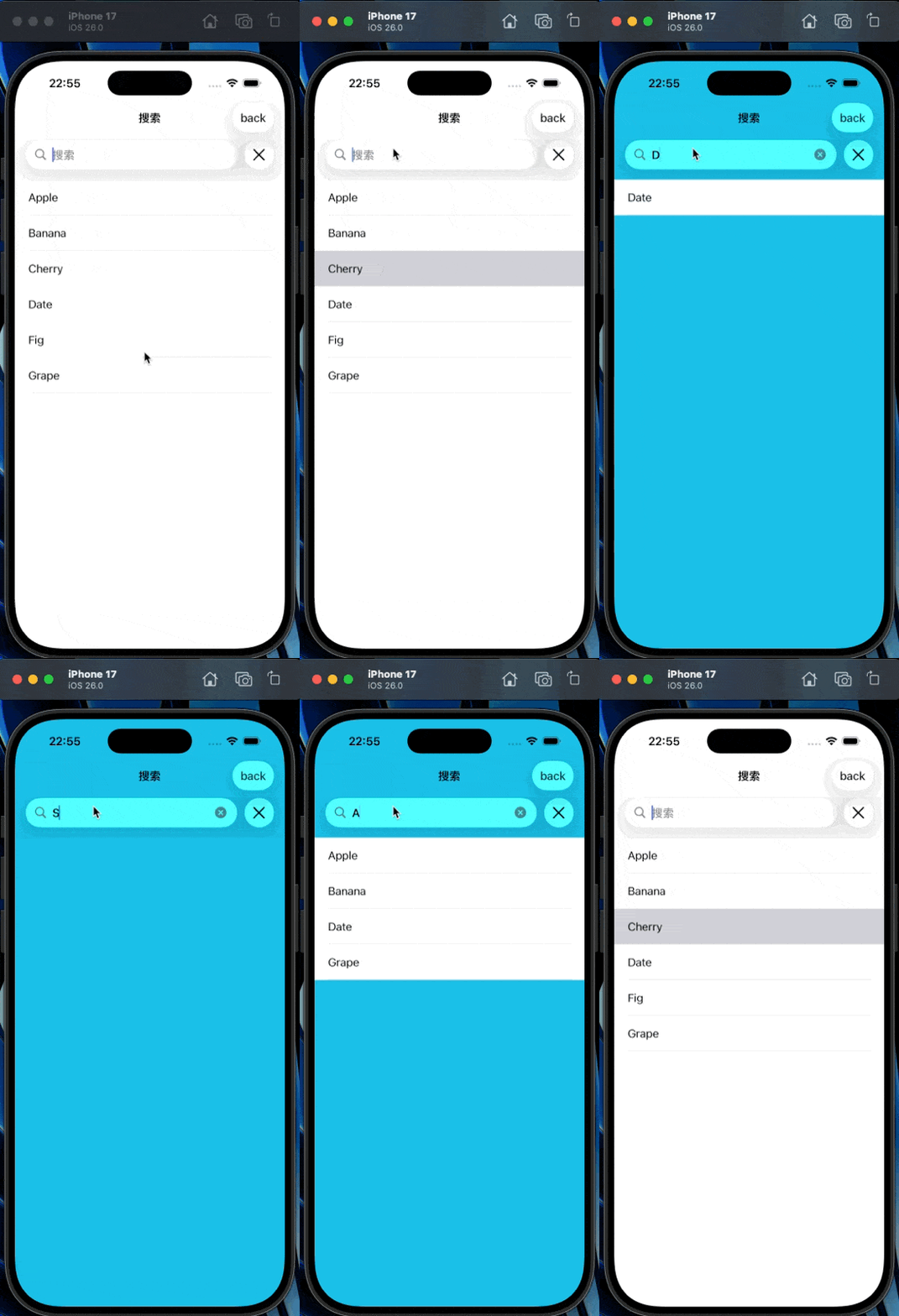
注意,如果要跳转界面进行结果展示, 需要要将searchResultsUpdater 代理对象设置为要跳转的视图控制器,否则无法观察到搜索结果
objc
MyViewController* vc = [[MyViewController alloc] init];
UISearchController *searchController = [[UISearchController alloc] initWithSearchResultsController: vc];
searchController.searchResultsUpdater = vc; // 设置结果更新代理这里展示跳转界面展示搜索结果
设置UISearchController 的相关属性
objc
searchController.obscuresBackgroundDuringPresentation = NO; // 搜索时是否模糊背景(默认YES)
searchController.hidesNavigationBarDuringPresentation = NO; // 搜索时是否隐藏导航栏(默认YES)
searchController.searchBar.placeholder = @"搜索"; // 占位文字
// searchController.searchBar.delegate = self; // 可选:监听搜索栏事件
searchController.searchBar.returnKeyType = UIReturnKeySearch;
// 设置键盘样式
self.searchController.searchBar.keyboardType = UIKeyboardTypeDefault;然后设置tableView的相关属性, 用来显示搜索结果
objc
- (void) setupTableView {
self.tableView = [[UITableView alloc] initWithFrame:self.view.bounds];
self.tableView.dataSource = self;
[self.tableView registerClass:[UITableViewCell class] forCellReuseIdentifier:@"cell"];
[self.view addSubview:self.tableView];
}这里我们设置的数组filteredData是根据搜索结果实时更新的, 所以我们实现协议方法返回cell的个数就返回数组filteredData.count
另外在cell的注册和设置时, 我们就显示当前的搜索结果, 如果没有输入显示所有结果
objc
- (NSInteger)tableView:(UITableView *)tableView numberOfRowsInSection:(NSInteger)section {
return self.filteredData.count; // 始终用 filteredData
}
- (UITableViewCell *)tableView:(UITableView *)tableView
cellForRowAtIndexPath:(NSIndexPath *)indexPath {
UITableViewCell *cell = [tableView dequeueReusableCellWithIdentifier:@"cell"
forIndexPath:indexPath];
cell.textLabel.text = self.filteredData[indexPath.row];
return cell;
}另外, 还有一个更重要的部分,就是让数组 filteredData 根据搜索框中的内容实时更新, 这里就需要用到上面提到的 UISearchController 的协议方法, - (void)updateSearchResultsForSearchController:(UISearchController *)searchController,在搜索框中删除或输入内容,就筛选结果对 filteredData 进行更新
代码如下:
objc
// 用户输入时自动调用
- (void)updateSearchResultsForSearchController:(UISearchController *)searchController {
NSLog(@"搜索框结果更新");
NSString *text = searchController.searchBar.text;
if (text.length == 0) {
// 没有输入,显示全部
self.filteredData = self.allData;
} else {
// 有输入,过滤数据
NSPredicate *predicate = [NSPredicate predicateWithFormat:@"SELF CONTAINS[cd] %@", text];
self.filteredData = [self.allData filteredArrayUsingPredicate:predicate];
}
// 刷新列表
[self.tableView reloadData];
}在上面的方法中, 用到了NSPredicate *predicate = [NSPredicate predicateWithFormat:@"SELF CONTAINS[cd] %@", text];, 这里使用了谓词, 由于笔者没有学习过谓词, 这里也不过多讲解, 就解释一下这段代码的意义
这行代码创建了一个 NSPredicate(谓词)对象,用于测试一个字符串是否包含另一个子串 (不区分大小写和变音符号)。它通常与 NSArray 的 filteredArrayUsingPredicate: 方法配合使用,实现数组的模糊搜索过滤。
用这行代码就实现了根据搜索框中的输入对结果进行筛选
搜索栏的事件监听
UISearchBarDelegate 协议包含多个可选方法,用于监听 UISearchBar 的各种交互事件。
所以如果需要监听搜索栏的事件, 就需要遵守UISearchBarDelegate 协议, 还需要需要设置代理
objc
searchController.searchBar.delegate = self;开始编辑时调用
objc
// 已经开始编辑(键盘已弹出)
- (void)searchBarTextDidBeginEditing:(UISearchBar *)searchBar {
NSLog(@"开始编辑");
}是否允许编辑
如果返回 NO, 则不会有键盘弹出
objc
- (BOOL)searchBarShouldBeginEditing:(UISearchBar *)searchBar {
return YES;
}是否允许结束编辑
objc
- (BOOL)searchBarShouldEndEditing:(UISearchBar *)searchBar {
return YES;
}如果返回 NO, 可以阻止收起键盘
结束编辑时调用
objc
- (void)searchBarTextDidEndEditing:(UISearchBar *)searchBar {
NSLog(@"已经结束编辑");
}搜索框中内容发生变化时调用
objc
- (void)searchBar:(UISearchBar *)searchBar textDidChange:(NSString *)searchText {
NSLog(@"遵守协议, 搜索框结果更新");
}点击搜索按钮时调用
objc
- (void)searchBarSearchButtonClicked:(UISearchBar *)searchBar {
NSLog(@"点击了搜索按钮");
}完整代码如下:
objc
//
// ViewController.m
// UISearchController
//
// Created by lose_sea on 2026/5/30.
//
#import "ViewController.h"
#import "MyViewController.h"
@interface ViewController () <UITableViewDataSource, UISearchResultsUpdating, UISearchBarDelegate, UITableViewDelegate>
// ViewController.m
@property (nonatomic, strong) UITableView *tableView;
@property (nonatomic, strong) UISearchController *searchController;
@property (nonatomic, strong) NSArray<NSString *> *allData; // 原始数据,永远不动
@property (nonatomic, strong) NSArray<NSString *> *filteredData; // 显示用的数据
@end
@implementation ViewController
- (void)viewDidLoad {
[super viewDidLoad];
self.title = @"搜索";
// Do any additional setup after loading the view.
[self setData];
[self setupTableView];
[self setupSearchController];
if (@available(iOS 26.0, *)) {
 self.navigationItem.preferredSearchBarPlacement = UINavigationItemSearchBarPlacementStacked;
 // 设置不允许将UISearchController放在工具栏中,保证UISearchController在上方的导航栏中
 self.navigationItem.searchBarPlacementAllowsToolbarIntegration = NO;
}
}
- (void) setData {
// ① 准备数据
self.allData = @[@"Apple", @"Banana", @"Cherry", @"Date", @"Fig", @"Grape"];
self.filteredData = self.allData;
}
- (void) setupSearchController {
    MyViewController* vc = [[MyViewController alloc] init];
    UISearchController *searchController = [[UISearchController alloc] initWithSearchResultsController: vc];

    searchController.searchResultsUpdater = vc;               // 设置结果更新代理
searchController.obscuresBackgroundDuringPresentation = YES; // 搜索时是否模糊背景(默认YES)
searchController.hidesNavigationBarDuringPresentation = YES; // 搜索时是否隐藏导航栏(默认YES)
searchController.searchBar.placeholder = @"搜索"; // 占位文字
searchController.searchBar.returnKeyType = UIReturnKeySearch;
self.searchController = searchController;
searchController.searchBar.delegate = self; // 可选:监听搜索栏事件
// 将 searchBar 添加到导航栏
self.navigationItem.searchController = searchController;
// 设置键盘样式
self.searchController.searchBar.keyboardType = UIKeyboardTypeDefault;
// 可选:滚动时保持 searchBar 在顶部
self.navigationItem.hidesSearchBarWhenScrolling = NO;
UIBarButtonItem* item1 = [[UIBarButtonItem alloc] initWithTitle: @"back" style: UIBarButtonItemStylePlain target: self action: @selector(pressBtn)];
self.navigationItem.rightBarButtonItem = item1;
}
- (void) pressBtn {
NSLog(@"点击啦按钮");
}
- (void) setupTableView {
self.tableView = [[UITableView alloc] initWithFrame:self.view.bounds];
self.tableView.dataSource = self;
self.tableView.delegate = self;
[self.tableView registerClass:[UITableViewCell class] forCellReuseIdentifier:@"cell"];
[self.view addSubview:self.tableView];
}
// 用户输入时自动调用
- (void)updateSearchResultsForSearchController:(UISearchController *)searchController {
NSLog(@"搜索框结果更新");
NSString *text = searchController.searchBar.text;
if (text.length == 0) {
// 没有输入,显示全部
self.filteredData = self.allData;
} else {
// 有输入,过滤数据
NSPredicate *predicate = [NSPredicate predicateWithFormat:@"SELF CONTAINS[cd] %@", text];
self.filteredData = [self.allData filteredArrayUsingPredicate:predicate];
}
// 刷新列表
[self.tableView reloadData];
}
- (NSInteger)tableView:(UITableView *)tableView numberOfRowsInSection:(NSInteger)section {
    return self.filteredData.count; // 始终用 filteredData
}

- (UITableViewCell *)tableView:(UITableView *)tableView
         cellForRowAtIndexPath:(NSIndexPath *)indexPath {
    UITableViewCell *cell = [tableView dequeueReusableCellWithIdentifier:@"cell"
                                                            forIndexPath:indexPath];
    cell.textLabel.text = self.filteredData[indexPath.row];
    return cell;
}
- (void) tableView:(UITableView *)tableView didSelectRowAtIndexPath:(NSIndexPath *)indexPath {
[tableView deselectRowAtIndexPath: indexPath animated: YES];
}
#pragma mark - 搜索栏事件监听
// 询问是否允许开始编辑(返回 NO 可阻止键盘弹出)
- (BOOL)searchBarShouldBeginEditing:(UISearchBar *)searchBar {
return YES;
}
// 已经开始编辑(键盘已弹出)
- (void)searchBarTextDidBeginEditing:(UISearchBar *)searchBar {
    NSLog(@"开始编辑");
}
// 询问是否允许结束编辑(返回 NO 可阻止收起键盘)
- (BOOL)searchBarShouldEndEditing:(UISearchBar *)searchBar {
    return YES;
}
// 已经结束编辑(键盘已收起)
- (void)searchBarTextDidEndEditing:(UISearchBar *)searchBar {
    NSLog(@"已经结束编辑");
}
// 搜索框内的文字每次改变时调用(实时输入)
- (void)searchBar:(UISearchBar *)searchBar textDidChange:(NSString *)searchText {
    NSLog(@"遵守协议, 搜索框结果更新");
}
// 点击键盘上的"搜索"按钮(returnKeyType 为 UIReturnKeySearch)
- (void)searchBarSearchButtonClicked:(UISearchBar *)searchBar {
    NSLog(@"点击了搜索按钮");
}
// 点击"书签"按钮(需要设置 showsBookmarkButton = YES)
- (void)searchBarBookmarkButtonClicked:(UISearchBar *)searchBar {
NSLog(@"点击"书签"按钮");
}
// 点击"结果列表"按钮(需要设置 showsResultsListButton = YES,已废弃)
- (void)searchBarResultsListButtonClicked:(UISearchBar *)searchBar {
NSLog(@"点击了结果列表");
}
@end