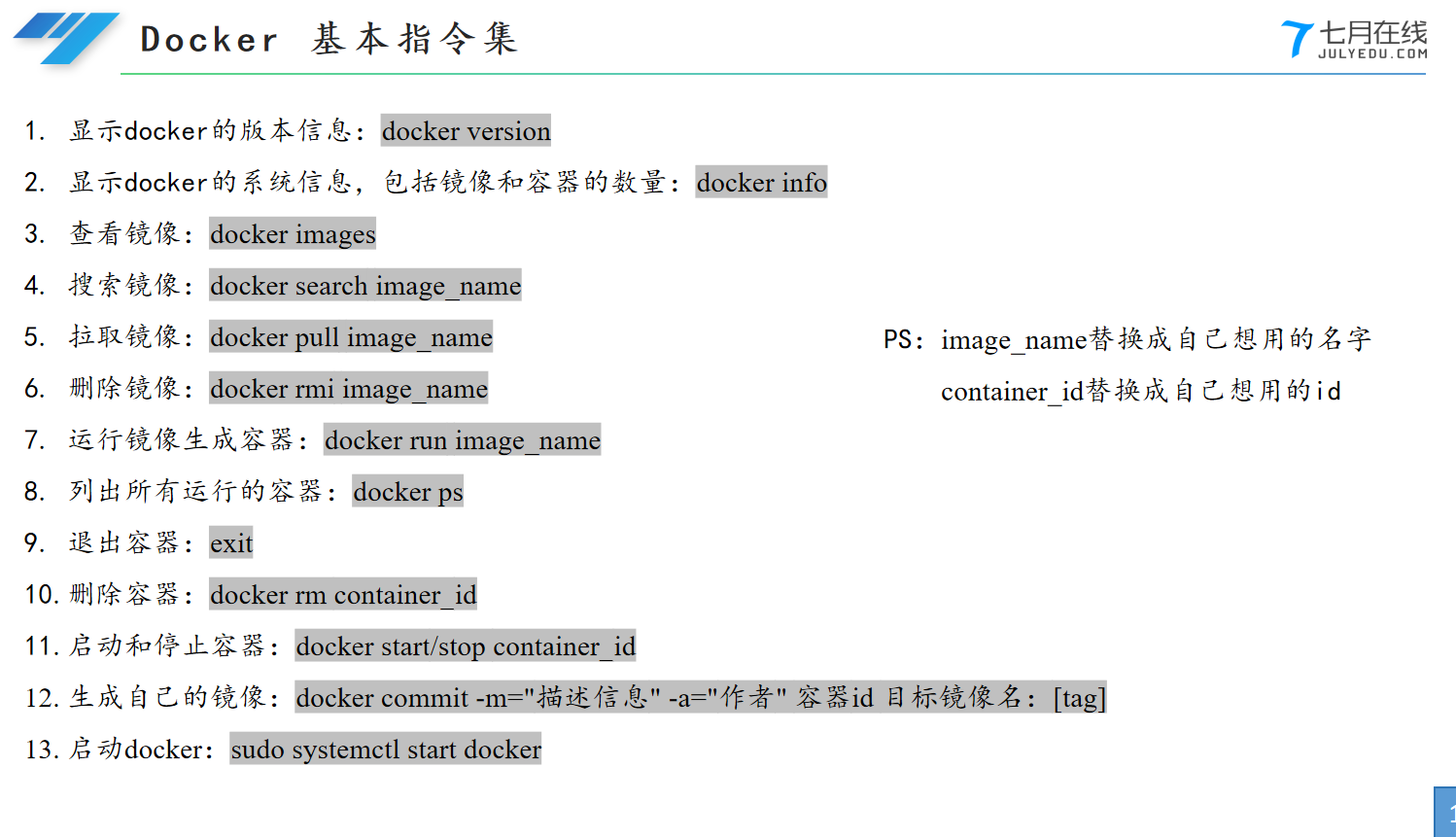
这篇博客仅供自己使用,可能并不涉及完整的docker配置,仅用于7月在线机械臂仿真环境。本文参考教程之外其他不1样的地方交给ai老师解决.
我的密码是123456
修改 apt 国内源
-
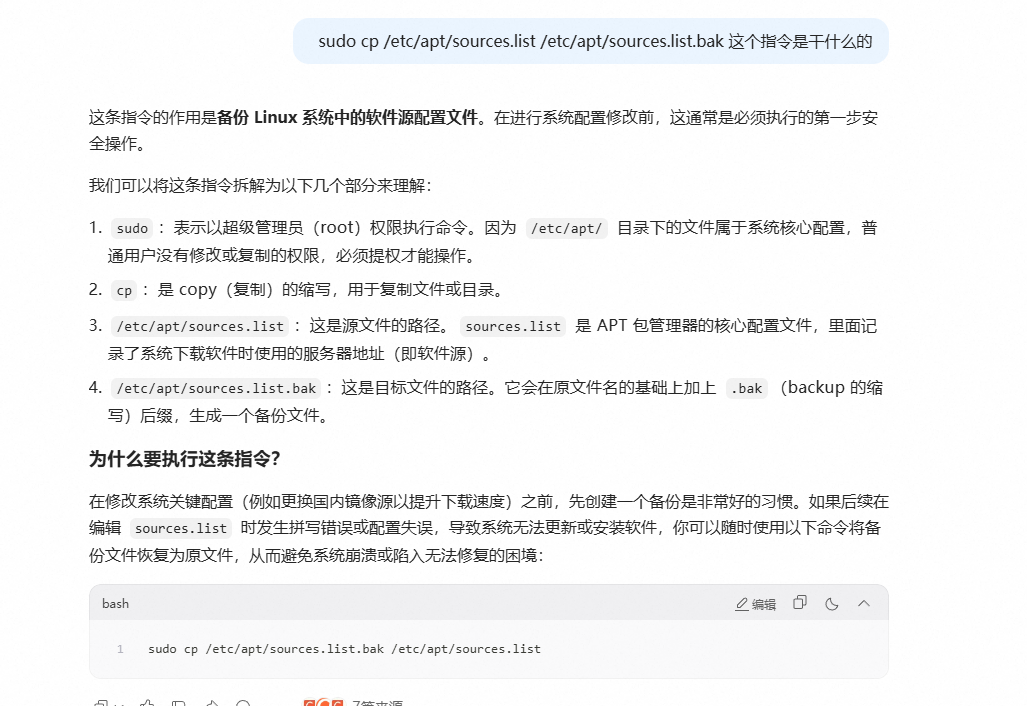
以防更换的软件源无法使用,可以使用备份文件再恢复到原来的镜像源地址:
sudo cp /etc/apt/sources.list /etc/apt/sources.list.bak这么做的原因简单来讲就是备份
-
更换 apt 软件安装源:
sudo gedit /etc/apt/sources.list推荐两个国内源:
- 清华大学开源软件镜像站
- 阿里云开源软件镜像站
原来的代码
txt
#deb cdrom:[Ubuntu 22.04.4 LTS _Jammy Jellyfish_ - Release amd64 (20240220)]/ jammy main restricted

# See http://help.ubuntu.com/community/UpgradeNotes for how to upgrade to
# newer versions of the distribution.
deb http://cn.archive.ubuntu.com/ubuntu/ jammy main restricted
# deb-src http://cn.archive.ubuntu.com/ubuntu/ jammy main restricted

## Major bug fix updates produced after the final release of the
## distribution.
deb http://cn.archive.ubuntu.com/ubuntu/ jammy-updates main restricted
# deb-src http://cn.archive.ubuntu.com/ubuntu/ jammy-updates main restricted

## N.B. software from this repository is ENTIRELY UNSUPPORTED by the Ubuntu
## team. Also, please note that software in universe WILL NOT receive any
## review or updates from the Ubuntu security team.
deb http://cn.archive.ubuntu.com/ubuntu/ jammy universe
# deb-src http://cn.archive.ubuntu.com/ubuntu/ jammy universe
deb http://cn.archive.ubuntu.com/ubuntu/ jammy-updates universe
# deb-src http://cn.archive.ubuntu.com/ubuntu/ jammy-updates universe

## N.B. software from this repository is ENTIRELY UNSUPPORTED by the Ubuntu
## team, and may not be under a free licence. Please satisfy yourself as to
## your rights to use the software. Also, please note that software in
## multiverse WILL NOT receive any review or updates from the Ubuntu
## security team.
deb http://cn.archive.ubuntu.com/ubuntu/ jammy multiverse
# deb-src http://cn.archive.ubuntu.com/ubuntu/ jammy multiverse
deb http://cn.archive.ubuntu.com/ubuntu/ jammy-updates multiverse
# deb-src http://cn.archive.ubuntu.com/ubuntu/ jammy-updates multiverse

## N.B. software from this repository may not have been tested as
## extensively as that contained in the main release, although it includes
## newer versions of some applications which may provide useful features.
## Also, please note that software in backports WILL NOT receive any review
## or updates from the Ubuntu security team.
deb http://cn.archive.ubuntu.com/ubuntu/ jammy-backports main restricted universe multiverse
# deb-src http://cn.archive.ubuntu.com/ubuntu/ jammy-backports main restricted universe multiverse

deb http://security.ubuntu.com/ubuntu jammy-security main restricted
# deb-src http://security.ubuntu.com/ubuntu jammy-security main restricted
deb http://security.ubuntu.com/ubuntu jammy-security universe
# deb-src http://security.ubuntu.com/ubuntu jammy-security universe
deb http://security.ubuntu.com/ubuntu jammy-security multiverse
# deb-src http://security.ubuntu.com/ubuntu jammy-security multiverse

# This system was installed using small removable media
# (e.g. netinst, live or single CD). The matching "deb cdrom"
# entries were disabled at the end of the installation process.
# For information about how to configure apt package sources,
# see the sources.list(5) manual.
修改之后的
# deb cdrom:[Ubuntu 22.04.4 LTS _Jammy Jellyfish_ - Release amd64 (20240220)]/ jammy main restricted

# See http://help.ubuntu.com/community/UpgradeNotes for how to upgrade to
# newer versions of the distribution.
deb https://mirrors.tuna.tsinghua.edu.cn/ubuntu/ jammy main restricted
# deb-src https://mirrors.tuna.tsinghua.edu.cn/ubuntu/ jammy main restricted

## Major bug fix updates produced after the final release of the
## distribution.
deb https://mirrors.tuna.tsinghua.edu.cn/ubuntu/ jammy-updates main restricted
# deb-src https://mirrors.tuna.tsinghua.edu.cn/ubuntu/ jammy-updates main restricted

## N.B. software from this repository is ENTIRELY UNSUPPORTED by the Ubuntu
## team. Also, please note that software in universe WILL NOT receive any
## review or updates from the Ubuntu security team.
deb https://mirrors.tuna.tsinghua.edu.cn/ubuntu/ jammy universe
# deb-src https://mirrors.tuna.tsinghua.edu.cn/ubuntu/ jammy universe
deb https://mirrors.tuna.tsinghua.edu.cn/ubuntu/ jammy-updates universe
# deb-src https://mirrors.tuna.tsinghua.edu.cn/ubuntu/ jammy-updates universe

## N.B. software from this repository is ENTIRELY UNSUPPORTED by the Ubuntu
## team, and may not be under a free licence. Please satisfy yourself as to
## your rights to use the software. Also, please note that software in
## multiverse WILL NOT receive any review or updates from the Ubuntu
## security team.
deb https://mirrors.tuna.tsinghua.edu.cn/ubuntu/ jammy multiverse
# deb-src https://mirrors.tuna.tsinghua.edu.cn/ubuntu/ jammy multiverse
deb https://mirrors.tuna.tsinghua.edu.cn/ubuntu/ jammy-updates multiverse
# deb-src https://mirrors.tuna.tsinghua.edu.cn/ubuntu/ jammy-updates multiverse

## N.B. software from this repository may not have been tested as
## extensively as that contained in the main release, although it includes
## newer versions of some applications which may provide useful features.
## Also, please note that software in backports WILL NOT receive any review
## or updates from the Ubuntu security team.
deb https://mirrors.tuna.tsinghua.edu.cn/ubuntu/ jammy-backports main restricted universe multiverse
# deb-src https://mirrors.tuna.tsinghua.edu.cn/ubuntu/ jammy-backports main restricted universe multiverse

deb https://mirrors.tuna.tsinghua.edu.cn/ubuntu/ jammy-security main restricted
# deb-src https://mirrors.tuna.tsinghua.edu.cn/ubuntu/ jammy-security main restricted
deb https://mirrors.tuna.tsinghua.edu.cn/ubuntu/ jammy-security universe
# deb-src https://mirrors.tuna.tsinghua.edu.cn/ubuntu/ jammy-security universe
deb https://mirrors.tuna.tsinghua.edu.cn/ubuntu/ jammy-security multiverse
# deb-src https://mirrors.tuna.tsinghua.edu.cn/ubuntu/ jammy-security multiverse

# This system was installed using small removable media
# (e.g. netinst, live or single CD). The matching "deb cdrom"
# entries were disabled at the end of the installation process.
# For information about how to configure apt package sources,
# see the sources.list(5) manual.-
导入源文件,并使其生效:
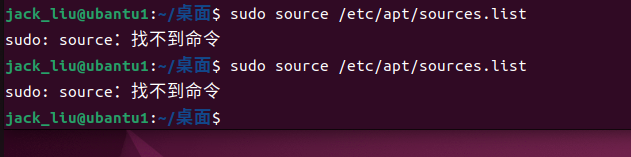
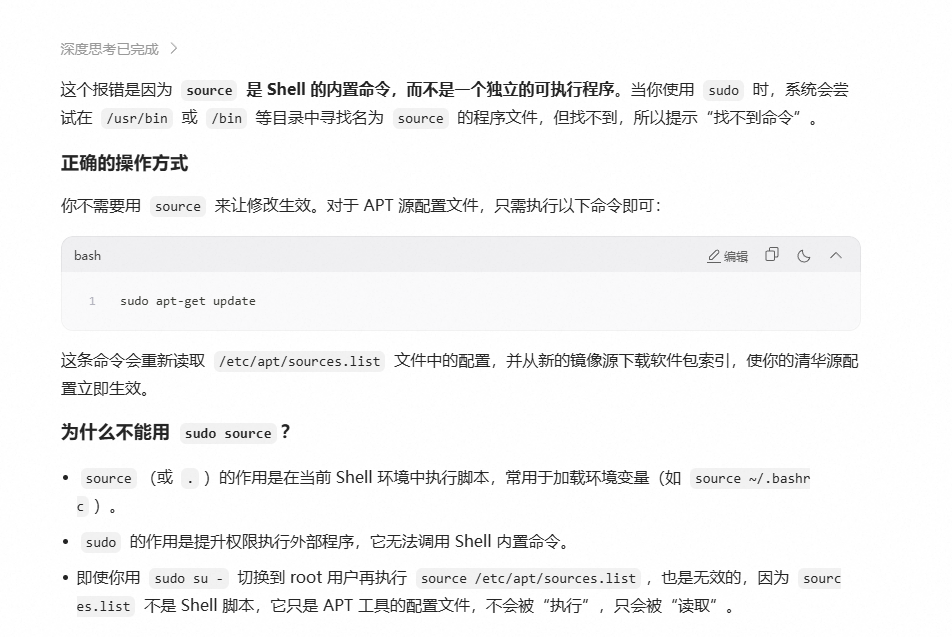
sudo source /etc/apt/sources.list可能存在的问题:
-
更新源文件:
sudo apt-get update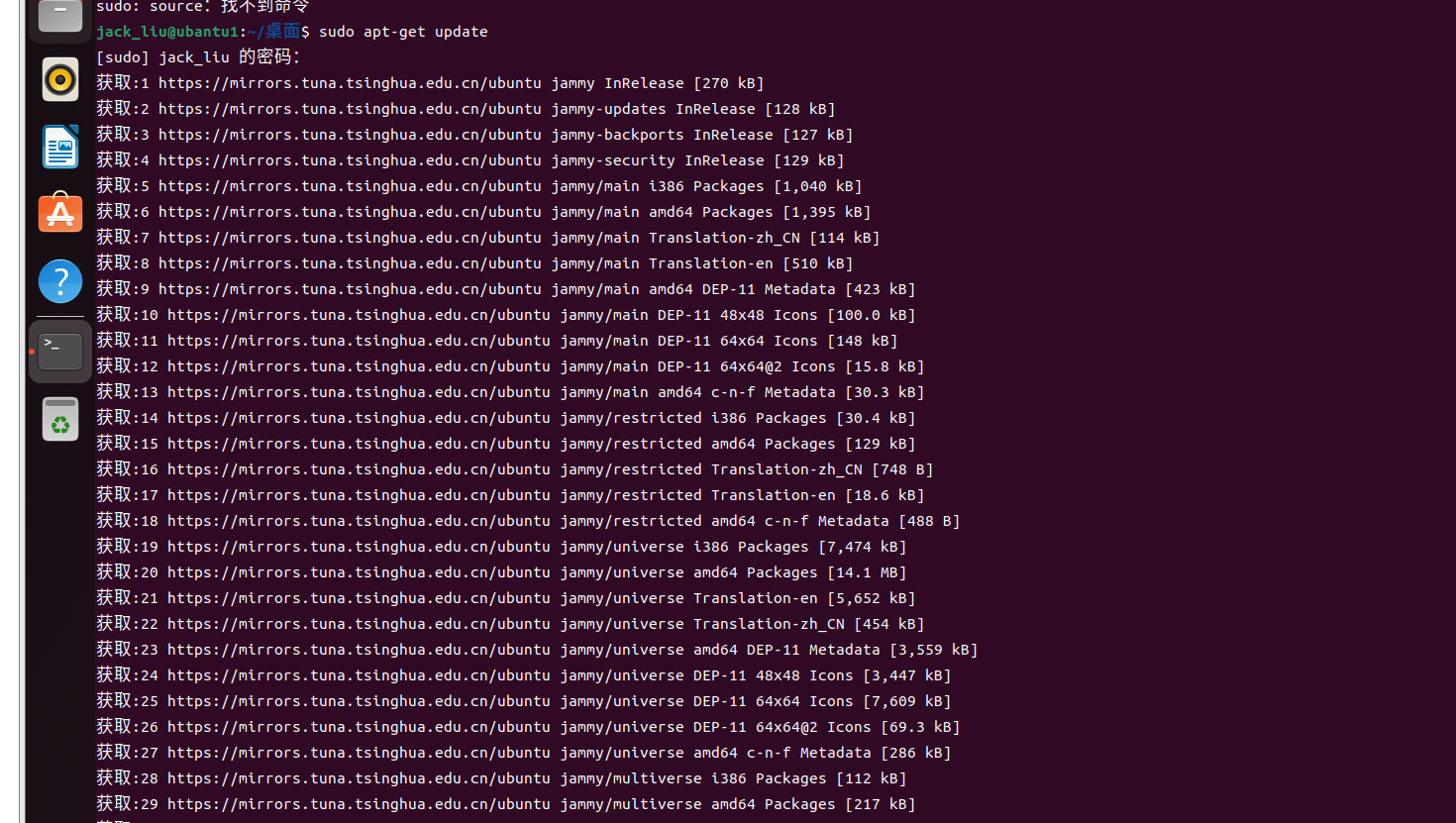
安装docker
1.卸载所有有冲突的软件包:(多加了一个反斜杠)
bash
for pkg in docker.io docker-doc docker-compose docker-compose-v2 podman-docker containerd runc; \
do
    sudo apt-get remove  $ pkg;
done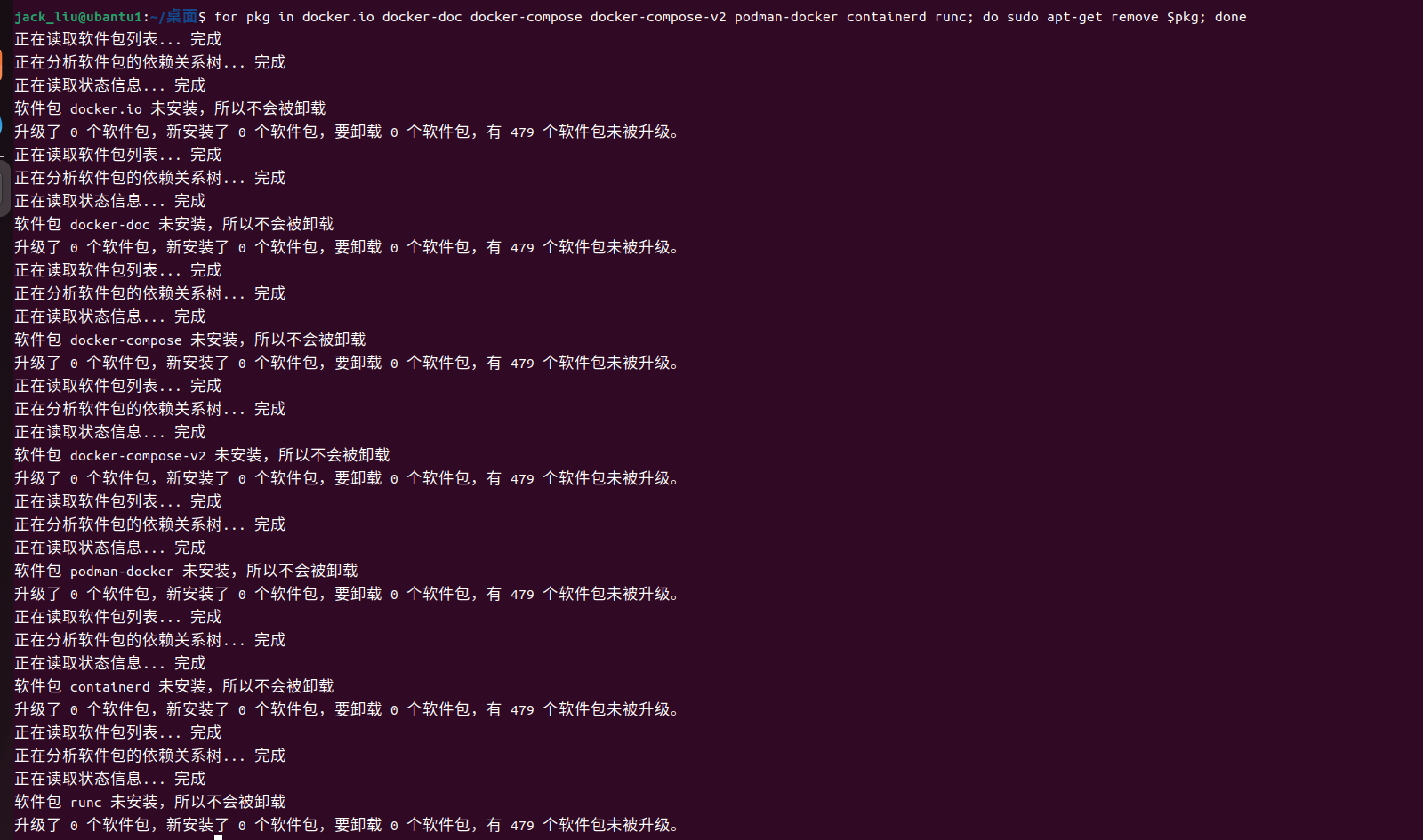
2. 设置Docker仓库:更新包索引,安装依赖包,添加Docker官方GPG密钥,设置稳定的Docker仓库
step1更新包索引,安装必要的证书和工具
bash
sudo apt-get update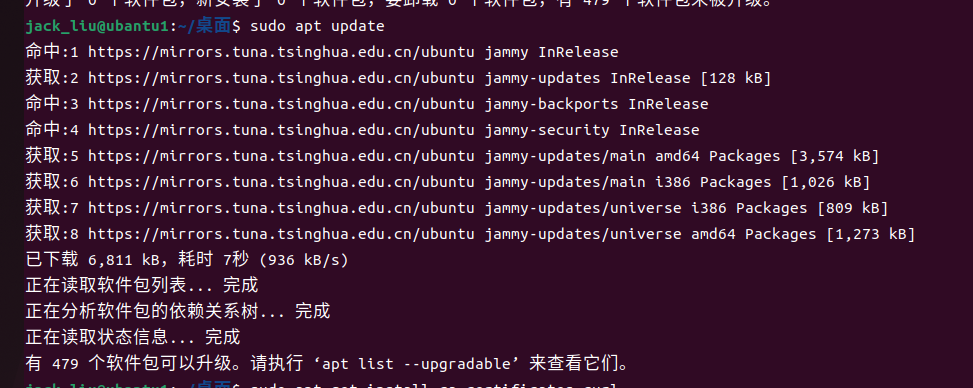
bash
sudo apt-get install ca-certificates curl 这一步可能存在的问题

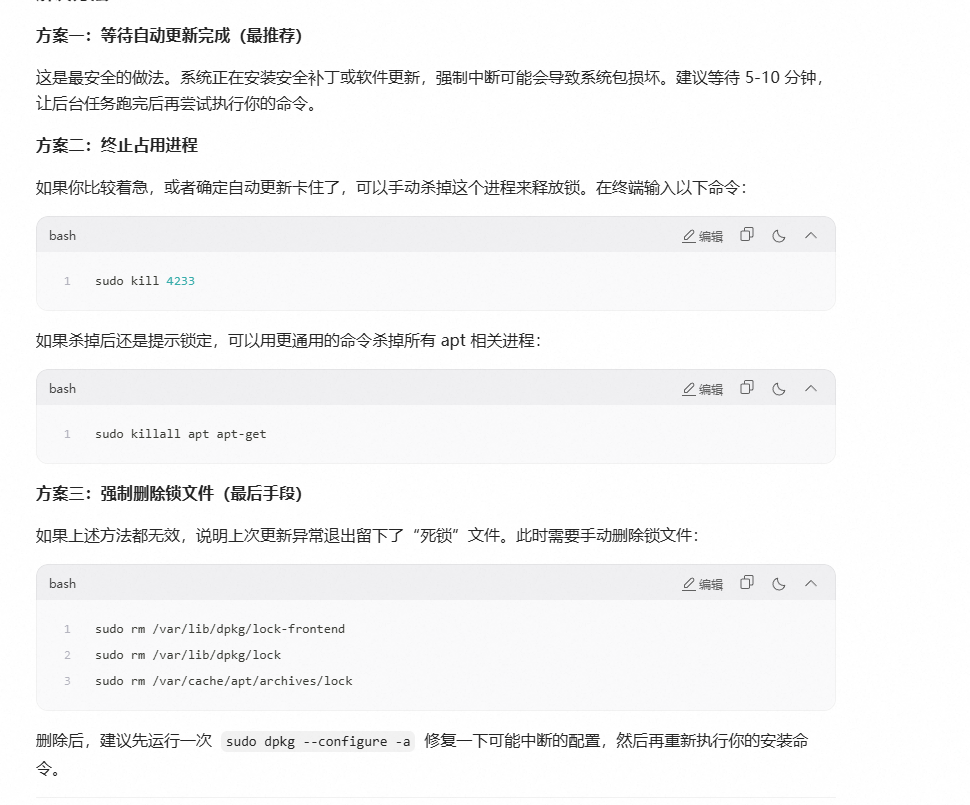
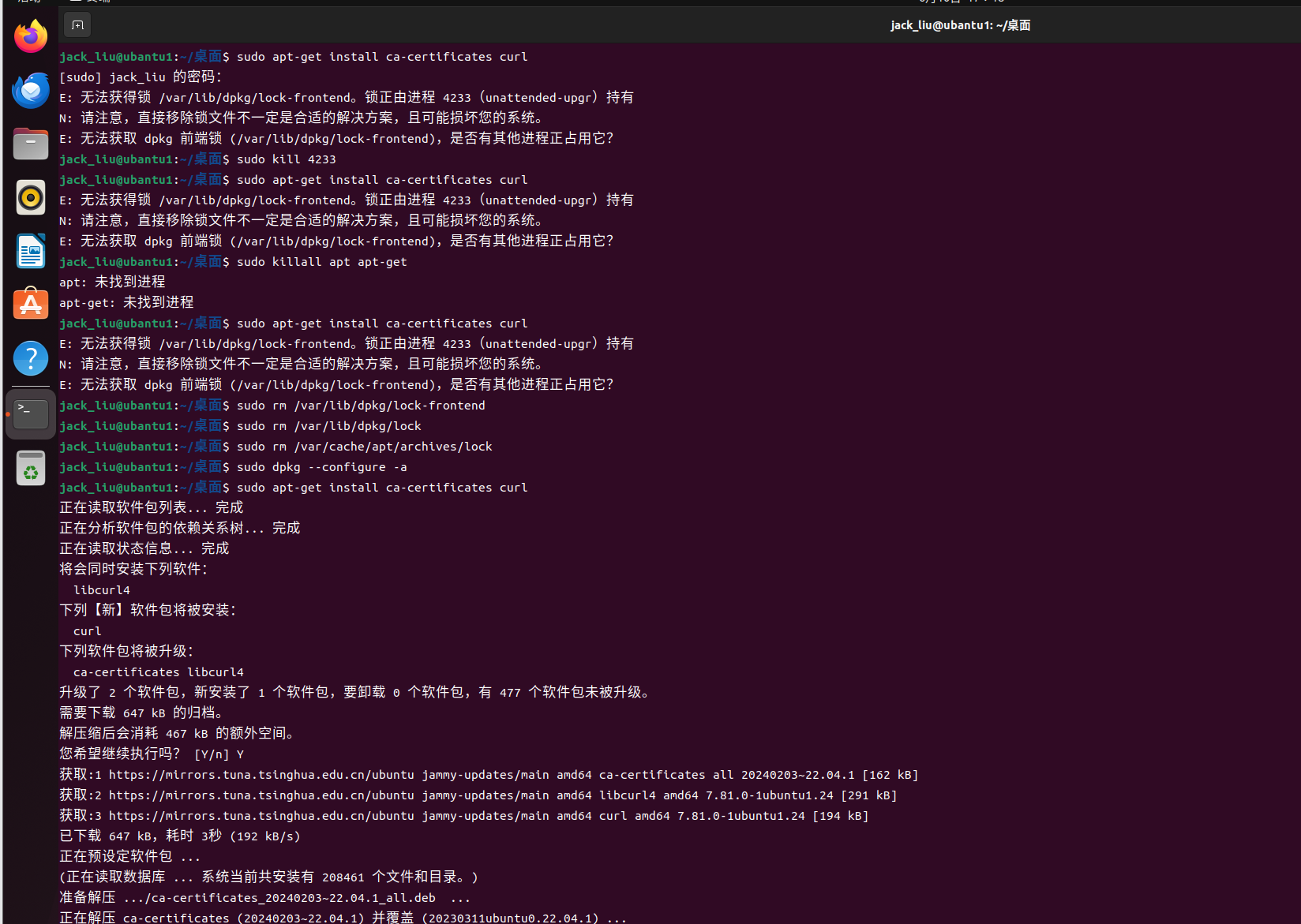
== 事实证明只有第3个方法是好使的==
step2:创建目录存放密钥,然后下载Docker的GPG密钥
bash
sudo install -m 0755 -d /etc/apt/keyrings
sudo curl -fsSL https://download.docker.com/linux/ubuntu/gpg -o /etc/apt/keyrings/docker.asc
sudo chmod a+r /etc/apt/keyrings/docker.asc
存在的问题

解决方法:我这里偷个懒直接在桌面上创建1个脚本执行
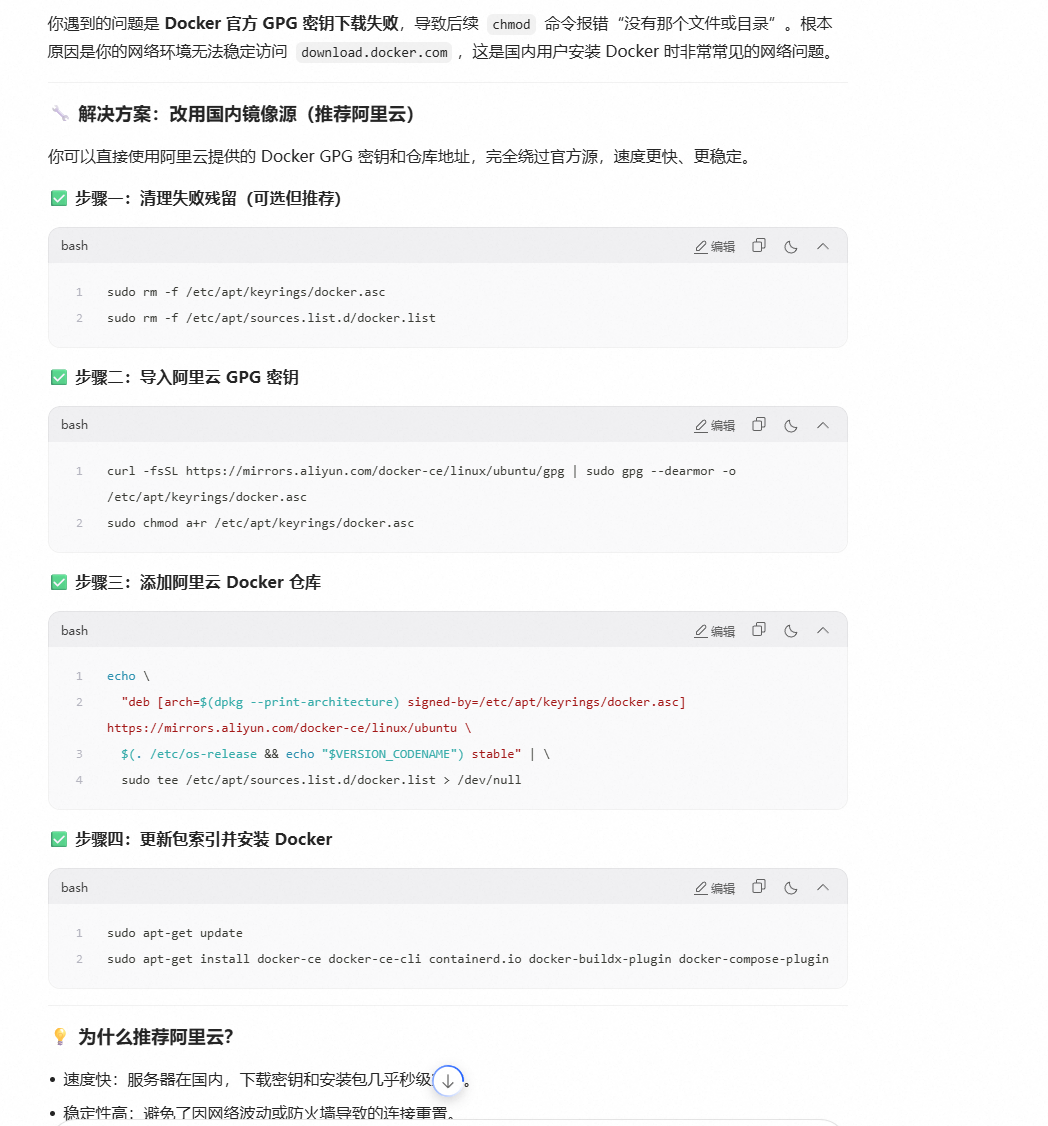
第一步:创建脚本
bash
gedit install_docker.sh第二部粘贴内容
bash
#!/bin/bash

echo ">>> [1/5] 开始配置 Docker 安装环境..."

# 1. 安装必要的基础工具
sudo apt-get update
sudo apt-get install -y ca-certificates curl gnupg lsb-release

echo ">>> [2/5] 正在添加 Docker 官方 GPG 密钥 (使用阿里云镜像加速)..."

# 2. 创建 keyrings 目录(如果不存在)
sudo install -m 0755 -d /etc/apt/keyrings

# 3. 下载 GPG 密钥 (关键点:替换为阿里云源,解决连接重置问题)
curl -fsSL https://mirrors.aliyun.com/docker-ce/linux/ubuntu/gpg | sudo gpg --dearmor -o /etc/apt/keyrings/docker.asc
sudo chmod a+r /etc/apt/keyrings/docker.asc

echo ">>> [3/5] 正在写入 Docker 软件源列表..."

# 4. 向 sources.list.d 中添加 Docker 仓库地址 (使用阿里云镜像)
echo \
  "deb [arch=$(dpkg --print-architecture) signed-by=/etc/apt/keyrings/docker.asc] https://mirrors.aliyun.com/docker-ce/linux/ubuntu \
  $(. /etc/os-release && echo "$VERSION_CODENAME") stable" | \
  sudo tee /etc/apt/sources.list.d/docker.list > /dev/null

echo ">>> [4/5] 正在更新软件包索引并安装 Docker..."

# 5. 更新索引并安装 Docker Engine
sudo apt-get update
sudo apt-get install -y docker-ce docker-ce-cli containerd.io docker-buildx-plugin docker-compose-plugin

echo ">>> [5/5] 验证安装结果..."

# 6. 运行 Hello World 验证
if sudo docker run hello-world; then
    echo ""
    echo "========================================="
    echo "🎉 Docker 安装成功!"
    echo "========================================="
else
    echo ""
    echo "⚠️ 安装似乎遇到了问题,请检查上方报错信息。"
fi
第三步 保存并赋予权限运行
bash
chmod +x install_docker.sh
bash
./install_docker.sh然后我还是1步步遇到1些问题
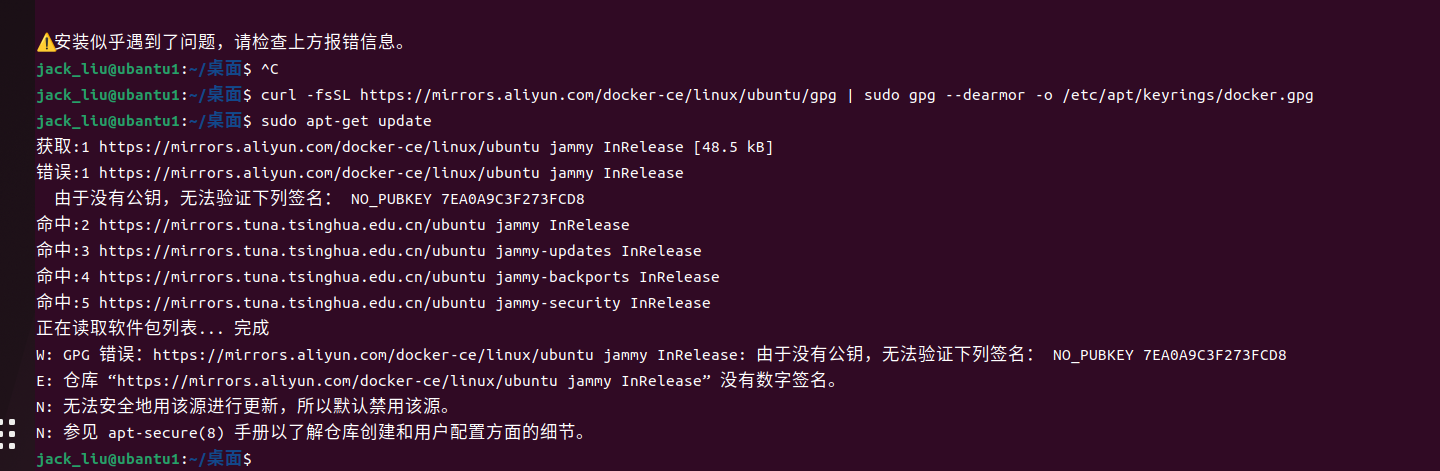
根据你提供的网页解析内容和当前时间,我来帮你分析这一步是否正确。
📝 分析结果
你的配置存在一个关键的"不匹配"问题,这极大概率会导致安装失败。
虽然命令格式本身没有语法错误,但密钥文件的路径(.asc)与你之前执行的下载命令生成的文件路径(.gpg)不一致。
问题所在
你配置的路径:signed-by=/etc/apt/keyrings/docker.asc (指向一个 ASCII 格式的文本文件)。
你执行的命令生成的文件:根据上一轮对话的修正方案,你运行的 gpg --dearmor 命令生成的是 /etc/apt/keyrings/docker.gpg (二进制格式)。
网页证据:阿里云镜像站根目录下有一个 gpg 文件(大小 3.7 KB),这通常是 ASCII 格式的密钥。但你使用了 --dearmor 参数将其转换为了 .gpg 格式。
后果:APT 会去寻找 docker.asc,但找不到,或者找到了但格式不对,从而导致 NO_PUBKEY 错误再次出现。
当前时间点的安全性
当前时间:2026-06-10
网页时间戳:网页显示 gpg 文件的更新时间为 2026-06-09,说明镜像站非常活跃,且你使用的链接是有效的。
🛠️ 修正方案(二选一)
请根据你的实际需求选择一种方案来修正这行代码:
✅ 方案 A:推荐方案(保持二进制格式,修改配置)
这是最标准的做法,适合新版 Ubuntu。请将这行代码修改为指向你实际生成的 .gpg 文件:
deb arch=amd64 signed-by=/etc/apt/keyrings/docker.gpg https://mirrors.aliyun.com/docker-ce/linux/ubuntu jammy stable
🔄 方案 B:兼容方案(改为文本格式,重新下载)
如果你坚持使用 .asc 后缀,那么你需要重新下载密钥(不使用 --dearmor),并修改配置:
重新下载密钥(覆盖旧文件):
sudo curl -fsSL https://mirrors.aliyun.com/docker-ce/linux/ubuntu/gpg -o /etc/apt/keyrings/docker.asc
sudo chmod a+r /etc/apt/keyrings/docker.asc
配置文件保持不变:
deb arch=amd64 signed-by=/etc/apt/keyrings/docker.asc https://mirrors.aliyun.com/docker-ce/linux/ubuntu jammy stable
💡 最终建议
我强烈建议你采用 方案 A。
请检查 /etc/apt/sources.list.d/ 目录下的文件(通常是 docker.list),将里面的 docker.asc 改为 docker.gpg,然后保存。
修改完成后,再次运行 sudo apt-get update,问题应该就能彻底解决了。
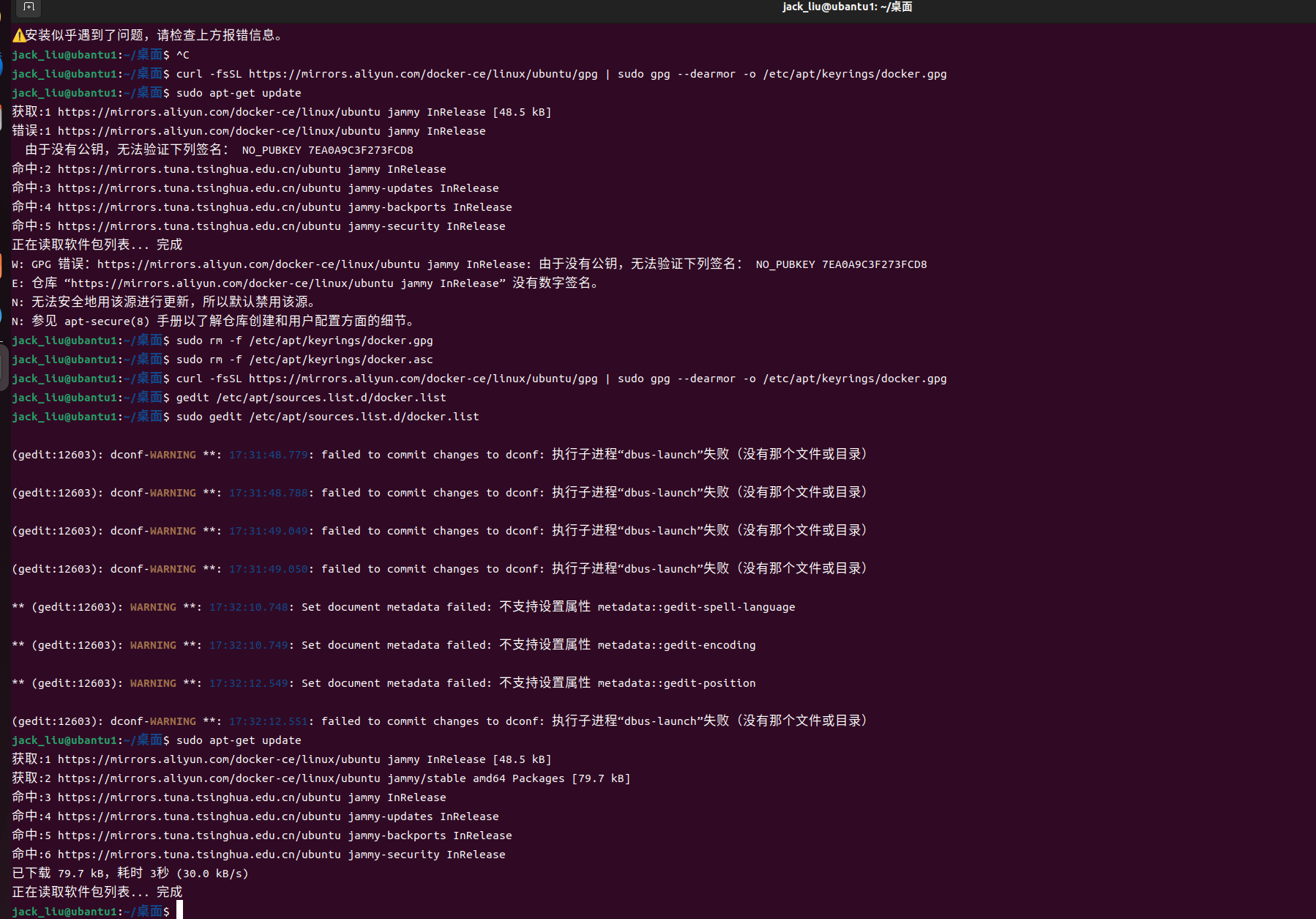
问题还是没有彻底解决 && 问题的根源
问题其实出现在第3步它指向的是1个ascii码文件但是实际上需要指明的到1个可执行文件,然后就是权限的问题这里我直接用sudo权限更大,现在在看docker
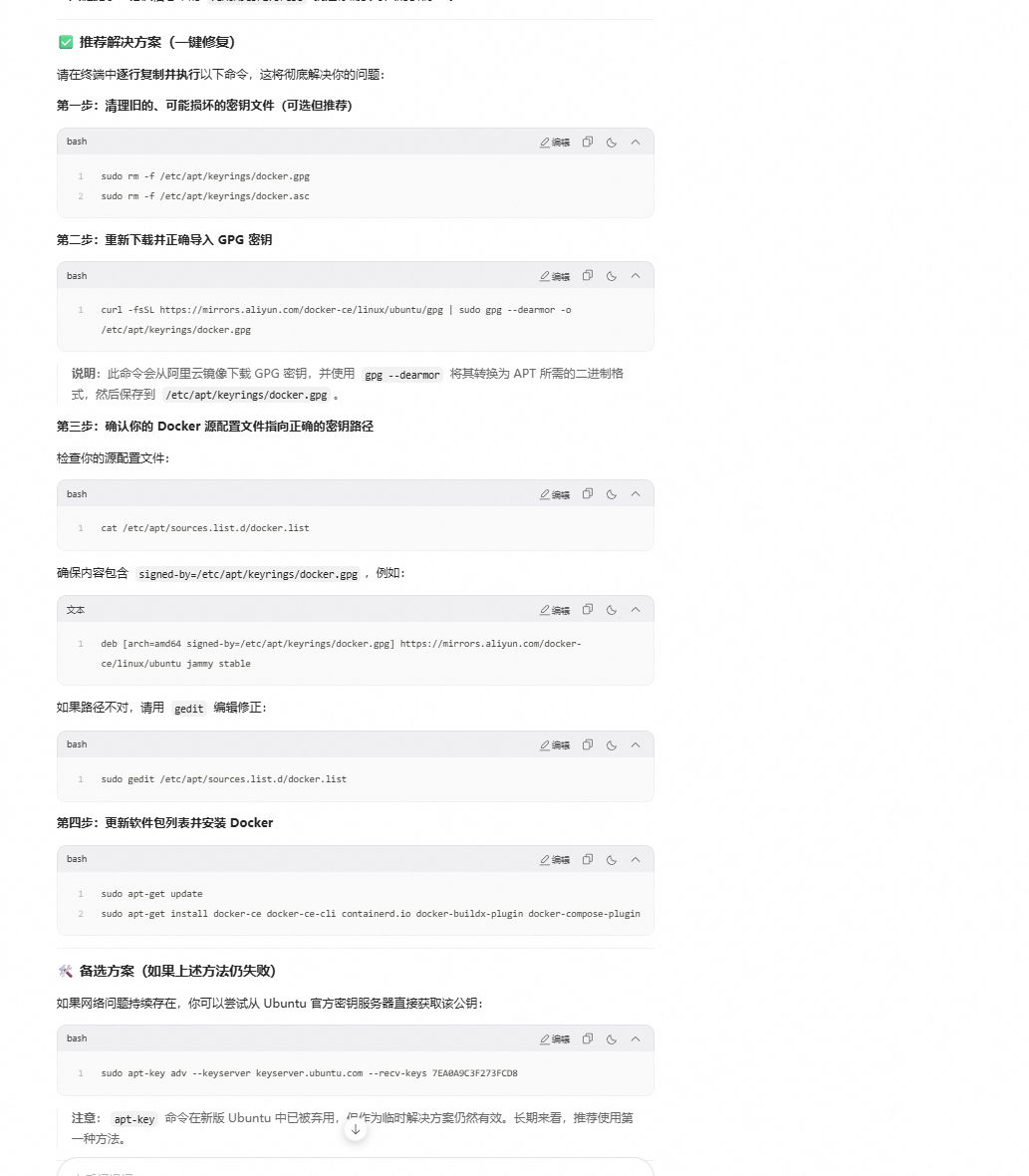
step3: 将Docker仓库添加到Apt源列表
bash
echo \
  "deb [arch=$(dpkg --print-architecture) signed-by=/etc/apt/keyrings/docker.asc] https://download.docker.com/linux/ubuntu \
  $(. /etc/os-release && echo "$VERSION_CODENAME") stable" | \
  sudo tee /etc/apt/sources.list.d/docker.list > /dev/null
step4: 最后再次更新包索引
bash
sudo apt-get update存在的问题
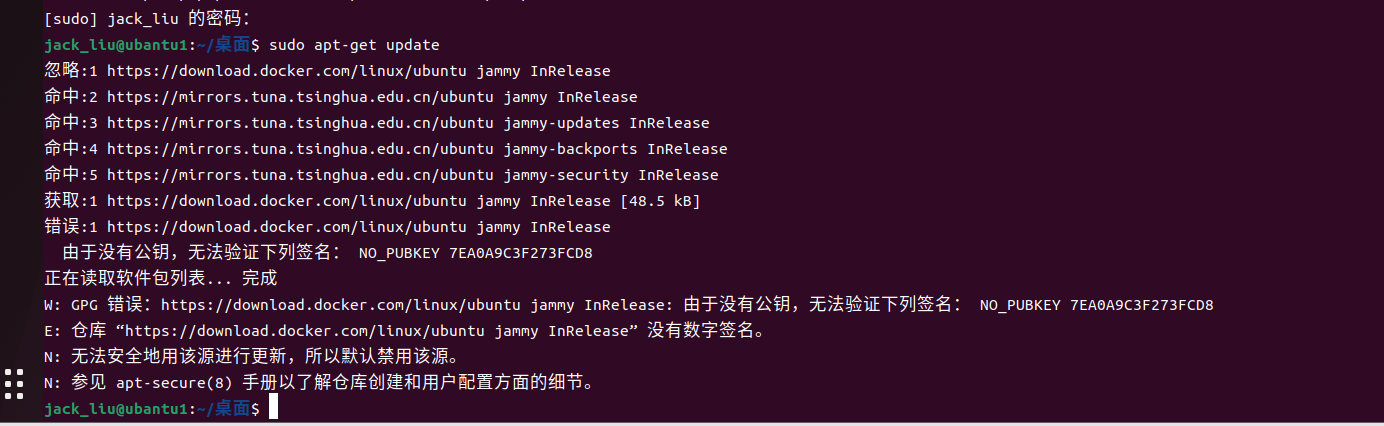
问题根源在于:你之前虽然导入了阿里云的密钥,但你的 docker.list 配置文件里写的源地址却变成了 Docker 官方 的地址(https://download.docker.com),而不是阿里云的地址。
因为官方源的签名密钥和你导入的阿里云镜像密钥是不通用的,所以系统依然报"没有公钥"。
请按照以下两步彻底修复:
第一步:把源地址改回阿里云
我们需要再次编辑那个配置文件,确保地址和密钥都对应阿里云。
-
在终端输入:
bashsudo gedit /etc/apt/sources.list.d/docker.list -
将文件里的内容全部删除 ,替换为下面这一行(注意看,这里我帮你把地址也改成阿里云了):
textdeb [arch=amd64 signed-by=/etc/apt/keyrings/docker.gpg] https://mirrors.aliyun.com/docker-ce/linux/ubuntu jammy stable -
保存并关闭编辑器。
第二步:重新更新并安装
回到终端,依次执行以下命令:
-
更新软件列表 (这次应该不会再报错了):
bashsudo apt-get update -
安装 Docker :
bashsudo apt-get install docker-ce docker-ce-cli containerd.io docker-buildx-plugin docker-compose-plugin

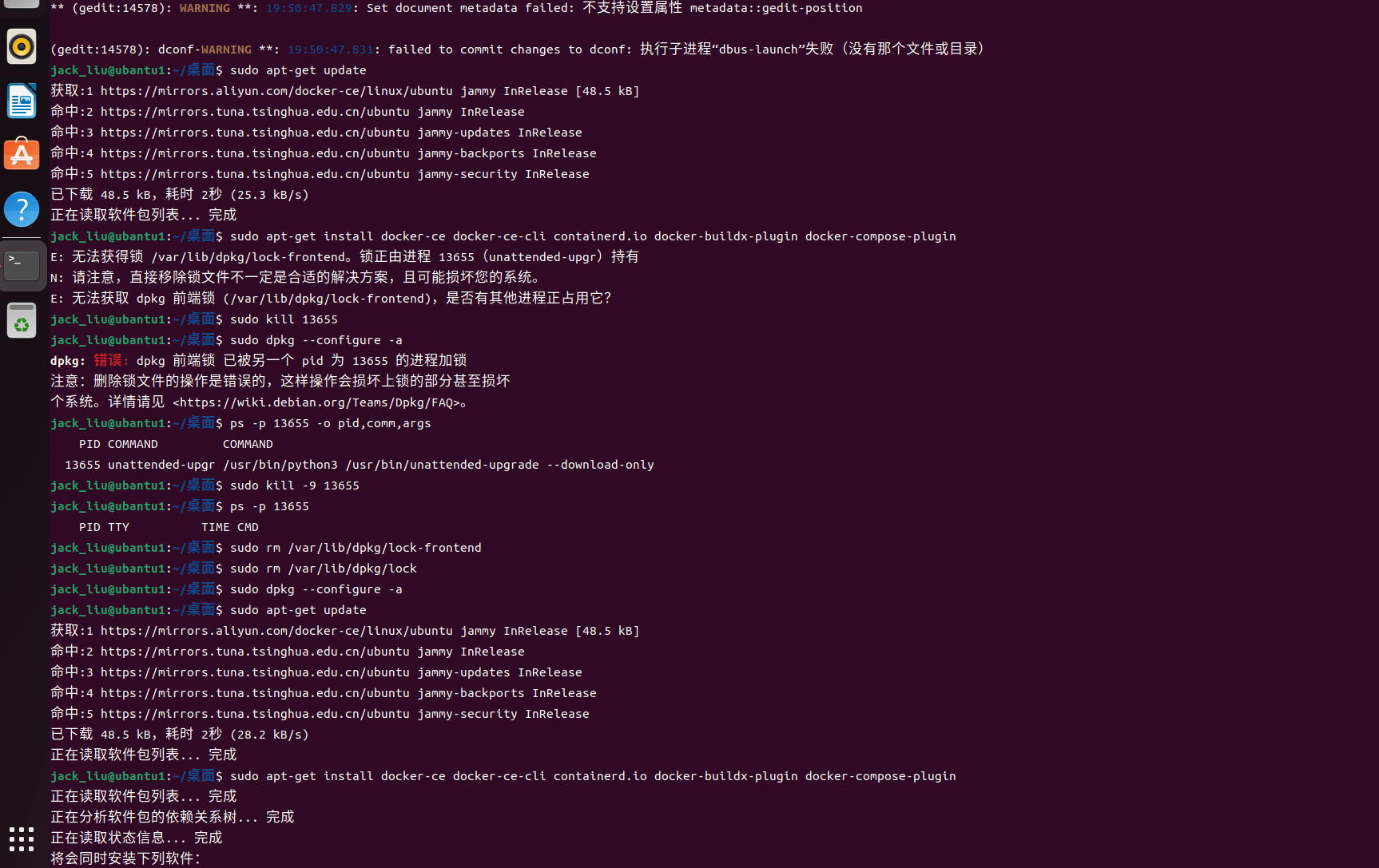
反正就是如果报错的话1切交给a i就行
step:安装最新版本Docker软件包:
bash
sudo apt-get install docker-ce docker-ce-cli containerd.io docker-buildx-plugin docker-compose-plugin可能存在的问题

你遇到的 connection refused 错误,是 Docker 无法连接到官方镜像仓库 registry-1.docker.io 导致的。这在国内网络环境下非常常见,通常是因为官方源访问不稳定或被限制。
✅ 解决方案:配置国内镜像加速器
你需要修改 Docker 的配置文件,将镜像拉取请求重定向到国内的加速服务器。请按以下步骤操作:
第一步:创建或编辑配置文件
在终端中执行以下命令,使用 nano 编辑器打开(或创建)Docker 的守护进程配置文件:
bash
sudo nano /etc/docker/daemon.json第二步:粘贴镜像源配置
在打开的编辑器中,粘贴以下内容。这些是目前相对稳定可用的国内镜像源:
json
{
  "registry-mirrors": [
    "https://docker.m.daocloud.io",
    "https://huecker.io",
    "https://dockerhub.timeweb.cloud"
  ]
}
注意:请确保 JSON 格式正确,特别是逗号和引号。如果文件中已有其他配置,请将
"registry-mirrors"部分合并进去,不要覆盖原有内容。
第三步:保存并退出
按 Ctrl + O 保存文件,然后按 Enter 确认,最后按 Ctrl + X 退出编辑器。
第四步:重启 Docker 服务
为了让新配置生效,必须重启 Docker 服务:
bash
sudo systemctl daemon-reload
sudo systemctl restart docker
第五步:重新运行测试
现在,再次尝试运行 hello-world 容器:
bash
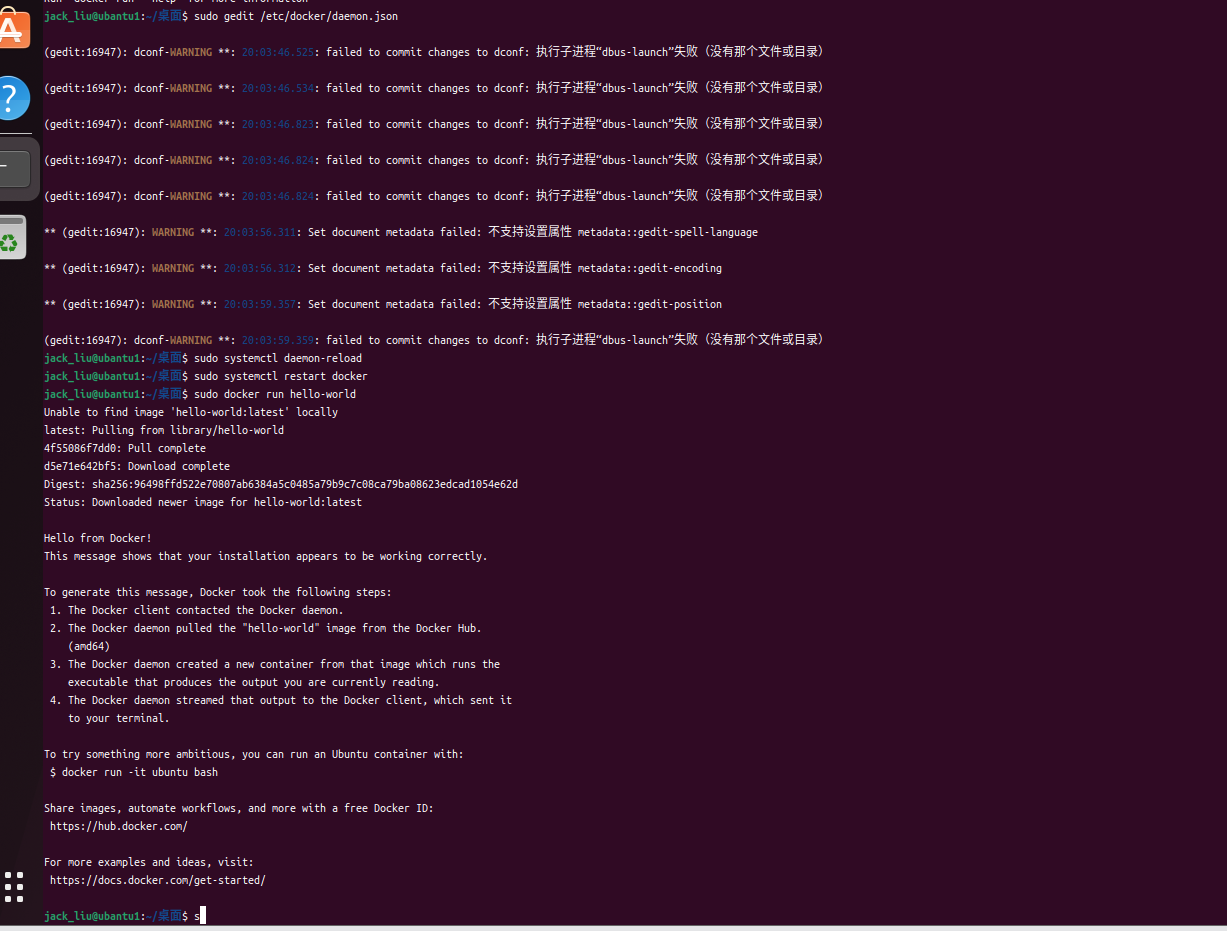
sudo docker run hello-world这次应该能成功从国内镜像源拉取镜像并显示 "Hello from Docker!" 的欢迎信息了。
搞定之后,需要我帮你把"免 sudo"的配置也一起做了吗?
运行成功的检验
其他
Docker 额外配置指南
1. 以非 root 用户身份管理 Docker
默认情况下,Docker 命令需要使用 sudo 权限执行。通过以下步骤,可以将当前用户加入 Docker 组,从而免 sudo 运行。
- 创建 docker 用户组(如果已存在可跳过):
bash
sudo groupadd docker- 将当前用户添加到该组:
bash
sudo usermod -aG docker $USER- 刷新组权限(或者注销并重新登录系统):
bash
newgrp docker- 验证配置是否生效 :
尝试运行 hello-world 镜像,若无需 sudo 即可运行则成功:
bash
docker run hello-world2. 配置 Docker 开机启动
设置 Docker 服务随系统启动自动运行。
- 启用开机自启:
bash
sudo systemctl enable docker.service
sudo systemctl enable containerd.service- 取消开机自启 :
如果需要禁止 Docker 开机启动,请执行:
bash
sudo systemctl disable docker.service
sudo systemctl disable containerd.service
笔记里提到了 newgrp,需要我帮你展开讲讲它和"重启电脑"的区别吗?
基本的操作