**
@鼠标位置指示记录器,从0到1,
AI正变得超级,OPENCLAW以及COPAW等智能控制软件逐步流行,借助鼠标位置显示器,加速自动化操作的神器,提升控制效率。
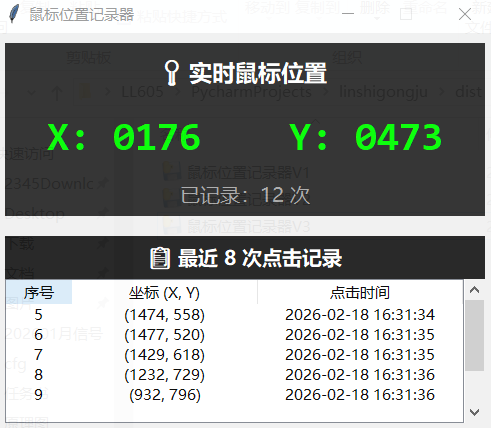
先看效果
1、exe文件界面
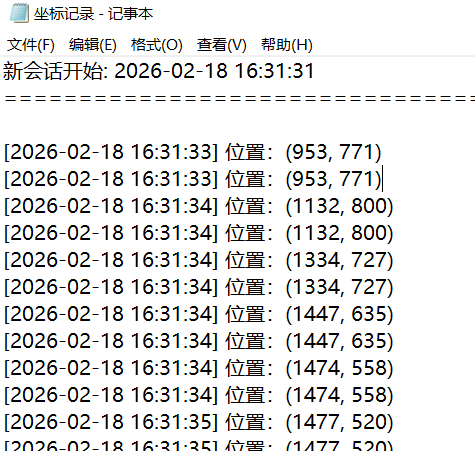
2、txt记录界面
通义千问编辑代码
不得不说通义千问太棒了,现在的程序几乎不需要调整,一遍过。
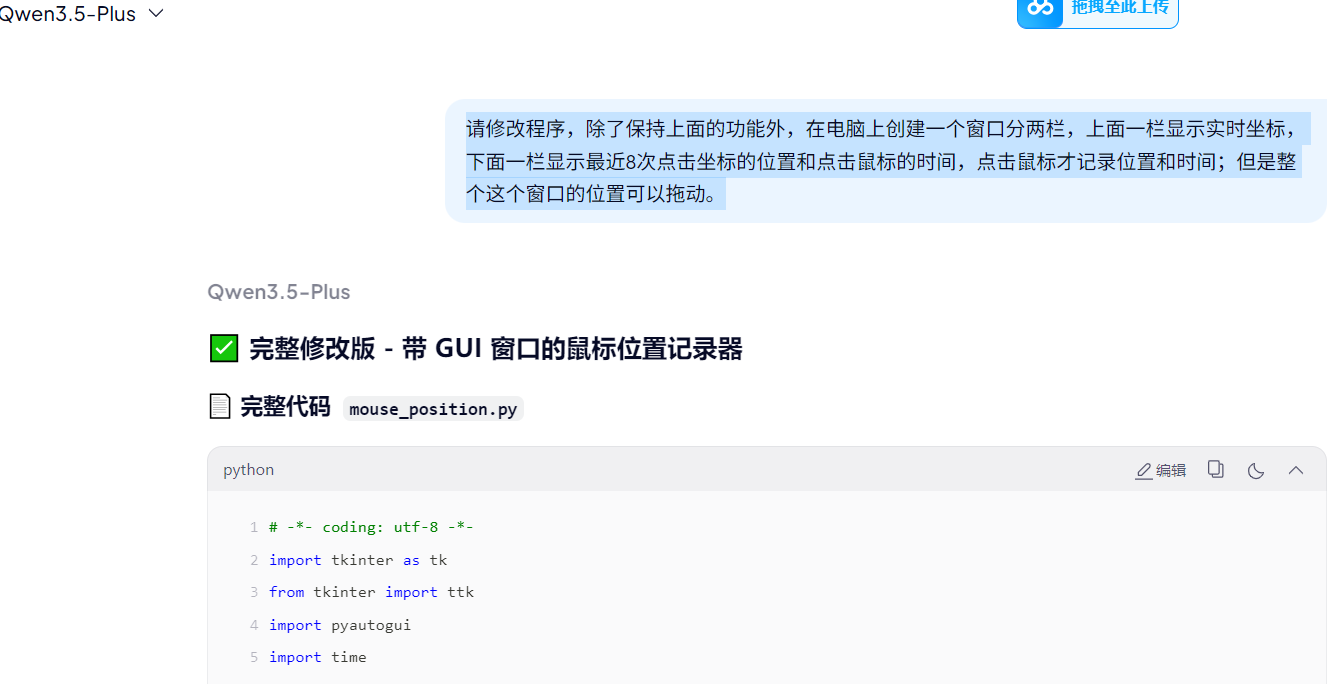
提示词如下:
1、请帮我编辑一个python程序,实现鼠标位置显示的功能,鼠标点击,记录位置信息到桌面的坐标位置.txt;鼠标点击一次,记录一下,并且记录下时间;每个时刻一行单独显示;
得到程序之后再次给出提示词优化显示;
2、请修改程序,除了保持上面的功能外,在电脑上创建一个窗口分两栏,上面一栏显示实时坐标,下面一栏显示最近8次点击坐标的位置和点击鼠标的时间,点击鼠标才记录位置和时间;但是整个这个窗口的位置可以拖动,保持窗口在最前。
下面给一下前序准备操作:
1、创建pycharm环境,环境名称:20260218NEW,并激活环境:
python
conda create -n 20260218NEW python=3.8 -y 激活环境
python
conda activate 20260218NEW2、黏贴代码并运行;报错后发现缺少库,依次安装:
pip install pyautogui
python
pip install pyautogui 如果想使用国内的地址链接,可以用如下指令:
python
pip install pyinstaller -i https://pypi.tuna.tsinghua.edu.cn/simple 效果如图:
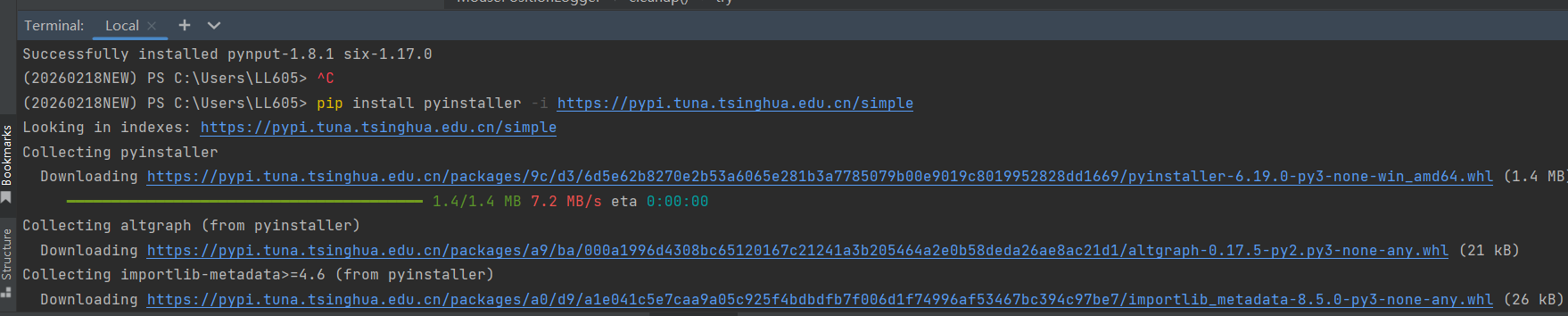
pip install pynput
python
pip install pynput安装好两个必须的库;
3、修改并完善程序,直至无误;
修改过程中的提示词界面如下:
4、完整程序如下:
最终程序
# -*- coding: utf-8 -*-
import tkinter as tk
from tkinter import ttk
import pyautogui
import time
import os
from datetime import datetime
from pynput import mouse, keyboard
from threading import Thread, Event
import ctypes


class MousePositionLogger:
    def __init__(self):
        # 获取桌面路径
        self.desktop_path = os.path.join(os.path.expanduser("~"), "Desktop")
        self.log_file_path = os.path.join(self.desktop_path, "坐标记录.txt")

        # 初始化变量
        self.current_x = 0
        self.current_y = 0
        self.record_count = 0
        self.running = True
        self.click_history = []  # 存储最近 8 次点击记录
        self.max_history = 8
        self.is_topmost = True  # 置顶状态

        # 初始化日志文件
        self.init_log_file()

        # 创建 GUI 窗口
        self.create_gui()

        # 启动鼠标监听器
        self.mouse_listener = mouse.Listener(on_click=self.on_mouse_click, on_move=self.on_mouse_move)
        self.mouse_listener.start()

        # 启动键盘监听器(按 ESC 退出)
        self.keyboard_listener = keyboard.Listener(on_press=self.on_key_press)
        self.keyboard_listener.start()

        # 启动 GUI 更新线程
        self.update_thread = Thread(target=self.update_gui_loop, daemon=True)
        self.update_thread.start()

        # 启动主窗口
        self.root.mainloop()

    def init_log_file(self):
        """初始化日志文件"""
        try:
            if not os.path.exists(self.log_file_path):
                with open(self.log_file_path, 'w', encoding='utf-8') as f:
                    f.write("=" * 50 + "\n")
                    f.write("鼠标位置记录日志\n")
                    f.write("创建时间: " + datetime.now().strftime("%Y-%m-%d %H:%M:%S") + "\n")
                    f.write("=" * 50 + "\n\n")
            else:
                with open(self.log_file_path, 'a', encoding='utf-8') as f:
                    f.write("\n" + "=" * 50 + "\n")
                    f.write("新会话开始: " + datetime.now().strftime("%Y-%m-%d %H:%M:%S") + "\n")
                    f.write("=" * 50 + "\n\n")
        except Exception as e:
            print("错误:无法创建日志文件 - " + str(e))

    def create_gui(self):
        """创建 GUI 窗口"""
        self.root = tk.Tk()
        self.root.title("鼠标位置记录器")
        self.root.geometry("500x400")
        self.root.resizable(False, False)

        # ========== 窗口始终在最前面 ==========
        self.root.attributes('-topmost', True)
        # =====================================

        # 设置窗口透明度(0.0-1.0,1.0 为不透明)
        self.root.attributes('-alpha', 0.95)

        # ========== 上栏:实时坐标显示 ==========
        self.top_frame = tk.Frame(self.root, bg='#2b2b2b', height=150)
        self.top_frame.pack(fill=tk.X, padx=10, pady=10)

        # 标题
        self.title_label = tk.Label(
            self.top_frame,
            text="📍 实时鼠标位置",
            font=('Microsoft YaHei UI', 14, 'bold'),
            bg='#2b2b2b',
            fg='#ffffff'
        )
        self.title_label.pack(pady=10)

        # 坐标显示
        self.coord_label = tk.Label(
            self.top_frame,
            text="X: 0000    Y: 0000",
            font=('Consolas', 24, 'bold'),
            bg='#2b2b2b',
            fg='#00ff00'
        )
        self.coord_label.pack(pady=10)

        # 记录计数
        self.count_label = tk.Label(
            self.top_frame,
            text="已记录:0 次",
            font=('Microsoft YaHei UI', 12),
            bg='#2b2b2b',
            fg='#aaaaaa'
        )
        self.count_label.pack(pady=5)

        # ========== 下栏:最近 8 次点击记录 ==========
        self.bottom_frame = tk.Frame(self.root, bg='#1e1e1e')
        self.bottom_frame.pack(fill=tk.BOTH, expand=True, padx=10, pady=10)

        # 标题
        self.history_title = tk.Label(
            self.bottom_frame,
            text="📋 最近 8 次点击记录",
            font=('Microsoft YaHei UI', 12, 'bold'),
            bg='#1e1e1e',
            fg='#ffffff'
        )
        self.history_title.pack(pady=5)

        # 创建表格
        columns = ('序号', '坐标', '时间')
        self.tree = ttk.Treeview(self.bottom_frame, columns=columns, show='headings', height=8)

        # 设置列标题
        self.tree.heading('序号', text='序号')
        self.tree.heading('坐标', text='坐标 (X, Y)')
        self.tree.heading('时间', text='点击时间')

        # 设置列宽
        self.tree.column('序号', width=60, anchor='center')
        self.tree.column('坐标', width=180, anchor='center')
        self.tree.column('时间', width=200, anchor='center')

        # 设置滚动条
        scrollbar = ttk.Scrollbar(self.bottom_frame, orient=tk.VERTICAL, command=self.tree.yview)
        self.tree.configure(yscrollcommand=scrollbar.set)

        # 打包表格和滚动条
        self.tree.pack(side=tk.LEFT, fill=tk.BOTH, expand=True)
        scrollbar.pack(side=tk.RIGHT, fill=tk.Y)

        # ========== 底部按钮栏 ==========
        self.button_frame = tk.Frame(self.root, bg='#1e1e1e')
        self.button_frame.pack(fill=tk.X, padx=10, pady=10)

        # 置顶切换按钮
        self.topmost_btn = tk.Button(
            self.button_frame,
            text="📌 已置顶",
            command=self.toggle_topmost,
            bg='#00cc00',
            fg='white',
            font=('Microsoft YaHei UI', 10),
            cursor='hand2',
            width=15
        )
        self.topmost_btn.pack(side=tk.LEFT, padx=5)

        # 清空记录按钮
        self.clear_btn = tk.Button(
            self.button_frame,
            text="🗑️ 清空记录",
            command=self.clear_history,
            bg='#ff4444',
            fg='white',
            font=('Microsoft YaHei UI', 10),
            cursor='hand2',
            width=15
        )
        self.clear_btn.pack(side=tk.LEFT, padx=5)

        # 打开日志文件按钮
        self.open_log_btn = tk.Button(
            self.button_frame,
            text="📂 打开日志",
            command=self.open_log_file,
            bg='#4444ff',
            fg='white',
            font=('Microsoft YaHei UI', 10),
            cursor='hand2',
            width=15
        )
        self.open_log_btn.pack(side=tk.LEFT, padx=5)

        # 退出按钮
        self.exit_btn = tk.Button(
            self.button_frame,
            text="❌ 退出程序",
            command=self.cleanup,
            bg='#444444',
            fg='white',
            font=('Microsoft YaHei UI', 10),
            cursor='hand2',
            width=15
        )
        self.exit_btn.pack(side=tk.RIGHT, padx=5)

        # 状态栏
        self.status_label = tk.Label(
            self.root,
            text="左键点击记录位置 | 按 ESC 退出 | 窗口已置顶",
            font=('Microsoft YaHei UI', 9),
            bg='#0066cc',
            fg='white',
            anchor='w'
        )
        self.status_label.pack(fill=tk.X, side=tk.BOTTOM)

    def toggle_topmost(self):
        """切换窗口置顶状态"""
        self.is_topmost = not self.is_topmost
        self.root.attributes('-topmost', self.is_topmost)

        if self.is_topmost:
            self.topmost_btn.config(text="📌 已置顶", bg='#00cc00')
            self.status_label.config(text="左键点击记录位置 | 按 ESC 退出 | 窗口已置顶")
        else:
            self.topmost_btn.config(text="📍 未置顶", bg='#ff8800')
            self.status_label.config(text="左键点击记录位置 | 按 ESC 退出 | 窗口未置顶")

    def on_mouse_move(self, x, y):
        """处理鼠标移动事件"""
        self.current_x = int(x)
        self.current_y = int(y)

    def on_mouse_click(self, x, y, button, pressed):
        """处理鼠标点击事件"""
        if pressed and button == mouse.Button.left:
            current_time = datetime.now().strftime("%Y-%m-%d %H:%M:%S")
            self.record_count += 1

            # 写入日志文件
            log_entry = "[{}] 位置:({}, {})\n".format(current_time, int(x), int(y))
            try:
                with open(self.log_file_path, 'a', encoding='utf-8') as f:
                    f.write(log_entry)
            except Exception as e:
                print("错误:无法写入日志文件 - " + str(e))

            # 添加到历史记录
            record = {
                'index': self.record_count,
                'x': int(x),
                'y': int(y),
                'time': current_time
            }
            self.click_history.append(record)

            # 保持最近 8 条
            if len(self.click_history) > self.max_history:
                self.click_history.pop(0)

            # 更新 GUI(在主线程中)
            self.root.after(0, self.update_history_table)

    def on_key_press(self, key):
        """处理键盘按键事件"""
        try:
            if key == keyboard.Key.esc:
                self.root.after(0, self.cleanup)
                return False
        except:
            pass

    def update_gui_loop(self):
        """GUI 更新循环"""
        while self.running:
            # 更新坐标显示
            try:
                self.root.after(0, self.update_coord_display)
            except:
                pass
            time.sleep(0.05)  # 50ms 刷新一次

    def update_coord_display(self):
        """更新坐标显示"""
        self.coord_label.config(text="X: {:04d}    Y: {:04d}".format(self.current_x, self.current_y))
        self.count_label.config(text="已记录:{} 次".format(self.record_count))

    def update_history_table(self):
        """更新历史记录表格"""
        # 清空表格
        for item in self.tree.get_children():
            self.tree.delete(item)

        # 添加历史记录(倒序显示,最新的在上面)
        for record in reversed(self.click_history):
            self.tree.insert('', 0, values=(
                record['index'],
                "({}, {})".format(record['x'], record['y']),
                record['time']
            ))

    def clear_history(self):
        """清空历史记录"""
        self.click_history.clear()
        for item in self.tree.get_children():
            self.tree.delete(item)
        self.record_count = 0
        self.count_label.config(text="已记录:0 次")

    def open_log_file(self):
        """打开日志文件"""
        try:
            os.startfile(self.log_file_path)
        except Exception as e:
            ctypes.windll.user32.MessageBoxW(0, "无法打开日志文件:" + str(e), "错误", 0x10)

    def cleanup(self):
        """清理资源并退出"""
        self.running = False

        try:
            self.mouse_listener.stop()
        except:
            pass
        try:
            self.keyboard_listener.stop()
        except:
            pass

        # 显示退出通知
        ctypes.windll.user32.MessageBoxW(
            0,
            "程序已退出\n本次会话共记录 {} 个位置\n日志文件:{}".format(
                self.record_count,
                self.log_file_path
            ),
            "鼠标位置记录器",
            0x40
        )

        self.root.destroy()


if __name__ == "__main__":
    try:
        # 设置 DPI 感知(高分屏支持)
        try:
            ctypes.windll.shcore.SetProcessDpiAwareness(1)
        except:
            pass

        logger = MousePositionLogger()
    except Exception as e:
        ctypes.windll.user32.MessageBoxW(0, "程序启动失败:" + str(e), "错误", 0x10)
5、打包为exe文件:
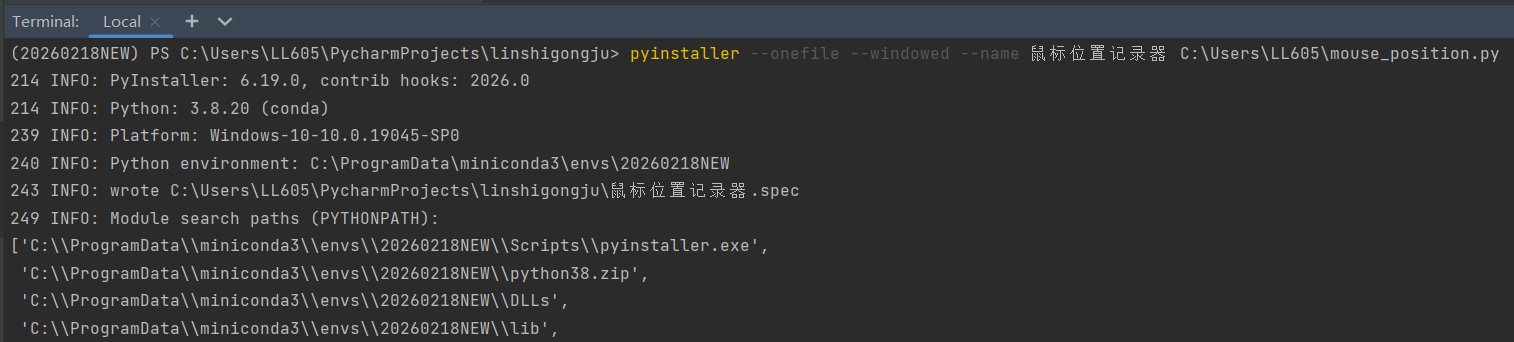
指令如下:
python
pyinstaller --onefile --windowed --name 鼠标位置记录器 C:\Users\LL605\mouse_position.py效果如下:
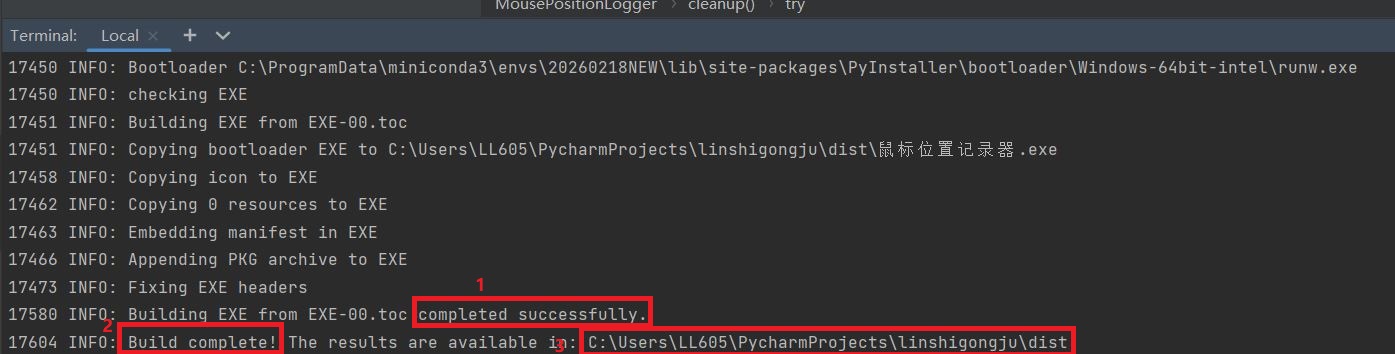
看terminal下面的指示,如图1和2表示转换完成,3表示exe的位置:
最终的文件位置,在C盘项目位置的dist下面:

最终的py文件和exe文件位置见下载地址:
添加链接描述
通过网盘分享的文件:
链接: https://pan.baidu.com/s/1skZM32aTmQMTRH8PTEqU7Q?pwd=hipc 提取码: hipc 复制这段内容后打开百度网盘手机App,操作更方便哦
--来自百度网盘超级会员v10的分享
希望大家发扬开源互助精神,其实前面我用openclaw的时候发现还是有些问题,尤其是控制操作软件,经过交流发现给他鼠标的位置告诉他点击这里,他能操作好,效果可能更好,所以就准备做一个鼠标位置指示器,结果一堆操作就是不能拿到直接的exe,还是要本地环境,实在是糟心,说实话,因为pycharm环境问题,今天折腾了3个小时才把环境及最终效果搞好!实在浪费时间。希望对大家有帮助,大家多多留言,帮我顶顶帖子,让更多需要的人看到就好啦!
%%%%请记得留言再下载哦,互帮互助哦!
%%%%请记得留言再下载哦,互帮互助哦!
%%%%请记得留言再下载哦,互帮互助哦!
也欢迎对AI自动化操控有兴趣的朋友一起交流!