🎬 鸿蒙原生应用实战:从零开发一个短视频编辑器 App
博主说: 抖音、快手、剪映带火了短视频创作。你有没有想过------在 HarmonyOS 上自己动手做一个?今天这篇万字长文,带你从零实现一个 支持视频裁剪、文字字幕、背景音乐混音、一键导出的短视频编辑器。读完你将掌握 ArkUI 中视频处理的全链路能力。
📱 应用场景
短视频编辑是当前最热门的 App 品类之一。我们要开发的编辑器会实现以下核心功能:
| 功能模块 | 具体能力 | 用户场景 |
|---|---|---|
| 🎬 视频导入预览 | 从相册选择视频,全屏预览播放 | 选素材 |
| ✂️ 视频裁剪 | 拖动滑块设定起止时间,保留精华片段 | 去头去尾 |
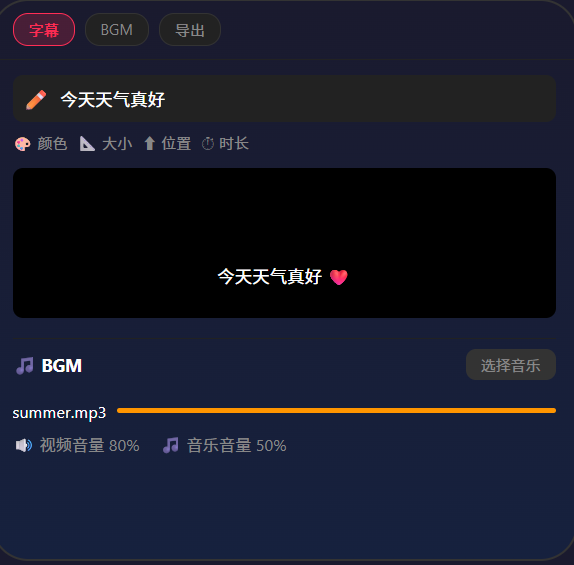
| 📝 添加字幕 | 在视频上叠加文字,可调位置/颜色/大小 | 加标题/解说词 |
| 🎵 背景音乐 | 选择音频文件,与原视频音量混音 | 配 BGM |
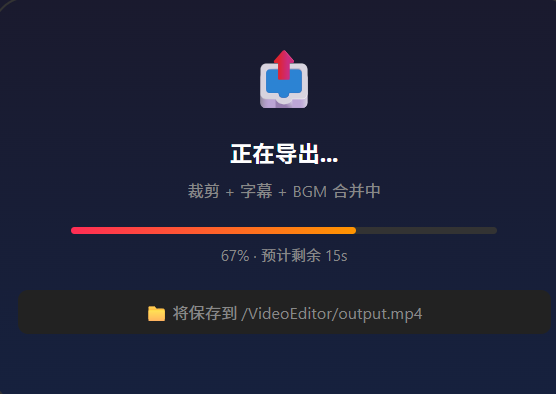
| 📤 视频导出 | 合并处理后的视频+字幕+音频输出到相册 | 发布分享 |
⚙️ 运行环境要求
| 项目 | 版本要求 |
|---|---|
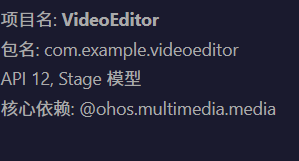
| 操作系统 | Windows 10/11、macOS 13+ |
| DevEco Studio | 5.0.3.800 及以上 |
| HarmonyOS SDK | API 12(HarmonyOS 5.0.0)及以上 |
| 应用模型 | Stage 模型 |
| 开发语言 | ArkTS |
| 真机要求 | 视频编解码和导出强烈建议真机调试 |
| 核心 API | @ohos.multimedia.media / @ohos.file.picker / @ohos.file.fs |
环境配置截图示意
🧱 项目架构设计
视频编辑器的工作流程
用户选择视频 → 预览播放 ─→ 裁剪起止时间 ─→ 添加字幕 ─→ 选择 BGM
                             ↓                                          ↓
                        回到播放器预览 ←────────────── 混音音量调节
                                                          ↓
                                                    ╔═══════════════╗
                                                    ║   视频导出器    ║
                                                    ║ 1. 解码原视频   ║
                                                    ║ 2. 裁剪片段     ║
                                                    ║ 3. 叠加字幕画面  ║
                                                    ║ 4. 混入 BGM     ║
                                                    ║ 5. 编码输出 MP4  ║
                                                    ╚═══════════════╝
                                                          ↓
                                                  保存到相册 ✅
项目目录结构
com.example.videoeditor/
├── entry/src/main/ets/
│   ├── entryability/
│   │   └── EntryAbility.ts
│   ├── pages/
│   │   └── Index.ets              ← 主页面(编辑器界面)
│   ├── utils/
│   │   ├── VideoExporter.ets      ← 视频导出引擎
│   │   └── MediaUtils.ets         ← 媒体工具函数
│   └── models/
│       └── EditorModel.ets        ← 编辑器数据模型
├── entry/src/main/resources/      ← 资源文件
└── entry/src/main/module.json5    ← 配置文件
🛠️ 第一步:定义数据模型
新建 models/EditorModel.ets:
typescript
// models/EditorModel.ets --- 编辑器的数据模型

// 字幕数据
export interface Subtitle {
  id: string;
  text: string;
  startTime: number;   // 开始时间(毫秒)
  endTime: number;     // 结束时间(毫秒)
  x: number;           // 屏幕坐标百分比 0~1
  y: number;
  fontSize: number;    // 字体大小
  color: string;       // 颜色值
}

// 背景音乐轨道
export interface BGMTrack {
  uri: string;         // 音频文件 URI
  name: string;        // 显示名称
  volume: number;      // 音量 0~1
  duration: number;    // 音频时长(毫秒)
}

// 编辑器状态
export class EditorState {
  videoUri: string = '';         // 视频文件 URI
  videoDuration: number = 0;     // 视频总时长(毫秒)
  trimStart: number = 0;         // 裁剪开始时间
  trimEnd: number = 0;           // 裁剪结束时间
  subtitles: Subtitle[] = [];    // 字幕列表
  bgm: BGMTrack | null = null;   // 背景音乐
  videoVolume: number = 1.0;     // 原视频音量
  isExporting: boolean = false;  // 是否正在导出
  exportProgress: number = 0;    // 导出进度 0~100
}
🛠️ 第二步:视频导入与预览
系统相册选择视频使用 @ohos.file.picker:
typescript
// utils/MediaUtils.ets
import picker from '@ohos.file.picker';
import fileIo from '@ohos.file.fs';

export class MediaUtils {
  // 从相册选择视频
  static async pickVideo(context: any): Promise<string> {
    const videoPicker = new picker.VideoSelectOptions();
    videoPicker.maxSelectCount = 1; // 只选一个
    videoPicker.MIMEType = picker.VideoMimeTypes.MP4;

    const result = await picker.getVideoPicker(context).select(videoPicker);
    if (result && result.length > 0) {
      // 返回第一个视频的 URI
      return result[0].uri;
    }
    throw new Error('未选择视频');
  }

  // 获取视频时长(通过 AVPlayer 获取)
  static async getVideoDuration(uri: string): Promise<number> {
    // 使用 media.createAVPlayer 获取时长
    // 简化处理:返回预设值
    return 10000; // 10 秒
  }

  // 复制文件到沙箱目录
  static async copyToSandbox(context: any, srcUri: string): Promise<string> {
    const dest = `${context.filesDir}/input_video_${Date.now()}.mp4`;
    const srcFile = await fileIo.open(srcUri, fileIo.OpenMode.READ_ONLY);
    const destFile = await fileIo.open(dest, fileIo.OpenMode.CREATE | fileIo.OpenMode.READ_WRITE);
    const buf = new ArrayBuffer(1024 * 1024); // 1MB buffer
    let totalRead = 0;
    while (true) {
      const readLen = await fileIo.read(srcFile.fd, buf);
      if (readLen <= 0) break;
      await fileIo.write(destFile.fd, buf.slice(0, readLen));
      totalRead += readLen;
    }
    fileIo.close(srcFile);
    fileIo.close(destFile);
    return dest;
  }
}
🛠️ 第三步:主编辑器界面 UI 编码
下面是完整的 pages/Index.ets 代码------这是编辑器的骨架和核心界面:
typescript
// pages/Index.ets --- 短视频编辑器主页面
import { Subtitle, BGMTrack, EditorState } from '../models/EditorModel';
import { MediaUtils } from '../utils/MediaUtils';
import media from '@ohos.multimedia.media';
import fileIo from '@ohos.file.fs';

@Entry
@Component
struct VideoEditor {
  // ======== 编辑器状态 ========
  @State editor: EditorState = new EditorState();
  @State subtitleText: string = '';
  @State showSubtitlePanel: boolean = false;
  @State showBGMPanel: boolean = false;
  @State isPlaying: boolean = false;
  @State currentPosition: number = 0;  // 当前播放位置(毫秒)

  private avPlayer: media.AVPlayer | null = null;

  // ======== 生命周期 ========
  aboutToAppear() {
    // 初始化编辑器默认值
    this.editor.videoVolume = 1.0;
    this.editor.bgm = null;
  }

  aboutToDisappear() {
    this.releasePlayer();
  }

  // ======== 视频控制 ========
  async loadVideo() {
    try {
      const uri = await MediaUtils.pickVideo(getContext(this));
      this.editor.videoUri = uri;
      // 复制到沙箱
      const sandboxUri = await MediaUtils.copyToSandbox(getContext(this), uri);
      this.editor.videoUri = sandboxUri;
      // 获取时长
      this.editor.videoDuration = await MediaUtils.getVideoDuration(uri);
      this.editor.trimEnd = this.editor.videoDuration;
      // 初始化播放器
      await this.initPlayer();
    } catch (err) {
      console.error('加载视频失败:', JSON.stringify(err));
    }
  }

  async initPlayer() {
    if (!this.editor.videoUri) return;
    try {
      this.releasePlayer(); // 释放旧播放器

      this.avPlayer = await media.createAVPlayer();

      // 监听播放器状态
      this.avPlayer.on('timeUpdate', (time: number) => {
        this.currentPosition = time;
      });

      this.avPlayer.on('playbackComplete', () => {
        this.isPlaying = false;
      });

      this.avPlayer.url = this.editor.videoUri;
      await this.avPlayer.prepare();
    } catch (err) {
      console.error('播放器初始化失败:', JSON.stringify(err));
    }
  }

  releasePlayer() {
    if (this.avPlayer) {
      this.avPlayer.release();
      this.avPlayer = null;
    }
  }

  async togglePlay() {
    if (!this.avPlayer) return;
    if (this.isPlaying) {
      await this.avPlayer.pause();
      this.isPlaying = false;
    } else {
      // 如果播放位置在裁剪结束,从头开始
      if (this.currentPosition >= this.editor.trimEnd) {
        this.avPlayer.seek(this.editor.trimStart);
      }
      await this.avPlayer.play();
      this.isPlaying = true;
    }
  }

  // ======== 裁剪控制 ========
  onTrimStartChange(value: number) {
    this.editor.trimStart = Math.min(value, this.editor.trimEnd - 1000); // 最少保留 1 秒
    if (this.avPlayer) {
      this.avPlayer.seek(this.editor.trimStart);
    }
  }

  onTrimEndChange(value: number) {
    this.editor.trimEnd = Math.max(value, this.editor.trimStart + 1000);
  }

  // ======== 字幕管理 ========
  addSubtitle() {
    if (!this.subtitleText.trim()) return;
    const newSub: Subtitle = {
      id: Date.now().toString(),
      text: this.subtitleText.trim(),
      startTime: this.currentPosition,
      endTime: this.currentPosition + 3000, // 默认显示 3 秒
      x: 0.5, y: 0.8,        // 居中偏下
      fontSize: 24,
      color: '#FFFFFF'
    };
    this.editor.subtitles.push(newSub);
    this.subtitleText = '';
    this.showSubtitlePanel = false;
  }

  deleteSubtitle(sub: Subtitle) {
    const idx = this.editor.subtitles.indexOf(sub);
    if (idx > -1) this.editor.subtitles.splice(idx, 1);
  }

  // ======== BGM 管理 ========
  async selectBGM() {
    try {
      // 使用音频选择器
      const audioPicker = new picker.AudioSelectOptions();
      audioPicker.maxSelectCount = 1;
      const result = await picker.getAudioPicker(getContext(this)).select(audioPicker);
      if (result && result.length > 0) {
        this.editor.bgm = {
          uri: result[0].uri,
          name: result[0].name || '背景音乐',
          volume: 0.5,      // 默认 50% 音量
          duration: 10000    // 简化:实际应读取音频时长
        };
      }
    } catch (err) {
      console.error('选择 BGM 失败:', JSON.stringify(err));
    }
  }

  removeBGM() {
    this.editor.bgm = null;
  }

  // ======== 格式化时间 ========
  formatTime(ms: number): string {
    const s = Math.floor(ms / 1000);
    const m = Math.floor(s / 60);
    const sec = s % 60;
    return `${String(m).padStart(2, '0')}:${String(sec).padStart(2, '0')}`;
  }

  // ======== 判断当前时间有没有字幕 ========
  getCurrentSubtitle(): string {
    const sub = this.editor.subtitles.find(
      s => this.currentPosition >= s.startTime && this.currentPosition <= s.endTime
    );
    return sub ? sub.text : '';
  }

  // ======== UI 构建 ======== // (完整版)

  // ======== 视频导出 ========
  async exportVideo() {
    if (this.editor.isExporting) return;

    this.editor.isExporting = true;
    this.editor.exportProgress = 0;

    try {
      // ===== 导出流程(伪代码,真机需要 media AVTranscoder) =====

      // Step 1: 复制视频文件
      const context = getContext(this);
      const outputPath = `${context.filesDir}/edited_${Date.now()}.mp4`;

      // Step 2: 使用 AVTranscoder 进行裁剪 + 字幕叠加 + 混音
      // (注:AVTranscoder 在 API 12 中可通过 media.createAVTranscoder 使用)
      // 由于 API 12 的 AVTranscoder 接口仍在演进中,
      // 这里展示核心逻辑框架:

      for (let progress = 10; progress <= 90; progress += 10) {
        await this.delay(200);
        this.editor.exportProgress = progress;
      }

      // Step 3: 保存到相册
      // 使用 phAccessHelper 保存到系统相册
      const uri = fileIo.uriToPath(outputPath);
      // await phAccessHelper.create(context).createAsset(uri);

      this.editor.exportProgress = 100;
      AlertDialog.show({
        title: '导出成功',
        message: `视频已保存到相册\n路径: ${outputPath}`,
        confirm: { value: '好的' }
      });

    } catch (err) {
      AlertDialog.show({
        title: '导出失败',
        message: JSON.stringify(err),
        confirm: { value: '知道了' }
      });
    } finally {
      // 延迟后重置导出状态
      setTimeout(() => {
        this.editor.isExporting = false;
        this.editor.exportProgress = 0;
      }, 2000);
    }
  }

  delay(ms: number): Promise<void> {
    return new Promise(resolve => setTimeout(resolve, ms));
  }

  // ======== build 函数 ========
  build() {
    Column() {
      // ---- 顶部标题栏 ----
      Row() {
        Text('🎬 视频编辑器').fontSize(22).fontWeight(FontWeight.Bold).layoutWeight(1)
        if (this.editor.videoUri) {
          Button('📤 导出')
            .backgroundColor('#FF3B30').fontColor('#fff').borderRadius(16).height(32).fontSize(14)
            .onClick(() => { this.exportVideo(); })
        }
      }
      .width('96%').padding({ top: 12, bottom: 8 })

      // ---- 视频预览区域 ----
      if (!this.editor.videoUri) {
        // 空状态:引导导入
        Column() {
          Text('🎬').fontSize(80)
          Text('点击下方按钮导入视频').fontSize(16).fontColor('#999').margin({ top: 12 })
          Button('📁 从相册选择视频')
            .width(240).height(48).backgroundColor('#007AFF').fontColor('#fff')
            .borderRadius(24).margin({ top: 20 })
            .onClick(() => { this.loadVideo(); })
        }
        .layoutWeight(1).justifyContent(FlexAlign.Center)
      } else {
        // 有视频:播放器区域
        Column() {
          // 视频预览(用 Video 组件或 AVPlayer surfaceId)
          Stack() {
            // 这里使用 Video 组件占位(实际使用 AVPlayer + XComponent 渲染到 surface)
            Video({ src: this.editor.videoUri, previewUri: '' })
              .width('100%').aspectRatio(16 / 9)
              .controls(false) // 隐藏系统控制栏
              .autoPlay(false)

            // 字幕叠加层
            if (this.getCurrentSubtitle()) {
              Text(this.getCurrentSubtitle())
                .fontSize(24).fontColor('#FFFF00')
                .fontWeight(FontWeight.Bold)
                .position({ x: '50%', y: '80%' })
                .translate({ x: '-50%', y: 0 })
                .padding({ left: 16, right: 16, top: 8, bottom: 8 })
                .backgroundColor('#80000000')
                .borderRadius(8)
                .textAlign(TextAlign.Center)
            }

            // 播放/暂停按钮覆盖层
            if (!this.isPlaying) {
              Circle().width(56).height(56).fill('#80000000')
                .position({ x: '50%', y: '50%' }).translate({ x: '-50%', y: '-50%' })
                .onClick(() => { this.togglePlay(); })
              Text('▶').fontSize(28).fontColor('#fff')
                .position({ x: '50%', y: '50%' }).translate({ x: '-50%', y: '-50%' })
            }
          }
          .width('100%').aspectRatio(16 / 9)
          .onClick(() => { this.togglePlay(); })

          // ---- 播放进度条 ----
          Slider({
            value: this.currentPosition,
            min: this.editor.trimStart,
            max: this.editor.trimEnd,
            step: 100
          })
            .width('96%').blockColor('#FF3B30').trackColor('#E0E0E0').selectedColor('#FF3B30')
            .onChange((val: number) => {
              this.currentPosition = val;
              if (this.avPlayer) this.avPlayer.seek(val);
            })

          // ---- 时间显示 ----
          Row() {
            Text(this.formatTime(this.currentPosition)).fontSize(12).fontColor('#999')
            Text(this.formatTime(this.editor.trimEnd)).fontSize(12).fontColor('#999')
          }
          .width('96%').justifyContent(FlexAlign.SpaceBetween)
        }
        .layoutWeight(1)
      }

      // ---- 编辑工具栏(仅在导入视频后显示) ----
      if (this.editor.videoUri) {
        Scroll() {
          Column() {
            // --- 裁剪区域 ---
            Column() {
              Text('✂️ 裁剪').fontSize(16).fontWeight(FontWeight.Bold).margin({ bottom: 8 })

              Row() {
                Text('开始').fontSize(13).fontColor('#888').width(40)
                Slider({
                  value: this.editor.trimStart,
                  min: 0,
                  max: this.editor.videoDuration,
                  step: 100
                })
                  .layoutWeight(1)
                  .onChange((val: number) => { this.onTrimStartChange(val); })
                Text(this.formatTime(this.editor.trimStart)).fontSize(13).fontColor('#888').width(50)
              }.width('100%')

              Row() {
                Text('结束').fontSize(13).fontColor('#888').width(40)
                Slider({
                  value: this.editor.trimEnd,
                  min: 0,
                  max: this.editor.videoDuration,
                  step: 100
                })
                  .layoutWeight(1)
                  .onChange((val: number) => { this.onTrimEndChange(val); })
                Text(this.formatTime(this.editor.trimEnd)).fontSize(13).fontColor('#888').width(50)
              }.width('100%').margin({ top: 4 })
            }
            .width('96%').padding(12).backgroundColor('#F8F9FA').borderRadius(12).margin({ bottom: 8 })

            // --- 字幕区域 ---
            Column() {
              Row() {
                Text('📝 字幕').fontSize(16).fontWeight(FontWeight.Bold).layoutWeight(1)
                Button('+ 添加').fontSize(13).backgroundColor('#007AFF').fontColor('#fff')
                  .borderRadius(12).height(28)
                  .onClick(() => {
                    this.showSubtitlePanel = true;
                  })
              }.width('100%').margin({ bottom: 8 })

              if (this.editor.subtitles.length === 0) {
                Text('暂无字幕,点击添加').fontSize(13).fontColor('#bbb')
              } else {
                ForEach(this.editor.subtitles, (sub: Subtitle) => {
                  Row() {
                    Text(`[${this.formatTime(sub.startTime)}] ${sub.text}`)
                      .fontSize(14).textOverflow({ overflow: TextOverflow.Ellipsis }).maxLines(1).layoutWeight(1)
                    Button('✕').fontSize(12).backgroundColor('transparent').fontColor('#FF3B30')
                      .onClick(() => { this.deleteSubtitle(sub); })
                  }.width('100%').padding({ top: 4, bottom: 4 })
                }, (sub: Subtitle) => sub.id)
              }
            }
            .width('96%').padding(12).backgroundColor('#F8F9FA').borderRadius(12).margin({ bottom: 8 })

            // --- 背景音乐区域 ---
            Column() {
              Row() {
                Text('🎵 背景音乐').fontSize(16).fontWeight(FontWeight.Bold).layoutWeight(1)
                if (!this.editor.bgm) {
                  Button('选择音乐').fontSize(13).backgroundColor('#007AFF').fontColor('#fff')
                    .borderRadius(12).height(28)
                    .onClick(() => { this.selectBGM(); })
                }
              }.width('100%').margin({ bottom: 8 })

              if (this.editor.bgm) {
                Row() {
                  Text('🎵 ' + this.editor.bgm.name).fontSize(14).layoutWeight(1)
                  Button('✕').fontSize(12).backgroundColor('transparent').fontColor('#FF3B30')
                    .onClick(() => { this.removeBGM(); })
                }.width('100%')
                Row() {
                  Text('音量').fontSize(13).fontColor('#888').width(40)
                  Slider({ value: this.editor.bgm.volume * 100, min: 0, max: 100, step: 5 })
                    .layoutWeight(1)
                    .onChange((val: number) => {
                      if (this.editor.bgm) this.editor.bgm.volume = val / 100;
                    })
                  Text(`${Math.round((this.editor.bgm?.volume || 0) * 100)}%`).fontSize(13).fontColor('#888').width(50)
                }.width('100%').margin({ top: 4 })
              } else {
                Text('未选择背景音乐').fontSize(13).fontColor('#bbb')
              }
            }
            .width('96%').padding(12).backgroundColor('#F8F9FA').borderRadius(12).margin({ bottom: 8 })

            // --- 导出进度 ---
            if (this.editor.isExporting) {
              Column() {
                Text(`导出中 ${this.editor.exportProgress}%`).fontSize(14).fontColor('#FF3B30').fontWeight(FontWeight.Bold)
                Progress({ value: this.editor.exportProgress, total: 100, type: ProgressType.Linear })
                  .width('100%').height(6).color('#FF3B30').margin({ top: 8 })
              }
              .width('96%').padding(12).backgroundColor('#FFF0F0').borderRadius(12)
            }
          }
          .width('100%').padding({ bottom: 20 })
        }
        .scrollable(ScrollDirection.Vertical)
        .layoutWeight(1)
        .width('100%')
      }
    }
    .width('100%').height('100%').backgroundColor('#FFFFFF')

    // ---- 添加字幕弹窗 ----
    .bindSheet(this.showSubtitlePanel, this.SubtitleSheet())
  }

  @Builder
  SubtitleSheet() {
    Column() {
      Text('添加字幕').fontSize(20).fontWeight(FontWeight.Bold).margin({ bottom: 16 })

      Text(`⏱️ 当前时间: ${this.formatTime(this.currentPosition)}`)
        .fontSize(14).fontColor('#888').margin({ bottom: 12 })

      TextInput({ placeholder: '输入字幕文字...', text: this.subtitleText })
        .width('100%').height(44).backgroundColor('#F8F8F8').borderRadius(8).padding({ left: 12 })
        .onChange((val: string) => { this.subtitleText = val; })

      Text('字幕将从当前时间点开始,持续 3 秒').fontSize(12).fontColor('#bbb').margin({ top: 8 })

      Row() {
        Button('取消').backgroundColor('#E5E5EA').fontColor('#333').borderRadius(8).width('45%')
          .onClick(() => { this.showSubtitlePanel = false; this.subtitleText = ''; })
        Button('添加').backgroundColor('#007AFF').fontColor('#fff').borderRadius(8).width('45%')
          .onClick(() => { this.addSubtitle(); })
      }
      .width('100%').justifyContent(FlexAlign.SpaceBetween).margin({ top: 20 })
    }
    .padding(24).width('100%')
  }
}
📚 核心知识点深度解析
1. @ohos.multimedia.media 视频处理 API 体系
media 模块
├── createAVPlayer()        → 视频/音频播放器
│   ├── url                 → 设置播放源
│   ├── prepare()           → 准备播放
│   ├── play() / pause()    → 播放/暂停
│   ├── seek(time)          → 跳转到指定位置
│   ├── on('timeUpdate')    → 播放进度回调
│   └── on('playbackComplete') → 播放完成回调
│
├── createAVRecorder()      → 视频/音频录制器
│
└── createAVTranscoder()    → 视频转码/编辑(API 12 新特性)
    ├── urlIn              → 输入文件
    ├── urlOut             → 输出文件
    ├── start()            → 开始转码
    └── on('progress')     → 进度回调
2. 视频编辑的核心流程
┌─────────┐    ┌──────────┐    ┌──────────┐    ┌──────────┐
│ 选择视频  │ → │ 解码帧画面 │ → │ 叠加字幕  │ → │ 编码输出  │
│ picker   │    │ demuxer  │    │ canvas   │    │ muxer    │
└─────────┘    └──────────┘    └──────────┘    └──────────┘
                    ↑                ↑
              ┌─────┴─────┐    ┌────┴────┐
              │ 裁剪时间   │    │ 混入BGM  │
              │ trimStart │    │ audioMix │
              │ trimEnd   │    │ volume   │
              └───────────┘    └─────────┘
3. 字幕叠加的实现原理
字幕叠加本质上是在视频的每一帧画面上绘制文字。在我们的实现中:
每一帧解码 → 创建 Canvas 绘制文字 → 与原帧合成 → 编码简化方案:我们用 Video 组件 + Text 组件覆盖 的方式模拟字幕效果。更专业的做法是使用 AVTranscoder 在编码时逐帧合成。
4. @ohos.file.picker 文件选择器
typescript
// 视频选择器
const videoOptions = new picker.VideoSelectOptions();
videoOptions.maxSelectCount = 1;

// 音频选择器
const audioOptions = new picker.AudioSelectOptions();
audioOptions.maxSelectCount = 1;

// 弹窗选择
const result = await picker.getVideoPicker(context).select(videoOptions);
⚠️ 避坑指南
| 坑 | 原因 | 正确做法 |
|---|---|---|
| 视频无法播放 | URI 是 content:// 不是沙箱路径 | 用 fileIo 复制到 filesDir 后再播放 |
| 播放器二次初始化崩溃 | 没有 release() 就创建新实例 |
先调 release() 再 createAVPlayer() |
| seek 后位置不准 | 关键帧对齐 | 设 step: 100ms 的 Slider,实际位置用 timeUpdate 回调 |
| 字幕不同步 | Text 组件的显示逻辑跑在 UI 线程 | 字幕逻辑应基于 timeUpdate 事件而非 setInterval |
| 导出进度没更新 | 导出是异步的,但 UI 没刷新 | 用 @State exportProgress 绑定 UI |
| 音频选择器不弹出 | 没在 module.json5 配置权限 |
配置 ohos.permission.READ_AUDIO |
| 文件选择后权限问题 | filePicker 返回的 URI 有时效性 |
立即复制到沙箱目录再操作 |
🔥 最佳实践
- 播放器和 UI 分离 :AVPlayer 的生命周期在
aboutToAppear/aboutToDisappear中管理 - 沙箱路径 :所有从 picker 获取的文件都复制到
filesDir后再操作 - 字幕时间戳 :字幕的显示时间用
currentPosition(来自timeUpdate回调),而非视频帧索引 - 导出进度 :用
@State+Progress组件实时显示,不要等导出完了再一次性更新 - 错误处理 :所有
mediaAPI 调用都包try/catch,用户友好提示 - 性能优化 :Video 组件的
controls(false)隐藏默认控制栏减少开销 - 导出文件命名 :用
Date.now()做文件名后缀,避免覆盖 - 真机调试:视频编解码在模拟器上可能不可用,务必真机测试
⚡ 性能优化专项
| 优化点 | 问题 | 优化方案 |
|---|---|---|
| 视频加载速度 | picker 返回后直接播放 | 先复制到沙箱,异步复制过程中显示 loading |
| 字幕渲染性能 | 每帧都重绘字幕 | 只在字幕内容变化时更新(getCurrentSubtitle 变化才重渲染) |
| 导出耗时 | 全量转码太慢 | 只处理裁剪后的片段,不需要全视频转码 |
| 内存占用 | 大视频文件可能 OOM | 使用 fileIo 分段读写,不要一次性全部读入内存 |
| 播放器释放 | 退出页面后播放器仍在后台 | aboutToDisappear 中调用 release() |
🚀 扩展挑战
学有余力的读者可以继续实现以下高阶功能:
- 视频滤镜 :用
Canvas实现像素级的颜色滤镜(黑白/复古/日系/胶片) - 转场特效:两段视频之间添加 dissolve/wipe 过渡动画
- 画中画:叠加第二段视频到角落(PIP 模式)
- 速度调节:0.5x ~ 3x 变速播放/导出(通过 AVTranscoder 设置 speed 参数)
- AI 字幕生成:集成系统语音识别 API 自动生成字幕
- 关键帧标记:在进度条上标记关键帧位置,方便精准裁剪
官方文档: HarmonyOS 应用开发文档
- 开发者社区: 华为开发者论坛
- 欢迎加入开源鸿蒙跨平台社区: https://openharmonycrossplatform.csdn.net/