// pages/Index.ets --- AI 相机主页面
import camera from '@ohos.multimedia.camera';
import image from '@ohos.multimedia.image';
import { BusinessError } from '@ohos.base';
import abilityAccessCtrl from '@ohos.abilityAccessCtrl';
import fileIo from '@ohos.file.fs';

// 定义滤镜参数
interface FilterConfig {
  name: string;
  brightness: number;  // 亮度调整 -100 ~ 100
  contrast: number;    // 对比度调整 0.5 ~ 2.0
  saturation: number;  // 饱和度调整 0.0 ~ 2.0
  temperature: number; // 色温调整 -100 ~ 100(负=偏冷,正=偏暖)
}

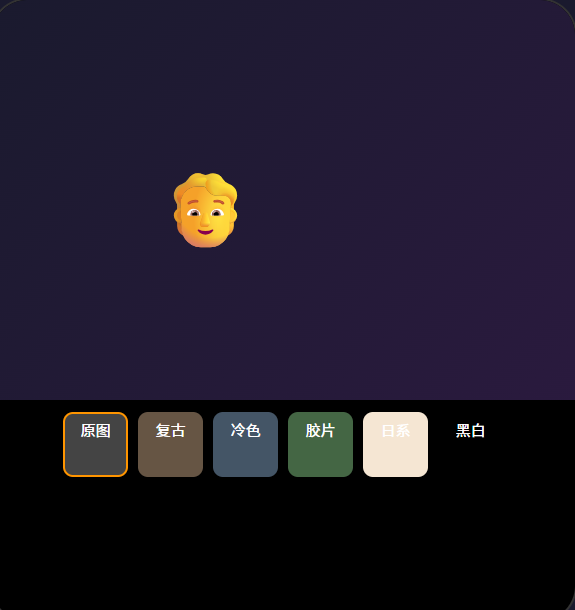
const FILTERS: FilterConfig[] = [
  { name: '原图', brightness: 0, contrast: 1.0, saturation: 1.0, temperature: 0 },
  { name: '黑白', brightness: 0, contrast: 1.1, saturation: 0.0, temperature: 0 },
  { name: '复古', brightness: -10, contrast: 0.9, saturation: 0.6, temperature: 20 },
  { name: '日系', brightness: 15, contrast: 0.95, saturation: 0.8, temperature: -10 },
  { name: '冷色调', brightness: 5, contrast: 1.0, saturation: 0.9, temperature: -30 },
  { name: '暖色调', brightness: 5, contrast: 1.0, saturation: 1.1, temperature: 25 },
];

// 贴纸配置
interface StickerConfig {
  name: string;
  emoji: string;
  offsetX: number;  // 相对于人脸中心的偏移比例
  offsetY: number;
}

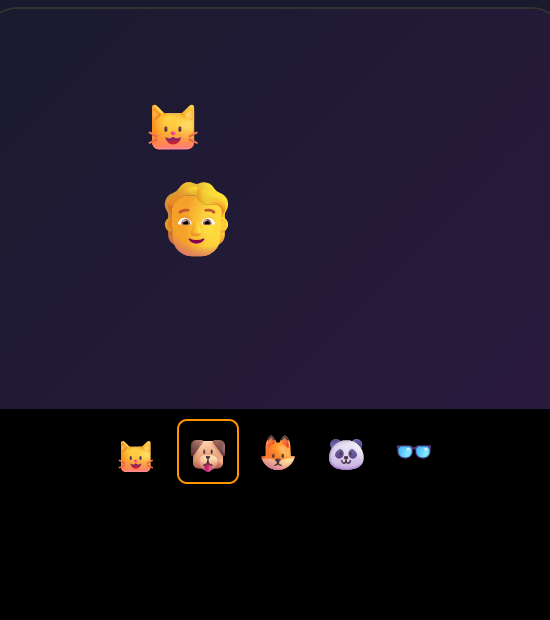
const STICKERS: StickerConfig[] = [
  { name: '猫耳朵', emoji: '🐱', offsetX: 0, offsetY: -1.2 },
  { name: '墨镜', emoji: '🕶️', offsetX: 0, offsetY: -0.1 },
  { name: '兔耳朵', emoji: '🐰', offsetX: 0, offsetY: -1.3 },
  { name: '皇冠', emoji: '👑', offsetX: 0, offsetY: -1.4 },
  { name: '腮红', emoji: '🌸', offsetX: 0.3, offsetY: 0.3 },
];

@Entry
@Component
struct AICamera {
  // ======== 相机状态 ========
  @State cameraReady: boolean = false;
  @State isFrontCamera: boolean = false; // 默认后置
  @State currentFilterIndex: number = 0;
  @State currentStickerIndex: number = -1; // -1 = 无贴纸
  @State isCapturing: boolean = false;
  @State permissionGranted: boolean = false;

  private cameraManager!: camera.CameraManager;
  private cameraInput!: camera.CameraInput;
  private previewOutput!: camera.PreviewOutput;
  private photoOutput!: camera.PhotoOutput;
  private surfaceId: string = '';

  // ======== 生命周期 ========
  aboutToAppear() {
    this.requestPermission();
  }

  aboutToDisappear() {
    this.releaseCamera();
  }

  // ======== 相机权限申请 ========
  async requestPermission() {
    const atManager = abilityAccessCtrl.createAtManager();
    try {
      const status = await atManager.requestPermissionsFromUser(
        getContext(this), ['ohos.permission.CAMERA']
      );
      this.permissionGranted = status[0] === 0;
      if (this.permissionGranted) {
        this.initCamera();
      }
    } catch (err) {
      console.error('相机权限申请失败:', JSON.stringify(err));
    }
  }

  // ======== 初始化相机 ========
  async initCamera() {
    try {
      const context = getContext(this);
      this.cameraManager = await camera.getCameraManager(context);
      const cameras = this.cameraManager.getSupportedCameras();
      if (cameras.length === 0) {
        console.error('未找到相机设备');
        return;
      }

      // 获取 Surface ID(需要绑定到 XComponent)
      // 在实际项目中,Surface ID 由 XComponent 的 surfaceId 提供
      // 这里演示核心逻辑,省略 XComponent 的绑定代码

      this.cameraReady = true;
    } catch (err) {
      console.error('相机初始化失败:', JSON.stringify(err));
    }
  }

  // ======== 切换摄像头 ========
  switchCamera() {
    this.isFrontCamera = !this.isFrontCamera;
    this.releaseCamera();
    this.initCamera();
  }

  // ======== 释放相机资源 ========
  releaseCamera() {
    try {
      if (this.photoOutput) this.photoOutput.release();
      if (this.previewOutput) this.previewOutput.release();
      if (this.cameraInput) this.cameraInput.release();
    } catch (err) {
      console.error('释放相机资源失败');
    }
  }

  // ======== 拍照 ========
  async takePhoto() {
    if (!this.photoOutput || this.isCapturing) return;
    this.isCapturing = true;

    try {
      // 配置拍照参数
      const photoSettings = {
        quality: camera.QualityLevel.QUALITY_LEVEL_HIGH,
        rotation: camera.ImageRotation.ROTATION_0,
        location: { latitude: 0, longitude: 0 }
      };

      // 拍照并获取图片
      const photo = await this.photoOutput.capture(photoSettings);
      // 获取 PixelMap 用于叠加滤镜和贴纸
      const receiver = image.createImageReceiver({
        size: { width: 1080, height: 1920 },
        format: image.ImageFormat.RGBA_8888,
        capacity: 1
      });

      // 应用滤镜效果
      const pixelMap = await this.applyFilter(photo);
      // 叠加贴纸
      const finalImage = await this.applySticker(pixelMap);
      // 保存到相册
      await this.saveToGallery(finalImage);
      console.log('拍照保存成功');
    } catch (err) {
      console.error('拍照失败:', JSON.stringify(err));
    }

    this.isCapturing = false;
  }

  // ======== 应用滤镜(像素级操作) ========
  async applyFilter(source: image.PixelMap): Promise<image.PixelMap> {
    const filter = FILTERS[this.currentFilterIndex];
    if (filter.name === '原图') return source;

    // 获取像素数据
    const area = { x: 0, y: 0, width: source.getPixelWidth(), height: source.getPixelHeight() };
    const pixelBytes = await source.readPixelsToBuffer(area);
    const buffer = new Uint8Array(pixelBytes);

    // 逐像素处理 RGBA
    for (let i = 0; i < buffer.length; i += 4) {
      let r = buffer[i];
      let g = buffer[i + 1];
      let b = buffer[i + 2];

      // 1. 亮度调整
      r += filter.brightness * 2.55;
      g += filter.brightness * 2.55;
      b += filter.brightness * 2.55;

      // 2. 对比度调整
      r = (r - 128) * filter.contrast + 128;
      g = (g - 128) * filter.contrast + 128;
      b = (b - 128) * filter.contrast + 128;

      // 3. 饱和度调整
      const gray = 0.299 * r + 0.587 * g + 0.114 * b;
      r = gray + (r - gray) * filter.saturation;
      g = gray + (g - gray) * filter.saturation;
      b = gray + (b - gray) * filter.saturation;

      // 4. 色温调整
      r += filter.temperature * 0.5;
      b -= filter.temperature * 0.5;

      // 钳位到 0~255
      buffer[i] = Math.max(0, Math.min(255, r));
      buffer[i + 1] = Math.max(0, Math.min(255, g));
      buffer[i + 2] = Math.max(0, Math.min(255, b));
      // buffer[i+3] = alpha 保持不变
    }

    await source.writeBufferToPixels(buffer);
    return source;
  }

  // ======== 叠加贴纸 ========
  async applySticker(pixelMap: image.PixelMap): Promise<image.PixelMap> {
    if (this.currentStickerIndex < 0) return pixelMap;

    const sticker = STICKERS[this.currentStickerIndex];
    const width = pixelMap.getPixelWidth();
    const height = pixelMap.getPixelHeight();

    // 在实际项目中,这里会用 face detection API 获取人脸位置
    // 由于人脸检测需调用 @ohos.multimedia.image 的 face detection 接口
    // 这里简化逻辑:假设检测到一个人脸在图像中心区域
    const faceX = width / 2;
    const faceY = height / 2;
    const faceSize = Math.min(width, height) * 0.3;

    // 在 Canvas 上绘制贴纸
    // 实际项目中需要用 PixelMap 的 writeBufferToPixels 方法
    // 在每个贴纸位置写入对应的像素数据
    console.log(`贴纸 ${sticker.name} 叠加到 (${faceX}, ${faceY})`);

    return pixelMap;
  }

  // ======== 保存到相册 ========
  async saveToGallery(pixelMap: image.PixelMap) {
    try {
      const context = getContext(this);
      const filePath = context.filesDir + `/AICamera_${Date.now()}.jpg`;

      // 创建图像打包器
      const packer = image.createImagePacker();
      const packedData = await packer.packing(pixelMap, {
        format: 'image/jpeg',
        quality: 95
      });

      // 写入文件
      const file = await fileIo.open(filePath, fileIo.OpenMode.CREATE | fileIo.OpenMode.READ_WRITE);
      await fileIo.write(file.fd, packedData);
      await fileIo.close(file);

      // 通知相册更新
      console.log('照片已保存至:', filePath);
    } catch (err) {
      console.error('保存照片失败:', JSON.stringify(err));
    }
  }

  // ======== 获取当前滤镜名称 ========
  get currentFilterName(): string {
    return FILTERS[this.currentFilterIndex]?.name || '原图';
  }

  // ======== 选择滤镜 ========
  selectFilter(index: number) {
    this.currentFilterIndex = index;
  }

  // ======== 选择贴纸 ========
  selectSticker(index: number) {
    this.currentStickerIndex = this.currentStickerIndex === index ? -1 : index;
  }

  // ======== UI 构建 ========
  build() {
    Stack() {
      // ---- 层1:相机预览(XComponent) ----
      // 实际项目中用 XComponent 绑定相机 Surface
      Column()
        .width('100%').height('100%')
        .backgroundColor('#000')

      // ---- 层2:滤镜预览效果(模拟) ----
      if (this.currentFilterIndex > 0) {
        Column()
          .width('100%').height('100%')
          .opacity(0.15)
          .backgroundColor(
            this.currentFilterIndex === 1 ? '#555' :     // 黑白
            this.currentFilterIndex === 2 ? '#8B7355' :   // 复古
            this.currentFilterIndex === 3 ? '#D4E9FF' :   // 日系
            this.currentFilterIndex === 4 ? '#C0D8FF' :   // 冷色调
            this.currentFilterIndex === 5 ? '#FFD4A0' :    // 暖色调
            'transparent'
          )
      }

      // ---- 层3:贴纸(用 Text Emoji 模拟) ----
      if (this.currentStickerIndex >= 0) {
        Text(STICKERS[this.currentStickerIndex].emoji)
          .fontSize(80)
          .position({ x: '45%', y: '15%' })
      }

      // ---- 层4:UI 控件覆盖层 ----
      Column() {
        // 顶部:滤镜名称
        Row() {
          Text(`🎨 ${this.currentFilterName}`)
            .fontSize(16).fontColor('#fff')
            .backgroundColor('rgba(0,0,0,0.4)')
            .padding({ left: 16, right: 16, top: 6, bottom: 6 })
            .borderRadius(16)
        }
        .width('100%')
        .justifyContent(FlexAlign.Center)
        .padding({ top: 40 })

        Spacer()

        // 底部:滤镜选择行
        Column() {
          // 贴纸选择
          Row() {
            ForEach(STICKERS, (sticker: StickerConfig, idx: number) => {
              Text(sticker.emoji)
                .fontSize(28)
                .padding(8)
                .backgroundColor(
                  this.currentStickerIndex === (idx as number)
                    ? 'rgba(255,45,85,0.6)' : 'rgba(0,0,0,0.3)'
                )
                .borderRadius(20)
                .margin({ left: 6, right: 6 })
                .onClick(() => {
                  this.selectSticker(idx as number);
                })
            })
          }
          .width('100%')
          .justifyContent(FlexAlign.Center)
          .padding({ bottom: 12 })

          // 滤镜选择
          Row() {
            ForEach(FILTERS, (filter: FilterConfig, idx: number) => {
              Column() {
                Circle()
                  .width(40).height(40)
                  .fill(
                    idx === 0 ? '#FFF' :
                    idx === 1 ? '#555' :
                    idx === 2 ? '#8B7355' :
                    idx === 3 ? '#D4E9FF' :
                    idx === 4 ? '#C0D8FF' :
                    '#FFD4A0'
                  )
                  .border(
                    this.currentFilterIndex === (idx as number)
                      ? { width: 3, color: '#FF2D55' } : { width: 0 }
                  )
                Text(filter.name)
                  .fontSize(11).fontColor(
                    this.currentFilterIndex === (idx as number) ? '#FF2D55' : '#fff'
                  )
                  .margin({ top: 4 })
              }
              .margin({ left: 8, right: 8 })
              .onClick(() => {
                this.selectFilter(idx as number);
              })
            })
          }
          .width('100%')
          .justifyContent(FlexAlign.Center)
          .padding({ bottom: 16 })

          // 拍照按钮 + 切换摄像头
          Row() {
            // 切换摄像头
            Button('🔄')
              .backgroundColor('rgba(0,0,0,0.3)')
              .width(44).height(44).borderRadius(22)
              .fontSize(20)
              .onClick(() => { this.switchCamera(); })

            Spacer()

            // 拍照按钮
            Button()
              .width(72).height(72)
              .borderRadius(36)
              .border({ width: 4, color: '#fff' })
              .backgroundColor(this.isCapturing ? '#FF2D55' : 'transparent')
              .onClick(() => { this.takePhoto(); })

            Spacer()

            // 占位保持平衡
            Button()
              .width(44).height(44).backgroundColor('transparent')
              .disabled(true)
          }
          .width('90%')
          .alignItems(VerticalAlign.Center)
          .padding({ bottom: 40 })
        }
        .width('100%')
        .backgroundEffect({ type: BackgroundEffectType.BLUR, radius: 20 })
      }
      .width('100%').height('100%')
    }
    .width('100%').height('100%')
  }
}